Best Video Editing Software for Beginners: 10 Picks by Need (2026)
CapCut, iMovie, Clipchamp, DaVinci Resolve and six more beginner video editors compared by price, device and learning curve, plus what to use if you'd rather not edit at all.
On this page
The best video editing software for beginners is CapCut for free, easy editing on phone and desktop, iMovie if you use a Mac or iPhone, and DaVinci Resolve if you want free pro tools you can grow into. If you'd rather not edit at all, an AI generator like Revid builds the video for you.
The most common beginner mistake is picking the most powerful editor instead of the one that matches the videos you make. DaVinci Resolve is free and used on feature films, but someone posting TikToks who needs captions and trend templates will finish faster in CapCut. You learn editing by finishing videos, so choose the tool that gets you to a first export this week.
Quick picks: which beginner editor fits you
| Tool | Price for beginners | Runs on | Learning curve | Best for |
|---|---|---|---|---|
| CapCut | Free tier; paid from about $9.99/month | iPhone, Android, Windows, Mac, web | Easy | TikTok, Reels and Shorts |
| iMovie | Free | Mac, iPhone, iPad | Easiest | Apple users, simple vlogs |
| Microsoft Clipchamp | Free plan; paid plans | Windows, browser | Easy | Free desktop editing on Windows |
| DaVinci Resolve | Free; paid Studio version | Windows, Mac, Linux | Steep | Learning pro skills for free |
| Filmora | Free with watermark; paid plans | Windows, Mac, mobile | Easy to moderate | YouTube videos with effects |
| Adobe Premiere Elements | 3-year term license | Windows, Mac | Easy (guided) | Step-by-step learners |
| Canva | Free plan; Pro from €110/year | Browser, desktop, mobile | Easiest | Branded promos and template videos |
| Shotcut | Free, open source | Windows, Mac, Linux | Moderate | Free desktop editing on any OS |
| VSDC Free Video Editor | Free; paid Pro version | Windows only | Moderate | Free effects on a Windows PC |
| Revid | Free sign-up with free credits; plans from $39/month | Browser | Easiest (AI does the edit) | Short videos without manual editing |
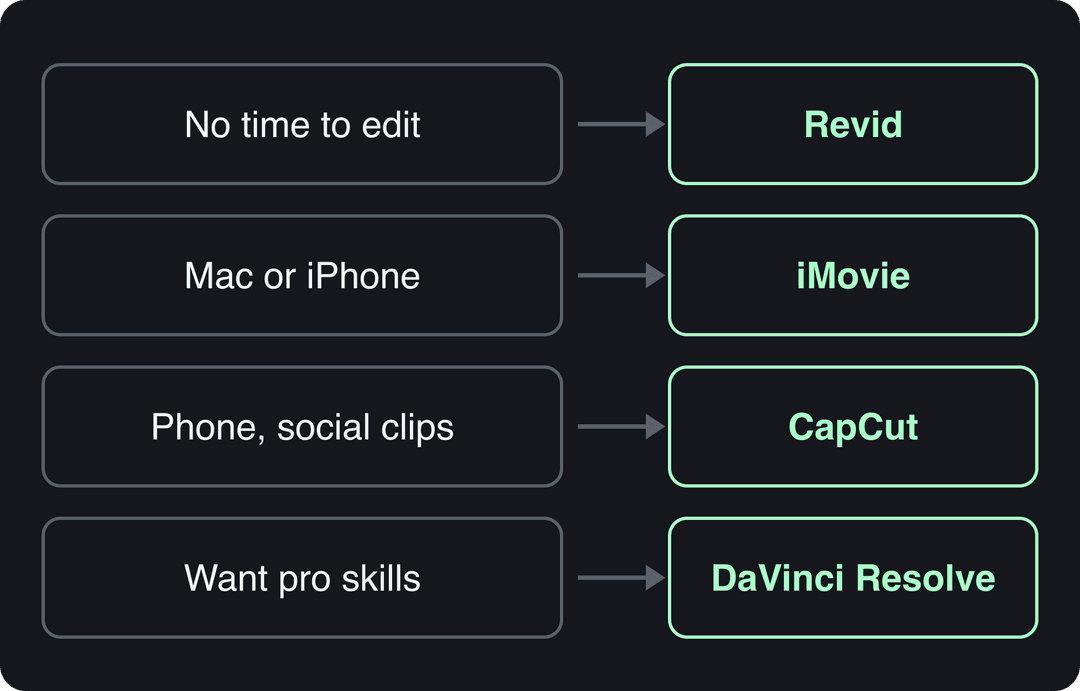
Use these decision rules if you are still unsure:
- If you post vertical video from your phone, start with CapCut.
- If you own a Mac or iPhone and make vlogs or family videos, start with iMovie.
- If you edit on a Windows laptop and want free, simple and watermark-free, start with Clipchamp.
- If you want editing as a long-term skill (color, audio, effects), start with DaVinci Resolve and accept a slower start.
- If your video is really a design asset (a promo, an announcement, a quote video), use Canva.
- If you want the software to walk you through each task, pick Premiere Elements.
- If you want lots of free effects on a desktop with no watermark, try Shotcut or VSDC.
- If you have no time to edit, generate the video with Revid.
How to choose video editing software as a beginner
Four questions settle it faster than any feature list.
- What device will you edit on? Phone-first creators need CapCut or iMovie. Clipchamp and VSDC suit Windows, and iMovie is Apple-only.
- What shape are your videos? Short vertical clips for TikTok, Reels and Shorts favor CapCut and Revid. Long horizontal YouTube videos favor DaVinci Resolve, Filmora or Premiere Elements.
- Can you live with a watermark? Filmora's free version adds one. iMovie, DaVinci Resolve, Shotcut, VSDC and Clipchamp's free plan export clean files.
- How do you learn? If you like guided steps, choose Premiere Elements. If you like templates, choose CapCut or Canva. If you like structured courses, choose DaVinci Resolve, which has free official training.
The 10 best video editors for beginners
1. CapCut: easiest free editor for social video
CapCut is a free editor for phones, desktop and the browser, built around short vertical video. The free tier includes the full editor, 1080p export and auto-captions. Its trend templates drop your clips into formats already circulating, and it connects to TikTok more tightly than any other editor. Premium templates and effects, and most AI features, need a paid plan (Standard costs about $9.99/month).
- Best for: TikTok, Reels and Shorts made on a phone.
- Watch out for: long or complex projects, and a busy interface full of Pro badges. Color and keyframe controls are thinner than in DaVinci Resolve.
- First project: pick a trend template, swap in your own clips, then turn on auto-captions.
2. iMovie: easiest editor for Mac and iPhone
iMovie is Apple's free editor for Mac, iPhone and iPad. You drag clips onto a timeline, trim and split them, then add transitions, titles, filters and music. Trailer templates and themes give you a finished structure on day one, and green screen effects are built in. Exports carry no watermark, and the short list of options is a strength: there is not enough to get lost in.
- Best for: Apple users making vlogs, family videos and simple product demos.
- Watch out for: fewer effects and export options than paid editors, no version for Windows or Android, and project formats that lean toward horizontal video. Export a test before you build a vertical Reels workflow on it.
- First project: build a trailer template with your own clips to learn the timeline in one sitting.
When you outgrow it, this roundup of Final Cut Pro alternatives compares the Mac editors you can move to next.
3. Microsoft Clipchamp: easiest free editor on Windows
Clipchamp is Microsoft's editor, built into Windows and available in any browser. Its free plan exports 1080p video without a watermark and includes a clean timeline, auto captions, AI voice-overs, basic trim, crop and resize tools, and a screen and webcam recorder. It asks for almost no settings before you start.
- Best for: school projects, screen recordings, and simple YouTube or small-business videos on a Windows laptop.
- Watch out for: Microsoft discontinued the Clipchamp iOS app in June 2026, so treat it as a desktop and browser editor. Effects and templates are simpler than CapCut's.
- First project: record your screen, cut the dead air, add captions and export in 1080p.
4. DaVinci Resolve: free pro tools you can grow into
DaVinci Resolve is a professional editing, color grading, visual effects (Fusion) and audio (Fairlight) suite with a free version that exports without a watermark. The paid Studio version adds advanced tools such as extra noise reduction and HDR grading. You can stay on it for years without switching software.
- Best for: beginners who want editing as a real skill, and YouTube creators planning long videos.
- Watch out for: the steepest learning curve on this list and heavy hardware needs. Plan on 16 GB of RAM and a dedicated graphics card.
- First project: follow Blackmagic Design's free training and stay on the Cut page until you are comfortable. Only then open the Color, Fusion and Fairlight pages.
5. Filmora: easy effects for YouTube videos
Filmora by Wondershare sits between iMovie and DaVinci Resolve. It has a drag-and-drop timeline, a large library of effects, transitions, titles and stock music, and auto reframe to resize one video for YouTube, Instagram and TikTok. Audio ducking lowers background music under your voice automatically, and keyframes give you finer control as you improve.
- Best for: YouTube beginners who want polished intros, titles and effects without a steep curve.
- Watch out for: the watermark on free exports, premium-only features, and slow performance on older computers. Check Wondershare's site for current plans.
- First project: start from a template, then replace one element at a time to learn the tools.
6. Adobe Premiere Elements: guided edits for step-by-step learners
Adobe Premiere Elements is the consumer version of Premiere Pro for Windows and Mac. Quick, Guided and Advanced modes let you work at your own pace, and Guided Edits walk you through a technique one step at a time while producing a real result. Adobe now sells it as a 3-year term license, not a monthly subscription and not a lifetime purchase, so check the current price on Adobe's page.
- Best for: beginners who want hand-holding and a familiar path toward Premiere Pro.
- Watch out for: a higher upfront cost than free editors, a license that expires after three years, and far fewer features than Premiere Pro.
- First project: run one guided edit end to end, then repeat the same steps by hand.
7. Canva: easiest for branded and template videos
Canva's video editor feels more like building slides than cutting film: you think in scenes (cover, point, example, call to action), swap in clips, text and brand colors, and export. The free plan includes 1.6 million+ templates and a small AI allowance (up to 20 uses). Pro starts at €110/year and adds premium assets and short Veo 3 clips with synced audio inside your designs.
- Best for: promos, product announcements, quote videos and Reels that must match a brand kit.
- Watch out for: imprecise cutting, limited audio control and no real multi-layer editing.
- First project: open a vertical video template, replace each scene, then add your logo.
8. Shotcut: free and open source on every desktop
Shotcut is a free, open-source editor for Windows, Mac and Linux with no watermark or feature limits. It opens hundreds of audio and video formats and edits through non-destructive filters, so your original footage stays untouched. You also get a multi-track timeline, keyframes and hardware-accelerated encoding.
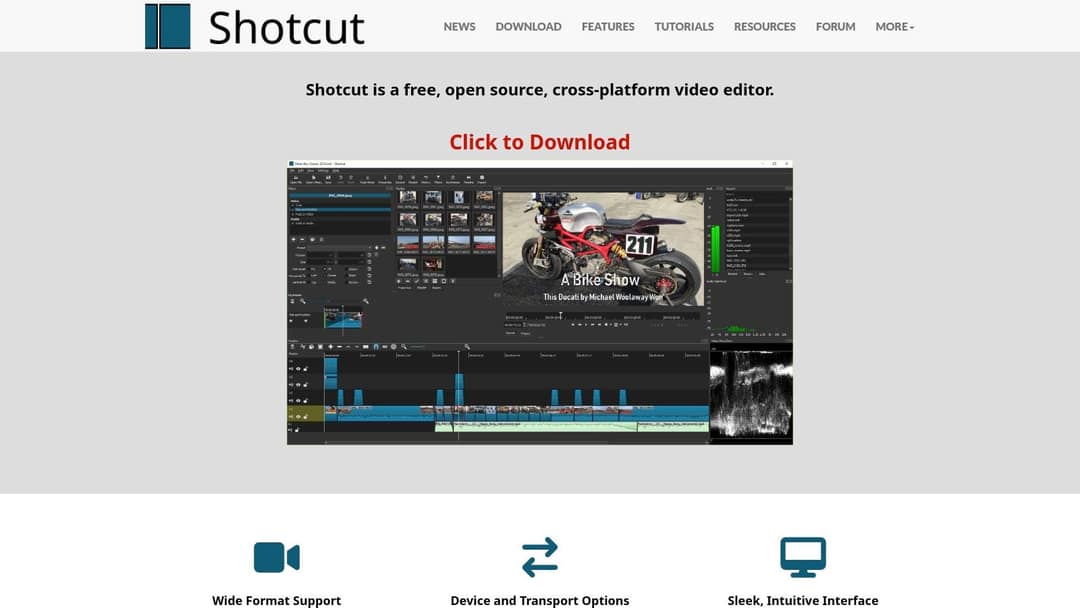
- Best for: beginners who want a free desktop editor on any operating system.
- Watch out for: a less polished interface and few templates or presets.
- First project: use the tutorials on Shotcut's site to cut a short clip and add one filter and one title.
9. VSDC Free Video Editor: free power for Windows PCs
VSDC Free Video Editor is a Windows-only, non-linear editor: you can place clips, images and text anywhere on the timeline and move each one on its own. The free version exports without a watermark, handles 4K, and includes masking, blending modes, color correction, stabilization and screen capture. Hardware acceleration and some advanced tools need the paid Pro version.
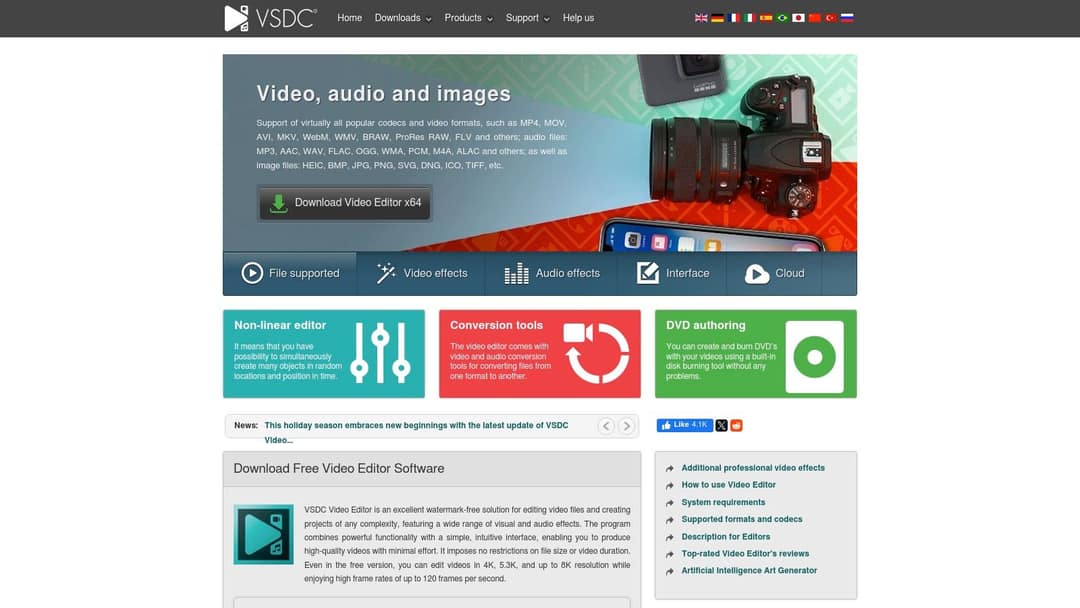
- Best for: Windows users who want many effects for free, including tutorial and gameplay creators who need screen recording.
- Watch out for: a dense interface that overwhelms complete beginners.
- First project: stick to cutting, titles and color correction before you touch masks.
10. Revid: best if you don't have time to edit
Revid is an AI video platform rather than a classic editor. You give it an idea, a script or a link, and it writes the script and builds the visuals scene by scene: stock footage, AI images or AI video from Seedance 2.5, MiniMax Hailuo H3, Wan 3.0 and Google Veo 3. It adds a voice-over in 70+ languages, synced captions and music, then lets you fix any scene in a timeline editor. It can also start from a library of about 2.77 million real short-form videos with engagement data, so you reuse a proven structure instead of facing a blank page.
- Open the AI video generator and paste an idea, a script or a link (a blog post, a YouTube video, a Reddit thread).
- Choose a visual style and an AI voice. Captions are added and synced automatically.
- Review the scenes in the timeline editor and swap any visual, line or music cue.
- Export in 720p, 1080p or 4K, or publish and schedule straight to TikTok, Instagram and YouTube.
If you already film yourself talking, Revid's auto edit tool takes the recording or a link and returns it edited, with your key lines turned into motion graphics.
Sign-up is free and new accounts get free credits to try it, no credit card needed. Regular creation uses monthly credits from a paid plan: Growth at $39/month (2,000 credits), Elite at $89/month (5,000 credits, adds voice cloning) and Ultra at $199/month (12,000 credits); yearly billing lowers them to $32, $74 and $166 a month. The Revid pricing page has the live list. Revid is not built for cutting your own footage by hand. For that, a classic editor fits better, as the Revid vs CapCut comparison explains.
Prompt to try
Make a 30-second vertical video titled '3 editing mistakes every beginner makes'. Open with the hook 'Your first video looks amateur for one reason', then cover jump cuts, loud music under your voice and missing captions. Use clean stock footage, an upbeat friendly voice and bold captions.
Which AI video editor is best for beginners?
The answer depends on which kind of AI you mean.
- AI inside a classic editor: CapCut's auto-captions, Clipchamp's AI voice-overs and Filmora's auto reframe handle chores while you still do the editing. Pick CapCut if you want to learn editing and get AI help along the way.
- AI that edits your footage: an auto-edit tool cuts a talking video and adds graphics for you. Pick this if you film but hate the timeline.
- AI that makes the whole video: Revid's generator builds a finished short video from text or a link. This is the version where you pick a style and the tool does the rest. Pick it if you have no footage and no time.
If you want an AI video editor that works for beginners and still leaves room for professional work, combine the two: generate short-form videos with AI, and learn DaVinci Resolve for projects that need frame-level control.
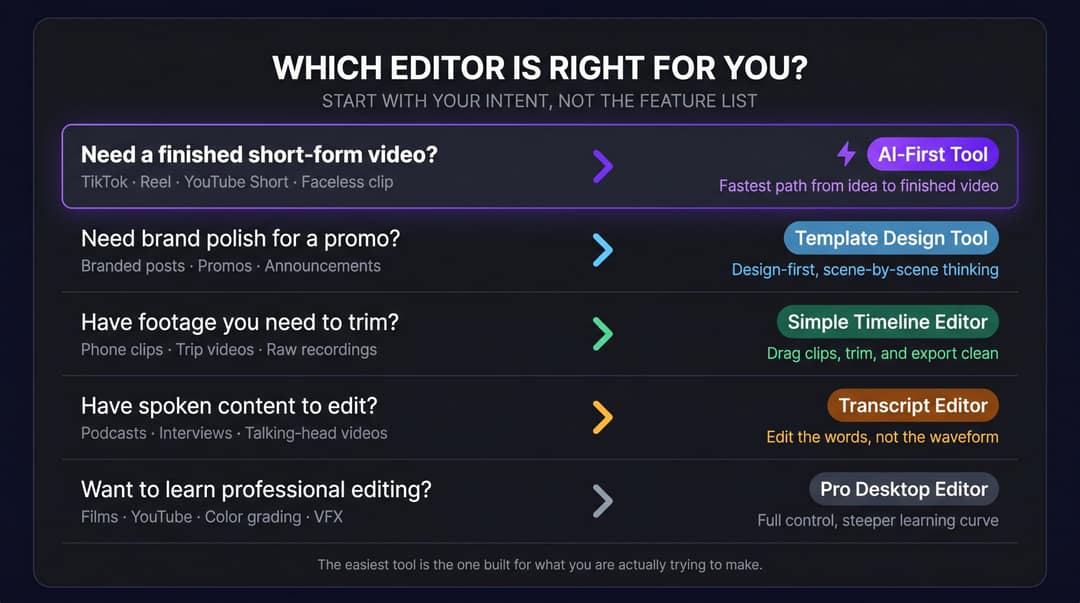
Best beginner editor for what you make
| What you make | Start with | Why |
|---|---|---|
| TikToks, Reels and Shorts from footage you filmed | CapCut | Trend templates, auto-captions, vertical by default |
| Short videos from an idea, a script or a link | Revid | Writes, voices, captions and assembles the video |
| Vlogs and family videos on Apple devices | iMovie | Free, simple, trailer templates |
| Long YouTube videos | DaVinci Resolve or Filmora | Room to grow, or ready-made titles and effects |
| Branded promos and announcements | Canva | Templates and brand kits |
| Podcasts, interviews and talking heads | Descript or VEED | Edit by transcript, or captions and cleanup in the browser |
| Onboarding videos, tutorials and software demos | Camtasia, or Clipchamp to start free | Screen recording and editing in one app |
| Corporate training with a fixed presenter | Synthesia | A dedicated avatar presenter platform |
Other beginner-friendly editors worth knowing
- Descript: you edit the video by editing its transcript, which is easier than cutting clips when the video is mostly speech. The free plan gives 60 media minutes a month with 720p export; paid plans start at $24/month ($16/month billed annually) and remove the watermark.
- VEED: a browser editor known for auto-subtitles, translation and cleaning up talking-head clips. Free exports are 720p with a watermark; paid plans start at roughly $10 to $24 a month.
- Adobe Express: Adobe's browser tool for quick social videos and templates, much simpler than Premiere Pro, with a free plan. Check Adobe's pricing page for paid tiers.
- CyberLink PowerDirector: a desktop editor with many effects and templates for creators not ready for DaVinci Resolve. Its AI tools run on credits and the free version has real limits.
- Camtasia: screen and webcam recording plus editing, callouts and annotations, built for tutorials and onboarding content. It costs more upfront than most editors here, so try the free trial first.
- Final Cut Pro: Apple's pro editor and the natural step up from iMovie. Its magnetic timeline stops clips from colliding, and Apple offers a free trial before the one-time purchase.
- Pictory: turns articles, scripts and webinars into stock-footage videos. It has a free trial but no permanent free tier, and paid plans start at $29/month.
If what you really want to make is animation rather than edited footage, Creativize's guide to the best animation software for beginners covers tools built for that.
Best beginner video editing software for Windows PC and Mac
- Windows PC: Clipchamp for free and simple, CapCut desktop for social clips, DaVinci Resolve for depth, Shotcut or VSDC for free effects with no watermark, and Filmora or Premiere Elements if you want a paid, guided editor.
- Mac: iMovie first, then CapCut, DaVinci Resolve, Filmora, Premiere Elements or Shotcut. VSDC does not run on Mac.
- Chromebook or any browser: CapCut's online editor, Clipchamp, Canva or Revid.
- YouTube beginners: long horizontal videos suit DaVinci Resolve or Filmora. This guide to editing YouTube videos walks through a full first edit.
Which beginner video editors have automatic captions?
CapCut generates captions automatically on its free tier, and its Pro plan adds speaker-identified captions. Clipchamp's free plan includes auto captions, and VEED and Descript build their whole workflow around transcripts and subtitles. Revid adds synced captions to every video it makes, with 30 caption styles and automatic captions in 100+ languages, and its caption generator also works on videos you edited elsewhere. In iMovie you type captions by hand as title overlays.
If captions matter more than editing (many short-form viewers watch on mute), pair any editor on this list with a dedicated caption tool rather than switching editors.
Set up your first edit
- Put every clip, music file and voice-over in one project folder before you open the editor. Moving files later breaks links in most desktop editors.
- Match the project to the platform: 9:16 at 1080x1920 for TikTok, Reels and Shorts (TikTok's recommended size), and 16:9 for YouTube.
- Record narration separately and drop it on its own track, so you can fix levels without touching the picture.
- Export a short test clip before you edit for hours, to check the watermark, the framing and the quality.
If you edit from home, the roundup of remote work tools from Remote First Jobs covers apps for organizing files and focus time around your editing sessions. Once your software is installed, these video editing tips for beginners turn raw footage into a clean first cut. Editing mostly for social platforms? See our picks of video editing software for social media. And once you publish every week, Monetized Profiles has a practical guide to speeding up your YouTube production workflow.
Prompt to try
Create a 40-second YouTube Short on 'How to set up your first video edit in 4 steps'. Hook: 'Do this before you open any editor'. Cover one project folder, the right aspect ratio, narration on its own track and a test export. Use motion graphics, a calm clear voice and synced captions.
FAQ
What is the easiest video editing software for beginners?
iMovie is the easiest if you use a Mac or iPhone, Clipchamp on a Windows laptop, and CapCut on Android and the web. All three let you trim clips, add music and add text within minutes of opening them.
Which video editing platforms offer the best learning resources for beginners?
DaVinci Resolve has the most complete free official training, from Blackmagic Design. Premiere Elements builds lessons into the app through Guided Edits, Shotcut lists tutorials on its website, and CapCut and Canva teach through ready-made templates.
What should I use if I don't have time to edit videos manually?
Use an AI video generator such as Revid, which turns an idea, a script or a link into a finished, captioned short video and can publish it for you. For recordings you already have, an auto-edit tool does the cutting.
Is free video editing software good enough for beginners?
Yes. iMovie, DaVinci Resolve, Shotcut, VSDC and Clipchamp's free plan all export without a watermark, and CapCut's free tier exports in 1080p. Filmora's free version adds a watermark, so plan to upgrade if you choose it.
What's the best budget video editor with AI avatars for beginners?
Revid's talking avatar tool makes presenter videos from text or a URL and uses the same credits as the rest of the platform, so you get avatars plus full short-form video creation in one plan. HeyGen is a dedicated avatar platform with a free plan of 3 watermarked videos a month (up to 1 minute each) and paid plans from $29/month.
How much does Revid cost?
Revid is free to sign up, with free credits to try it and no credit card needed. Paid plans start at $39/month for Growth (2,000 credits, or $32/month billed yearly), with Elite at $89/month and Ultra at $199/month; Revid's pricing page lists the current plans.