
How to Automate Faceless Videos in Revid AI (2026 Step by Step)
Build a Revid Auto-Mode worker that writes, voices and renders one faceless video every day, then decide whether you review each one or send it straight to your posting queue.
On this page
To automate faceless videos in Revid AI, open Auto Mode in the sidebar, click New worker, choose Run a Daily AI Series, describe a broad topic, pick a format and a faceless media type such as Animated AI images, then click Create worker. The worker makes one new video every day between 1 AM and 5 AM.
Faceless is a format worth automating. In Revid's analysis of 176,367 TikToks with 1,000+ likes posted between October 2025 and October 2026, faceless videos had a median of 114K views and 17.4% passed 1 million views, against 67K and 12.7% for videos with one person on camera (full TikTok virality study). The sample only holds videos that already cleared 1,000 likes, so it shows what successful videos share, not a guarantee; our earlier faceless vs on-camera study of 2.4 million TikToks pointed the same way.
Faceless videos earned a median of 114K views, against 67K for videos with one person on camera, and passed 1M views 38% more often.
Source: Revid analysis of 176,367 TikToks with 1,000+ likes posted between Oct 1, 2025 and Oct 16, 2026 (61,203 creators)
Show the data
| Median views | Share that passed 1M views | |
|---|---|---|
| Animals | 147.4K | 24.1% |
| Faceless | 113.9K | 17.4% |
| Groups of people | 96.1K | 16% |
| Objects or products | 70.8K | 13.2% |
| One person on camera | 67.4K | 12.7% |
This guide follows the current interface. The old "Create a new worker" pop-up with story styles, a duration slider and generation presets is gone: workers are now built on a full page in three numbered steps, with a cost summary on the right.
What you need before you start
Auto-Mode workers need an active paid plan. Without one, Revid shows "You need to subscribe to a plan to create automations". Each plan includes a fixed number of workers:
| Plan | Price | Monthly credits | Auto-Mode workers |
|---|---|---|---|
| Growth | $39/month ($32 billed yearly) | 2,000 | 3 |
| Elite | $89/month ($74 billed yearly) | 5,000 | 5 |
| Ultra | $199/month ($166 billed yearly) | 12,000 | 10 |
The live price list is on the Revid pricing page. A worker run costs the same credits as making that video by hand, so budget for 30 videos a month per active worker.
Step 1: Open Auto Mode and start a worker
Click Auto Mode in the sidebar, under Create. The page lives at /automations and its heading reads "Auto-Mode". The header shows your Active workers, the Auto-queue status and the Success rate of recent runs.
You have two ways in:
- Quick start: type a topic in the "Daily AI series" box (its placeholder reads "A daily AI news show") and press Enter.
- Full control: click New worker under "Start a custom worker". The rest of this guide uses this path, because it shows every setting.
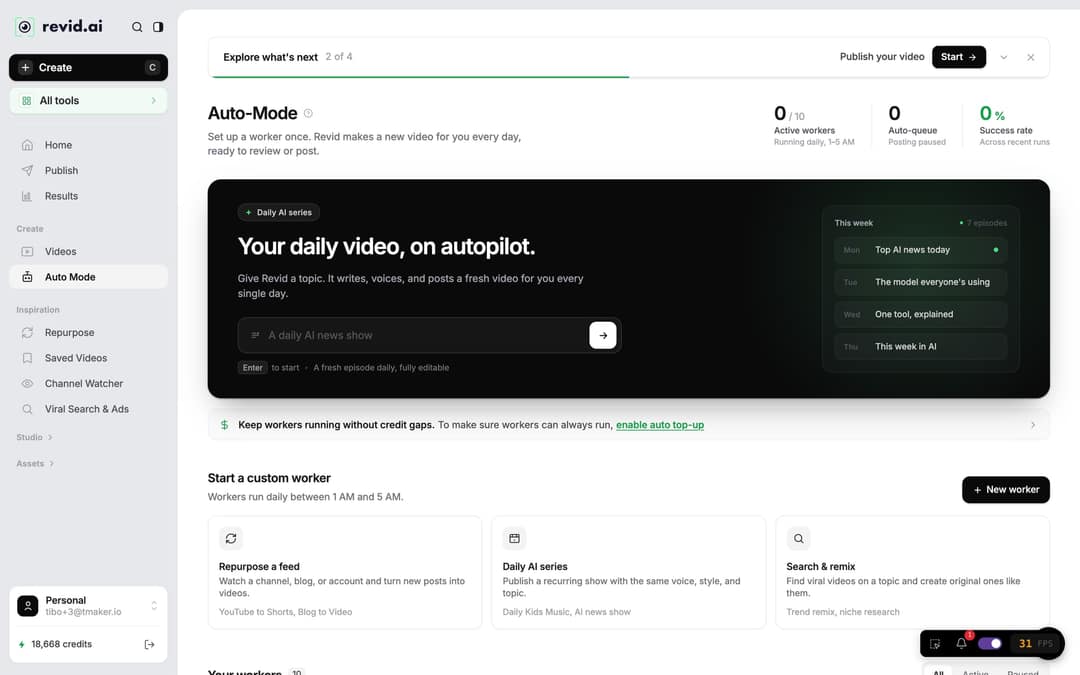
If you have no workers yet, the page shows "Get a new video, every day" with a New worker button and four templates: Product Auto-Mode, YouTube to Shorts, Blog to Video and Daily Kids Music.
Step 2: Name the worker and pick a daily AI series
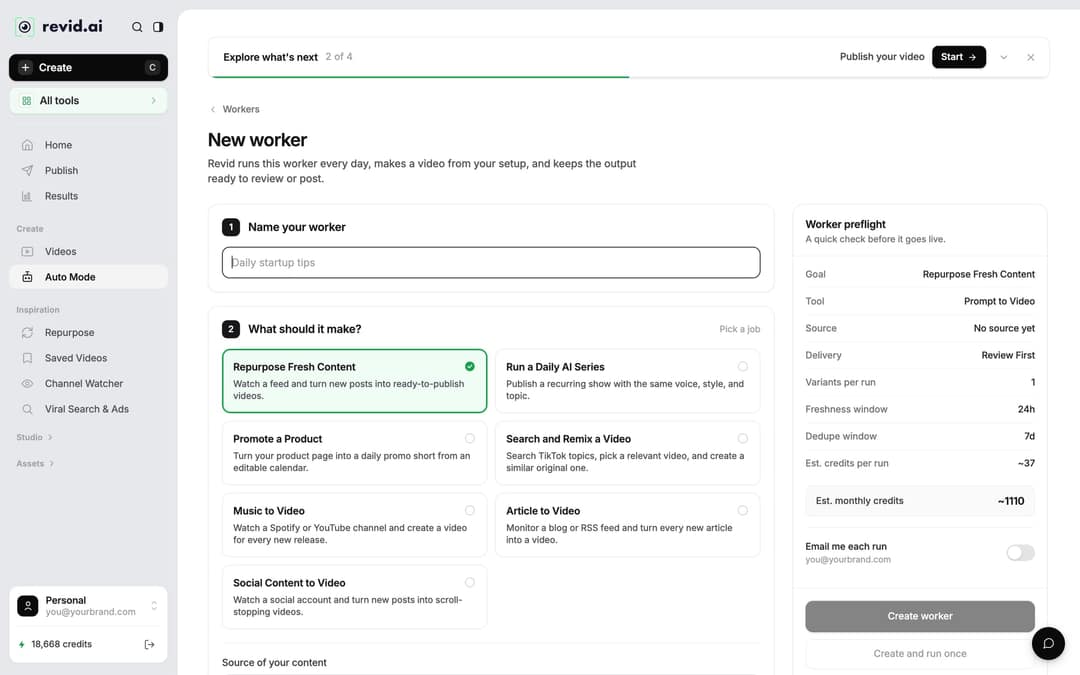
The New worker page opens with a short intro and three numbered steps.
- Under Name your worker, type a name you will recognize in your list, such as "Daily stoic ideas".
- Under What should it make?, pick Run a Daily AI Series. This job writes a fresh script every day from your topic, with no source feed, which is what a faceless channel needs.
- Fill in Describe your video, then choose an option under Pick your script style.
Prompt to try
Surprising animal facts for curious adults, one fact per video. Open with the strangest detail in the first line, explain it in plain words over animated AI images, and end with a question for the comments. Calm, curious narrator, about 40 seconds, vertical 9:16.
How to write a topic that lasts all month
Revid's own tip under this field says it best: input a high-level topic so you get a different story each day. A narrow topic gives you one good video and then repeats itself.
| Too narrow | Works every day |
|---|---|
| Why cats land on their feet | Surprising animal facts, one per video |
| The Battle of Hastings | Turning points in history, told as a short story |
| How to save on groceries | One money habit per day for young renters |
| A famous stoic quote | One stoic idea, explained with a modern example |
Put the angle, the audience and the tone in the same box. For example: "Surprising animal facts for curious adults. Open with the strangest fact in the first line, end with a question for the comments."
Which faceless formats tend to do best
The format matters as much as the topic. In the same Revid study, faceless tutorials had a median of 156K views (22.1% past 1 million) against 52K for on-camera tutorials, and faceless comedy reached a 327K median against 136K on camera. If your niche allows it, explainers and humor are the strongest faceless bets in the data.
Faceless tutorials earned about 3x the median views of on-camera tutorials (156K vs 52K).
Source: Revid analysis of 176,367 TikToks with 1,000+ likes posted between Oct 1, 2025 and Oct 16, 2026 (61,203 creators)
Show the data
| Median views | Share that passed 1M views | |
|---|---|---|
| Faceless tutorials | 155.6K | 22.1% |
| Product or object tutorials | 80.7K | 14.9% |
| On-camera tutorials | 52.5K | 10% |
| Faceless storytelling | 72.7K | 13.3% |
| On-camera storytelling | 64.4K | 11.7% |
| Faceless comedy | 326.7K | 26.4% |
| On-camera comedy | 135.5K | 20.7% |
Step 3: Pick the format, media type, voice and music
Under Pick the format, the list "Tools that fit this goal" shows the formats this job can use. Pick one, and that tool's normal creation options appear below it: media type, voice, music and "Advanced options".
The media type decides the look of every daily video. Open Choose media type:
| Option | What you get | Good to know |
|---|---|---|
| Animated AI images (default) | Still AI images brought to life by camera moves (zoom, pan) | The cheapest faceless look: 1, 4 or 16 credits per image (Low, Pro, Ultra) |
| AI video | Generated video scenes from Seedance 2.5, MiniMax Hailuo H3, Wan 3.0 or Google Veo 3 | Needs a subscription and costs the most, from 15 credits per 5 seconds on Low to 100 on Veo 3 |
| Motion graphics | Animated text and graphics | 2 to 5 credits per second |
| Stock videos | Real stock footage | No AI look at all |
| Your own media | Clips and images you upload | Best when you have a library of b-roll |
| Static / Gameplay | A static or gameplay background behind captions | The classic story and brainrot style |
Then pick a narrator from the voice list (Revid has 1,000+ AI voices in 70+ languages; voice-over costs 10 credits per started 500 characters) and a background track.
Finally, open Advanced options and check Choose your screen ratio: portrait (9:16) for TikTok, Reels and Shorts, or feed (4:5), landscape (16:9) and square (1:1) if you post elsewhere. If you want a one-off faceless video before automating anything, the faceless AI video generator uses the same options without a schedule.
Step 4: Choose how the videos are delivered
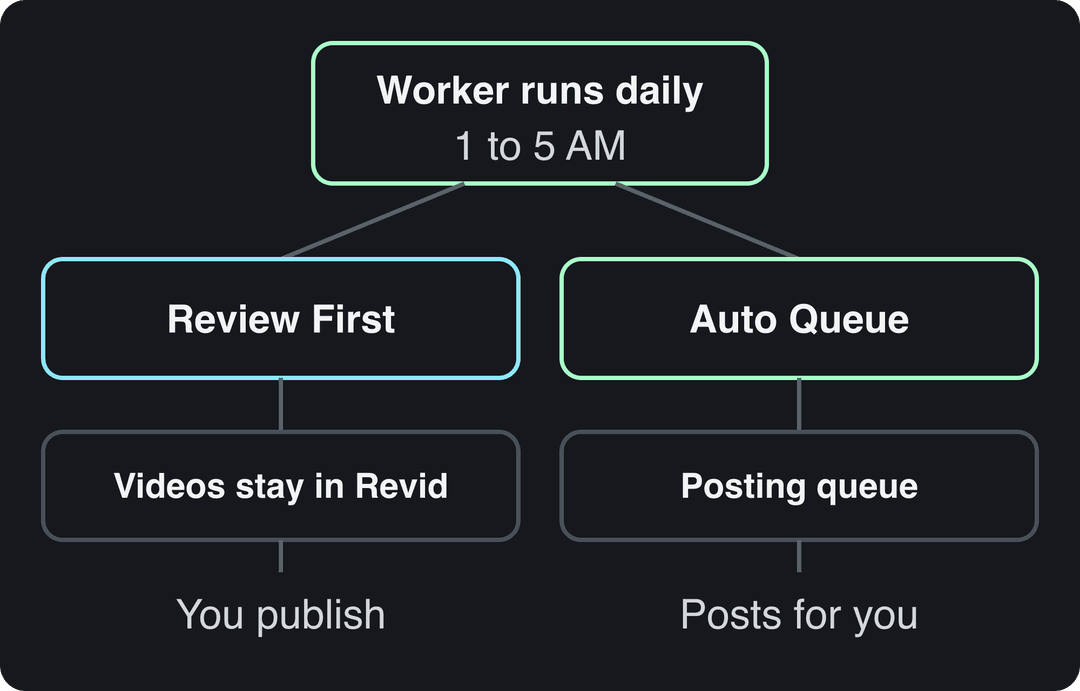
Under How should this worker deliver videos? you have two choices:
- Review First (the default): each video stays in Revid. It appears in Videos and in "Automated outputs" on the Auto-Mode page, ready for you to check and publish.
- Auto Queue: "Send each successful run to your posting queue". You then choose the accounts under "Select social accounts". Saving Auto Queue with no account selected fails with "Auto Queue has nowhere to post".
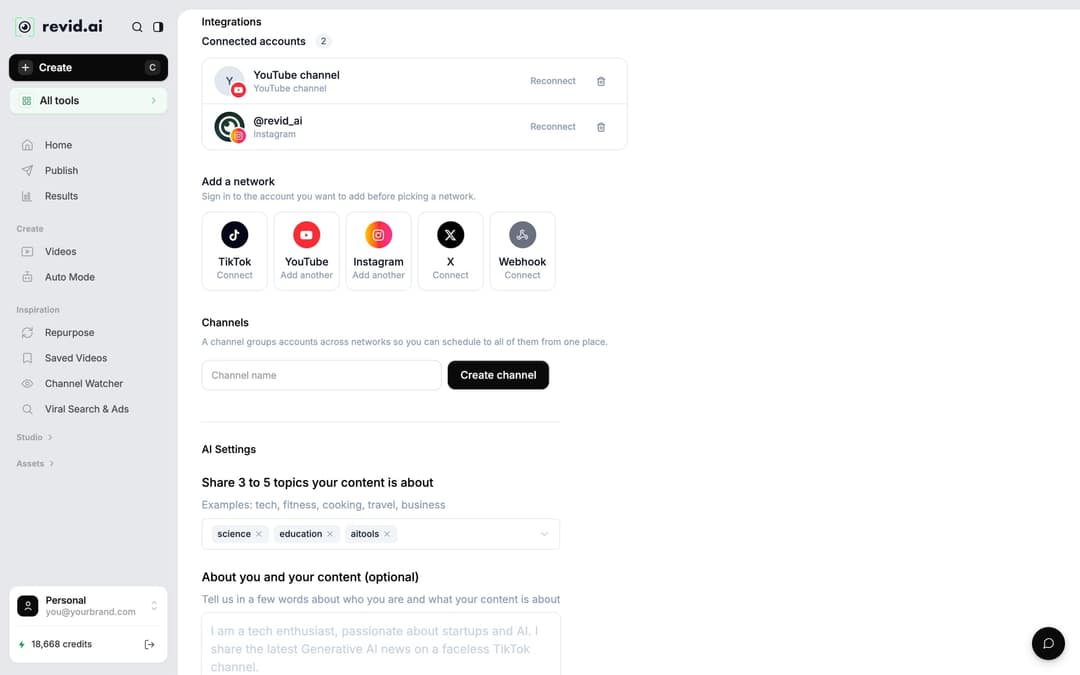
To use Auto Queue, connect your accounts first in Settings, under Integrations (the Publish page also has a Connect shortcut). Revid publishes to TikTok, YouTube, Instagram (Business or creator account required) and X, and can send each post to a webhook for Zapier or Make. The social account setup guide walks through each one.
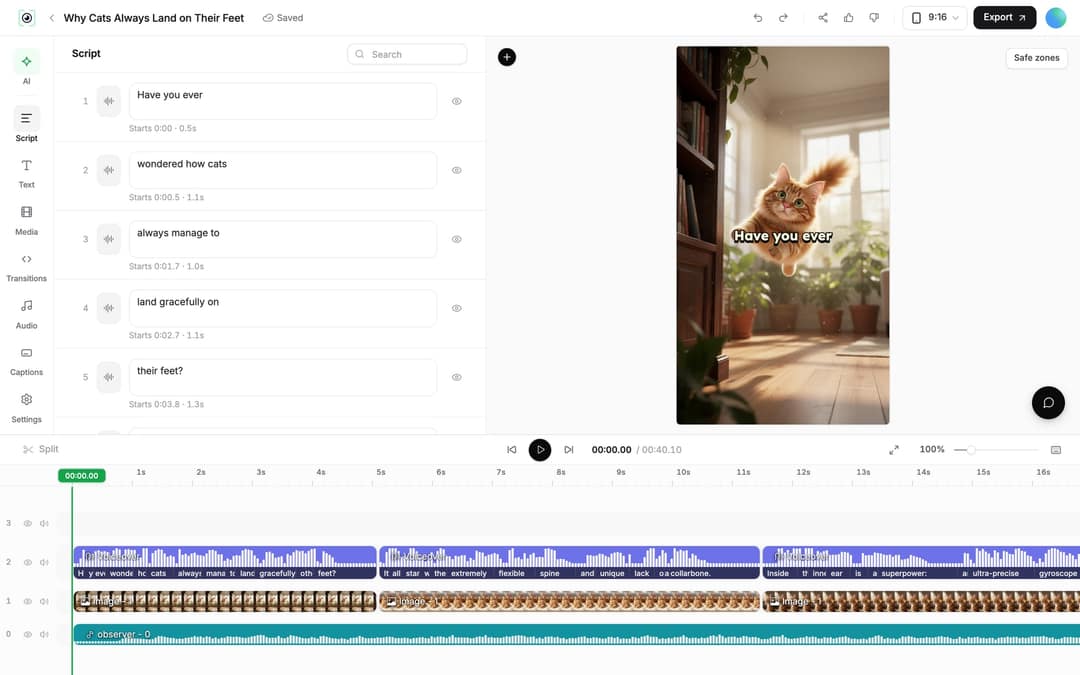
A sensible rule: start on Review First for your first few videos, fix anything off in the editor, adjust the topic, then switch to Auto Queue once the output is consistent. To fix a video, open it, edit the lines in the Script panel, then use Re-generate in the Audio panel so the voice matches (a paid feature, 10 credits per 500 characters). Replacing a single scene is covered in the guide to re-generating media.
You can also turn on "Email me after every worker run" to get a message each time a video is ready.
Step 5: Check the preflight panel and create the worker
The Worker preflight panel on the right sums up your setup: Goal, Tool, Source, Delivery, Est. credits per run and Est. monthly credits (the per-run estimate times 30). Read the monthly figure before you save. As a guide, a 30-second video with Pro AI visuals and a voice-over costs about 40 to 80 credits, so a worker at 80 credits per run uses more than Growth's 2,000 monthly credits on its own.
Then click Create worker, or Create and run once to get the first video right away instead of waiting for the night run. The footnote confirms the deal: it runs daily, and you can pause or edit it anytime.
Each worker runs once a day at a fixed hour between 1 AM and 5 AM in your account's time zone (Europe/Paris unless you changed it). The worker drawer shows the exact slot as "Daily around X AM".
How to pause, edit or clone a worker
Your workers appear under "Your workers", with All, Active and Paused filters. Each row has an on/off toggle and a menu:
- Edit worker reopens the builder with your settings.
- Run once makes a video now. Revid asks "Run this worker now?" and warns that it will consume credits.
- Clone worker copies the setup, the fastest way to test a second topic or media type.
- Delete worker removes it for good. Use the toggle instead if you only want a break.
If your balance runs short, the run fails, Revid tries auto top-up and emails you. The strip on the Auto-Mode page links to the auto top-up setting if you want workers to keep running without gaps. If your subscription ends, Revid switches your workers off.
Other ways to automate faceless videos
A daily AI series is one of seven worker jobs. Three others also produce faceless videos:
- Repurpose Fresh Content, Article to Video and Social Content to Video watch a source and turn new posts into videos. The source must be an account, channel, subreddit or blog RSS feed, not a single post URL. See how this works for videos from a blog and videos from an X account.
- Search and Remix a Video takes TikTok search queries, picks a relevant viral video and creates an original one on the same structure, rendered with AI video.
- Promote a Product turns a product page into a daily promo short.
For the bigger picture of what can run on autopilot, see Revid's video automation features.
Rules to check before your videos go public
Automated faceless videos still follow each platform's rules, and AI visuals trigger a few of them:
- TikTok requires a label on AI-generated content with realistic images, audio or video. TikTok says turning on the label does not affect distribution when the video follows its Community Guidelines.
- YouTube allows AI tools in monetized videos when the result shows your creative vision and gives real value, but AI content made from generic templates that looks mass-produced cannot monetize. Realistic AI scenes must be disclosed with the "AI use" setting in YouTube Studio. Our guide to automating YouTube Shorts safely covers this in detail.
- Instagram (Meta) asks you to use its AI disclosure tool for photorealistic video that was digitally created or altered.
The practical takeaway: give each series a clear point of view in the topic box, review output regularly even on Auto Queue, and label realistic AI scenes.
FAQ
Is Revid AI free?
Sign-up is free and new accounts get free credits to try video creation, with no credit card needed. Auto-Mode workers require a paid plan, starting with Growth at $39/month.
Can faceless AI videos be monetized on YouTube?
Yes, if they show creative vision and give educational or entertainment value. YouTube refuses to monetize mass-produced template content, incoherent AI clip compilations and AI personas presented as experts giving health, legal, financial or political advice.
Can one worker post to TikTok, YouTube and Instagram at the same time?
Yes. With Auto Queue, choose every connected account you want under "Select social accounts", and each finished video goes to the posting queue of those accounts.
Can a worker make videos in another language?
Yes. Write the topic in that language, or set Advanced options > Language & Localization > Language, and pick a voice that speaks it; Revid offers voice-overs in 70+ languages.