On this page
To edit a TikTok video, tap + in the app, record or upload your clips, then use the editing tools to trim, split and reorder them, add sound, text and captions, and post. For beat-synced edits, speed ramps or keyframes, edit in CapCut or a desktop editor and upload the finished 9:16 video at 1080x1920.
The edit that matters most is the one most people skip: cutting talk. In Revid's analysis of 176,367 TikToks with 1,000+ likes posted between October 2025 and October 2026, videos with under 40 characters of speech had a median of 123K views, and 20.2% passed 1M views. Videos that talked throughout (300+ characters of speech) had 68K and 11.9%, and silent videos sat in between at 73K. The sample only holds videos that already did reasonably well, so it shows what top videos share, not a guaranteed cause (the full method is in our study of what makes a TikTok go viral).
Videos with just a few spoken words (a line or two) beat both silent videos and videos that talk the whole way through, which were the most common and the weakest.
Source: Revid analysis of 176,367 TikToks analyzed by AI, with 1,000+ likes posted between Oct 1, 2025 and Oct 16, 2026 (61,203 creators)
Show the data
| Median views | Share that passed 1M views | |
|---|---|---|
| No speech | 73.3K | 14.3% |
| Under 40 | 122.7K | 20.2% |
| 40 to 120 | 97.2K | 17.6% |
| 120 to 300 | 91.6K | 16.8% |
| 300+ | 67.7K | 11.9% |
So most of editing is subtraction: get to the point, cut every pause and repeated sentence, and let visuals and on-screen text carry what you would otherwise explain out loud.
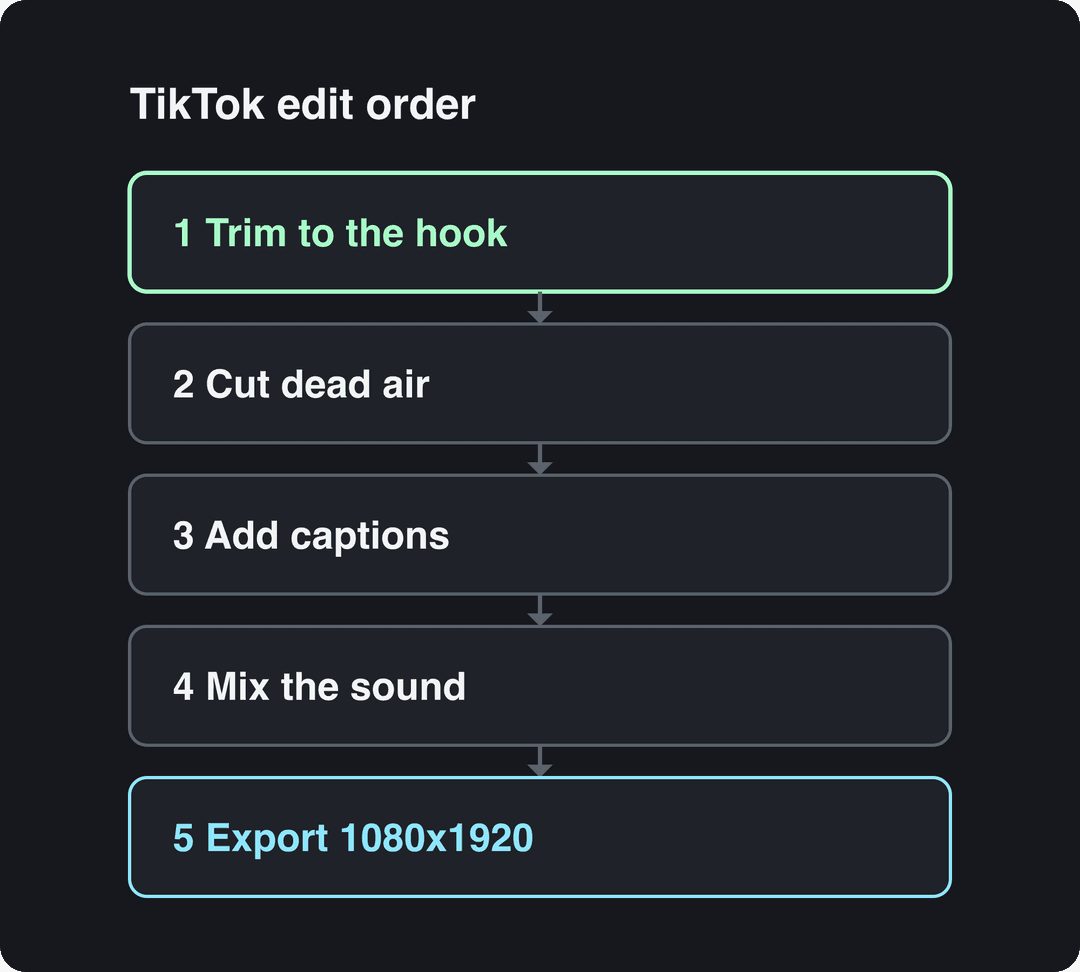
How to edit a TikTok video in the app, step by step
- Open the camera. Tap + at the bottom of the screen. Record with the in-app camera (up to 10 minutes) or tap Upload to pick clips from your camera roll (uploads can run up to 60 minutes).
- Select your clips in order. The order you tap them is the order they play, which saves reordering later.
- Open the clip editor. Trim the start and end of each clip, split long clips, delete weak takes and drag clips into a new order.
- Add a sound. Tap the sound option at the top, pick a track, then open the volume controls to balance your original audio against the added sound.
- Add text and stickers. Set each text box's duration so it appears only while it is relevant, not for the whole video.
- Turn on captions. Use auto captions, then read through them and fix misheard words, names and numbers.
- Add effects, filters or a voiceover only where they change what the viewer understands or feels.
- Tap Next. Write the caption, choose a cover, turn on the AI-generated content label if the video has realistic AI visuals or audio, then post or save as a draft.
Button names move around between app versions, but these tools have been in the editor for years. If you cannot find one, look under Edit or Adjust clips.
How to edit clips on TikTok: trim, split and reorder
- Trim: drag the handles at either end of a clip until the first frame is already the action, not you reaching for the phone.
- Split: move the playhead to the cut point and split, then delete the part you don't need. This is how you remove a stumble in the middle of a take.
- Reorder: press and hold a clip, then drag it. Put your strongest shot first, even if it happened last.
- Decision rule: if a clip adds no new information and no new visual, delete it.
Which TikTok video editor should you use?
| Editor | Best for | Limits |
|---|---|---|
| TikTok in-app editor | Quick talking clips, trends, trending sounds, posting the same day | Basic timeline, little control over keyframes and audio mixing |
| CapCut | Beat-synced edits, speed ramps, keyframes, templates | Premium templates, effects and most AI features are paid |
| Desktop editors (Premiere Pro, DaVinci Resolve) | Long or complex projects, color work, multi-track audio | Steeper learning curve; you set up the 9:16 frame yourself |
| Revid | Videos made from a script, link or idea, with visuals, voice, captions and music generated | Creation uses paid-plan credits; best when you are not starting from your own footage |
CapCut is the default second editor for most TikTok creators: its free tier includes the full editor and 1080p export. If you are weighing it against an AI generator, our Revid vs CapCut comparison breaks down when each fits.
The quick decision: if you filmed yourself and want to post now, stay in the app. If the edit has to hit the beat or needs keyframes, use CapCut. If you have no footage at all, generate the video instead of editing it.
How to make TikTok edits (beat sync, speed ramps, transitions)
On TikTok, "edits" usually means a montage cut tightly to music: fan edits, sports edits, car edits, travel edits. They live or die on timing, so build them in CapCut, where you can see the beats.
- Pick the audio first. An edit is cut to the music, so choose the exact track before touching the clips. Browse trending TikTok sounds for songs people are actively editing to.
- Mark the beats. Select the audio track and use CapCut's Beats tool to add markers automatically, or tap them in by hand on the hits you care about.
- Cut on the markers. Snap each clip boundary to a beat marker. Put your most striking frame right on the biggest hit, usually the drop.
- Add speed ramps. Use Speed, then Curve, to slow a clip into the beat and snap it back to full speed on the hit. This one technique makes most edits feel professional.
- Use transitions and effects sparingly. A shake or flash on a strong beat works; one on every cut turns into noise.
- Animate text with keyframes. Set a start and end position or scale so titles move with the rhythm.
- Export and post. Export at 1080p in 9:16, upload to TikTok, and if you add the sound inside TikTok, mute the exported audio so the two don't double up.
Rule for every effect: if it does not land on a beat or reveal something, delete it.
How to edit a TikTok for watch time
Open on the payoff
Start on the most interesting moment, not the setup. Cut the intro, the greeting and the "so today I want to". Put a line of on-screen text over the first shot that says what the viewer gets. For wording, steal a structure from this list of TikTok hooks that stop the scroll.
Cut dead air
Remove every pause, breath and repeated sentence. Jump cuts look natural on TikTok, so you don't need to hide them. If a sentence can be replaced by a visual or a text overlay, replace it: the data above shows the top videos talk less, not more.
Change something on screen whenever the content stalls
A new angle, a zoom, B-roll, a text card or a sound effect gives the eye a reason to stay. When a viewer has nothing new to look at, they swipe.
Prompt to try
Make a 20-second vertical TikTok showing 3 editing mistakes that kill watch time. Open with the hook "Your TikTok dies in the first second, here's why", keep the voiceover to one short line per point and let bold on-screen text carry the rest. Fast jump cuts, punchy captions, upbeat music.
Choose the length after the edit, not before
Trim until every second earns its place, then accept whatever length is left. In Revid's same 176,367-video sample, length barely moved views: every bucket from under 15 seconds to 10 minutes had a median between 58K and 76K views, and 61 to 90 second videos had 70K. Under 15 seconds had the lowest median (58K) but the most shares, 1.41 per 100 views, which suits jokes and quick reactions.
Length alone barely moves views: every bucket lands between 58K and 76K median views (the 790 videos over 10 minutes are a small, unusual group). Clips under 15 seconds get shared the most per view.
Source: Revid analysis of 176,367 TikToks with 1,000+ likes posted between Oct 1, 2025 and Oct 16, 2026 (61,203 creators)
Show the data
| Median views | Share that passed 1M views | Shares per 100 views | |
|---|---|---|---|
| Under 15 s | 57.6K | 11.6% | 1 |
| 16 to 30 s | 64.9K | 12.3% | 1 |
| 31 to 60 s | 61.8K | 11.8% | 1 |
| 61 to 90 s | 70.5K | 12.2% | 1 |
| 91 s to 3 min | 63.4K | 11.1% | 1 |
| 3 to 10 min | 76.4K | 12.4% | 1 |
| 10 min+ | 129.6K | 13.8% | 0 |
One exception: if you are in TikTok's Creator Rewards Program, only videos at least one minute long earn, so tutorials and stories that naturally run longer are worth keeping above that mark.
Captions, text and safe zones
Many people watch with the sound off, so caption anything spoken. TikTok's auto captions are fine for quick posts; for styled, word-by-word captions use a TikTok subtitle generator and check every line before posting.
Keep text and faces away from the right edge, where the like and share buttons sit, and from the bottom, where your caption and username appear. Check your frame against the TikTok safe zone overlay before exporting; text hidden under the interface is the most common avoidable editing mistake.
Sound: trending audio, voiceover and cleanup
- Trending sounds: they help a video fit a trend, but the edit has to match the sound's rhythm, not just sit on top of it.
- Voiceover: record in a quiet, soft-furnished room close to the mic, and lower the music under every spoken line so the words stay clear.
- Sync sound effects to the action: a whoosh on a transition or a click on a text pop makes the cut feel intentional.
- Clean up noise: wind, echo and hum make viewers leave. An AI audio enhancer cleans a recording in one pass.
- Watch the music rules if you monetize: for Creator Rewards, videos with copyrighted music playing for over one minute are not considered original.
Export settings for TikTok
| Setting | Use |
|---|---|
| Aspect ratio | 9:16 (vertical) |
| Resolution | 1080x1920, the size TikTok recommends |
| Format | MP4, the format TikTok's posting API recommends |
| Frame rate | 30 fps; 60 fps for fast motion and sports edits |
| Upload from a computer | TikTok Studio Web takes videos up to 60 minutes in 1080p, 2K or 4K, files up to 30 GB |
If your video contains realistic AI-generated images, audio or video, TikTok requires you to label it. TikTok says the label alone does not affect distribution when the video follows the Community Guidelines.
Use analytics to fix your next edit
Open TikTok Studio, in the app or on TikTok's website from a computer, and check each video over 7, 28, 60 or 365 days. Look at where viewers drop off: a drop in the opening seconds means the hook or first shot failed; a drop in the middle means a slow stretch you should have cut.
For context on engagement, the 176,367 TikToks in Revid's study averaged 7.1% likes per view, 0.88% shares per view and 0.08% comments per view. Those are videos that already cleared 1,000 likes, so treat them as a high bar, not an average. To see which of your own formats and edits perform best, run a free TikTok account audit.
How to make TikTok videos faster with Revid
When you don't have footage, or you need a video every day, generating beats editing. With Revid's AI TikTok video generator:
- Paste a script, a link or a one-line idea.
- Revid writes the script and builds scene-by-scene visuals (stock footage, AI images or AI video), an AI voiceover and synced captions with music.
- Adjust any scene in the timeline editor and pick one of 30 caption styles.
- Export in 720p, 1080p or 4K at 30 or 60 fps, or publish straight to TikTok, Instagram and YouTube.
The same vertical cut works on YouTube with small changes; this guide on editing YouTube Shorts covers the differences.
FAQ
What is the best video editor for TikTok?
For quick posts, TikTok's own editor is enough. For beat-synced edits, speed ramps and keyframes, CapCut is the most common choice, and its free tier exports in 1080p. If you start from a script or link instead of footage, an AI generator such as Revid builds the whole video for you.
Can you edit a TikTok after posting?
No, not the video itself. To change cuts, text or sound, re-edit from your original clips and post it again; saving as a draft before posting avoids the problem.
Can you edit TikTok videos on a computer?
Yes. Edit in CapCut desktop or any editor, export at 1080x1920, then upload through TikTok Studio Web, which accepts videos up to 60 minutes and files up to 30 GB.
Is CapCut free for TikTok editing?
Yes, CapCut has a free tier with the full editor and 1080p export. Premium templates, some effects and most AI features require a paid plan.