How to Add Voice Over to Video A Practical Guide
Learn how to add voice over to video with our practical guide. Discover pro recording tips, editing workflows, and software comparisons that actually work.
On this page
Putting a voice over on your video is a pretty straightforward idea: you record your script, clean up the audio, and then line it up with your video footage. Whether you’re a pro using Adobe Premiere Pro or trying out a newer AI tool like Revid.ai, the goal is always the same: make the spoken words match the on-screen action. This simple sync is what guides your viewer through the story you're telling.
Why a Great Voice Over Changes Everything
Let's be real—a muffled or monotonous voice over can completely ruin an otherwise great video. The quality of the narration is often what separates a good video from a truly memorable one. A clear, confident voice doesn't just explain what's happening on screen; it instantly builds trust and authority with your audience.
Think of the voice over as a friendly guide. A well-delivered narration can break down complicated ideas and make them feel easy to grasp, ensuring your message hits home. It creates a human connection that visuals alone sometimes struggle to achieve.
Keep Your Viewers Hooked
When people hear a human voice, they're naturally wired to listen more intently. This direct line of communication is your secret weapon for holding their attention, which is a massive advantage when everyone's endlessly scrolling. The right tone and pacing can seriously boost how long people stick around, directly helping your video's performance on platforms like YouTube.
A professional voice over isn’t just an extra layer; it's a strategic tool that turns passive viewing into an active experience. It’s what stops the scroll.
The Growing Demand for Quality Audio
The market stats back this up. The voice-over industry has exploded as more creators and businesses see its impact. For companies trying to level up their marketing, understanding how audio fits into corporate video production is a great starting point.
Industry data reveals that 52% of companies now rely on voice-over work for brand marketing alone, with animation and online ads not far behind. This isn't just a fleeting trend; it shows that audiences now expect polished, professional audio. You can dig deeper into these trends over at Outspoken Voices.
This guide will walk you through exactly how to achieve that pro sound for your own videos.
Getting Ready to Record a Pro-Level Voice Over
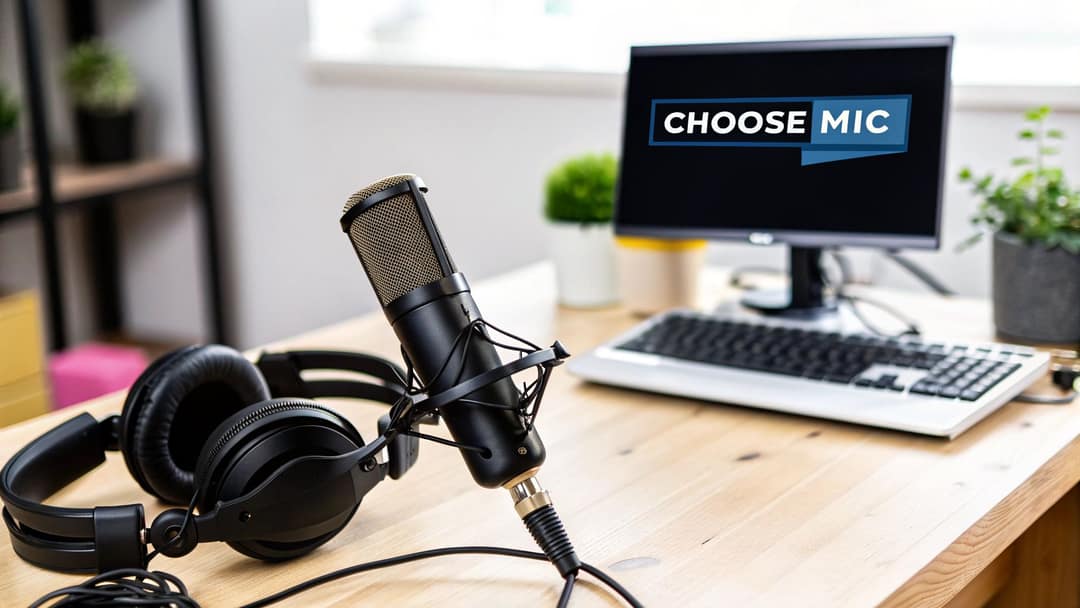
The secret to amazing audio quality isn't just about what you do when you hit "record." It's all about the prep work. If you want a voice over that sounds polished and professional, you need to nail two things first: your script and your recording space.
Let’s start with the script. You have to write for the ear, not the eye. This means ditching long, complex sentences for shorter, more conversational language that flows naturally. A great trick is to read your script out loud a few times. If you find yourself tripping over a word or running out of breath, that’s a red flag. Your audience will hear that awkwardness, too. If you need a little inspiration, checking out a few voice over script examples can be a huge help in seeing how to structure narration effectively.
Your Gear and Recording Space
Okay, let's talk about equipment without getting lost in the technical weeds. Your microphone is the star of the show, and you've basically got two paths to choose from.
USB microphones are a beginner's best friend. They're easy on the wallet, plug right into your computer, and the sound quality is surprisingly good. On the other hand, XLR microphones are the more professional route. They connect through an audio interface, giving you way more control over your sound.
But here’s the thing: even a top-of-the-line mic will sound awful in a poorly chosen room. The real goal is to find a quiet spot with as little echo (or "reverb") as possible. No, you don't need a fancy studio.
- Go Small and Soft: A small room packed with soft things is perfect. Think walk-in closet. All those clothes are fantastic at soaking up sound waves and preventing that echoey, bathroom-like sound.
- Silence the World: Before you record, do a quick sweep. Turn off the AC, unplug that buzzing mini-fridge, and close the windows to block out street noise. Every little bit helps.
- Soften Hard Surfaces: Bare walls and empty desks are your enemy because they bounce sound all over the place. You can easily deaden the sound by hanging up some blankets or throwing a few pillows around the room.
Here's a piece of advice I always give: It's not about the price tag on your gear; it's about controlling your environment. A $60 microphone set up in a quiet, treated closet will outperform a $1,000 microphone in a big, echoey kitchen every single time.
Nailing Your Audio: A Practical Recording and Editing Workflow
With your script ready and your recording space set, it's time for the magic to happen. This is where we capture your voice and polish it until it shines, turning a raw recording into a professional-grade track that’s a breeze to sync with your video later on.
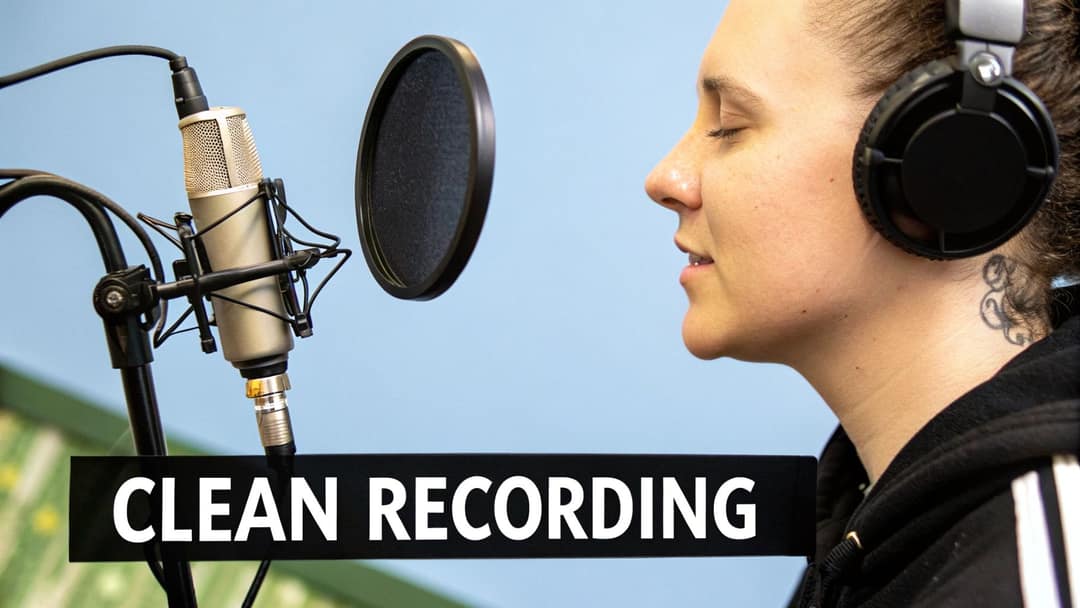
First, let's talk microphone technique. You don't need to be a sound engineer, but a few simple habits go a long way. I’ve found that maintaining a consistent distance of about 6-8 inches from the mic works wonders. This simple trick keeps your volume from jumping all over the place, avoiding that distracting in-and-out sound.
Capturing and Cleaning Up Your Voice Track
For this part of the job, free software like Audacity is a fantastic starting point. It’s got all the power you need without the steep learning curve of more complex digital audio workstations.
Here’s a pro tip before you even say a word of your script: record 10 seconds of pure silence. This is what we call "room tone." It captures the subtle, unique background hum of your recording space. Trust me, having this little snippet of sound is a lifesaver when it comes to cleaning up the audio later.
Now, go ahead and record your script. Don't stress about getting it perfect in one go. If you mess up a word or a sentence, just pause for a moment, take a breath, and start that sentence again. We can easily snip out the mistakes in the editing phase.
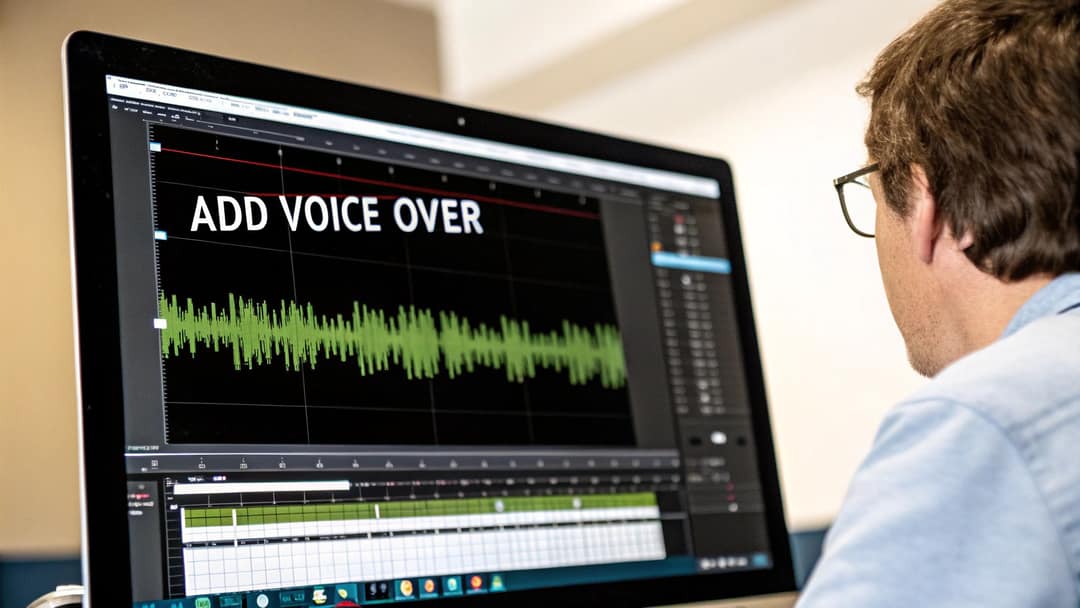
This is what you'll be looking at in Audacity. The visual waveform makes it incredibly easy to see where you've made a mistake, left a long pause, or where a background noise popped up.
The Essential Editing Polish
Okay, you've got your raw recording. Let's make it sound incredible. The editing process might seem intimidating, but it really just boils down to a few key actions.
- Cut Out the Mistakes: This is the easy part. Just listen through your track, and anytime you hear a flubbed line, an awkward pause, or a loud breath, highlight it and hit delete.
- Run Noise Reduction: Remember that room tone we recorded? Now's its time to shine. You can use Audacity’s "Noise Reduction" tool to analyze that silent clip and then subtract that specific background hum from your entire voice-over.
- Normalize the Volume: This is usually a one-click fix that boosts your audio to a standard, consistent level. It's a quick way to ensure your voice isn't too quiet when you drop it into your video project.
- Add a Touch of Compression: Use this one sparingly. Compression helps even out your audio by making the louder parts a bit quieter and the quieter parts a bit louder. It gives your voice that smooth, professional broadcast quality.
The great thing is, these skills have become more valuable than ever. The massive shift to remote work has changed the game, opening up opportunities for creators everywhere.
Take your time during the editing phase. An extra ten minutes spent cleaning up clicks, normalizing the volume, and zapping background noise can be the difference between a video that feels amateur and one that comes across as truly professional. It's that final polish that makes your audio sound so good, even if your audience can't quite put their finger on why.
Syncing Your Voice Over and Video Perfectly
You've got your polished audio track ready to go. Now for the magic trick: bringing it all together with your video. This is where your story really comes to life, as you pair your narration with the visuals to create a single, compelling piece. The goal is simple but crucial—what people hear should perfectly match what they see.
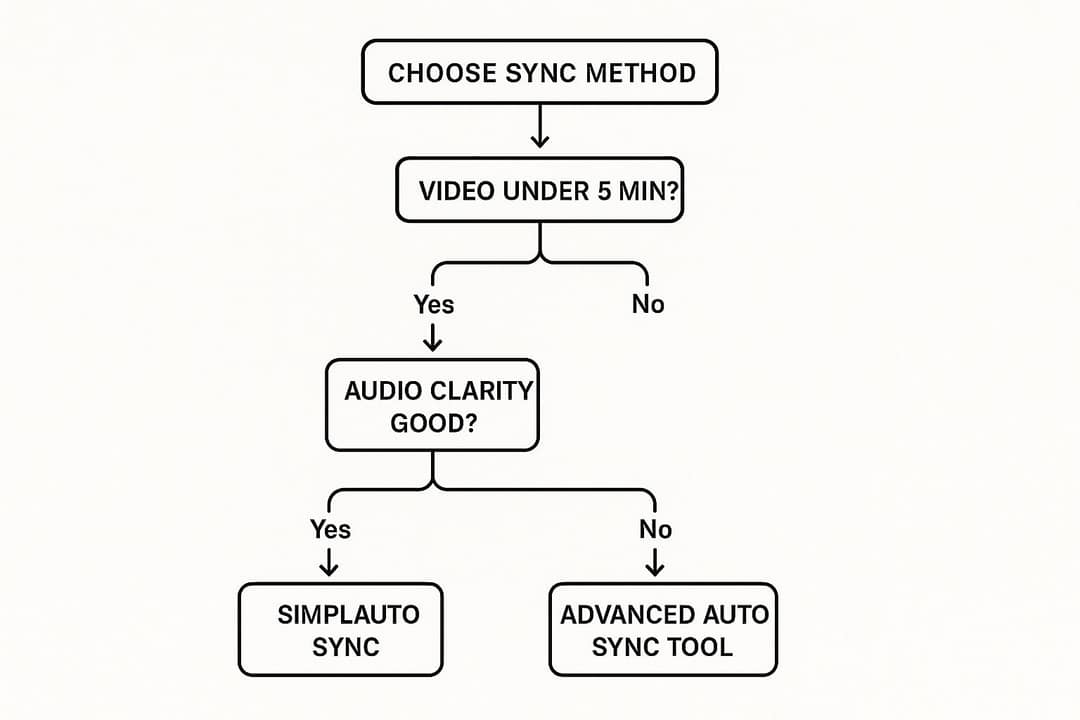
There are a couple of ways to tackle this. The old-school, hands-on approach involves a traditional video editor like Adobe Premiere Pro or Final Cut Pro. This route gives you absolute, frame-by-frame control. You'll drop your audio file onto the timeline and manually nudge it back and forth until everything lines up. If your script says, “And here’s the final result,” you’ll slide that audio clip until it hits right when the finished product pops up on screen. It’s precise, no doubt, but it can be a real time-sink, especially on longer projects.
Finding the Right Syncing Workflow
Then there's the newer, faster way: using an AI-powered tool. Platforms like Revid.ai were designed specifically to eliminate this manual grind. Instead of you dragging and dropping clips, the tool takes your script, generates a professional-sounding voice over in any of 70+ languages, and automatically syncs it to your video along with captions. A process that could take an hour by hand can often be done in just a few minutes. It's a huge advantage for anyone on a tight deadline or pumping out content regularly.
So, which path should you choose? It really comes down to your project's specific needs and how much control you want versus how much time you have.
This explosion in video content is a big reason why tools like this are becoming so popular. The global voice-over market was projected to hit $4.4 billion in revenue in 2024, largely because of the demand for narrated videos and e-learning materials. If you're curious, you can dig into more stats on the growth of the voice-over industry. This trend makes it clear why faster, more accessible production methods are becoming essential.
A Side-by-Side Look at Syncing Methods
To help you decide which tool is right for you, let's put these two approaches head-to-head. I find that breaking it down like this really clarifies the trade-offs.
Voice Over Syncing Methods Compared
| Feature | Traditional Editors (Premiere, Final Cut) | AI Tools (Revid.ai) |
|---|---|---|
| Speed | Slow. It’s a completely manual process of aligning audio and video frame by frame. | Fast. The AI generates and syncs the voice over for you automatically. |
| Control | Total. You have precise, granular control over every single cut and audio cue. | High. You can still fine-tune every scene in a full timeline editor, but the focus is on automation and speed. |
| Learning Curve | Steep. These are professional tools that require some real technical skill. | Low. Designed to be intuitive, even if you’ve never edited a video before. |
| Best For | Cinematic films, detailed documentaries, or projects where art is the top priority. | Social media clips, product tutorials, explainers, and quick-turnaround content. |
At the end of the day, there’s no single "best" method—it all depends on the job at hand. For an artistic passion project, the granular control of a traditional editor is priceless. But for a quick marketing video or a tutorial for your team, the sheer speed of an AI tool is a massive advantage.
Prompt to try
Make a 45-second vertical explainer on how to brew pour-over coffee at home. Open with the hook "You've been making coffee wrong this whole time." Use a warm, conversational narrator, close-up stock footage of each brewing step, and bold captions synced to the voice.
7 Common Voice Over Mistakes to Avoid (And How to Fix Them)
Knowing the technical steps to add a voice-over is just the start. The real magic happens when you avoid the little mistakes that can make even the best video feel amateur. I've seen it time and time again—great visuals undermined by distracting audio.
Let's walk through some of the most common tripwires and how you can sidestep them for a polished, professional sound.
The Robotic Read
This is probably the biggest offender. It’s that flat, monotone delivery you get when you’re just reading a script off the page without any real feeling. Your voice-over should feel like you're having a conversation with the viewer, not like you're reciting a textbook. It kills engagement instantly.
Audio Artifacts: The Little Sounds That Make a Big Difference
Next up are the tiny, unwanted noises that sneak into your recording. Once you hear them, you can't un-hear them, and they scream "amateur production."
Keep an ear out for these culprits:
- Plosives: That harsh, poppy sound you get from "p" and "b" sounds hitting the microphone too hard.
- Mouth Clicks: Small, wet sounds from your mouth that become incredibly obvious and distracting on a recording.
- Volume Drift: When your voice level dips and peaks because you’re not maintaining a consistent distance from the mic.
These issues might seem small, but they pull your audience right out of the experience.
Pacing Problems
Finally, there's pacing. Rushing through your lines makes the information hard to follow, while leaving long, awkward pauses can make your video feel disjointed. The audio and video need to work together, not fight each other.
Quick Fixes for a Pro-Level Sound
The good news? Most of these problems have surprisingly simple fixes.
For those annoying plosives, a pop filter is your best friend. It’s just a small screen that sits in front of your mic and diffuses the air from those "p" and "b" sounds before they can cause a pop. It's a cheap and incredibly effective tool.
To inject some energy into your voice, try standing up when you record. It helps you breathe better and naturally brings more life to your delivery. Also, a glass of water is non-negotiable—it keeps your mouth from getting dry and creating those distracting clicks.
The goal is to make your recording process invisible to the listener. A successful voice over guides the viewer through the video without ever drawing attention to itself. It should feel effortless and natural.
When it comes to pacing, practice is everything. Do a few dry runs reading your script while watching the video. You'll quickly find a natural rhythm that matches the flow of the visuals on screen.
Your Top Voice-Over Questions, Answered
Even with a great plan, a few questions always seem to surface when you're figuring out how to add a voice-over to your video. Let's tackle some of the most common ones I hear. Getting these details sorted out will make the whole process feel a lot less intimidating.
Do I Really Need a Super Expensive Microphone?
Honestly? No, not at all. It's a common misconception that you need to spend hundreds on a mic to get good audio.
Your recording environment is actually more important than the price tag of your gear. A decent USB microphone in a quiet room with soft furnishings will sound a thousand times better than a top-of-the-line mic in a room full of echoes and background noise. Focus on getting your space right first.
The secret is controlling your recording space. A quiet room with soft surfaces will always deliver better results than a pricey mic in a bad room.
What’s the Best Software for Adding a Voice-Over?
This really depends on what you need. If you want complete, granular control over every little detail, you can't go wrong with professional editors like Adobe Premiere Pro or DaVinci Resolve. For those just starting or on a tight budget, free options like iMovie or Clipchamp are surprisingly capable.
But if your goal is pure speed and efficiency, this is where AI tools shine. A platform like Revid.ai can automate the entire workflow, which is a lifesaver for anyone on a tight deadline or needing to pump out content consistently. Revid's paid plans start at $39/month, and the Elite plan adds voice cloning so the AI narration can sound like you.
How Can I Make My Voice Sound More Engaging?
The key is to avoid sounding robotic. Start by practicing your script out loud a few times to get a feel for the flow. Play with your pitch and speed to emphasize key points and convey emotion—this is what keeps people from tuning out.
Here’s my best tip, and it might sound a bit silly: Stand up and smile while you record. It’s a simple trick, but it physically changes your posture and vocal tone, injecting a natural energy and warmth into your voice. Your audience will absolutely notice the difference.
Ready to skip the manual work and create videos with perfectly synced, professional voice overs in minutes? Try Revid.ai and see how easy it is to produce scroll-stopping content. Learn more and get started at https://revid.ai/.