Instagram Reel Size 2026: 1080 x 1920, Frame Rate and Specs
Instagram Reels should be 1080 x 1920 pixels at 9:16, exported as an H.264 MP4 at 30 fps. Here are the official ranges, frame rate rules, cover size, 4K advice and where Instagram crops your video.
On this page
The Instagram Reel size is 1080 x 1920 pixels at a 9:16 aspect ratio, exported as an MP4 (H.264) at 30 fps, or 60 fps for fast motion. Instagram accepts ratios from 1.91:1 to 9:16 with a 720-pixel minimum, but only 9:16 fills the whole phone screen.
The canvas is the easy part. The mistake that ruins most Reels sits at the edges: since January 2025 Instagram shows Reels on your profile grid as shorter vertical rectangles, and its buttons and caption cover the right side and bottom of the player. A headline placed near the top or bottom of a perfect 1080 x 1920 file gets cut off exactly where new visitors decide whether to follow you.
Instagram Reel specs at a glance
| Spec | Use this | Official range or limit |
|---|---|---|
| Size | 1080 x 1920 px | Minimum 720 px |
| Aspect ratio | 9:16 | 1.91:1 to 9:16 |
| Frame rate | 30 fps (60 fps for fast motion) | Minimum 30 FPS (Help Center); 23 to 60 FPS via Meta's API |
| Format | MP4 with H.264 (AVC) video | MP4 or MOV |
| Audio | AAC stereo, 44.1 or 48 kHz | Not specified for Instagram |
| Bitrate | 5 to 10 Mbps at 1080p | Not published by Instagram |
| File size | Well under any cap | 300 MB via Meta's API; no in-app cap on the Help Center page |
| Length | 3 minutes or less for reach | Up to 20 minutes |
| Cover | 420 x 654 px (1:1.55) | Help Center recommendation |
The official ranges come from Instagram's Help Center page on Reel size and aspect ratios and Meta's developer reference for publishing Reels. The bitrate row is a practical guideline, not an Instagram rule, and the audio row follows Meta's published recommendation for Facebook Reels, which works just as well on Instagram.
What frame rate should Instagram Reels be?
Export Reels at 30 fps. Instagram's Help Center lists 30 FPS as the minimum, and Meta's API accepts 23 to 60 FPS, so 60 fps is the highest frame rate Meta documents for Reels. That also answers how many fps Instagram supports: 30 is the floor for app uploads, 60 the ceiling.
Use these rules to pick:
- Talking heads, tutorials, slideshows, text-on-screen Reels: 30 fps. Smaller files, nothing lost.
- Sports, gaming, dance, fast camera moves: 60 fps, but only if you shot at 60.
- Footage shot at 24 fps for a film look: the API accepts it, but the Help Center minimum is 30 FPS. If an upload looks choppy or fails, conform the timeline to 30 fps in your editor and export again.
- Never raise the frame rate on export. Turning 30 fps footage into a 60 fps file only duplicates frames: the motion looks the same and the file gets bigger.
The best resolution and frame rate for Instagram Reels, together, is 1080 x 1920 at 30 fps for almost everything and 1080 x 1920 at 60 fps for fast action. Whatever you choose, keep one frame rate for the whole timeline: mixing 24, 30 and 60 fps clips is a common cause of stutter.
What aspect ratio is an Instagram Reel?
The official answer is 9:16. Instagram's Help Center accepts anything from 1.91:1 (wide landscape) to 9:16 (tall vertical), and Meta's API documentation names 9:16 as the recommended ratio. Third-party spec summaries such as this Reels dimensions roundup land on the same 1080 x 1920 vertical frame.
Accepted does not mean it looks good. Here is what each upload ratio does on a phone:
| Upload ratio | What viewers see |
|---|---|
| 9:16 (1080 x 1920) | Fills the full screen |
| 1:1 square | Empty space above and below the video |
| 16:9 landscape | A small strip across the middle |
| 1.91:1 | The thinnest strip Instagram accepts |
If your source is horizontal or square, reframe it yourself inside a 9:16 sequence so the subject stays centered, instead of letting Instagram add bars. A free video resizer converts clips to 9:16 portrait or 4:5 feed in a few clicks, and this YouTube walkthrough on sizing Reels shows the reframing process in an editor.
Where Instagram crops your Reel (safe zone)
The full-screen player shows your whole 1080 x 1920 frame, but not all of it is clear. Your username and caption sit over the bottom of the video, and the like, comment and share buttons run down the right side.
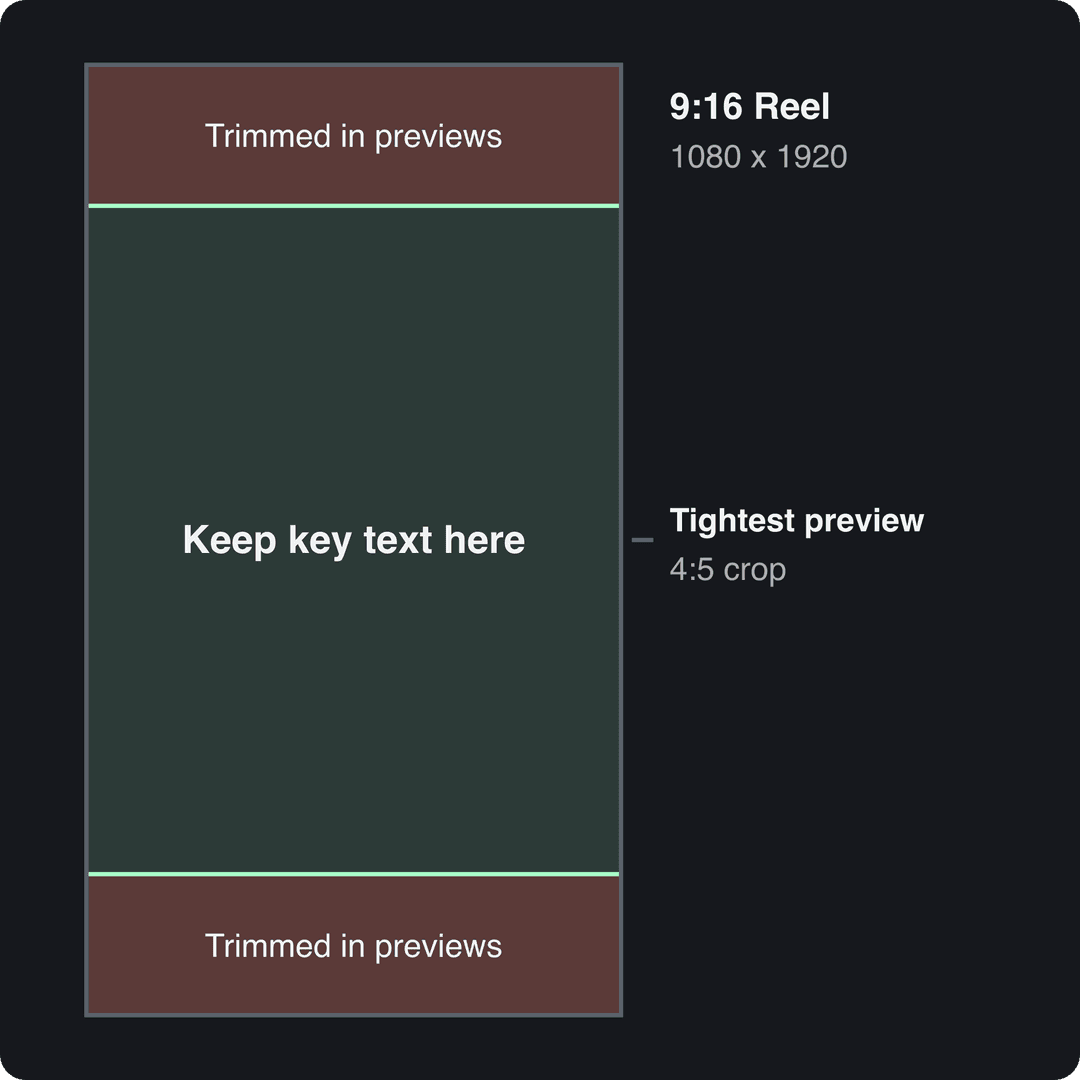
Outside the player, Instagram shows shorter previews. The profile grid has used vertical rectangles instead of squares since January 2025. Instagram has not published the exact ratio, and secondary sources disagree (3:4 or 4:5), so design for the tighter one: a 4:5 crop that keeps the full width and trims the top and bottom of your 9:16 frame. On a 1080-wide Reel, that crop is the centered 1080 x 1350 area.
Practical rules for every Reel:
- Put faces, products and your hook text inside the centered 1080 x 1350 band.
- Keep the top and bottom strips for background only: no titles, logos or calls to action there.
- Keep captions and on-screen text away from the right edge, where the buttons sit, and out of the bottom band, where your caption and username appear.
- Before posting, open the draft in Instagram and check the cover and preview screens, not just the full-screen playback.
To check a frame against the overlays before you export, drop it into our Instagram Reels safe zone checker. If you only need to resize a file in the browser, RenderIO's Reels resizer is another option. When text needs to move, adding text to a video at the center position keeps it inside the safe band.
What size is a 4K Reel?
A 4K vertical Reel is 2160 x 3840 pixels, still 9:16. Uploading one rarely helps. Instagram's Help Center only lists a 720-pixel minimum and does not promise 4K playback, Meta's API caps Reels at 1920 px wide, and every upload is recompressed for delivery anyway.
The rule: shoot or edit in 4K if you want room to crop and reframe, then export a clean 1080 x 1920 master for upload. Downscaling in your editor gives you control over sharpness; handing Instagram an oversized file leaves that decision to its compressor. For bitrate and resolution in more depth, see our Instagram Reels resolution guide.
What size should an Instagram Reel cover be?
Instagram's Help Center recommends a Reel cover of 420 x 654 pixels (a 1:1.55 ratio). That is a shorter rectangle than the 9:16 video, so a cover is always a crop of something taller.
You can pick a frame from the video or upload a custom image. Either way:
- Keep the face, product or headline in the vertical center.
- Use large, high-contrast text (light on dark or dark on light) that still reads at grid-thumbnail size.
- Name the payoff in a few words, such as "5-minute pasta" over a shot of the finished dish, and make sure the video delivers it.
- If you design the cover on your 1080 x 1920 canvas, leave the top and bottom strips empty so the 420 x 654 crop and the grid crop both keep the important part.
Best export settings and format for Instagram Reels
The right Instagram Reels format is an MP4 file with H.264 video (also called AVC, Advanced Video Coding) and AAC audio. MOV also works, but MP4 is lighter and more predictable across editors and phones. Some phones record in HEVC (H.265); export to H.264 for the fewest upload surprises.
- Sequence size: 1080 x 1920
- Aspect ratio: 9:16
- Codec: H.264 (AVC)
- Container: MP4 (MOV if your editor renders text and gradients more cleanly there)
- Frame rate: match your source; 30 fps by default, 60 fps for fast motion
- Bitrate: 5 to 10 Mbps for 1080p
- Audio: AAC stereo, 44.1 or 48 kHz
On file size, Instagram's Help Center page does not state a cap for app uploads. Meta's API limits Reels to 300 MB, and third-party references such as this Instagram Reels size reference list 4 GB for app uploads alongside a 1080p bitrate around 5 Mbps. A one-minute 1080p Reel at these settings lands far below either figure, so if your file is huge, your bitrate is too high.
Most editors have a vertical preset that gets you close: Adobe Premiere Pro, CapCut and Instagram's own Edits app (which exports without a watermark). Start from the preset, then confirm the output is 1080 x 1920, 9:16 and within the bitrate range. This walkthrough shows the export dialog in Premiere Pro:
For codecs, containers and the other Instagram placements, read our Instagram video formats guide.
How long can an Instagram Reel be?
Reels can be recorded and edited up to 20 minutes long, but Instagram does not recommend Reels longer than 3 minutes to non-followers. Before January 21, 2025, that recommendation cutoff was 90 seconds. Reels published through Meta's API must be 3 seconds to 15 minutes. If reach matters, stay at 3 minutes or less.
Posting the same Reel to TikTok, Shorts and Facebook
One 1080 x 1920 master covers every vertical platform. The differences are in length rules and how each app treats your upload:
| Platform | Size to export | Length rule to know |
|---|---|---|
| Instagram Reels | 1080 x 1920, 9:16 | Over 3 minutes is not recommended to non-followers |
| TikTok | 1080 x 1920, 9:16 (Creator Academy) | Uploads up to 60 minutes |
| YouTube Shorts | 9:16 or square | Up to 3 minutes counts as a Short |
| Facebook Reels | 1080p MP4, H.264 or H.265, 24 to 60 fps | Any length; every new video is a reel |
Three habits save rework:
- Upload your clean export to each app instead of a downloaded copy that carries another app's watermark.
- Swap platform-specific calls to action in the caption (link in bio on Instagram, for example).
- Preview the draft in each app, since overlays sit in slightly different places.
Our social media video sizes cheat sheet lists every platform's specs in one place, and this third-party overview of social video specs, written in 2025, is a useful second reference.
Prompt to try
Create a 30-second vertical Instagram Reel titled "3 export mistakes that make your Reels blurry". Open with the hook "Your Reel looked sharp until you posted it?", then cover upscaled 720p files, oversized 4K uploads and mixed frame rates. Use clean motion graphics, a calm confident voiceover and bold captions kept in the center of the frame.
How to make Reels at the right size with Revid
If you would rather not set up sequences and export presets, Revid produces Reels in the correct frame from the start.
- Open the AI reel generator and start from an idea, a script or a link. Revid writes the script and builds a 9:16 video with visuals, a voice-over, synced captions and music.
- Adjust captions and scenes in the timeline editor so text stays in the center band.
- Export at 1080p and 30 fps (720p, 4K and 60 fps are also available).
- Turning a long video into Reels? The YouTube to Instagram converter cuts it into vertical clips.
- Publish or schedule the Reel straight to Instagram, TikTok and YouTube from Revid's publishing queue.
Fixing blurry, cropped or letterboxed Reels
Reel looks blurry after upload
Usual causes: an upscaled 720p file, an oversized 4K file, a very low bitrate, or an upload over a weak connection. Export a fresh 1080 x 1920 H.264 file at 5 to 10 Mbps, watch it full-screen on your phone, then upload on a stable connection. If text edges look clean in the exported file, Instagram is starting from a good master.
Text gets cut off
The text sits too close to the top or bottom, or behind the buttons on the right. Move titles, logos and calls to action into the center band, then check the cover and preview screens in the draft before publishing.
Black bars or awkward cropping
The project was edited in 16:9 or 1:1, or mixes clips of different ratios. Rebuild it in a 1080 x 1920 sequence and scale each clip yourself so the subject stays centered.
Playback stutters
The timeline mixes frame rates, or the export raised 30 fps footage to 60. Conform everything to one frame rate that matches your source and export again.
FAQ
How many fps does Instagram support?
Meta documents 23 to 60 FPS for Reels published through its API, and the Help Center lists 30 FPS as the minimum. Upload at 30 fps, or at 60 fps when your footage was shot at 60.
How big can a Reel be on Instagram?
A Reel can be up to 20 minutes long, though only Reels of 3 minutes or less are recommended to non-followers. Meta's API caps Reel files at 300 MB, and Instagram's Help Center states no file cap for app uploads.
Is an Instagram Reel 9:16 or 4:5?
The Reel itself is 9:16. Shorter crops of it appear on the profile grid and in some previews, which is why your key visuals belong in the centered 4:5 area of the frame.
What is the minimum resolution for Instagram Reels?
Instagram's Help Center sets a minimum of 720 pixels, which for a vertical video means 720 x 1280. Export at 1080 x 1920 whenever your footage allows it.
Do Instagram Reels and TikTok use the same size?
Yes. TikTok's Creator Academy also recommends 9:16 at 1080 x 1920, so one vertical master works for both; our guide to TikTok video dimensions covers TikTok's other limits.