Social Media Video Editor: 12 Best Tools for 2026, Compared
Twelve social media video editors grouped by workflow: AI generators, editors for footage you filmed, design suites and template platforms, with free options, specs and a quick way to choose.
On this page
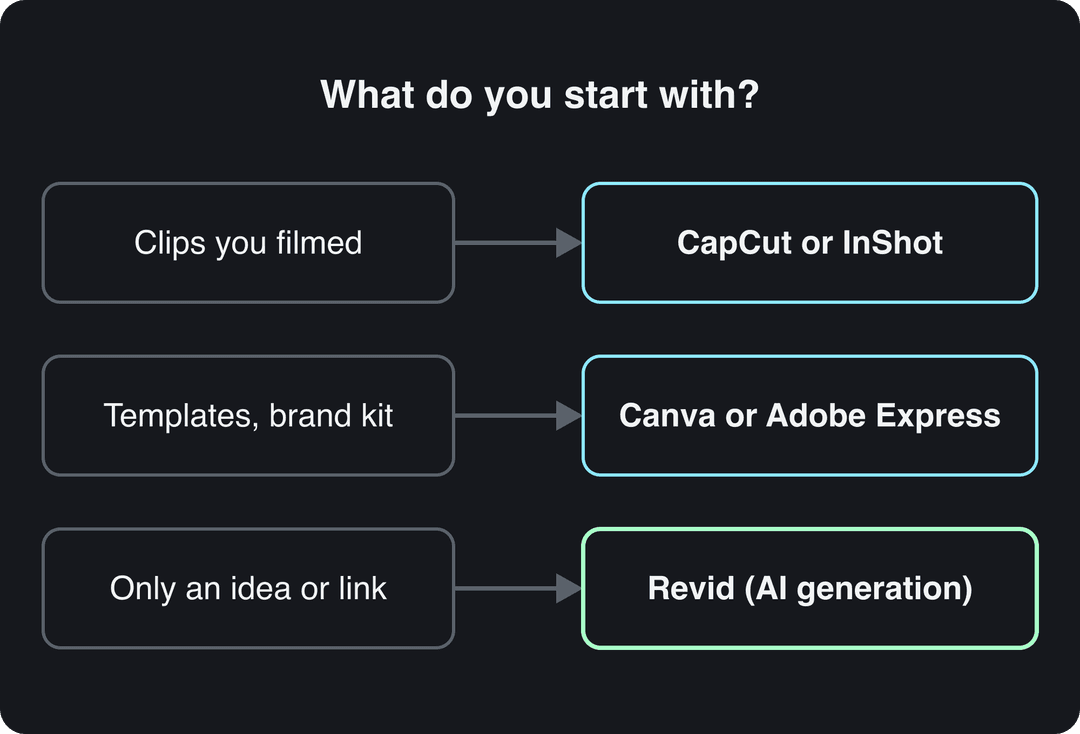
The best social media video editor depends on what you start with. Edit clips you filmed in CapCut (free, 1080p export, auto-captions) or InShot on your phone; build branded posts from templates in Canva or Adobe Express; and if you have only an idea or a link, generate the finished video in Revid.
Free tools are not a compromise here: Meta said on its Q4 2025 earnings call that nearly 10% of the Reels people view each day are made in Edits, its free editing app. The common mistake is picking an editor from a feature list instead of a workflow. A generator, a template suite and a timeline editor solve three different problems, and the wrong one costs you hours every week.
Knowing which formats are working helps you judge which tool you need; this third-party roundup of short-form video trends is a reasonable starting point.
- Share of Reels viewed each day that are made in Meta's free Edits app
- 10%
- Meta Platforms, January 2026
- Video marketers who have used AI video tools to create or edit videos
- 63%
- Wyzowl, December 2025
- Real short-form videos with engagement data in Revid's format library
- 2.77M
- Revid
- Maximum length of a YouTube Short
- 3 min
- YouTube Official Blog, October 2024
Which social media video editor fits your workflow?
Use these rules before you read any feature list:
- You film on your phone and post daily: CapCut or InShot.
- You want polished edits with effects on a computer: Filmora or Movavi.
- Brand consistency across graphics and video matters most: Canva or Adobe Express.
- You have no footage, only an idea, a script or a link: Revid (or InVideo).
- You run a small business account and want templates plus scheduling: Ripl or Wave.video.
- You need animated explainers or promo intros: Moovly or Renderforest.
| Tool | Type | Best for | Free option | Where it runs |
|---|---|---|---|---|
| Revid | AI video generator + timeline editor | Finished videos from an idea, script or link, published directly | Free sign-up with free credits to try; paid plans for regular creation | Browser, API |
| InVideo | AI video generator | Stock-based videos edited by typing commands | Free plan with watermark | Browser |
| CapCut | Timeline editor | Editing footage you filmed, fast | Free tier with 1080p export | Mobile, desktop |
| InShot | Mobile editor | Quick phone edits | Free with watermark and ads | iOS, Android |
| Filmora | Timeline editor | Polished edits with effects | Free version with watermark | Desktop, mobile |
| Movavi | Desktop editor suite | Beginner-friendly desktop editing | Free trial | Windows, Mac |
| Canva | Design suite | Templated branded video and matching graphics | Free plan | Browser, apps |
| Adobe Express | Design suite | Video plus graphics with Adobe Stock | Free plan | Browser, mobile |
| Wave.video | Video marketing platform | Editing, hosting and live streaming in one place | Free plan with watermark | Browser |
| Ripl | Mobile template app | Small-business posts with scheduling | Free plan with limits | Mobile |
| Renderforest | Template platform | Intros, promos and brand assets | Free plan with watermark | Browser |
| Moovly | Animation platform | Animated explainers | Free plan with limits | Browser |
Competitor prices change often, so this article lists a price only where it could be confirmed and links each vendor's site. Check the current plan before you pay.
US dollars per month
Revid's $39 Growth plan includes 2,000 credits, the editor, direct posting and the API. Yearly billing is cheaper on most tools.
Source: Pricing page of each tool, checked for Revid's comparison pages (revid.ai/vs) in November 2026.
Show the data
| US dollars per month | |
|---|---|
| Creatify | 15 |
| OpusClip | 15 |
| Higgsfield | 19 |
| Synthesia | 19 |
| CapCut | 20 |
| InVideo | 20 |
| Fliki | 28 |
| Klap | 29 |
| Revid | 39 |
AI video generators: when you have no footage
1. Revid
Revid is the pick when you have an idea, a script or a link but nothing filmed. It writes the script, builds each scene from stock footage, AI images or AI video, adds a voice-over in 70+ languages, synced captions and music, then publishes to TikTok, Instagram and YouTube. It is a generator first and an editor second: a full timeline editor lets you fix any scene, but it is not built for cutting hours of your own footage by hand.
What sets it apart is where a video starts. Revid includes a library of about 2.77 million real short-form videos with their public engagement data, so you can start from a format audiences already watch and turn it into an original video instead of prompting from a blank page. AI scenes come from Seedance 2.5, MiniMax Hailuo H3, Wan 3.0 and Google Veo 3, chosen per scene under one credit system.
How to make a social video in Revid:
- Open the social media video maker and paste an idea, a script or a link (a blog post, a YouTube video, a Reddit thread).
- Revid writes the script and generates the scenes, voice-over, captions (30 styles) and music.
- Adjust any scene in the timeline editor, then export in 720p, 1080p or 4K at 30 or 60 fps.
- Post or schedule to TikTok, Instagram and YouTube from one queue with direct social publishing.
- Best for: founders, small businesses, faceless channels and social managers who publish every day.
- Also useful: Auto-Mode workers that create a fresh video every day from a prompt or content source, plus an API, MCP server and CLI on every paid plan.
- Pricing: free sign-up with free credits to try video creation (no credit card needed); regular creation uses the credits of a paid plan, from $39/month (Growth, 2,000 credits). The Revid pricing page has current plans.
- Watch out: if you only want to edit your own footage by hand, a classic editor such as CapCut fits better.
Prompt to try
Make a 30-second vertical video for a small coffee shop announcing a new oat milk latte. Open with the hook "This latte sold out in two hours", show close-up stock shots of espresso and steamed milk, add upbeat music and bold captions, and end with the shop's opening hours.
2. InVideo
InVideo turns a prompt, a script or an article into a video built mostly from stock media. Its chat-style agent lets you edit by typing commands ("make the intro shorter") instead of working on a timeline, and paid plans include a 16M+ stock library with metered iStock assets, AI avatars and voice clones from the entry tier, and a menu of third-party video models.
- Best for: marketers who want stock-heavy explainers and ads without touching a timeline.
- Pricing: free plan with a watermark and weekly generation limits; paid plans from $20/month per seat (Starter) on InVideo's site.
- Watch out: fixing one scene means re-prompting rather than dragging it into place. The Revid vs InVideo comparison covers the differences in detail.
Editors for footage you filmed
3. CapCut
CapCut is the default social video editor for anyone who films on a phone. The free tier includes the full editor, 1080p export and auto-captions, and its trend templates drop your clips straight into formats that are circulating on TikTok, with which it has the tightest integration of any editor. Pro adds speaker-identified captions and a large effect library.
- Best for: creators editing their own clips quickly on mobile or desktop.
- Pricing: free tier; Standard costs about $9.99/month. Premium templates, effects and most AI features are paid.
- Watch out: CapCut edits what you already have; it does not write a script or generate scenes. See Revid vs CapCut if you need both.
4. InShot
InShot is a phone editor built for speed: trimming, merging, speed changes, music, voice-over, filters, stickers and text, with aspect-ratio presets for TikTok, Reels and Shorts. It is the easiest tool on this list to learn in an afternoon.
- Best for: creators who edit and post only from their phone.
- Pricing: free version with a watermark and ads; Pro removes both, as a subscription or a one-time purchase.
- Watch out: no desktop-grade controls for multi-track projects.
If Reels is your main platform, add Instagram's free Edits app to the shortlist: it generates captions, does cutouts and exports without a watermark.
5. Filmora
Filmora by Wondershare is a classic timeline editor that stays approachable. Its effects and transitions library is large, and AI tools such as AI Smart Cutout and Audio Denoise handle tedious jobs like isolating a subject or cleaning up a noisy recording. It supports 4K editing.
- Best for: YouTubers and creators moving up from phone apps to a desktop timeline.
- Pricing: free version with a watermark; paid as a subscription or a perpetual license.
- Watch out: heavy 4K projects need a capable computer.
6. Movavi
Movavi sells a Video Suite that bundles an editor, a media converter and a screen recorder. It offers one-click auto subtitles, ready-made templates, and drag-and-drop filters, transitions, titles and overlays, with presets for vertical formats.
- Best for: beginners who want a desktop editor without a steep learning curve.
- Pricing: free trial; subscription or license options.
- Watch out: some effects packs are sold separately.
Design suites with video
7. Canva
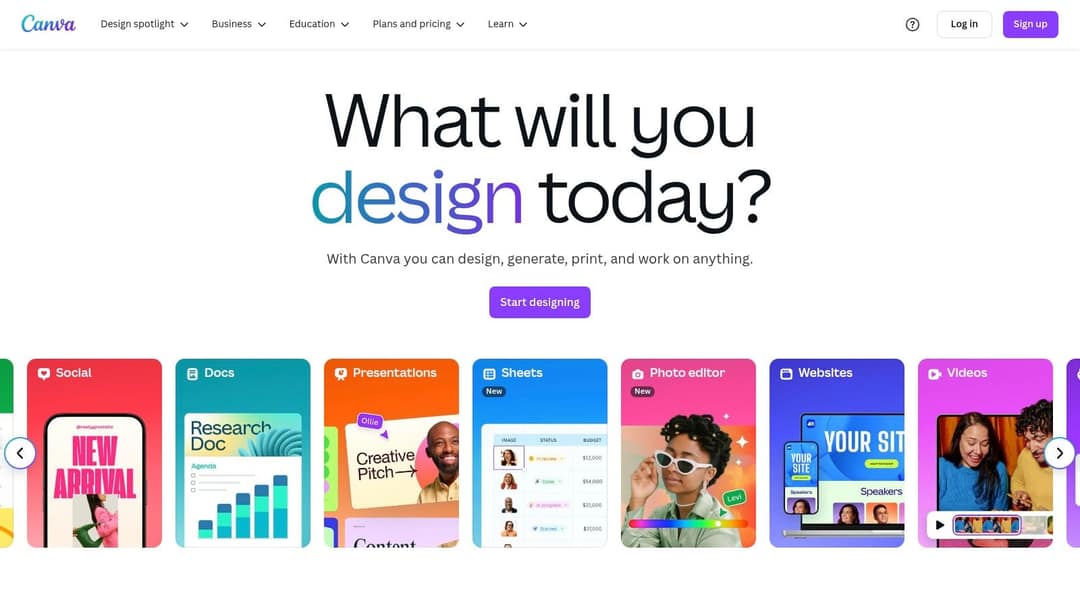
Canva works best when your video is one piece of a branded campaign. You design a video from a template, resize it for other platforms with Magic Switch, and make the matching thumbnail and carousel in the same file. The free plan includes 1.6 million+ templates and a small AI allowance (up to 20 uses), and paid plans can generate short Veo 3 clips with synchronized audio inside your designs.
- Best for: beginners and teams that need brand kits, collaboration and graphics alongside video.
- Pricing: free plan; Pro from €110/year. AI video clip generation is not on the free plan.
- Watch out: timeline controls are lighter than a dedicated editor. The Revid vs Canva comparison explains when a generator fits better.
8. Adobe Express
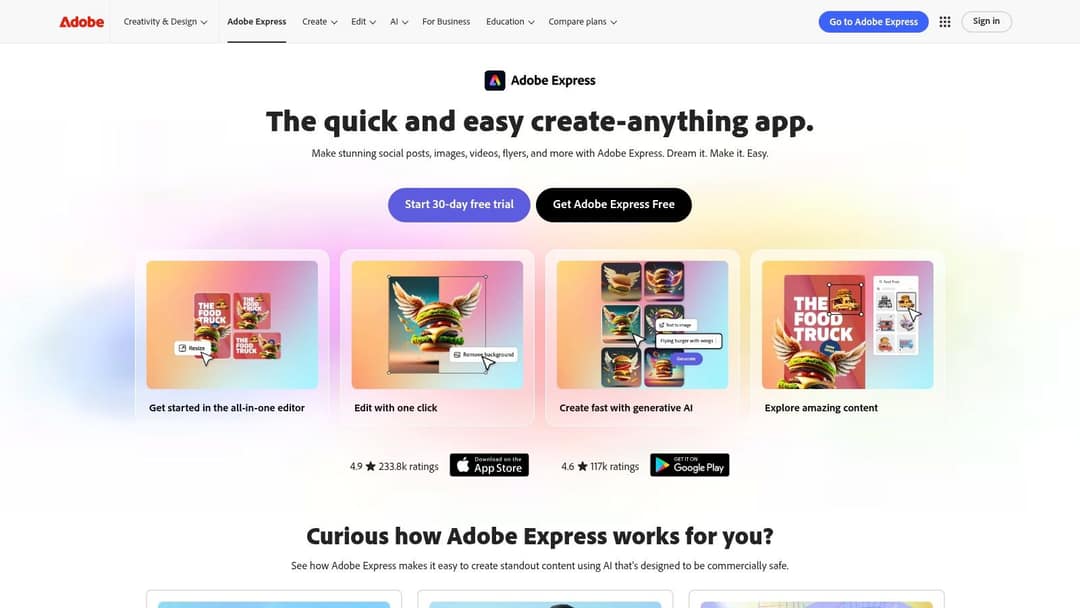
Adobe Express combines video editing, graphic design and Adobe's generative AI (text to image, background removal) with access to Adobe Stock photos, video and music. A built-in content scheduler means you can plan posts where you make them.
- Best for: social managers who make video and graphics for the same brand every week.
- Pricing: free plan; Premium adds all assets and features (check Adobe's site for the current price).
- Watch out: generative results sometimes need retouching before they are on-brand.
Template and marketing platforms
9. Wave.video
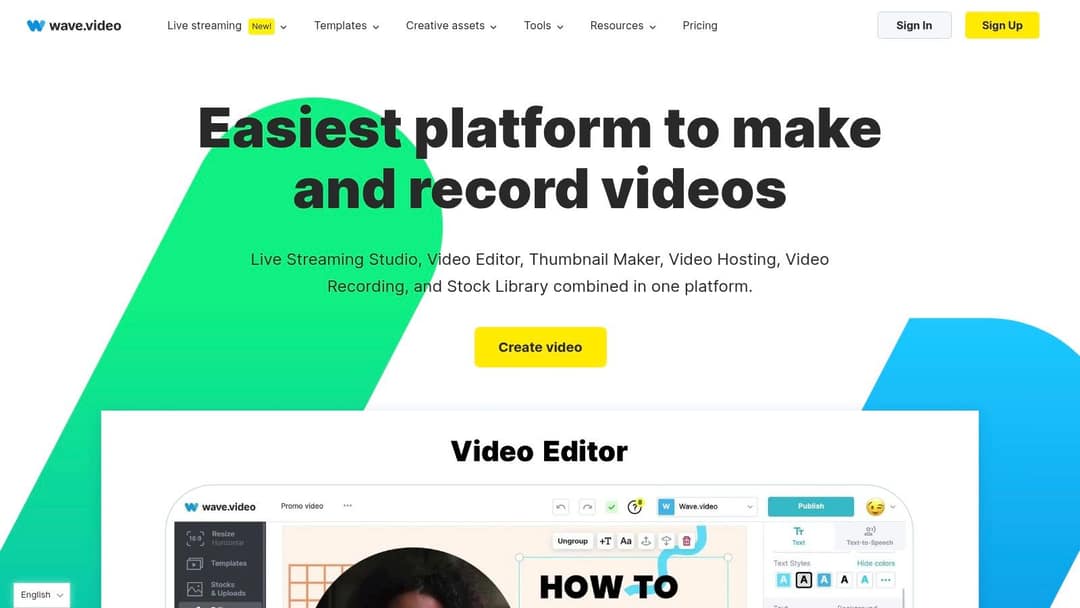
Wave.video is a video marketing platform rather than a pure editor: it combines an editor, a thumbnail maker, video hosting, recording, a live streaming studio and a stock library. Automatic resizing adapts one video to Stories, feed and YouTube formats.
- Best for: marketers who manage creation, hosting and streaming in one place.
- Pricing: free plan with a watermark; the strongest features sit on higher tiers.
- Watch out: you pay for hosting and streaming tools even if you only need an editor.
10. Ripl
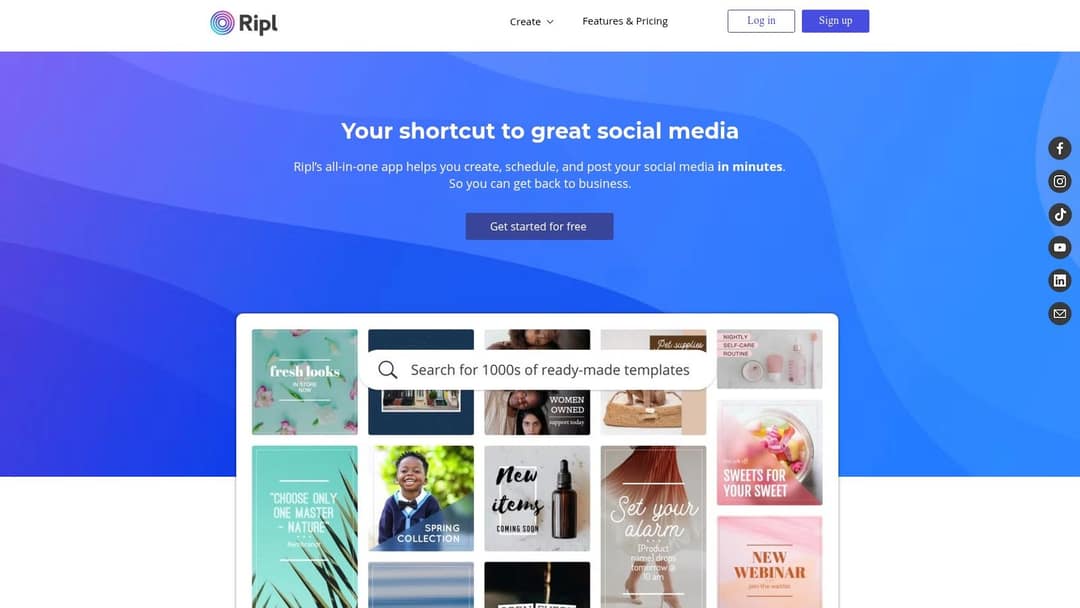
Ripl is a mobile-first app for small businesses: pick a template, add your photos and text, then schedule the post and track how it performs, all from your phone.
- Best for: owners who run their own social accounts between other jobs.
- Pricing: free plan with limits; Pro adds all features and removes watermarks.
- Watch out: templates look generic unless you customize them.
11. Renderforest
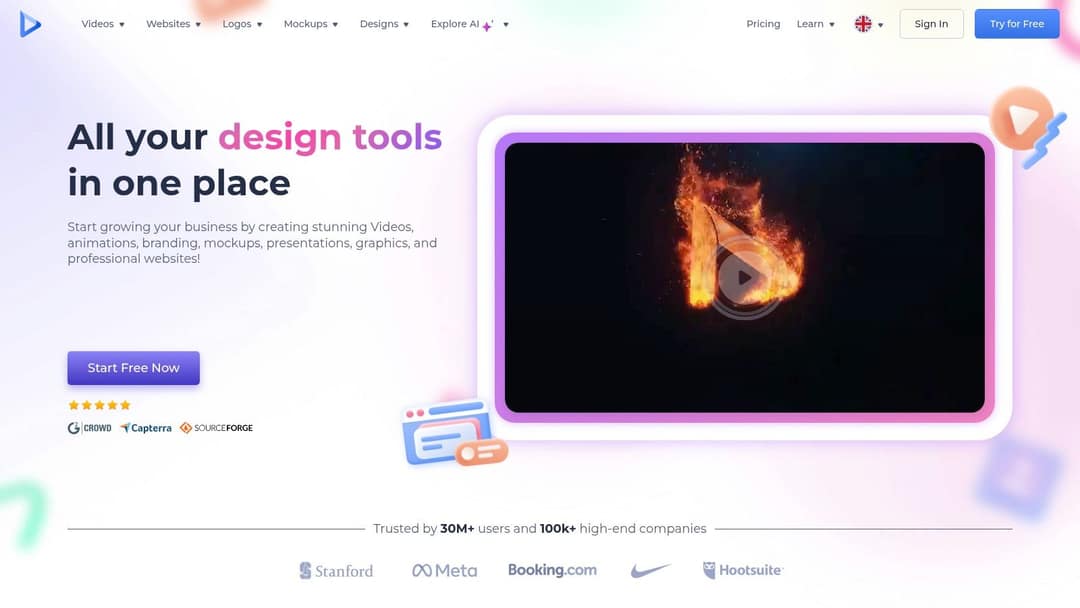
Renderforest is template-driven: intros, explainers, product promos and social ads, plus logos, mockups and websites from the same dashboard. That makes it handy for a new brand building its visual identity from scratch.
- Best for: small businesses that want polished promos with little editing.
- Pricing: free plan with watermarks; paid plans add higher-quality exports.
- Watch out: little control beyond what each template allows.
12. Moovly
Moovly is built for animated explainers. You work with objects and animations instead of a classic timeline, with a library of animated assets, text-to-speech and team collaboration.
- Best for: educators, trainers and marketers explaining a process or product.
- Pricing: free plan with limits; paid plans add features and higher-quality exports.
- Watch out: weak for editing real footage.
What is the best AI video editor for social media?
An AI video editor for social media now means one of two things, and you should know which you need:
- AI that makes the video: Revid and InVideo write the script and assemble scenes, voice and captions from a prompt or link. Choose this when you have no footage.
- AI that speeds up editing your footage: CapCut auto-captions, Filmora's AI Smart Cutout, Descript's transcript-based editing, Submagic's captions and b-roll, and OpusClip's clipping of long recordings. Choose this when you already film.
Adoption is mainstream: 63% of video marketers in Wyzowl's 2026 survey said they had used AI video tools to create or edit marketing videos, up from 51% a year earlier. For a wider list that includes pure clipping and caption tools, see our roundup of the best AI video editors.
If your AI tool produces realistic people or scenes, label them. TikTok requires creators to label realistic AI-generated content, and YouTube requires disclosure through the "AI use" setting in YouTube Studio. Both platforms state that the label alone does not reduce a video's distribution.
What makes a video social-ready?
A social-ready video is one you can post as-is: the right shape and length for the platform, captions burned in, text clear of the app's buttons, and audio you have the right to use. Any social video editor should get you there without a round trip to another app.
Generating in the final shape matters: cropping a wide video to 9:16 cuts off text and faces. Avatar tools such as Synthesia and HeyGen default to 16:9 for training and web use.
Source: Revid data, Amplitude project_built by ratio for text-input tools, Sep 29 to Oct 28, 2026, 50,623 projects.
Show the data
| Share of projects | Projects | |
|---|---|---|
| 9:16 vertical | 83.2% | 42.1K |
| 16:9 wide | 15.2% | 7.7K |
| 1:1 square | 0.9% | 457 |
| 4:5 portrait | 0.7% | 356 |
Specs by platform
| Platform | Shape and resolution | Length to know |
|---|---|---|
| TikTok | 9:16 at 1080x1920 recommended | Uploads up to 60 minutes; in-app recording up to 10 minutes |
| Instagram Reels | 1.91:1 to 9:16, at least 30 FPS and 720 px | Up to 20 minutes; reels over 3 minutes are not recommended to non-followers |
| YouTube Shorts | Square or vertical | Up to 3 minutes |
| Recommended 1080p, H.264 or H.265, 24 to 60 FPS | Every new video is a reel, with no length restriction | |
| 1:2.4 to 2.4:1 | Up to 15 minutes |
Checklist before you post
- Export 9:16 at 1080x1920 for TikTok, Reels and Shorts; make 4:5, 1:1 or 16:9 copies with a video resizer when a feed or channel needs them.
- Keep text, faces and logos out of the areas covered by captions and buttons; a TikTok safe zone checker shows exactly where.
- Burn in captions so the message works with the sound off; an AI caption generator does this in 100+ languages.
- Open on the payoff, not a logo or a slow intro.
- Check the music: on YouTube, any Short longer than one minute with an active Content ID claim is blocked globally and cannot be monetized.
- Label realistic AI visuals on TikTok and YouTube before you publish.
Test video prompt
Create a 30-second Instagram Reel on three mistakes beginners make when editing phone videos. Hook: "Your edits look amateur because of these three things." Use clean motion graphics, a calm voice-over and large burned-in captions placed away from the bottom buttons.
How to choose between your two finalists
Pick two tools from the decision rules above, sign up for their free options, and make the same short video in each. Time it from raw material to export, then watch both results on your phone.
Once videos go out regularly, the work shifts to replies, comments and community; this guide to ways to increase customer engagement covers that side.
FAQ
What is the best free social media video editor?
CapCut is the strongest free option for footage you filmed: its free tier includes the full editor, 1080p export and auto-captions. For Reels only, Instagram's Edits app is free and exports without a watermark, and Canva's free plan is the best start for templated branded videos.
Is CapCut or Canva better for social media videos?
CapCut is better for editing footage you shot, thanks to its timeline, trend templates and TikTok integration. Canva is better for templated, on-brand videos that need matching graphics, and many teams use both.
Can AI make a social media video without any footage?
Yes. Generators such as Revid and InVideo write the script and assemble scenes, voice-over and captions from an idea, a script or a link, and Revid can also publish the result to TikTok, Instagram and YouTube.
Which video editors post directly to TikTok, Instagram and YouTube?
Revid publishes and schedules to all three from one queue. Adobe Express and Ripl include schedulers for planning posts; most desktop editors such as Filmora and Movavi export a file that you upload yourself.
Sources
- Pricing page of each tool, checked for Revid's comparison pages (revid.ai/vs) in November 2026.
- Revid data, Amplitude project_built by ratio for text-input tools, Sep 29 to Oct 28, 2026, 50,623 projects.
- Meta Platforms, Meta Q4 2025 Results Conference Call transcript (January 2026)
- Wyzowl, Video Marketing Statistics 2026 (December 2025)
- YouTube Official Blog, Tall updates coming to Shorts (October 2024)
Charts and figures checked on November 6, 2026.