How to Create YouTube Thumbnails That Get Clicks (2026 Guide)
A step-by-step guide to creating YouTube thumbnails: current 2026 specs, design and text rules, where to find real examples, and how to test what wins.
On this page
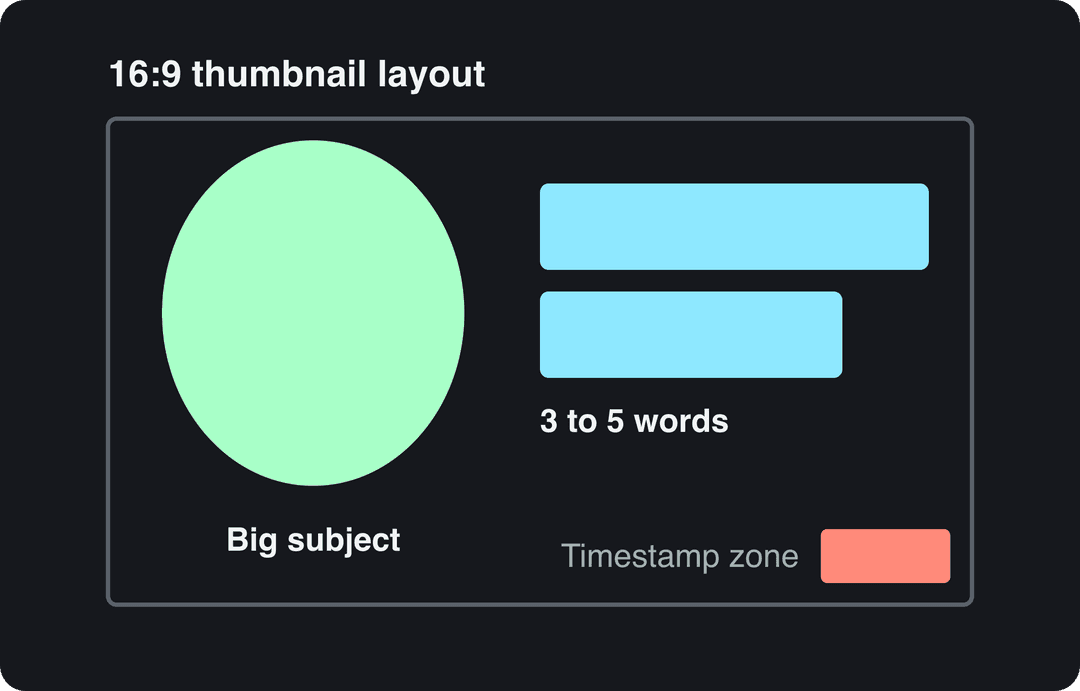
To create a YouTube thumbnail, design a 16:9 image (YouTube recommends 3840 x 2160 pixels, minimum 640 px wide) with one large subject, strong contrast and 3 to 5 words of text. Export it as a JPG or PNG and upload it in YouTube Studio; custom thumbnails need a verified account.
Most thumbnail advice online is a few years behind. Many guides still treat 1280 x 720 as the target size and click-through rate as the only score, but YouTube's own Test & Compare tool picks the winning thumbnail by watch time, not clicks. A thumbnail that wins the click and breaks its promise loses that test.
How to create a YouTube thumbnail, step by step
- Decide the one idea. Write the title first, then decide what the image adds that the title does not say. The two work as a pair and should not repeat each other. A YouTube title generator helps when the title is the part you are stuck on.
- Open a 16:9 canvas. Set it to 3840 x 2160 pixels, or 1280 x 720 if your source photo is smaller (both clear YouTube's 640 px minimum width). Canva has ready-made YouTube thumbnail templates on its free plan; Photoshop, Photopea or Figma work just as well.
- Pick the main image. One subject, large, sharp and well lit. If the video features a person, a face showing the emotion of the video (surprise, frustration, relief) is the most reliable choice. Pull a clean frame from your footage or shoot a dedicated photo while you film.
- Cut it out and push it. Remove the background, place the subject on a clean, contrasting color, and raise contrast, saturation and sharpness a little beyond what looks natural at full size. Small images lose punch.
- Add 3 to 5 words. Use a bold sans-serif font with a thick outline, a drop shadow or a solid bar behind it, and put the words on the side opposite the subject.
- Check it small. Shrink the image to phone size and look at it next to the thumbnails already showing for your topic. Keep the bottom-right corner free of anything important: YouTube overlays the video length there.
- Upload it. In YouTube Studio, open Content, select the video, and under Thumbnail choose Upload file. Files can be up to 50 MB from a computer but only 2 MB from the mobile app.
YouTube thumbnail size and specs in 2026
| Spec | Regular (long-form) video | YouTube Short |
|---|---|---|
| Aspect ratio | 16:9 | 9:16 |
| Recommended size | 3840 x 2160 px | 2160 x 3840 px |
| Minimum | 640 px wide | 640 px tall |
| Max file size | 50 MB (computer), 2 MB (mobile) | Uploaded from a computer |
| Where to upload | YouTube Studio, computer or app | YouTube Studio on a computer only |
| Account | Verified account required | Verified account required |
One detail catches people out: for vertical videos, YouTube replaces a 16:9 custom thumbnail with an auto-generated 4:5 thumbnail on the home, explore and subscription pages. If you publish vertical videos, choose a strong frame from the video itself, because that is what many viewers will see. For every format and crop, see the full YouTube thumbnail size guide.
Prompt to try
Make a 30-second YouTube Short titled '5 Houseplants That Never Die'. Open on a bold, readable first frame: a close-up of a thriving snake plant with the words 'Impossible to Kill' in large yellow text on a dark green background. Then show each plant with a one-line care tip, fast cuts, an upbeat voiceover and big captions.
Can you add a custom thumbnail to a YouTube Short?
Yes, if your account is verified. Custom Shorts thumbnails can only be uploaded in YouTube Studio on a computer, at 9:16 (2160 x 3840 recommended, at least 640 px tall). Otherwise YouTube uses a frame from the video, so make the opening frame readable on its own. Shorts are not eligible for Test & Compare, so you cannot A/B test their covers in YouTube Studio. More on what moves Shorts numbers in how to get more YouTube Shorts views.
What makes a YouTube thumbnail clickable
A thumbnail gets a fraction of a second in a crowded feed. It works when a viewer understands the topic and wants the answer before they read the title. These are the building blocks:
| Element | What to do | Why it matters |
|---|---|---|
| Resolution | 16:9, 3840 x 2160 recommended | Stays sharp from phones to TV screens |
| Contrast | Opposing colors, such as yellow on deep blue | Separates you from YouTube's white, gray and red interface |
| One clear subject | Large, cut out, easy to identify | The topic should register instantly |
| Short text | 3 to 5 words, bold sans-serif | Readable on a small phone screen |
| Human element | A face showing the video's emotion | Faces are the fastest visual signal of how to feel |
| Honest promise | Show what the video actually delivers | Misleading thumbnails cost you watch time and trust |
Skip YouTube's auto-generated frames for long-form videos. A random frame rarely has a clear subject, readable text or deliberate contrast, and it tells viewers nothing about why they should watch.
Design choices that make a thumbnail readable at a glance
The skill behind every good thumbnail is visual hierarchy: the eye should land on the most important element first, then the text, then nothing else. Treat it like a billboard seen from a moving car.
Color and contrast
Pick two or three colors, not six. Bright yellows, deep blues and vivid greens contrast with YouTube's mostly white, gray and red interface. Yellow text on a dark blue background is hard to ignore; pale text on a busy photo disappears. If you have to squint to read your thumbnail, viewers will scroll past it.
The main image
The image carries the emotion, so it needs to be high resolution, well lit and directly tied to the video. When editing:
- Boost saturation and contrast slightly past natural, since colors flatten at small sizes.
- Sharpen a little more than you think, because a slightly over-sharpened image reads crisper when shrunk.
- Cut out the background and drop the subject onto a clean, high-contrast backdrop in your channel colors.
- Go big: crop tight on the face or object rather than showing a whole room.
Text and fonts
Bold, condensed sans-serif fonts read best at thumbnail size. Three free favorites on Google Fonts are Montserrat, Bebas Neue and Anton. Add an outline or drop shadow, or place a solid shape behind the words, so the text stays readable whatever the photo does behind it.
Writing thumbnail text that earns the click
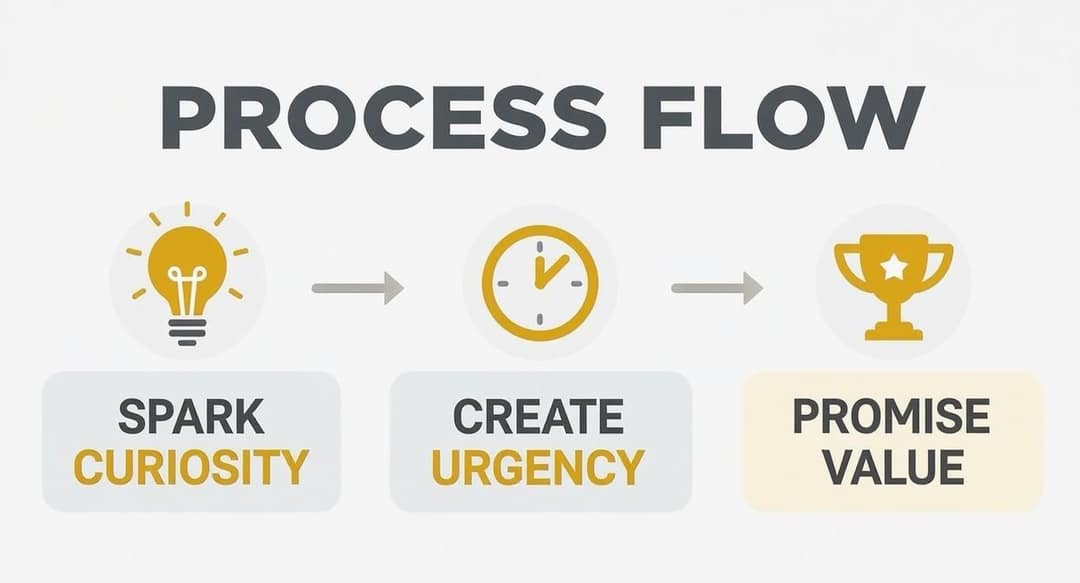
The image stops the scroll; the words give the reason to click. Thumbnail text should add curiosity or a clear benefit that the title does not already state, in 3 to 5 words.
Words such as "Mistake", "Finally" or "Warning" work because they open a question only the video can answer. Formulas that hold up:
- Promise a transformation: "From Zero to Hero"
- Highlight a conflict: "CEO vs. Intern"
- Create intrigue: "The Hidden Method"
- Signal exclusivity: "My Top 3 Only"
Two mistakes sink otherwise good designs. The first is cramming a full sentence onto the image: it is unreadable on a phone and signals a video without focus. The second is vague labels such as "My Thoughts" or "Vlog #27", which promise nothing. Be specific: "Gardening Tips" says little, "5 Plants That Never Die" solves a real problem. For more patterns, Timeskip lists 8 YouTube thumbnail best practices, and our guide to writing video titles that get clicked covers the other half of the pair.
Where to get inspired by real YouTube thumbnails
The best reference is what already wins attention in your niche, seen at the size viewers see it.
- Search your own topic on YouTube from your phone. Look at the thumbnails ranking for the exact search you want, and note what they share: face or no face, color scheme, word count, where the text sits.
- Check your home and subscription feeds. These show what thumbnails look like next to each other, which is the real competition.
- Study the biggest Shorts. Revid's ranking of the most viewed YouTube Shorts shows which opening frames and covers hold up at scale.
- Search a library of proven videos. Revid's viral video library holds about 2.77 million videos and posts with their public engagement data, including 73,227 YouTube posts (snapshot of September 15, 2026). A free account can search it by topic, platform and engagement tier.
- Keep a swipe file. Save screenshots of thumbnails that made you click, with a note on why. Copy the principle (the expression, the contrast, the framing), never the image itself.
How to make YouTube thumbnails faster with AI
Designing a fresh thumbnail for every upload is slow, and AI is most useful at the concept stage: backgrounds, layouts and several directions to choose from before you polish one by hand.
In Revid, you can start from the AI video and image templates: pick a template, describe the image you want in a few words and get a concept back. When you make a video in Revid, you can also turn on Generate Cover, which creates a cover or thumbnail from your script, with an optional direction and a style such as Editorial, Magazine or Viral, for the cost of one AI image in credits. If the video itself is a Short, the AI YouTube Shorts generator writes the script and adds visuals, voice-over and captions, and Revid can publish it straight to YouTube.
Whatever tool you use, treat the AI output as a first draft: swap in your own face or product if the video features them, fix the text, and match your channel colors. For other options, this roundup of affordable AI tools for creative workflows covers idea generation and design helpers.
How to test and improve your thumbnails with data
A thumbnail is good when your audience proves it, not when it looks good to you.
Read your click-through rate
In YouTube Analytics, impressions click-through rate shows what share of people who saw the thumbnail clicked. What counts as good varies widely by niche, so benchmark against yourself: find your channel's average over the last 90 days and compare every new upload to it. A video with many impressions but a below-average CTR means YouTube is showing it and the thumbnail and title are not convincing people.
Run an A/B test with Test & Compare
YouTube Studio on a computer can test up to 3 titles and thumbnails on the same video. YouTube then shows the variant with the highest watch time to all viewers. Because the score is watch time, a thumbnail that attracts the right viewers beats one that only attracts clicks. Make the variants clearly different (face versus object, different text, different color) so the result tells you something.
Or swap thumbnails on older videos
- Find a video with decent views but a below-average CTR.
- Design a new thumbnail that is noticeably different from the original.
- Replace the old one in YouTube Studio.
- Wait 7 to 14 days, then compare its CTR and views with the period before.
If the new style lifts the numbers, you have found something to reuse across the channel.
Watch retention, not just clicks
A clickbait thumbnail can lift CTR while viewers leave in the first seconds because the video does not deliver. Pair a strong thumbnail with a video that pays off its promise early, and check audience retention alongside CTR before you call a test a win.
FAQ
How much does it cost to make a YouTube thumbnail?
It can cost nothing beyond your time if you design it yourself in a free editor with your own photos. AI image tools charge per image or by subscription, and freelance designers charge per thumbnail; for current figures, see this 2025 roundup of what creators pay for thumbnails.
Can I change a YouTube thumbnail after the video is published?
Yes. Open the video in YouTube Studio and upload a new thumbnail at any time; replacing thumbnails on older videos with a low CTR is one of the easiest ways to test new styles.
Why can't I upload a custom thumbnail?
The usual reason is that your account is not verified, which custom thumbnails require. Other causes are a file over 2 MB when uploading from the mobile app, an image under 640 px wide, or trying to add a Shorts thumbnail from a phone instead of YouTube Studio on a computer.
Do AI-generated thumbnails need an AI label on YouTube?
No. YouTube's disclosure rules for realistic AI content do not cover thumbnails, titles or scripts made with AI, so you can use AI images in thumbnails without the AI use setting, as long as the thumbnail does not misrepresent the video.
Should every thumbnail on my channel look the same?
They should look related, not identical. Keep one or two fonts, your core colors and any logo in the same spot so viewers recognize your videos in a feed, and refresh the overall style when your CTR keeps falling below your own average.