How to Format YouTube Video: Specs That Actually Work
Learn how to format YouTube video the right way. Clear specs on resolution, aspect ratio, codecs, bitrate, and upload best practices.
On this page
You finish an upload, open the watch page, and the picture doesn't look like the edit you approved. Black bars crowd the frame, movement looks smeared, or the audio seems off. The file played perfectly on your computer, but YouTube has processed it into a version viewers see.
That's why formatting a YouTube video isn't just choosing a resolution in your editor. YouTube ingests and re-encodes uploads, so your aspect ratio, codec, frame rate, and audio settings all affect how closely playback matches your export. A good preset won't fix weak footage, but it can prevent avoidable quality loss and playback surprises.
The practical approach is to treat format as both a delivery specification and an editorial choice. This guide lays out reliable settings for conventional videos and Shorts, explains where creators can save time without compromising the result, and gives you a decision process for choosing the right format for each idea.
Why Your YouTube Upload Looks Wrong and How Formatting Fixes It
The usual sequence is familiar: the upload finishes, processing runs, and the video finally appears. Then a horizontal clip has black bars, a fast scene looks blocky, or the audio doesn't match the edit. Those problems can start with a mismatch between the timeline and export settings, not with YouTube itself.
YouTube doesn't play your original file unchanged. It processes and re-encodes uploads for playback, so an export that already has the right shape, scan type, and compatible audio gives the platform a cleaner starting point. A re-encode can't restore detail that wasn't in the source, and it can't make a badly cropped composition feel intentional.
Start by asking what went wrong, rather than changing settings at random. Black bars usually point to an aspect-ratio mismatch or footage that was placed inside a canvas of a different shape. Choppy movement can come from an export frame rate that doesn't match the source. If the picture looks soft or blocky during motion, check the export's resolution and bitrate before blaming the player.
Practical rule: Match the export to the footage and the intended viewing format first. Don't upscale, stretch, or convert footage just to make an export preset look more impressive.
By the end of this guide, you'll have a working approach to resolution, aspect ratio, codecs, bitrate, and audio, plus a format decision rule for long-form videos and Shorts. The aim isn't to find one magic preset. It's to keep avoidable technical problems out of the viewer's way.
The 16:9 Widescreen Standard and What It Means for Your Frame
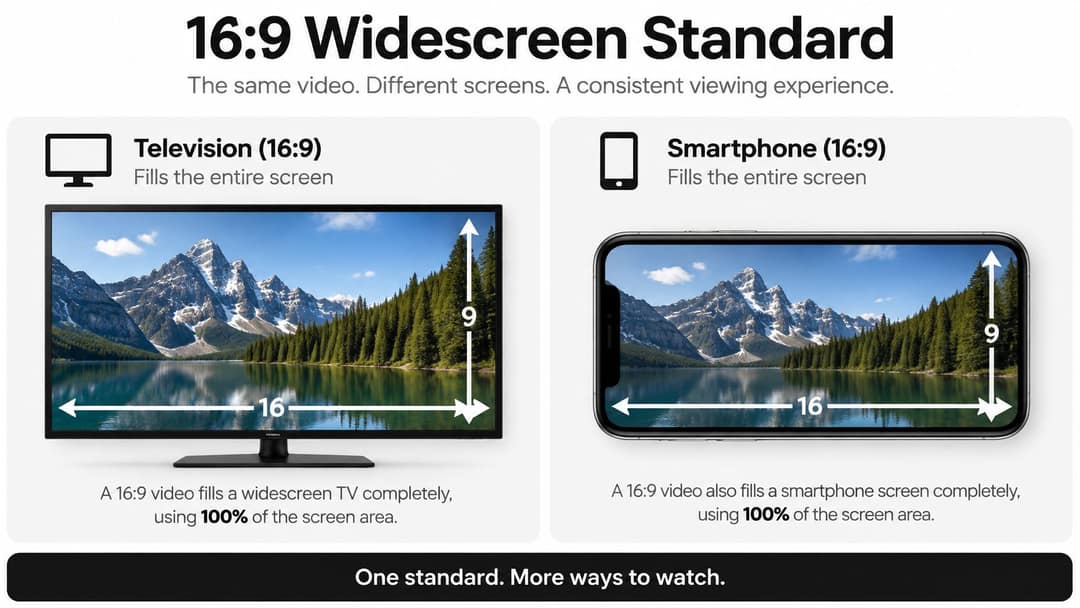
For conventional long-form YouTube, 16:9 is the familiar horizontal canvas. The ratio means the frame is 16 units wide for every 9 units high. A 1280×720 HD frame and a 1920×1080 Full HD frame have different pixel counts, but share that same shape.
YouTube expanded its player to 16:9 in November 2008 while retaining compatibility with older 4:3 videos. On widescreen displays, those older videos could appear with black bars at the sides. The move aligned the player more closely with widescreen television and computer displays, and helped establish the horizontal format associated with standard YouTube viewing (history of YouTube's widescreen player).
Check your frame before exporting
In your editor, look at the sequence or project settings, not just the source clip. Confirm that the frame is horizontal and that important details, faces, captions, and graphics sit inside the visible image. If the source is 4:3 and the sequence is 16:9, decide whether to preserve the full original image with space around it or crop the sides. A crop can fill the frame, but it may cut off useful visual information.
For a closer look at crop decisions, use this guide to crop videos for YouTube. The choice should follow the shot, not a blanket rule: cropping can work well for a centered subject, but it can damage a shot with important action near the edges.
Vertical and square video serve different viewing contexts, especially Shorts. Don't treat rotating or cropping a horizontal timeline as a purely technical fix. Each shape asks for its own composition, with subjects and on-screen text placed for the screen the viewer is holding.
YouTube Resolution Ladder From 240p to 8K
Resolution describes the dimensions of the video image. YouTube's documented ladder runs from 426×240 at 240p to 7680×4320 at 8K, with 1920×1080 as Full HD and 3840×2160 as 4K (YouTube's resolution guidance).
| Resolution | Label | Best for |
|---|---|---|
| 426×240 | 240p | Low-resolution playback tier |
| 1280×720 | HD | Lightweight exports and HD source footage |
| 1920×1080 | Full HD | General long-form production |
| 3840×2160 | 4K | High-detail footage and 4K source material |
| 7680×4320 | 8K | Footage produced specifically for very high-resolution playback |
The right rung depends on what you recorded and what the viewer needs to see. 720p can suit a straightforward talking-head explanation when the source is HD and a smaller export is useful. 1080p is a dependable target for most conventional creator videos. 4K makes more sense when the source contains fine detail, or when a wide shot, horizontal view, or gameplay capture benefits from extra image information.
Uploading at a higher resolution than the original doesn't create missing detail. It may increase processing and file size without improving the underlying picture. Choose the highest sensible export that your source supports, rather than enlarging a lower-resolution file for the label alone.
A 1920×1080 frame contains 2,073,600 pixels. A 1080×1920 vertical frame has the same pixel count in portrait orientation, but it's designed for a different screen shape and viewing experience. YouTube also notes that support for playback resolutions between 4K and 8K began being removed in 2022. That's a reminder to build around practical HD and 4K needs rather than assuming every high-resolution tier will remain equally available.
Codecs, Containers, and the MP4 Export That Just Works
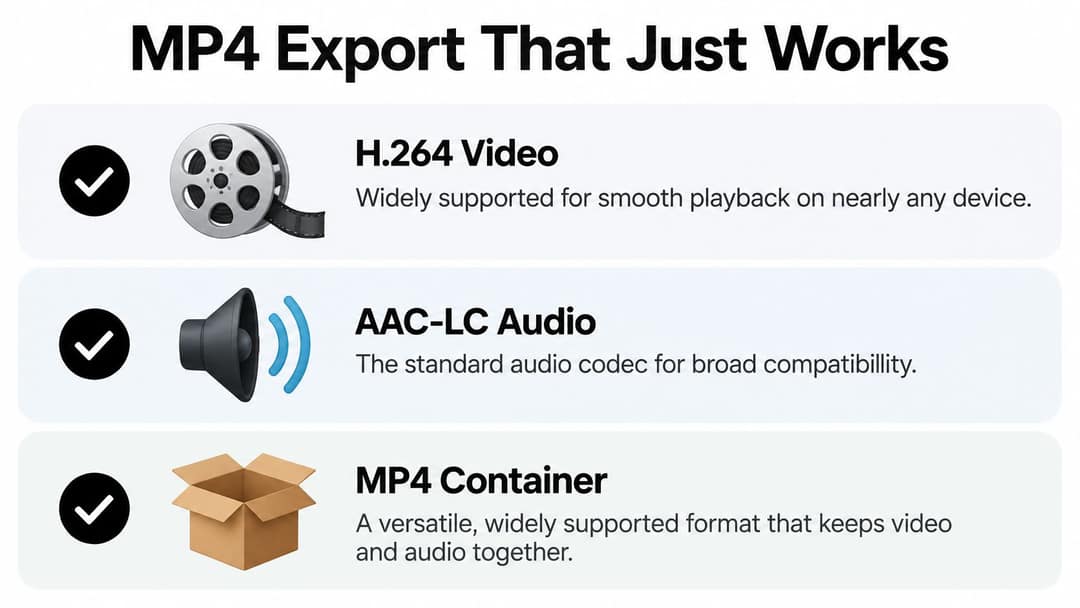
A container packages the video and audio streams, while codecs encode those streams. For a standard long-form upload, YouTube's broadly compatible baseline is an MP4 container with H.264 video and AAC-LC audio. Its guidance also recommends progressive scanning, H.264 High Profile, variable bitrate encoding, CABAC, a closed GOP, 4:2:0 chroma subsampling, and 48 kHz audio (YouTube's upload encoding recommendations).
Export checklist
- Use progressive scanning. Interlaced footage can introduce artifacts during playback or conversion. If the source is interlaced, handle the conversion deliberately in your editing workflow.
- Choose H.264 High Profile and variable bitrate. These are part of YouTube's recommended delivery settings. Variable bitrate encoding allocates data as the picture's complexity changes.
- Set a closed GOP. YouTube's recommendation is for a GOP length of about half the frame rate. For example, a 30 fps export uses a GOP of about 15 frames.
- Keep the audio at 48 kHz. Stereo and stereo-plus-5.1 channel layouts are supported. Make sure the export includes the intended audio stream and that it plays cleanly from beginning to end.
- Check the MP4 structure. For reliable playback, place the metadata needed to start playback before the media payload when your export options allow it.
Don't change the source frame rate without a reason. Frame-rate conversion can produce judder or duplicated frames, especially in footage with quick movement. Before upload, confirm that the exported file is progressive and contains a compatible video stream and audio stream. YouTube's bitrate figures are guidance, not a mandatory ceiling, so treat the preset as a practical baseline rather than a promise that every source will look identical after processing.
Bitrate Recommendations That Match Your Content Type
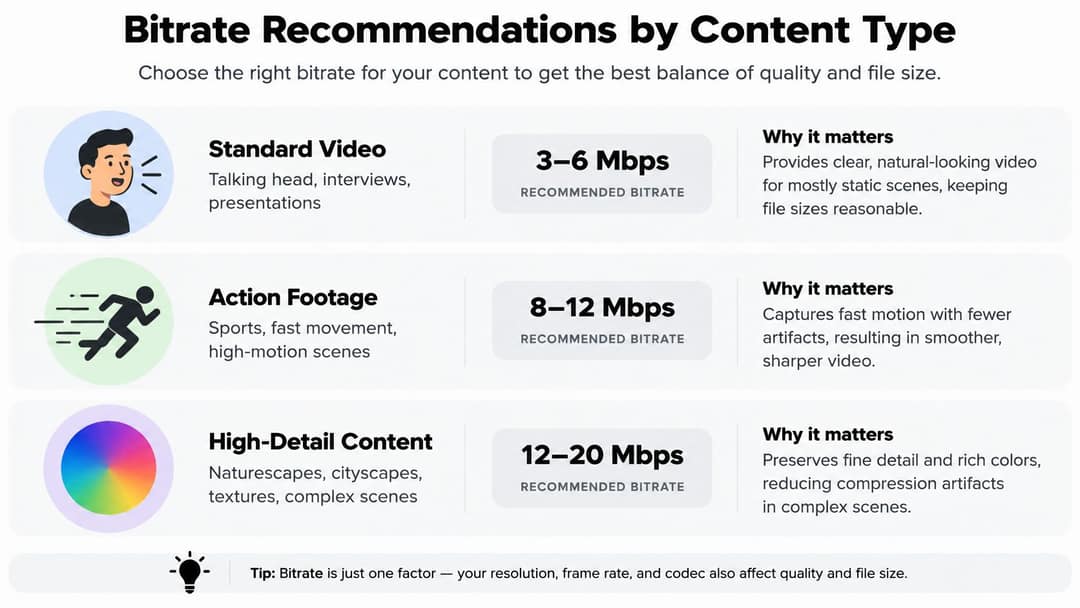
Bitrate is the amount of data assigned to each second of video. It affects how much visual detail survives compression, particularly in busy scenes. A talking head against a plain background is relatively easy to encode. Water, foliage, confetti, fine textures, and fast movement give the encoder more to handle.
YouTube publishes bitrate guidance for different resolutions, frame rates, and HDR or standard dynamic range uploads. The verified specifications here don't provide those numerical ranges, so the dependable advice is to use YouTube's current export guidance when setting a target, then judge the result against your footage rather than inventing a universal number.
Spend data where the image needs it
For a cooking explanation with a stable camera and a clear background, a moderate bitrate may preserve the image well. A fast gaming capture or sports highlight has more motion and detail, so it needs more room to avoid smearing and blocky edges. A 4K image also carries more detail than an HD one, making compression artifacts easier to spot when the bitrate is too low for the source.
Run a short export test before rendering a full project if you're unsure. Inspect a scene with movement, fine detail, and gradients, since these reveal different compression problems. If the image breaks up in those moments, adjust the export settings and test again.
Don't assume that pushing bitrate as high as possible fixes every problem. It can create a large file and a slower upload without improving a source that is already limited by focus, lighting, or camera quality. Use YouTube's recommendations as a starting point, and choose an export that retains visible detail without making file size the goal.
YouTube Shorts Format Rules and the Three-Minute Boundary
Shorts need their own composition, not just a vertical crop of a horizontal video. Vertical 9:16 is the natural choice for portrait viewing, while square footage can also fit a vertical feed. YouTube supports Shorts up to three minutes, but eligibility depends on factors including aspect ratio, upload timing, and music rights. Certain square or taller videos longer than one minute uploaded before December 8, 2025 can continue to be treated as long-form for specific artist and music-owner channels (YouTube's Shorts classification guidance).
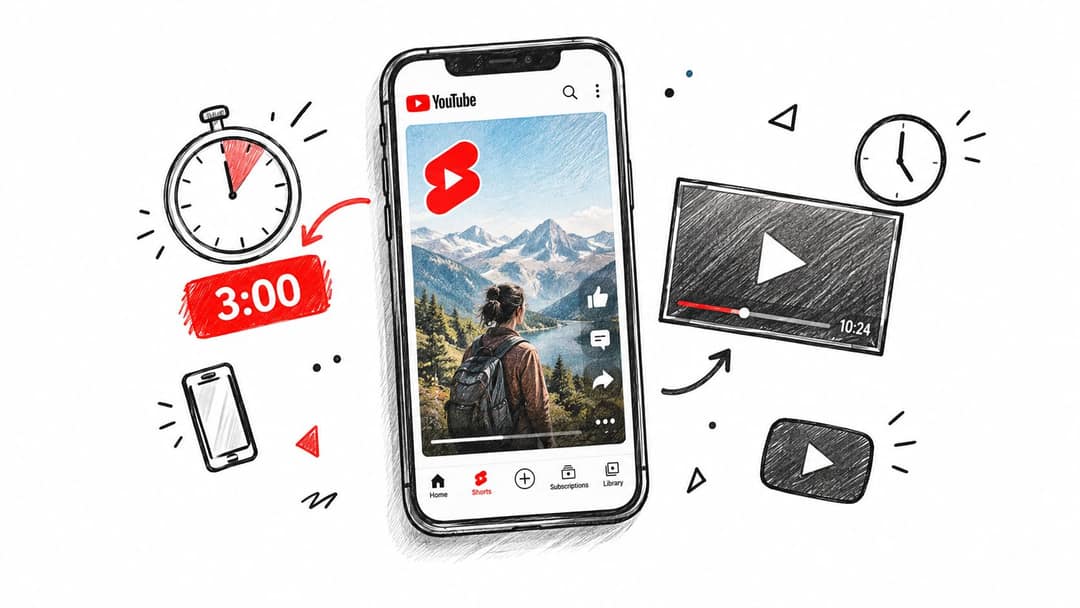
A clip's shape and duration matter, but they don't replace the story. A short vertical video should deliver a clear payoff quickly. A longer vertical narrative can take more time, but it still needs a strong opening, a visible change in the story, and a reason to keep watching. Don't stretch a short idea just because the format allows more time.
Captions and visual context matter on small screens, including for viewers watching without sound. Keep text legible, avoid placing key details where interface elements may obscure them, and make the subject easy to understand without relying on audio alone. When using music, check that the track is permitted for the intended use and format.
The example below can help you think through how framing and pacing change in a mobile-first video.
For repurposed footage, review the finished vertical edit from beginning to end. Reposition the subject, rebuild captions for portrait framing, and re-cut where the horizontal version depends on context that disappears after cropping. A technically eligible clip can still feel like a poor Short if the edit doesn't make sense on its own.
Prompt to try
Make a 40-second vertical YouTube Short titled "Why your upload looks blurry on YouTube". Open with the hook "Your video looked perfect until you uploaded it." Explain three fixes: match the frame rate, export 1080p H.264 MP4, and wait for processing to finish. Use clean motion graphics, bold captions and a calm, confident voice, ending with a pointer to the full guide.
The Hidden Trade-Off Between Shorts Views and Real Engagement
Shorts can attract views without necessarily producing the kind of audience response a channel needs. A 2025 analysis reported Shorts accounting for 97.1% of sampled views but 0.23% engagement, compared with 0.66% engagement for long-form, roughly 2.9 times higher engagement for long-form in that sample (the 2025 YouTube benchmark analysis). Those figures describe that sample, not a guarantee about every channel or the performance of a particular video.
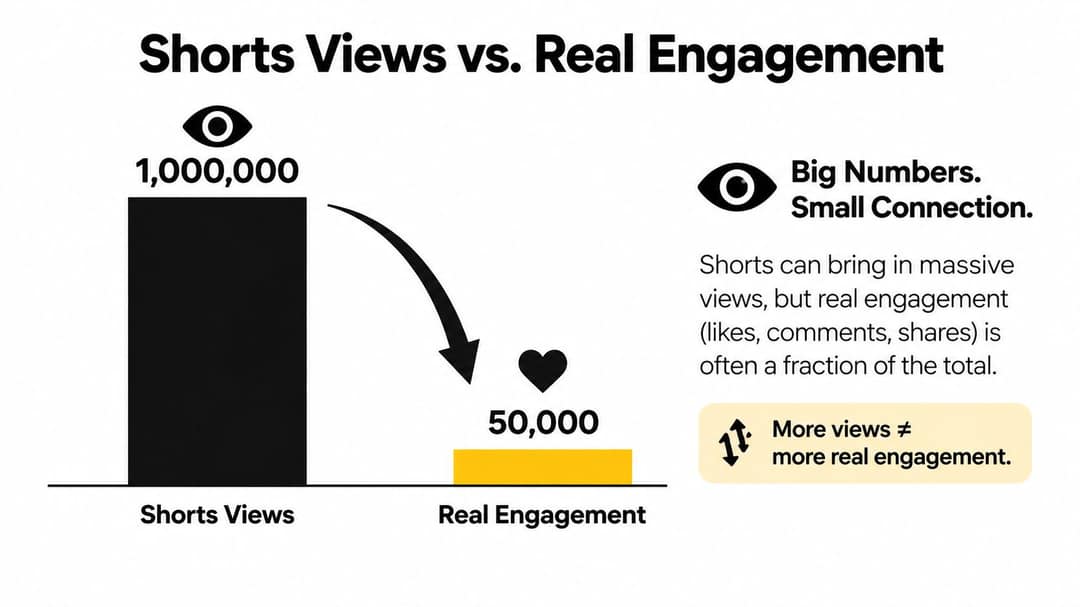
The takeaway isn't that Shorts don't work. It's that reach and depth measure different outcomes. A brief clip can be easy to sample and share, while a longer video gives viewers more room to learn, compare options, or connect with a creator's point of view. If you sell a service, teach a skill, or publish a faceless explainer, a view that leads nowhere may be less useful than a smaller audience that watches more and takes a relevant next step.
Track whether viewers continue to a related long-form video, return to the channel, or take an action that matters to your business. Don't judge the format only by the view counter. A Short should either deliver a complete small payoff or give a credible reason to explore the deeper video. A teaser that withholds all useful information can feel like an ad for content the viewer hasn't chosen to watch.
Measure what happens after the swipe. Qualified watch time, returning viewers, and downstream actions can tell you more about a format's value than reach alone.
Upload Best Practices From Export to Publishing
A strong export can still cause trouble if the upload workflow is careless. Preserve the source frame rate unless your project has a clear reason to change it. Converting footage can introduce judder or repeated frames, and YouTube's processing won't reconstruct the motion you intended.
Before you upload, verify the file rather than trusting the editor's preset name. Check that the video is progressive, the audio plays correctly, and the MP4 contains compatible video and audio streams. If your export tool offers an option to position the MP4 metadata before the media payload, use it to support playback while the file is being served.
A clean handoff to YouTube
- Watch the exported file locally. Check the opening, a movement-heavy moment, captions, and the final audio.
- Confirm the frame shape. Make sure the finished picture matches the format you intended, with no accidental bars or clipped text.
- Upload a fresh export after edits. A small change in the timeline can leave an older file out of sync with the version you meant to publish.
- Check playback after processing. Review the watch page and confirm that the image and sound match your approved export.
Keep separate exports for platforms when their framing or captions differ. A master designed for horizontal viewing may not translate cleanly into vertical, and text placed comfortably in one frame can become cramped in another. Re-check the thumbnail and on-screen text as part of the publishing handoff, not as an afterthought.
Choosing the Right Format for Your Channel and Workflow
Think of your channel as a format portfolio, not a contest to find one ideal video length. YouTube's ecosystem includes Shorts, episodic programming, and live streams, so creators can choose different formats for different jobs. The useful question is what the viewer needs from this specific idea and how much production capacity you have.
| Choose | When it fits | Editorial job |
|---|---|---|
| Short | A single tip, reaction, or sharply focused moment | Deliver a complete micro-payoff |
| Long-form | The idea needs setup, explanation, evidence, or a detailed result | Give the viewer depth and context |
| Hybrid sequence | A longer piece has a strong excerpt or introduction | Use a Short as a standalone clip or a clear bridge to the full video |
If the idea makes sense in a compact clip, publish it as a Short and make the payoff satisfying on its own. If viewers need context before the conclusion, build a long-form video instead of compressing the explanation until it becomes confusing. When a topic supports both, edit a Short with its own beginning and end, then offer the longer video as a natural next step.
Limited-capacity teams should resist producing a new concept for every format. Start with a strong central idea, then decide whether a separate vertical edit adds value. Tools such as Revid.ai can help reformat footage for horizontal YouTube videos or vertical Shorts and create speaker-centered clips with subtitles. Whatever tool you use, review the finished crop and edit manually. Automation can speed up reframing, but it can't decide whether the clip delivers a complete idea.
Quick Reference Card for Every YouTube Format
Keep this table near your export settings. The key is to match the frame and encoding to the footage, then preserve the source frame rate rather than converting without a reason. Bitrate should follow YouTube's current guidance for the resolution, frame rate, and HDR or standard dynamic range of the upload.
| Format | Resolution | Aspect | Video codec | Audio | Frame rate | Bitrate |
|---|---|---|---|---|---|---|
| Standard long-form | 1920×1080 | 16:9 | H.264 in MP4 | AAC-LC, 48 kHz | Match source | YouTube guidance for source |
| High-frame-rate long-form | Source resolution | 16:9 | H.264 in MP4 | AAC-LC, 48 kHz | Preserve source | YouTube guidance for source |
| 4K long-form | 3840×2160 | 16:9 | H.264 in MP4 | AAC-LC, 48 kHz | Preserve source | YouTube guidance for source |
| HDR long-form | Source resolution | 16:9 | Compatible export settings | AAC-LC, 48 kHz | Preserve source | Use current HDR guidance |
| Shorts | Vertical or square | 9:16 or 1:1 | Compatible export settings | Check audio and music rights | Preserve source | Use current guidance |
Use this as a starting point, not a substitute for reviewing the export. The source material and the intended viewing experience still determine which setting makes sense.
Common YouTube Format Questions Answered
Why does my 1080p upload look lower resolution at first?
YouTube may still be processing higher-quality playback versions after the video becomes available. Check again once processing is complete, then inspect the source export if the picture still looks soft. A frame-rate mismatch or poor source quality can also affect how smooth and clear the result looks.
How should I turn a horizontal video into a Short?
Reframe the shot around the subject, then edit the vertical clip as its own piece. Reposition captions so they remain readable, remove setup that no longer makes sense, and check that the audio and music are suitable. Don't assume a center crop will keep every important detail.
When is 4K worth the larger export?
Use it when the source contains detail that benefits from a larger image, such as footage, fine textures, or high-detail gameplay. If the source is already limited or the video is a straightforward explanation, Full HD may be the more practical delivery choice.
Why might a vertical video be treated as long-form?
Classification can depend on timing, aspect ratio, and music-rights conditions. YouTube's guidance also describes an edge case for certain artist and music-owner channels involving square or taller videos longer than one minute uploaded before December 8, 2025. Check the platform's current rules when a repurposed upload doesn't appear as expected.
Revid.ai helps creators turn ideas and existing content into social videos, with tools for adapting footage to horizontal YouTube and vertical Shorts formats. If you want to build a reusable workflow for both, explore revid.ai and try it with a video you're preparing to publish.