YouTube Video Size: Width and Height for Every Format in 2026
The standard YouTube video size is 1920×1080 at 16:9. Here is every width and height YouTube supports, from 240p to 8K, plus Shorts, square and the export settings that keep bars and stretching out of your upload.
On this page
The standard YouTube video size is 1920×1080 pixels (1920 wide by 1080 high), a 16:9 aspect ratio. YouTube accepts 16:9 uploads from 426×240 up to 7680×4320 (8K). For vertical Shorts, use 1080×1920 (9:16).
The most common sizing mistake has nothing to do with those numbers: it is baking black bars into the file. YouTube asks you to upload in the video's native ratio with no letterboxing or pillarboxing, because bars inside the picture stay there on every screen, while the player can only adapt around a clean frame.
YouTube video size chart: every format at a glance
Width always comes first. In 1920×1080, the frame is 1920 pixels wide and 1080 pixels high. Pick your row before you open the export window.
| Format | Aspect ratio | Width × Height | Use it for |
|---|---|---|---|
| Standard video (1080p) | 16:9 | 1920×1080 | Default for tutorials, reviews, interviews, podcasts |
| HD minimum (720p) | 16:9 | 1280×720 | Smallest widescreen size YouTube's guidance recommends |
| Detailed widescreen (1440p) | 16:9 | 2560×1440 | Gaming, dense screen recordings |
| 4K | 16:9 | 3840×2160 | Native 4K footage, large-screen viewing |
| 8K | 16:9 | 7680×4320 | Genuine 8K masters only |
| Shorts | 9:16 | 1080×1920 | Vertical mobile clips up to 3 minutes |
| Square | 1:1 | 1080×1080 | Square clips (classified as Shorts when up to 3 minutes) |
| Classic footage | 4:3 | 640×480 or higher | Archival or legacy recordings kept in their native shape |
If you only remember one row: 16:9 at 1920×1080 for regular videos, 9:16 at 1080×1920 for Shorts.
What aspect ratio is a YouTube video?
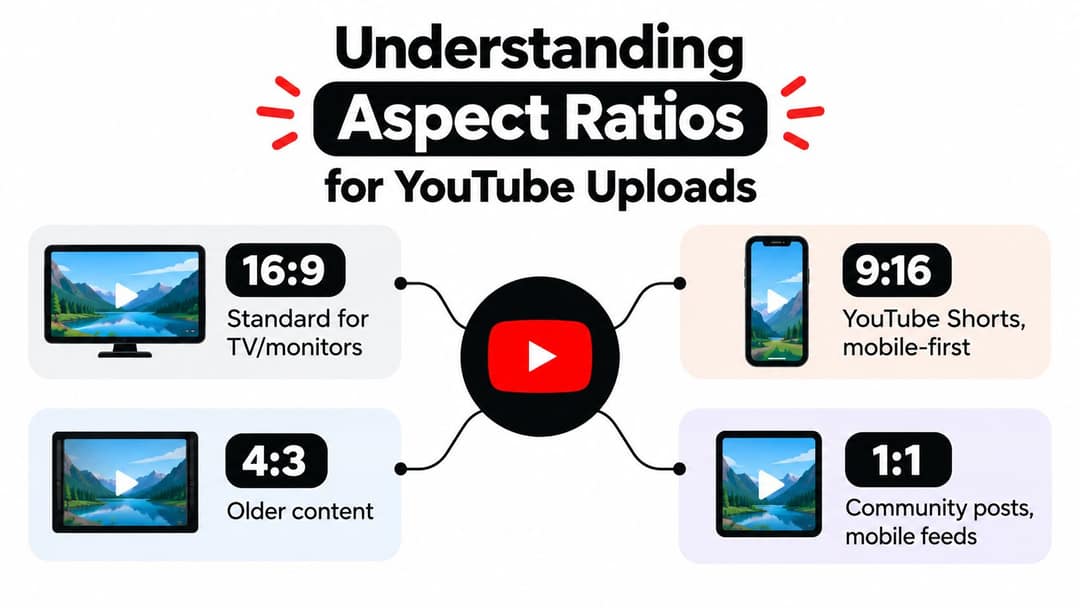
YouTube's ratio for standard videos is 16:9, the widescreen shape of TVs, monitors and most cameras. That is also the YouTube screen ratio: the standard player on desktop and TV is a 16:9 box. YouTube's formatting specifications for uploads support 1.77:1 (16:9) and 1.33:1 (4:3) and tell creators to keep the native ratio of the upload instead of adding bars.
Aspect ratio and resolution are two separate decisions:
- Aspect ratio is the shape of the frame: 16:9, 9:16, 1:1 or 4:3.
- Resolution is the number of pixels inside that shape: 1280×720, 1920×1080, 3840×2160.
A 16:9 project can export at 720p, 1080p, 4K or 8K and keep exactly the same shape. Choose the shape first, then the pixel count.
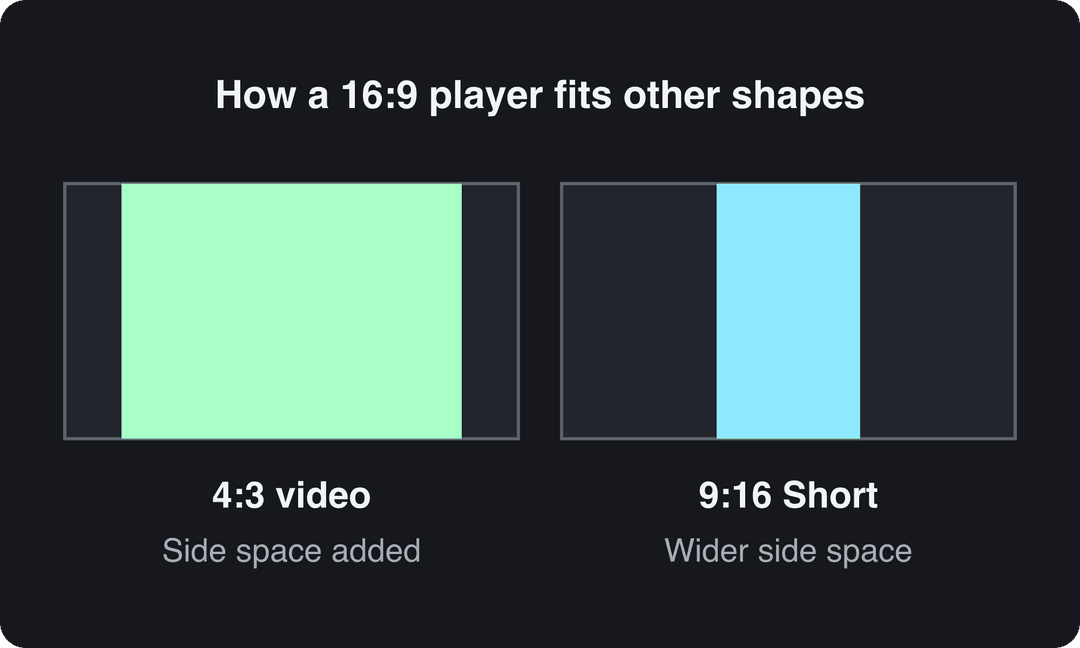
When a video's shape does not match the player, the player shows empty space: at the sides for 4:3 and vertical footage (pillarboxing), above and below for very wide cinematic crops (letterboxing). That space is added by the player and costs you nothing. Stretching the image to fill it does: faces turn wide and text distorts.
Use this decision path:
- Long-form video for desktop, TV and phones: 16:9.
- Vertical, mobile-first clip: 9:16, which YouTube treats as a Short when it runs 3 minutes or less.
- A square placement you specifically need: 1:1.
- Old or archival footage: keep its native 4:3.
To switch a finished video from one shape to another without distortion, follow this guide to changing a video's aspect ratio.
YouTube video size in pixels: the 16:9 resolution ladder
YouTube's official video resolution guidance lists these 16:9 sizes. The "p" label names the height only; the full size is always width × height.
| Label | Width × Height | When to use it |
|---|---|---|
| 240p | 426×240 | Low-quality fallback, legacy playback |
| 360p | 640×360 | Low-bandwidth playback, older material |
| 480p | 854×480 | Standard-definition widescreen |
| 720p | 1280×720 | Lowest HD size worth exporting |
| 1080p | 1920×1080 | Practical baseline for most uploads |
| 1440p | 2560×1440 | Gaming, detailed screen recordings |
| 2160p (4K) | 3840×2160 | 4K productions, large screens |
| 4320p (8K) | 7680×4320 | High-end 8K masters |
YouTube creates the lower playback versions from your upload, so you export one master file, not one file per row.
Which resolution should you export?
- Footage shot or edited for normal widescreen viewing: export 1920×1080.
- Small interface text, game maps or HUD details: export 2560×1440 if your source and editor support it.
- Native 4K footage: export 3840×2160 when the extra detail is visible.
- A 720p source: export 1280×720. Upscaling adds pixels, not sharpness.
- Minimums: stay at or above 1280×720 for 16:9 and 640×480 for 4:3, the floors summarized in this YouTube aspect ratio reference.
Horizontal, vertical and square YouTube video dimensions
Each orientation does a different job. Horizontal gives room for a presenter plus a screen, a game world or a two-person conversation. Vertical gives one subject more height on a phone. Square is a compromise for simple, centered compositions.
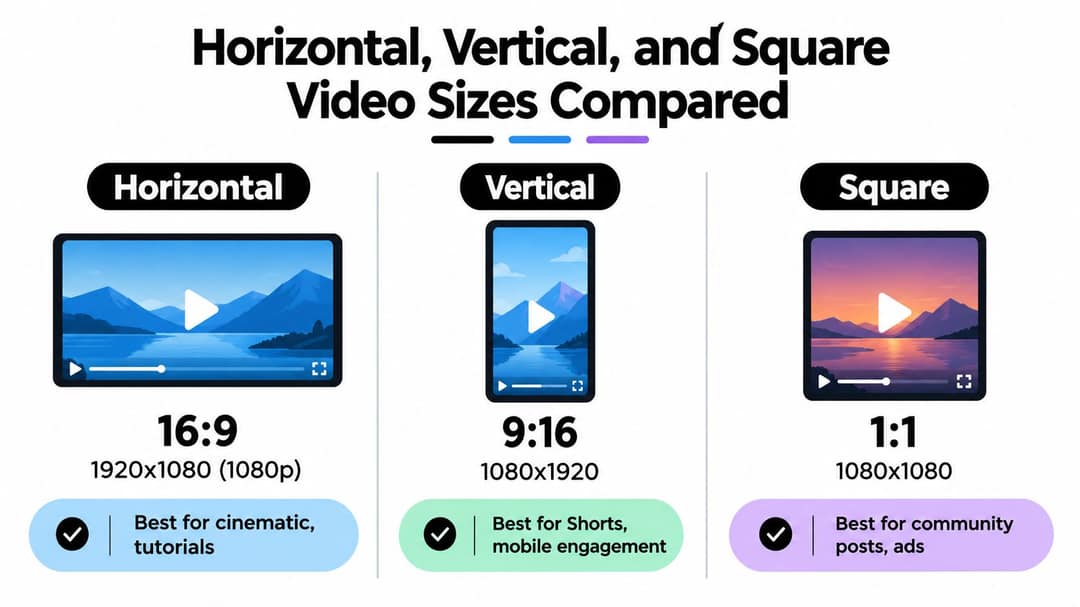
Horizontal: 16:9 at 1920×1080
A 1920×1080 export fills the standard player with no special layout. It leaves lateral room for captions, diagrams, browser windows and lower thirds, which matters more on a TV or monitor than extra height. If your content depends on side-by-side information (an app plus a face cam, a full play area), horizontal is the right frame.
Vertical Shorts: 9:16 at 1080×1920
Since October 15, 2024, square or vertical videos up to 3 minutes long are classified as YouTube Shorts, and you can upload them from a computer or a phone. Build a native 1080×1920 sequence and reframe the shot rather than shrinking a horizontal clip into a tall canvas. Keep faces and captions clear of the buttons and title overlay with the YouTube Shorts safe zone checker.
If you are cutting Shorts out of a long video, the YouTube clip maker turns a YouTube link into short vertical clips. One side effect of vertical long-form videos (over 3 minutes): on the home, explore and subscription pages, YouTube replaces a 16:9 custom thumbnail with an auto-generated 4:5 one.
Square: 1:1 at 1080×1080
Square has less width than 16:9 and less height than 9:16, so it works only for one clear, centered subject. Pick it because a placement needs it, not because the export preset is there.
Export settings for a clean YouTube upload
Correct width and height cannot fix baked-in bars, an accidental frame-rate change or heavy compression. Run this check in your editor before rendering:
- Canvas: set the sequence to the destination shape, such as 1920×1080 for 16:9 or 1080×1920 for Shorts.
- Native ratio: fit or crop the footage deliberately; never leave bars baked into a 16:9 file.
- Frame rate: keep the rate you recorded and edited at unless you planned a conversion.
- Container and codecs: MP4 with H.264 video and AAC audio is the safest combination; see YouTube video format explained for the details.
- Pixel aspect: square pixels, so the image is not squeezed after export.
- Final review: watch the rendered file start to finish and check titles, subtitles, edges and transitions.
The controls have different names in Premiere Pro, DaVinci Resolve, Final Cut Pro and CapCut, but you are always looking for frame width, frame height, pixel aspect, frame rate, codec and audio settings.
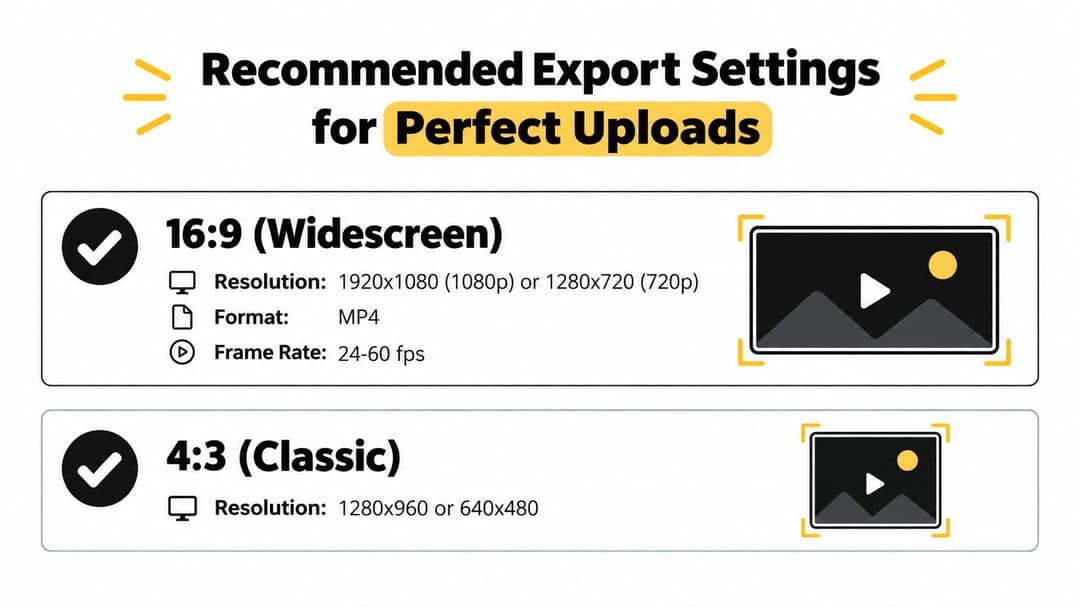
YouTube video size by content type
- Long-form tutorial with a face cam: 16:9 at 1920×1080. Check that menu text stays readable after export; if not, move to 2560×1440.
- Vertical Short from a longer recording: 9:16 at 1080×1920. Reframe so the speaker's face and captions stay in the center, then preview on a phone.
- Gaming capture: 16:9 at 2560×1440 if the source supports it. Keep overlays away from the frame edges.
- Podcast with a still image or waveform: 16:9 at 1920×1080. Design the artwork at full canvas size instead of letting the player enlarge a small image.
- Archival home video: keep 4:3 at 640×480 or the source's native size. Accept the side space; do not stretch.
This explainer shows how the same content changes across aspect ratios:
Prompt to try
Make a 40-second vertical 9:16 YouTube Short explaining why a 1080p upload can still look blurry. Open with the hook "Your 1080p video isn't really 1080p." Use clean motion graphics, a calm expert voiceover and bold centered captions, ending with one tip: export at your source's real resolution.
How to fix black bars, stretching and blurry uploads
Most sizing problems start in the timeline, not on the upload page, so fix them in the sequence settings.
Black bars around the video
Bars that show on every device are usually inside the file: a 4:3 clip fitted into a 16:9 sequence, a vertical clip in a horizontal project, or a cinematic crop exported with borders. Pick one deliberate fix:
- Crop to fill: the frame is full, but you lose some of the edges. This guide to cropping videos for YouTube walks through it.
- Upload the native shape: export the clip in its own ratio and let the player add the space.
- Design the background: keep the full image over a color, graphic or blurred copy of the footage.
Vertical footage looks tiny in a horizontal project
A portrait clip in a 16:9 timeline becomes a narrow strip with large empty sides. That is a composition mismatch, not a resolution problem. Export it as 9:16, or build a real horizontal layout with a tighter shot and supporting graphics.
Stretched or squashed faces
Wide or narrow faces mean the dimensions changed without keeping the ratio. Check the scale controls, the pixel aspect setting and the sequence size.
A 1080p export that still looks soft
1080p describes the output size, not the detail. A small or heavily compressed source enlarged to 1920×1080 stays blurry. Use the cleanest source, avoid rendering the same file repeatedly, and judge the exported file rather than the editor preview.
YouTube thumbnail size and upload limits
The frame is not the only size you set on YouTube:
| Item | Size or limit |
|---|---|
| Video thumbnail | 3840×2160 recommended, 16:9, minimum width 640 px |
| Thumbnail file size | Up to 50 MB on desktop, 2 MB on mobile |
| Shorts thumbnail | 9:16, 2160×3840 recommended, minimum height 640 px (YouTube Studio on a computer) |
| Video length | 15 minutes by default; verified accounts can upload longer |
| Maximum upload | 256 GB or 12 hours, whichever is less |
Custom thumbnails, for videos and Shorts, require a verified account. The YouTube thumbnail size guide covers design and text placement. If you also make channel art and other branded graphics, Shopstar's article on graphic design and website design is a general primer on the design side.
How to resize a video for YouTube with Revid
When one video has to work as a 16:9 upload and a vertical Short, resize it instead of rebuilding it:
- Open the Revid video resizer and upload your video.
- Choose the target shape: landscape 16:9, portrait 9:16, square 1:1 or feed 4:5.
- Choose how the frame is filled and check that faces, captions and products stay in view.
- Export, then run the final review from the export checklist above.
If you are creating the video from scratch, the AI YouTube Shorts generator builds a vertical video from text, and Revid exports in 720p, 1080p or 4K at 30 or 60 fps and can publish straight to YouTube. For TikTok, Instagram and other platforms, see the social media video sizes cheat sheet.
FAQ
Is 1080×1920 a good size for YouTube?
Yes, 1080×1920 is the right size for Shorts and other vertical videos. On a desktop or TV it plays with empty space at the sides, so use 1920×1080 for anything meant mainly for wide screens.
Can I upload 4K or 8K video to YouTube?
Yes. YouTube supports 3840×2160 (4K) and 7680×4320 (8K), and it builds lower-resolution versions automatically. It is only worth it when the footage was shot at that resolution.
Is 720p still good enough for YouTube?
1280×720 is the minimum recommended HD size for 16:9 video, so it works when that is your source. For new recordings, 1920×1080 is the safer default.
Does YouTube crop vertical videos?
The player shows a vertical video in full, with side space on widescreen displays. What changes is the thumbnail: for vertical videos, a 16:9 custom thumbnail is replaced by an auto-generated 4:5 one on the home, explore and subscription pages.
What is the maximum video size YouTube allows?
The largest upload is 256 GB or 12 hours, whichever comes first. Unverified accounts are limited to videos of 15 minutes.