How to Make Reels With Existing Video (Single, Multiple or YouTube)
Turn footage you already have into Instagram Reels: pick a moment that works without context, reframe it to 9:16 and post it. Includes steps for one clip, several clips and YouTube videos, plus the specs to export at.
On this page
To make a reel from an existing video, open Instagram, tap +, choose Reel and pick the video from your gallery. Trim it to the strongest moment, crop it to 9:16, add captions and share. For several clips, select them all in order, or join them first in an editor such as CapCut or Edits.
Two things decide whether a repurposed clip gets watched, and neither is the editing app. A wide 16:9 shot squeezed into a vertical frame loses its subject. And a reel longer than 3 minutes is never recommended to people who don't follow you, so a full webinar uploaded as one reel only reaches the audience you already have.
How to make a reel from an existing video, step by step
- Pick one moment that stands alone. A single tip, a quote, a demo or a before-and-after. If a stranger needs the rest of the video to understand it, keep looking.
- Trim before you do anything else. Cut the warm-up ("so, today I want to talk about...") and start on the first sentence that carries information.
- Reframe to 9:16. Crop horizontal footage so the subject sits in the center of a vertical frame (details below).
- Open Instagram and start a reel. Tap +, choose Reel, then select the video from your gallery. The Reels editor lets you trim again, reorder and add text.
- Add on-screen text for the opening seconds. Many people scroll with the sound off, so a short line that states the payoff ("The one setting that fixed my audio") does the work of a hook.
- Choose the audio. Keep the original sound when the speech is the content; swap in a track from Instagram's library when the original audio adds nothing.
- Write the caption, add up to 5 hashtags, set the cover and share. Instagram's help page says a reel's cover can't currently be edited after upload, so set it before you post.
How do you make a reel with multiple videos?
You have three practical routes, and the right one depends on how precise your cuts need to be.
- In the Instagram app: when you start a reel, select several clips from your gallery instead of one. They play in the order you pick them, and you can trim each clip in the editor. Good for a few clips with simple cuts.
- In Edits: Instagram's free standalone editor for Android and iPhone adds generated captions, cutouts and a proper timeline, and it exports without a watermark. Good when you want more control but still plan to post only to Instagram.
- In a desktop or mobile editor: import all the clips into one timeline, cut, reorder, then export one finished file and upload it as a reel. Best for keyframed crops, color correction and anything more than a handful of cuts.
Whatever the tool, give the clips an order that tells a micro-story. A reliable structure for repurposed footage is problem, action, result: a clip of the frustration, a clip of the fix, a clip of the outcome.
How to make reels from a long video or a YouTube video
A long recording is the easiest source of reels because it already contains dozens of self-contained moments. The work is finding them, not editing them. Our guide to repurposing video content covers the wider strategy; here is how to pull reels out of one video.
Which moments make good reels?
Scrub through the video (or its transcript) and mark timestamps for these:
| Moment type | What it looks like | Why it works as a reel |
|---|---|---|
| Quick-win tip | One actionable piece of advice, shown once | The viewer gets the value before they can swipe |
| Strong quote | A sharp line from an interview or testimonial | The audio carries it; add it as on-screen text too |
| Demo or before-and-after | A product working, a transformation, a fix | Satisfying to watch and easy to rewatch |
| Emotional peak | Real laughter, surprise, a disagreement | Stops the scroll without any setup |
The test for every candidate: does it make sense in the first 3 seconds with zero context? If not, either cut to a later start point or put the missing context in on-screen text. Our list of hooks for Reels has opening lines you can adapt.
How to turn a YouTube video into reels
Only repurpose YouTube videos you own or have permission to use. For your own channel, download the original file from YouTube Studio, then cut it like any other long video. Prefer the original export from your editor if you still have it: it is the highest-quality version.
If you would rather skip the manual scrubbing, Revid's YouTube to Instagram Reels converter takes a YouTube link and turns the video into vertical reels with captions. More on that workflow below.
How long should each reel be?
Instagram lets you record and edit reels up to 20 minutes long, but reels over 3 minutes are not recommended to non-followers. Before January 21, 2025, that cutoff was 90 seconds, so older advice to stay under 90 seconds for reach is out of date. The full breakdown is in our guide to Instagram Reels length.
Within those limits, length is not the lever many guides claim it is. In Revid's analysis of 176,367 TikToks with 1,000+ likes posted between October 2025 and October 2026, every length bucket from under 15 seconds to 10 minutes had a median between 58K and 76K views. Videos of 61 to 90 seconds had a 70K median; videos under 15 seconds had the lowest median (58K) but the most shares per view. This is TikTok data on videos that had already passed 1,000 likes, so it shows a pattern among successful videos, not a rule for Instagram. The method is in Revid's study of what makes a TikTok go viral.
Length alone barely moves views: every bucket lands between 58K and 76K median views (the 790 videos over 10 minutes are a small, unusual group). Clips under 15 seconds get shared the most per view.
Source: Revid analysis of 176,367 TikToks with 1,000+ likes posted between Oct 1, 2025 and Oct 16, 2026 (61,203 creators)
Show the data
| Median views | Share that passed 1M views | Shares per 100 views | |
|---|---|---|---|
| Under 15 s | 57.6K | 11.6% | 1 |
| 16 to 30 s | 64.9K | 12.3% | 1 |
| 31 to 60 s | 61.8K | 11.8% | 1 |
| 61 to 90 s | 70.5K | 12.2% | 1 |
| 91 s to 3 min | 63.4K | 11.1% | 1 |
| 3 to 10 min | 76.4K | 12.4% | 1 |
| 10 min+ | 129.6K | 13.8% | 0 |
The practical rule: cut each reel to the length its single idea needs. If the clip is a punchline or a visual, keep it very short (short clips get shared more). If it is a full tip with steps, let it run, and stay under 3 minutes so non-followers can see it.
How to turn a horizontal video into a vertical reel
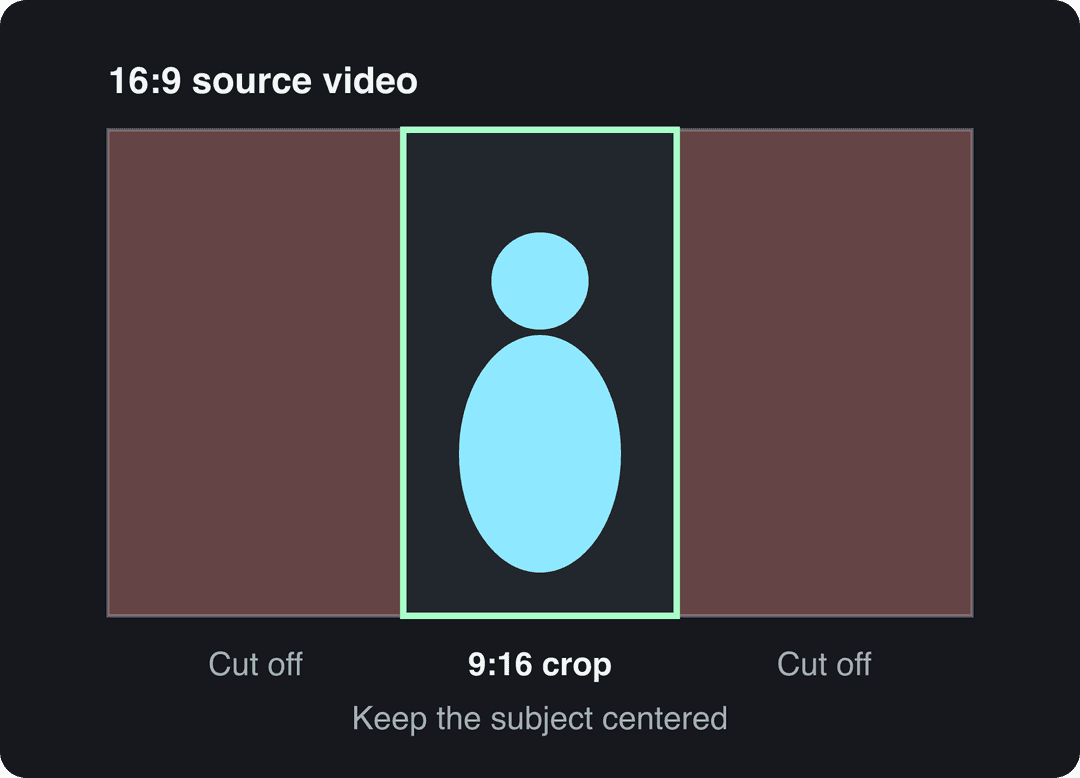
Reels are 9:16. A 9:16 crop taken from a 16:9 frame keeps the full height but less than a third of the width, so anything near the edges disappears.
Three ways to handle it:
- Crop and center. Pick clips where the subject is already near the middle of the frame. Talking heads and close-ups crop well; wide group shots do not.
- Crop and follow with keyframes. If the subject moves, set a keyframe where the movement starts and another where it ends, each with the crop over the subject. The editor animates a smooth pan between them, so the reel looks shot for vertical.
- Fit the whole frame. For wide shots you can't crop (slides, screen recordings, landscapes), place the full 16:9 image in the vertical frame and use the empty space above and below for a headline and captions.
If you just need a file converted, Revid's free resize video tool turns a video into portrait 9:16, feed 4:5, landscape 16:9 or square 1:1.
Which editor should you use?
| Method | Best for | Strengths | Limits |
|---|---|---|---|
| Instagram's Reels editor | One to a few clips, posted straight away | No export step; direct access to the audio library and stickers | Basic trimming; no keyframed crops |
| Edits (Instagram) | Instagram-first creators who want a real timeline | Free, generated captions, cutouts, no watermark | Mobile only |
| CapCut | Creators who want full manual control | Free tier with 1080p export and auto-captions; keyframes and effects | Learning curve; export and upload take extra time |
| Revid | Turning long videos or links into many reels fast | Finds moments, crops to vertical, captions, then publishes or schedules to Instagram | Video creation uses paid-plan credits; less frame-by-frame control than a manual editor, though every clip is editable in the timeline |
If you already edit on a computer, CapCut is the most common free choice for repurposed reels. For a wider comparison, see our roundup of the best Instagram Reel maker tools.
What export settings should a repurposed reel use?
| Setting | Use this |
|---|---|
| Aspect ratio | 9:16 (Instagram accepts 1.91:1 to 9:16) |
| Resolution | 1080 x 1920; at least 720 pixels |
| Frame rate | At least 30 fps |
| File | MP4 with H.264 is the safe choice |
| Length | Up to 20 minutes; 3 minutes or less to reach non-followers |
| Cover | 420 x 654 pixels (1:1.55) |
| Caption | Up to 2,200 characters and 5 hashtags |
The full spec sheet, including safe zones, is in our Instagram Reel size guide. If you edit in Premiere Pro, this walkthrough covers the export panel:
Captions, audio and hashtags before you post
On-screen text and the post caption do different jobs. On-screen text keeps a muted viewer watching: keep it to a few words per line, use a color that contrasts with the background (or an outline), and state the takeaway rather than a teaser. The post caption adds context and tells people what to do next, such as saving the reel or sending it to someone who needs it.
Instagram now allows up to 5 hashtags per post; with more, the caption won't post. Use specific tags your viewer would search for, not generic ones like #video. If you are stuck on wording, the free Instagram caption generator drafts options you can edit.
For audio, the original soundtrack wins when the clip is speech: a sharp quote with a song over it loses its point. When the original audio is filler, a track from Instagram's library gives the clip energy; tracks that are rising show an upward arrow next to the audio name.
How to get a repurposed reel seen
- Test with trial reels. Trial reels are shown first to non-followers, insights arrive within 24 hours, and they don't affect the ranking of your standard reels. They need a public account with at least 200 followers (professional) or 1,000 (personal). Repurposed clips are ideal for this: post a few different cuts of the same moment and share the winner to everyone.
- Post when your audience is on. Instagram Insights shows your followers' most active times once you have at least 100 followers, over a window of up to 90 days.
- Share it to your Stories right after posting so your existing followers see it first.
- Reply to early comments with real answers, which gives people a reason to come back to the thread.
The format is worth the effort: Meta said Instagram Reels watch time grew more than 30% year over year in the US in Q4 2025 (more in our short-form video statistics). For broader tactics beyond Reels, Bruce and Eddy's article has tips for increasing social media engagement, and Blogging Wizard keeps a roundup of Instagram Reels statistics if you want third-party benchmarks.
How to turn a long video into reels with Revid
Revid does the find, crop and caption steps for you, then posts the result.
- Paste a YouTube link into the YouTube to Instagram Reels converter, or upload your own recording to the long video to short video converter.
- Revid picks the strongest moments, cuts them into vertical clips and adds synced captions (30 caption styles, 100+ languages).
- Open any clip in the timeline editor to change the cut, the captions or the music.
- Export in 720p, 1080p or 4K at 30 or 60 fps, or publish and schedule straight to Instagram, TikTok and YouTube from one queue.
Sign-up is free and new accounts get free credits to try video creation, no credit card needed; regular creation then uses the monthly credits of a paid plan, starting at $39/month.
FAQ
Can you make a reel with an existing video?
Yes. Any video saved on your phone can become a reel: start a reel in Instagram and pick it from your gallery. Reels can be up to 20 minutes, but keep each one at 3 minutes or less if you want Instagram to show it to non-followers.
How do you convert a reel back into a regular video file?
Keep the file you exported before uploading: that is your reel as a normal video, at full quality. If you edited inside Instagram, check the reel's menu in the app for a save or download option, since what is available can vary by account and audio.
How do you make a video quickly?
Start from footage you already have: one strong moment, trimmed, cropped to 9:16 and captioned, takes minutes in the Reels editor. If you have no footage, a tool like Revid can generate a short video from a script, a prompt or a link.
Can I post the same clip as a reel, a TikTok and a YouTube Short?
Yes, all three use vertical 9:16 video. Export a clean file without another app's watermark for each platform; on Facebook, every new video is now shared as a reel anyway.
Can I make reels from someone else's YouTube video?
Only with permission from the owner. Reposting other people's footage can get your reel removed for copyright, so stick to your own videos or content you have the rights to.