
On this page
You've got an idea, a deadline two hours away, and a feed that needs three vertical videos by evening. Your source material might be a product page, a rough script, or an interview recording. What you don't have is time to learn an editor that solves the wrong problem.
Choosing an AI video maker online starts with identifying what you need it to produce. Prompt-to-video tools create footage or assemble a draft from instructions. Template editors help you arrange existing assets. Avatar tools deliver a script through a synthetic presenter, while clip repurposers find usable moments in recordings.
Those categories aren't interchangeable. A clipping tool won't invent the product footage you're missing, and a cinematic generator won't necessarily add captions, build a coherent narrative, or prepare a finished post. Choosing the wrong category can waste more time than choosing a weaker tool within the right one.
The practical test is what happens between entering your brief and exporting something you can publish. Look at output quality, speed to a usable first draft, template flexibility, pricing structure, and the restrictions that affect delivery.
Judge the finished post, not the most impressive clip in a product demo. Include revision time, caption cleanup, and rejected generations in your decision.
- AI-using brands that had used or planned to use AI captions in 2025
- 60%+
- Wistia State of Video Report
- Video marketers who have used AI video tools to create or edit videos
- 63%
- Wyzowl, December 2025
- Marketers already using generative AI tools to create social content
- 73%
- HubSpot, September 2026
1. revid.ai
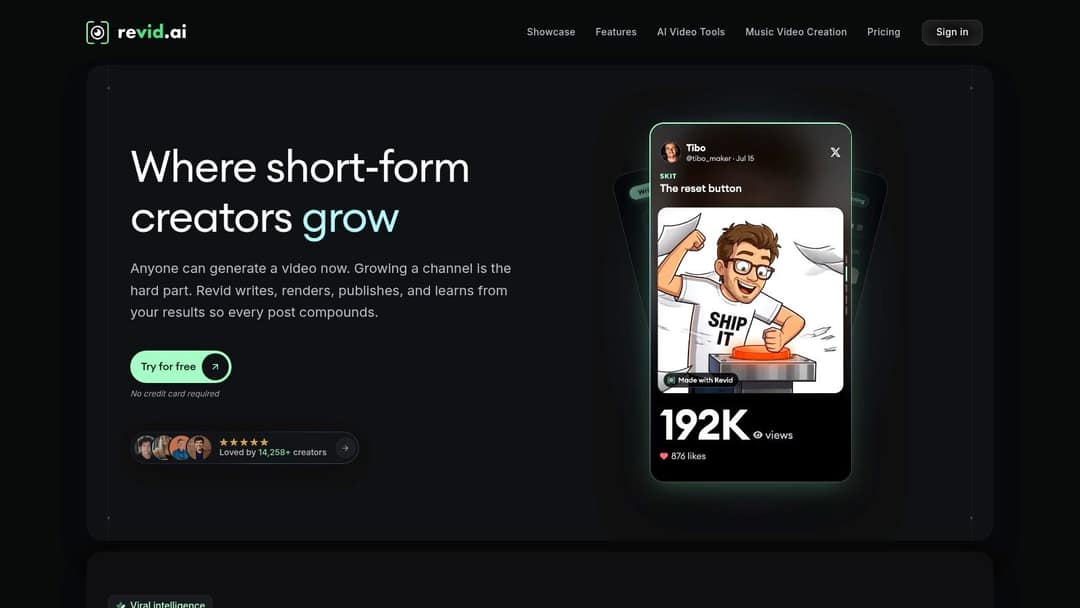
Category: Prompt-to-video and complete social-video assembly.
Revid.ai fits the creator who has something to say but doesn't want to assemble the script, narration, visuals, and captions in separate applications. Start with an idea, text, or link, choose a format, style, and voice, then refine the generated result in the editor.
A concrete use case is turning a product page into a narrated launch video. Rather than treating the page as a script, identify the customer problem, demonstrate the product's relevant benefit, and finish with a clear action.
Prompt to try
Make a 30-second vertical launch video for a reusable insulated water bottle. Open with the hook "Your coffee is cold by 10am. It doesn't have to be.", show the problem, then the bottle keeping drinks hot for hours, and end with a clear call to shop now. Clean, bright product style with an upbeat voiceover and bold captions.
Where it fits in production
Our workflow brings generation, editing, and publishing together. Viral research and remix tools help you examine hooks and formats, while Auto-Mode workers can create videos on a schedule from prompts or content sources and post automatically.
That's useful for recurring explainers, faceless videos, product promotions, and audio-led content. The important distinction is that you're building an editable social video, not just generating isolated footage.
- Useful starting point: Free AI tools include Prompt to Video, Audio to Video, and an AI Music Video Generator.
- Paid-use constraint: Regular video creation uses monthly credits, so include revisions when estimating publishing capacity.
- Honest limitation: Generated scripts, imagery, and narration still need editorial review. A compelling hook doesn't excuse an inaccurate product claim.
Keep the promise in the opening aligned with what the video delivers. Trend discovery can inform your creative direction, but copying a format doesn't guarantee audience growth.
Growth is $39/month with 2,000 credits. Generated music adds 20 credits per started minute; sound effects add 1 credit each. Videos per month = 2,000 divided by the 30 s cost, rounded down.
Source: Revid public API POST /api/public/v3/calculate-credits, workflow prompt-to-video, 9:16, run October 29, 2026
Show the data
| 30 s video (credits) | 60 s video (credits) | 30 s videos per Growth month | |
|---|---|---|---|
| Stock footage | 11 | 22 | 181 |
| Animated AI images, Standard | 18 | 35 | 111 |
| Animated AI images, Pro | 37 | 75 | 54 |
| AI video clips, Base | 110 | 220 | 18 |
| AI video clips, Pro | 341 | 682 | 5 |
| AI video clips, Ultra (Seedance 2.5) | 671 | 1,342 | 2 |
2. Canva

Category: Template editor with AI features.
For a bakery announcing a seasonal menu, Canva is a practical starting point. Use actual product photographs, animate the offer, add a short closing frame, and keep the typography consistent with your other marketing assets.
Its strength is design continuity. You can work with video, graphics, and campaign assets in the same environment instead of recreating brand decisions in a separate editor.
Choose templates before generation
Start with a layout that suits the message, then replace its content. A product announcement needs readable details and recognizable imagery more than elaborate generated camera movement.
Canva's templates make that first draft approachable, but template selection isn't the same as editing judgement. Remove decorative elements that compete with the product, and check that text remains readable on a phone.
- Free access: A free plan lets you try the editing workflow.
- Plan constraints: Premium assets, brand features, scheduling, and AI allowances depend on the selected plan.
- Honest limitation: Canva is better suited to designed social content than tightly controlled, scene-by-scene video generation.
Choose it when you already know your message and need a branded execution. Don't choose it solely because you want a complete narrative generated from a vague prompt.
3. InVideo AI
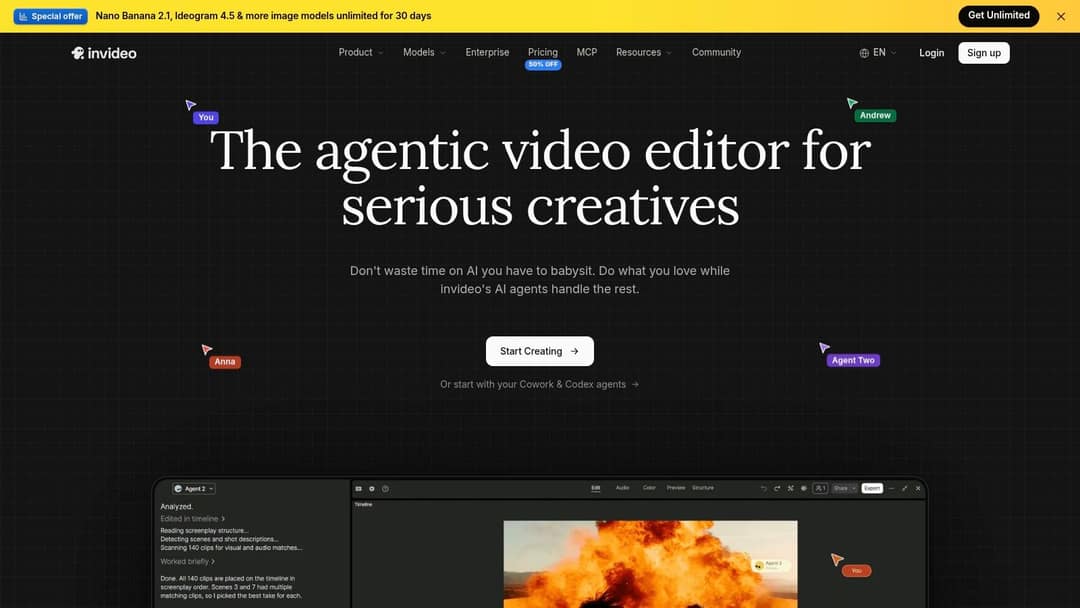
Category: Prompt-to-video assembly.
InVideo AI suits a faceless explainer where you need a script, narration, music, and supporting visuals assembled into a first cut. It handles more of the initial construction than a template editor, but the result still needs someone to judge whether the scenes support the argument.
Brief it with the audience, takeaway, tone, and intended action. A request for an explainer about budgeting is weaker than a brief explaining which budgeting mistake the viewer should stop making.
The common editing problem is literal but unhelpful footage. A scene may match a keyword without explaining the idea, leaving you with generic visuals beneath otherwise useful narration.
Revise the story before regenerating scenes
Approve the script and narrative order before spending time replacing individual shots. Otherwise, you can polish a scene that disappears when you rewrite the opening.
- Concrete use case: Build an educational social video from a written brief, then replace vague scenes with relevant examples.
- Credit constraint: Generation and revisions consume credits; model choice and plan allowances affect usable output.
- Honest limitation: Automatic scene selection can produce an assembled video without producing a distinctive one.
Use the editor to tighten pacing and remove repeated ideas. If the narration already explains a point, the visual should demonstrate it rather than merely repeat the words.
4. VEED
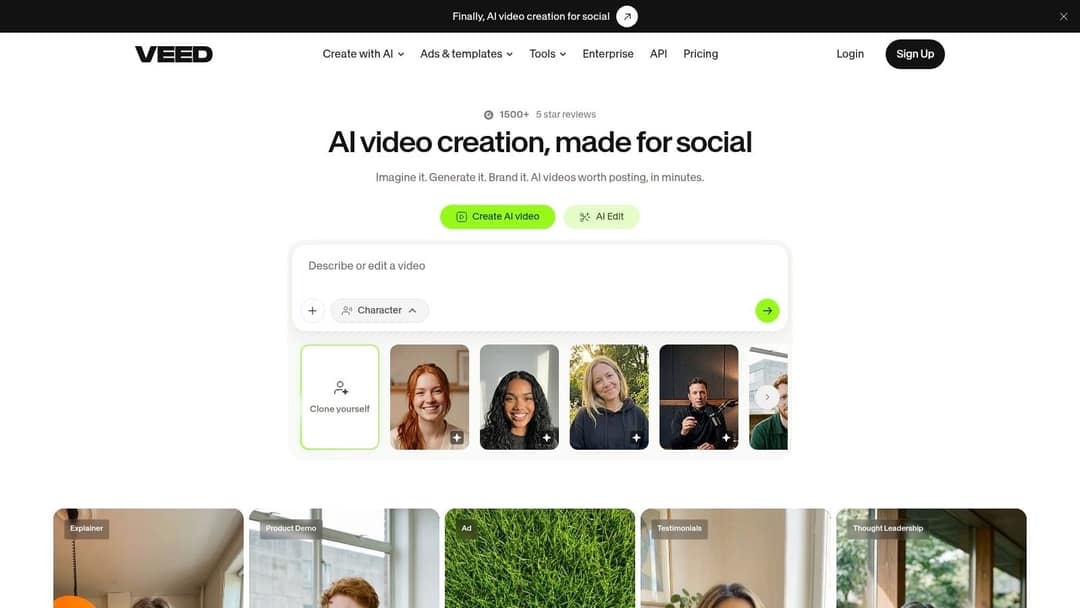
Category: Browser editor with generation and finishing tools.
Sometimes you don't need AI to invent the video. You need to trim an existing recording, fix the captions, and make the result ready for a social feed.
VEED combines that finishing workflow with text-to-video and image-to-video options. It's useful when a talking-head post needs generated cutaways, but you still want to edit the whole piece in a browser.
Captioning deserves particular attention: Wistia's State of Video Report announcement states that, in 2025, more than 60% of AI-using brands surveyed had used or planned to use AI captions.
Publishing rule: Auto-captions are a draft. Check names, specialist terms, punctuation, and whether caption placement obscures the demonstration.
For a concrete assignment, take a recorded product explanation, remove the slow introduction, add captions, and insert a cutaway where the presenter describes the feature. Keep the actual demonstration whenever generated imagery would misrepresent the product.
Access and limitation: Generation availability, export restrictions, and watermark rules depend on the plan. VEED suits browser-based social finishing better than advanced production requiring intricate compositing or extensive timeline control.
5. Runway
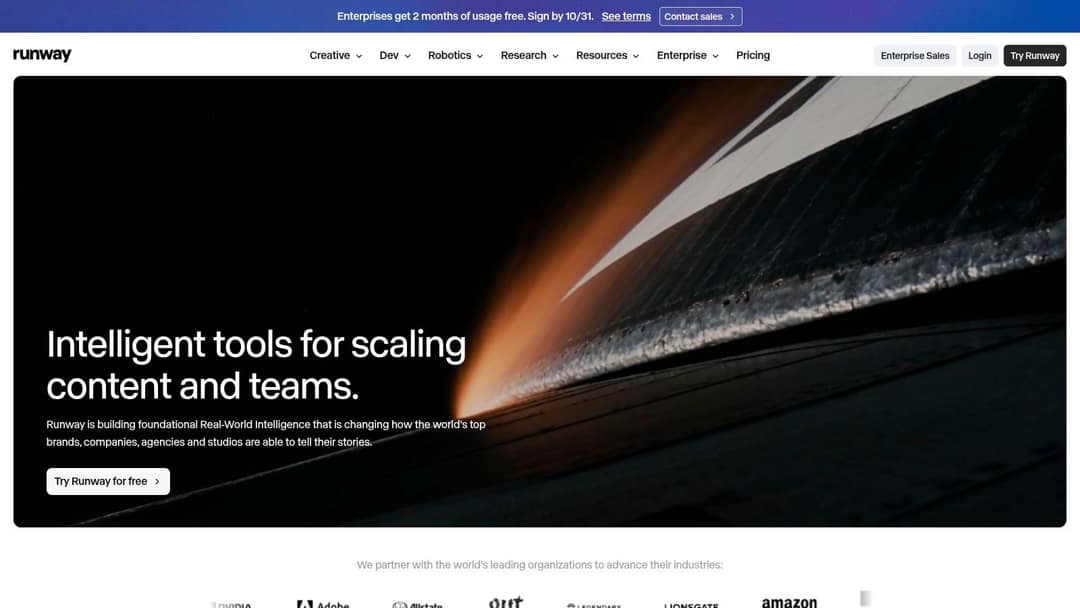
Category: Generative footage creation.
Choose Runway when the missing ingredient is a shot, not an entire post. A useful assignment is creating an atmospheric background for a music teaser or an abstract visual for an educational concept.
You'll get more direction from a deliberate reference image and a focused motion instruction than from a prompt containing competing camera moves, settings, and actions. Evaluate subject consistency and motion, not just how attractive the opening frame looks.
Budget for rejected footage
Runway offers text-, image-, and video-based workflows, with model and setting choices affecting both output and credit consumption. Its free tier includes one-time credits for testing, rather than an open-ended production allowance.
- What works: Generating distinctive cutaways and exploring visual treatments before assembling the final edit.
- What needs attention: Hands, object interactions, product geometry, and continuity between separately generated shots.
- Honest limitation: A successful generation isn't automatically a complete social video with a script, captions, pacing, and closing action.
Keep real product imagery for features that buyers need to assess accurately. Generated footage can establish mood, but it shouldn't imply that a product performs an action you haven't demonstrated.
Runway is a hands-on creative choice. Allow time for selection and finishing elsewhere instead of treating each generation as publishable.
6. HeyGen
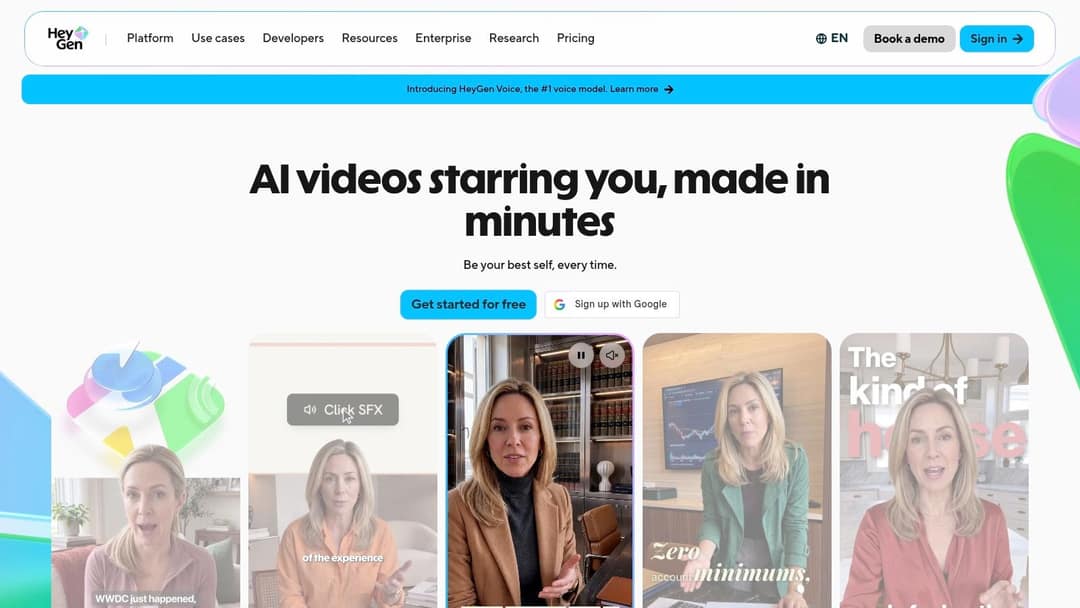
Category: Avatar presenter and localization.
A presenter-led software walkthrough has different requirements from a cinematic teaser. HeyGen focuses on avatar delivery, synthetic voices, and translation, making it relevant when the script needs a visible speaker without a conventional shoot.
A concrete use case is explaining a software feature while showing the actual interface. Let the avatar introduce the problem, then give the screen recording enough space to demonstrate the solution.
Separate delivery from credibility
An avatar can read a useful explanation, but it can't supply genuine personal experience. Don't write a fabricated testimonial or imply that a synthetic presenter personally used the product.
Localization also requires more than selecting a language. Review pronunciation, interface terminology, and whether the translated phrasing still matches the action shown on screen.
- Free access: A limited free plan provides a way to test avatar delivery.
- Plan constraints: Advanced generation, translation, and custom-avatar options depend on credits and eligibility.
- Honest limitation: Presenter consistency doesn't necessarily create the connection you get from a recognizable human creator.
For instructional content, clarity may matter more than personality. For founder stories, opinions, and community updates, real footage often provides context that a polished avatar cannot.
7. Descript
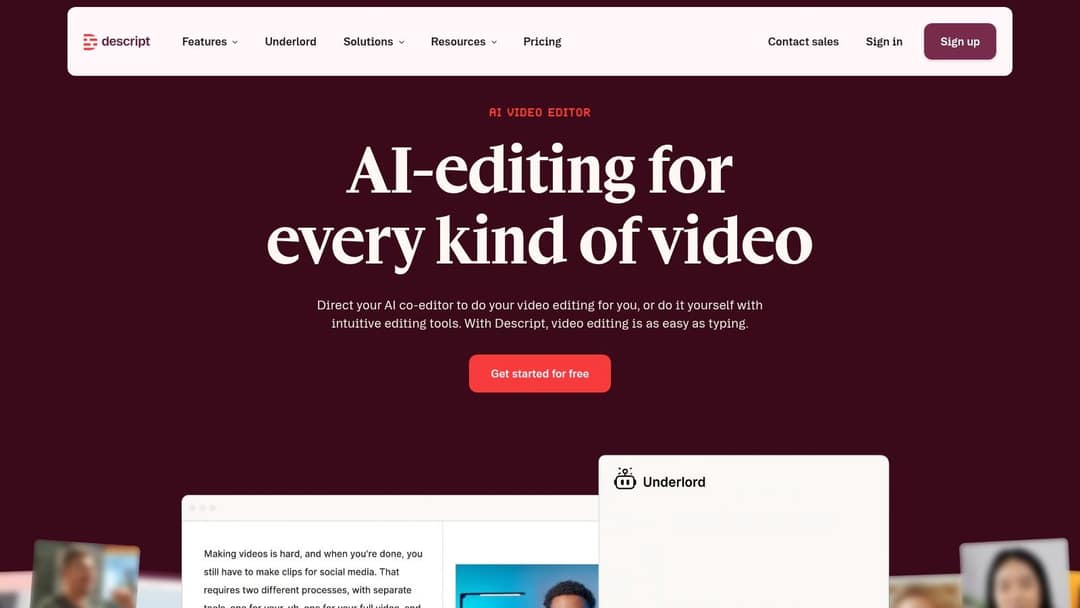
Category: Transcript-based editing and repurposing.
Descript makes sense when your strongest material already exists in spoken form. Edit an interview or podcast through its transcript, clean up the audio, and build a short video around a complete thought.
The concrete assignment is turning a recorded answer into a concise educational post. Find the statement that stands alone, retain the explanation supporting it, and remove the conversational setup that only mattered during the recording.
Audio cleanup and filler-word removal can accelerate preparation. They can also make speech sound unnaturally compressed if you accept every suggested removal.
Leave pauses that help the viewer understand the speaker. Faster speech isn't automatically tighter storytelling.
Descript's captions, recording tools, and clip creation support this speech-first approach. Templates and stock assets can help presentation, but the quality of the source recording remains central.
Free access and constraints: The free plan lets you test transcript editing, while transcription, AI features, and export options have plan-dependent allowances.
Honest limitation: Descript isn't primarily a prompt-to-video engine for creating cinematic scenes. Dialogue edits also need a full playback check, because a clean transcript can conceal awkward audio joins or an unintended change in meaning.
8. Kapwing
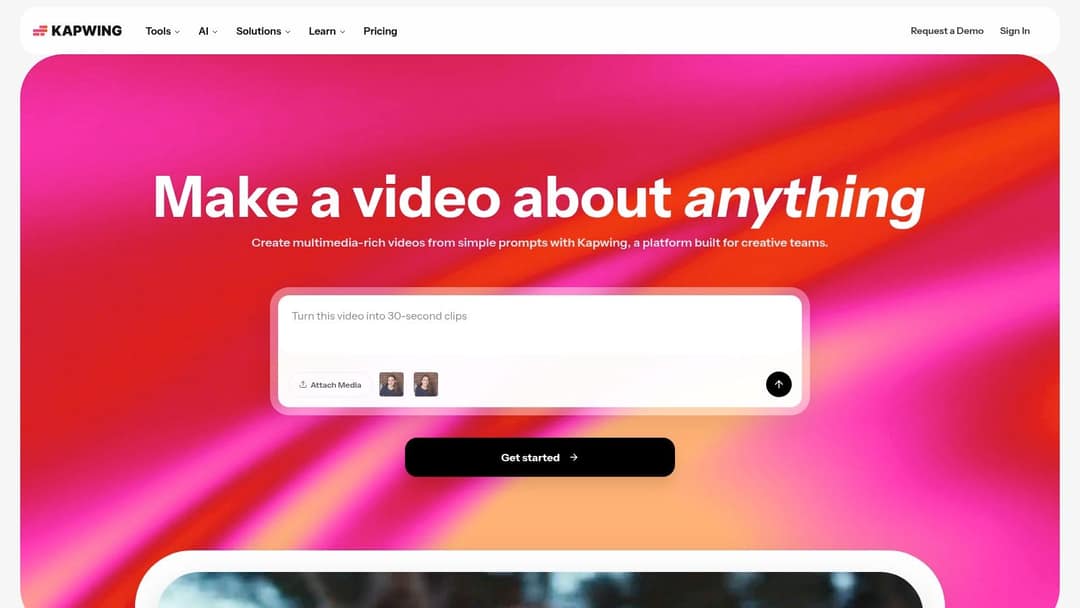
Category: Template editor and collaborative repurposing.
For a small team combining phone footage, screenshots, captions, and branded text, Kapwing offers a browser-based workspace. It's a practical option when the job is assembling supplied assets rather than generating every scene.
Say a shop needs a promotional post using a staff-recorded demonstration. Import the footage, cut to the useful action, add the offer as readable text, and use captions where the speaker provides essential details.
Keep the assembly simple
Templates, transitions, auto-subtitling, and text-to-speech can reduce repetitive work. The trap is adding effects to compensate for a weak opening instead of showing the useful action sooner.
- Concrete use case: Turn a rough product demonstration into a captioned promotional video using existing footage.
- Free access: A free tier lets you try the editor, but exports have watermark, resolution, and length restrictions.
- Paid-use constraint: Higher-quality or longer exports, brand tools, and AI usage depend on the plan.
- Honest limitation: Kapwing is an editor with AI assistance, not a dedicated studio for precisely controlled generative footage.
Test an export before completing a campaign batch. A project that looks acceptable in the browser may still require changes to text size, framing, or export settings before publication.
9. Pika
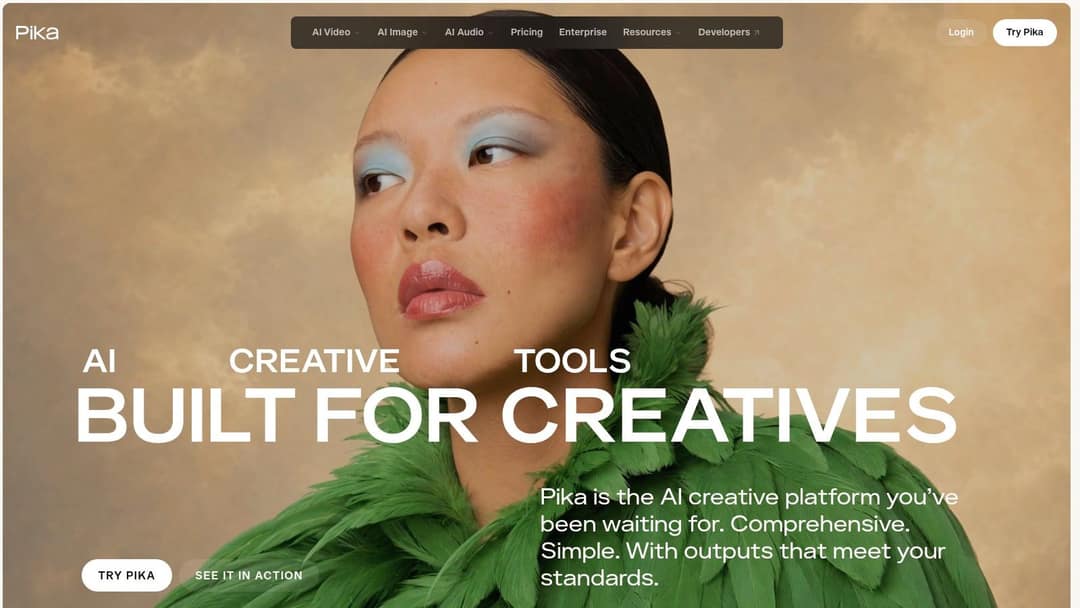
Category: Short generative clips and visual effects.
Pika is useful when you need a visually expressive moment rather than a finished narrated post. A concrete use case is animating an illustrated campaign character for a teaser, then placing that clip inside an existing branded edit.
Start with a clear visual idea. If the transformation is the point, keep the background and camera instruction restrained so the viewer can understand what changes.
Its generation modes encourage experimentation, but novelty alone doesn't explain an offer. You'll usually need another editor for the hook, captions, supporting material, and closing frame.
Check usefulness, not just spectacle
Review the generated clip at normal playback speed and pause on moments where the subject changes shape. Decide whether those changes are part of the effect or mistakes that undermine the message.
- Access constraints: Credit allowances and available generation options depend on the tier.
- Commercial constraint: Confirm the selected plan's license terms before using output in paid promotional work.
- Honest limitation: A striking clip may still be unsuitable when product accuracy or character consistency matters.
Choose Pika for deliberate visual experimentation. Don't use it as a substitute for a real demonstration when viewers need to understand how an item looks or works.
10. OpusClip
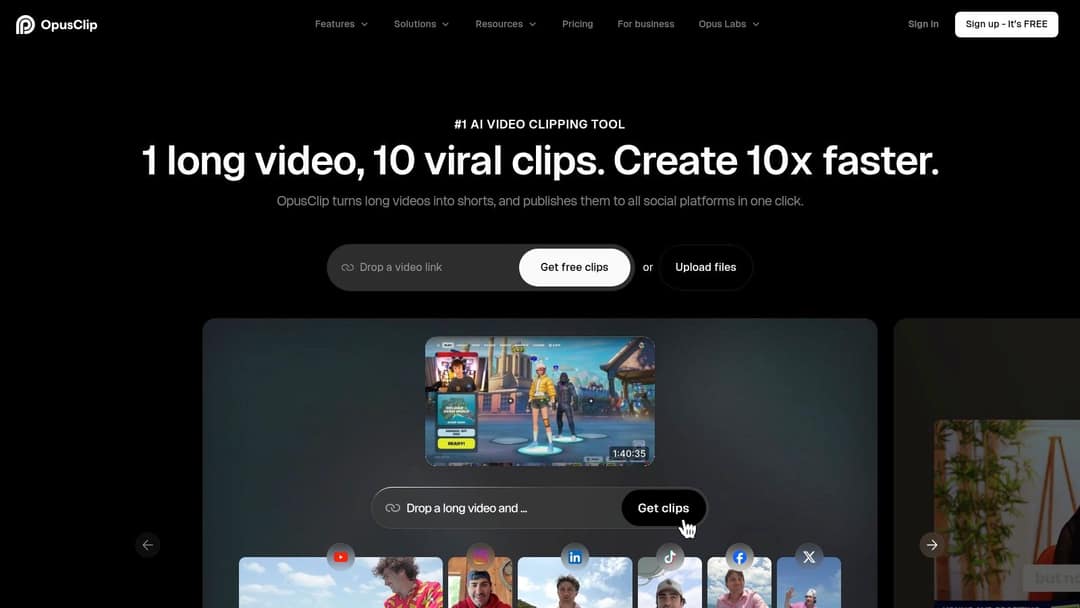
Category: Long-recording repurposing.
OpusClip starts where prompt-to-video tools don't: with footage you've already recorded. It analyzes longer videos and proposes candidate clips, making it relevant for interviews, podcasts, webinars, and educational recordings.
The concrete use case is finding self-contained answers inside a recorded discussion. Topic search, automated hooks, captions, and reframing can reduce the manual work of locating and preparing those moments.
The editorial risk is context loss. A punchy statement may depend on a qualification that appears earlier, or the speaker may be describing a position they later reject.
Treat selections as candidates
Watch the surrounding source material before approving a clip. Then check the opening, ending, speaker framing, and captions in the proposed export.
- Free access: A free tier lets you test the clipping workflow.
- Plan constraints: Processing allowances and editing, caption, and B-roll features vary by plan.
- Honest limitation: It requires source footage and doesn't replace a general text-to-video generator.
Virality scores are selection aids, not publishing promises. If you need different editing control or source-handling options, compare these OpusClip alternatives against the same recording rather than unrelated demos.
How the 10 AI video makers compare on free access, best use, and main limitation
The useful comparison is the publishing job each tool handles, not just whether it generates video. Free access and plan limits also affect how much of the workflow you can test.
| Item | Free option | Best for | Main limitation |
|---|---|---|---|
| revid.ai | Free AI tools such as Prompt to Video and Audio to Video to test the workflow before paid plans | Turning prompts and existing content into editable social videos | Regular video creation uses monthly credits on paid plans; AI output and audience reach are not guaranteed |
| Canva | Free plan available | Template-led social videos and branded marketing content | Better suited to designed content than advanced video generation |
| InVideo AI | Free option; plan allowances vary | Prompt-based first drafts for explainers and marketing videos | Generation and revisions use credits |
| VEED | Free option; limits depend on plan | Browser-based video generation, editing, and captions | AI access and export limits depend on plan |
| Runway | Free tier with one-time credits | Creative, hands-on AI video generation | Credits limit how much you can generate |
| HeyGen | Free plan for limited testing | Avatar-led videos and localization | Advanced features use credits, and avatars may feel less personal |
| Descript | Free plan available | Editing and repurposing recorded speech and video | It is not primarily a prompt-to-video generator |
| Kapwing | Free tier available | Quick browser-based social-video editing | Free exports are watermarked and limited |
| Pika | Free option; allowances vary | Short, expressive AI-generated clips | Clips may need a separate editor to become finished videos |
| OpusClip | Free tier available | Turning long recordings into social clips | Requires source footage; automated selections may need editing |
For prompt-to-video and broader video assembly, Revid and InVideo AI address different parts of the drafting workflow. Canva and Kapwing focus more on browser-based editing, while HeyGen centers on presenter-led videos. OpusClip starts with existing footage, and Descript focuses on recorded speech and video. Runway and Pika are geared toward generating visual clips, which may still need editing before publication.
A free tier can show whether a tool fits, but it may not reveal the cost of repeated revisions or the limits on exports and generation. Check the relevant row against the specific publishing task before choosing a plan.
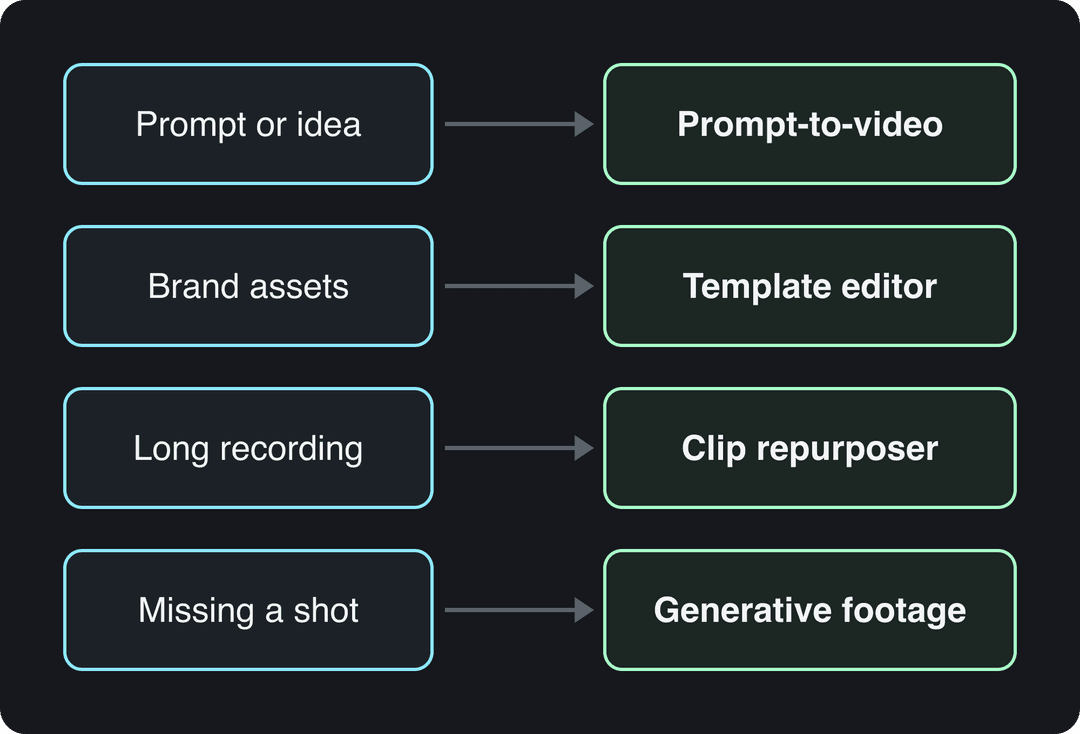
Match the Tool to Your Publishing Workflow Before You Pay
Start with the material you already have. A prompt needs generation or complete video assembly; a blog post needs adaptation into spoken language and scenes. A product page needs accurate claims and recognizable product visuals, while a long recording needs selection and editing.
Then choose the category. Use a template editor when brand consistency and existing assets matter most, an avatar tool when the format requires a presenter, and a clip repurposer when your best material is already recorded. Choose a generative-footage platform when you need specific visual ingredients rather than a finished post.
Test brief to compare tools
Create a 40-second vertical explainer for young professionals on the one budgeting mistake to stop making: not tracking small daily purchases. Hook: "That $6 coffee is costing you $2,000 a year." Use clean motion graphics, a calm confident voiceover and large readable captions, and end with one simple action to try this week.
Run a publishing test
Test a small shortlist with the same brief and source assets. Specify the audience, central message, visual treatment, and closing action so you're comparing execution rather than different interpretations of a vague request.
- Assess the draft: Check whether the opening makes sense, the scenes support the narration, and the message survives without sound.
- Track the revisions: Record caption corrections, replaced shots, narration changes, and time spent rebuilding sections.
- Inspect the export: Look for watermarks, cropped text, unreadable captions, awkward audio joins, and unexpected licensing restrictions.
- Compare usable output: Count credit consumption across rejected generations and revisions, not just the generation you keep.
A low headline subscription price tells you little if routine revisions exhaust the allowance. Conversely, a more expensive workflow may be easier to justify if it produces editable drafts you can finish without rebuilding them elsewhere.
For broader budgeting, compare business video tools and pricing against the work your team needs to complete. Keep generation costs separate from the human time required for review, localization, approvals, and distribution.
US dollars except InVideo, which showed euros on October 29. InVideo Starter has no Seedance 2.5; Revid Growth includes 2,000 credits, the editor, publishing and the API, MCP server and CLI.
Source: Vendor pricing pages (invideo.io, runway.com, synthesia.io, pictory.ai, heygen.com, zebracat.ai, revid.ai), read October 29, 2026
Show the data
| Billed monthly | Billed yearly, per month | |
|---|---|---|
| InVideo AI Starter (EUR) | 20 | 10 |
| Runway Standard | 15 | 12 |
| Synthesia Starter | 19 | 14 |
| Pictory Starter | 29 | 25 |
| HeyGen Creator | 29 | 24 |
| Zebracat Cat Mode | 39 | 23 |
| Revid Growth | 39 | 32 |
Keep a human publication decision
Check claims against the original source, verify names and terminology, and use real product footage where accuracy matters. Obtain permission for voices and likenesses, and make synthetic-media disclosures clear when the format could mislead viewers.
Automation is most useful after you've established a reliable format and review process. Scheduling more output won't fix an unclear message, and a viral result should remain a hypothesis to test rather than a promise built into the production plan.
The right AI video maker online is the one that repeatedly gets your source material to an acceptable published result. Choose for that complete workflow, not for the most impressive isolated feature.
Revid.ai turns ideas, links, and audio into editable social videos with scripts, visuals, voiceovers, and captions. Visit revid.ai to try a source you already have, refine the draft, and see how the workflow fits your publishing schedule.
FAQ
How do I choose an AI video maker for social media?
Start with the material you already have and pick the tool category first: prompt-to-video, template editor, avatar presenter, generative footage or clip repurposer. These categories are not interchangeable, so a clipping tool will not invent missing product footage. Then test a shortlist with the same brief and compare usable output, credit use and export restrictions.
Can I make social videos with a free AI video maker?
Most tools in the comparison offer a free plan or tier, including Revid, Canva, InVideo AI, VEED, Runway, HeyGen, Descript, Kapwing, Pika and OpusClip. Free access usually comes with limits, such as Runway's one-time credits or Kapwing's watermarked, length-limited exports. A free tier shows whether a tool fits, but it may not reveal the cost of repeated revisions.
Are Runway and Pika enough to make a finished TikTok or Reel?
Not on their own. Runway and Pika generate shots and short expressive clips, but a successful generation is not a complete social video with a script, captions, pacing and a closing action. You will usually need another editor to finish the post.
Can I trust AI auto-captions and automatic clip selections?
Treat both as drafts. Check names, specialist terms, punctuation and whether caption placement hides the demonstration. For clip repurposers like OpusClip, watch the surrounding source material, since a punchy line may depend on context that appears earlier.
How many marketers use AI to make videos?
Use is widespread. In Wyzowl's 2026 survey, 63% of video marketers said they had used AI video tools to create or edit marketing videos, and Wistia reported that more than 60% of AI-using brands surveyed in 2025 had used or planned to use AI captions.
Sources
- Revid public API POST /api/public/v3/calculate-credits, workflow prompt-to-video, 9:16, run October 29, 2026
- Vendor pricing pages (invideo.io, runway.com, synthesia.io, pictory.ai, heygen.com, zebracat.ai, revid.ai), read October 29, 2026
- Wyzowl, Video Marketing Statistics 2026 (December 2025)
- HubSpot, The Future of Social Media [Research]: What Marketers Need to Know in 2026 (September 2026)
Charts and figures checked on November 6, 2026.