.png?table=block&id=3fd86db5-9b17-40c2-837a-c9892e20b640&cache=v2)
Table of Contents
Do not index
Creating One Piece-themed videos has never been easier or more fun! With Revid AI, you can unleash your creativity while we take care of the technical details.
Check out the final result in the video below, and follow our quick guide to create your own masterpiece in under 5 minutes!
Free AI Video Tools
Ready to add some animated magic to your videos?
- Create Cartoon Video: Bring your ideas to life with playful, animated scenes that make your content pop.
- Disney Pixar AI Video Generator: Give your animations that timeless, cinematic feel we all love.
Creating a New Video
Step 1: Start a New Project
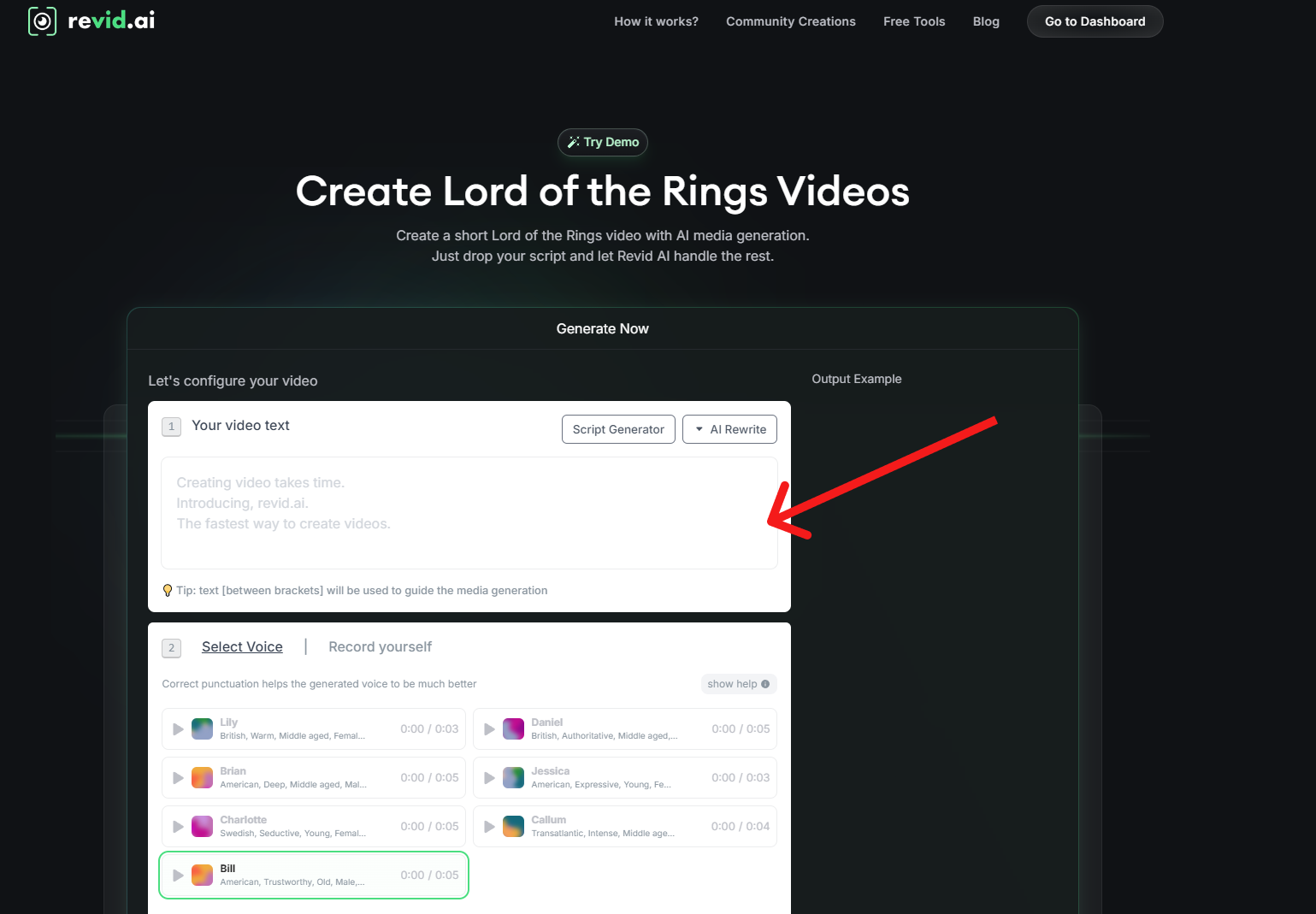
- When the page opens, you’ll see a text input to either enter your video text manually or use the AI script generator to help create a script for your animation.
- If you’re unsure of what to write, the AI script generator can assist you in crafting a compelling story for your One Piece videos.
For the video above, I used the script generator and the prompt below
Monkey D. Luffy’s Dream as a pirate
Then I copied the generated script and past into the input box. See the image below
Step 2: Choose Your Voiceover
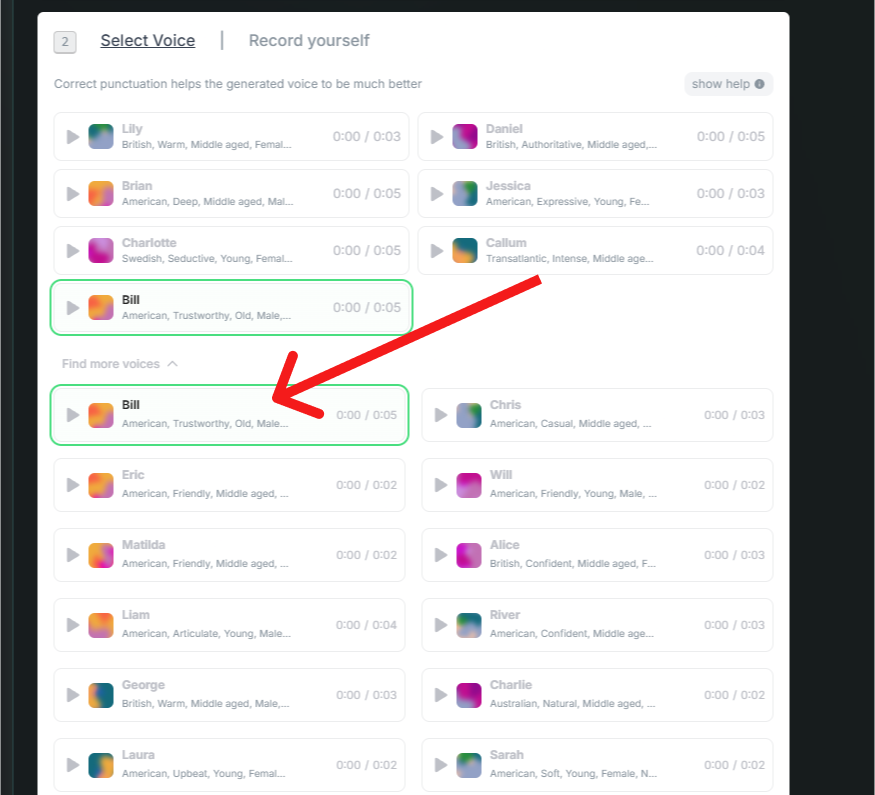
- In the next section, choose an AI voice for your video narration. There are a variety of AI voices to choose from that can match the tone of your One Piece theme.
- If you prefer a more personal touch, you can also record your own voice and upload it.
For the video above, I selected the 'BIll' AI voice, which matches our theme.
You might need to click Find more voices to locate the voice
Choosing Visuals and Effects
Step 3: Select Visual Parameters
- In the third section, you can choose between different visual elements for your video:
- AI-generated moving images that bring your scenes to life. (this is used by default for this type of video). Feel can experiment with other types
- Stock videos if you prefer pre-made footage.
- Or AI video generation, which uses Revid.ai’s AI to create custom visuals for your video
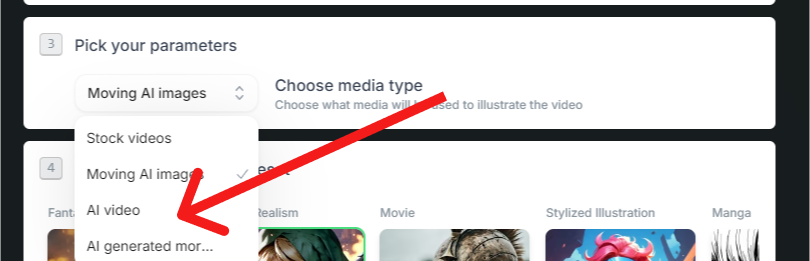
Leave the generational preset as it is set by default (One Piece universe), or modify it to tell the AI to stick to a specific universe, like “DragonBall”, “Naruto” e.t.c
Adding Background Music
Step 4: Choose Background Sound
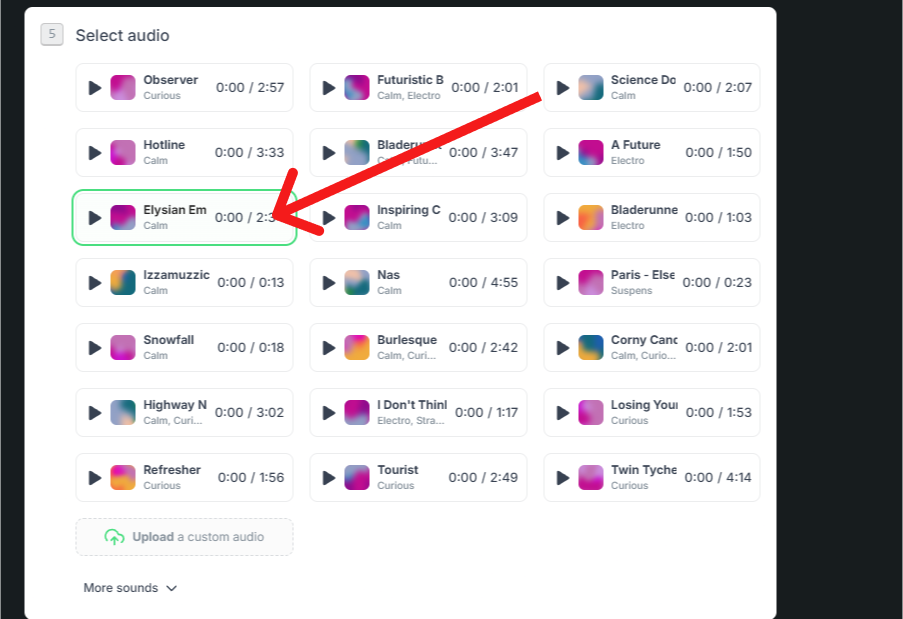
- In the fifth section, select a preloaded background sound from Revid.ai’s library.
- Alternatively, you can upload your own custom sound or music to give your video a unique feel.
Again, for the video above, I choose Elysian sound to give it a One Piece vibe.
I also recommend you checkout Bladerunner sound for this use case, if you feel like experimenting with different sounds
Generating Your Video
Step 5: Generate Your Video
- Once all your settings and choices are in place, click the "Generate Video" button.
- Revid.ai will process your inputs and create the video based on your selected script, visuals, voiceover, and background sound.
- You are then redirected to the revid editor where you could add some effects or export the video in different orientations.
Tips for Creating Engaging One Piece Videos
- Focus on Themes: Highlight iconic moments or characters.
- Use Quality Footage: Ensure high resolution for a professional look.
- Add Effects: Incorporate visual elements like lightsabers for excitement.
- Enhance Sound: Use memorable soundtracks and effects.
- Keep it Short: Aim for 1-2 minute videos to retain viewer interest.
Using Revid.ai, creating One Piece videos is now accessible to anyone.
By following these steps, you’ll be able to bring your imaginative ideas to life with ease.