AI Video Testimonials: Turn Client Reviews Into Videos in 5 Steps
Turn a real client's written review into a short AI video with voice-over, visuals, captions and music, without filming. Includes the current steps in Revid, a script template and the disclosure rules.

On this page
An AI video testimonial turns a client's written review into a short video. An AI voice reads their exact words over generated visuals, captions and music, so nobody has to film. In Revid, click Create, choose From script, paste the review, pick a voice, media type and ratio, then generate, check the captions and export.
The most common mistake is letting the AI "improve" the quote or invent the client. The US Federal Trade Commission's final rule on fake reviews, announced on August 14, 2024, bans reviews attributed to people who do not exist, including AI-generated fake reviews.
The upside of doing it honestly is large. Use real words from a real client, with their permission, and the video carries the trust that reviews already have: in a June 2025 PowerReviews survey of 21,279 consumers, 95% said they regularly read product reviews while shopping. You can find more sourced figures on our UGC statistics page.
What is an AI video testimonial?
An AI-powered video testimonial starts from text you already have: a review, an email from a happy client, a survey answer or a case-study quote. An AI voice reads it aloud, and each sentence gets a matching scene, with captions synced to the words. The result can go on LinkedIn, YouTube, TikTok, Instagram or your sales page, without asking the client to record anything.
It does not replace a client on camera, which is still stronger proof. Use AI testimonials in three cases:
- The client agreed to share their words but not their face.
- You have dozens of written reviews and no footage.
- You want a tight, captioned version of a quote for ads and landing pages.
How to make an AI testimonial video in Revid (5 steps)
Use the From script mode, Revid's Voiceover Video tool. It reads your text as written, which is what a testimonial needs. A prompt-based mode would rewrite the client's words.
Step 1: Open Create and paste the testimonial
- Click Create at the top of the left sidebar (or press C).
- On the "What do you want to make?" page, pick the From script tab.
- Paste the client's text into the "Your video narrator script" box.
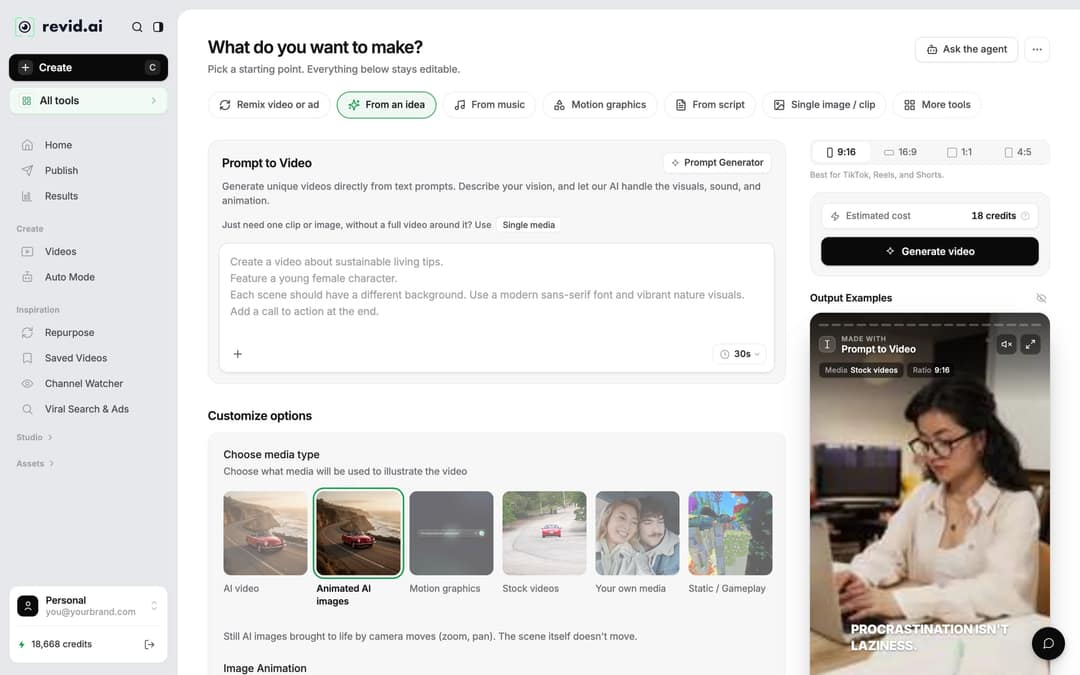
The script box understands three bits of formatting:
- A new line starts a new scene. Put each sentence of the review on its own line.
- [Square brackets] are visual hints that are not read aloud: "[small bakery owner at her counter]".
- A pause tag,
<break time="1.0s" />, adds a pause of up to 10 seconds before the punchline. ElevenLabs and MiniMax voices honour it. Gemini and Kling voices skip it with no pause.
Here is a sample script:
We used to spend every Sunday editing videos. [tired founder at a laptop at night]
Now we publish three a week, and our Sundays are back. <break time="1.0s" />
Maria Lopez, founder of Lopez Bakery. [bakery storefront]Rewording for rhythm is fine. Adding results the client never mentioned is not.
Step 2: Pick a voice and the language
Open the voice picker and choose a voice that fits the client, not a generic announcer. A calm voice suits a finance or legal client, and a lighter one suits a consumer brand. Revid has 1,000+ AI voices in 70+ languages.
If the testimonial is in another language, you have two options:
- Write the script in that language.
- Set Advanced options > Language & Localization > Language. The default is "Automatic".
That way, a review from a Spanish-speaking client stays in Spanish.
Step 3: Choose the media type and ratio
Under Choose media type, pick how the review is illustrated:
| Media type | Best for a testimonial when |
|---|---|
| Animated AI images (default) | You want stylized, clearly illustrative scenes |
| Motion graphics | The quote has a number or result to animate |
| AI video | You want moving scenes of places, products or work (needs a subscription) |
| Stock videos | You want real-looking generic footage |
| Your own media | You have product shots, screenshots or the client's logo |
| Static / Gameplay | You want a simple background behind big captions |
AI video scenes come from Seedance 2.5, MiniMax Hailuo H3, Wan 3.0 or Google Veo 3, all under one subscription.
Stylized media makes it obvious the visuals are illustrations, so nobody mistakes a generated person for your client. Keep realistic AI people out of testimonials. If you show a realistic generated face, viewers will assume it is the reviewer.
Then set the ratio in the ratio picker: 9:16, 16:9, 1:1 or 4:5. Use the table further down if you are unsure.
Step 4: Add music and generate
Pick a background track from the built-in library (199 tracks). A quiet, warm track works better under a spoken quote than anything with vocals.
Check Estimated cost next to the button, then click Generate video. Typical costs:
- Voice-over: 10 credits per started 500 characters, so a short review usually costs 10 credits.
- Full video: a 30-second video with Pro AI visuals and a voice-over costs about 40 to 80 credits.
Failed builds are refunded automatically.
Step 5: Check the words in the editor, then export
Click the finished video's card to open it in the editor. The Script panel lists every caption segment with its text and start time. Read each line against the client's original and fix any typo.
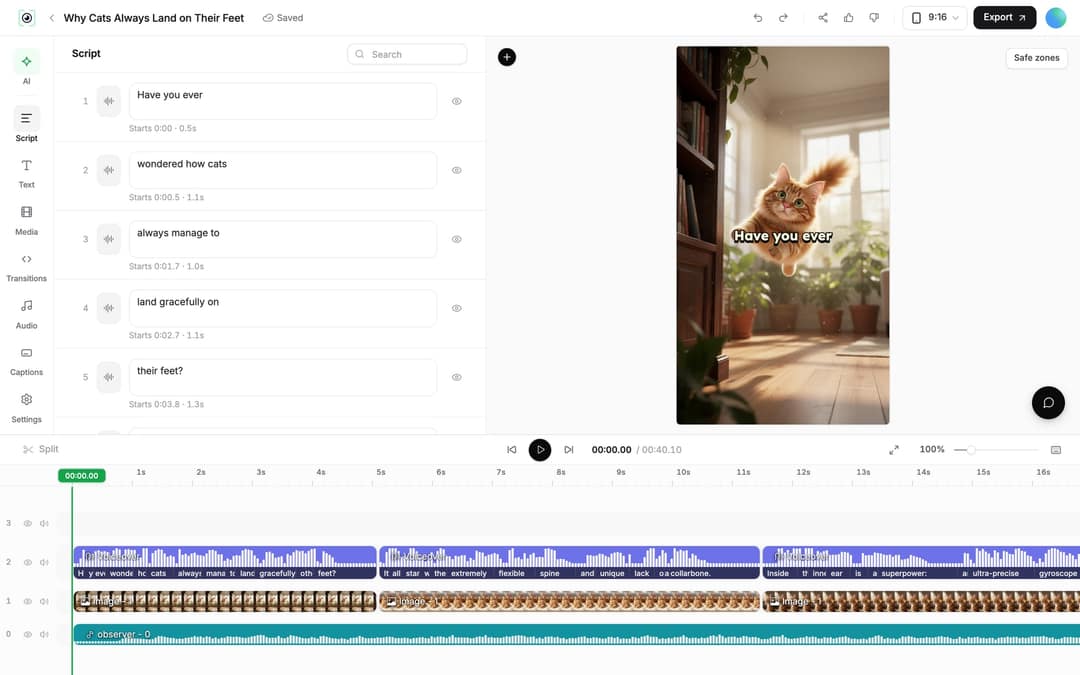
Editing a line shows "Caption updated. Re-generate voice if timing changed." If you changed the spoken words:
- Open the Audio panel.
- Click Re-generate on the voiceover.
- Confirm with Generate Voice.
Regenerating is available on paid plans and costs 10 credits per 500 characters.
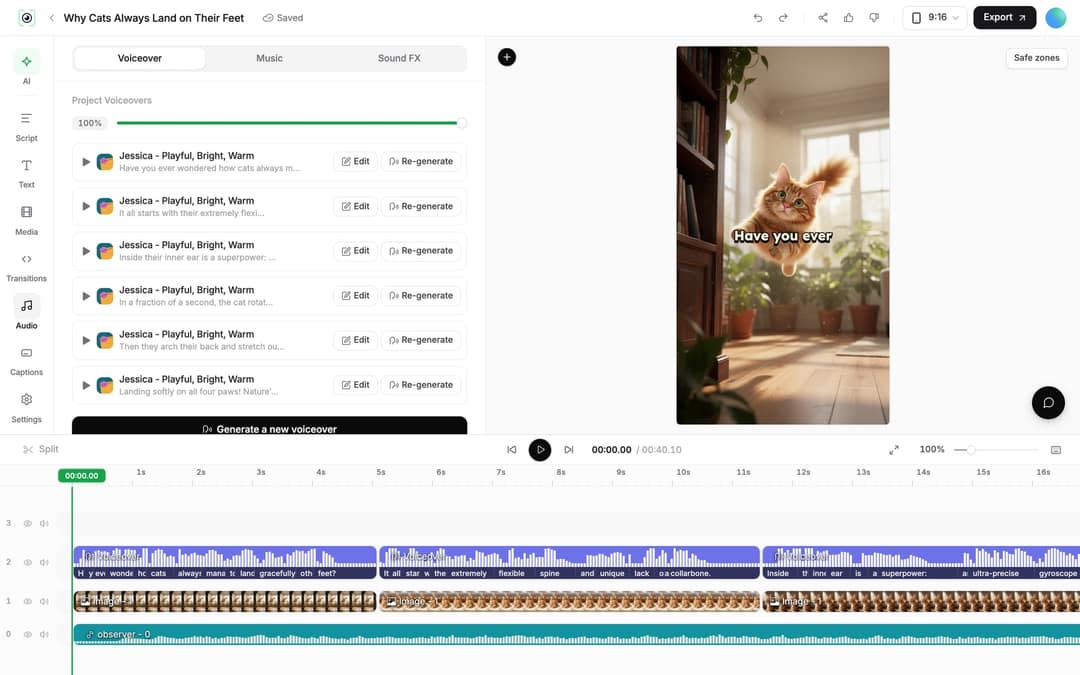
Two more fixes are worth making before you export:
- Swap a weak scene: select the clip and click Replace.
- Credit the client: add their name, role and company as on-screen text from the Text panel, with their consent. That one line does more for credibility than any effect.
To finish, click Export (shown as Export / Publish on free accounts) and pick 720p, 1080p or 4K. You can also publish it directly to TikTok, Instagram, YouTube or X with Publish or Add to queue. Connect your accounts first in Settings > Integrations.
How to translate a testimonial video for another market
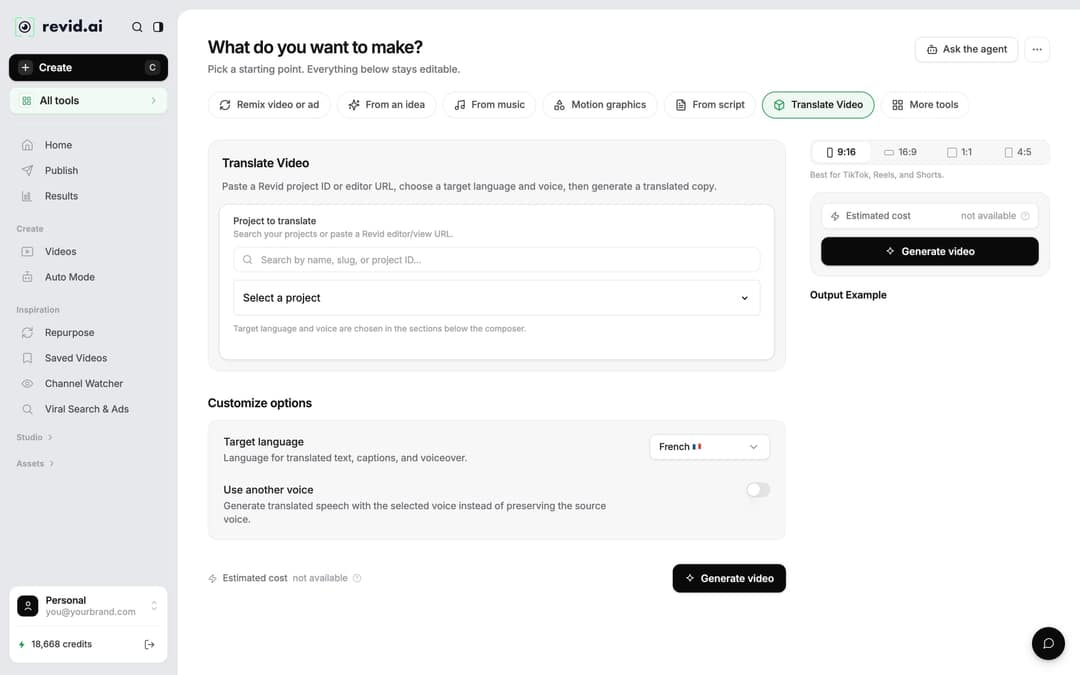
Once the video is done, open the project card menu and choose Translate. This opens the video translator, where you set three things:
- Project to translate: the video you just made.
- Target language: one of 74 languages.
- Use another voice: leave it off to keep the same voice.
The edit, media, timing and captions are kept. Translation costs 10 credits per 500 characters per voice segment. Ask the client before publishing their words in a language they did not write them in.
Client testimonial video script template
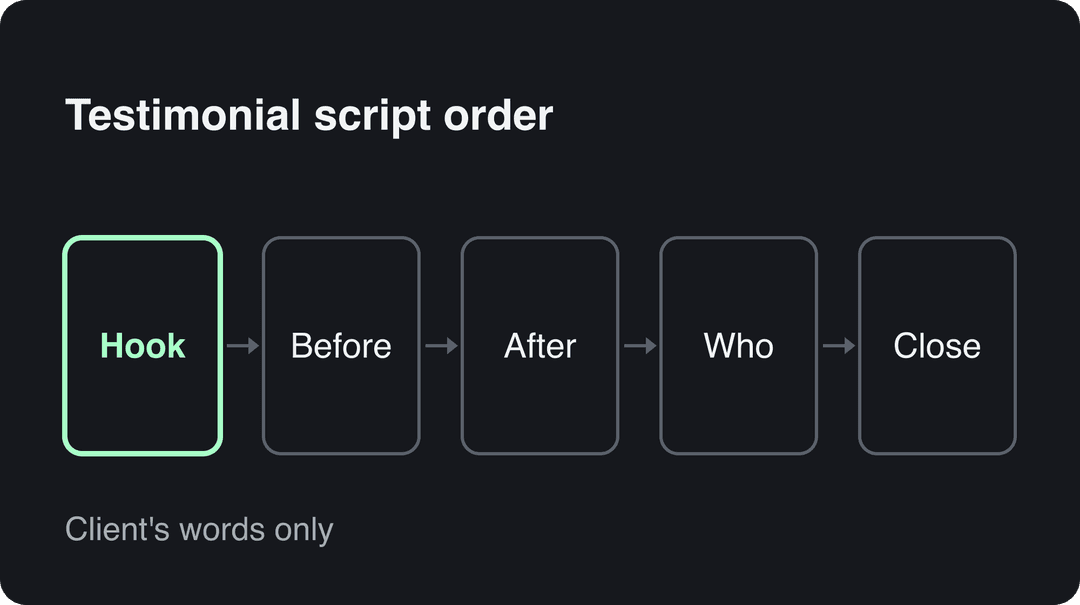
A written review rarely reads well out loud. Reorder the client's own sentences into this structure, without adding claims:
- Hook: their strongest line or result, first. "We stopped spending our weekends on content."
- Before: the problem in their words. "Every video took our team a full day to edit."
- After: what changed, with the number they gave you, if any. "Now we publish every week."
- Who: name, role and company, as on-screen text.
- Close: your brand name and one next step ("Try it free", "Book a demo").
If the client wrote something vague ("great service"), send one follow-up question by email: "What changed for you after working with us?" Their answer usually becomes the hook.
Keep a downside if they mention one. In Bazaarvoice's Shopper Preference Report 2025, 43% of shoppers said they trust creators who share both the pros and cons of a product.
Which aspect ratio should a testimonial video use?
| Where it runs | Ratio to choose |
|---|---|
| YouTube, LinkedIn, website hero or sales deck | 16:9 |
| TikTok, Instagram Reels, YouTube Shorts, Stories | 9:16 |
| Instagram or Facebook feed | 4:5 |
| Square ad placements | 1:1 |
If you need the same testimonial in several places, make the main version once and convert copies with the resize video tool. It outputs 9:16, 4:5, 16:9 or 1:1.
Input
Your video as it is
Output
How to edit a recorded testimonial with AI
If a client did record themselves, AI testimonial video editing is about cleanup, not generation:
- Rough cut and graphics: upload the talking video to Auto Edit Video. It comes back edited, with the key lines turned into motion graphics.
- Captions: add synced captions in 100+ languages with the AI caption generator. Many people watch muted, so a testimonial without captions loses its words.
- Sound: a phone recording from a noisy office gets clearer with the audio enhancer.
- Fine-tuning: trim pauses in the timeline (drag a clip's edge, or press S to split at the playhead), reorder lines or change the music.
Editing should never change what the client said. Cutting filler words is fine. Splicing sentences into a claim they did not make is the same problem as a fake review.
What to look for in an AI testimonial video platform
A good testimonial video maker should let you:
- Start from real input: pasted text or uploaded footage, read as written.
- Choose voices and languages that match your clients.
- Pick stylized visuals, not only realistic people.
- Check and edit every caption against the source text.
- Add on-screen name credits.
- Export in every ratio you need and publish to your channels.
Revid covers writing to the timeline, editing, translation, export and direct publishing.
If you specifically want a presenter avatar reading reviews, Revid has a talking avatar tool. Avatar platforms such as HeyGen specialize in realistic presenters; see the Revid vs HeyGen comparison.
Revid does not collect testimonials. Gather them the usual way (a review request email, a form or your review platform), get written permission, then paste the text into Revid.
FAQ
Are AI testimonial videos legal?
Yes, when the testimonial is real and the client agreed to its use. The FTC's 2024 rule bans reviews attributed to people who do not exist, such as AI-generated fake reviews. Never invent a client, a quote or a result.
Do I have to label an AI testimonial video?
Yes, if it shows realistic AI-generated people or scenes. TikTok requires a label, YouTube asks you to use the "AI use" setting, and Meta asks you to use its AI disclosure tool for photorealistic video. Clearly stylized visuals usually need no label on YouTube. Saying the voice is AI is still good practice: in IAB's 2026 study, nearly half of Gen Z and Millennial consumers wanted AI voices or avatars disclosed in ads.
Can AI collect testimonials for me?
Not in Revid: it turns testimonials you already have into videos. Collect them with a review request email or a form, ask for permission to publish, then paste the text into the From script box.
Can I use an AI avatar to read a client's testimonial?
Only if the video makes clear the avatar is a narrator, not the client. Presenting a generated face as the person who wrote the review misleads viewers and runs into the fake-review rules.
Is Revid free for making testimonial videos?
You can start free: sign-up costs nothing and new accounts get free credits, no credit card needed. Regular creation uses a paid plan's monthly credits, from $39/month. The AI video media type and voice regeneration in the editor need a subscription.