How to Add Captions to Instagram Reels in 2026
Learn how to add captions to Instagram Reels using auto-captions, the Captions sticker and closed captions, plus fixes and accessibility tips for 2026.
On this page
Your Reel is cut, the hook lands, and you're one tap from publishing. Then you remember the message from a viewer who watched it on the train with the sound off and asked what the on-screen demo was about. That's when captions stop being a compliance box and become part of the edit.
The useful way to think about how to add captions to Instagram Reels is not as one feature with three names. It's two layers with different jobs. One layer the viewer controls. The other layer you control, and it stays on the screen whether they like it or not. Pick the layer first, then follow the matching steps.
- Share of time spent on Instagram that went to Reels in 2024
- 50%
- Meta, via Mark Studios
- Instagram video plays that happened with sound off
- 1/3
- Instagram, May 2022
- Year-over-year growth in US Instagram Reels watch time, Q4 2025
- 30%
- Meta Platforms, January 2026
- Languages Revid can caption a video in
- 100+
- Revid
Which Caption Option Fits Your Reel
Start with one question. Should the viewer be able to turn this text off? That answer, not the menu location, decides which caption route fits the Reel.
| Method | Viewers can turn it off | Where to find it | Best for |
|---|---|---|---|
| Automatic closed captions | Yes | More options, then closed captions | Talking-head and narrated Reels |
| Captions sticker | No, text is always visible | Sticker menu, then Captions | Emphasis, bold quotes and key claims |
| Typed text overlay | No | Text tool | Labels, names and non-speech information |
Reels are where that decision pays off. Meta reported in 2024 that Reels represented 50% of the time spent on Instagram, up from more than 20% two years earlier, according to Mark Studios' Instagram Reels statistics. The audience is already watching. The question is whether they can follow without audio.
Instagram reported in May 2022 that approximately one-third of video plays on the platform occurred with sound turned off, which is why captions matter on public transit, in offices, in classrooms and late at night, per Instagram's accessibility guidance. That figure isn't a captioning benchmark. It's a description of how people open the app.
The two layers behave differently. Closed captions are the accessibility layer. Instagram generates them from speech recognition, the viewer can toggle them, and they sit at the bottom of the screen. Sticker text is the visual layer. It's part of the composition, it stays visible whatever the viewer's settings, and you can style it and place it where the frame allows.
Many Reels need both. A narrated demo needs the toggleable track so a Deaf viewer can read every word. The same Reel may also need one bold phrase on screen because the key claim gets lost in a busy frame.
My default: If the Reel is a talking head or a narrated demo, enable automatic closed captions first. If one phrase carries the post, add a styled Captions sticker on top and accept that it can't be switched off.
How to Turn On Automatic Captions Step by Step
If viewers should be able to switch captions off, turn on Instagram's closed-caption track. Instagram transcribes the audio in the app, but the result still needs a careful check for missed words, timing errors and names that speech recognition may not know.
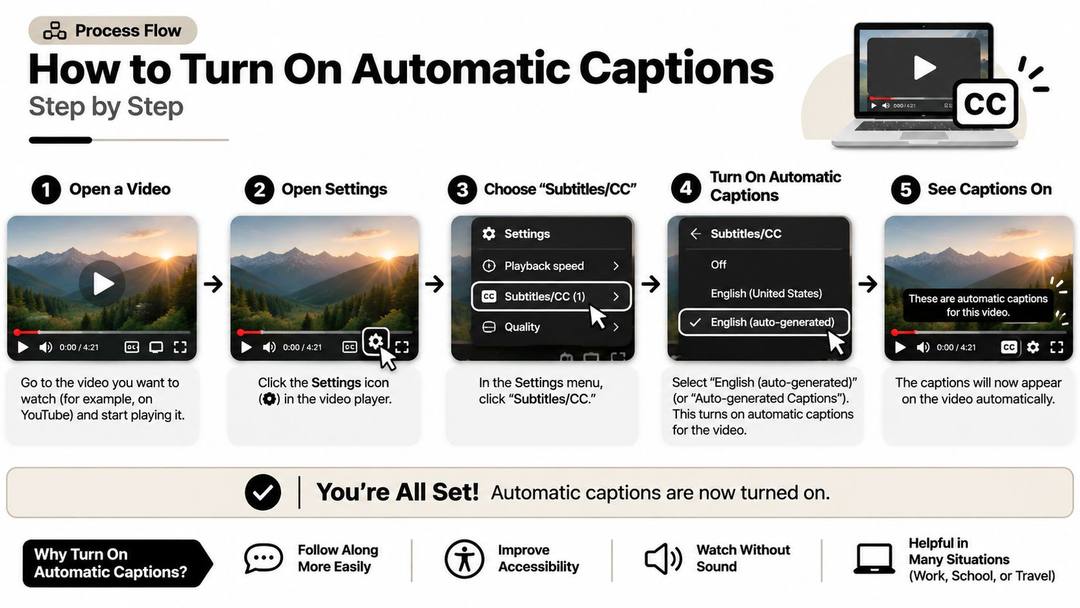
- Create or upload your Reel. Continue through the editing screens until you reach the final edit page.
- Open More options and switch on closed captions. This adds a caption track viewers can control. It is separate from text you type in the post description.
- Wait for Instagram to generate the transcript, then review it as the video plays. Read every line. Short words can be missed, and sentences can run together.
- Correct names, brand terms, homophones and overlapping speech. A misheard product name can change the meaning, while a missing comma is usually less disruptive.
- Check the timing. Captions should appear with the spoken words and clear before the next phrase. If a block stays on screen too long, viewers may have to read ahead instead of following the video.
- Return to the sharing screen, add the post caption and description, then publish. Those fields are separate from the closed-caption track.
Instagram's caption settings help page explains this route, including More options. It also describes how to manage captions after publication by opening Options, then Edit, then More options. You can correct a caption track after posting if you spot an error later.
Social video is often watched without sound, so readable captions help viewers follow speech when they cannot or do not want to turn audio on.
If you want to see the settings path on a phone, this walkthrough shows the steps in motion.
Before leaving the app, view the Reel as an audience member and tap the caption control. Confirm that the text matches the speech and that each line appears at the right moment. Menu labels can vary by app version. If the steps look different, check for the closed captions or Captions options.
How to Style Sticker Captions and Keep Them Readable
Say a 30-second cooking Reel has a great voiceover and one problem. The Captions sticker sits low in the frame, covers the pan at the exact moment the technique happens, and the text runs as one long sentence across two lines. The fix isn't a new recipe. Move the text up, shrink the font and split each phrase onto its own line.
The Captions sticker is the right tool when the text needs to be seen, not toggled. Open the sticker menu, choose Captions, and let Instagram transcribe the audio into styled text over the video. Then make four choices in this order.
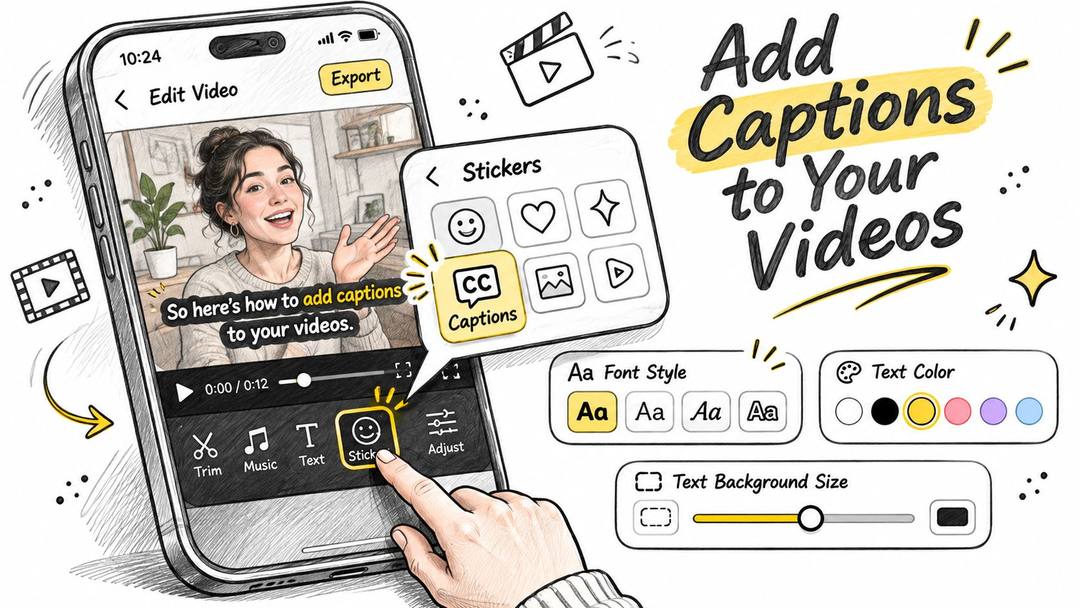
Size, contrast, line length, placement
Size: Pick a font size you can read at arm's length while holding the phone at normal distance. If you have to squint in the preview, the viewer will scroll.
Contrast: Use a high-contrast text color and add a solid or semi-transparent background when the footage is busy. White text on a bright kitchen counter disappears. A dark background box fixes it in one step.
Line length: Keep each line to a short phrase. Two or three words per line read faster than a full sentence, especially when the viewer is walking or commuting.
Placement: Keep text in the middle band of the frame. The username sits at the top, the caption and audio controls sit on the right, and the description and navigation sit at the bottom. Text that drifts into those zones gets covered by Instagram's own interface.
On-screen text has a hard limit. It can't be turned off, so it can't be the only accessibility layer for a spoken Reel. Use it for emphasis, a bold quote or a message that must be seen, and keep the closed captions underneath for the full transcript. If you're assembling the Reel outside Instagram first, vertical video editing is where you set the safe area before the caption ever reaches the app.
Keep the preview honest. Watch the styled Reel with sound off on a phone, not on a desktop monitor, and check the frame at the exact moments the text changes.
Proofread, Check Sound Both Ways and Publish
The acceptance rule is simple. Watch the full Reel once with sound off and once with sound on. Publish only when both pass. A transcript-only review misses timing and placement errors because the words can be correct while the experience is still broken.
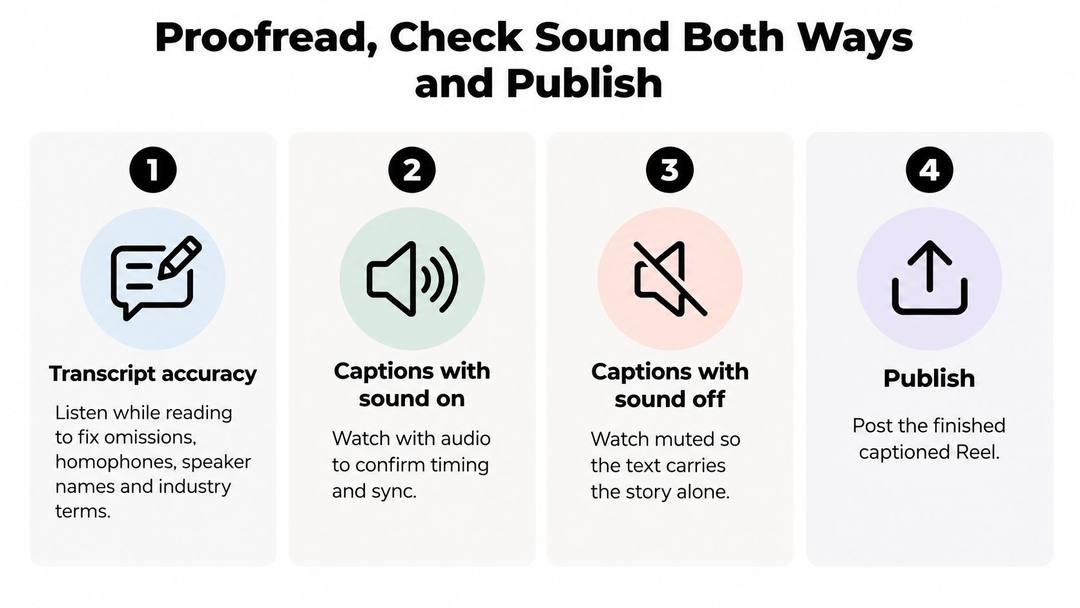
The four checks that catch real failures
Transcript accuracy. Listen while reading the generated transcript and fix omissions, homophones, speaker names and industry terms. Automatic speech recognition isn't guaranteed to be accurate, and it struggles with accents, background noise and overlapping speakers. Instagram's Reels caption and translation settings page supports automatic closed captions and translation controls, but it doesn't publish a universal accuracy percentage. Your ears are the quality control.
Synchronization. Each caption should appear when the words are spoken and disappear promptly. Avoid long blocks that force viewers to read ahead. If a line stays up for six seconds while the speaker has moved on, the caption is now competing with the video.
Legibility. Use high contrast, sufficiently large text and short line groupings. Test the exported Reel on a phone at normal viewing distance. A desktop preview flatters text that turns into a gray smear on a phone in daylight.
Platform-safe placement. Keep captions inside the central safe area so they aren't hidden by the username, caption controls, comments or bottom navigation. This is the check creators skip most often because the editing screen doesn't show every overlay the viewer will see.
Native controls can vary by account, device, language and app version. That variability is exactly why the manual check matters more than any feature list. You're not verifying that a setting exists. You're verifying that a viewer can follow the Reel with the sound off and again with it on.
A checklist you can reuse: transcript read through, names corrected, timing checked, safe area confirmed, phone preview done, sound-off watch done, sound-on watch done. If any box is unchecked, the Reel isn't finished.
For creators publishing several Reels a week or working across languages, Revid can add captions to any video in 30 styles, with captions available in 100+ languages. That's a scale decision, not a substitute for the checklist. Get the manual routine right on one Reel first, then run the same checklist on the next five before deciding whether you need a faster workflow.
Caption Problems and How to Fix Them
The most common caption failure isn't a bad transcript. It's a Reel with no caption track at all because closed captions were never enabled before publishing. The viewer taps the caption control, sees nothing, and assumes the creator didn't bother.
The fix is to reopen the editing flow and enable closed captions, or manage the setting after publishing through Options, then Edit, then More options. If the Reel is already live, make that edit before you promote it anywhere else.
| Symptom | Likely cause | Fix |
|---|---|---|
| No captions for viewers | Closed captions never enabled | Enable closed captions under More options, or edit under Options, Edit, More options |
| Wrong names or jargon | Speech recognition errors | Correct each line in the transcript before posting |
| Captions cover username or buttons | Text outside the safe area | Move text into the central safe area and preview on a phone |
| Captions lag behind speech | Long blocks or timing errors | Split into shorter lines and re-check sync with sound on |
| Text hard to read | Small size or low contrast | Increase size, add a background and preview with sound off |
A worked example makes the first two rows concrete. Say a product Reel says "the new Fold model" and the transcript renders it as "the new fault model." The audio is fine, the caption is wrong, and the error sits exactly on the product name. Correct that one transcript line, then rewatch the segment with sound on to confirm the fix didn't shift the timing.
Settings that vary are the next trap. Some accounts, devices, languages or app versions show different caption controls. If a control is missing, check for an app update and try another device before rebuilding the Reel from scratch. Rebuilding is the expensive fix. A missing toggle is usually the cheap one.
Keep the diagnosis narrow. Ask whether the problem is the track, the text, the timing or the placement. Each has a different repair, and only one of them requires you to redo the whole edit.
Revid turns a link, an article or a long video into vertical Reels, and it can add captions in more than 100 languages with 30 caption styles to match your brand. You can publish the finished Reel straight to Instagram from the same queue, so the caption routine above becomes one repeatable step instead of a separate export. Visit revid.ai to make your next captioned Reel.
FAQ
How do I turn on automatic captions for an Instagram Reel?
Create or upload your Reel and go to the final edit page. Open More options and switch on closed captions, then wait for Instagram to generate the transcript. Review every line for names, homophones and timing before you publish.
What is the difference between closed captions and the Captions sticker on Instagram?
Closed captions are the accessibility layer: Instagram generates them from speech and viewers can toggle them on or off. The Captions sticker is part of the visual composition, stays on screen whatever the viewer's settings, and can be styled and placed. Many Reels need both.
Can I edit captions on a Reel after posting it?
Yes. Open the Reel, tap Options, then Edit, then More options to manage the caption track. If the Reel is already live, fix the captions before you promote it anywhere else.
Why do Instagram Reels need captions?
Instagram reported in May 2022 that about one-third of video plays happened with sound off, for example on public transit, in offices or late at night. Captions let those viewers, and Deaf viewers, follow the speech. Meta also reported that Reels represented 50% of the time spent on Instagram in 2024.
Where should I place caption text on a Reel so it isn't covered?
Keep text in the middle band of the frame. The username sits at the top, controls on the right, and the description and navigation at the bottom, so text in those zones gets hidden. Preview on a phone, not a desktop monitor, to confirm.
Why are my Instagram captions missing or wrong?
The most common cause is that closed captions were never enabled before publishing. Wrong names or jargon come from speech recognition errors, so correct each transcript line. If a control is missing, check for an app update or try another device before rebuilding the Reel.
Sources
- Meta Platforms, Meta Q4 2025 Results Conference Call transcript (January 2026)
Charts and figures checked on November 19, 2026.