How to Make a Shopify Product Video That Sells (Step by Step)
Paste your Shopify product URL and Revid writes the script, keeps your real product photos and builds the video. Here are the five steps in today's app, the structure that sells, and the right length for each platform.

On this page
To make a Shopify product video, paste your product page URL into Revid's Shopify product video tool. The AI reads the page, keeps your real product photos, writes the script and builds the video. You then fix anything in the editor and export in up to 4K, or publish straight to TikTok, Instagram and YouTube.
You don't need to film yourself for a product video to work. In Revid's analysis of 176,367 TikToks with 1,000+ likes posted between October 2025 and October 2026, faceless tutorials had a median of 156K views, against 52K for tutorials with a person on camera. The sample only holds videos that already passed 1,000 likes, so it shows what strong videos have in common, not a guaranteed cause. If your product photos are your best asset, that is good news.
How to make a Shopify product video with Revid
The whole flow is five steps: paste the URL, choose the format, check the script and voice, fix scenes, then export or publish.
1. Paste your Shopify product URL
Open the Shopify product video tool linked above and paste the URL of a single product page, not your store home page or a collection. Revid reads the product name, description and photos, writes a script around them and uses your real photos in the scenes, so the video shows what customers will actually receive.
Not on Shopify? The AI product video generator works the same way with any product page URL.
2. Choose the ratio and the look, then generate
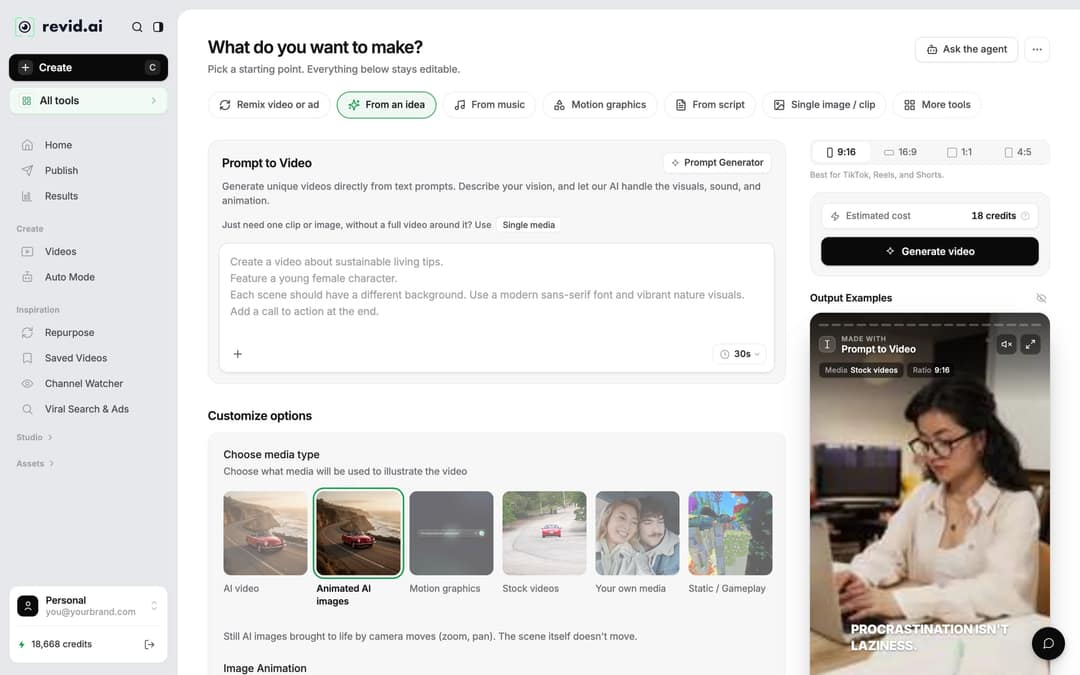
Revid's tools open on the Create page (the Create button at the top of the sidebar, shortcut C, takes you there too). Before you generate:
- Ratio: 9:16 for TikTok, Reels and Shorts; 4:5 or 1:1 for feed placements; 16:9 for a landscape video.
- Media type: this decides how scenes are illustrated around your photos. Options vary by tool; on the main Create page they are AI video, Animated AI images, Motion graphics, Stock videos, Your own media and Static / Gameplay. AI video needs a paid plan.
- Cost: check Estimated cost next to the Generate video button, then click Generate video.
3. Check the script and the voice-over
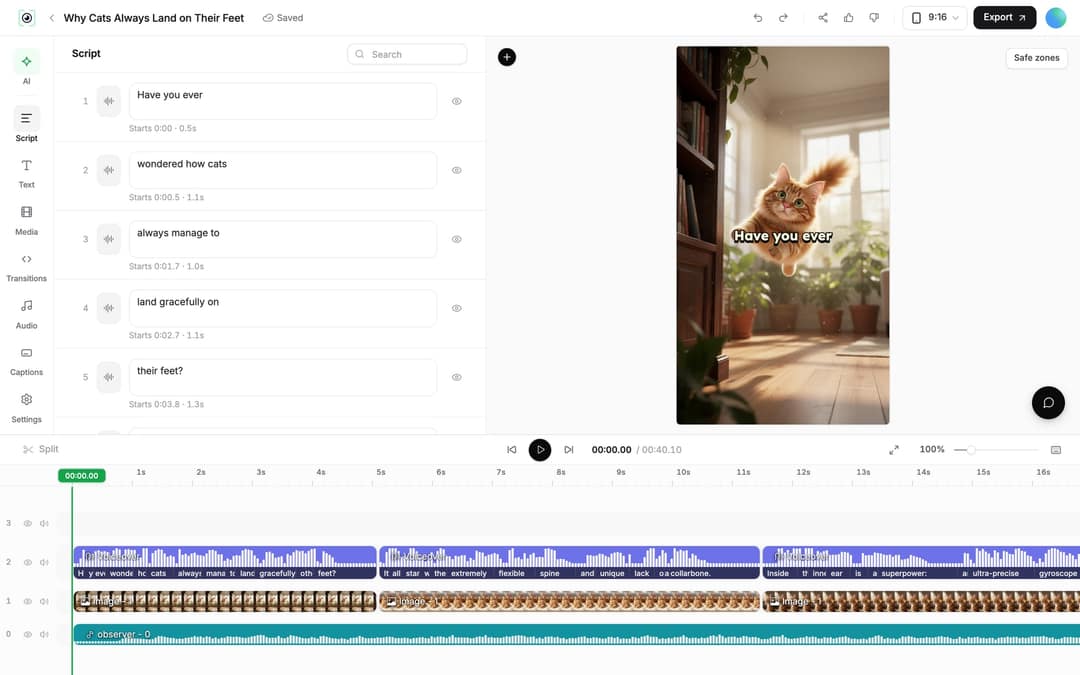
Your finished video appears under Videos in the sidebar. Click its card to open the editor, then open the Script panel in the left rail. Every caption segment has its own text box and start time, and the eye icon hides a segment.
Read the script against three checks: the product name is spelled right, every claim (price, offer, shipping) matches your product page, and the video ends on one call to action. When you change text, Revid warns you: "Caption updated. Re-generate voice if timing changed." To do that, open the Audio panel and click Re-generate next to the voiceover (or select the voiceover clip and click Re-generate Voiceover), keep "Keep timeline in sync" on so clips and music follow the new timing, then click Generate Voice. It costs 10 credits per started 500 characters and needs a paid plan.
4. Replace weak scenes and trim
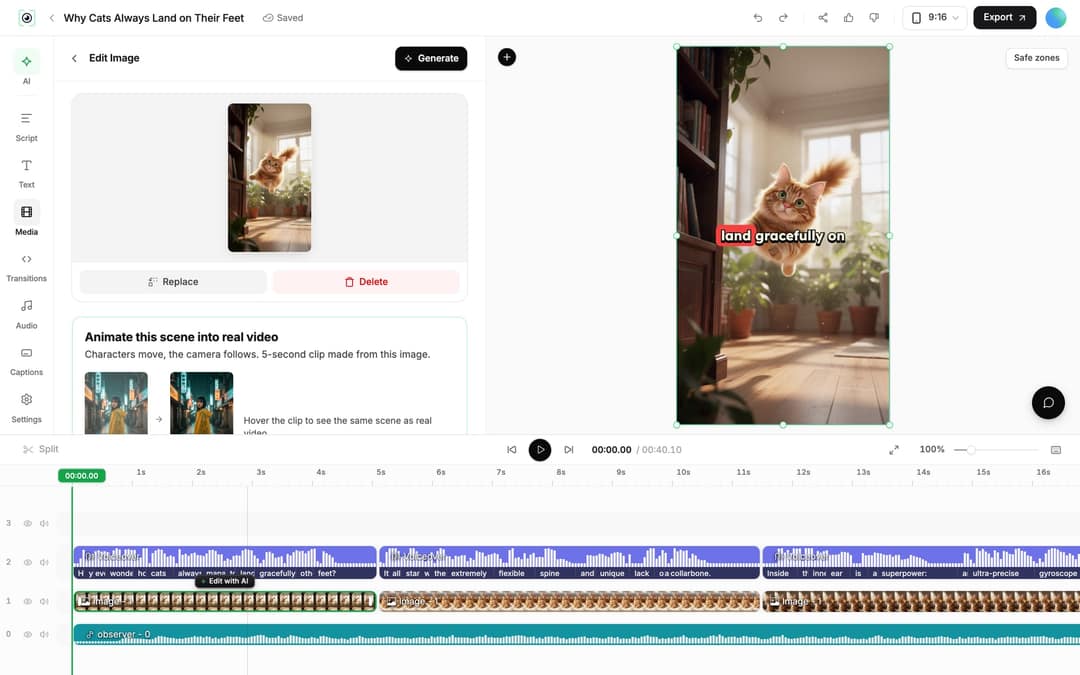
Click a scene on the timeline to select it. Replace opens the Media panel library so you can swap in another photo or clip; to add a new product shot or a filmed clip, drag the file into the Media panel to upload it. For an AI image, Regenerate/Edit image lets you regenerate it or edit it with a prompt; AI video clips have Regenerate from prompt.
To trim, drag a clip's start or end edge on the timeline, or place the playhead and press S to split. Shift+Delete removes a selection and closes the gap. Cut anything that is not the hook, the demo, the proof or the call to action.
5. Export or publish
Click Export at the top right (it reads Export / Publish on free accounts). You can download in 720p, 1080p or 4K at 30 or 60 fps; 4K export costs 10 credits.
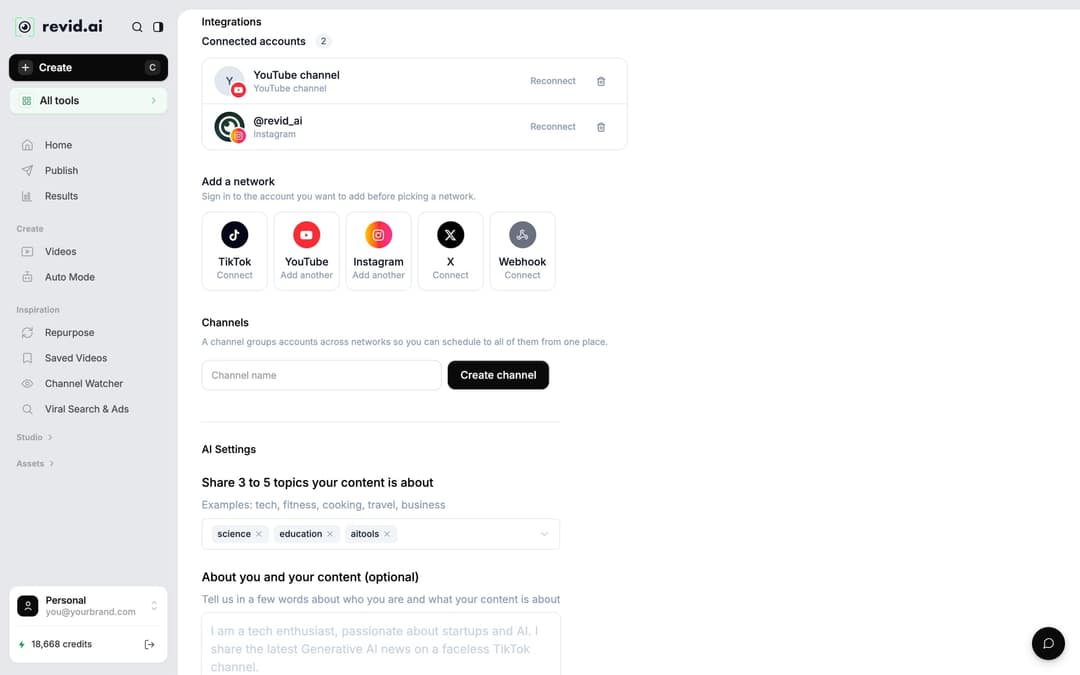
To post from Revid, connect your accounts once in Settings > Integrations > Add a network: TikTok, YouTube, Instagram (a Business or creator account is required), X, or a Webhook for Zapier and Make. Then open the Publish Video dialog from the editor or the project card, choose where under Publish to, and click Publish to post now or Add to queue to schedule. Scheduled posts live on the Publish page in the sidebar.
Input
A 15-second vertical (9:16) UGC streetwear fashion transformation video filmed on a smartphone.
Output
Which type of product video should you make?
Pick the type based on the question that stops people from buying. If shoppers don't understand the product, make a demo. If they understand it but doubt it, make a testimonial-style video or a comparison.
| Video type | What it shows | Use it when | Make it in Revid |
|---|---|---|---|
| Product demo | Features and benefits in action | Shoppers ask "what does it do?" | Shopify product video tool, from your URL |
| Tutorial | Step-by-step use of the product | Returns or support questions come from misuse | "From script" on the Create page, with your product photos |
| UGC-style ad | A presenter vouching for the product | Shoppers doubt it works | UGC ad generator with AI avatars |
| Comparison | Your product against the usual alternative | Shoppers are choosing between options | "From script" with side-by-side scenes |
| Behind the scenes | How it's made, who makes it | You compete on craft, ethics or origin | Your own clips plus AI voice-over and captions |
Creator-style testimonials earn their place in ads. Meta reported in December 2025 that partnership ads featuring a creator testimonial drive a 7.5% higher offsite conversion rate than business-as-usual campaigns, on average (sources on our UGC statistics page). For paid placements, the AI ad generator builds a video ad from your product images.
Prompt to try
Make a 30-second vertical product video for a leak-proof stainless steel water bottle. Open with the hook "Stop letting a leaky bottle soak your bag.", show one line on the problem, spend most of the time demoing the bottle upside down in a backpack, add a 4.8-star rating as proof, and end with "Tap the link to get yours." Clean, bright style with short on-screen text and upbeat music.
How to structure a product video that sells
The AI writes a first script for you. Check it against this order before you generate or export, because most weak product videos fail at the start (no reason to keep watching) or at the end (no next step).
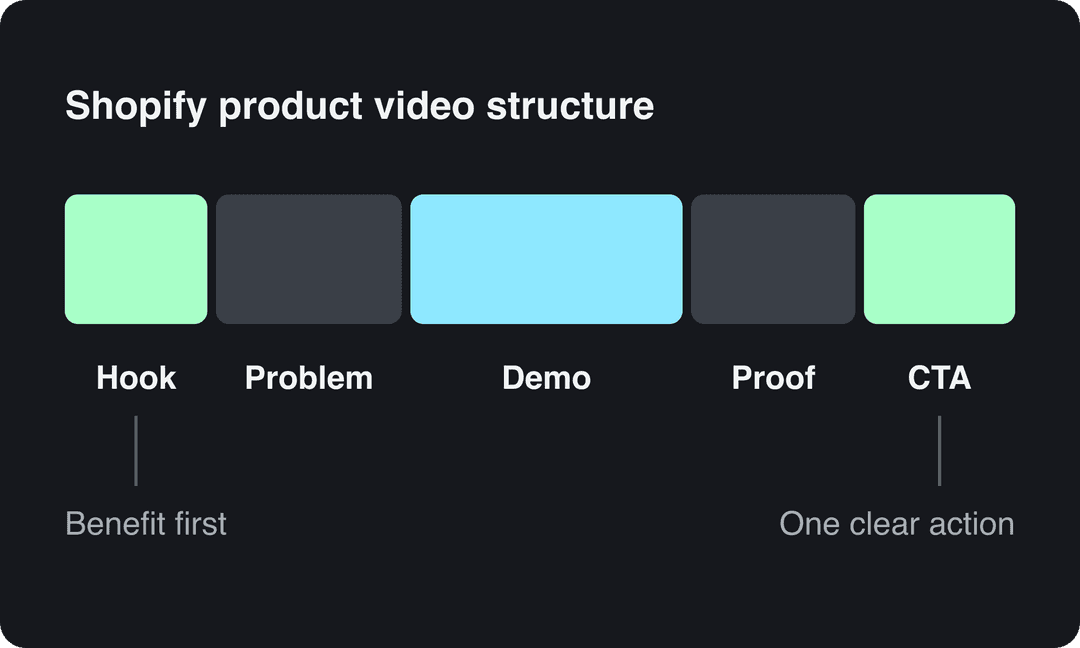
- Hook: name the problem or the result in the first line. Shoppers scroll past feature lists, so open with the outcome.
- Problem: one line on the frustration your buyer already feels.
- Demo: the product solving it, using your real photos or clips. This is the longest part.
- Proof: a review quote you actually received, a rating, or a before and after.
- CTA: one action only, such as "Tap the link to shop" or "Order today on our site".
A fill-in-the-blanks script template:
Tired of [problem]? Meet [product]. It [main benefit] in [how, in a few words]. [Show it working.] [Real customer quote or rating.] Tap the link to get yours.
Sample hooks you can adapt (more in our list of TikTok hooks that stop the scroll):
- "Stop doing [common mistake] with your [item]."
- "This is the [product type] people keep asking about."
- "Watch what happens when [product] meets [tough situation]."
Keep on-screen text short, show the benefit before the specs, and end on the CTA rather than a logo.
How long should a Shopify product video be?
Platform limits are generous, so length is a choice, not a constraint:
| Platform | Length limit | What matters for reach |
|---|---|---|
| TikTok | Uploads up to 60 minutes (10 minutes when recorded in the app) | TikTok recommends 9:16 at 1080x1920 |
| Instagram Reels | Up to 20 minutes | Reels over 3 minutes are not recommended to non-followers |
| YouTube Shorts | Square or vertical videos up to 3 minutes | Longer vertical videos are not classed as Shorts |
On TikTok, length matters less than people think. In Revid's 12-month study, every length bucket from under 15 seconds to 10 minutes had a median between 58K and 76K views; 61 to 90 seconds was slightly ahead at 70K, and videos under 15 seconds earned the most shares per view (1.41 per 100). This is TikTok data from videos with 1,000+ likes, so treat it as a pattern, not a rule.
Length alone barely moves views: every bucket lands between 58K and 76K median views (the 790 videos over 10 minutes are a small, unusual group). Clips under 15 seconds get shared the most per view.
Source: Revid analysis of 176,367 TikToks with 1,000+ likes posted between Oct 1, 2025 and Oct 16, 2026 (61,203 creators)
Show the data
| Median views | Share that passed 1M views | Shares per 100 views | |
|---|---|---|---|
| Under 15 s | 57.6K | 11.6% | 1 |
| 16 to 30 s | 64.9K | 12.3% | 1 |
| 31 to 60 s | 61.8K | 11.8% | 1 |
| 61 to 90 s | 70.5K | 12.2% | 1 |
| 91 s to 3 min | 63.4K | 11.1% | 1 |
| 3 to 10 min | 76.4K | 12.4% | 1 |
| 10 min+ | 129.6K | 13.8% | 0 |
A practical rule: if the product has one obvious benefit, keep it short and loopable. If it needs a demonstration, take the time to show it working, and cut every second that isn't the hook, the demo, the proof or the CTA.
Where to use your Shopify product video
- Product page: add the exported file to the product's media in your Shopify admin. Check Shopify's help center for its current file format and size limits.
- TikTok, Reels and Shorts: publish or schedule from Revid to all three from one queue.
- Ads: reuse your best organic performer as an ad creative.
Video is how shoppers want to learn. In Wyzowl's 2026 survey (published December 2025), 63% of consumers said a short video is their preferred way to learn about a product or service. In Adobe Express's 2024 survey, three in eight short-form video users said they had bought something after watching a short video about it. More sourced figures are on our short-form video statistics page.
Make a product video every day with Auto Mode
If you sell several products or want a steady stream of posts, an Auto-Mode worker can make one product video a day. Click Auto Mode in the sidebar, then New worker:
- Name your worker, for example "Daily product spotlight".
- Under What should it make?, pick Promote a Product and give it your product page.
- Under Pick the format, choose the tool and the usual options (voice, music, media type).
- Choose delivery: Review First keeps each video in Revid for you to check; Auto Queue sends it to your posting queue and needs a connected account.
- Check Est. credits per run and Est. monthly credits in the Worker preflight panel, then click Create worker.
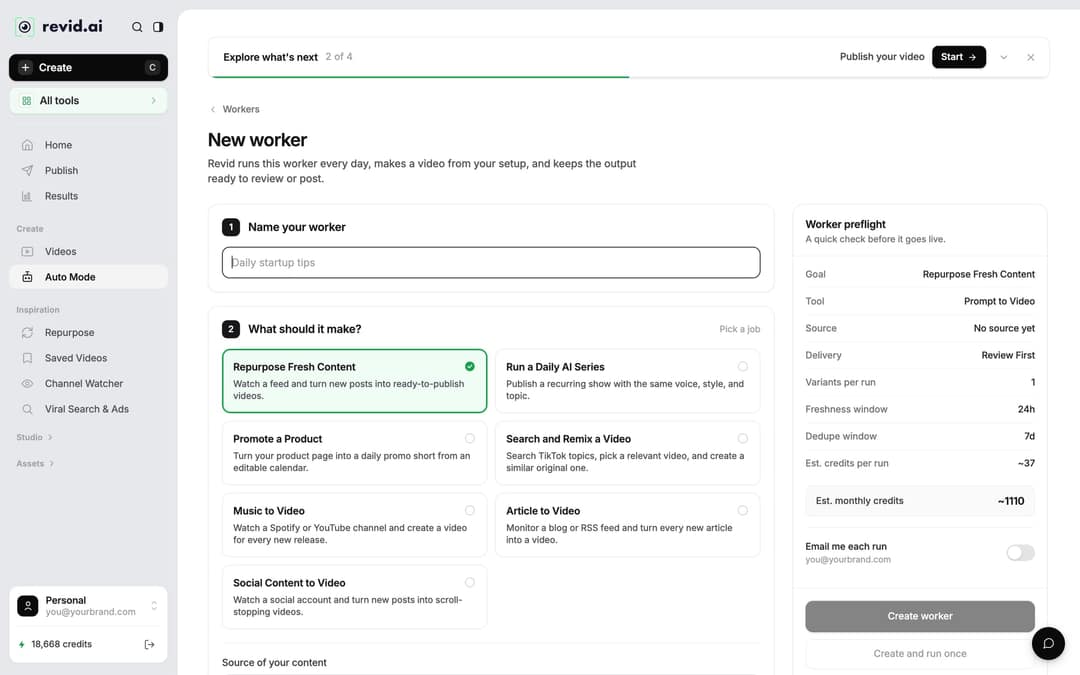
Workers run once a day between 1 AM and 5 AM, and each run costs what the same video would cost to make by hand. Product workers always render at Ultra quality, so check the estimate. Workers need a paid plan: Growth includes 3, Elite 5 and Ultra 10.
What it costs to make Shopify videos with Revid
Sign-up is free, and new accounts get free credits to try video creation with no credit card needed. Regular creation then uses the monthly credits of a paid plan, starting with Growth at $39/month ($32/month billed yearly) for 2,000 credits. As a guide, a 30-second video with Pro AI visuals and a voice-over costs about 40 to 80 credits. Extras are priced separately: 10 credits per 500 characters to regenerate a voice, 10 credits for a 4K export. Failed builds are refunded automatically. The live list on the Revid pricing page is the authoritative source.
FAQ
Do I need to film anything to make a Shopify product video?
No. Revid builds the video from your product page: your real photos, an AI-written script, a voice-over in 70+ languages, captions and music. If you have your own clips, drag them into the editor's Media panel.
Does Revid use my real product photos?
Yes. The Shopify tool reads your product page and keeps its real photos. You can swap any scene for another photo afterwards with Replace in the editor.
Do I have to label an AI-generated product video?
Only when it contains realistic AI images, audio or video. TikTok requires a label in that case and says the label does not affect distribution. Meta asks you to disclose photorealistic AI video and shows an "AI info" label.
Can I make the same product video in other languages?
Yes. In Videos, open the project card's menu and choose Translate to open the video translator, then pick a Target language (74 are available). It keeps the edit, media, timing and captions, and costs 10 credits per 500 characters of narration.