How to Make a Lofi Video: Looping Lo-Fi Beats in 5 Steps
A five-step guide to turning any lo-fi track into a calm, looping video with Revid's current interface, plus ready-to-use prompts for cozy room, rainy window and study desk scenes.

On this page
To make a lofi video in Revid, click Create, choose From music and upload your lo-fi track, pick Animated AI images as the media type, then click Generate video. In the editor, give every scene the same cozy image so the picture never cuts, and loop the finished file for as long as you need.
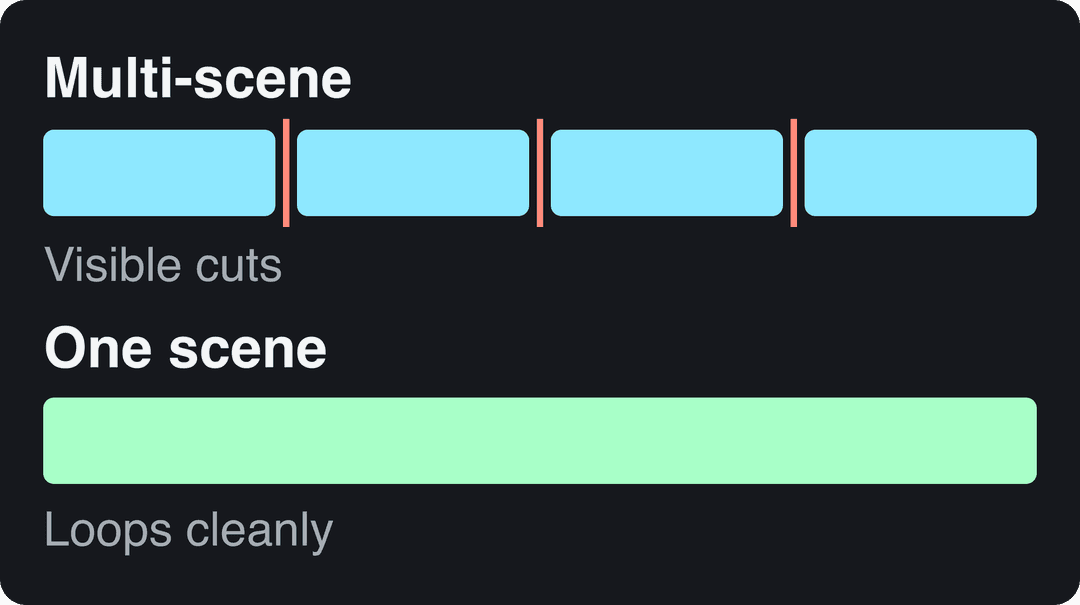
One mistake ruins most AI lo-fi backgrounds: too many scenes. A music video tool cuts to a new image every few seconds, which is right for a song release and wrong for a study stream, where a change of scene pulls the eye off the work. Lo-fi visuals do their job when nothing happens, so the real skill is making the video hold one moment.
- Starting price per month of a paid Revid plan for regular creation
- $39
- Revid pricing
- Auto-Mode workers included in the Growth plan
- 3
- Revid Auto-Mode
- Shorts longer than this with an active Content ID claim are blocked worldwide
- 1 min
- YouTube Help, October 2026
Step 1: Pick your lo-fi beat
Choose a track that fits the mood: slow and warm for late-night study, brighter for a morning work session. The example in this guide uses the Apple Blossom lo-fi track on YouTube.
No track yet? The AI lofi video generator composes a chill beat and creates matching visuals in one go, so you can skip to Step 4.
Step 2: Upload the beat with From music
- Click Create at the top of the left sidebar (or press C). The page asks "What do you want to make?"
- Choose the From music tab. This is Revid's AI music video generator, which builds visuals from an MP3, a WAV or a Suno link.
- Upload your lo-fi track.
Step 3: Set the media type and ratio, then generate
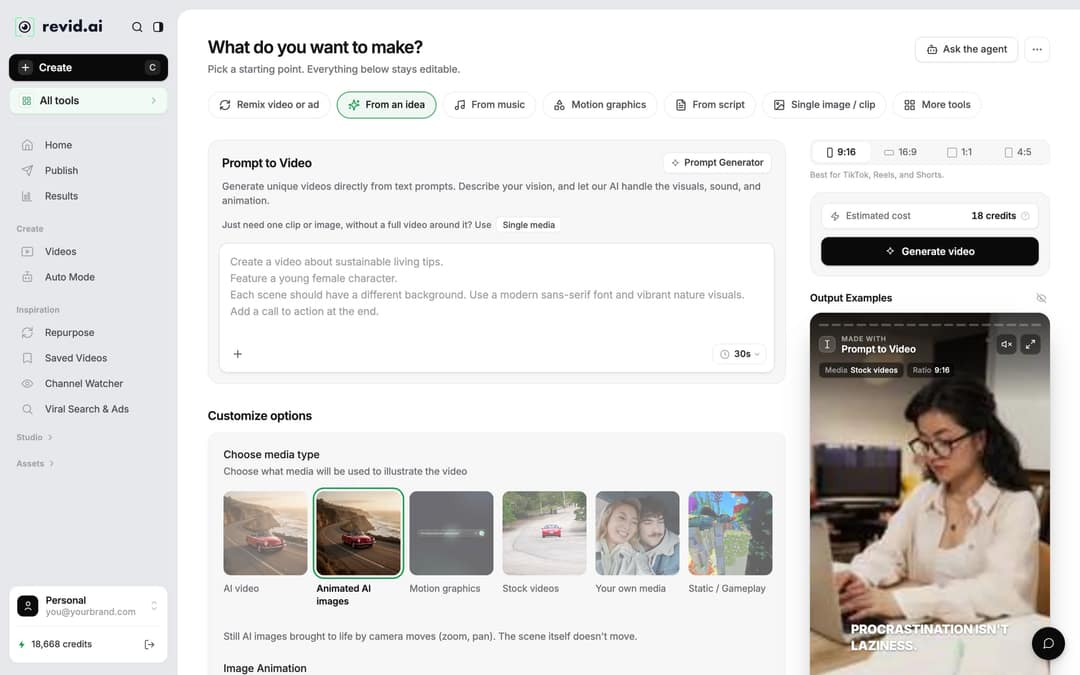
- Under Choose media type, pick Animated AI images. These are still AI images brought to life by slow camera moves (zoom, pan); the scene itself does not move, which suits lo-fi. AI video gives real motion but needs a subscription, and moving clips are harder to loop without a visible restart.
- Pick the ratio in the picker next to the cost: 9:16 for TikTok, Reels and Shorts, 16:9 for a classic YouTube lo-fi upload.
- Check the Estimated cost and click Generate video.
Which ratio should you start with? If your main channel is YouTube long-form, generate in 16:9 and make vertical cut-downs later. If you post mostly Shorts and Reels, start in 9:16.
Animated AI images and Low-tier AI video make up 82% of music video generations. Other: still images (139) and motion graphics (51).
Source: Revid product analytics (Amplitude), 54,940 music video generations with the AI music video generator, July 25 to October 23, 2026
Show the data
| Share of generations | Generations | |
|---|---|---|
| Animated AI images | 59.1% | 32.5K |
| AI video, Low tier | 22.9% | 12.6K |
| AI video, Pro tier | 6.62% | 3.6K |
| AI video, Ultra tier | 1.31% | 718 |
| Stock video | 5.52% | 3K |
| Your own media | 4.13% | 2.3K |
| Other | 0.35% | 190 |
Step 4: Turn it into one cozy scene in the editor
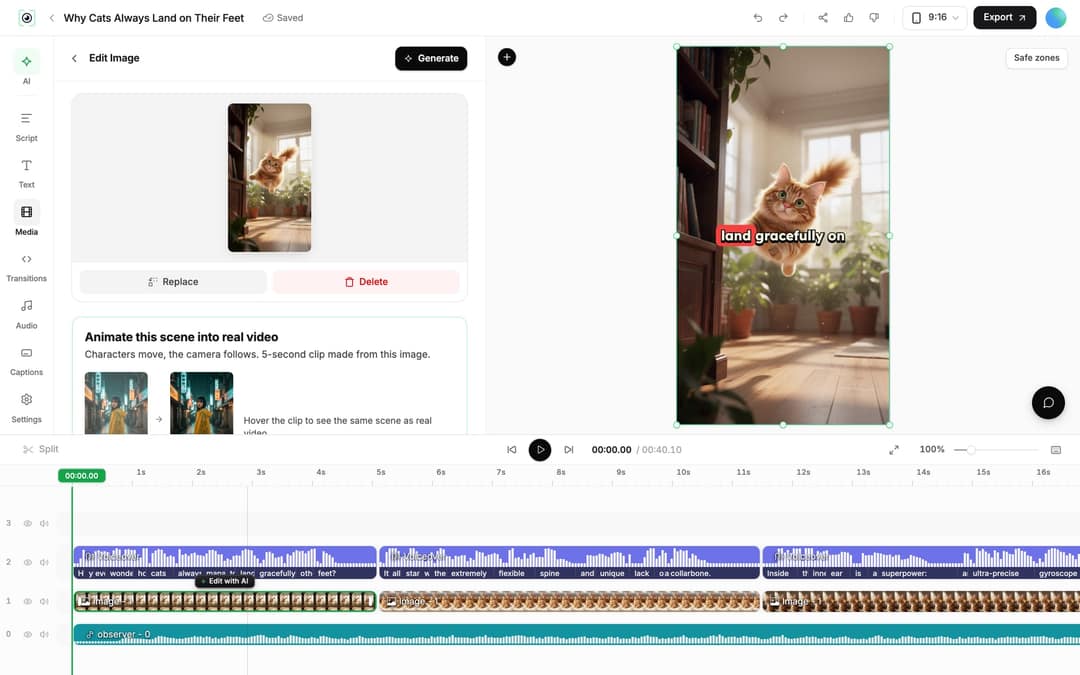
The music tool gives you several scenes. For a study loop, you want one. Open the project (click its card in Videos, or choose Open in editor).
- In the timeline, click the first image clip. The clip panel opens with Replace and Delete.
- Use Regenerate/Edit image, choose the Regenerate image tab, and paste one of the scene prompts below. Keep regenerating until the image feels right.
- Click each remaining image clip, choose Replace, and pick that same image from the Media panel Library. Every scene now shows the same room, so the only movement left is the gentle camera drift.
Prefer a little variety? Keep two or three versions of the same room (same desk, different light) instead of one. The mood stays steady and long sessions feel less frozen.
Prompt to try
Make a 60-second lofi study video set at a rainy window at night, with blurred city lights and a warm desk lamp, in anime style. Open on raindrops sliding down the glass to set the mood, then hold that one still scene with only a slow camera drift. Use a slow, warm chill beat for late-night studying.
Style prompts for cozy room and rainy window scenes
Most lo-fi channels use the same few settings: a desk, a window, rain, warm light. Prompts that describe one still moment work better than prompts with action, because a single image has to carry the whole song.
| Scene | Prompt |
|---|---|
| Rainy window | rainy window at night, blurred city lights, warm desk lamp, anime style |
| Cozy room | cozy bedroom at dusk, plants, soft lamp light, cat asleep on the bed, lofi anime |
| Study desk | anime girl programming, tokyo skyline |
| Café corner | quiet café corner, steaming coffee cup, rain outside, soft pastel colors |
| Night train | train window at night, passing city lights, headphones on the seat |
Keep the same style words across videos (for example "warm lamp light, anime style") and your channel gets a recognizable look.
Highlighted styles have a real example in this post. Presets named after a studio, game or brand made up half of all animated-style videos (7,365 of 14,727) and are left out of this ranking.
Source: Revid product analytics (Amplitude): music video generations in the AI music video generator, Jul 25 to Oct 22, 2026 (90 days, UTC), event totals. 14,727 generations in styles flagged as illustration, by style. Pulled Oct 23, 2026.
Show the data
| Music videos | Made as AI video, not animated images | |
|---|---|---|
| Anime | 971 | 30.8% |
| Claymation | 627 | 38.3% |
| Sketch Color | 616 | 14.6% |
| Anime Realism | 615 | 41.3% |
| Modern Noir | 545 | 43.9% |
| Retro Cartoon | 442 | 29.4% |
| Stylized Illustration | 401 | 51.9% |
| Kids Book | 342 | 31% |
| Sketch B&W | 291 | 16.5% |
| Illustration | 256 | 33.2% |
| 3D Render | 240 | 60% |
| Cosmic Baroque | 209 | 43.1% |
| Lyrics | 200 | 65% |
| Expressive Ink | 199 | 10.1% |
| Paper Collage | 196 | 15.3% |
| 1950s Advertisement | 175 | 40% |
| Epic Lineburst | 174 | 42.5% |
| Manga | 153 | 38.6% |
| Flat Animation | 125 | 44.8% |
| Pixel Art | 124 | 27.4% |
Step 5: Loop, resize and publish
Click Export in the editor header. To stretch the video into a longer study session, run the file through the loop video tool, which repeats a video as many times as you want. Because the scene never changes, the restart reads as a soft reset of the camera drift, not a cut.
Need another format? The resize video tool converts to 16:9, 9:16, 4:5 or 1:1.
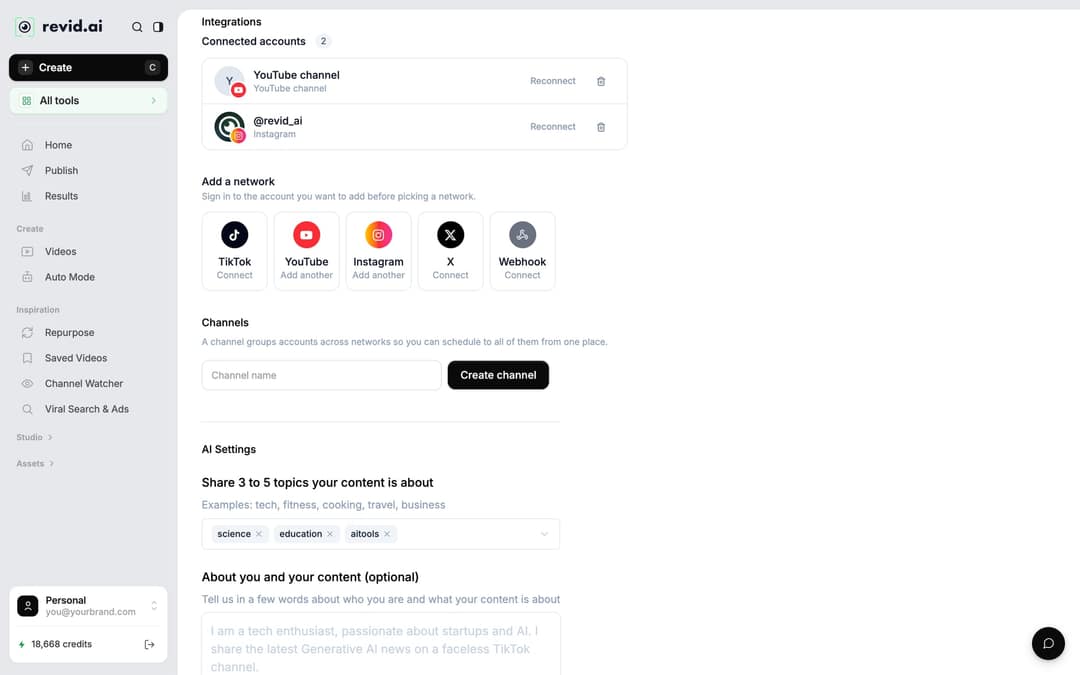
To post from Revid, connect your accounts once in Settings > Integrations > Add a network (TikTok, YouTube, Instagram with a business or creator account, X, or a webhook). Then use Publish on the project card and choose Publish to post now or Add to queue to schedule it to TikTok, YouTube and Instagram.
Running a lo-fi channel? Automate new releases
If you publish a new track every week, Auto-Mode can make the video for you. Open Auto Mode in the sidebar, click New worker, and choose the Music to Video job, which watches a Spotify or YouTube channel and creates a video for every new release.
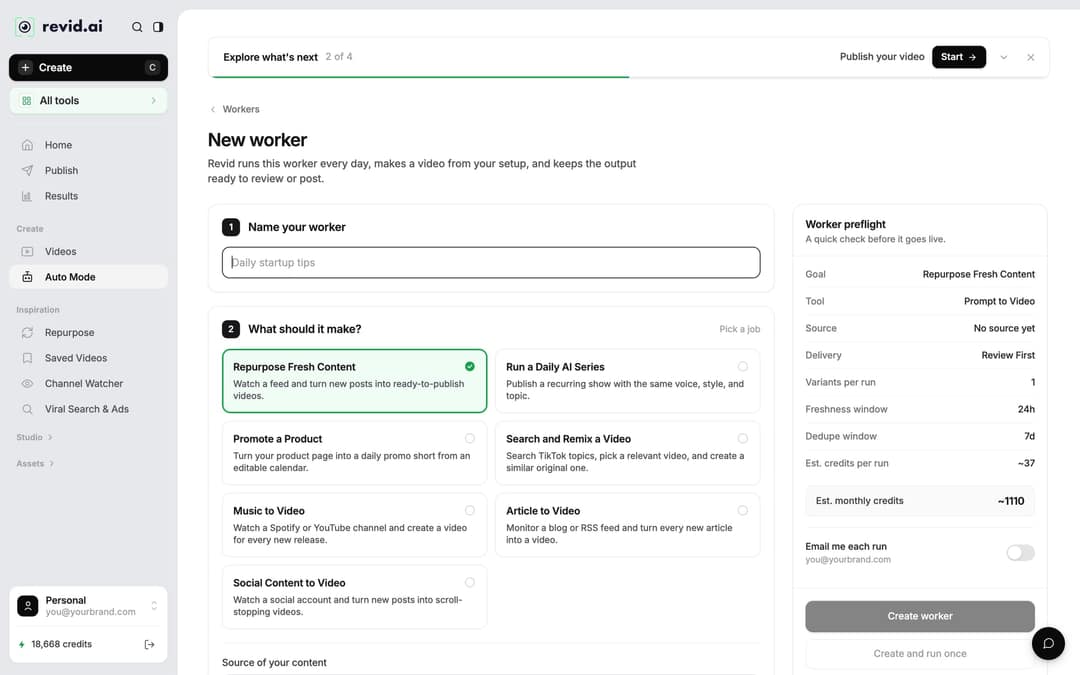
Workers run daily between 1 AM and 5 AM. Leave delivery on Review First so you can do the one-scene edit from Step 4 before anything goes live, or switch to Auto Queue once you trust the output. Workers need a paid plan (Growth includes 3); the builder shows Est. credits per run before you save. More on automating video creation.
Which AI tools make looping lo-fi visuals?
If you run a lo-fi study channel and need ambient backgrounds like a cozy room or a rainy window on repeat, pick the tool by the format you want:
| You want | Revid tool | What it does |
|---|---|---|
| Beat and visuals from scratch | AI lofi video generator | Composes a chill beat and creates matching aesthetic visuals |
| One unchanging background | Static background video | A short video on a static background, built for distraction-free content |
| A scene that reacts to your track | AI music visualizer | Turns your track into visuals with an audio waveform |
| A multi-scene, beat-synced video | AI music video generator | Turns a song into a beat-synced AI music video |
| A longer version of any clip | Loop video tool | Repeats a finished video as many times as you want |
Other tools take a different approach. Kaiber's Beat Sync builds beat-synced edits from images or clips you already own, and Neural Frames drives visuals from the separated stems of a track. The Revid vs Kaiber comparison lays out the trade-offs.
FAQ
How do you make a lofi video loop without a visible jump?
Use one scene for the whole track. In Revid, regenerate one image you like and replace every other scene with it, then repeat the exported file with a loop tool so the only change at the restart is the camera drift resetting.
Can Revid make the lo-fi music too?
Yes. The AI lofi video generator composes a chill beat and creates matching visuals, so you do not need your own track.
Is Revid free for lofi videos?
Sign-up is free and new accounts get free credits to try video creation, no credit card needed. Regular creation then uses the monthly credits of a paid plan, starting at $39 per month; check the Revid pricing page for current plans.
Can I use any lo-fi song I find on YouTube?
Only if you have the rights to it. Use your own tracks, licensed music or AI-generated beats to avoid copyright claims that can block or demonetize your video.
Sources
- Revid product analytics (Amplitude), 54,940 music video generations with the AI music video generator, July 25 to October 23, 2026
- Revid product analytics (Amplitude): music video generations in the AI music video generator, Jul 25 to Oct 22, 2026 (90 days, UTC), event totals. 14,727 generations in styles flagged as illustration, by style. Pulled Oct 23, 2026.
- YouTube Help, Understand three-minute YouTube Shorts (October 2026)
Charts and figures checked on November 6, 2026.