
How to Create A Video Quiz Using Revid AI
Want to create an interactive video quiz? Revid AI makes it simple! Discover how to turn videos into quizzes that captivate your audience and enhance engagement.
On this page
Creating Quiz videos has never been easier or more fun! With Revid AI, you can create a fun quiz video in 4 easy steps
Check out the final result in the video below, and follow our quick guide to create your own quiz in under 2 minutes!
Creating a New Video Quiz
Step 1: Start a New Project
- Go to https://www.revid.ai/tools/create-video-quizz
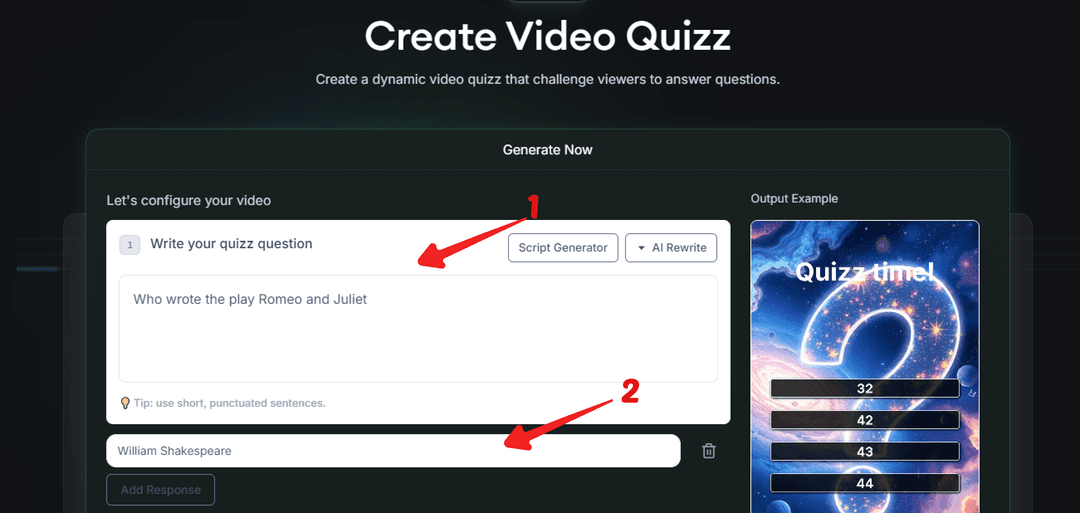
- When the page opens, you’ll see a text input to either enter your quiz question and answer options
Prompt to try
Create a 30-second vertical quiz video titled "Can you name these world capitals?" with 5 questions, each showing three answer options and a short countdown before the reveal. Open with the hook "Only 1 in 10 people get all five right." Use an upbeat narrator voice and bright anime-style visuals.
Step 2: Choose Your Voiceover
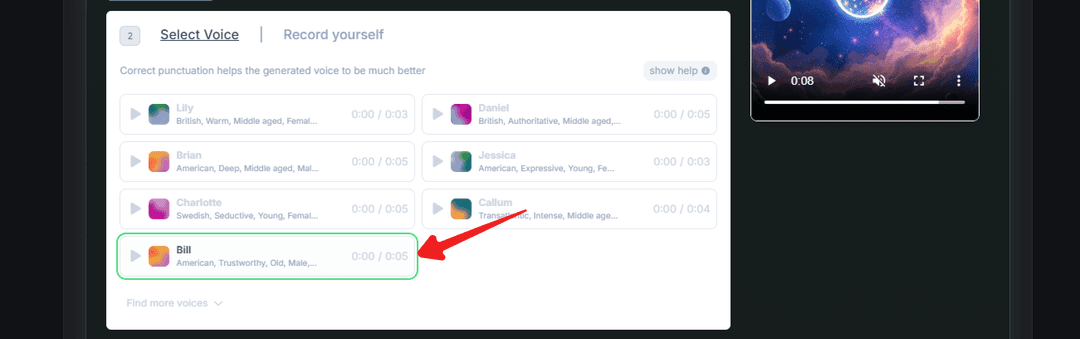
- In the next section, choose an AI voice for your video narration. There are a variety of AI voices to choose from, in more than 70 languages.
- If you prefer a more personal touch, you can also record your own voice and upload it.
For the video above, I selected an AI voice that matches our theme.
You can browse more than 1,000 AI voices and filter them by language, gender, age and accent
Choosing Visuals and Effects
Step 3: Select Visual Parameters
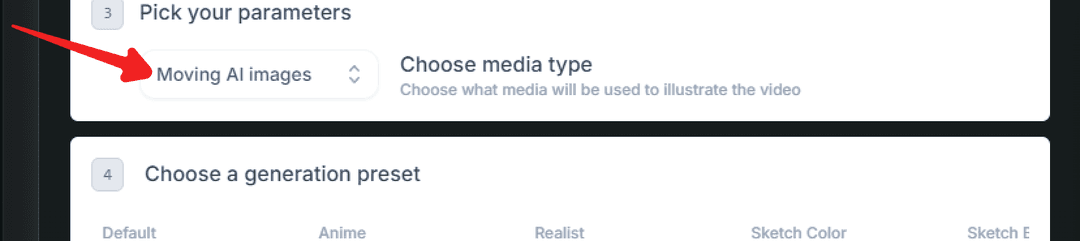
- In the third section, you can choose between different visual elements for your video:
- AI-generated moving images that bring your scenes to life. (this is used by default for this type of video). Feel can experiment with other types
- Stock videos if you prefer pre-made footage.
- Or AI video generation, which uses Revid.ai’s AI to create custom visuals for your video. Revid offers several leading models under one subscription, including Seedance 2.5, MiniMax Hailuo H3, Wan 3.0 and Google Veo 3, and you can pick a model per scene.
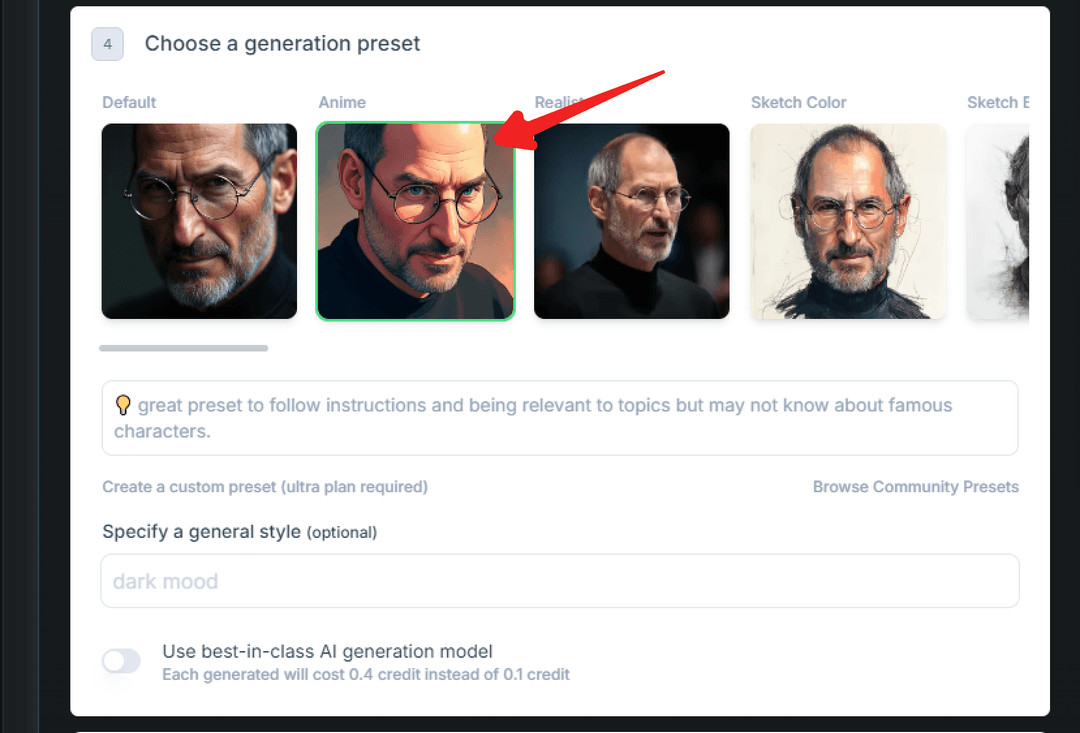
For generational preset, we select the Anime preset just for fun. You are free to experiment with other preset
Adding Background Music
Step 4: Choose Background Sound
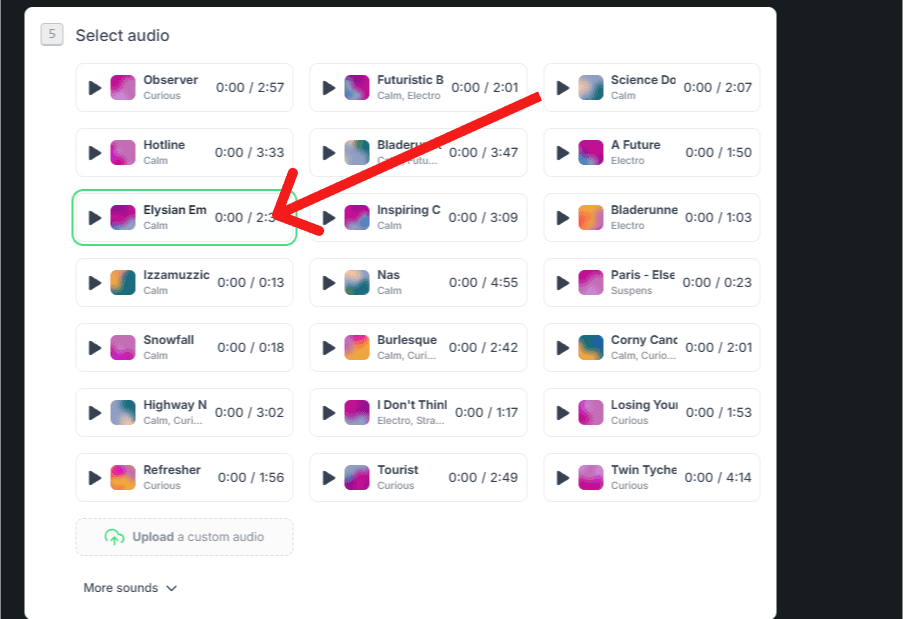
- In the music section, select a preloaded background sound from Revid.ai’s library.
- Alternatively, you can upload your own custom sound or music to give your video a unique feel.
Again, for the video above, I chose a track from the library that fits the quiz mood.
If you feel like experimenting, try other tracks from the library (about 190 of them), or let Revid generate original music for your video.
Generating Your Video
- Once all your settings and choices are in place, click the "Generate Video" button.
- Revid.ai will process your inputs and create the video based on your selected script, visuals, voiceover, and background sound.
- You are then redirected to the revid editor where you could add some effects or export the video in different orientations. From there you can export in 720p, 1080p or 4K and publish or schedule the quiz directly to TikTok, Instagram and YouTube.
By following these steps, you’ll be able to create your quizz with ease.