
On this page
The best Submagic alternatives in 2026 depend on your source material: OpusClip, Klap or Vizard if you clip long videos, CapCut or VEED if you caption footage you filmed (CapCut's free tier exports 1080p), and Revid if you want to generate whole videos, captions included, from a script, link or audio file.
Submagic's Starter plan costs $19 a month for 15 videos, which works out to $1.27 per video, and its free plan stops at 3 watermarked videos of 90 seconds each. Most people compare monthly prices and pick the wrong tool. Price each option per video you actually publish: the cheaper plan is the one whose first drafts you post without fixing.
Submagic alternatives at a glance
| Tool | Best for | Starting price | Free option |
|---|---|---|---|
| Revid | Generating finished shorts from a script, link or audio, captions included | $39/month ($32 billed yearly) | Free sign-up with free credits to try |
| OpusClip | Turning long videos into many clips | About $15/month | 1080p, watermarked captions |
| Captions (by Mirage) | Talking-head edits and dubbing on mobile | $9.99/month (January 2026) | Check the app |
| CapCut | Hands-on editing with trend templates | About $9.99/month (Standard) | Full editor, 1080p export |
| Klap | Clipping with face-tracked reframing | $29/month ($14 billed yearly) | Limited, watermarked trial |
| Kapwing | Team editing in the browser | $16/member/month yearly (January 2026) | Check the site |
| VEED | All-round browser editor | Roughly $10 to $24/month | Watermark, 720p |
| Vizard | Clipping with minute-based credits | $29/month ($14.50 billed yearly) | 60 credits/month, 720p |
The rule that sorts most people in ten seconds: if you start with footage, pick an editor or a clipper. If you start with an idea, a script or a link, pick a generator.
What Submagic does well, and what it costs
Submagic is a polishing tool: you upload a video you already have and it returns a captioned, edited short. Our Revid vs Submagic comparison (checked August 2026) credits it with:
- Animated captions in 48 languages, widely praised for accuracy
- One-click polish: b-roll, zooms, sound effects, hook titles and silence removal
- Text-based editing: trim the video by editing the transcript
- Direct publishing and scheduling to TikTok, Instagram and YouTube
- A strong review record: 4.5/5 across 800+ Trustpilot reviews
Submagic price in 2026
Submagic charges per member, with a monthly video quota and a maximum length per video:
| Plan | Monthly billing | Billed yearly | Videos per member per month | Max length per video |
|---|---|---|---|---|
| Starter | $19 | $12/month | 15 | 2 min |
| Pro | $39 | $23/month | 40 | 5 min |
| Business + API | $69 | $41/month | 100 | 30 min |
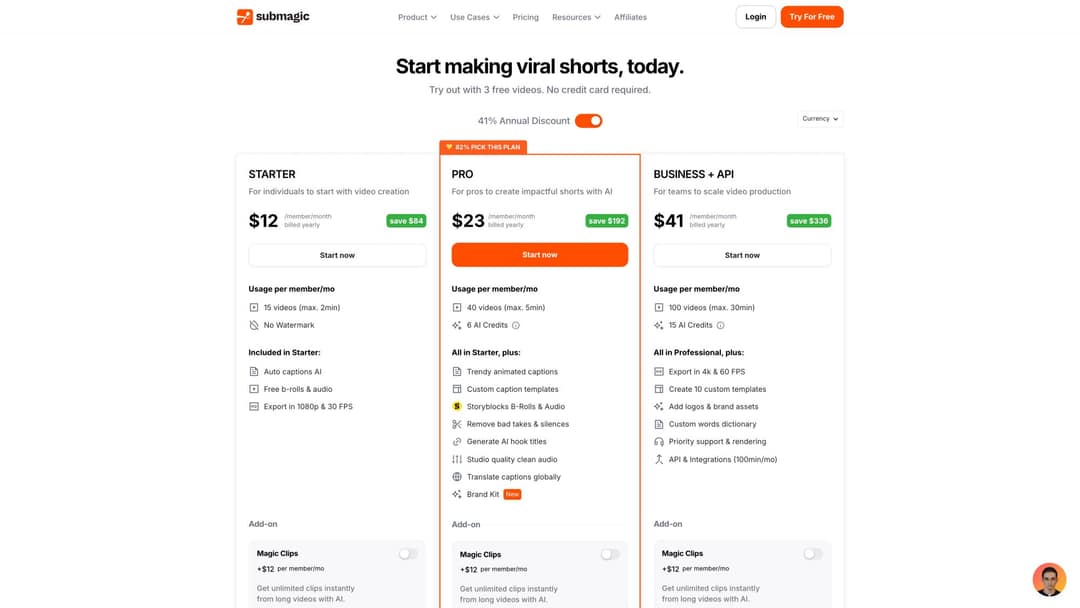
Magic Clips, Submagic's long-video clipper, is a paid add-on listed at +$12 per member per month on top of the plan. The free plan gives 3 watermarked videos a month, up to 90 seconds each. Prices change often, so confirm on Submagic's pricing page before you buy.
Does Submagic have an API?
Yes, but only on the Business + API plan ($69 per member a month, or $41 billed yearly). Its pricing page lists API and integrations on that plan with a 100-minute monthly allowance, which suits light automation, not a high-volume pipeline. If the API is your main reason to shop, compare tools that include one on every paid plan: Revid (REST API, MCP server and CLI) and OpusClip (its own API and MCP server).
Why people switch from Submagic
- Quotas run out fast. Posting daily means about 30 videos a month, double the Starter quota, so you end up on Pro for the quota alone.
- It edits, it does not create. If you have a script, an article or an audio file but no footage, Submagic has nothing to work with, and it does not generate AI scenes.
- No hands-off production. It schedules what you made, but nothing produces new videos for you on a schedule.
- Per-member pricing grows with every editor you add, which hurts small teams more than solo creators.
How to choose the right Submagic alternative
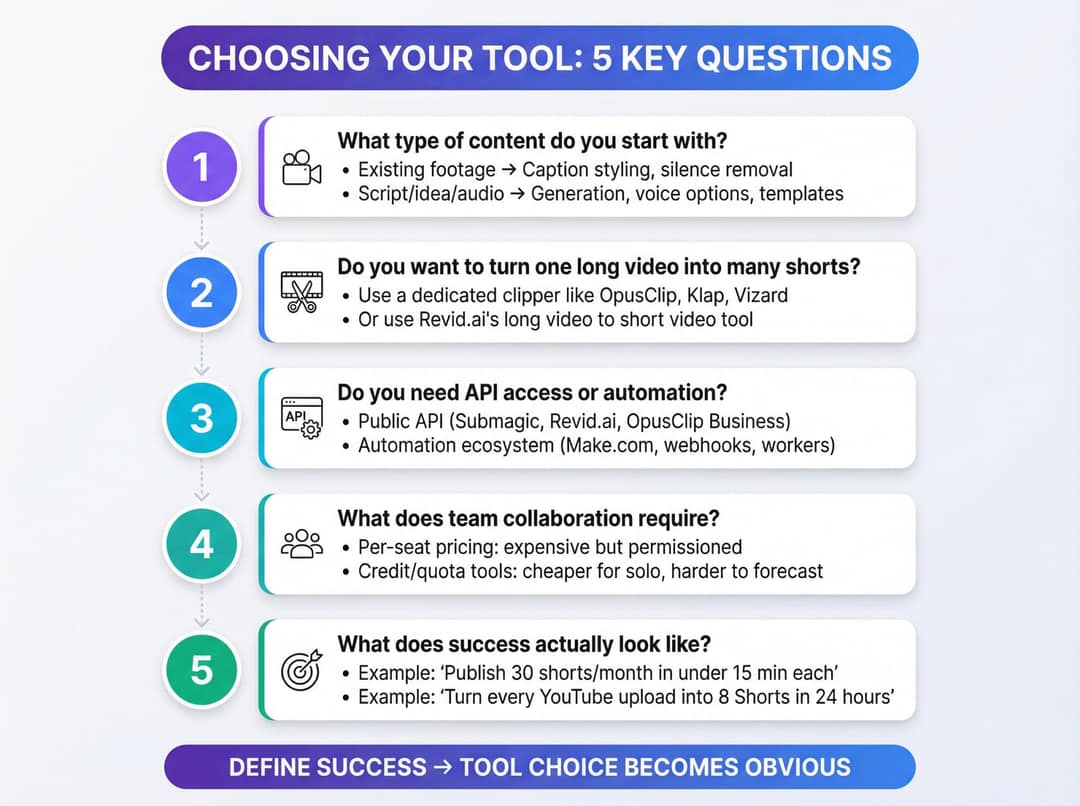
Answer these in order and the shortlist writes itself:
- What do you start with? Footage you filmed: a caption-first editor (CapCut, VEED, Captions, Kapwing). Long recordings such as podcasts and webinars: a clipper (OpusClip, Klap, Vizard). A script, idea, link or audio file: a generator (Revid).
- How many videos a month? Count your real volume, then check whether the tool caps videos, clips, minutes or credits.
- Do you need an API or automation? If videos should be made without you opening the app, rule out tools without an API or scheduled production.
- How many people edit? Per-seat tools buy you permissions and brand kits; credit or quota tools are cheaper solo but harder to forecast for a team.
- What does success look like? Write it as a number, for example "publish 30 shorts a month with under 15 minutes of editing each" or "turn every YouTube upload into 8 Shorts within 24 hours."
The 8 best Submagic alternatives
1. Revid: best for generating finished shorts, captions included
Revid is an AI video platform that turns an idea, a link or a proven viral format into finished short-form videos and publishes them to TikTok, Instagram and YouTube. Where Submagic assumes you already filmed something, Revid starts earlier: it writes the script, builds scene-by-scene visuals, adds a voice-over, captions and music, and posts the result.
What it covers that Submagic does not:
- Many starting points: a script, a prompt, a blog post or link, an audio file, a song, or a long YouTube video cut into Shorts with the YouTube clip maker. 100+ specialized tools in total.
- AI video models per scene: Seedance 2.5, MiniMax Hailuo H3, Wan 3.0 and Google Veo 3, under one credit system.
- Voices and captions: 1,000+ AI voices in 70+ languages, 30 caption styles and automatic captions in 100+ languages, on generated videos or your own uploads.
- A viral video library of about 2.77 million real short-form videos with engagement data, so a video can start from a format audiences already watch instead of a blank prompt.
- Auto-Mode workers that create a fresh video every day from a prompt or a content source (3 workers on Growth).
- Developer access on every paid plan: a REST API, an MCP server for agents such as Claude, ChatGPT or Cursor, and a CLI. The Revid API documentation on Postman covers the endpoints, and the Revid integration on Make.com connects it to no-code workflows.
- A timeline editor and export in 720p, 1080p or 4K at 30 or 60 fps.
Where Submagic still wins: if your only job is polishing talking-head clips you already filmed, its one-click b-roll, zooms and transcript editing get you there in fewer steps.
How to switch from Submagic to Revid
- Captions on existing videos: upload your clip to the AI caption generator, pick a caption style and language, check the timing in the timeline editor, then export or publish.
- Long videos: paste the YouTube link into the clip maker and let it cut vertical clips.
- Scripts and ideas: open the generator that matches your format (article to video, audio to video, faceless video) and paste your text or link.
- Daily posting: point an Auto-Mode worker at a prompt or content source and schedule publishing to your accounts.
Revid pricing: official plans (October 2026)
Sign-up is free and new accounts get free credits to try video creation, no credit card needed; regular creation then uses the monthly credits of a paid plan.
| Plan | Monthly | Billed yearly | Credits per month | Auto-Mode workers | Watched channels |
|---|---|---|---|---|---|
| Growth | $39 | $32/month | 2,000 | 3 | 5 |
| Elite | $89 | $74/month | 5,000 | 5 | 20 |
| Ultra | $199 | $166/month | 12,000 | 10 | 50 |
Elite adds voice cloning. As a guide, a 30-second video with Pro AI visuals and a voice-over costs about 40 to 80 credits, while premium models cost 100 to 130 credits per 5 seconds; Revid shows the estimate before you generate. One-time packs start at 1,000 credits for $49. The live list on the Revid pricing page is the authoritative source.
2. OpusClip: best for turning long videos into many clips
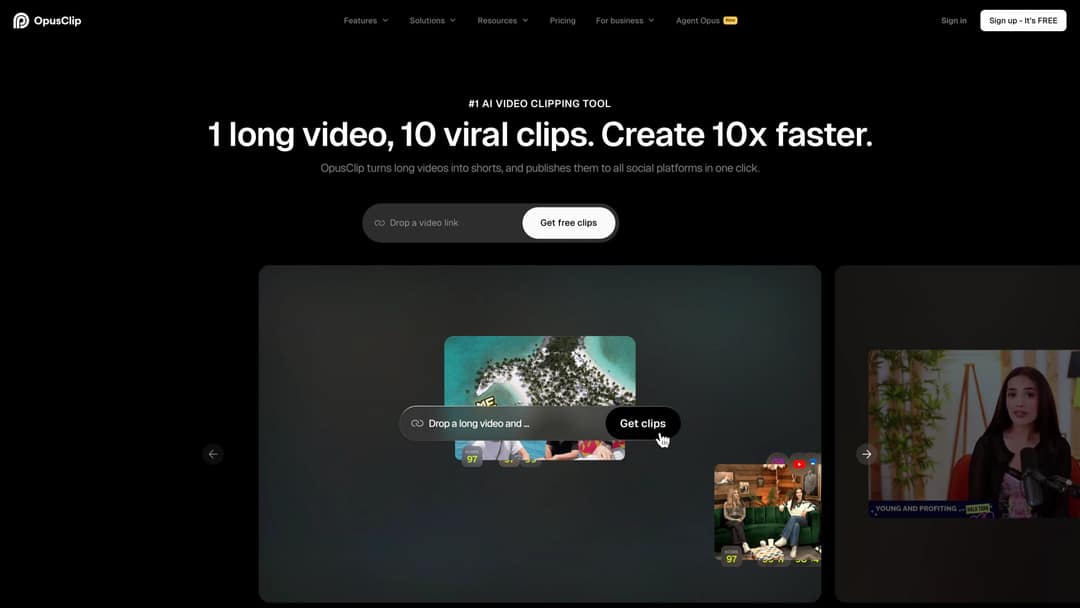
If Magic Clips is the Submagic feature you use most, a dedicated clipper does that job better. OpusClip ingests podcasts, streams and webinars, scores moments for virality, reframes talking heads to vertical and adds animated captions. Paid tiers post and schedule to social platforms, and it has its own API and official MCP server.
- Price: from about $15/month.
- Free plan: 1080p exports with watermarked animated captions; media expires after 3 days.
- Choose it if you have a backlog of recordings to clip.
- Skip it if you have no long footage: it is a clipper, not a generator.
For more clippers in this category, see our OpusClip alternatives roundup.
3. Captions (by Mirage): best for talking-head videos on mobile

Captions is the app-first option for creators who talk to camera: recording, captions, AI edits and dubbing on your phone. The company now presents itself as Mirage, with Captions and Mirage Studio as separate products.
- Price: credit-based plans; Pro was $9.99/month in January 2026, with higher tiers adding credits. Check current tiers in the app.
- Choose it if you shoot and edit on your phone and want dubbing.
- Skip it if you dislike credit systems or need predictable cost per export.
4. CapCut: best free editor with templates
CapCut is the default free alternative for footage you filmed. The free tier includes the full editor, auto-captions and 1080p export; premium templates, effects and most AI features are paid. It has trend templates that drop your clips into viral formats, the tightest TikTok integration of any editor, and speaker-identified captions on Pro.
- Price: about $9.99/month (Standard).
- Choose it if you want manual control and a free tier you can keep.
- Skip it if you want automation: there is no generation or API workflow, so every video is hands-on.
5. Klap: best for clipping with reframing in many languages

Klap finds highlights in podcasts and long videos, scores them for virality, writes a title per clip, reframes to 9:16 with face tracking and captions in 52 languages. All plans allow unlimited connected social accounts, and it has a public API and an embeddable editor.
- Price: from $29/month ($14 billed yearly).
- Free option: no permanent free plan; the trial is limited and watermarked, and a card is required for the full 3-day trial.
- Choose it if you clip multilingual long-form content. Our Revid vs Klap comparison covers when generation fits better.
6. Kapwing: best for team editing in the browser
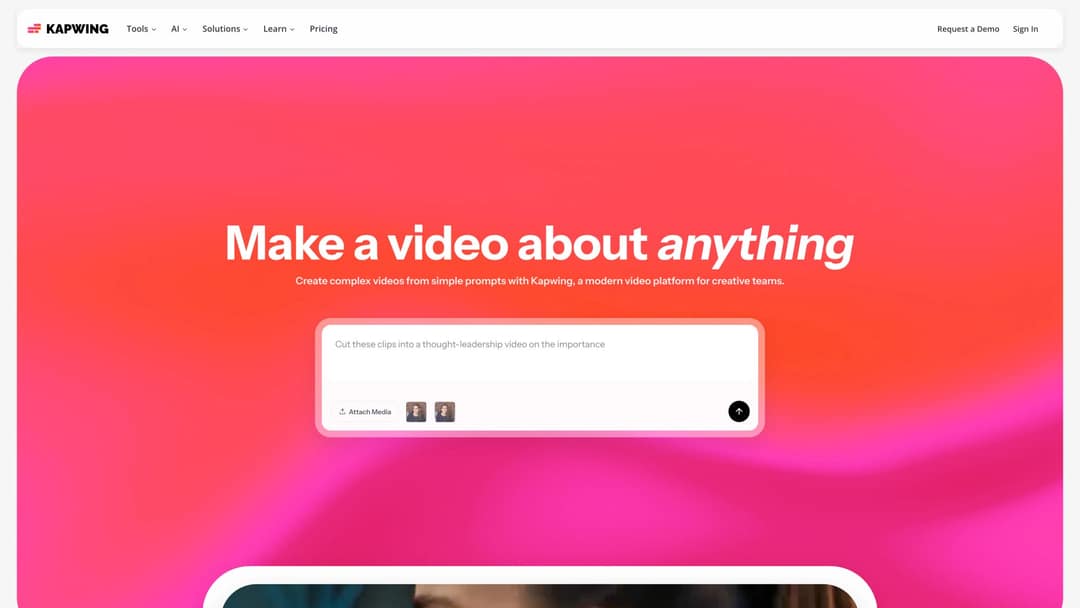
Kapwing fits teams: several people can edit the same project, brand kits keep fonts, colors and logos consistent, and it includes auto-subtitles, translation on higher tiers, and AI tools such as silence and filler-word trimming.
- Price: Pro started at $16 per member per month billed yearly, or $32 monthly, in January 2026. Verify before buying.
- Choose it if several editors need approvals and one brand style.
- Skip it if you work solo on a budget or need bulk output.
7. VEED: best all-round browser editor
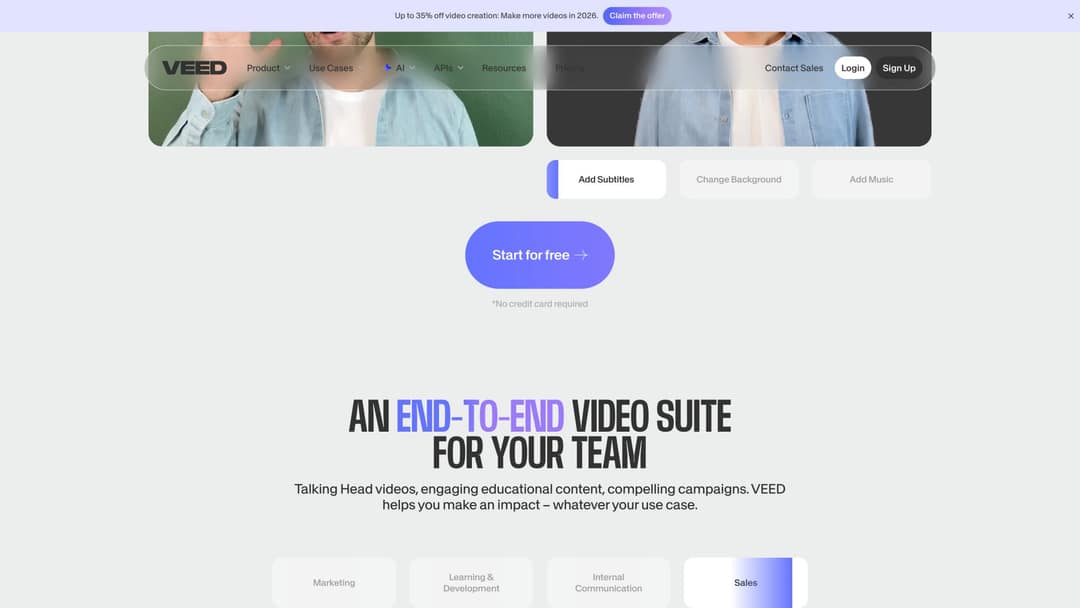
VEED is a full manual toolbox in the browser: multi-track timeline, screen recording, brand kits, well-known auto-subtitles and translation, AI dubbing, eye-contact correction and 30+ stock avatar presenters.
- Price: roughly $10 to $24 a month at entry; the free plan adds a watermark and exports at 720p.
- Choose it if you make many video types (demos, tutorials, promos), not only captioned shorts.
- Skip it if you want videos generated for you; see Revid vs VEED for that trade-off.
8. Vizard: best value clipper with minute-based credits

Vizard turns webinars, podcasts and interviews into short clips, with auto reframe, subtitles, subtitle translation and 4K export on paid plans. Its billing is easy to forecast: 1 credit equals 1 minute of source video.
- Price: $29/month, or $14.50/month billed yearly. Creator schedules to up to 6 social accounts, Business to 20, with extra seats at $5/month.
- Free plan: 60 credits a month, 720p with watermark, 3-day storage, 1 social account.
- Choose it if you repurpose long recordings on a tight budget. Details in our Revid vs Vizard comparison.
Best free Submagic alternatives and free caption apps for YouTube videos
| Tool | What is free | Main limit |
|---|---|---|
| YouTube Studio automatic captions | Captions generated after upload, editable in the Subtitles section | Plain closed captions, not styled on-screen text |
| CapCut | Full editor, auto-captions, 1080p export | Premium templates and most AI features are paid |
| Instagram Edits | Generated captions, export without a watermark | Phone only (Android and iPhone) |
| Submagic | 3 videos a month | Watermarked, 90 seconds each |
| OpusClip | Clipping with animated captions, 1080p | Watermarked captions, media deleted after 3 days |
| Vizard | 60 minutes of source video a month | 720p with watermark |
| VEED | Editor and limited AI trials | Watermark, 720p |
For YouTube videos, start with YouTube Studio's automatic captions for accessibility and search, then add styled on-screen captions in CapCut or Edits if you want the animated Shorts look. Need styled captions with no watermark and no phone editing? That is where a paid plan starts to pay for itself.
Prompt to try
Make a 30-second vertical video titled "3 morning habits that save you an hour a day". Open with the hook "You lose an hour every morning without noticing." Use clean AI visuals of a kitchen, a phone and a calendar, a calm confident voice-over, and bold animated captions.
What each tool really costs per video
Monthly prices hide the number that matters. Here is Submagic on monthly billing:
| Plan | Monthly cost | Video quota | Cost per video |
|---|---|---|---|
| Starter | $19 | 15 | $1.27 |
| Pro | $39 | 40 | $0.98 |
| Business + API | $69 | 100 | $0.69 |
Many users jump tiers for the quota, not for 4K or the API. Clippers like Vizard bill by minutes of source video instead, so a long podcast can use a month's allowance in one upload.
Revid is a different calculation because it makes the video rather than captioning one: on Growth, 2,000 credits cover roughly 25 to 50 thirty-second videos with Pro AI visuals and a voice-over. Compare that with the Submagic price plus the time it takes you to film.
The real cost killer is wasted output: bad highlight picks, wrong caption breaks, awkward cuts, irrelevant b-roll. When you test, track two numbers:
- First-pass accept rate: the share of outputs you would post as they are.
- Minutes to fix: how long a nearly-good clip takes to correct.
A tool with a higher sticker price and a higher accept rate usually wins.
How to test any alternative in 30 minutes
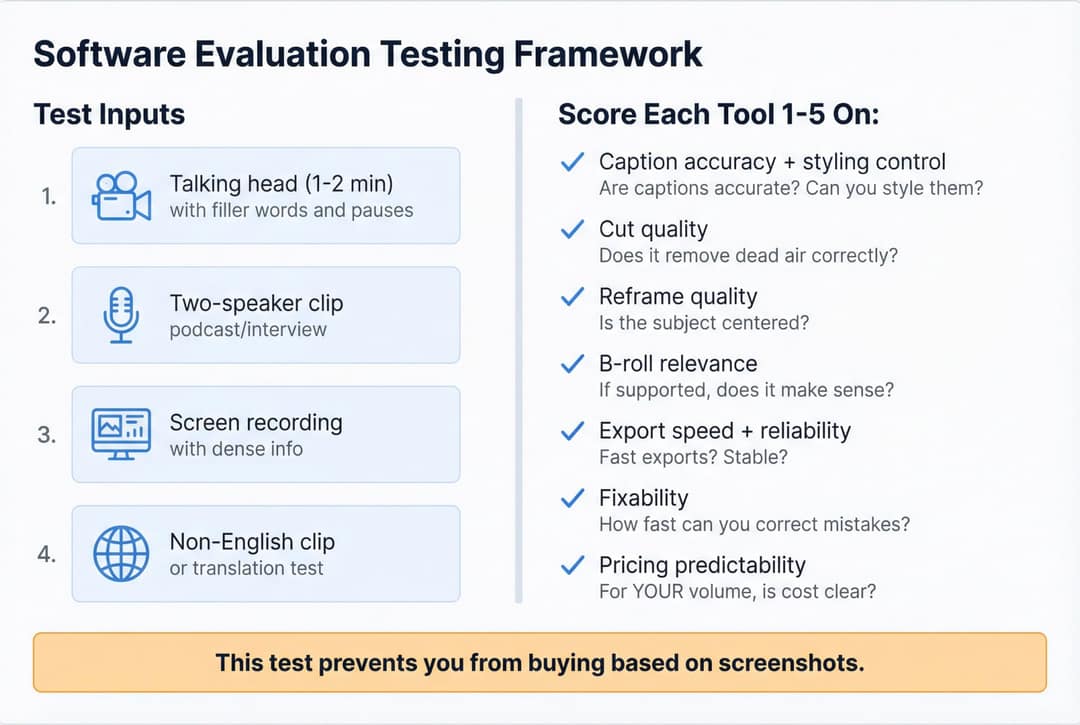
Run the same four inputs through every tool on your shortlist:
- A talking head of 1 to 2 minutes with filler words and pauses
- A two-speaker clip (podcast or interview)
- A screen recording with dense information
- A non-English clip, or an English clip with translated subtitles, if you publish in several languages
Score each tool from 1 to 5 on caption accuracy and styling, cut quality, reframing, b-roll relevance, export speed, how fast you can fix a mistake, and how predictable the price is at your volume. Thirty minutes of testing beats choosing from screenshots.
FAQ
Is Submagic free?
Partly. The free plan gives 3 watermarked videos a month, up to 90 seconds each; anything more needs a paid plan from $19 per member a month ($12 billed yearly).
What is the cheapest paid Submagic alternative?
CapCut Standard, at about $9.99 a month, is the cheapest paid editor in this list. For clipping long videos, Klap ($14 a month billed yearly) and Vizard ($14.50 billed yearly) cost less than Submagic's Starter plan.
Does Revid have an API?
Yes. Every paid Revid plan includes the REST API, an MCP server and a CLI, so you or an AI agent can create, caption and publish videos programmatically.
Which Submagic alternative works best on a phone?
Captions (by Mirage) is the most complete mobile-first option, with recording, captions, edits and dubbing in one app. CapCut and Instagram's Edits app are strong free choices on mobile too.
Can I use several of these tools together?
Yes, and many creators do: a clipper such as OpusClip or Vizard for long recordings, a generator such as Revid for new videos and scheduled posting, and CapCut for final manual tweaks. Just count each subscription in your cost per published video.