Video Editing for Social Media: 7 Steps That Stop the Scroll
A step-by-step workflow for editing TikToks, Reels and Shorts: hooks, cuts, 9:16 framing, sound-off captions and export settings, backed by Revid's data on 176,367 TikToks.
On this page
Video editing for social media means building a vertical 9:16 video at 1080x1920, showing the result or the problem in the first 1 to 2 seconds, cutting every pause that adds nothing, and adding captions that carry the message with the sound off. Then you export a clean H.264 MP4 and adjust the hook for each platform.
The edit that most often sinks a video is too much talking. In Revid's analysis of 176,367 TikToks with 1,000+ likes posted between October 2025 and October 2026, videos with under 40 characters of speech had a 123K median and 20.2% passed 1M views, while videos that talk throughout (300+ characters of speech) had 68K and 11.9%. Silent videos sat in between at 73K. The sample only holds videos that already reached 1,000 likes, so it shows what strong performers share rather than proving a cause, but the message for your timeline is plain: let the picture carry more of the story. The method is in Revid's study of what makes a TikTok go viral.
Videos with just a few spoken words (a line or two) beat both silent videos and videos that talk the whole way through, which were the most common and the weakest.
Source: Revid analysis of 176,367 TikToks analyzed by AI, with 1,000+ likes posted between Oct 1, 2025 and Oct 16, 2026 (61,203 creators)
Show the data
| Median views | Share that passed 1M views | |
|---|---|---|
| No speech | 73.3K | 14.3% |
| Under 40 | 122.7K | 20.2% |
| 40 to 120 | 97.2K | 17.6% |
| 120 to 300 | 91.6K | 16.8% |
| 300+ | 67.7K | 11.9% |
- Median TikTok views for videos with under 40 characters of speech
- 123K
- Revid analysis of 176,367 TikToks
- Median views for TikToks that talk throughout (300+ characters of speech)
- 68K
- Revid analysis of 176,367 TikToks
- Median views for POV-style TikToks, vs 48K for selfie-style clips
- 107K
- Revid TikTok data
- Social users most likely to interact with short-form video (under 60 s) on Instagram
- 52%
- Sprout Social, February 2026
How to edit a video for social media, step by step
A social edit is a conversation with someone who can leave at any moment. Every step below exists to give them a reason to stay for the next shot.
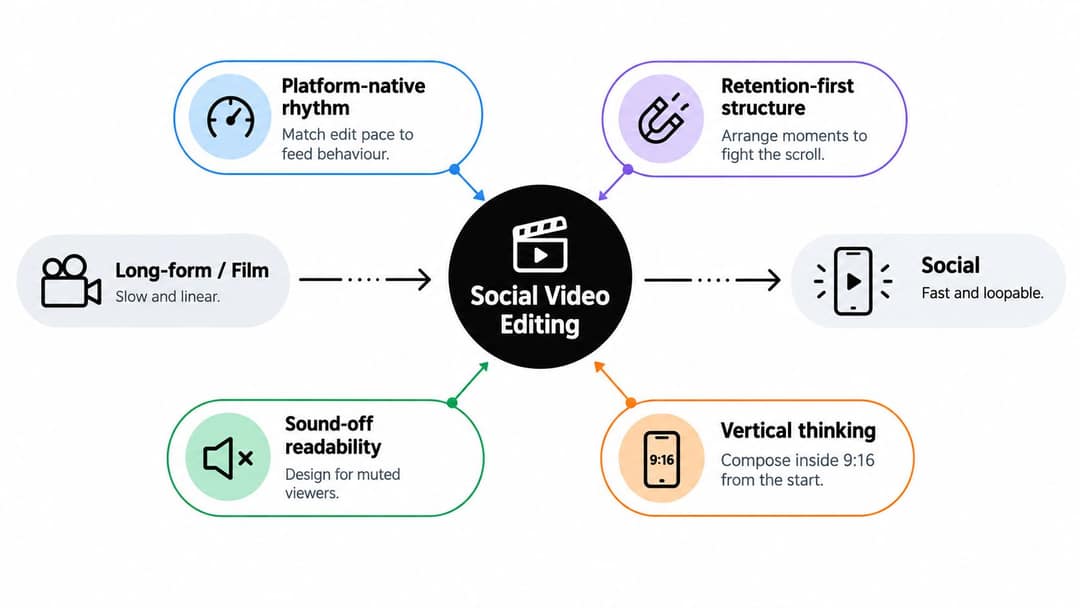
- Write the promise in one sentence. "Your phone video looks blurry for one simple reason." If you can't write it, you can't edit toward it.
- Choose the opening frame. Use the finished result, the visible problem or the most specific moment in your footage. Never a greeting or a setup shot.
- Cut the dead air. Remove breaths, repeated phrases, "so, today..." intros and any movement that doesn't add meaning.
- Add visual proof. Cover every claim with a close-up, a screen recording, B-roll or a before-and-after.
- Caption for silence. Burn in short, accurate captions and highlight the word that carries each point.
- Check the frame. Keep faces, hands, products and text inside the safe zone of a 9:16 frame.
- Export clean, then make platform versions. Use an MP4 with enough bitrate, then adapt the hook and length for TikTok, Reels and Shorts.
Watch the rough cut twice: once with sound to check flow and audio, once muted to check whether the pictures and captions tell the story alone. If you want to follow a full desktop edit, this walkthrough covers the same process in Premiere Pro.
Prompt to try
Create a 30-second vertical video about fixing grey indoor phone footage. Open on the finished, well-lit shot with the caption "This lighting fix takes one minute," then cut straight to the setting that produces it. Use close-ups and screen recordings, a short voiceover with few words, and bold captions that highlight the key word.
What the first 1 to 2 seconds should show
The first 1 to 2 seconds carry an outsized share of a short-form video's performance, according to this short-form video benchmark summary from Fastlane. On a muted, vertical feed, that opening is a shop window: it has to show the value before the thumb moves.
Compare two openings of the same lighting tutorial:
- Weak: the creator sits down, adjusts the camera and says "Today I want to talk about lighting."
- Strong: the finished, well-lit shot fills the screen with the caption "This lighting fix takes one minute," then cuts straight to the setting that produces it.
Nothing changed in the footage. The edit changed what the viewer understands first. Four opening types work across niches:
| Hook type | What the first frame shows | Example caption |
|---|---|---|
| Visible result | The after, then the before | "Same phone, same room, different setting." |
| Specific problem | The mistake your viewer makes | "Your phone video looks blurry for one simple reason." |
| Open question | A question that can't be answered with yes or no | "Why does indoor footage always look grey?" |
| Unexpected action | Movement, a reveal or a tight close-up | "Watch what happens when I turn this off." |
The test is simple: if your first frame could belong to any creator's video, replace it with the most specific visual you have. For more opening lines to adapt, browse these TikTok hooks that stop the scroll.
The index leans toward videos that surface in hashtag and keyword searches, so its view counts run high: compare the groups, not the absolute numbers.
Source: Revid TikTok index: 2,377,477 TikToks with AI labels per video, snapshot of Sep 15, 2026. Median views estimated from view buckets.
Show the data
| Median views | Share past 1M views | |
|---|---|---|
| Drone | 173.9K | 27.9% |
| Steady cam | 162.7K | 26.2% |
| Screen recording | 159.9K | 23.8% |
| Handheld | 140.9K | 25.6% |
| POV | 139.9K | 26% |
| Tripod | 117K | 23.6% |
| Selfie | 67K | 16.3% |
How to cut and pace a social video
Change the shot when the idea changes, not on a fixed timer. Fast cutting without new information just looks nervous.
Cut these on every pass:
- Greetings, sign-offs and "before we start" lines
- Breaths and pauses between sentences
- Phrases you say twice
- Explanations of something the image already shows
- Setup movements (reaching for the camera, walking into frame)
Then use a simple rule for what fills the gap. If the speaker's delivery is the point, use a jump cut and keep the face. If the viewer needs to see the object, setting or result, cover the cut with B-roll. For repetitive work such as arranging gear, a speed ramp compresses the dull part while the key sentence stays at normal speed.
The type of footage matters too. In the same Revid TikTok data, POV shots had a 107K median and screen recordings 91K, against 48K for selfie-style clips. If you're explaining an app or a setting, show the screen instead of describing it to camera.
Pause after every sentence and ask: did the viewer get new information, a new visual or a stronger feeling? If not, trim it or replace it.
How long should a social media video be?
As long as the promise needs, and no longer. In Revid's 12-month TikTok study, every length bucket from under 15 seconds to 10 minutes had a median between 58K and 76K views, with 61 to 90 seconds slightly ahead at 70K, while clips under 15 seconds earned the most shares per view. Length matters less than whether every second earns its place.
Audiences still lean short on some platforms: 52% of social media users said they are most likely to interact with short-form video (under 60 seconds) on Instagram, while 19% favor videos longer than 60 seconds, according to Sprout Social's social media video statistics. The social media video length guide has benchmarks per platform.
Framing for 9:16 and the safe zone
Portrait 9:16 is the native shape for TikTok, Reels and Shorts, and a 1080x1920 frame fills the phone screen without black bars. TikTok's Creator Academy recommends exactly that size, and a comparative study of portrait and landscape video engagement reports stronger engagement for portrait video in short-form mobile content.
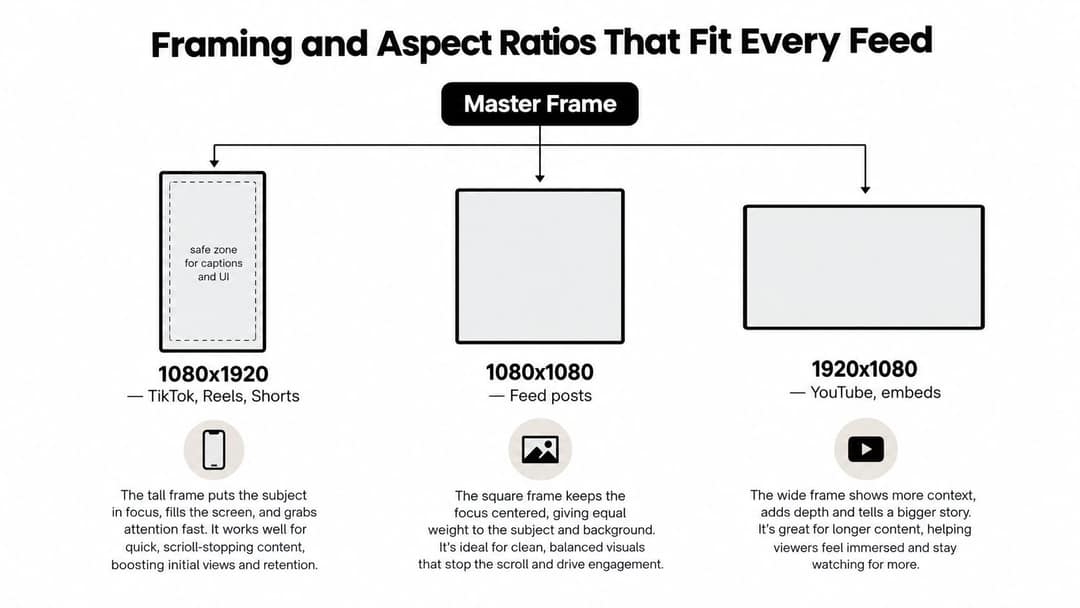
Compose for the phone from the start, not as a final resize:
- Subject: keep eyes, hands, the product or the demonstration in the central area of the frame.
- Captions: place them where they won't cover the mouth, a product detail or the platform's buttons and description.
- Background: keep signs, labels and visual jokes away from the outer edges.
- Other formats: if you'll also publish 4:5 or 1:1 versions, leave room above and below the subject so the crop stays clean.
A 9:16 master crops to other shapes by keeping its full width and trimming the top and bottom, which is why anything important belongs in the middle.
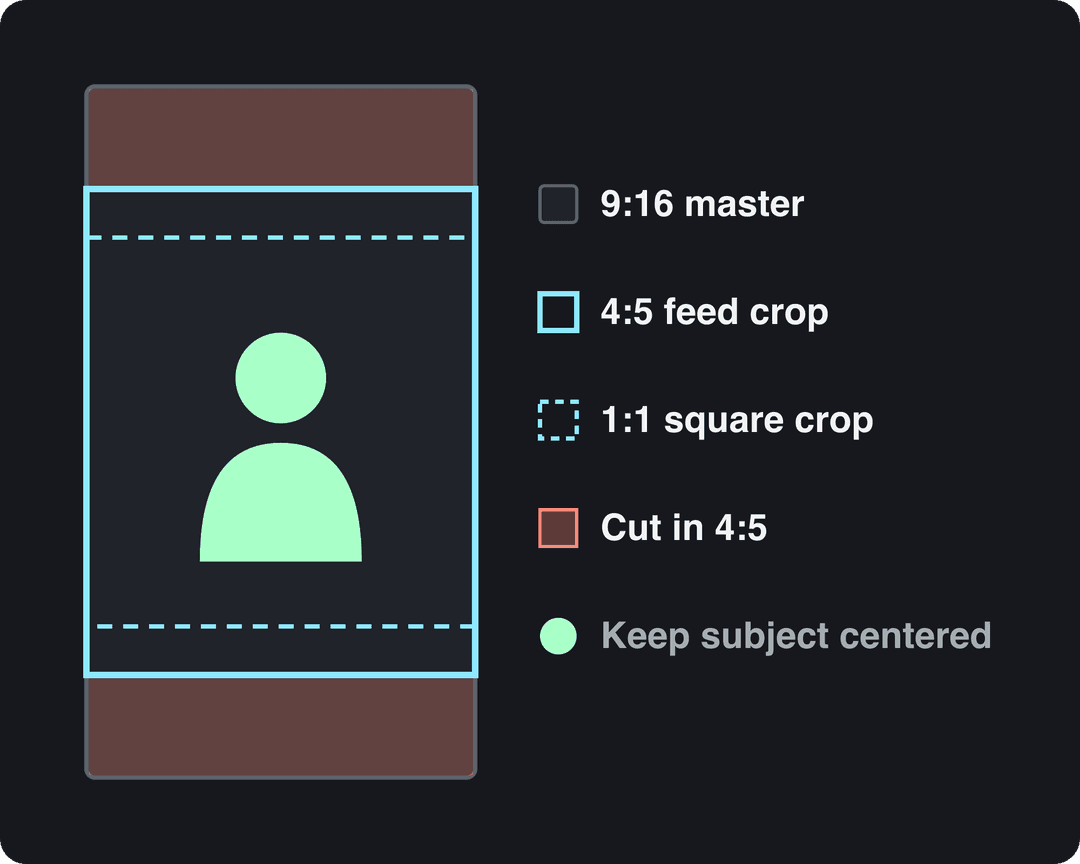
You can convert a finished video to 9:16, 4:5, 16:9 or 1:1 with an online video resizer, but no crop can restore what was outside the frame. If your subject walks from one side to the other, the vertical version needs keyframed reframing or separate shots. Buttons and text cover different areas on each app, so check your layout with the TikTok safe zone checker, and see social media video sizes for every platform's dimensions.
Captions that work with the sound off
Captions are part of the picture, not an export afterthought. They help muted viewers follow along and make the video accessible to people who can't hear the audio. Auto-generated captions still need a human pass, and the UC Berkeley Digital Accessibility Program's guide to social media video captions explains that caption support differs across Instagram Reels, TikTok, YouTube Shorts and LinkedIn.
Write captions for reading speed, not as a full transcript. Break sentences at natural phrases, keep each caption short, and highlight the one word that carries the point: a creator explaining exposure might highlight "lower the highlights" while showing the slider.
Check five things before publishing:
- Contrast: text stays readable over skin, sky and busy footage (add a solid box or a shadow if not).
- Size: readable on a phone at arm's length, not just on your monitor.
- Timing: each phrase appears with the spoken words and leaves when the idea ends.
- Placement: clear of mouths, product details and interface controls.
- Accuracy: names, technical terms and punctuation corrected.
Keep the caption layer separate in your project until the end, so you can restyle and move it for each platform instead of trusting one treatment everywhere.
Which online editor applies caption styles across multiple videos?
If you caption several videos a week, pick one tool and one caption style and reuse it, so every video looks like the same brand. These online tools all generate captions automatically and offer social-ready styles:
| Tool | Caption features | Best when |
|---|---|---|
| Revid | Automatic captions in 100+ languages, 30 caption styles, timeline editor, direct publishing | You create new videos from scripts, links or ideas, or caption existing ones |
| Submagic | Animated captions in 48 languages, plus b-roll, zooms and silence removal | You polish talking videos you already filmed |
| CapCut | Auto-captions on a free tier with 1080p export | You edit your own footage by hand, often on mobile |
| OpusClip | Animated captions and auto-reframing of talking-head footage | You cut podcasts, streams or webinars into clips |
With Revid's AI caption generator, you add captions to a video, pick a style and correct the text before export. For larger batches, the caption video workflow in Revid's API lets a script or an AI agent caption files one after another, and the API is included on every paid plan. If your main job is polishing filmed talking-head clips, the Revid vs Submagic comparison lays out where each tool fits.
Export settings that survive platform compression
Every platform re-encodes your upload, so start from a clean file. Never upload a soft, already-compressed intermediate.
| Setting | Use | Why |
|---|---|---|
| Container and codec | MP4, H.264 | TikTok's Content Posting API recommends MP4 and H.264; Facebook recommends .mp4 with H.264 or H.265 |
| Resolution | 1080x1920 (9:16) | Fills the phone screen and matches TikTok's recommended size |
| Frame rate | 30 fps, or 60 fps for fast motion | Instagram Reels need at least 30 FPS; TikTok's API accepts 23 to 60 FPS |
| Video bitrate | 8 Mbps at 1080p, 12 Mbps for 60 fps or high motion, 35 to 45 Mbps for 4K | Baseline from a creator export guide (below) |
| Audio | AAC stereo, 44.1 or 48 kHz | Facebook's recommended Reels audio |
The bitrate baseline comes from this content creator video and audio guide. Go higher when the footage has fast camera moves, hair, foliage, glitter or low-light noise, which compress badly.
Before publishing, open the exported file on your phone. Check faces at normal size, look for banding in skies and gradients, and confirm the captions sit inside the safe zone.
How to adapt one edit for TikTok, Reels, Shorts and Facebook
One recording can feed every platform, but one export rarely serves them all equally. Keep a strong vertical master and change the opening, the length and the caption placement per destination.
| Platform | Length limits | Editing notes |
|---|---|---|
| TikTok | Uploads up to 60 minutes; in-app recording up to 10 minutes | Open on a direct problem or visible action; keep captions central, clear of the buttons and description |
| Instagram Reels | Up to 20 minutes, but reels over 3 minutes aren't recommended to non-followers | Accepts 1.91:1 to 9:16, at least 30 FPS and 720 px; use a clean first frame and a cover that names the topic |
| YouTube Shorts | Square or vertical videos up to 3 minutes | Phrase the opening as the question people search; a Short over one minute with an active Content ID claim is blocked, so license your music |
| Every new video is shared as a reel, with no length or format restrictions | Recommended 1080p, H.264 or H.265, 24 to 60 FPS |
Then cut two or three hook variants from the same footage: one opening on the result, one on the mistake, one on a question. Keep the middle identical so you can compare them fairly.
Let analytics decide the next edit. If viewers leave before the demonstration, shorten the setup. If they reach the result but don't act, rewrite the final caption or add a clearer visual cue. For the bigger picture on how much viewing has moved to short clips, Vidico keeps a roundup of short-form video statistics.
How to edit social videos with Revid
If you'd rather start from a draft than a blank timeline, Revid builds the first edit for you:
- Start from a script, a prompt, a link or an audio file. For a long recording you already have, the long video to short video converter turns it into short clips.
- Revid generates the scenes (stock footage, AI images or AI video), a voice-over in 70+ languages, synced captions and music.
- Fix any scene, caption or cut in the timeline editor, then apply the hook and muted checks from this guide.
- Export in 720p, 1080p or 4K at 30 or 60 fps, or publish and schedule straight to TikTok, Instagram and YouTube.
Sign-up is free and new accounts get free credits to try video creation, no credit card needed; regular creation then uses the monthly credits of a paid plan, from $39 a month.
FAQ
How do I edit large raw footage quickly with synced captions?
Use proxy editing: desktop editors such as Premiere Pro and DaVinci Resolve can create lightweight proxy copies of large files, let you edit on them, then relink to the full-quality originals at export. Generate captions from the edited sequence, since the audio is the same, and review them before you export.
Should I burn captions into the video or use the platform's captions?
Burn them in for social clips: burned-in captions look the same on every app and stay visible whether or not the viewer has captions turned on. Keep an unburned caption layer in your project so you can restyle or move it for each platform.
Can AI edit social media videos for me?
Yes, for a first draft. AI tools now handle transcription, captions, clipping and reframing, and 63% of video marketers in Wyzowl's 2026 survey said they had used AI video tools to create or edit marketing videos. You still need to judge the hook, check caption accuracy and watch the result muted.
What is the best free app for editing social media videos?
CapCut is the strongest free option for editing your own footage: its free tier includes the full editor, auto-captions and 1080p export. Instagram's free Edits app is another choice for Reels, with generated captions and export without a watermark.
Sources
- Revid analysis of 176,367 TikToks analyzed by AI, with 1,000+ likes posted between Oct 1, 2025 and Oct 16, 2026 (61,203 creators)
- Revid TikTok index: 2,377,477 TikToks with AI labels per video, snapshot of Sep 15, 2026. Median views estimated from view buckets.
- Sprout Social, Social media video statistics (citing the Sprout Social 2026 Content Strategy Report) (February 2026)
Charts and figures checked on November 6, 2026.