How to Write an AI Video Script in Revid: Syntax, Pauses, Example
Revid's script syntax in one place: short lines, [brackets] for visuals, break tags for pauses up to 10 seconds and a new line per scene, plus a copyable example and how to fix the voiceover in the editor.

On this page
To write an AI video script in Revid, keep each sentence short with one idea, put visual directions in [brackets] (they are not read aloud), add pauses with <break time="1.0s" /> (up to 10 seconds) and start a new line for each scene. Paste the result into From script on the Create page and generate.
The detail most guides miss: the pause tag depends on the voice. ElevenLabs and MiniMax voices honor it, but Gemini and Kling voices drop the tag and read straight through, so a script that looks well paced on screen can come out rushed.
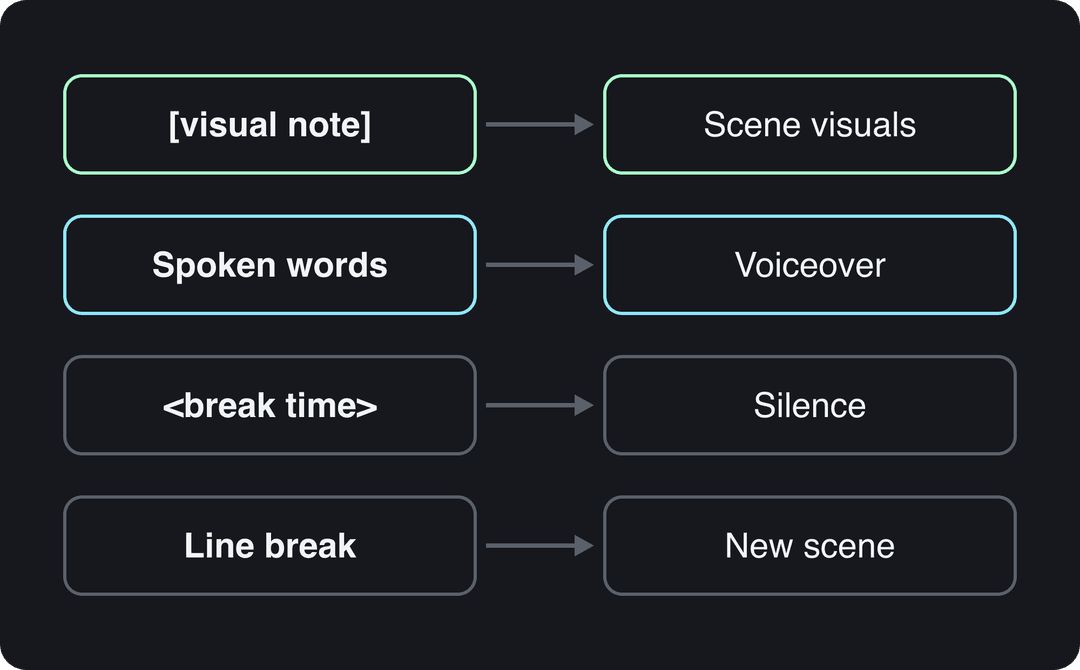
Revid script syntax at a glance
| You want | Type this | What Revid does |
|---|---|---|
| A visual direction that is not spoken | [close-up of a coffee cup at sunrise] | Treats it as a note, not narration, and uses it as a visual hint for the scene |
| A pause | <break time="1.0s" /> | Inserts silence, capped at 10 seconds (ElevenLabs and MiniMax voices) |
| A new scene | A line break | Generates new content for the next line, so each line can get its own visuals |
| A tricky word said right | The word spelled the way it sounds | The voice reads exactly what you wrote |
How to write each part of the script
Keep sentences short
One idea per sentence. Short lines give the voice natural breathing points, keep captions readable in the feed, and give each scene a single job. Read the script out loud once: wherever you run out of breath, split the sentence.
If the blank page is the hard part, a free AI script generator gives you a first draft to cut down. For the editing pass, see getting an AI script that sounds human.
Put visual directions in [brackets]
Anything inside square brackets is a note, not narration. In the script-to-video flow, Revid maps those notes back onto the scenes as visual hints, so [a hand writing a to-do list] steers what the scene shows without the voice saying it.
Describe what the viewer should see: subject, action, setting. Put the bracket on its own line just before the sentence it illustrates, as in the example below.
Add pauses with the break tag
Type <break time="1.0s" /> wherever you want silence. The rules that matter:
- The maximum is 10 seconds. Longer values are capped.
- Always write the unit. In the editor and the voice dialog, Revid normalizes "1s" to "1.0s" and fixes curly quotes pasted from a document, but a bare number above 10 is read as milliseconds.
- Pause before a reveal or right after a key number, not between every sentence. Too many pauses make the video drag.
- The tag works with ElevenLabs and MiniMax voices. If a pause is missing in the preview, you are probably on a Gemini or Kling voice: switch voices and regenerate the voiceover.
Start a new line for each scene
Each new line tells Revid to generate new content, so line breaks are how you decide where the visuals change. Keep a bracket note and its sentence together, and leave a blank line between scenes so the script stays easy to scan. For structuring the scenes themselves, these video storytelling techniques help.
Spell tricky words the way they sound
AI voices guess at brand names, acronyms and unusual names. If an acronym should be spelled out letter by letter, write it with spaces (S E O); if it should be said as a word, write it as one word. Spell foreign or invented names phonetically, then listen to the voiceover before you publish.
Prompt to try
Make a 20-second vertical TikTok on the 3 mistakes that ruin coffee brewed at home. Open with the hook "You are burning your coffee and you do not even know it." Keep the narration to a few short, slightly sarcastic lines and let close-up visuals of beans, kettles and pour-overs show the rest.
How much should the voiceover say?
Less than you think. In Revid's analysis of 176,367 TikToks with 1,000+ likes posted between October 2025 and October 2026, videos with under 40 characters of speech had a median of 123K views and 20.2% passed 1 million views. Videos that talked throughout (300+ characters of speech) had a 68K median and 11.9%; silent videos landed at 73K and 14.3%.
Videos with just a few spoken words (a line or two) beat both silent videos and videos that talk the whole way through, which were the most common and the weakest.
Source: Revid analysis of 176,367 TikToks analyzed by AI, with 1,000+ likes posted between Oct 1, 2025 and Oct 16, 2026 (61,203 creators)
Show the data
| Median views | Share that passed 1M views | |
|---|---|---|
| No speech | 73.3K | 14.3% |
| Under 40 | 122.7K | 20.2% |
| 40 to 120 | 97.2K | 17.6% |
| 120 to 300 | 91.6K | 16.8% |
| 300+ | 67.7K | 11.9% |
For a voiceover script, that argues for fewer words and more visual work: let a bracketed scene show what a sentence would explain. Two limits: the sample only includes videos that already reached 1,000+ likes, and it shows what top videos share, not what causes views. The method is in Revid's study of what makes a TikTok go viral.
Tone matters as much as length. The same study scored each video's dominant emotion: outrage had a 156K median (23.7% past 1 million) and humor 121K (19.3%), while inspirational videos had 45K (11.3%). Generic motivational scripts are what AI writes by default, so give yours a specific angle: a frustration your viewers share, a mistake, or a joke. These TikTok hooks are a good place to start the first line.
High-arousal emotions (outrage, humor, sadness) earned the most views. Calm, inspirational videos earned the least, even though they collect the most likes per view.
Source: Revid analysis of 176,367 TikToks with 1,000+ likes posted between Oct 1, 2025 and Oct 16, 2026 (61,203 creators)
Show the data
| Median views | Share that passed 1M views | |
|---|---|---|
| Outrage | 156K | 23.7% |
| Humor | 121K | 19.3% |
| Sadness | 104.4K | 16.5% |
| Excitement | 92.5K | 15.9% |
| Joy | 89.9K | 18% |
| Informative | 64.1K | 11.2% |
| Neutral | 61.2K | 11.5% |
| Inspirational | 44.6K | 11.3% |
Example script
This one uses brackets for visuals, break tags for pauses and a new line for each scene. Copy it into Revid and swap in your topic:
[Close-up of a steaming coffee cup on a desk at sunrise]
Most people start their day on autopilot. <break time="1.0s" />
Here is how to change that in three steps.

[A hand writing a short to-do list in a notebook]
First, write down the one thing that matters today.

[A phone placed face down on the desk]
Second, keep your phone away for the first hour. <break time="0.5s" />

[A person stretching by an open window]
Third, move your body before you check a single message.Here is a short made with Revid from a script written this way:
How to turn your script into a video in Revid
- Click Create at the top of the sidebar (or press C). The page asks "What do you want to make?"
- Pick From script. It opens the Voiceover Video tool (the AI TikTok video generator); paste your script into "Your video narrator script".
- Under "Choose media type", pick the visuals: AI video (needs a subscription), Animated AI images (the default), Motion graphics, Stock videos, Your own media or Static / Gameplay.
- Pick the ratio (9:16 for TikTok, Reels and Shorts). For a script in another language, open "Advanced options" > "Language & Localization" > "Language" (default "Automatic").
- Check "Estimated cost" next to "Generate video", then click Generate video.
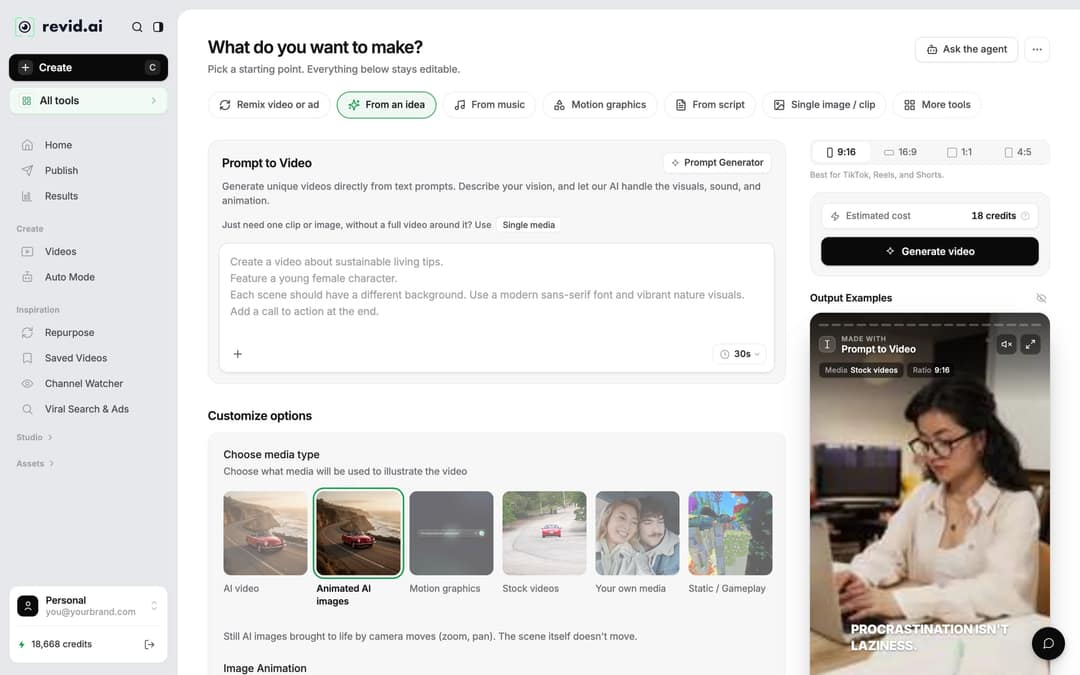
Rather start from an idea than a finished script? Choose From an idea to use Prompt to Video and describe the video instead. In automations and several tools, Revid's script writer first pulls transcripts of related TikToks with more than 10,000 likes and uses them as references for style and story; you can then edit the script it writes with the same syntax.
How to edit the script after the video is generated
- Open Videos in the sidebar and click the project card (or choose "Open in editor" from its menu).
- Open the Script panel in the left rail. Every caption segment has its number, an editable text box and its start time. Change the words you want; Revid shows "Caption updated. Re-generate voice if timing changed."
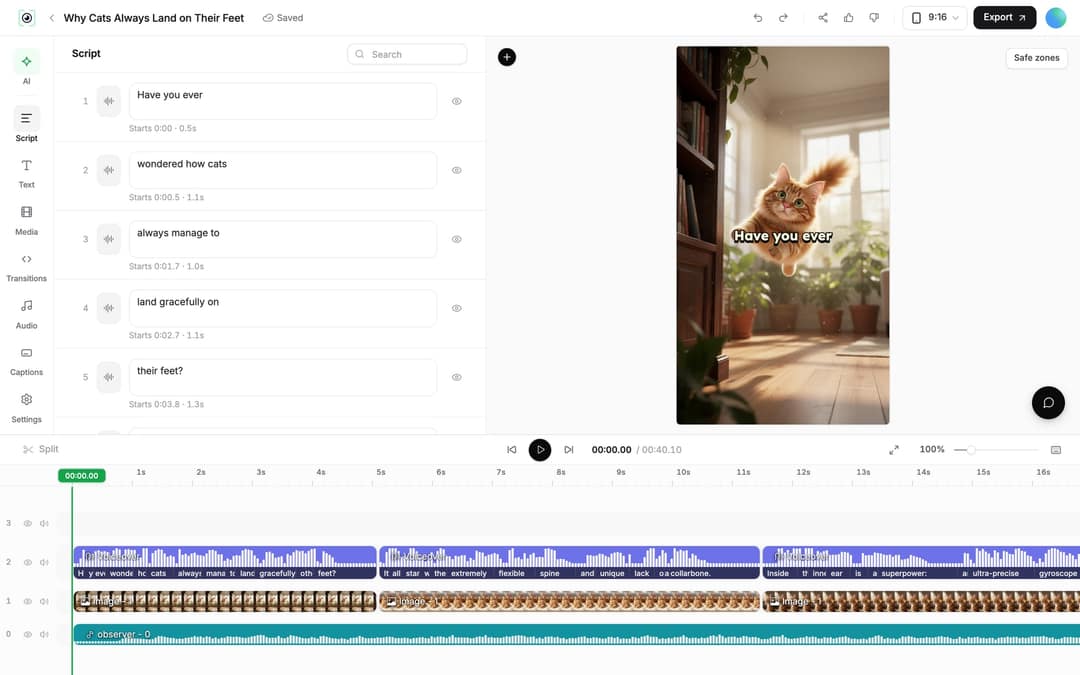
- Regenerate the voice. In the Audio panel, under Project Voiceovers, click "Re-generate" on the line you changed (or select the voiceover clip on the timeline and click "Re-generate Voiceover"). In the dialog, use "Edit Input Text" to add break tags or fix spellings, change the voice if pauses were dropped, keep "Keep timeline in sync" on so clips, texts and music follow the new timing, then click "Generate Voice".
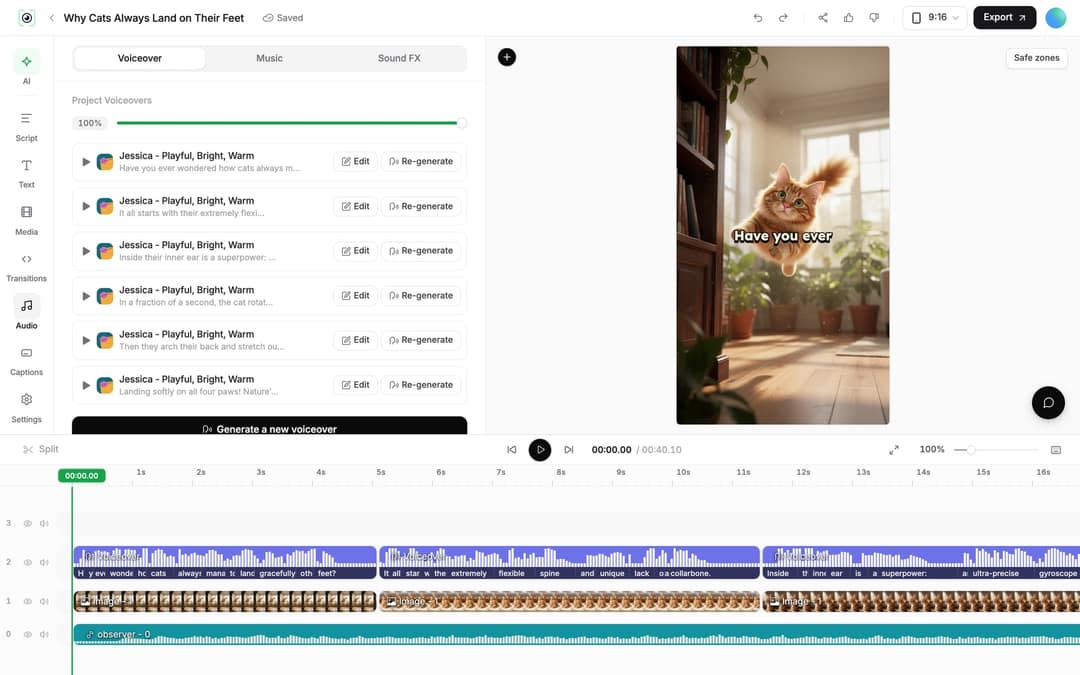
- Mind the cost: regenerating a voiceover costs 10 credits per started 500 characters and is available on paid plans only. The dialog shows the exact cost before you confirm.
- To change a scene's visuals instead of its words, select the clip and click "Replace", or use "Regenerate/Edit image" on an AI image.
FAQ
How do I create a video script with AI?
Give an AI tool your topic, audience and angle, then edit the draft into short lines with brackets for visuals and break tags for pauses. In Revid you can skip the separate step: From an idea writes the script and the video from a description, and you can edit every line afterward.
Can I write a Revid script in another language?
Yes. Write the script in that language and set "Advanced options" > "Language & Localization" > "Language" so the AI picks it up accurately; Revid voices cover 70+ languages. The same syntax (brackets, break tags, line breaks) applies.
Can I translate a video after it is made?
Yes. Choose "Translate" in the project card menu to open the Translate Video tool, pick one of 74 target languages, and Revid keeps the edit, media, timing and captions. It costs 10 credits per 500 characters per voice segment, and "Use another voice" stays off by default to keep the original voice.