Revid AI Video Generator: From Idea to Published Video (2026 Guide)
How to use Revid's AI video generator in 2026: the Create page, media types and AI models, editing the script and voice-over, exporting, publishing, and what each step costs in credits.
On this page
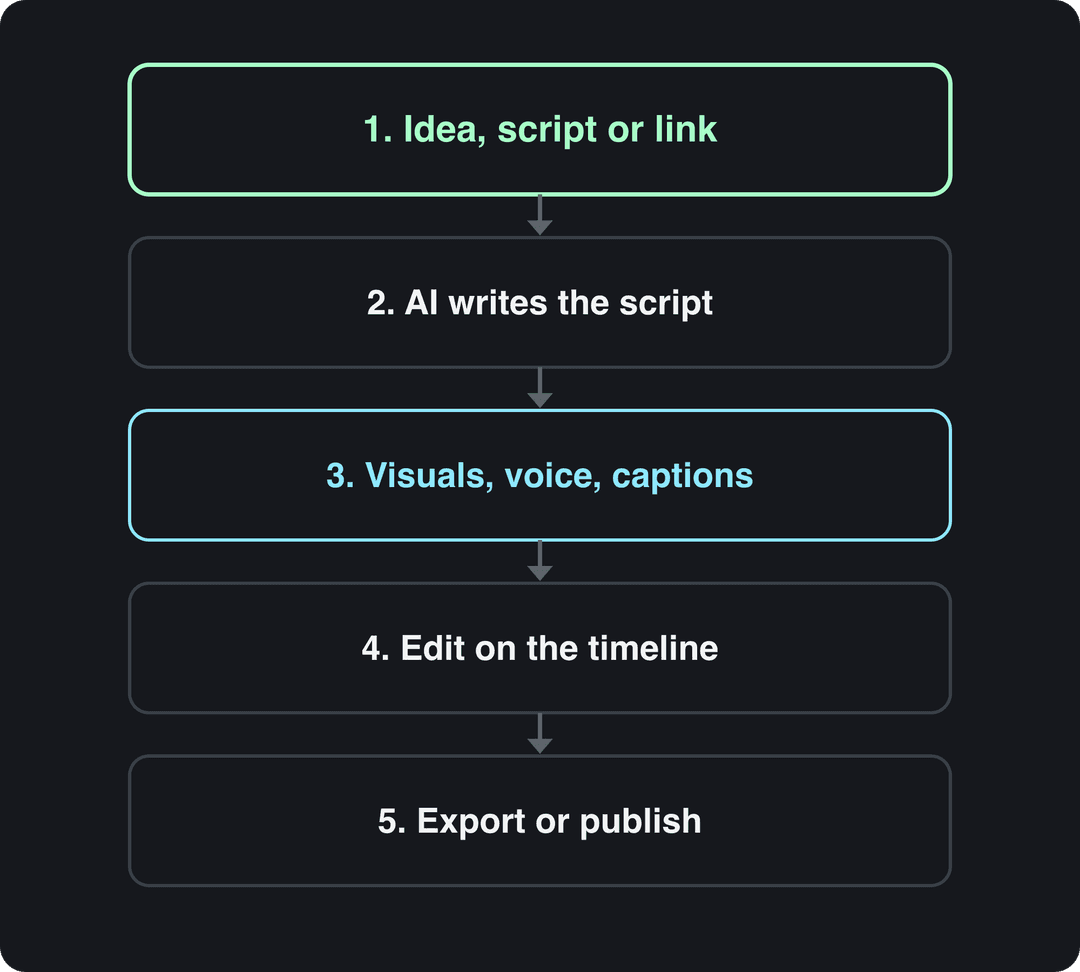
To make a video with Revid's AI video generator, click Create in the sidebar, pick a starting point (an idea, a script, a link, a song or a viral video), choose a media type and ratio, then click Generate video. Revid writes the script and adds visuals, voice-over, captions and music, ready to edit, export or publish.
The AI model is rarely what separates a watched video from a skipped one. Seedance, MiniMax Hailuo, Wan and Google Veo are sold through APIs to every video tool, so two tools sending the same prompt to the same model get comparable clips. The input is what changes the result, which is why Revid lets you start from a library of about 2.77 million real short-form videos with their public engagement data instead of a blank prompt.
What Revid's AI video generator does
Revid (called Typeframes until April 2024) turns an idea, a script, a link, a song or a reference video into a finished short-form video. The AI video generator handles the whole chain: the script, scene-by-scene visuals (stock footage, AI images, AI video or motion graphics), a voice-over in 70+ languages, synced captions, music, a timeline editor, export up to 4K and direct publishing to TikTok, Instagram and YouTube.
A raw clip generator such as Runway or Kling gives you a few seconds of footage, and the script, voice, captions, assembly and posting stay with you. That difference matters most if you publish TikToks, Reels or Shorts every week rather than one cinematic shot.
What changed in the Revid interface
If you learned Revid from an older tutorial, several buttons moved. The current Create page layout rolled out to every account on October 8, 2026.
| Old name or place | Where it is now |
|---|---|
| "Create New Video" button | Create at the top of the sidebar (shortcut C) |
| Short Video Generator | "From an idea" (Prompt to Video) or "From script" (Voiceover Video) |
| Frames panel in the editor | "Script" panel in the editor's left rail |
| "Re-generate voice" button | "Re-generate" in the Audio panel, or "Re-generate Voiceover" on a selected voiceover clip |
| "AI Credits:" label | "N credits" in the account card at the bottom of the sidebar |
| Automations inside Projects | Sidebar "Auto Mode" (/automations) |
| Social accounts | Settings > "Integrations" |
How to create a video with Revid, step by step
- Sign up free at revid.ai. New accounts get free credits to try video creation, and no credit card is needed.
- Click Create at the top of the sidebar, or press C. The page opens on "What do you want to make?"
- Pick a starting point from the chips: "Remix video or ad", "From an idea", "From music", "Motion graphics", "From script", "From a link or audio" or "Single image / clip". Chips that do not fit your screen fold into "More tools".
- Describe the video or paste your words. On script tools the field is called "Your video narrator script".
- Under "Choose media type", pick how scenes are illustrated (details in the next section).
- Pick the ratio: 9:16 for TikTok, Reels and Shorts, or 16:9, 1:1 or 4:5.
- Check "Estimated cost" next to the button, then click Generate video.
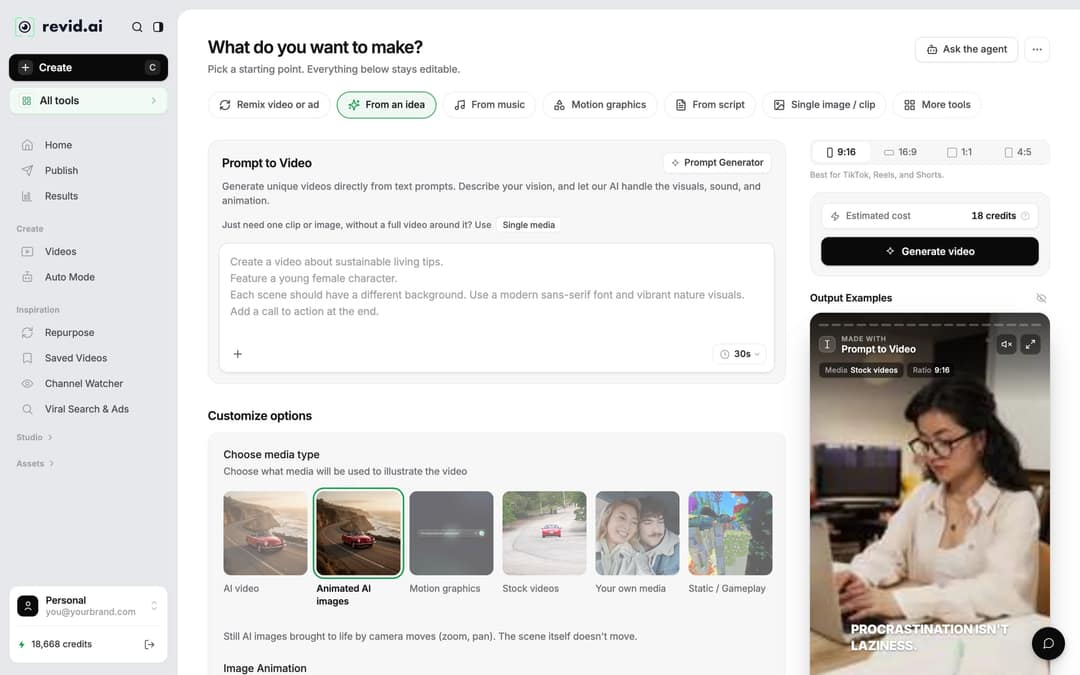
Prefer to describe what you want in plain words? The "Ask the agent" button at the top right of the Create page sets the video up from a conversation instead of the form.
Which starting point should you pick?
Pick the input closest to what you already have. Everything below the prompt stays editable after you choose.
| You have | Start with | What Revid does |
|---|---|---|
| A one-line idea | "From an idea" (Prompt to Video) | Writes the script, then builds scenes, voice and captions |
| A finished script | "From script" (Voiceover Video) | Keeps your words and adds visuals, voice-over and captions |
| A blog post or article URL | Article to Video, under "More tools" | Reads the page and turns it into a narrated short |
| A long YouTube video | YouTube Long to Shorts, under "More tools" | Cuts 1 to 3 vertical extracts, with "Auto-reframe video" on by default |
| A song (MP3, WAV or Suno link) | "From music" | Builds a music video synced to the track |
| An audio file or link | "From a link or audio" | Turns the recording into a captioned video |
| A viral video you admire | "Remix video or ad" | Reuses its structure and pacing with a new script and visuals |
| One clip or image only | "Single image / clip" | Generates a single piece of media, not a full video |
If you are unsure, start from a script. It gives you the most control over what the voice-over says.
Prompt to try
Make a 30-second vertical video on why octopuses have three hearts. Open with the hook "This animal's heart stops every time it swims." Use AI video scenes in a moody deep-sea documentary style, a calm narrator and bold captions, and end with a question for the comments.
Choose the visuals: media types and AI models
The "Choose media type" options decide what fills each scene.
| Media type | Use it when |
|---|---|
| AI video | You want real motion in every scene (needs a paid plan) |
| Animated AI images (default) | You want custom visuals at a low cost: still AI images animated with camera moves |
| Motion graphics | You explain a product, numbers or steps with kinetic text and shapes |
| Stock videos | You want real-world footage for general topics |
| Your own media | You have product shots, screen recordings or clips to reuse |
| Static / Gameplay | You want a fixed or gameplay background behind narration and captions |
For AI video, Revid offers Seedance 2.5, MiniMax Hailuo H3, Wan 3.0 and Google Veo 3, plus lower-cost Low, Pro and Ultra tiers, all under one credit system. You can choose a different model for each scene, so a product close-up and a wide establishing shot do not have to use the same engine. OpenAI's Sora 2 is no longer offered: OpenAI shut down the Sora API on September 24, 2026.
For sound and text, you get 1,000+ AI voices in 70+ languages (ElevenLabs, Google Gemini and MiniMax), 30 caption styles and automatic captions in 100+ languages. Voice cloning and voice design come with the Elite plan and above.
Edit the video in the editor
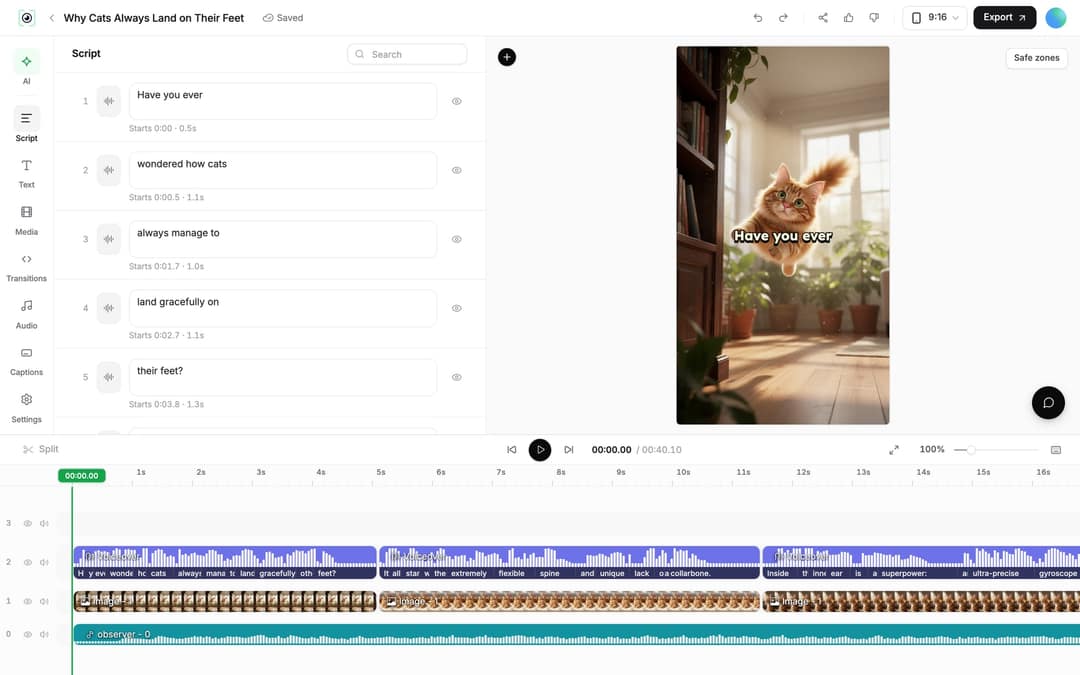
Open any project from "Videos" in the sidebar: click the card, or use "Open in editor" in its menu. The left rail holds "Script", "Text", "Media", "Transitions", "Audio", "Captions" and "Settings", with the preview in the center and the timeline below.
Change the script and regenerate the voice-over
The "Script" panel lists every caption segment with its number, an editable text box and its start time. Edit a line and Revid shows "Caption updated. Re-generate voice if timing changed."
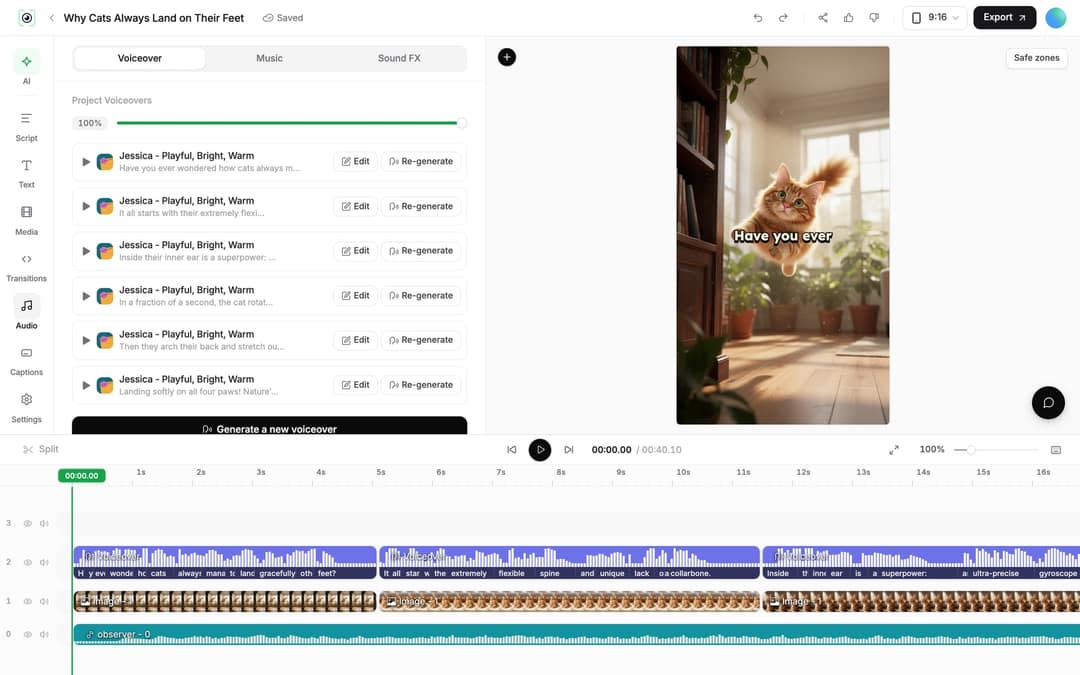
To update the narration, open "Audio" and click "Re-generate" next to a voiceover in "Project Voiceovers", or select the voiceover clip on the timeline and click "Re-generate Voiceover". In the dialog, adjust the text or voice, keep "Keep timeline in sync" on so clips, text and music follow the new timing, and click "Generate Voice". It costs 10 credits per started 500 characters and is available on paid plans only.
Replace or regenerate a scene
Select an image or video clip and use "Replace" to pick a new file from the Media panel library, or "Delete" to drop it. AI video clips also offer "Regenerate from prompt" with three tabs: "Re-animate", "New image + video" and "Edit with AI". AI images offer "Regenerate image" or "Edit existing image".
The "Media" panel has "Library", "Stock", "Stickers" and "Effects" sections, a "Generate" button for new AI media, and drag-and-drop upload for your own files.
Trim and split clips
Drag a clip's start or end edge on the timeline. Use "Split" (key S) to cut at the playhead, Delete to remove a selection, and Shift+Delete for a ripple delete that closes the gap. A selected video clip also has a "Trim" section with exact start and end times.
Pauses, visual cues and scene breaks in your script
- Pauses: type
<break time="1.0s" />for a 1-second pause, up to 10 seconds. ElevenLabs and MiniMax voices honor it; Gemini and Kling voices drop the tag with no pause. - Visual cues: text in [brackets] is treated as a note, not narration, and guides the visuals for that scene. ElevenLabs v3 and v4 voices may read bracketed words as acting tags such as [whispers].
- Scene breaks: start a new line to generate new content for a new scene.
Start from a viral video instead of a blank prompt
A blank prompt carries no evidence of what works in your niche, so the output drifts toward a generic average. Revid's alternative is to repurpose viral videos: open "Viral Search & Ads" in the sidebar, search the library by topic, platform, engagement tier and length, open a video and choose what to make from it.
- Same energy, new script: an original video with the same recipe.
- Make it about your topic: the hook style, pacing and energy applied to your niche.
- Post the Part 2: a sequel that answers the question the original leaves open.
- Same footage, new look: an AI restyle of the footage.
- Reuse the script: new visuals for the same words (you need the rights to reuse them).
Before remixing, run a free Deep analysis (up to 60 a day): an AI model watches the video and explains its hook, timed structure, scroll-stopping moment and three ways to adapt it. To follow specific accounts, "Channel Watcher" syncs TikTok and YouTube channels daily (5 on Growth, 20 on Elite, 50 on Ultra) so you can spot their outlier videos.
Export and publish to TikTok, Instagram and YouTube
Click Export in the editor header to download the video in 720p, 1080p or 4K at 30 or 60 fps. 4K export costs 10 credits.
| If you post to | Choose |
|---|---|
| TikTok, Reels or Shorts | 1080p, 9:16 (1080x1920, the size TikTok recommends) |
| A website hero or a big screen | 4K |
| A quick draft for a teammate | 720p |
Use 60 fps for fast motion (gameplay, sports, product spins) and 30 fps for talking scenes and slideshows, where 60 only adds file size.
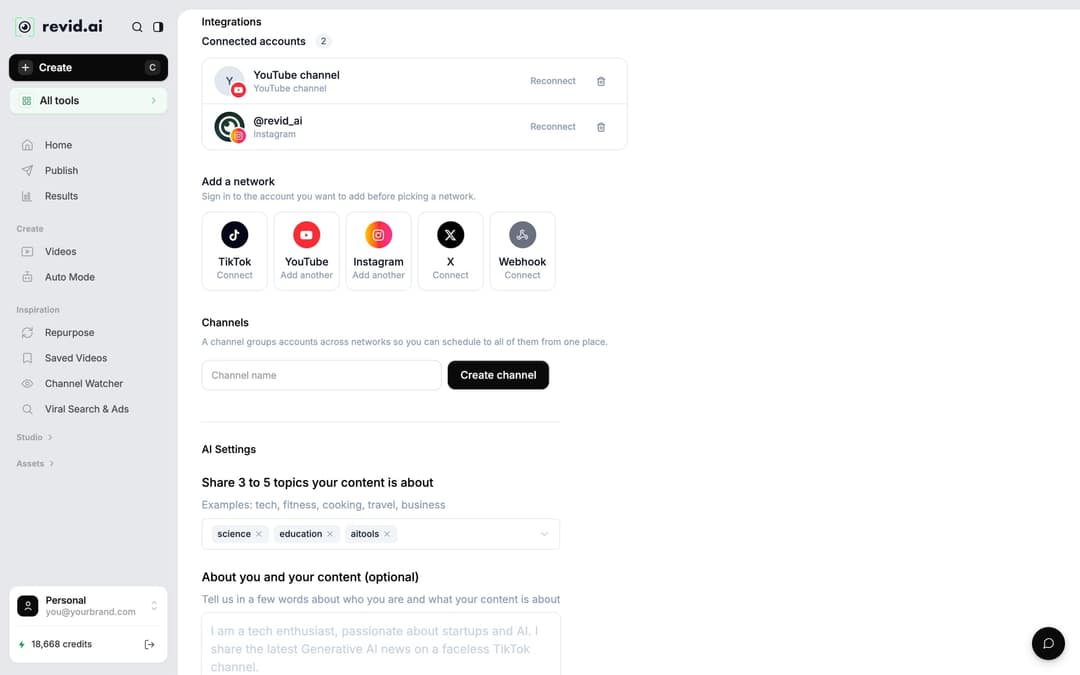
To post directly, connect your accounts first in Settings > "Integrations" under "Add a network": TikTok, YouTube, Instagram (Business or creator account required), X, or a Webhook for Zapier, Make or your own URL. LinkedIn, Threads, Pinterest and Facebook publishing are not offered.
Then click "Publish" on the project card in Videos (free accounts also see "Export / Publish" in the editor). The "Publish Video" dialog lets you pick accounts under "Publish to", then post now with "Publish" or schedule with "Add to queue". Scheduled and past posts live on the "Publish" page in the sidebar, and "Results" reports views, likes and comments for every post published through Revid, so a post that did well can be remixed in one click.
Translate a video into another language
Open the project card menu in Videos and click "Translate". Choose the "Target language" (74 are available) and leave "Use another voice" off to keep the original voice, or turn it on to pick a new one. The video translator keeps the edit, media, timing and captions, and costs 10 credits per 500 characters of voice-over, plus avatar lip sync again if the video has an avatar.
To make a new video in another language instead, write the script in that language or set it in "Advanced options" > "Language & Localization".
Make a new video every day with Auto Mode
Auto Mode runs workers that create a video every day without you opening the Create page. Click "Auto Mode" in the sidebar, then "New worker", and follow three steps: "Name your worker", "What should it make?" (jobs such as Repurpose Fresh Content, Run a Daily AI Series, Promote a Product or Search and Remix a Video) and "Pick the format".
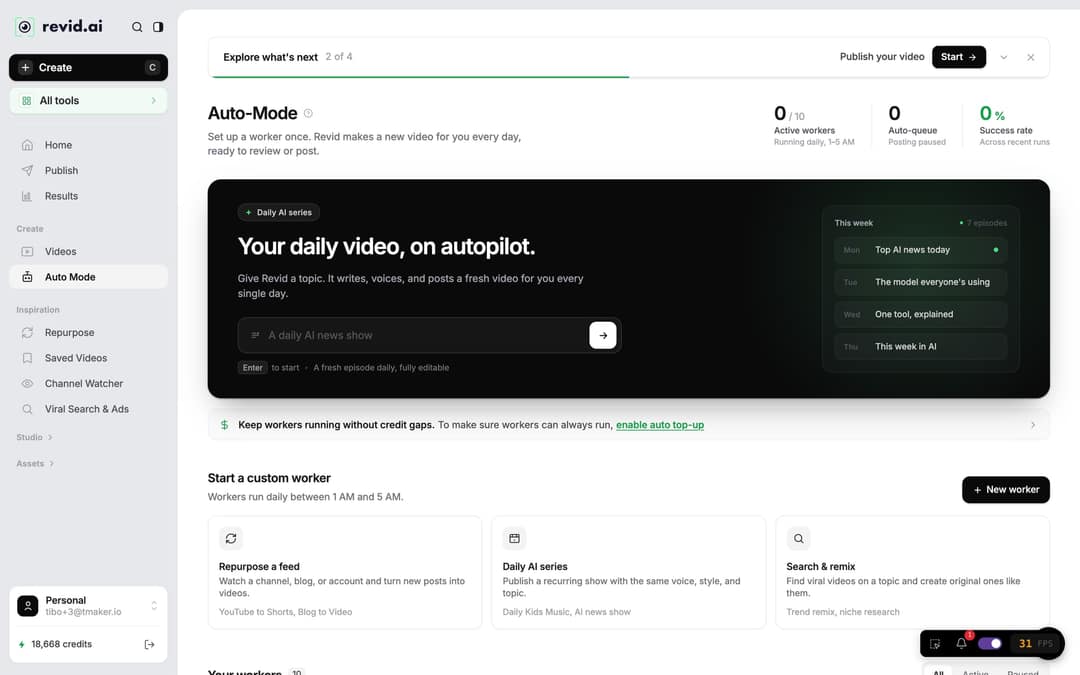
Workers run once a day between 1 AM and 5 AM in your account's timezone. The default delivery is "Review First", which keeps each video in Revid for you to check; "Auto Queue" sends it to the posting queue of the accounts you select. The "Worker preflight" panel shows "Est. credits per run" and "Est. monthly credits" before you save. Growth includes 3 workers, Elite 5 and Ultra 10.
How much does Revid cost?
Sign-up is free and new accounts get free credits. Regular creation uses the monthly credits of a paid plan; the live list on Revid pricing is the authoritative one.
| Plan | Monthly | Billed yearly | Credits per month | Auto-Mode workers |
|---|---|---|---|---|
| Growth | $39 | $32/month | 2,000 | 3 |
| Elite | $89 | $74/month | 5,000 | 5 |
| Ultra | $199 | $166/month | 12,000 | 10 |
What common steps cost in credits:
| Item | Credits |
|---|---|
| Voice-over | 10 per started 500 characters |
| AI image (Low / Pro / Ultra) | 1 / 4 / 16 per image |
| AI video, Low / Pro / Ultra tiers | 15 / 50 / 100 per 5 seconds |
| Veo 3 or MiniMax Hailuo H3 | 100 per 5 seconds |
| Seedance 2.5 at 1080p / 4K | 250 / 500 per 5 seconds |
| Motion graphics (Low / Pro / Ultra) | 2 / 3 / 5 per second, minimum 15 seconds |
| Talking avatar (Low / Pro / Ultra) | 80 / 100 / 200 per 500 characters |
| 4K export | 10 |
As a guide, a 30-second video with Pro AI visuals and a voice-over costs about 40 to 80 credits. Your balance shows at the bottom of the sidebar, failed builds are refunded automatically, and one-time credit packs start at 1,000 credits for $49. Every paid plan also includes the API, the MCP server and the CLI, so AI agents can create and publish videos with the same account.
When another tool fits better
Revid is built for short-form social video. Pick something else if your need is different:
- Hand-edited long-form or cinematic work: a professional editor such as Premiere Pro or DaVinci Resolve, or a model lab such as Runway.
- Corporate training with a fixed presenter: an avatar platform such as Synthesia.
- Cutting your own long recordings into many clips as the main job: a clipping tool such as OpusClip.
- Editing your own footage by hand, with no AI generation: a classic editor such as CapCut.
The Revid comparison pages go through each of these tools head to head, with sources.
FAQ
Is Revid's AI video generator free?
You can start for free: sign-up is free, new accounts get free credits, and a free account can search the viral video library. Regular video creation then uses the monthly credits of a paid plan, from $39/month.
Is "arevidai" the same as Revid AI?
Yes, people searching "arevidai" are usually looking for Revid AI at revid.ai, the AI video platform formerly called Typeframes. Revid is not affiliated with other companies or apps that use the name Revid.
Can I still use Sora 2 in Revid?
No. OpenAI shut down the Sora API on September 24, 2026, so Revid now offers Seedance 2.5, MiniMax Hailuo H3, Wan 3.0 and Google Veo 3 instead.
Does Revid copy viral videos?
No. Revid uses a reference video for its structure, hook, pacing and style, then writes a new script, new visuals and an original music direction. Only the "Reuse the script" option keeps the spoken words on purpose.
Do I need to label AI-generated videos?
Yes, for realistic AI content. TikTok requires a label on AI-generated content with realistic images, audio or video, and YouTube requires disclosure of realistic AI content in YouTube Studio; both say the label alone does not reduce a video's reach.