How to Create a Halloween Zoom Background in Under 5 Minutes
Turn a short spooky prompt into an animated 16:9 Halloween Zoom background with Revid, mute the narration and hide the captions in the editor, then upload it to Zoom as a virtual background.
On this page
To create a Halloween Zoom background, generate a short spooky video in Revid at a 16:9 ratio, mute the voice-over and hide the captions in the editor, export it, then add it in Zoom under Virtual Background with the + button. The steps take under 5 minutes, plus generation time.
The step most people skip is stripping the narration. A video background plays behind you for the entire call, so burned-in captions hover next to your head and the voice track does nothing for anyone. A vertical 9:16 render is the second trap: it does not fit the wide shape of a Zoom call. This guide handles both.
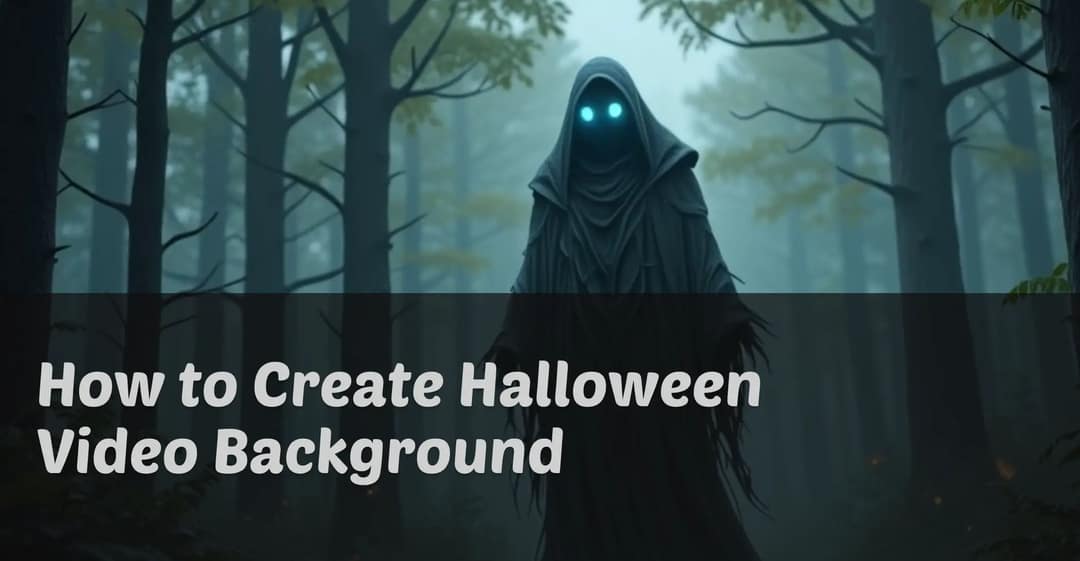
Here is the kind of background this guide creates:
- Time to make and add a Halloween Zoom background, plus generation time
- 5 min
- Aspect ratio that fits the wide shape of a Zoom call
- 16:9
- Highest Revid export quality (720p and 1080p also available)
- 4K
- Revid export options
Step 1: Check that your device supports Zoom virtual backgrounds
Video backgrounds need more processing power than still images, so check your setup before you build one.
- Update Zoom. Get the latest desktop app from Zoom's official download page. Older versions may hide or limit the Virtual Background option.
- Check the requirements. Zoom's help center lists the current operating system and processor requirements for virtual backgrounds. On older or low-power computers, Zoom may only allow image backgrounds or ask for a green screen.
- Prefer desktop. Uploading a custom video background is simplest in the Zoom desktop app on Windows or macOS.
If your computer is ready, move on to the video.
Step 2: Start a new video in Revid
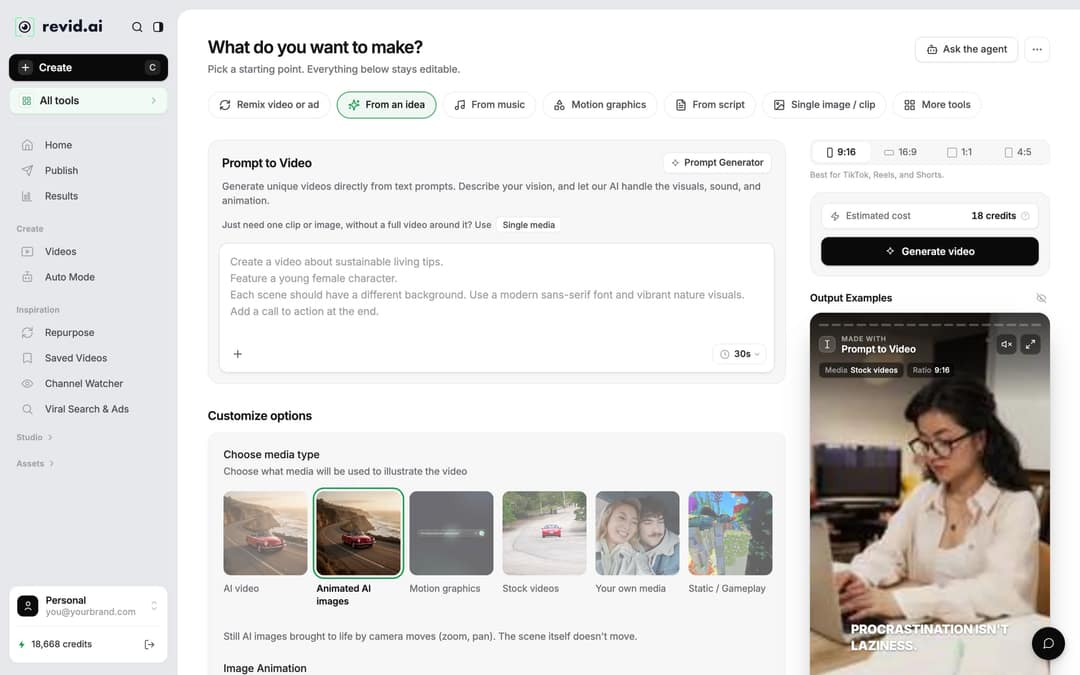
- Click Create at the top of the Revid sidebar (or press C). The page asks "What do you want to make?"
- Pick the From an idea tab. This opens Prompt to Video, which turns a written description into a finished video.
- Type your Halloween scene in the prompt box (a sample is below).
If you already have a written story, the From script tab takes a narrator script instead, and the free AI script generator can draft one from a line like "scary short halloween story". The AI Movie Maker, under More tools, also works if you want a more cinematic, story-driven result.
Step 3: Write a prompt built for a background
Your prompt drives the scenes Revid generates, and those scenes will sit behind your head for a whole meeting. Write for that:
- Describe places, not heroes. Your face covers the center of the frame, so a main character standing in the middle gets hidden. Ask for settings: a foggy graveyard, a haunted hallway, a candlelit pumpkin patch.
- Keep the action slow and on the edges. Flickering candles, drifting fog, bats crossing the sky and swaying trees work. Fast cuts and jump scares distract the people you are talking to.
- Keep it short. A few calm scenes are enough, because Zoom repeats the video for as long as the meeting lasts.
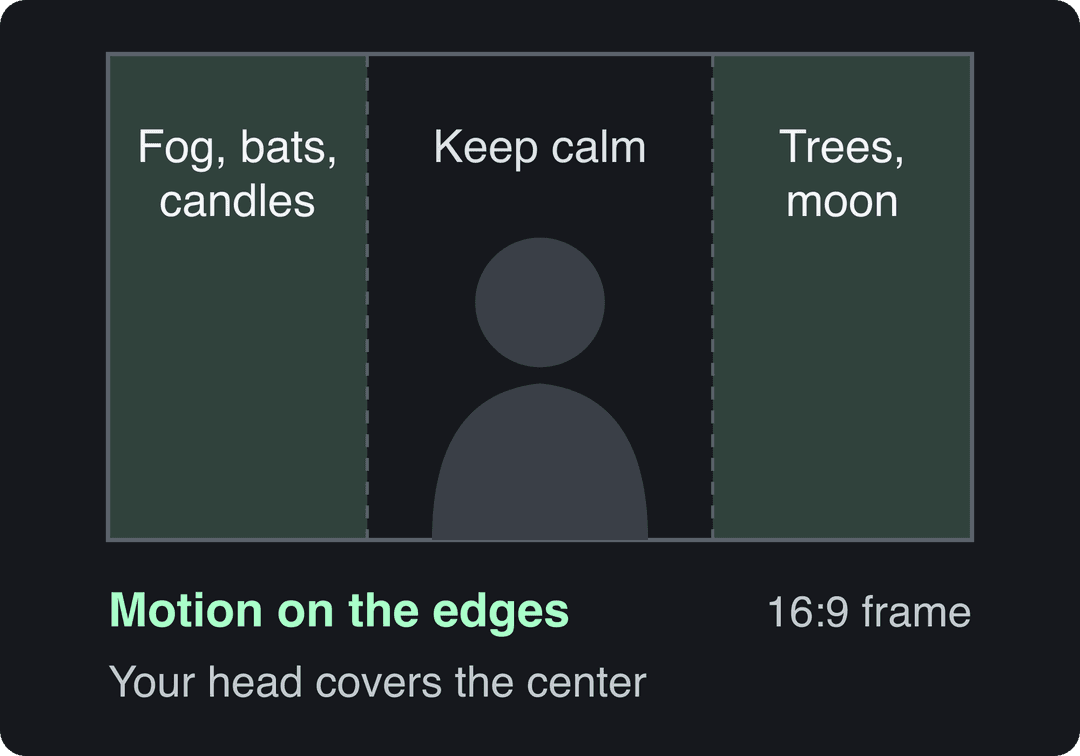
A sample prompt you can paste and adjust:
Fog rolls slowly across an old graveyard under a full moon. Jack-o'-lanterns glow on crooked gravestones. Bats drift across the night sky. In the distance, a haunted house sits on a hill, one window flickering with candlelight. Bare trees sway in a cold wind. Calm, slow camera, no characters.
For more ways to phrase scenes and camera moves, the AI video prompt generator gives examples.
Prompt to try
A slow, eerie 20-second 16:9 background: mist drifts through a candlelit haunted hallway, portraits on the walls with flickering frames, cobwebs swaying in the corners, a jack-o'-lantern glowing at the far end. Moody orange and deep purple light, steady slow camera push, all motion near the edges, no characters, no jump scares.
Share of clips
Source: Revid production data: 713,649 AI video clips generated Jun 29, 2026 to Sep 26, 2026.
Show the data
| Share of clips | |
|---|---|
| 16:9 | 54% |
| 9:16 | 40.3% |
| 1:1 | 4.3% |
| 3:4 | 0.5% |
Step 4: Set 16:9 and choose the media type
In this workflow, the "preset" is the media type plus the style words in your prompt (for example "foggy, orange candlelight").
- Ratio: in the ratio picker on the right, select 16:9. The default 9:16 is made for TikTok, Reels and Shorts; a Zoom call is wide. If you already made a vertical version, convert it with the online video resizer.
- Media type: under "Choose media type", pick AI video for real motion in every scene (it needs a paid plan). Animated AI images (the default) brings still images to life with camera moves such as zoom and pan, which also suits a calm background. Stock videos is a third option if you want real footage.
In dollars at the Growth rate ($39 for 2,000 credits), a 60-second video costs about $0.43 with stock footage, $0.68 with animated AI images, $1.46 with pro AI images, $4.29 with AI video clips and $13.30 with pro AI video. A 90-second video costs 1.5 times the 60-second price. Every price includes the AI voice-over (10 credits per 30 seconds); motion graphics show the calculator's upper bound.
Source: Revid public credit calculator (POST /api/public/v3/calculate-credits, no key), prompt-to-video workflow, 30, 60 and 90 seconds, queried Oct 29, 2026.
Show the data
| 60-second video, credits | 30-second video, credits | 60-second videos per Growth month | |
|---|---|---|---|
| Stock footage | 22 | 11 | 90 |
| Animated AI images | 35 | 18 | 57 |
| AI images, pro | 75 | 37 | 26 |
| AI video clips | 220 | 110 | 9 |
| Motion graphics | 275 | 160 | 7 |
| AI video, pro | 682 | 341 | 2 |
Step 5: Pick the voice and music, then generate
- Voice and music: leave the defaults or pick a track you like. You mute the voice in Step 6, so do not spend time choosing it.
- Generate: check the Estimated cost in credits, then click Generate video.
Failed builds are refunded automatically. AI video costs more than Animated AI images, so start with a short clip.
Step 6: Remove the voice and captions
Mute the voice-over
When the video is ready, open it in the editor (click the project card, or choose "Open in editor" from its menu).
- Click the voiceover clip on the timeline. The Edit Voiceover panel opens.
- Turn on Muted. Muting keeps the scene timing intact; Delete removes the clip entirely.
- Repeat for each voiceover clip if your project has several.
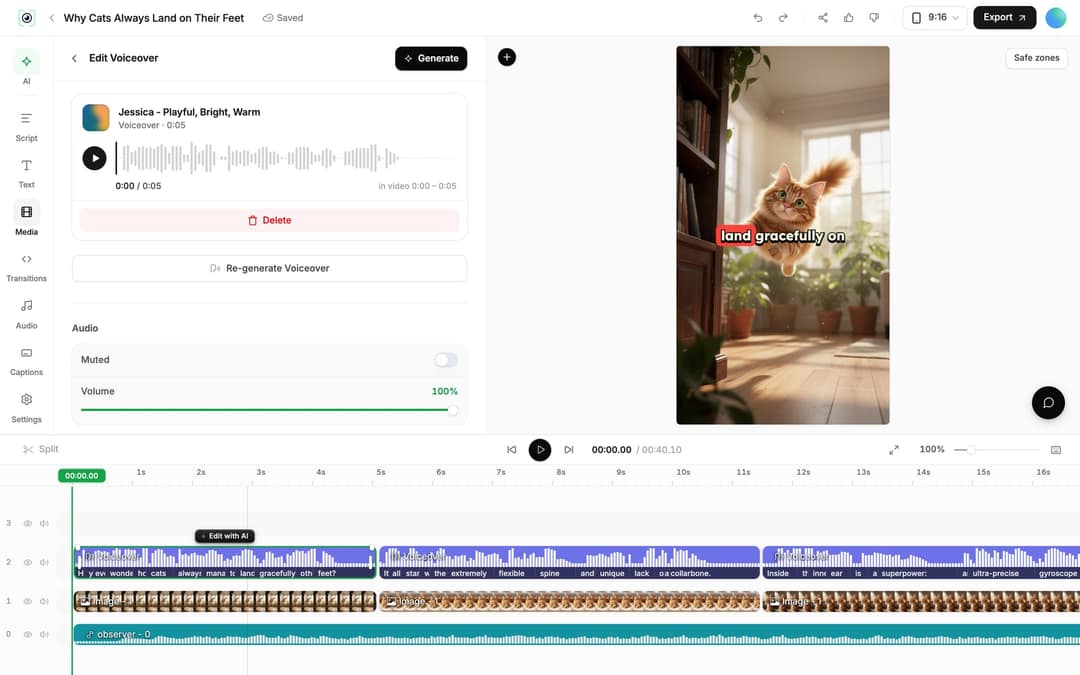
This short clip shows the process of removing the voice and captions:
Hide the captions
- Open Script in the editor's left rail. It lists every caption segment with its text and start time.
- Click the eye icon next to each segment ("Hide caption segment") so no words float next to your head.
- Play the preview once to check nothing is left on screen.
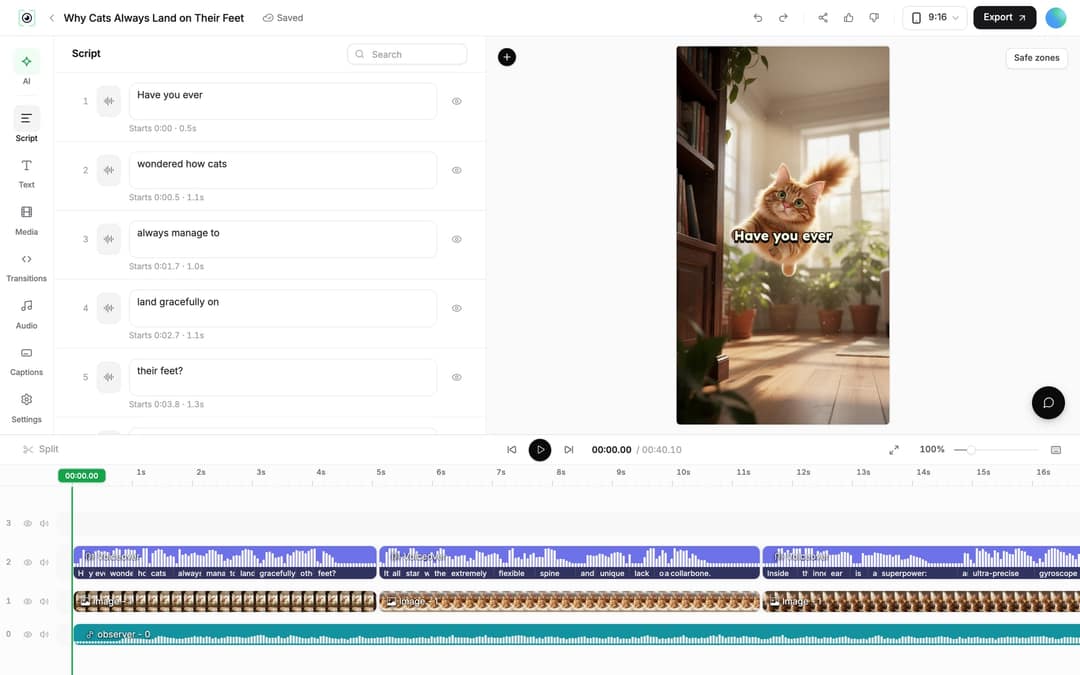
Step 7: Export the video
Click Export at the top right ("Export / Publish" on free accounts) and download the file. Revid exports in 720p, 1080p or 4K; 1080p is plenty for a video call. If you want a longer clip that repeats without a visible restart, loop it a few times with the free video looper.
Step 8: Add your background to Zoom
- Open Zoom: sign in, then start or join a meeting.
- Open the video menu: click the small arrow next to the Stop Video button in the bottom-left corner of the meeting window.
- Select Virtual Background: choose the virtual background option from the menu.
- Upload your Revid background: click the + button, choose to add a video, and select the file you exported from Revid.
- Check the fit: sit where you normally sit and make sure the key scenery is visible around you, not hidden behind your head.
Why does my Zoom background look backwards?
Zoom mirrors your own preview by default, so any text or signs in the background look reversed to you. The other participants see it the right way round. You can turn off the mirror setting in Zoom's video settings if it bothers you.
Seasonal prompt to try
A calm 20-second 16:9 winter background: snow falls softly over a cozy cabin at night, warm light glowing in the windows, a decorated pine tree twinkling on the left, fairy lights swaying on the porch. Soft, slow camera, gentle movement on the edges of the frame, no characters.
More seasonal backgrounds
The same workflow works for any theme. For a lighter mood, see how to make funny Zoom background videos, and when December comes, use the same steps to create a Christmas wish video.
FAQ
Can you use a video as a Zoom background?
Yes. The Zoom desktop app accepts video files as virtual backgrounds, and it repeats the video for as long as your camera is on. Upload it from the Virtual Background menu with the + button.
What aspect ratio should a Zoom background be?
Use 16:9, the wide landscape shape of a Zoom video. A vertical 9:16 video made for TikTok or Reels does not fill the frame properly, so pick 16:9 in Revid's ratio picker before generating.
Will other people hear the music in my Zoom background?
Do not count on it: treat a video background as a visual element only. If you want music on the call, share your computer audio separately.
Why can't I add a video background in Zoom?
The usual causes are an outdated Zoom app or a computer that does not meet Zoom's requirements for video backgrounds. Update Zoom from its download page, then check the system requirements in Zoom's help center.
Can I make a Halloween Zoom background for free?
You can try it: Revid sign-up is free and new accounts get free credits, which cover a short video with Animated AI images. The AI video media type and regular creation need a paid plan (see Revid pricing).
Sources
- Revid production data: 713,649 AI video clips generated Jun 29, 2026 to Sep 26, 2026.
- Revid public credit calculator (POST /api/public/v3/calculate-credits, no key), prompt-to-video workflow, 30, 60 and 90 seconds, queried Oct 29, 2026.
Charts and figures checked on November 6, 2026.