Video and Sound Out of Sync: How to Find and Fix It
Fix video and sound out of sync: learn whether the gap is fixed or drifting, how many milliseconds matter, and how to correct it in your editor or on screen.
On this page
You've finished the edit, added captions, and exported your video. Then you notice it: the speaker's mouth closes before the word finishes, or a clap lands before the hands meet. You move the audio until the opening looks right, but the ending still feels wrong.
When you find video and sound out of sync, measure the pattern before moving a track. A steady delay, progressive drift, and a playback-device problem need different fixes. Choosing the wrong one can leave you with a polished timeline and an export that's still unusable.
- Average point where viewers detect audio arriving early
- +45 ms
- ITU-T Recommendation J.248
- Average point where viewers detect audio arriving late
- -125 ms
- ITU-T Recommendation J.248
- Dialogue target: audio no more than 15 ms ahead or 45 ms behind video
- 15 ms / 45 ms
- W3C Media Synchronization Requirements
- Mismatch that can be imperceptible in high-quality audiovisual material
- 20 ms
- W3C Media Synchronization Requirements
Spot Whether Your Offset Is Fixed or Drifting
A talking-head clip can look convincing at the opening and noticeably wrong near the end. That's your cue to stop nudging and compare timing across the recording.
Measure before you edit
Find a sharp sound with a visible action near the beginning, somewhere in the middle, and near the end. A clap, a hand tapping a desk, or a clearly visible spoken consonant can work. Use wired headphones or built-in speakers while checking so you aren't measuring an external audio delay.
Mark the visible event and the corresponding waveform transient. Record both the size of the gap and whether sound arrives early or late. Don't compare unrelated speech sounds and assume their waveform peaks should match identical mouth positions.
If the gap stays consistent, you're dealing with a fixed offset. If it progressively increases, investigate drift. QuickVeed's audio-sync troubleshooting guide distinguishes these patterns and associates drift with variable-frame-rate recordings, while Bluetooth and playback hardware can introduce fixed delay.
Sync error patterns and where to go next
| Pattern | What you see | Likely cause | Fix path |
|---|---|---|---|
| Same gap everywhere | Audio is consistently early or late throughout | Fixed editing offset or playback delay | Shift the audio track after ruling out playback |
| Gap grows over time | Opening aligns, ending doesn't | Variable frame rate or audio clock mismatch | Convert to constant frame rate and check audio timing |
| Only on one device | Laptop looks right, TV or phone doesn't | Output hardware or player setting | Adjust device or app settings |
| Broke after editing | Source aligns, but cuts or speed changes don't | Clip and timeline timing mismatch | Normalize the source timing, then correct any residual offset |
| Only after upload | Local export looks right, platform playback doesn't | Transcoding or player buffering | Re-export and recheck the processed upload |
Separate the source from the software
Open the original recording outside your editor, then compare it with the export. If only a particular edited section fails, inspect its speed changes, detached audio, and clip boundaries before converting the entire project.
Blaming an AI editor or editing application is tempting, but source timing metadata can be interpreted differently by different software. The editor where you notice the problem isn't necessarily where it began.
Diagnostic rule: A consistent gap calls for a timing shift. An increasing gap calls for a timing investigation. A device-only gap calls for a playback test.
How Much Offset Is Too Much to Tolerate
Viewers generally tolerate sound arriving after a visible action better than sound arriving before it. That makes an early voice track particularly important to correct, even when the timeline gap looks small.
ITU-T Recommendation J.248 reports average detectability boundaries of approximately +45 ms for audio leading video and −125 ms for audio lagging video, with wider average acceptability boundaries of approximately +90 ms and −185 ms, respectively. These are perceptual averages, not guarantees that every viewer will accept every clip within them.
The reference below uses positive for early audio and negative for late audio. Frame durations are timing conversions, rounded where necessary.
Audio offset thresholds and frame durations
| Measure | Value | What it means for your edit |
|---|---|---|
| Detectability, audio early | +45 ms | Viewers may start noticing speech mismatch |
| Detectability, audio late | −125 ms | Viewers generally tolerate more lag than lead |
| Acceptability, audio early | +90 ms | Larger leads are increasingly likely to be unacceptable |
| Acceptability, audio late | −185 ms | Larger lags are increasingly likely to be unacceptable |
| One frame at 25 fps | 40 ms | The early-audio detectability boundary is just beyond a frame |
| One frame at 30 fps | Approximately 33 ms | A frame nudge is coarser than millisecond adjustment |
| One frame at 60 fps | Approximately 17 ms | Finer picture steps still don't guarantee exact audio alignment |
Treat speech as the critical reference
Talking-head videos, interviews, and AI-generated speaking clips invite close scrutiny because viewers can compare each vocal onset with the speaker's mouth. In a narrated explainer, inspect visible speech first, then intentional sound effects tied to actions. Background music usually isn't your best lip-sync reference.
Don't treat the acceptability boundary as an editing target. It describes how people judge mismatches, not where you should deliberately place dialogue.
Aim for natural alignment, not the largest error a viewer might tolerate.
For speech, keep well inside the detectable boundaries whenever you can. Anything beyond the acceptability boundaries deserves correction before publishing. A tighter operational target is useful when making the actual adjustment, especially if your editor supports moving audio independently of picture frames.
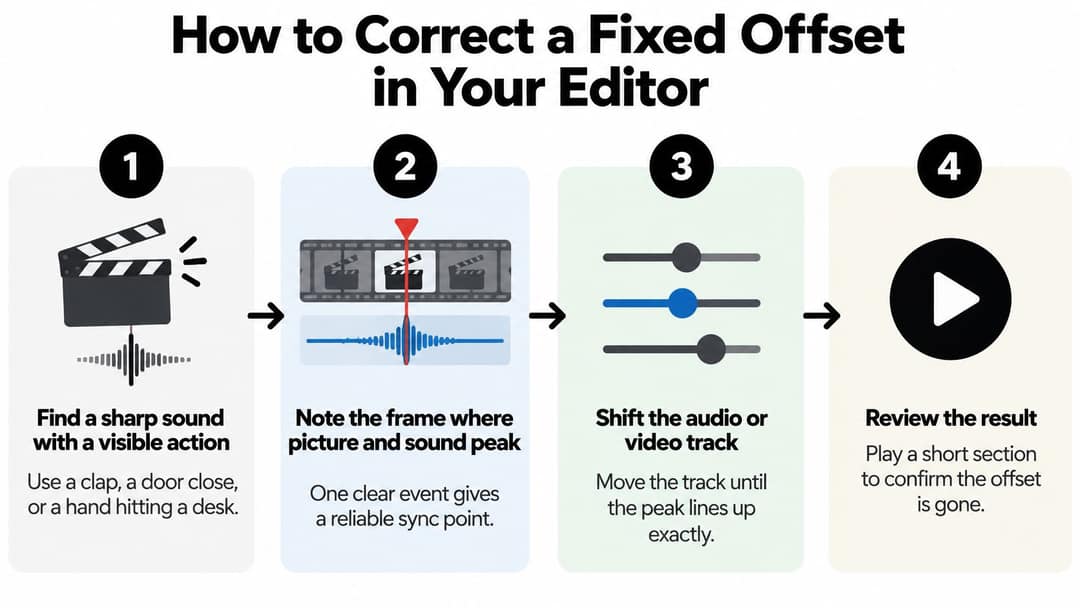
How to Correct a Fixed Offset in Your Editor
Choose a reliable sync event. Find a clap, door impact, or hand striking a desk. Mark the visible contact and the beginning of the matching sound transient, rather than blindly aligning the tallest waveform peak, which may occur after the initial impact.
Measure the gap in milliseconds. Use the editor's time display or calculate frame count multiplied by milliseconds per second, divided by frame rate. Keep a written early-or-late label beside the measurement so you don't reverse the correction.
Move the audio in the correct direction. If sound arrives early, move it later. If it arrives late, move it earlier. Use subframe audio adjustment, sample-level editing, or a dedicated delay control when available. If your application only permits whole-frame movement, use the nearest sensible adjustment and verify playback rather than pretending it offers fractional precision.
Test distant reference points. Check an event away from the one you aligned. If another part needs a different correction, stop treating the clip as a fixed-offset problem.
Restore linked editing. After adjustment, link or group the intended audio and video components. Otherwise, a later ripple edit can move the picture without moving its matching sound.
Export a test file. Judge the rendered result, not just timeline playback. Check through a known-good audio output before testing the audience's likely device.
Use the visual sequence below as a reminder of the adjustment process.
Use a tighter target for dialogue
The W3C Media Synchronization Requirements page describes a commonly recognized industry window of audio no more than 15 ms ahead or 45 ms behind video, and summarizes findings that mismatches of 20 ms or less can be imperceptible in high-quality audiovisual material. Use that tighter window as an engineering target, not permission to introduce an unnecessary delay.
Zoom in before you nudge. A timeline displaying whole seconds hides the differences you're trying to correct. Listen at normal speed after adjusting, because an alignment that looks convincing on a waveform can still sound wrong against speech.
Fix Drift by Converting to Constant Frame Rate
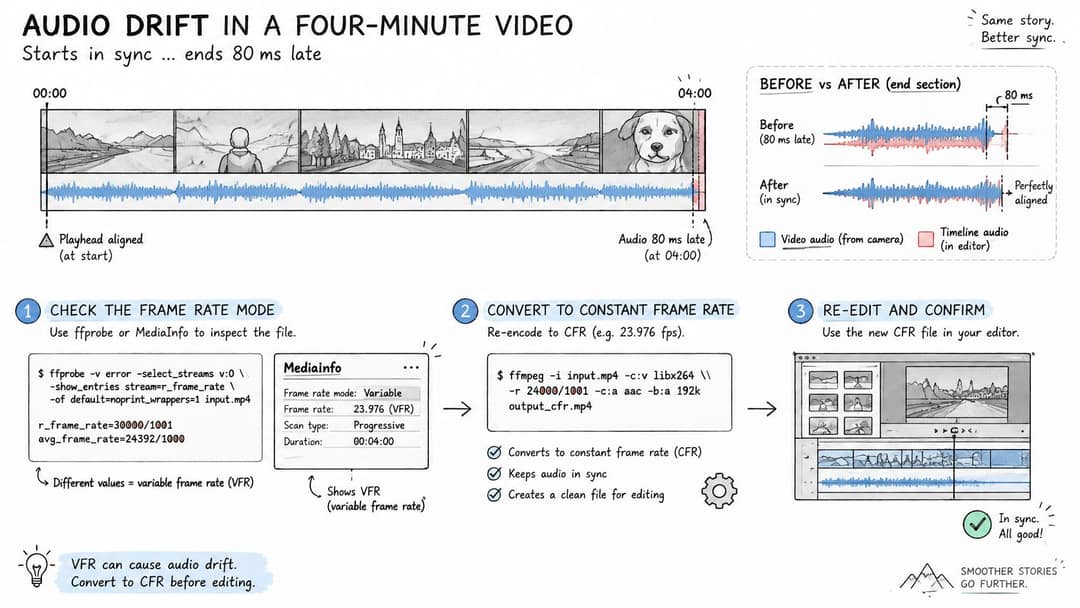
Say a screen recording begins in sync but finishes with noticeably late audio. Moving the entire soundtrack earlier repairs the ending while spoiling the opening. You haven't corrected its timing relationship, only moved the mismatch.
A constant-frame-rate conversion can help when irregular source timestamps are the cause. It isn't a universal cure for independently recorded audio or an incorrect speed change.
This diagram shows the distinction between irregular source timing and a normalized editing file.
Inspect and normalize the source
- Inspect the file. Open it in MediaInfo and look for the frame-rate mode. For more detailed inspection, ffprobe can expose frame timestamps and stream durations. Don't assume an editor's rounded frame-rate label proves that the recording uses regular timestamps.
- Measure the change. Compare the ending offset with the opening offset. Divide that change by the elapsed recording duration in minutes to describe drift in milliseconds per minute. Preserve the direction as well as the amount.
- Create an editing copy. In HandBrake, select the intended project frame rate and explicitly choose Constant Framerate. Keep the original file untouched and use an output quality appropriate for further editing.
- Check audio settings. Resample to the project's audio sample rate where needed. Resampling can normalize the delivery format, but it doesn't automatically repair a recording-clock discrepancy or incorrect duration.
- Replace and verify. Import the converted file and measure the same visible events. Don't rebuild captions or make detailed cuts until the corrected media passes that comparison.
Smartphone footage and screen recordings deserve particular attention because capture timing can be irregular. Mixed-camera projects also require checking each source, rather than assuming every clip shares the same timing behavior.
Know when conversion isn't enough
If the new file still drifts, inspect independently recorded audio, speed interpretation, and any time-stretch settings. A recorder running at a slightly different clock rate may need a measured duration adjustment, with pitch preservation where appropriate. Merely changing the sample-rate label can alter playback speed and pitch instead of fixing the underlying relationship.
The walkthrough below provides a visual companion for the conversion workflow.
When preparing delivery settings, use our YouTube video formatting guide alongside your timing checks. Framing and export format still need attention, but neither can substitute for a measured sync test.
Trust matching events in the converted file over a reassuring frame-rate label.
Device and Player Causes Bluetooth, TVs and Streaming
Your export looks correct on a laptop, but the television shows the speaker's lips moving before the voice arrives. Don't alter the master file yet. Compare the television's built-in speakers with its soundbar, then play another known-good video through the same setup.
Each comparison should change one part of the playback chain. Otherwise, you won't know whether reconnecting headphones, changing apps, or adjusting the TV helped.
Playback devices and apps that add audio delay
| Device or app | Typical cause | Quick fix |
|---|---|---|
| Bluetooth headphones or speaker | Codec and wireless audio buffering | Switch to wired audio or a supported low-latency mode |
| TV or soundbar | Audio processing delay | Check the TV's audio-delay or lip-sync setting |
| HDMI ARC or eARC soundbar | Passthrough processing | Try the soundbar's direct or game mode |
| Streaming app on a smart TV | App buffering or decoder behavior | Restart the app, update firmware, and test lower quality |
| Desktop browser | Hardware acceleration or extensions | Test a clean profile or disable hardware acceleration |
| Phone video player | Equalizer or spatial-audio processing | Turn off those effects and compare playback |
Adjust the playback chain, not the master
Check the direction before touching a delay slider. Many devices can add audio delay but can't advance already-late sound. If speech is late, increasing that slider makes the mismatch worse. Reduce existing delay, bypass processing, or test a more direct connection instead.
For Bluetooth troubleshooting, establish a stable connection before judging timing. The Used Mobiles 4 U headphone setup guide is useful if you need to check the laptop pairing setup before comparing wireless playback with wired audio.
Direct or game modes can reduce processing, but they may also disable surround effects or other preferred features. Treat them as diagnostic settings first. If changing a setting doesn't improve the same test passage, restore it rather than accumulating unrelated adjustments.
For streaming problems, compare the same upload in another app or browser. Lowering playback quality is a useful test when playback also stalls, but it won't repair timing already encoded into the video.
Finish by replaying the opening, middle, and ending on the affected device. If other devices agree and only this setup remains wrong, keep troubleshooting that setup instead of baking compensation into a file everyone else will watch.
Confirm Sync Before You Publish
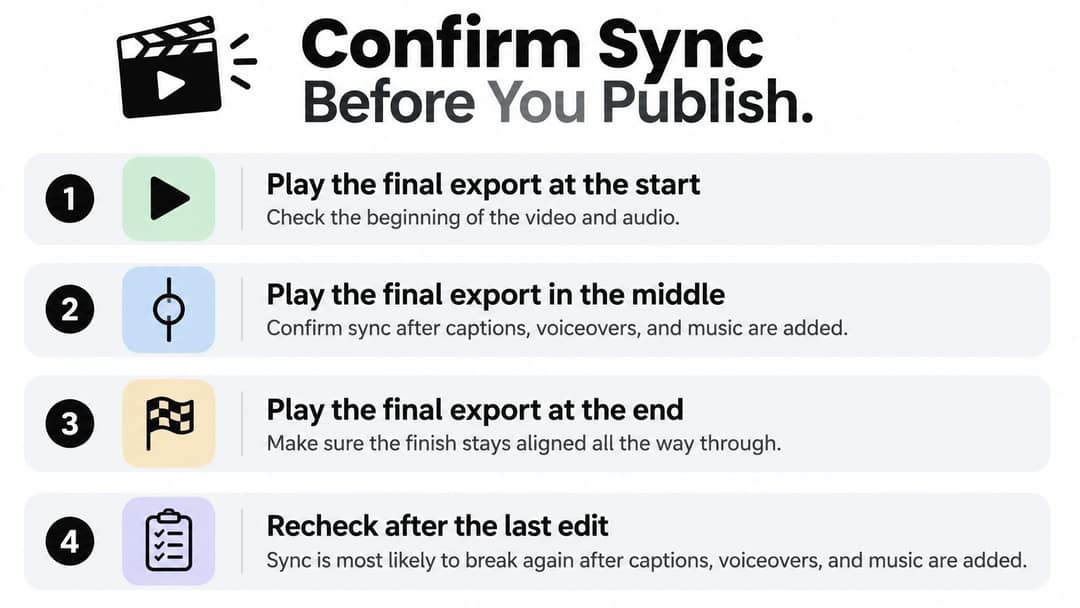
Approve the final export, not the editing preview. Captions, replacement voiceovers, music edits, and scene changes all deserve a final check, even when the previous version passed.
- Play across the finished video. Inspect the beginning, middle, and end on a device representative of your audience's viewing setup.
- Check different reference types. Use a sharp visible impact and a clear mouth movement in each main section. Don't approve the entire video from an opening logo animation.
- Inspect delivery settings. Confirm the intended frame rate and audio sample rate, and check that audio and video cover the intended program duration.
- Review changed layers. Caption timing is separate from lip sync. A late subtitle doesn't necessarily mean the voice track needs moving.
- Watch the processed upload. Wait for platform processing, then play the uploaded version rather than assuming it matches your local file.
Keep this checklist beside the final review.
Repair only what failed
If a single segment is wrong, inspect that segment's clip boundaries, speed, and audio placement before rebuilding the project. Our timeline editor lets you change a line, swap a scene, restyle captions, or regenerate one shot without starting over, then export in 720p, 1080p, or 4K.
Keep upload troubleshooting separate from source repair. If you're also distributing music through OohYeah, you can find help with music uploads for that workflow rather than changing a correctly aligned video to compensate for an unrelated upload issue.
For any remaining mismatch, write down whether it's constant, increasing, or isolated to playback. Make the correction that matches that evidence, then approve a fresh export.
Revid.ai brings scripts, voiceovers, visuals, subtitles, and editing into one workflow, with a timeline editor for targeted revisions. Visit revid.ai to create your next video, refine the parts that need attention, and run your final sync checks before publishing.
FAQ
How do I know if my audio is out of sync by a fixed offset or drifting?
Check a sharp sound with a visible action near the beginning, middle and end of the video, and note the gap and whether sound is early or late. If the gap stays the same, it is a fixed offset you can fix by shifting the audio. If the gap grows over time, it is drift, often linked to variable frame rate recordings.
How many milliseconds of audio delay do viewers notice?
ITU-T Recommendation J.248 puts average detectability near +45 ms for audio arriving early and -125 ms for audio arriving late. Average acceptability boundaries are wider, around +90 ms and -185 ms. Viewers tolerate late audio better than early audio, so an early voice track should be fixed first.
How do I fix audio that drifts out of sync over time?
Inspect the file in MediaInfo to check the frame-rate mode, then create an editing copy in HandBrake with Constant Framerate selected at your project frame rate. Import the converted file and measure the same visible events again. If it still drifts, check independently recorded audio, speed interpretation and time-stretch settings.
Why is my video in sync on my laptop but not on my TV or Bluetooth headphones?
Playback hardware can add its own delay, such as Bluetooth codec buffering or TV and soundbar audio processing. Switch to wired audio, try a direct or game mode, or check the TV's lip-sync setting, changing one part of the playback chain at a time. If only one device is off, fix that setup instead of changing the master file.
What sync target should I aim for with dialogue?
A commonly recognized industry window, described by the W3C, is audio no more than 15 ms ahead or 45 ms behind video. Mismatches of 20 ms or less can be imperceptible in high-quality material. Use subframe or sample-level audio moves when your editor allows it, since one frame at 30 fps is about 33 ms.