Crop Video Online Free: 6 Steps, Best Tools and Sizes (2026)
How to crop a video online for free: the six steps, the best browser tools, the right crop size for each platform, and how to keep the result sharp.
On this page
To crop a video online, upload it to a free browser cropper such as Online Video Cutter, Kapwing or Clideo. Pick a ratio (9:16 for TikTok and Reels, 16:9 for YouTube, 1:1 or 4:5 for feeds) or drag a custom box, then export as MP4 at the source resolution. You don't need to install anything.
Most bad crops are decided before you open a tool. Cropping a 1080p landscape video to vertical keeps only about a third of its width. The platform then stretches that slice to fill a phone screen, so it looks soft next to footage shot vertically. Start from the highest-resolution file you have, and check the whole clip before you export, not just the first frame.
How to crop a video online, step by step
These steps work in almost every browser cropper. Button names vary a little from tool to tool.
- Open a cropper and upload your file. Drag the video into the page or pick it from your computer, phone or cloud drive. Use the original file, not a copy saved from a social app, because those copies are already compressed.
- Choose an aspect ratio preset. Pick 9:16 for TikTok, Reels and Shorts, 16:9 for YouTube, and 1:1 or 4:5 for feed posts. Use the custom or free option only when you need an exact pixel size.
- Position the crop box. Drag it over the part you want to keep. For a person, leave a little space above the head and put the eyes about a third of the way down the frame.
- Scrub through the whole video. Drag the playhead from start to end. If the subject walks out of the box, move the box or use a tool with subject tracking (see AI cropping below).
- Set the export. Choose MP4, keep the source frame rate, and export at the source resolution or the platform target (1080 x 1920 for vertical).
- Download and check. Watch the file once on your phone and look for a watermark, black bars or blur before you post.
How to crop part of a video frame, the sides or the height
A free crop means dragging the box without a locked ratio. It is how you crop part of a video, for example to cut a webcam window out of a screen recording or remove a logo at the edge.
- To crop the sides of a video, drag the left and right handles inward. Picking 9:16 or 1:1 on a landscape clip trims the sides for you.
- To crop the height, drag the top and bottom handles. This removes letterbox bars from footage that was exported with black bars baked in.
- To crop a video to a custom size, type the width and height in pixels. It is the most precise way to crop a video frame online.
Platforms still display your video in their own shape. An odd-shaped clip gets black bars or a blurred fill on TikTok, so if the video is headed to social media, finish on a standard ratio.
Best free tools to crop video online
All of these run in the browser with no download. Free plans change often, so before you put work into an edit, check the export screen for a watermark, a resolution cap or a file-size limit.
| Tool | Best for | Watch out for |
|---|---|---|
| Online Video Cutter | Quick crops with ratio presets, plus trimming | Few features beyond cut, crop and resize |
| Ezgif | Fast, no-frills cropping by pixel values | Built around GIFs; limited editing and upload size |
| Kapwing | Cropping plus text, subtitles and transitions | Free exports may carry a watermark |
| Clipchamp | A full timeline editor in the browser or as a Windows app | Some export options require a paid plan |
| Clideo | A simple cropper that accepts many file formats | Free output has file-size limits and a watermark |
| Revid resize video | One clip converted to 9:16, 4:5, 16:9 or 1:1 | Built for social formats; uses credits |
Which one to use:
- One clip, right now: Online Video Cutter. Its crop video page opens straight on the crop tool.
- Crop plus captions or text: Kapwing or Clipchamp.
- Exact pixel dimensions: Ezgif's number fields are the quickest.
- A file format other tools reject: Clideo.
- Social presets: Biteable is a template-based video maker that also offers a crop video tool with presets for social platforms such as Facebook, Instagram and X.
If you need to crop a long video, keep in mind that browser tools upload the whole file first. For a long or very large file, a desktop editor or Clipchamp's Windows app saves you the upload wait and the free-plan size limits.
Crop video online with Revid when you need several formats
Cropping one clip by hand is quick. Posting it on four platforms means cropping it four times and repositioning the subject each time.
- Open Revid's resize video tool and upload the clip.
- Choose the output: portrait 9:16, feed 4:5, landscape 16:9 or square 1:1.
- Choose how the video fills the frame: smart crop, fit with borders, or a blurred background that keeps the whole picture.
- Export, then run the clip again for the next format.
If your source is a YouTube video, the YouTube to TikTok converter turns it into vertical clips from the link. The caption generator adds automatic captions once the crop is done. Sign-up is free, new accounts get free credits, and Revid shows what a video will cost before you generate it.
What size should you crop a video to for each platform?
| Platform | Crop to | Pixels | Limits worth knowing |
|---|---|---|---|
| TikTok | 9:16 | 1080 x 1920 | Uploads up to 60 minutes; 10 minutes with the in-app camera |
| Instagram Reels | 9:16 | 1080 x 1920 | Accepts 1.91:1 to 9:16, at least 30 FPS and 720 pixels; up to 20 minutes, but only reels of 3 minutes or less are recommended to non-followers |
| Instagram Stories | 9:16 | 1080 x 1920 | Full-screen vertical; keep text away from the top and bottom |
| Instagram feed | 4:5 or 1:1 | 1080 x 1080 for square | The profile grid shows vertical rectangles, so keep the subject centered |
| YouTube | 16:9 | 1920 x 1080 | Up to 12 hours or 256 GB; 15 minutes until the account is verified |
| YouTube Shorts | 9:16 | 1080 x 1920 | Square or vertical videos up to 3 minutes count as Shorts |
| 9:16 | 1080 x 1920 | Every new video is a reel, with no length or format restriction | |
| X | 16:9, 9:16 or 1:1 | 1280 x 720, 720 x 1280 or 720 x 720 | Accepts 1:3 to 3:1; up to 20 minutes on non-Premium accounts |
For YouTube-specific methods, including Shorts, see how to crop videos for YouTube. If you post from a computer, you can upload the vertical file through TikTok's website.
Brands crop the same footage for several networks because video is central to their marketing. Wyzowl's 2026 survey found that 91% of businesses use video as a marketing tool (see our short-form video statistics). Motionbox keeps an older roundup of video marketing statistics if you want more context.
How to crop a video for Instagram
Crop Reels and Stories to 9:16 at 1080 x 1920. Crop feed videos to 4:5 or 1:1, and keep the subject in the middle, because the profile grid trims the edges of the thumbnail.
To check a crop against the real interface, lay it over the TikTok safe zone template or the Instagram Reels safe zone checker.
How to crop a video online without losing quality
Cropping always throws pixels away, and no tool can add them back. What you control is how much you lose, and whether the export adds more damage on top.
The biggest loss comes from turning landscape into vertical. A 9:16 slice of a 16:9 frame is only about a third as wide as the original, so most of the picture goes, and the platform enlarges what is left to fill the screen.
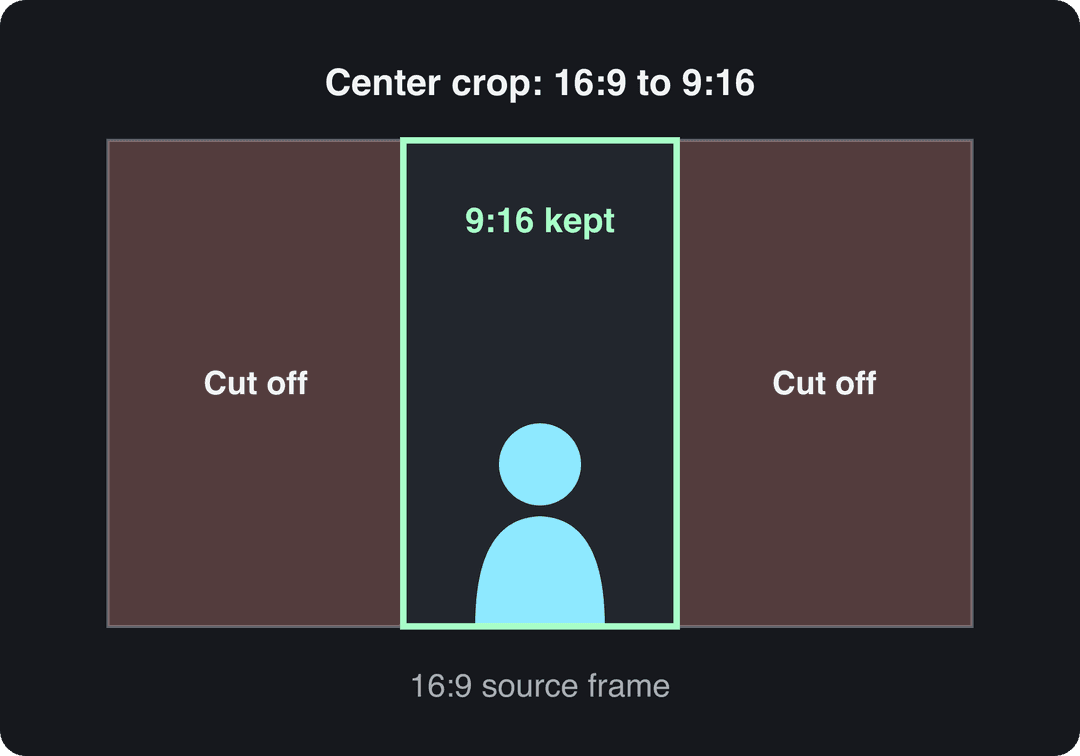
Five rules for a sharp crop:
- Start from the best source. A 4K landscape file still leaves enough pixels for a sharp 1080 x 1920 vertical crop. A 1080p file does not, so expect some softness.
- Crop once. Every crop and re-export compresses the video again, so do all your edits in one pass from the original.
- Export as MP4. TikTok recommends MP4 for uploads through its API and Facebook recommends .mp4 files for Reels, so keep the tool's default MP4 output.
- Keep the frame rate. TikTok's API accepts 23 to 60 FPS and Instagram Reels need at least 30 FPS. Don't let the tool drop a 60 FPS clip lower than you need.
- Skip 720p for vertical posts. It meets Instagram's minimum but looks soft on a phone. Export at 1080p or higher when the tool allows it.
What features keep quality when you crop a video?
| Feature | Why it matters |
|---|---|
| Aspect ratio presets | Locks the shape so nothing gets stretched |
| Pixel input for width and height | Exact crops for screen recordings and odd sources |
| Export at source resolution (1080p or 4K) | No forced downscale on top of the crop |
| Frame rate kept on export | Smooth motion, especially for 60 FPS footage |
| Full-clip preview | Shows when the subject leaves the frame |
| Subject tracking (content-aware crop) | Keeps a moving subject inside a vertical frame |
| No watermark on export | Saves you a second crop to hide it |
Crop, trim or resize: which do you need?
| You want to | Use | What it changes |
|---|---|---|
| Remove the edges or zoom in | Crop | The frame area; resolution drops |
| Remove the start, end or a middle part | Trim or cut | The length; the frame is untouched |
| Change the ratio but keep everything visible | Resize with borders or a blurred background | The canvas; nothing is cut |
| Fix sideways or upside-down footage | Rotate | The orientation |
Most online editors that crop and cut do both on one screen: set the crop box, then drag the timeline handles to trim. For sideways phone footage, rotate the video first, or the crop box works on the wrong axis.
The crop-or-fit decision comes down to who is in the shot. If the source is landscape and the speaker sits in the middle, a center crop to 9:16 works. If two people talk at opposite edges of the frame, a center crop cuts both of them. In that case, crop each shot separately or use a blurred-background fit. The trade-offs are covered in more depth in our guide to changing a video's aspect ratio.
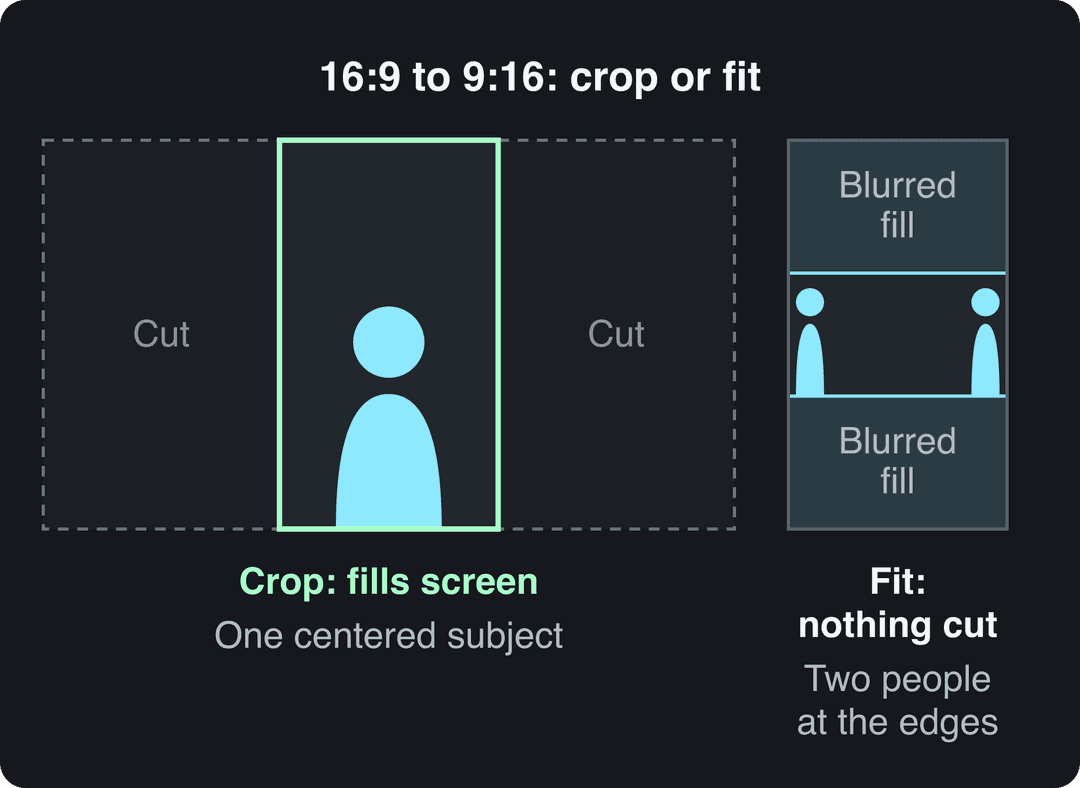
How to frame a crop so it looks professional
A crop changes what the viewer looks at, not just the shape of the video. These rules decide whether it looks deliberate or accidental:
- Use the rule of thirds. Picture a 3 x 3 grid over the frame and put the eyes or the main object on a line or an intersection, not dead center. On a vertical crop, the top third line is where eyes usually belong.
- Leave headroom and lookspace. Keep a small gap between the top of the head and the frame. Leave more space on the side the person is facing than behind them.
- Don't over-crop. Cutting away every bit of background makes a subject look cramped and strips the context (where they are, what they are holding). Remove distractions, not the setting.
- Match tightness to the moment. A tight crop on a face feels close and intense; a wider frame gives a place room to breathe. Use the tight crop for the key line, not for the whole video.
- Keep framing consistent. Crop clips in one sequence to similar sizes and positions so cuts between them don't jump. The same habit across all your videos also gives your channel a recognizable look.
- Reframe between speakers. In a two-person conversation, move the crop to whoever is talking instead of holding one wide frame.
What is AI or content-aware video cropping?
Content-aware cropping (also sold as AI video crop, smart crop, auto reframe or subject tracking) detects the main subject in each shot and moves the crop window to follow it. A fixed crop keeps the box in one place for the whole video.
Use content-aware cropping for interviews, sports, vlogs and anyone who walks around the frame. Use a fixed crop for static shots: a product on a table, a screen recording, a talking head that never moves. The manual version is pan and scan: in a timeline editor, you set keyframes on the crop position so the box moves with the action.
Where to crop a video: iPhone, Android, Windows and Mac
You don't always need a website:
- iPhone: open the video in Photos, tap Edit, then the crop icon. Drag the corners or pick a ratio, then tap Done.
- Android: open the video in Google Photos, tap Edit, then Crop.
- Windows: Clipchamp's Windows app crops and trims without uploading the file.
- Mac: iMovie has a crop button above the preview.
- Any device: the browser tools above work on phones and computers alike.
To crop a video from YouTube, use only your own uploads or videos you have permission to reuse. The steps are in our guide to cropping videos from YouTube.
FAQ
Can you crop a video?
Yes. Browser croppers, the iPhone Photos app, Google Photos and most video editors can crop a video's frame. Cropping removes the edges of the picture; to make the video shorter, trim it instead.
How do I crop a video online for free without a watermark?
Pick a cropper whose free export has no watermark, and check this before you edit. Ezgif and the built-in editors in iPhone Photos and Google Photos export without one, while the free plans of full editors sometimes add a watermark.
Why are there black bars after I cropped my video?
The cropped shape doesn't match the platform's screen. Crop to the platform's ratio (9:16 for TikTok, Reels and Shorts), or fill the gap with a blurred background instead of bars.
Why does my cropped video look stretched?
The tool scaled the video to a new shape instead of cropping it. Lock an aspect ratio preset before you drag the crop box, so the width and height change together.
Does cropping a video make it blurry?
Only when you crop away a large share of the frame and the platform enlarges the rest. Crop from a 4K or high-resolution source and export at 1080p or higher to keep it sharp.