On this page
Adding an AI voice to a video takes about two minutes. Getting it to sound like an actual person? That's where most creators get stuck. And the reason is almost never the tool. It's the script. It was written for reading, not speaking, and no AI voiceover engine in the world can save a script that wasn't written for a human ear.
This guide covers the full workflow: the right approach for your starting point, how to write a script an AI can actually deliver well, how to sync voice to visuals, what the free-plan limits actually mean in 2026, and what each platform requires before you publish. We've built Revid.ai around this exact workflow, and we've watched enough creators make the same mistakes to know exactly where things go wrong.
By the end, you'll know which free tool fits your situation, the two or three techniques that make AI voice sound natural, and the disclosure rules you need to follow before you hit post.
What Does "Add AI Voice to Video" Actually Mean?
People use this phrase for five different jobs, and each one needs a slightly different tool and workflow.
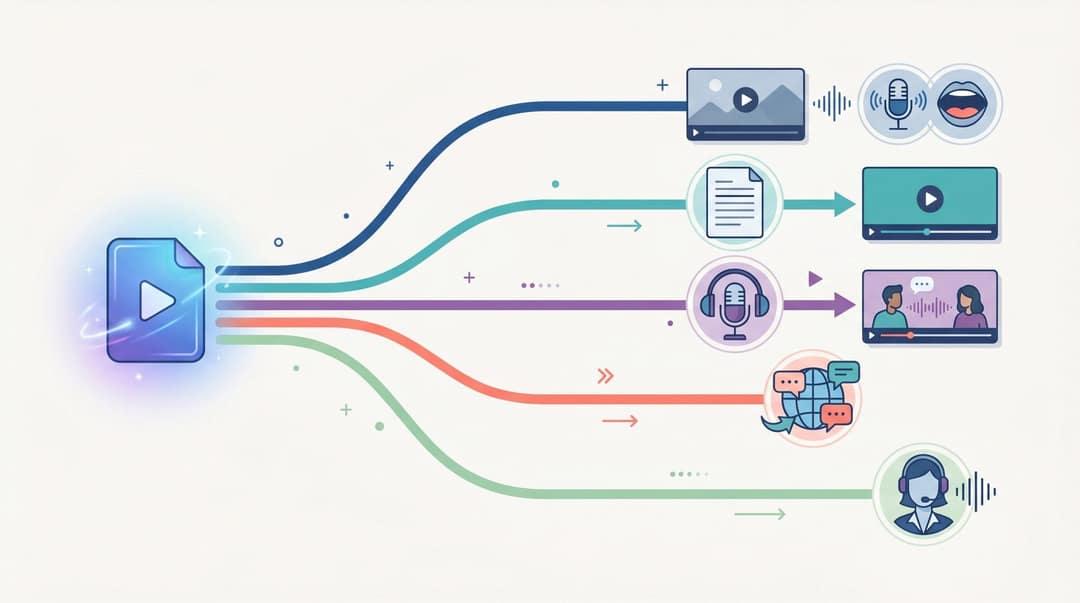
| Goal | What you need | Best workflow |
|---|---|---|
| Add narration to a silent video | Existing video + script | AI voiceover tool |
| Turn a script into a complete video | Script or idea | Script-to-video generator |
| Turn an audio file into a visual video | Podcast, recording, or song | Audio-to-video generator |
| Translate or dub a video | Existing spoken video | AI dubbing tool |
| Make an avatar speak | Script + avatar or image | Talking avatar tool |
Knowing which of these five you're actually doing changes everything about which tool you open and which steps you follow. A creator who wants to add narration to a silent product clip needs a different workflow than someone turning a podcast episode into a captioned video, which is different again from someone building a talking avatar for a brand channel.
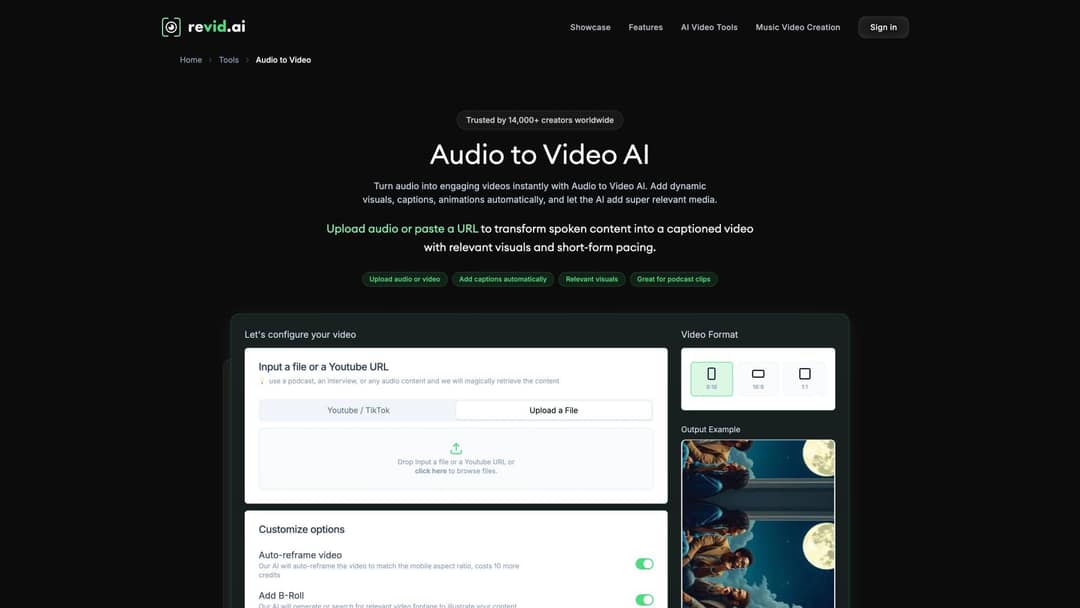
For the audio-to-video case specifically, our Audio to Video tool handles podcasts, voice recordings, educational content, and music files, turning them into MP4 videos with synchronized visuals, captions, and optional sound wave effects. If that's your starting point, that's where to go. For everything else, keep reading.
4 Free Ways to Add AI Voice to Video (And When to Use Each)
There's no single "right" way to add AI voice to video for free. The approach that makes sense depends on what you're starting with and what you're trying to produce.
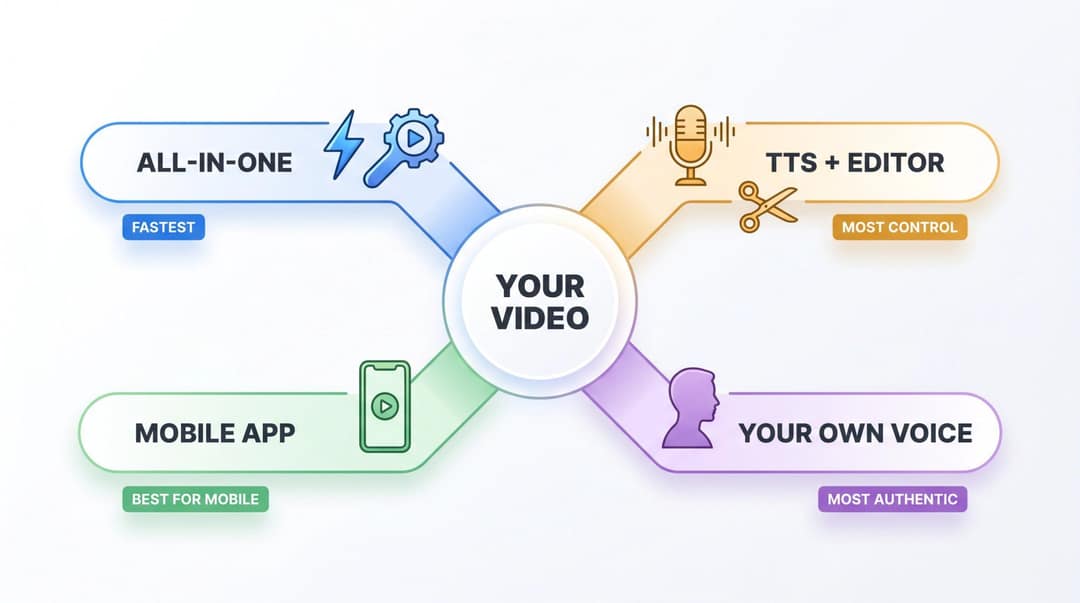
Workflow 1: All-in-One AI Voiceover Video Maker
This is the fastest path from clip to finished video.
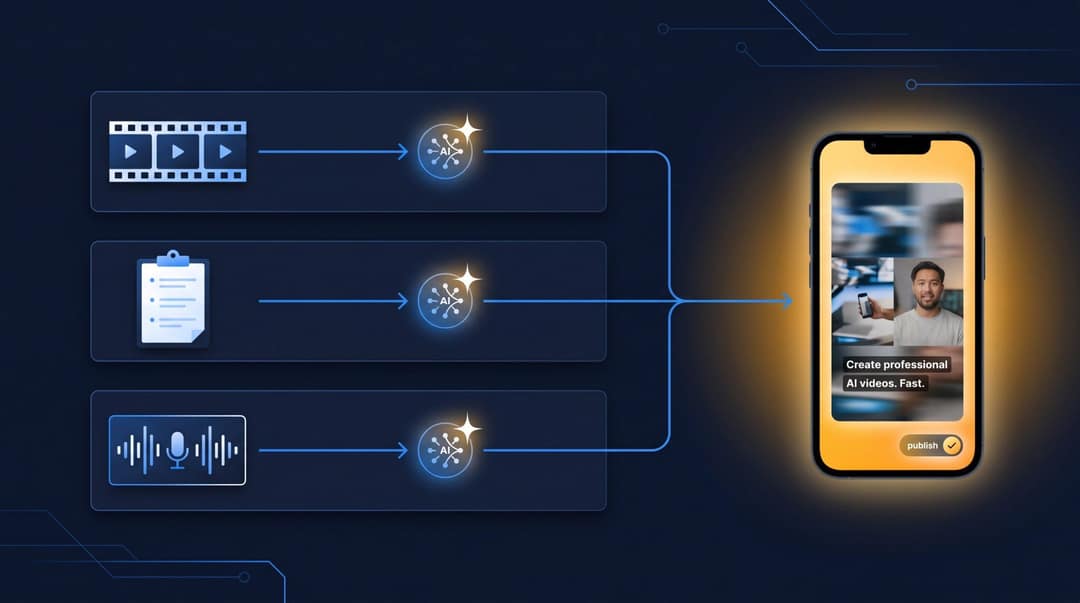
You upload your footage, paste a script, choose a voice, and the tool handles the rest: syncing the audio to the timeline, adding captions, and preparing the export. Our AI Voiceover & Subtitles Generator is built exactly for this. Upload the clip, paste your script, select a voice from 1,000+ options, and generate. Visuals, captions, and voice are assembled together.
Best for: TikToks, Reels, YouTube Shorts, product demos, tutorials, UGC-style ads, faceless video content
Main benefit: One tool handles voice, video, captions, sync, and export
Tradeoff: Less manual audio control than a dedicated audio workstation
Workflow 2: Standalone Text-to-Speech + Video Editor
Use this when voice quality or control matters more than speed.
You generate the AI voice in a dedicated text-to-speech tool, download the audio file, then bring it into a separate video editor. ElevenLabs offers a free plan with 10,000 characters per month (roughly 10 minutes of audio) and access to text-to-speech in 32+ languages. The free plan is limited to personal, non-commercial use with attribution. Paid plans unlock commercial usage rights.
-> Best for: Podcasts, long YouTube narration, high-quality explainers, branded voice experiments
-> Tradeoff: You sync the voice to video manually, which takes more time
Workflow 3: Native Social Editor or Mobile-First App
Use this when the video is short and you're already editing for mobile.
CapCut's text-to-speech feature currently lists 1,000+ AI voices, 16 languages, speech-rate and volume controls, voice cloning, and direct use inside desktop or online editing workflows. CapCut also says generated audio can be used commercially, subject to its terms and platform guidelines.
Best for: Quick TikToks, meme videos, trend content, mobile creators
Tradeoff: Feature availability can shift; advanced brand workflows may be limited
Workflow 4: Record Your Own Voice, Let AI Handle the Video
Use this when authenticity matters more than convenience.
A real voice often builds more trust than a synthetic one, especially for founder content, coaching, sales videos, or anything where the viewer needs to connect with a person. Our platform lets you record directly or upload a pre-recorded audio file in the "Select Voice or Record Yourself" section. That audio then feeds the same video pipeline, so you still get AI-matched visuals, captions, and export formatting.
| ㅤ | Details |
|---|---|
| Best for | Personal brand content, coaching, founder-led sales, high-ticket offers |
| Tradeoff | Requires a clean recording or time to re-record |
How to Add AI Voice to Video for Free with Revid: Step-by-Step
This workflow is for someone who already has footage and wants to add narration.
Step 1: Choose the Right AI Voice Tool for Your Starting Point
If you have a video clip that needs narration: Open our AI Voiceover & Subtitles Generator.
If you only have a script: Use our Voiceover Video Maker, which generates a complete narrated video from text or a URL. It supports 1,000+ AI voices in 70+ languages, natural lip sync, and portrait, landscape, or square output.
If you only have audio: Start with our Audio to Video converter.
If you only have an idea: Browse our free AI video tools or open the AI Video Generator to go from prompt to finished video.
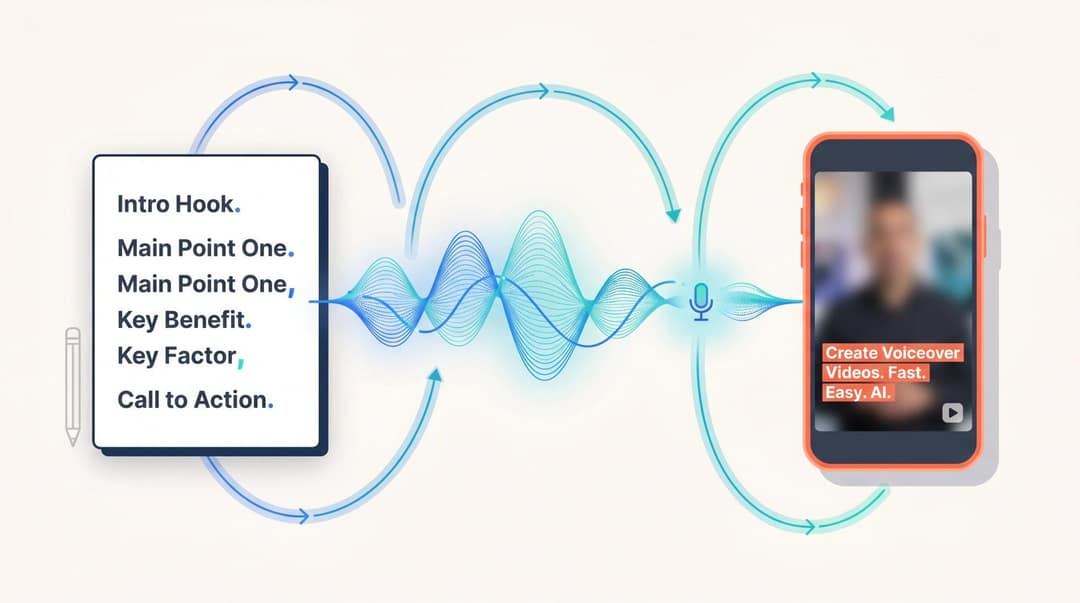
Prompt to try
Make a 30-second vertical voiceover video about three mistakes people make when brewing coffee at home. Open with the hook: "Your coffee tastes bitter, and it's not the beans." Use a calm, conversational voice, short punctuated sentences, close-up kitchen visuals and bold captions.
Step 2: Upload Your Video Clip
Any clip works. Product demos, screen recordings, travel footage, silent UGC-style ads, tutorials, gameplay clips, before-and-after content, video without showing your face, b-roll that needs narration. For short-form platforms, use vertical footage when possible.
TikTok's March 2026 ad specs list vertical 9:16 as the recommended format for in-feed ads, with a minimum resolution of 540×960. YouTube classifies square or vertical videos up to three minutes as Shorts for standard channels when uploaded on or after October 15, 2024.
Step 3: Write a Script That Sounds Natural Out Loud
Most bad AI voiceovers start with a script that was written like a blog post or an email.
The wrong approach:
The right approach:
Short sentences. Clear punctuation. One idea per line. Our platform guide notes that correct punctuation improves generated voice quality and recommends short punctuated sentences, bracketed visual notes, and explicit line breaks for slide separation. For structured examples of effective voiceover scripts, see our voiceover script examples.
Step 4: Add Brackets to Guide Visuals Without Speaking Them
When you want the video to show something specific without the AI saying it out loud, put it in brackets.
Bracketed notes guide the media generation but don't get spoken. This is one of the most underused features for script-to-video workflows.
Step 5: Choose an AI Voice That Matches Your Video Style
A few practical rules:
- Educational video****: calm, clear, medium pace
- TikTok or Reels: conversational, slightly faster, expressive
- Product demo: confident, helpful, polished
- UGC-style ad: casual and natural, not "announcer-like"
- News or recap format****: neutral, precise, lower emotional range
Revid's voice selection includes filters for language, gender, age, use case, description, and accent. The Growth plan includes 70+ language voiceovers, which is useful for multilingual repurposing at scale.
Step 6: Control AI Voice Pacing with Punctuation and Pauses
AI voices sound robotic for one of four reasons: sentences are too long, punctuation is missing, the pace doesn't match the visuals, or the script has no emotional variation.
Think of punctuation as directing:
- Periods for clean stops: "That worked. But only for a week."
- Commas for light pauses: "At first, the video looked fine, but the audio felt off."
- Line breaks for scene changes between ideas
- Break tags for intentional dramatic timing:
<break time="0.8s" />
Break tags are simple formatting codes you can insert directly into the script. They tell the voice engine to pause for a specific number of seconds before continuing. For example:
For the complete reference on using pauses in Revid, see our guide on adding pauses to your Revid voiceover.
Step 7: Generate the Voiceover and Check for Errors
Listen to the voiceover before you look at the visuals. Check for:
- Mispronounced brand names or acronyms
- Numbers read in the wrong format
- Strange pauses or robotic delivery
- Pacing that's too fast for short-form or too slow for educational content
If something sounds wrong, fix the text first. Regenerating blindly without changing the script produces the same result. Our guide on modifying the transcript and regenerating the voice in Revid walks through this process step by step.
Step 8: Sync AI Voice to Your Video Timeline
The voiceover feels professional when the viewer hears the right phrase at the right visual. A few rules that actually make a difference:
- Put the strongest sentence in the first 1 to 3 seconds
- Change the visual when the idea changes, not before or after
- Don't show a product feature before the voice names it
- Cut dead air unless the pause is creating intentional suspense
- Keep captions inside safe zones so platform buttons don't cover them
Revid's automatic video editing tools handle much of this alignment automatically. Frame timing, b-roll matching, and silence removal all work together to keep voice and visual in sync.
TikTok provides safe-zone guidance specifically because interface overlays and captions can hide content on live placements.
Step 9: Add Captions to Your AI Voiceover Video
Captions are not optional for most social video. Most viewers scroll with sound off, and a voiceover without captions loses those viewers entirely.
For short-form content, captions work best when they're large enough to read on a phone, high contrast, broken into short phrases timed to the voice, and placed away from platform UI elements. Revid's caption generator supports auto-synced captions in 100+ languages alongside the voiceover and visuals.
Step 10: Export Your Video in the Right Format
| Platform | Recommended format |
|---|---|
| TikTok | 9:16 vertical; keep key text away from bottom UI |
| Instagram Reels | 1080×1920, 9:16; keep elements centered for grid preview |
| YouTube Shorts | Square or vertical, up to 3 minutes; 9:16 is standard |
| 1:1, 4:5, or 16:9 depending on feed placement | |
| Website or product demo | 16:9 or square depending on embed location |
Buffer's 2026 Instagram size guide lists Stories and Reels at 1080×1920 with a 9:16 aspect ratio, and notes that Reels appear as 3:4 thumbnails on the profile grid. For a full breakdown of specs, see our Instagram Reels dimensions guide. For TikTok formatting details, see our TikTok aspect ratio guide.
Quick CTA: If you haven't tried this yet, start for free on Revid. No credit card required.
How to Make AI Voice Sound Natural (Not Robotic)
The best AI voiceovers in 2026 don't sound natural because the AI is magical. They sound natural because someone put thought into the script, the voice choice, and the pacing. The AI is just executing well on a solid foundation.
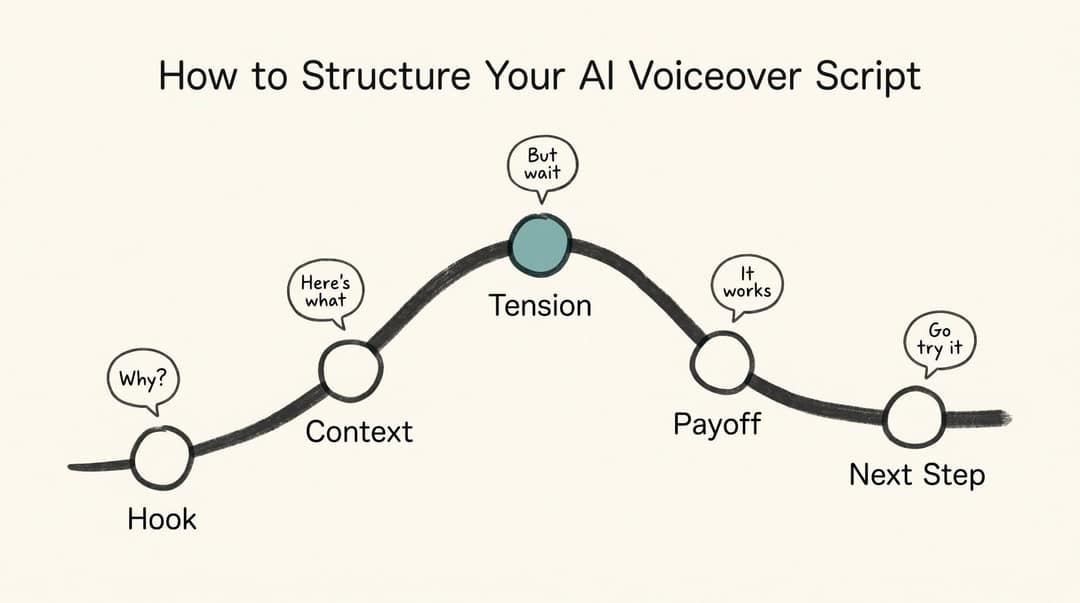
1. Write Your Script for Spoken Delivery, Not Reading
A voiceover script that works sounds like someone talking, not like someone presenting a slide deck.
Example that follows this structure:
2. Rewrite the Script Before You Change the Voice
The most common mistake: keep regenerating with different voices instead of editing the text. If a sentence sounds awkward, it's almost always because the sentence itself is awkward. Rewrite the line first.
3. Add Short Pauses Before Key Statements
Pauses create emphasis and confidence. They make the voice feel deliberate, not rushed.
4. Spell Out Brand Names and Acronyms Phonetically
If the tool mispronounces a brand name, acronym, or number, rewrite it so the sound is obvious:
- "SaaS" → "sass" or "software as a service"
- "API" → "A P I" (spelled out)
- "$39" → "thirty-nine dollars"
- "2026" → "twenty twenty-six"
5. Break Longer Voiceovers Into Scene-by-Scene Segments
For a 60-second video, don't generate one block of audio. Build it scene by scene:
Scene 1 → Hook
Scene 2 → Problem
Scene 3 → Demo
Scene 4 → Result
Scene 5 → CTA
This makes timing much easier to control and reduces robotic delivery in longer scripts.
6. Match Your Voice Energy to the Platform You're Publishing On
TikTok and Shorts reward faster pacing. Training videos reward clarity and patience. A product ad needs confidence without sounding like a radio commercial. The voice choice and speed should match where the viewer is watching, not just what the video is about.
7. How to Fix Common AI Voice Problems
| Problem | Likely cause | Fix |
|---|---|---|
| Voice sounds robotic | Long sentences, weak punctuation | Split sentences, add commas and periods |
| Voice too fast | Script trying to say too much | Remove 20-30% of words, add pauses |
| Voice too slow | Formal style or excessive commas | More energetic voice, fewer commas |
| Brand name mispronounced | TTS model is guessing | Use phonetic spelling |
| Captions don't match voice | Script changed after captions were generated | Regenerate captions after finalizing audio |
| Video feels fake | Voice, visuals, captions don't share the same tone | Make all three match one style |
How to Sync AI Voice to Video: 3 Levels Explained
Voice sync isn't binary. There are three levels, each with a different goal and different techniques.
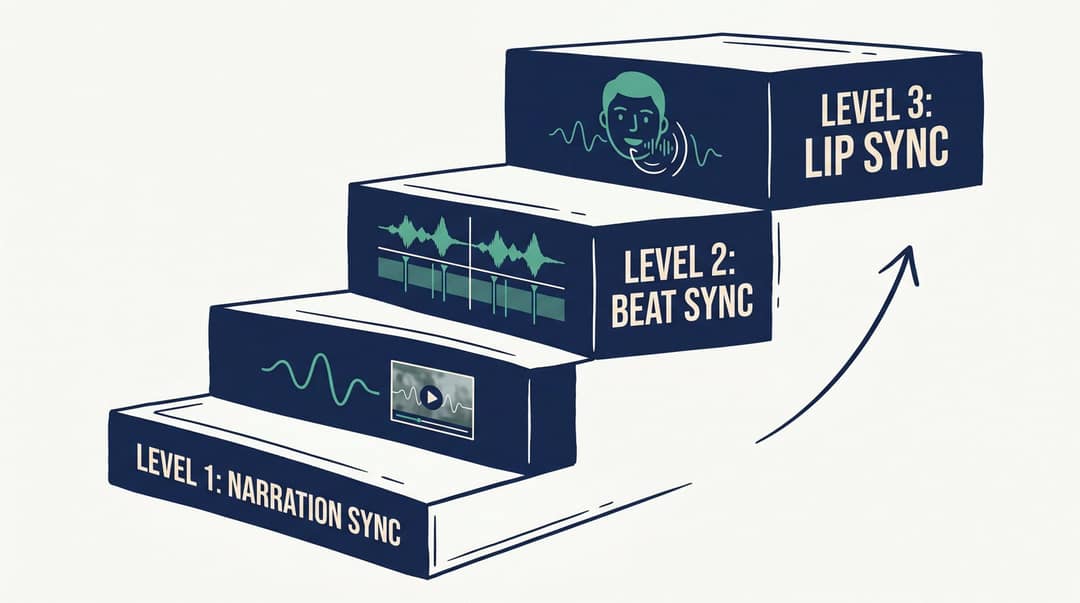
Level 1: Basic Narration Sync (Voice Over Video)
The voice plays over the video. The visuals don't need to match every specific word. This works for travel montages, motivational clips, general explainers, and listicles where the narration is providing context, not instruction.
Fixes when it feels off: adjust voice speed, trim dead air, move the audio earlier or later on the timeline.
Level 2: Visual Beat Sync (Voice Matches Scene Changes)
The visual changes when the idea changes. This is the standard for tutorials, product demos, software walkthroughs, and before-and-after videos. The viewer expects to see what the voice is describing at the moment it's described.
Fixes when it feels off: split the script into scenes, use line breaks, cut video clips to match each sentence, add zooms or highlights on key moments.
Input
Create a short vertical product promotion video for InnerNote. Positioning: LinkedIn posts that actually sound like you, not a robot.
Output
Level 3: Lip Sync (Avatars and Dubbing)
The voice must match mouth movement. This applies to talking avatars, AI presenters, UGC-style avatar ads, character videos, and dubbing. It's the most demanding level technically.
Fixes when it feels off: use shorter sentences, avoid extreme speed changes, choose a voice close to the avatar's apparent age and style, regenerate awkward lines separately.
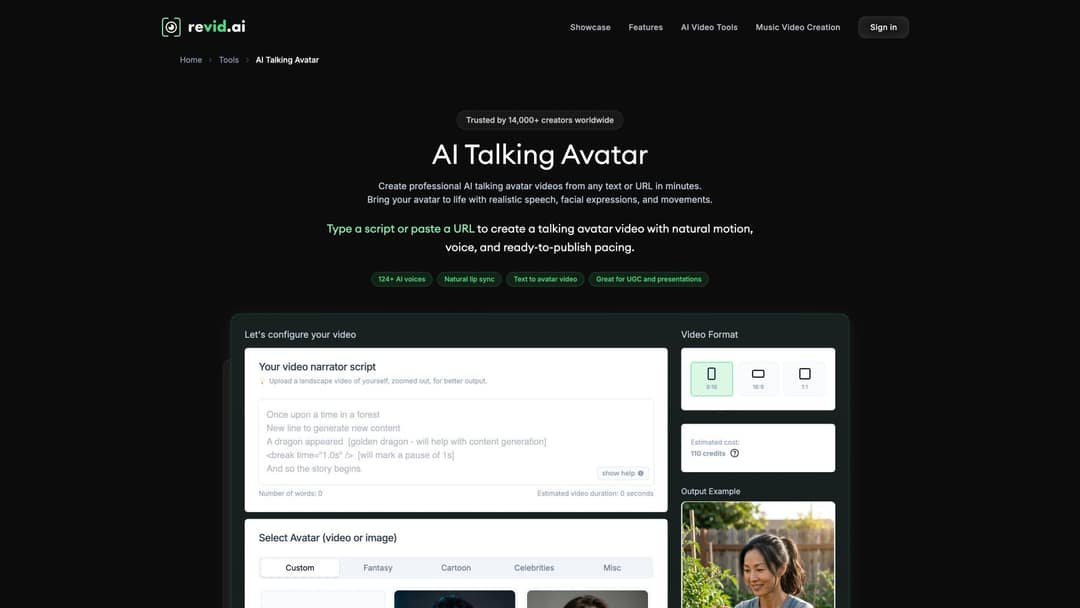
Our Talking Avatar tool handles lip sync automatically by aligning the generated voice with the avatar's mouth movement. If you're making avatar-based content rather than narrating footage, that's the tool for this level. See our talking avatar guide for a detailed walkthrough of the setup process.
What You Get Free on Revid vs. What Requires a Paid Plan
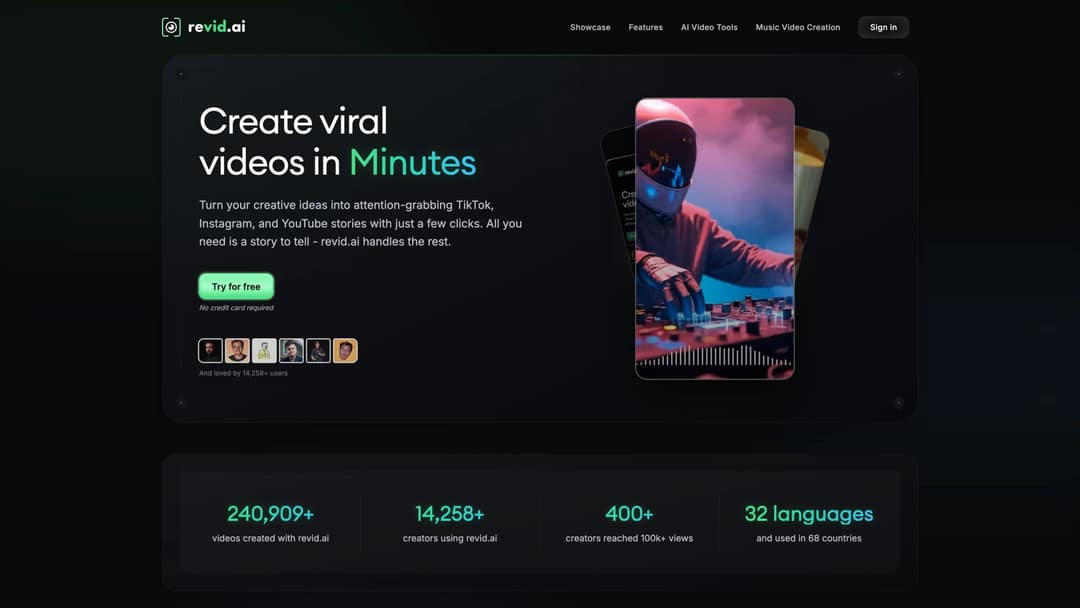
AI Voice Options on Revid's Free and Paid Plans
On the free tier:
- Free credits on sign-up to try Revid's 100+ AI video tools, including voiceover generation
- 1,000+ AI voices (ElevenLabs, Google Gemini, MiniMax) with filters for language, gender, age, and accent
- No credit card required to start
On paid plans:
- 70+ language voiceovers (Growth plan)
- More monthly credits to generate voiceovers (2,000 a month on Growth)
- Voice Design: describe a voice in plain text ("calm educational narrator," "energetic fitness coach"), add a sample text, pick a preview and save it as a custom voice (Elite plan and above, up to 3 designed voices at a time)
- Voice Cloning: upload real voice samples to create a custom voice model (Elite plan and above)
- Auto-Mode Workers for automated daily video generation from any content source
Revid Tools That Work with AI Voice
Voice is just one piece of the pipeline. Here's where each tool fits:
Audio to Video****: Upload a podcast, lecture, interview, or voice recording and get a complete MP4 with visuals, captions, and optional waveform visualization. Strong for repurposing existing audio content.
Talking Avatar****: Make an avatar speak using a script. The AI handles lip sync, so the mouth movement matches the generated voice.
AI Lyrics Video Generator****: Turn song lyrics into a video with synchronized text and visuals.
AI Music Video Generator****: Upload a music track and generate a music video with dynamic visuals matched to the audio.
Article to Video****: Paste a URL or raw article text, and Revid extracts the key points, writes a script, and builds a narrated video.
PDF to Video****: Upload a PDF (presentation, report, course material) and convert it into a narrated video.
AI TikTok Video Generator****: Optimized specifically for TikTok format, with voice, captions, and trending visual styles baked in.
AI Anime Video Generator****: Generate anime-style visuals to pair with narration for storytelling or entertainment content.
Video Podcast Generator****: Convert long-form audio content into shareable vertical video episodes with synchronized visuals and captions.
And if you're starting from scratch, our AI Video Generator lets you go from a prompt or script to a complete voiceover video with visuals, captions, and export formatting.
Start free on Revid, no credit card required →
Best Free Tools to Add AI Voice to Video in 2026
The right free tool depends on what "free" actually needs to mean for you: no watermark, commercial use, long exports, voice quality, or all-in-one editing.
| Tool | Best for | Free limits to know |
|---|---|---|
| Revid | All-in-one voiceover videos, faceless shorts, UGC-style clips, script-to-video | Free credits on sign-up; paid plans from $39/month add more credits, voice cloning (Elite), Auto-Mode, and API/MCP access |
| Clipchamp | Browser-based TTS inside a video editor | Free for all Clipchamp users; voiceovers up to 10 minutes, 0.5x-2x pace control |
| CapCut | Mobile and social creators who want fast TikTok-style editing | 1,000+ AI voices, 16 languages, commercial use subject to CapCut terms |
| Canva | Simple presentations, social videos, template-based design | Free AI voice preview; up to 1,000 characters per speech conversion |
| ElevenLabs | Higher-quality standalone AI audio | 10,000 characters/month free (~10 min); personal/non-commercial with attribution |
| Kapwing | Browser editing and quick team workflows | 10 free credits; exports up to 1 minute with watermark; TTS up to 2 minutes |
| Descript | Text-based editing, podcasts, creator workflows | 60 media minutes/month free; 100 one-time AI credits; 720p export (watermark-free exports start on paid plans) |
| VEED | Browser-based voiceovers, subtitles, simple brand videos | AI voice with preset voices and 50+ languages; check current export limits |
| Magic Hour | AI video experiments and short generated clips | 400 free credits; 17 seconds of video; personal/non-commercial use only |
What "Free" Actually Means for AI Voice Commercial Use
A free AI voice can be technically free without being free for business use. Before you use a generated voice in ads, client work, paid courses, or monetized YouTube videos, check:
- Can you use this audio commercially?
- Is attribution required?
- Do you own the final export after you cancel?
- Are there restrictions on cloned or custom voices?
- Can you use it in paid advertising?
Revid's Terms state that users "100% own the content they create" and can use it even without an active subscription. New exports require an active subscription, and credits reset at renewal (they don't roll over). Ownership doesn't mean risk-free use: if you clone a real person's voice, use copyrighted material, or mislead viewers, you're still responsible under copyright and platform policy.
AI Voice Rules on TikTok, YouTube, and Instagram (2026)
TikTok AI Voice Labeling Rules
TikTok requires creators to label AI-generated content that contains realistic images, audio, or video. This specifically includes AI-generated speech where the primary subjects are portrayed saying something they didn't actually say. Labels can be applied via text, hashtag sticker, description context, or TikTok's built-in creator label. TikTok may also apply auto-labels using AI-effect detection or C2PA Content Credentials.
If you're using AI voice to narrate your own script (not to imitate anyone), the label requirement applies to how realistic the content is, not simply the fact that AI was involved. When in doubt, label it. Audiences expect it too: in IAB's January 2026 study, nearly half of Gen Z and Millennial consumers wanted advertisers to disclose AI voices or AI avatars.
For TikTok specifically: use an energetic voice, short lines, strong captions, and keep key text away from the bottom UI. Our AI TikTok Video Generator is built around TikTok's format requirements.
YouTube AI Voice Disclosure and Monetization Rules
YouTube requires disclosure when content is meaningfully altered or synthetically generated and appears realistic. This includes cloning someone else's voice, making someone appear to give advice they didn't give, or generating realistic scenes that never happened. Cloning your own voice for voiceovers or dubs does not require disclosure, and disclosure itself doesn't limit audience or monetization eligibility.
On monetization: YouTube's policy (updated July 2025, with further clarifications in July 2026) says content that is mass-produced, repetitive, or inauthentic may not be eligible for monetization. This includes template videos with little variation, image slideshows, and content that's easily replicable at scale. Original script, real commentary, and genuine educational value matter.
Instagram and Facebook AI Voice Labeling
Meta's AI labeling approach uses labels for AI-generated video, audio, and images, based on industry-shared signals and user self-disclosure. Meta updated label wording and placement in 2024 to better distinguish fully generated content from minor AI-assisted edits. For Reels exported at 1080×1920 (9:16), note that they appear as vertical thumbnails on the profile grid (since January 2025), so your cover frame matters for how it looks in the grid.
Is It Legal to Clone a Voice? What Creators Need to Know
A safe framework:
- Use stock AI voices when you need generic narration
- Clone your own voice only with your own consent
- Clone another person's voice only with explicit, documented permission
- Don't make a real person appear to say something they never said
- Don't imply endorsement from celebrities, public figures, or professionals without permission
- Label realistic AI-generated content where platforms require it
The FTC has specifically warned that AI-enabled voice cloning can be used for impersonation and fraud, noting there is "no AI exemption" from existing laws. A Federal Register final rule on government and business impersonation became effective April 1, 2024.
AI Voice vs. Your Real Voice: Which Should You Use?
Neither option is always right. The decision comes down to what the video is actually trying to accomplish.
| Situation | Better option |
|---|---|
| Daily faceless niche videos | AI voice |
| Founder-led product launch | Real voice |
| Multilingual content repurposing | AI voice |
| Personal coaching or mentoring | Real voice |
| Product demos at volume | AI voice |
| High-ticket sales video | Real voice or approved custom clone |
| Fictional story or character content | AI voice |
| Sensitive health, finance, or legal topic | Real expert voice with careful disclosure |
The hybrid approach works well for most serious creators: record your own voice for core brand content and high-trust videos, use AI voices for faceless video content, multilingual content repurposing, and fast-turnaround experiments. This lets you build trust where it matters most without grinding through a recording session every time you need to post.
Is the Free Plan Enough, or Do You Need to Upgrade?
Free works. Until it doesn't.
Free is enough when:
- You're testing different voice styles and workflows
- You're making short, low-volume content
- You don't need commercial usage rights yet
- You're learning the toolset before committing
- Watermarks or export limits don't affect your use case
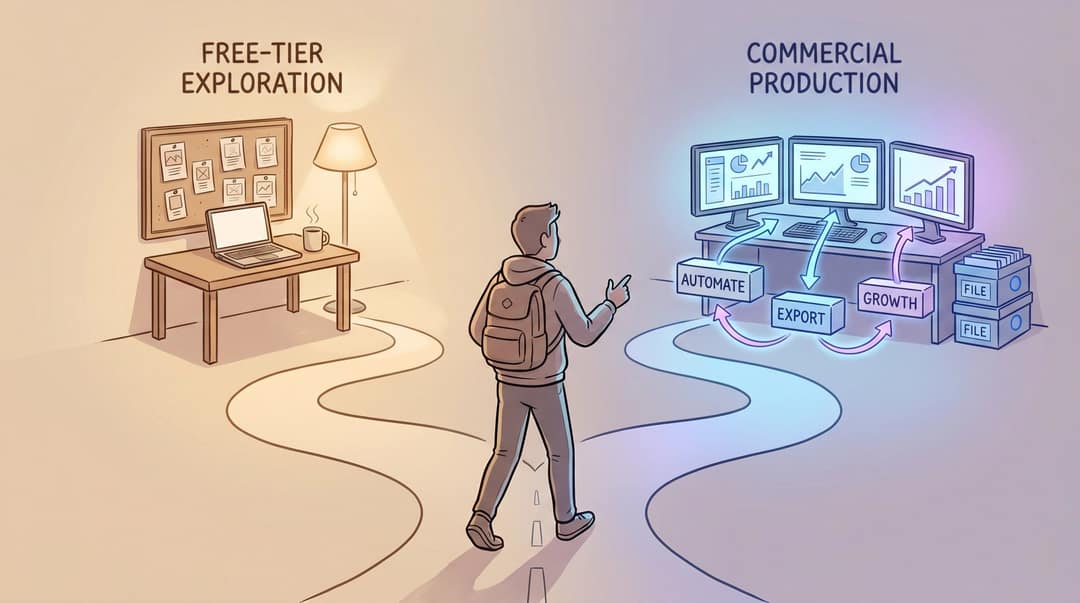
Upgrade when:
- You publish regularly and need consistent volume
- You're creating content for clients or commercial use
- You need watermark-free exports
- You need voice cloning or custom voice generation
- You want automation: Revid's Auto-Mode Workers generate videos daily from content sources like blogs, YouTube channels, or LinkedIn feeds
- You need automated daily video creation across multiple content sources without manual effort
- You need API or MCP access for programmatic workflows
- You need 70+ language voiceovers for multilingual reach
Revid's pricing page shows the Growth plan ($39/month, or $32/month billed yearly) includes 100+ AI video tools, 70+ language voiceovers, 3 Auto-Mode Workers, publishing tools, the API, MCP server and CLI, and 2,000 AI credits a month. The free tier lets you start without a credit card to understand the workflow before committing.
Frequently Asked Questions About Adding AI Voice to Video
Can I add AI voice to a video for free?
Yes. You can add AI voice to a video for free using an all-in-one AI voiceover video tool, a standalone text-to-speech generator, or a video editor with built-in AI voice. The right option depends on whether you need watermark-free exports, commercial usage rights, longer videos, specific voice quality, or fast social editing. Most free plans have at least one meaningful limit.
What's the easiest way to add AI voice to a video?
The easiest method is an all-in-one tool: upload your clip, paste your script, choose a voice, generate the voiceover, preview timing, and export. Our AI Voiceover & Subtitles Generator is built for exactly this workflow. The entire process takes a few minutes once you have your script ready.
Can I add AI voice without recording myself? Yes. AI text-to-speech tools generate narration directly from a typed script. You don't need a microphone, recording setup, or voice actor. Revid's voiceover tools are specifically designed for adding AI narration without any recording.
What's the best free AI voice generator for video?
For all-in-one video creation (voice + visuals + captions + export), Revid is the strongest option. For standalone high-quality audio only, ElevenLabs is strong, but the free plan has personal/non-commercial restrictions. For Microsoft-based browser editing, Clipchamp is free for all users with voiceovers up to 10 minutes. For mobile-first TikTok editing, CapCut is convenient.
Can I use AI voiceovers on YouTube?
Yes, but follow YouTube's disclosure and monetization rules. YouTube requires disclosure for realistic synthetic content that's meaningfully altered. Cloning your own voice for voiceovers doesn't require disclosure, but cloning someone else's voice can require both disclosure and explicit permission. Mass-produced or repetitive AI-narrated content may not qualify for monetization under YouTube's current policies.
Can I monetize videos with AI voice?
Often yes, but not always. You need commercial rights for the voice, rights to your footage and music, and content that's original or meaningfully transformed. YouTube's monetization policy focuses on originality, authenticity, and avoiding repetitive mass-produced formats. Adding real commentary, unique editing, original scripting, or educational value improves monetization eligibility significantly.
Is it legal to clone a voice?
Cloning your own voice is generally safe. Cloning another person's voice requires their explicit permission and can create legal liability if it misleads viewers or impersonates them. The FTC has specifically warned about AI voice cloning and impersonation risks, noting "no AI exemption" from existing laws.
Do I need to label AI voice on TikTok?
TikTok requires creators to label AI-generated content that contains realistic images, audio, or video. This includes AI-generated speech where primary subjects appear to be saying something they didn't actually say. When in doubt about whether your content meets the threshold, label it. TikTok may also auto-label content using its own detection systems.
How do I make AI voice sound less robotic?
Use shorter sentences, clear punctuation, intentional pauses, and a voice style that matches the video's energy. In Revid, you can insert break tags like <break time="1.0s" /> directly into your script for timed pauses, and bracketed notes like [show product dashboard] to guide visuals without speaking them. The Revid guide covers the full script formatting approach.
What format should I export for TikTok, Reels, and Shorts?
Use 9:16 vertical for most short-form video. TikTok's March 2026 in-feed ad specs recommend vertical 9:16. YouTube Shorts classifies square or vertical videos up to three minutes as Shorts. Buffer's 2026 Instagram size guide lists Reels at 1080×1920 with 9:16 aspect ratio.
Can I create a full video from only a script and AI voice?
Yes. Script-to-video tools handle the entire pipeline. Our Voiceover Video Maker lets you type a script or paste a URL, then generates a complete video with AI voice, matched visuals, synchronized captions, and ready-to-publish aspect ratios. No footage needed.
How to Choose the Right AI Voice Workflow for Your Video
Adding AI voice to video is genuinely easy now. Making it sound like something worth watching is the part that requires actual thought.
The workflow that works: write the script for speech (short lines, clean punctuation, intentional pauses), choose a voice that matches the video's energy and audience, sync the narration to visual changes rather than just playing it over footage, add captions, export for the platform, and follow the disclosure rules that apply.
If you already have footage, start with our AI Voiceover & Subtitles Generator. Upload the clip, paste your script, choose a voice, generate, and export.
If you're starting from a script, use the Voiceover Video Maker and let the AI build the visuals, voiceover, and captions from your text.
If you have audio you want to turn into video, the Audio to Video converter handles podcasts, recordings, lectures, and music files.
The skill isn't in clicking "generate." It's in the two minutes you spend on the script before you do.