Album Cover Animation: How to Animate Your Album Cover
Turn album art into a Spotify Canvas, a teaser or a YouTube visualizer: the specs for each platform, three real 6-second loops made with Revid (settings and credits), and the limits of AI animation.
On this page
To animate an album cover, turn the still artwork into a short, silent loop and export it in the format each platform asks for: a vertical 9:16 MP4 of 3 to 8 seconds, 720 to 1080 pixels tall, for a Spotify Canvas; 9:16 for Reels, TikTok and Shorts teasers; and 16:9 for a YouTube video of the full track. With AI, the cleanest Canvas comes from putting the cover in both the start frame and the end frame of a short clip, so the loop joins without a jump: in Revid's Single media, a 6-second clip costs 18 credits on the Low tier.
We tested it on three AI-generated example covers and one control clip, and the results are below with every setting and credit spent. You also get the official specs per platform, the cost of each method, and what AI animation gets wrong.
- One 6-second loop in Single media on the Low tier
- 18 credits
- What each of our three loops cost
- Smaller jump at the loop point with the cover as the end frame too
- About 6x
- 0.73% against 4.61% pixel change, same cover and prompt
- Keyframe loops that repeated with no visible jump
- 3 of 3
- Checked frame by frame, October 23, 2026
- Time to generate each loop on Low
- 43 s to 2 min
- Wall-clock time in our test
- More streams Spotify reported for a high-quality Canvas
- Up to 120%
- Spotify for Artists, 2019; an upper bound, not an average
Why animate your album cover?
There are four common reasons:
- Spotify Canvas. A short loop that replaces your album art in the Now Playing view of the Spotify mobile app. In its Canvas metrics guide (October 2019), Spotify says adding a high-quality Canvas has increased streams by up to 120% and saves by up to 114%. Those are upper bounds, not averages.
- Instagram, TikTok and YouTube Shorts teasers. An animated cover with the hook of the song is a simple pre-release post.
- YouTube. YouTube only takes video files, so a 16:9 video with your cover art is the classic way to publish a track, a beat or a mix.
- Apple Music. Albums can carry motion artwork on the album page, delivered through a distributor that supports it.
What size and length does each platform need?
Specs differ by platform, so make one master animation and export a version for each.
| Platform | Aspect ratio | Size | Length | Notes |
|---|---|---|---|---|
| Spotify Canvas | 9:16 vertical | 720 to 1080 px tall | 3 to 8 seconds | MP4 or JPG; a file even slightly off spec can fail |
| Apple Music motion artwork | 1:1 and 3:4, both required | 3840 x 3840 and 2048 x 2732 | 8 to 35 seconds, same for both files | H.264 or ProRes, .mp4 or .mov, no audio; must loop, and the first frame should match the cover |
| Instagram Reels | 9:16 (accepts 1.91:1 to 9:16) | 1080 x 1920, 720 px minimum | Your teaser | MP4 |
| TikTok | 9:16 vertical recommended | 1080 x 1920 | Your teaser | MP4 |
| YouTube Shorts | 9:16 or square | 1080 x 1920 | Up to 3 minutes | Square or vertical videos up to 3 minutes count as Shorts |
| YouTube video (full track) | 16:9 | 1920 x 1080 (or 3840 x 2160 for 4K) | The whole song | Use 16:9 so the upload stays a regular video |
A Canvas has the tightest window: 5 seconds wide. YouTube states no minimum for Shorts (shown as 0). A full-track video runs as long as the song, and a 3-minute song is also the longest a square or vertical upload can be and still count as a Short, which is why the full track goes out in 16:9. Some distributors list 15 to 35 seconds for Apple Music.
Source: Spotify for Artists, Canvas guidelines; EmuBands, Apple Music motion artwork specs; YouTube Help, three-minute Shorts. All checked October 23, 2026.
Show the data
| Longest (seconds) | Shortest (seconds) | |
|---|---|---|
| Spotify Canvas | 8 | 3 |
| Apple Music motion artwork | 35 | 8 |
| YouTube Shorts | 180 | 0 |
| YouTube video of a 3-minute song | 180 | 180 |
Sources: Spotify's Canvas guidelines and upload error help, EmuBands' Apple Music motion artwork specs (some distributors still list 15 to 35 seconds, so check yours), the Instagram Help Center via our Instagram Reel size guide, TikTok's ad specs and our TikTok dimensions guide, and YouTube Help on aspect ratios and three-minute Shorts.
What are Spotify's rules for a Canvas?
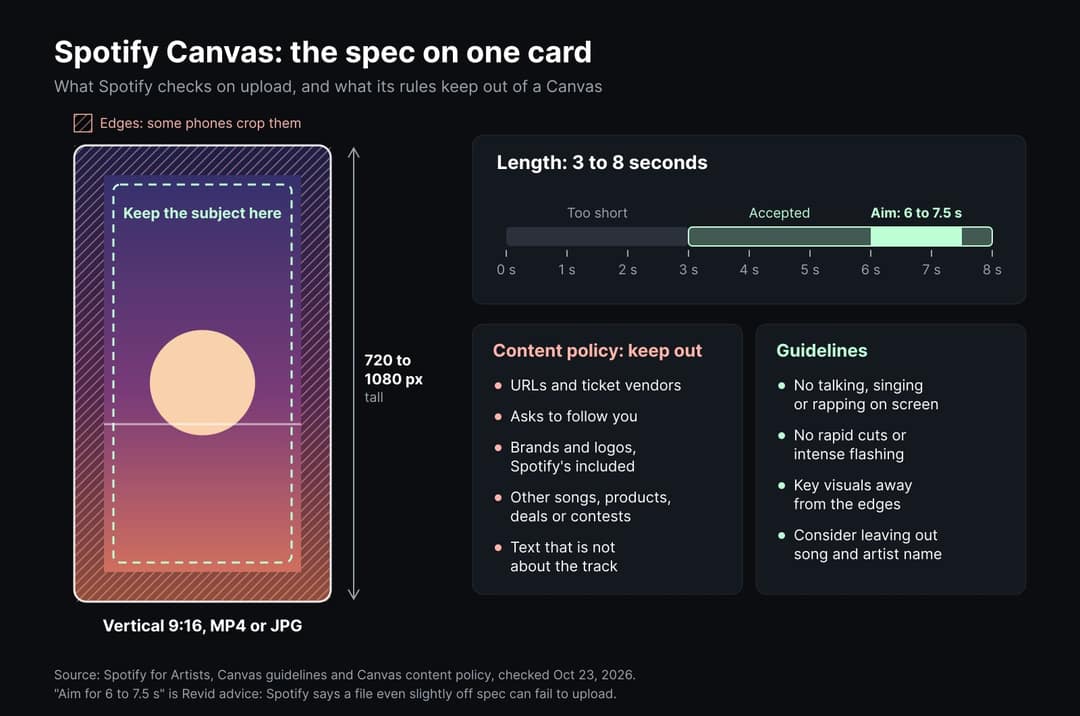
Spotify's Canvas guidelines are short and specific:
- No singing on screen. Pick footage with no spoken, sung or rapped vocals: clips this short won't sync with the lyrics.
- No rapid cuts or intense flashing, which can overwhelm listeners.
- Keep key visuals away from the edges, since some phones crop them.
- Consider leaving out the song and artist name: the Now Playing view already shows them.
- Choose a loop style: Continuous Loop (no visible seam), Hard Cut (a visible edit you can disguise) or Rebound (plays forward, then in reverse).
- Tie it to your visual identity: album art, profile picture, header image.
The Canvas content policy adds what to keep out: selling or heavy promotion, URLs, ticket vendors, requests to follow on social media, and promotion of other songs, brands (including Spotify's logo), products, deals or contests. Any text must relate to the track, and a Canvas that breaks Spotify's Platform Rules is removed.
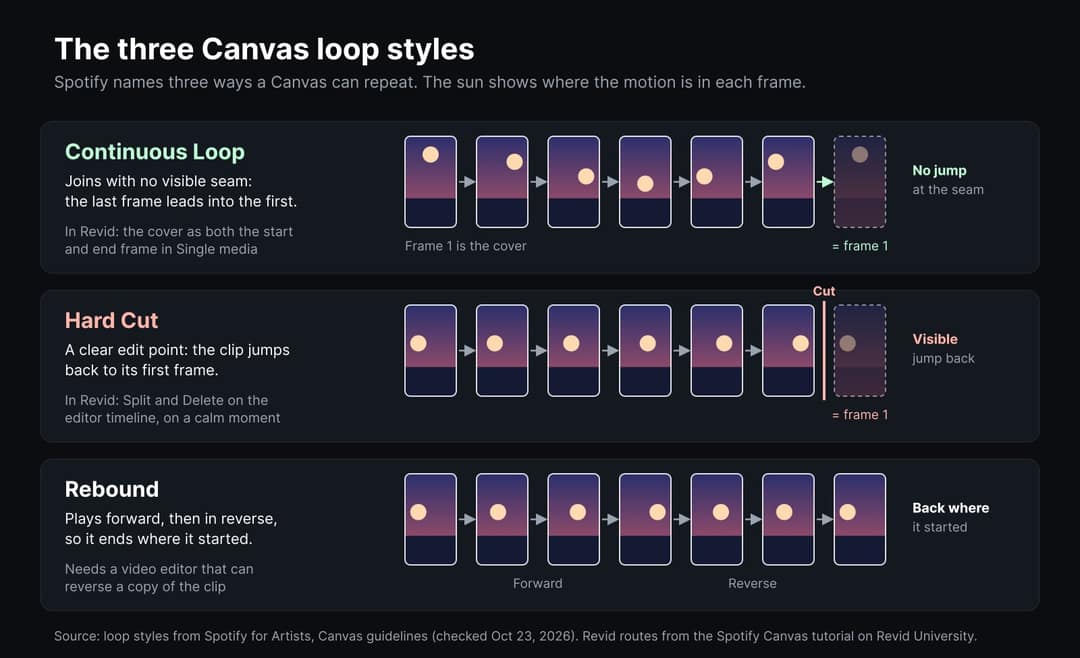
An animated cover fits the Continuous Loop best: if the clip starts and ends on the cover itself, the end leads straight back into the start. That is what the next section tests.
To upload, you must be the first main artist on the track, a main artist on both the track and the release, or a team member with the Admin or Editor role. On the web, open artists.spotify.com, go to Music, select the track and click Add Canvas. Our tutorial on how to make a Spotify Canvas walks through every route in Revid and the checks before you upload.
We animated three covers: the real results
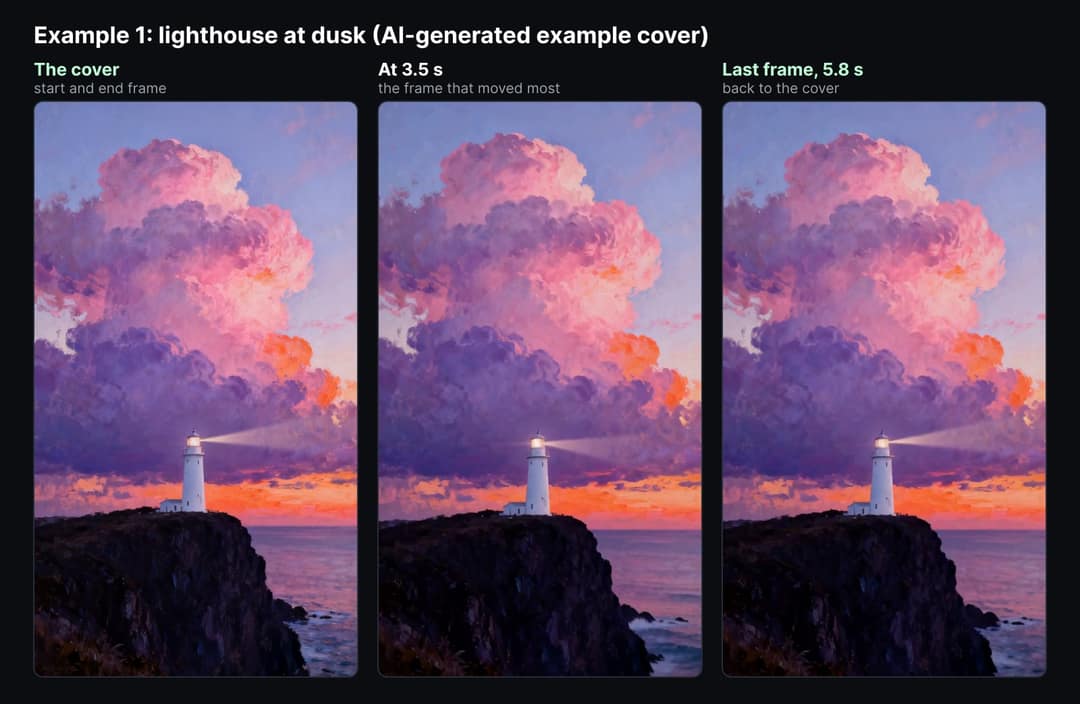
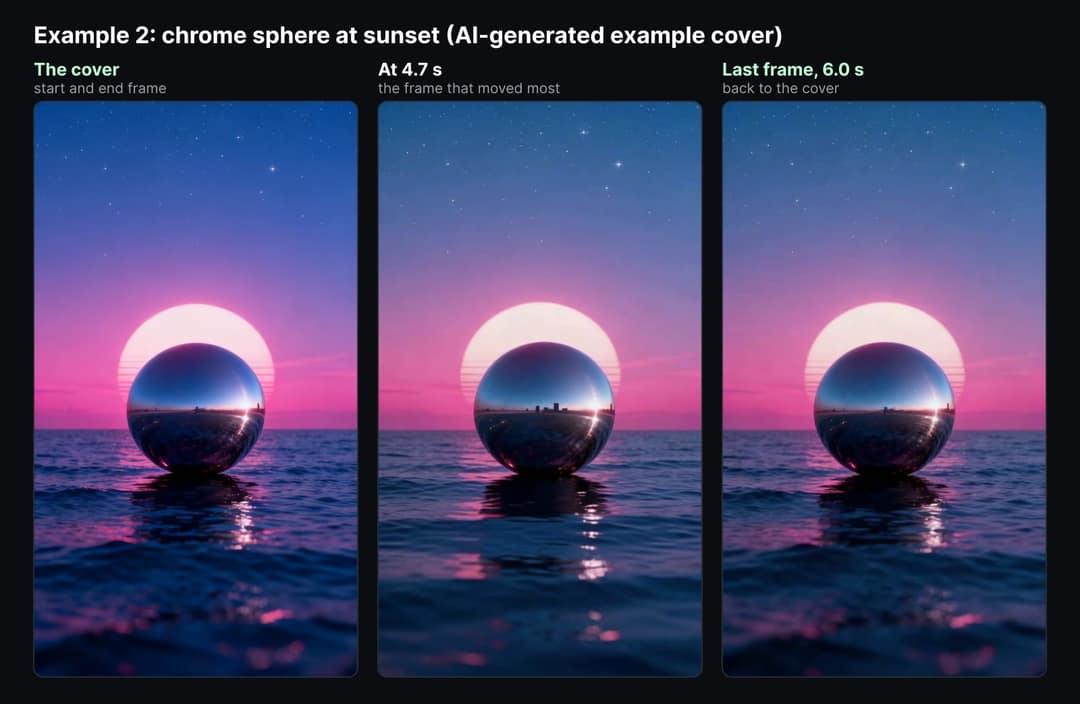
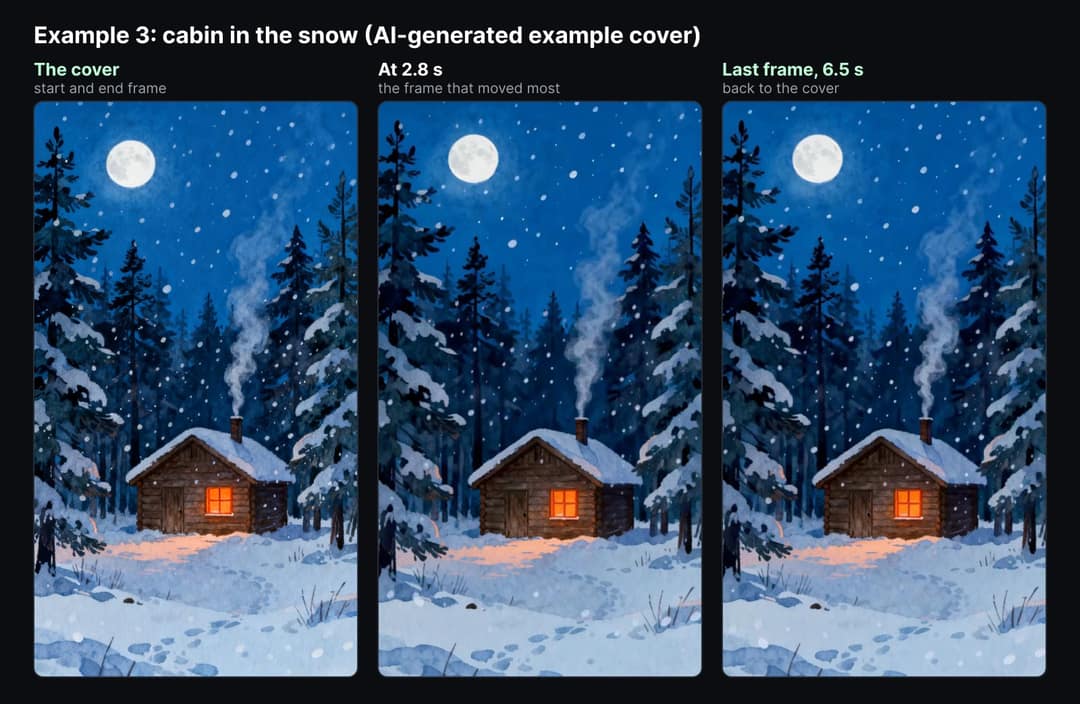
To show what this looks like, we made three album covers with Revid's image generation and animated each one into a 6-second loop on the Low tier, with the cover as both the start frame and the end frame. These are AI-generated example covers, not real releases: no artist, band, brand or text. We also made one control clip from the first cover with the start frame only, to see what the end frame changes. Everything ran on October 23, 2026, through Revid's API, which runs the same generation as Single media.
| Step | Settings | Credits |
|---|---|---|
| Cover | Image, Pro quality, 9:16, a prompt that ends "No text, no letters, no logos, no people" | 4 each |
| Loop | Video, Low tier, 9:16, 6 seconds, Audio off, the cover as start frame and end frame | 18 each |
| Control | The same as the loop, with the start frame only | 18 |
| Total | 3 covers, 3 loops, 1 control | 84 |
Every motion prompt followed the same pattern: keep the artwork as it is, name two or three small movements inside the picture, keep the camera still, and rule out text, logos, new objects, cuts and flashing. A static camera matters here: with the same picture at both ends, a push-in would have to reverse before the end.
The motion prompt we used for the cabin cover
Keep the artwork exactly as it is. Snow falls slowly, smoke curls up from the chimney, the warm window light flickers softly. Static camera. No text, no logos, no new objects, no cuts, no flashing.
Example 1: a lighthouse at dusk
Example 2: a chrome sphere at sunset
Example 3: a cabin in the snow
The control: start frame only
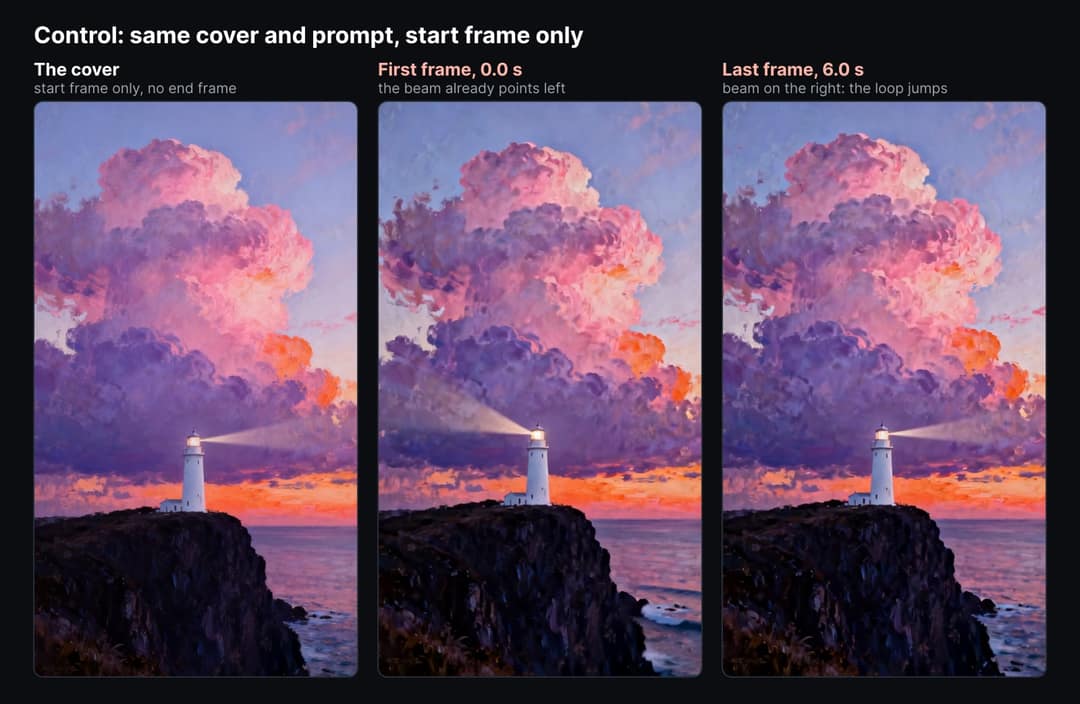
To put a number on the seam, we compared the last frame of each clip with its first frame.
With the cover as the end frame too, each loop ended within 0.7% to 1.5% of its first frame, about two frames' worth of normal motion for the cabin and the sphere. Without it, the same lighthouse prompt ended 4.6% away, and the light beam visibly jumps. The second tab shows the loops still move: the sphere moved as much as the control.
Source: Revid test, October 23, 2026: 4 clips from Revid's media generation (Low tier, 9:16, 6 s). Mean absolute RGB difference at 240 x 416 px, as a share of the full 0-255 range.
Show the data
| Jump at the loop point | Most the picture moved | |
|---|---|---|
| Cabin: cover at both ends | 1.19% | 2.43% |
| Sphere: cover at both ends | 1.45% | 5.2% |
| Lighthouse: cover at both ends | 0.73% | 1.11% |
| Lighthouse: start frame only | 4.61% | 5.37% |
What the test showed, beyond the seam:
- The raw files are small. Our clips came back at 480 x 832 and 496 x 864 pixels. That is inside Spotify's 720 to 1080 px height range, but a little wider than exact 9:16, and Spotify warns that a file even slightly off can fail. We would crop and scale to exactly 1080 x 1920 before uploading.
- Audio off did not always mean silent. Three of our four clips carried a sound track. A Canvas plays over your song, so strip it.
- Small motions are the ones that hold. Snow, smoke, water and light worked. A big movement (the sphere turning) is where the model invented detail.
One command does both fixes, if you have the free ffmpeg tool installed:
ffmpeg -i loop.mp4 -vf "crop=trunc(ih*9/16/2)*2:ih,scale=1080:1920" -an -c:v libx264 -pix_fmt yuv420p canvas.mp4It crops the clip to exact 9:16, scales it to 1080 x 1920 and drops the audio track. On our three loops it produced 1080 x 1920 MP4 files of 5.8, 6.0 and 6.6 seconds, with no audio.
Four ways to animate an album cover
| Method | What you get | Best for | Cost on Revid | Limits |
|---|---|---|---|---|
| Single media keyframes | A 1 to 15 second AI clip on Low or Pro (4 to 30 on Ultra), with the cover as start and end frame | Spotify Canvas, the cleanest loop | 15 credits per 5 seconds on Low (18 for 6 s), 50 on Pro, 100 on Ultra | Can redraw details; our Low files needed a resize to exactly 1080 x 1920 |
| Image to Video Effect | A 4 to 12 second AI clip of your cover in motion, steered by a prompt | Reels and TikTok teasers, a Canvas after a trim | 40 credits per 5 seconds on Low, plus 1 for the start frame (65 for 8 s) | Shortest clip from one cover is 8 seconds; no end frame, so the loop is not automatic; adds music by default |
| Cover-art visualizer | A video of the whole song: your cover with a still image, a waveform or bars | Publishing the track on YouTube, feed posts | Free, in your browser | Full song length with audio and title text, so not a Canvas as is |
| Full music video, then a loop | A complete AI music video built around the song, plus any 3 to 8 seconds you cut from it | One generation for the video, the teasers and the Canvas | 540 to 3,600 credits for a 3-minute song | Costs more; you trim the loop yourself |
Single media bills 15, 50 or 100 credits per 5 seconds, prorated by the second; we paid 18 credits for each of our 6-second loops. Image to Video Effect bills 40 per 5 seconds on Low plus 1 credit for its start frame image, and its length slider starts at 8 seconds. The waveform route runs in your browser for free.
Source: Revid credit rates in code and Revid's free credit calculator (/api/public/v3/calculate-credits), October 23, 2026. Growth plan: $39 a month for 2,000 credits, about 1.95 cents a credit.
Show the data
| Credits | Cents of Growth plan credits | |
|---|---|---|
| Free waveform (MP3 to MP4) | 0 | 0 |
| Single media, Low, 6 s | 18 | 35 |
| Single media, Pro, 6 s | 60 | 117 |
| Image to Video Effect, Low, 8 s | 65 | 127 |
| Single media, Ultra, 6 s | 120 | 234 |
1. Animate the cover with Single media keyframes (best for a Canvas)
Open Single media, choose the Video tab and Keyframes, and upload your artwork in the Start frame slot (PNG, JPG or WebP). Put the same artwork in the End frame slot: the clip then starts and ends on the same image, which gives you Spotify's Continuous Loop. Start from a 9:16 version of the artwork rather than the square cover, since the clip follows the frame of the picture it starts from.
Set Aspect ratio to 9:16 and Duration to 5 or 6 seconds (Low and Pro take 1 to 15 seconds, Ultra 4 to 30), and turn the Audio switch off. Video is billed by the second: 15 credits per 5 seconds on Low (18 for a 6-second clip), 50 on Pro, 100 on Ultra. The clip lands in Your media under the generator, with a Download media button, so no editor or export is needed.
2. Or use Image to Video Effect
Revid's Image to Video Effect takes a PNG, JPEG or WebP image and animates it with AI video. An optional prompt tells it what should move. You choose the quality tier (Low, Pro or Ultra), and each image becomes a clip of 4 to 12 seconds; with one image, the shortest is 8 seconds, because the length slider starts at 8. On the Low tier, this tool bills image-to-video at its own rate, 40 credits per 5 seconds: a 12-second clip costs about 96 credits (about $1.90 on the Growth plan), plus a small charge for the start frame image (1 credit). The free credit calculator prices one cover at 65 credits for 8 seconds and 97 for 12.
It has no end frame, so the loop is not automatic, and the tool adds a background track by default. Trim the clip to 3 to 8 seconds and remove the audio before you use it as a Canvas.
Describe subtle, specific motion and say what must stay still. Big transformations are where AI drifts away from your artwork.
3. Make a free cover-art visualizer for YouTube
The free MP3 to MP4 converter turns your song and cover into a video in your browser: no signup, no watermark, and the file never leaves your device. Choose 16:9 (1920 x 1080), 9:16 (1080 x 1920) or 1:1 (1080 x 1080), then a still image, an animated waveform or a bar visualizer. The cover is centered over a blurred copy of itself, so it fills every format without black bars, and you can edit the title and artist text.
It renders the whole song with its audio, which is what YouTube needs. For a Canvas, feed it a 6 to 8 second excerpt of the song and clear the Title and Artist fields: the video is exactly as long as the audio you give it, and it keeps that audio, so strip it if you want a silent loop. The bars move, but the artwork itself stays still. For an AI visualizer that reacts to the music, see our guide to the AI music visualizer.
4. Generate a full music video and cut a loop from it
If you also want a music video, start there. Upload the song to the AI music video generator, pick a style that matches your cover (claymation, anime, 3D render, ultra realism and more), and describe the cover's world in the visual direction. You can also choose "Your own media" so Revid builds the scenes from images you upload, such as the cover and photos from the shoot.
One generation then gives you the full video plus material for teasers and a Canvas. Pick a 3 to 8 second moment with no lip-synced singing, since Spotify asks for footage without vocals on screen. A 3-minute song costs 540 credits on Low, 1,800 on Pro or 3,600 on Ultra, and the cost is shown before you generate. For a Canvas only, trim the song to an excerpt first: the selection must be at least 10 seconds, which is 30 credits of AI video on Low, and exporting from the editor needs a paid plan. The step-by-step music video tutorial shows four real videos with their settings, and our breakdown of what a music video costs compares this with a filmed shoot.
See the 30 example videos on our AI music video maker page for styles that match different covers, and our guide to making an animated music video with AI for anime, cartoon and claymation looks.
How to make a Spotify Canvas from your album cover, step by step
- Prepare the artwork. Export a 9:16 version of the cover as a PNG or JPEG, ideally without the title text, since Spotify already shows the song and artist name. Keep the subject in the middle.
- Animate it. In Single media, choose Video, then Keyframes, and put the artwork in both the Start frame and the End frame slots. Pick 9:16, 6 seconds, Low, Audio off, and write a motion prompt with small movements and a static camera.
- Check the details. Compare the clip with the original frame by frame: faces, edges, reflections, small text. Regenerate if anything changed that you care about.
- Check the loop. Play it on repeat on your phone. If the end still jumps, use Spotify's Rebound style (forward, then reverse) or a hard cut on a calm frame.
- Export to spec. Crop and scale to exactly 1080 x 1920, as an MP4, with the audio removed, and keep it between 3 and 8 seconds.
- Upload. In Spotify for Artists, open Music, select the track and click Add Canvas. If the web upload fails, Spotify suggests the Spotify for Artists mobile app.
For the other two Canvas routes (a cut from a music video, or a free waveform loop) and the full checklist, follow the Spotify Canvas tutorial.
What are the limits of AI album cover animation?
- AI can change your artwork. Faces, fine patterns, reflections and lettering are the details to watch, because they can shift between frames. In our test, the reflection in the sphere grew buildings the cover never had. Keep the motion subtle, animate a text-free version, and reject any clip that changes the art.
- A perfect loop isn't automatic. Without an end frame, the clip may end on a different frame than it starts, as our control did. Apple Music motion artwork is strict about this: no jump from end to start, and the first frame should match the cover.
- Square art in a vertical frame. A 9:16 frame is taller than a square cover, so the edges get extended or cropped. Keep the important parts near the center.
- The raw file may not match the spec. Check the pixel size, the length and the audio track of the file you download, not just how it looks.
- Design for a phone. A Canvas shows in the Now Playing view of Spotify's mobile app, and some phones crop the edges.
- You need rights to the artwork. If a designer or photographer made the cover, check that your license covers motion versions.
FAQ
What is an animated album cover called?
On Spotify it is a Canvas, on Apple Music it is motion artwork, and on YouTube a video of a track with its cover is usually called a visualizer or a cover art video.
How long should an animated album cover be?
A Spotify Canvas must be 3 to 8 seconds. Apple Music motion artwork runs 8 to 35 seconds according to EmuBands (some distributors list 15 to 35). For Reels, TikTok and Shorts teasers the length is up to you within each platform's limit (Shorts run up to 3 minutes), and a YouTube video of the track runs the whole song.
How do I make an animated cover loop without a jump?
Use the cover as both the start frame and the end frame of the clip, ask for small movements inside the picture, and keep the camera still. In our test, three loops made this way repeated with no visible jump, while the same prompt with the start frame only ended about 6 times further from its first frame than the keyframe version did.
Can I animate my album cover for free?
Yes, with limits. Revid's free MP3 to MP4 converter adds an animated waveform or bars to your cover with no account. AI animation uses credits; sign-up is free with no credit card and new accounts get free credits to try video generation.
How much does it cost to animate an album cover with AI?
In Revid's Single media, a 6-second loop costs 18 credits on Low, 60 on Pro and 120 on Ultra. Image to Video Effect costs 65 credits for its shortest 8-second clip on Low. On the Growth plan ($39 a month for 2,000 credits), 18 credits is about 35 cents.
Does a Spotify Canvas have sound?
Spotify's guidelines don't mention an audio track, and the Canvas plays while your song does, so export it without sound. Apple Music motion artwork must be delivered without an audio track.
Will AI change my album art?
It can. Image-to-video models generate new frames, so small details and lettering can shift. Use subtle motion, say in the prompt what must stay still, and compare the result with the original before you upload.
Why is my Canvas not showing?
A Canvas plays only in the Spotify mobile app (iOS 12 or later, Android 6.0 or later). In the app's Settings and privacy, Canvas must be on under Content and display, and Data Saver off under Data-saving and offline. A label with split rights can add a Canvas only to the versions it owns.
Who can upload a Canvas on Spotify?
The first main artist on the track, a main artist on both the track and the release, or a team member with the Admin or Editor role in Spotify for Artists. You can add a Canvas to any track, including upcoming releases.
Sources
Checked on October 23, 2026.
- Spotify for Artists, "Canvas guidelines".
- Spotify for Artists, "Canvas content policy".
- Spotify for Artists, "Adding a Canvas to Spotify".
- Spotify for Artists, "Fix a Spotify Canvas upload error" and "Canvas not showing in the Spotify app".
- Spotify for Artists, "Canvas Metrics Guide", October 10, 2019.
- EmuBands, "What are the tech specifications for Apple Music album motion artwork?".
- YouTube Help, "Video resolution and aspect ratios" and "Understand three-minute YouTube Shorts".
- Instagram Help Center, Reels video specs, as summarized in our Instagram Reel size guide.
- TikTok Ads Help, "Auction In-Feed Ads" video specs.
- Revid University, "How to make a Spotify Canvas for your song" (Single media settings and credit rates).
- Revid test, October 23, 2026: three AI-generated example covers, three keyframe loops and one control clip, generated on the Low tier and measured frame by frame.