Table of Contents
- How Do You Make an AI Video From a Photo?
- What Kind of AI Video Can You Make From a Photo?
- Why Social Platforms Prioritize Video Over Photos in 2026
- How to Choose the Right Photo for AI Video (What Works and What Doesn't)
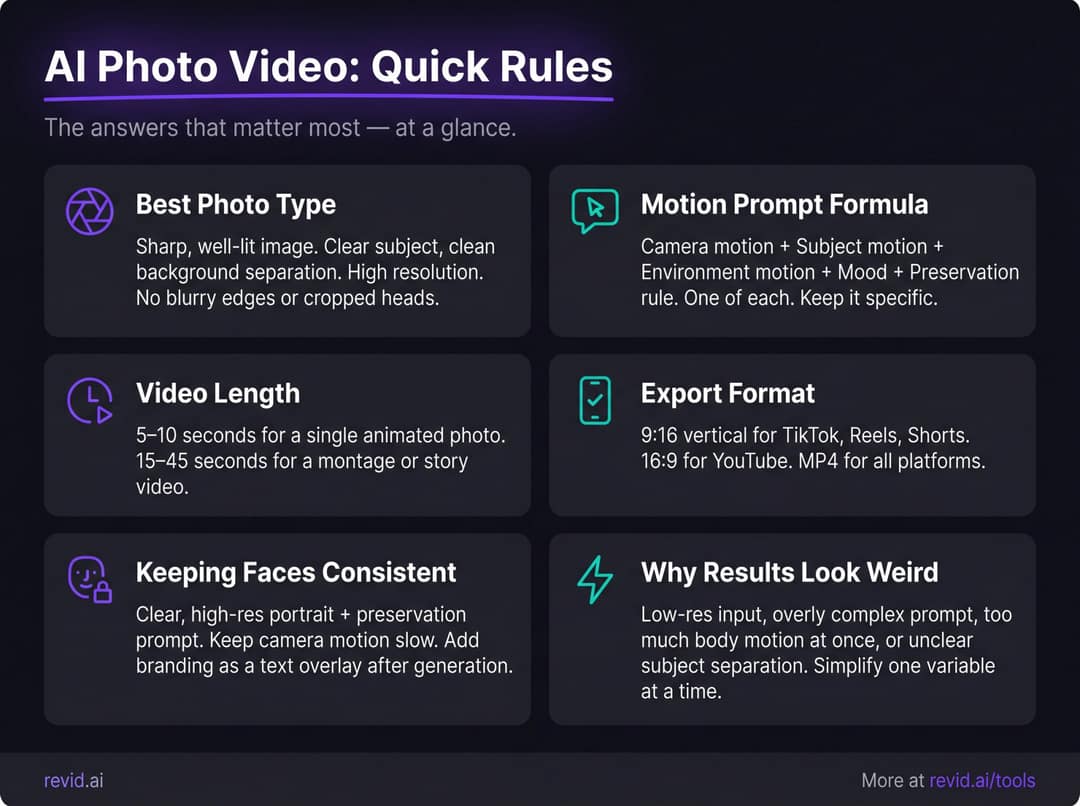
- Use a photo with:
- Avoid photos with:
- How to Make an AI Photo Video With Revid (Full Walkthrough)
- Step 1: Choose the Type of AI Photo Video You Want to Make
- Step 2: Upload Your Photo
- Step 3: Choose Your Aspect Ratio Before Generating
- Step 4: Write a Motion Prompt That Actually Works
- Step 5: Add Voiceover, Captions, Music, or Text
- Step 6: Generate the Video
- Step 7: Review Your Generated Video Before Editing
- Step 8: Edit the AI Video Before You Export
- Step 9: Export in the Right Format
- Step 10: Post, Test, and Repurpose Your AI Photo Videos
- AI Video Prompt Templates You Can Copy for Photo Animation
- Portrait Photo Prompt
- Product Photo Prompt
- Landscape Photo Prompt
- Food Photo Prompt
- Old Family Photo Prompt
- Real Estate Photo Prompt
- Illustration or Artwork Prompt
- Fashion Photo Prompt
- Pet Photo Prompt
- Meme or Dramatic Effect Prompt
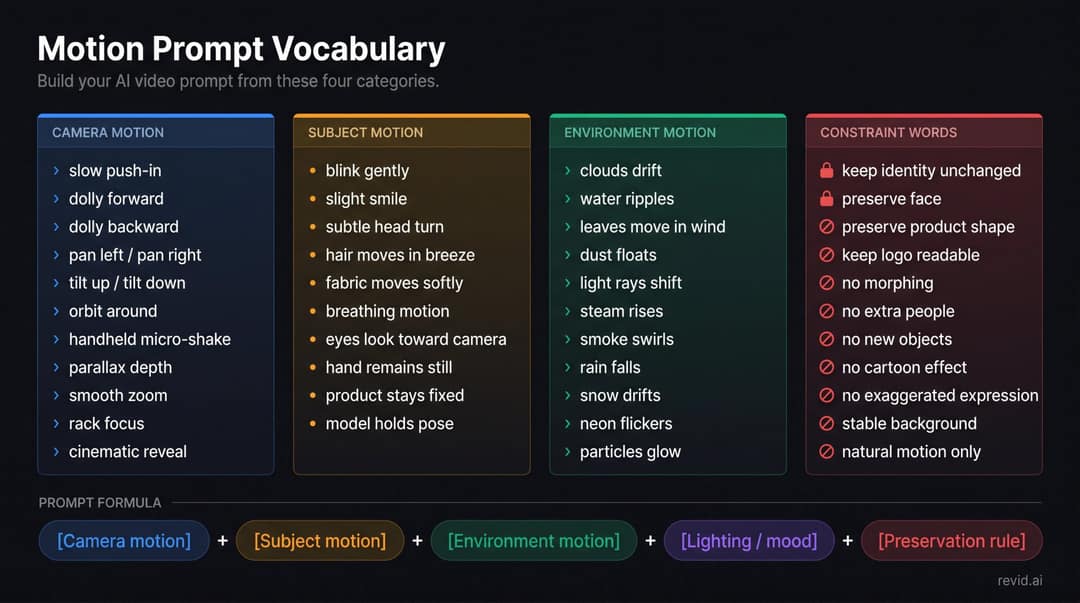
- Motion Prompt Words and Terms for AI Video Generation
- Camera Motion
- Subject Motion
- Environment Motion
- Style and Mood
- Constraint Words
- Which AI Photo Video Workflow Should You Use?
- Make One Photo Move
- Make a Video From Multiple Photos
- Turn Photos Into a Narrated Story
- Make a Portrait or Character Move (Motion Transfer)
- Make a Talking Photo
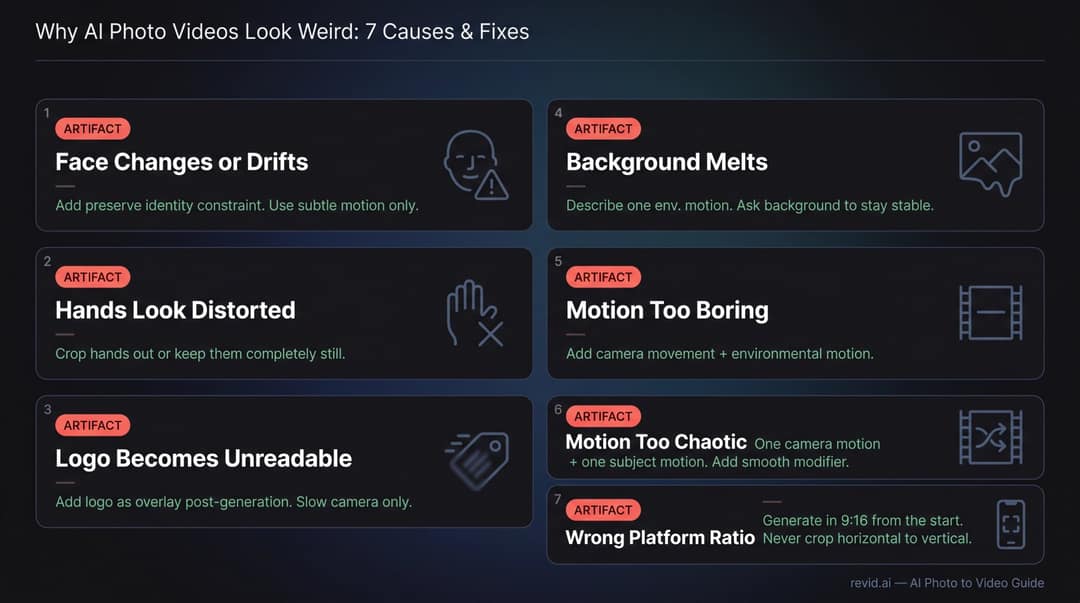
- Why AI Photo Videos Look Weird (And How to Fix Them)
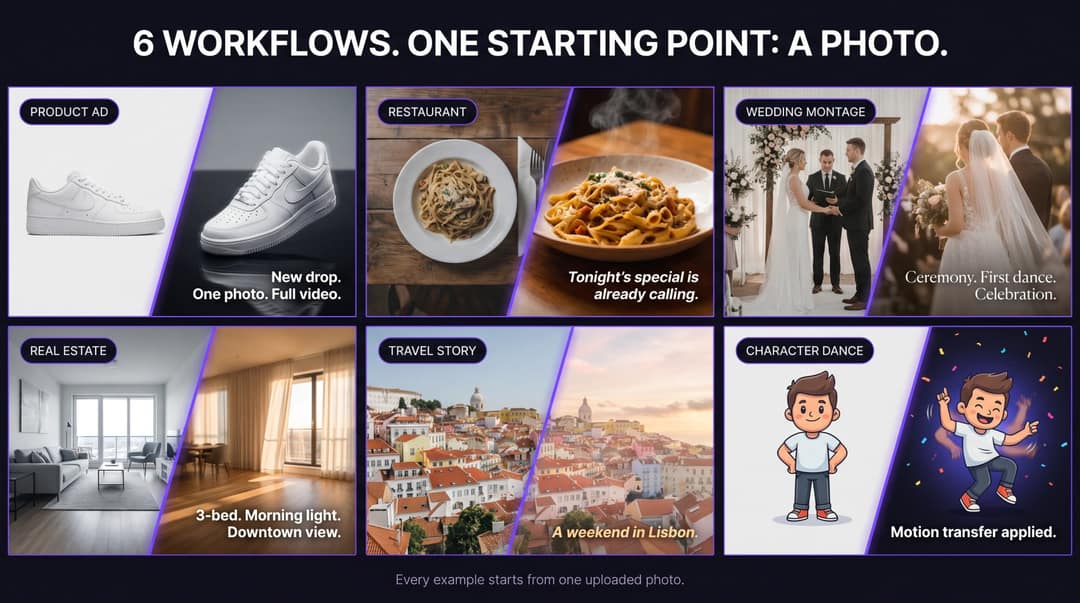
- AI Photo Video Examples: Real Results From Different Workflows
- Example 1: Product Ad From One Photo
- Example 2: Restaurant Video From a Food Photo
- Example 3: Wedding Photo Montage
- Example 4: Real Estate Listing Video
- Example 5: Travel Story From Photos
- Example 6: Character Dance From a Photo
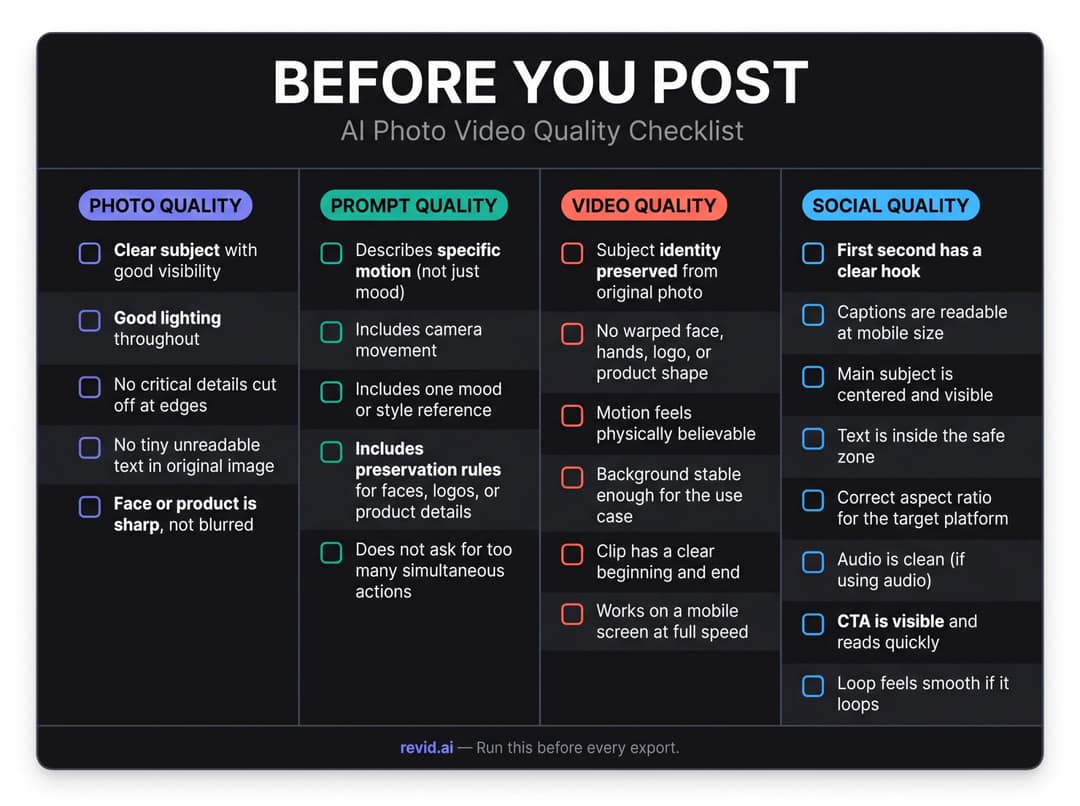
- AI Photo Video Quality Checklist: What to Check Before You Post
- Photo Quality
- Prompt Quality
- Video Quality
- Social Quality
- Is It Legal to Animate Someone's Photo? What You Need to Know
- Frequently Asked Questions: AI Photo Videos
- Can AI turn one photo into a video?
- What is the easiest way to make an AI video from a photo?
- Can I make a video from multiple photos?
- Can I make a photo talk?
- What photo works best for AI video?
- What should I write in the motion prompt?
- Why does my AI video look weird?
- How long should an AI photo video be?
- What format should I export my AI video in?
- Can I use AI photo videos for ads?
- Is it legal to animate someone's photo?
- Can I animate old family photos?
- Can I keep the same face or product exactly during AI video?
- Can I use Revid's AI Anime Video Generator on artistic photos?
- What's the difference between Revid's Image to Video Effect and the AI Image Animator?
- How to Get AI Photo Videos Right Every Time
Do not index
Do not index
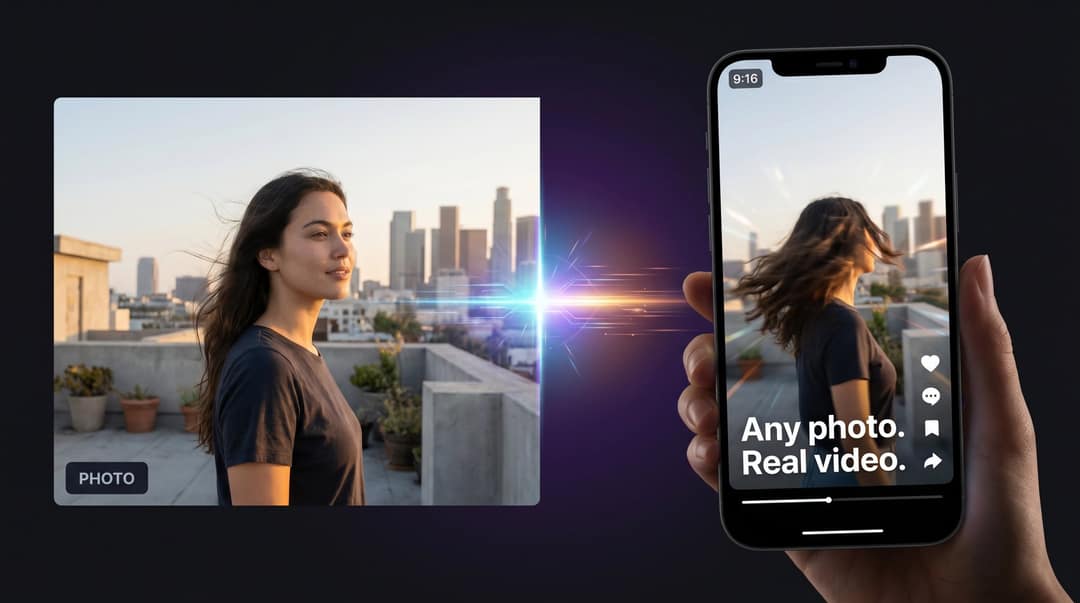
Any photo you own can become a short-form video right now. Not a slideshow with crossfades. Not a basic zoom-and-pan filter. A real short video with actual camera movement, background motion, voiceover, captions, synchronized music, and a format that fills a phone screen on TikTok, Instagram Reels, or YouTube Shorts.
That shift happened quietly over the past couple of years, and in 2026 it's fully mainstream. Almost every major creative platform now treats still images as raw material for video. Product photographers, travel creators, real estate agents, restaurateurs, and memory-keepers are all doing this. The only question is how to do it well.
This guide shows you how to make an AI video from a photo step by step: which workflow to pick for your specific goal, how to write prompts that actually work, how to avoid the uncanny AI artifacts that make results look wrong, and how to edit and export so the final video is something you'd actually post. We've built all of these workflows directly into Revid.ai, so you can follow along and create your first video without leaving your browser.

Ready to skip straight to creating? Try Revid's Image to Video Effect tool: upload a photo, describe the motion, and generate in seconds.
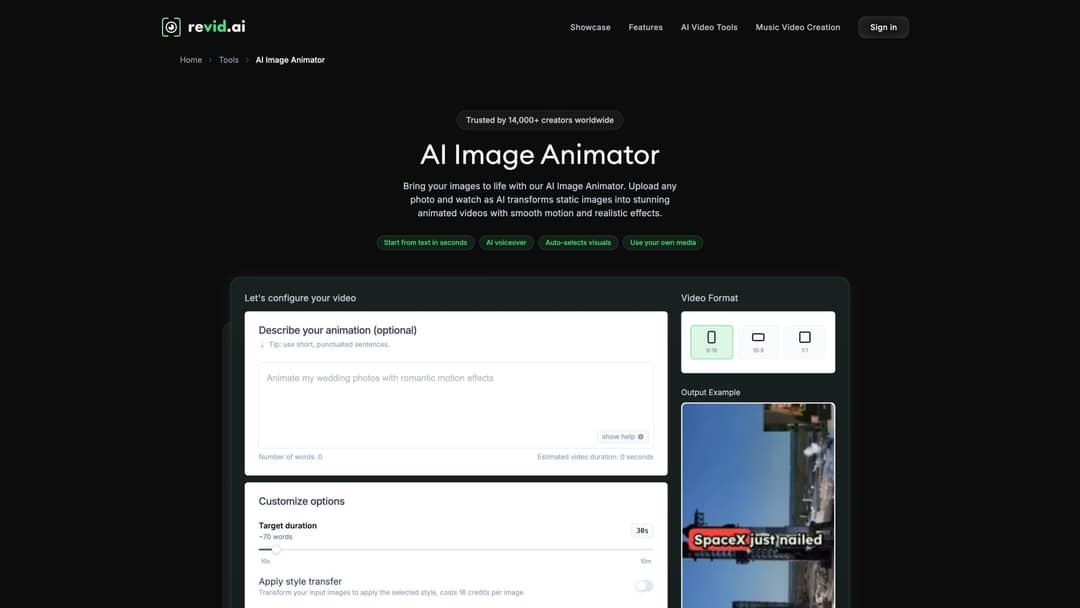
The platform that powers all of these workflows is built around one idea: every photo you already own is a potential short-form video asset. Here's what Revid.ai looks like when you open it:

How Do You Make an AI Video From a Photo?
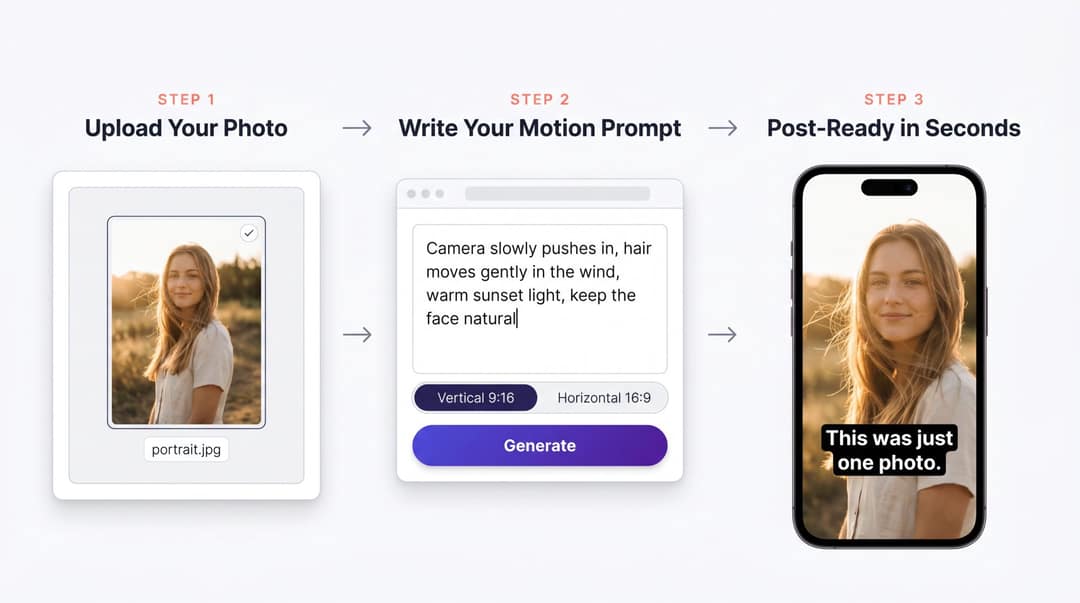
Upload a clear photo to an image-to-video AI tool, choose a vertical or horizontal format, write a prompt describing the motion you want, generate the video, then edit the result with captions, music, voiceover, overlays, and the right export format.
- Open the Image to Video Effect tool
- Upload a high-quality JPG or PNG with a clear subject
- Choose 9:16 vertical (the ratio that fills a phone screen) for TikTok, Reels, or Shorts
- Describe the motion: "camera slowly pushes in, hair moves gently in the wind, warm sunset light, keep the face natural"
- Generate the clip
- Add captions, music, and any text overlays in the built-in editor
- Export as MP4 and post
That's the quick version. But the type of video you want changes which workflow you need. Keep reading to figure out which path fits your goal.

What Kind of AI Video Can You Make From a Photo?
Before you open any tool, get clear on what you actually want to make. The most common reason AI photo videos disappoint people is using the wrong workflow for the goal.

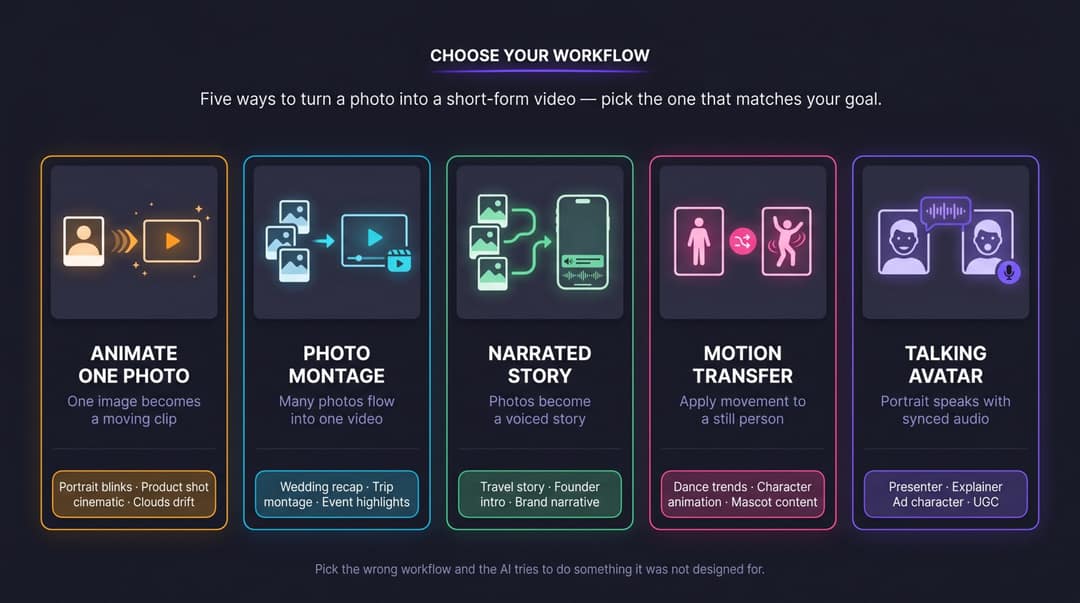
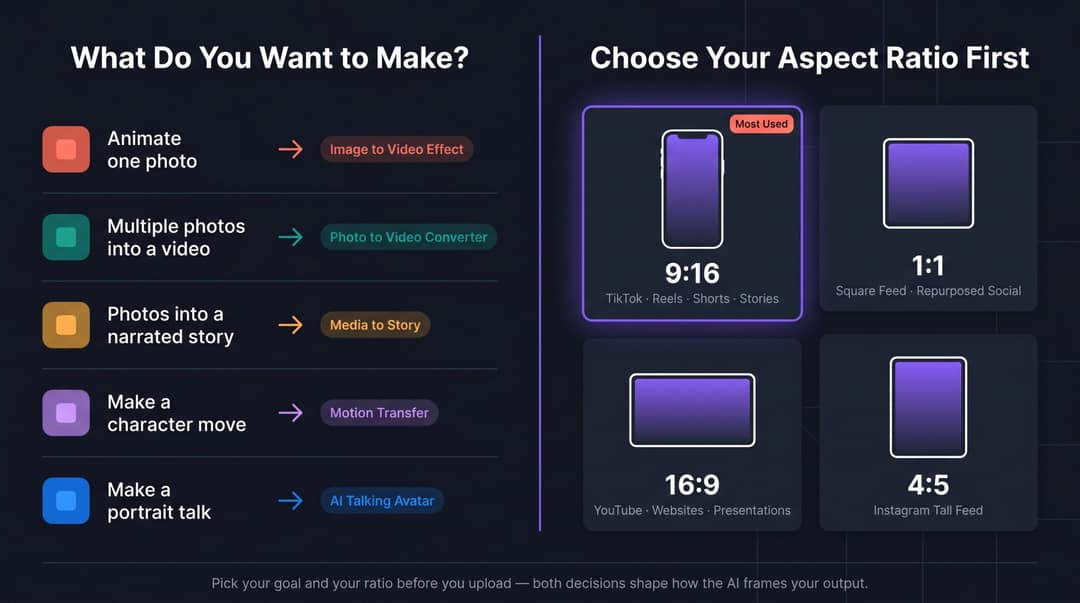
Map your goal to the right approach:
What you want | Best workflow | Example |
Animate one still image | Image-to-video effect | Make a portrait blink, clouds move, a product shot feel cinematic |
Turn many photos into a video | Photo-to-video converter | Wedding recap, trip montage, event highlight reel |
Turn photos into a narrated story | Media-to-story AI | Travel photos become a vertical story with voiceover and captions |
Make a person or character move | Motion transfer | Apply a dance or gesture from a reference video to a photo |
Make a photo "talk" | Talking avatar or lip-sync | Turn a portrait into a presenter, explainer, or ad character |
Choosing the wrong option means the AI tries to do something it wasn't designed for. Someone who uploads ten wedding photos to a single-image animator gets one animated photo, not a cohesive highlight reel. Someone who uploads a portrait to a batch converter gets a slideshow, not a dynamic character.
Revid.ai supports all five of these workflows. The AI Image Animator turns static photos into animated videos with motion effects. The Photo to Video Converter combines multiple images with transitions and music. The Media to Story tool sequences images into a narrated social story. Motion Transfer applies dance and gestures from a reference video to a character or portrait. And the AI Talking Avatar can turn a photo into a speaking presenter with a synced script and voice.
Once you know which type you're making, the process is actually straightforward.
Why Social Platforms Prioritize Video Over Photos in 2026
A static image asks someone to stop scrolling and look. A video gives them a reason to keep watching: a moving camera, a changing expression, a reveal, a beat drop, or a short story.
This isn't just a creative preference. Platforms are structured around it. TikTok's advertising policy explicitly says ad video must be dynamic and should not rely on still images as the primary element, and that static images should not occupy more than half the video. Standard TikTok video sizes are 9:16 vertical, 1:1 square, and 16:9 horizontal. YouTube Shorts classifies short videos as Shorts when they're up to three minutes and use a square or vertical aspect ratio.

The 2026 SERP for AI video creation tools tells you how mainstream this has gotten. Several major platforms now create 5- to 10-second videos from an image plus a text prompt. Image-to-video workflows let users generate videos from keyframe images with the help of AI models. Google's Gemini/Veo 3.1 can turn photos into eight-second videos with sound and supports vertical format for a vertical image input. TikTok launched AI Alive in May 2025, which transforms static photos into dynamic videos inside TikTok Stories, and followed with Symphony Image to Video in June 2025 for marketers turning product photos into five-second TikTok-first clips.
Every major platform now understands that still images are raw material for video. The question is just which tool you use to do the converting.
How to Choose the Right Photo for AI Video (What Works and What Doesn't)
The photo matters more than most people expect. This is where a lot of AI photo videos fail before they've even started.
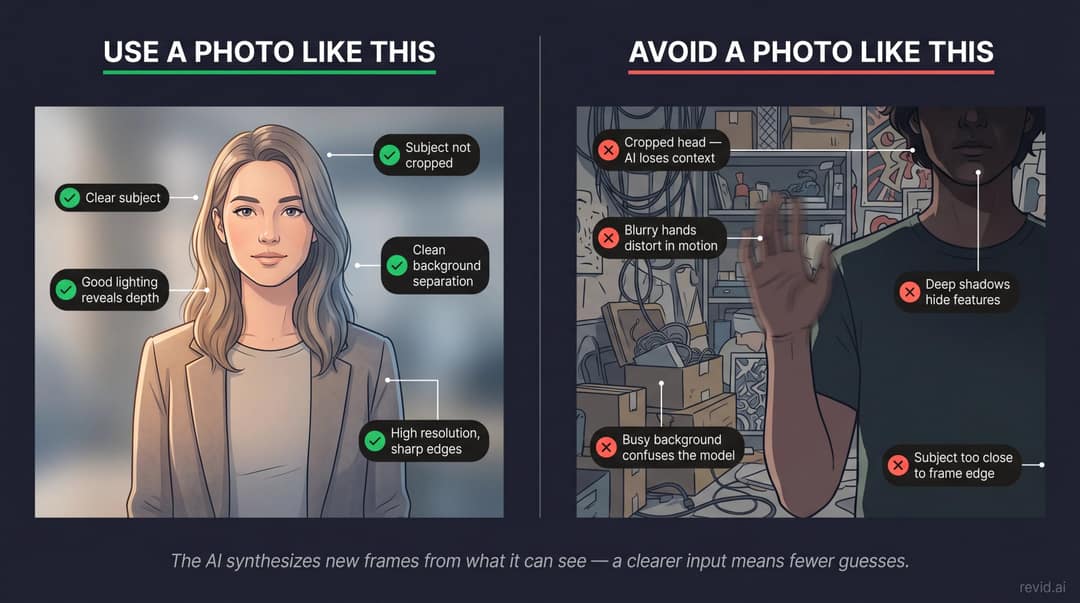
Image-to-video AI works by identifying objects, depth, and perspective in the image, predicting realistic motion, generating new frames, and refining those into smooth video. The AI isn't simply "moving" existing pixels. It's using your image as a reference and synthesizing entirely new frames. A clearer input gives the model less to guess at.

Use a photo with:
- A clear main subject with good separation from the background
- Good lighting that reveals depth and texture
- High resolution (the AI generates new frames around what it can see)
- Minimal blur, especially on the subject's edges
- Natural framing with the subject visible, not cut off
- A distinct face or object if the subject matters for the video
- No important text close to the edges (it will likely distort)
- No tiny logos that must stay perfectly readable during motion
Avoid photos with:
- Cropped faces or heads cut off at the top
- Blurry hands (hands are already difficult for AI video models)
- Extreme shadows that hide the subject's features
- Busy, cluttered backgrounds with many overlapping elements
- Distorted wide-angle selfies
- Tiny product details that must remain exact during motion
- Text baked into the image itself
- Multiple people overlapping each other at the frame edges
- A subject positioned right at the edge of the frame
One more thing worth stating clearly: if the photo includes a real person, use only images you have the right to use. Revid's Terms of Service make users responsible for content and activity under their accounts and prohibit using the service in ways that infringe anyone's rights. Industry guidelines for image-to-video with real-person likeness establish a clear standard: users must attest that they have consent from the people featured and the rights to upload the media. That standard is becoming the norm.
With the right photo selected, here are the exact steps.
How to Make an AI Photo Video With Revid (Full Walkthrough)
Step 1: Choose the Type of AI Photo Video You Want to Make
Don't start by asking which tool to use. Start with the output you want.
Ask yourself:
- Do I want one photo to move?
- Do I want a photo montage with multiple images?
- Do I want a narrated story with voiceover?
- Do I want a product ad?
- Do I want a portrait to talk or speak?
- Do I want a character to dance or perform?
- Is this for TikTok, Reels, Shorts, YouTube, a website, or an ad?

Goal | Use this Revid workflow |
Animate a single image | |
Bring a still photo to life with motion | |
Turn several photos into a video | |
Turn photos and clips into a story | |
Create a memory montage | |
Apply a dance or movement to a character | |
Add captions after generation |
If you're not sure, the Image to Video Effect is the most flexible starting point for a single photo. The Media to Story workflow handles most multi-photo scenarios. For the complete list of all 150+ tools, browse the full tools page.
Step 2: Upload Your Photo
For single-photo animation, upload one high-quality JPG or PNG. The Image to Video Effect workflow starts here. Revid recommends clear subjects and distinct backgrounds for stronger results.
For a photo collection, use the Photo to Video Converter. It arranges uploaded photos into a flowing sequence with smooth transitions, synchronized music, and cinematic pacing.
For a story video, upload photos or clips into the Media to Story tool. It reads the visual context, sequences images, writes a connecting story, and generates a finished video with voiceover and captions.
The key decision point is choosing your format before you upload, because the ratio determines how the AI frames the output.
Here is what the Image to Video Effect tool looks like when you open it, the starting point for most single-photo animation workflows:

Step 3: Choose Your Aspect Ratio Before Generating
Choose the format before you generate, not after. The ratio shapes how the AI frames the subject, where motion happens, and whether the output will actually work on your target platform.
Use:
- 9:16 vertical for TikTok, Instagram Reels, YouTube Shorts, and Stories (the ratio that fills a phone screen)
- 1:1 square for square feed posts or repurposed social content
- 16:9 horizontal for YouTube, websites, presentations, or traditional video placements
- 4:5 for tall feed-friendly formats on Instagram
For a full breakdown of platform-specific dimensions, see Revid's social media video sizes guide. Revid's editor includes a ratio switcher for previewing and exporting in different aspect ratios (9:16, 16:9, 1:1, 4:5), plus safe zones that show where important content remains visible across different devices. Use the safe zone guides to keep faces, text, and key details away from the edges where platform UI elements might cover them.
Step 4: Write a Motion Prompt That Actually Works
This is the most important step. Most bad AI photo videos come from prompts that ask the model to do too much.
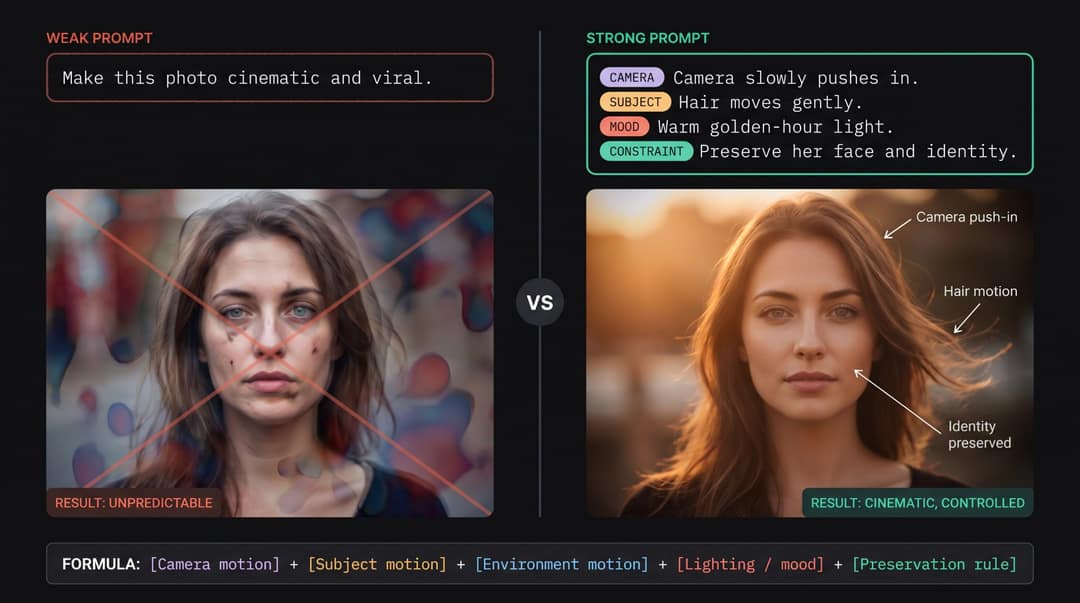
A still image already contains the subject, setting, colors, lighting, and composition. Your prompt should mostly describe motion. This principle is widely recognized in image-to-video AI: because the uploaded image provides the visual information, the text prompt should focus almost entirely on the desired motion. For more on structuring effective prompts, see Revid's video script guide.
Use this formula:
A strong prompt example:
Compare that to a weak prompt:
The second prompt leaves everything up to the model. The first tells it exactly what should move, how the camera should behave, what the mood should feel like, and what must not change. The constraint is as important as the instruction.

Weak prompt | Better prompt |
Make this cool | Camera slowly pushes in, background lights flicker, subject stays still and sharp |
Make it cinematic | Slow dolly-in, shallow depth of field, warm sunset light, subtle wind movement |
Animate this product | 360-degree studio camera arc, moving reflections, product shape unchanged |
Make her smile | Subtle natural smile, slight head turn, gentle blink, preserve facial identity |
Make this viral | Fast push-in, beat-synced zoom, bold caption space at top, energetic social style |
Want to try this right now? Paste any of the examples below into Revid's Image to Video Effect and see what the model does.
Step 5: Add Voiceover, Captions, Music, or Text
A moving photo is good. A moving photo with context is much better.
A bare animated clip is just motion. Captions, voiceover, and music are what give the viewer a reason to stay and respond. On TikTok and Reels especially, many viewers watch without sound at first. Captions make the message land immediately regardless of whether audio is on.
What you can add after generation:
- A hook caption in the first second
- Synchronized captions tied to a voiceover
- Background music that matches the mood
- Sound effects for emphasis
- Your brand logo or watermark
- A call to action
- Product name, price, or offer text
- A story title or subtitle
For voiceover, Revid's AI Talking Avatar can turn a portrait into a speaking presenter with a script, a voice, and lip-synced facial animation. This is how "talking photo" content gets made: portrait plus script plus voice, combined into one fluid presenter video. If you're working from an audio file instead of a script, the Audio to Video tool can transcribe audio, sync captions, and build a complete vertical video around the spoken content.
For music-driven content, two Revid tools are worth knowing: the AI Lyrics Video Generator pairs lyrics text with animated visuals, and the AI Music Video Generator builds a full music video experience from a track. Both pair naturally with the image-driven workflows if you want music as the primary driver.
Simple caption formula for social content:
- Hook: "This was just one photo."
- Context: "AI turned it into a cinematic product video."
- CTA: "Try it with your own image."
For personal or memory content: "A photo from 1987. Brought back to life. Save this for your family archive."
For product content: "One product photo. Three ad variations. No reshoot. No studio. Just motion."
Step 6: Generate the Video
Once your photo, format, and prompt are ready, click generate. Revid's Image to Video Effect says the tool can turn your picture into a video in moments, after which you can add music, make edits in the built-in editor, and download the finished MP4 formatted for TikTok, Instagram Reels, or YouTube Shorts.
Don't expect every first generation to be the final version. AI video generation is partly iterative. The first output shows you what the model understood from your prompt. The second or third generation is usually where you tighten the result.
Before regenerating, diagnose what went wrong:
- Did the face change or drift from the original?
- Did the product deform or lose its shape?
- Did the background melt or change texture?
- Did the camera move too much or too fast?
- Did the subject move unnaturally?
- Did text or logos become distorted?
- Was the motion too subtle to notice at all?
Each of those problems has a specific prompt fix, which we cover in the troubleshooting section below.

Step 7: Review Your Generated Video Before Editing
Watch the generated video at least three times. Each pass checks something different.
First pass: identity
Check whether the subject still looks like the original photo.
For people, check: face, age, hair, eyes, teeth, expression, skin texture, body proportions.
For products, check: shape, logo, label, color, packaging, materials, edges, reflections.
If identity has drifted, reduce the motion and add a constraint like "preserve the original identity, facial structure, clothing, and pose" or "keep the product shape, logo, label, color, and packaging exactly the same."
Second pass: motion
Check whether the movement feels physically believable. Look for:
- Weird or morphing hands
- Warped facial features
- Floating or disconnected objects
- Melting or texture-shifting backgrounds
- Unnatural blinking patterns
- Rubber-like product deformation
- Flickering edges where motion meets stillness
If motion looks strange, simplify. Instead of asking for walking, waving, and smiling while the camera spins, prompt for one subtle motion: "The person remains in place, smiles subtly, and the camera slowly pushes in."
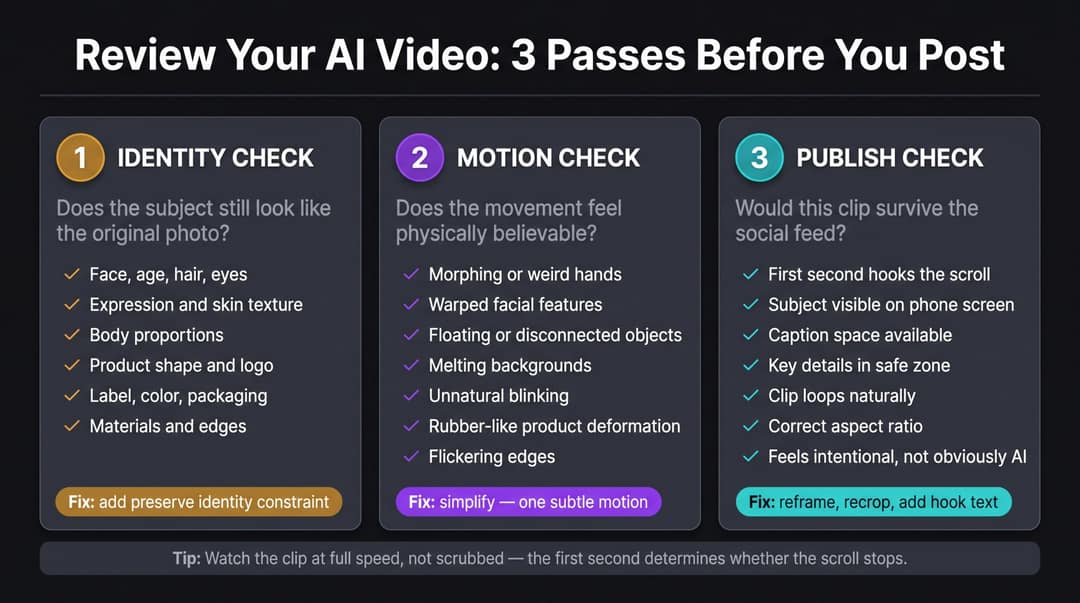
Third pass: publishability
Ask whether this clip would survive the social feed.
- Is the first second interesting enough to stop a scroll?
- Is the main subject clearly visible on a phone screen?
- Is there space for captions without covering the subject?
- Are key details inside the safe zone?
- Does the clip loop naturally?
- Does it need music to work?
- Is the aspect ratio correct for the platform?
- Does it feel intentional, or obviously AI-generated?
Revid's safe zone feature shows exactly where content remains visible across different devices and platforms, and the ratio switcher lets you preview in multiple formats before exporting.
Step 8: Edit the AI Video Before You Export
This is where most AI photo videos go from decent to publishable.
The generated AI clip is the moving visual layer. It's not the finished product. Treat it like b-roll: technically good, but incomplete without the surrounding production.
Add after generation:
- A title or hook text
- Synchronized captions
- Background music matched to mood
- Sound effects for impact moments
- Brand colors or logo
- A call to action
- Cut points and timing adjustments
- Safe-zone-friendly framing
Here's a simple 8-second social structure to guide the edit:
Time | What happens |
0.0–1.5s | Hook text appears immediately |
1.5–4.0s | Main AI motion plays |
4.0–6.5s | Benefit, reveal, or story context |
6.5–8.0s | CTA or loop back to the start |

For a product photo example:
- 0.0s: "One product photo is enough."
- 1.0s: Camera starts moving around the product.
- 3.0s: "Turn it into a scroll-stopping ad."
- 6.0s: Logo + CTA text appears.
- 8.0s: Ends on the same framing as the start so it loops smoothly.
Step 9: Export in the Right Format
For TikTok, Instagram Reels, and YouTube Shorts, export vertical unless you have a specific reason not to.
Use:
- 9:16 vertical for short-form feeds
- MP4 for broad compatibility across platforms
- Clear, readable captions sized for mobile viewing
- High enough resolution for mobile screens (Revid handles this automatically)
- Text inside the safe zone so platform UI elements don't cover it
- Audio included if posting to TikTok ads or sound-on placements
TikTok's ad policy requires ad video to be legible, high resolution, dynamic, and use standard sizes (9:16, 1:1, or 16:9). YouTube Shorts uploads must be up to three minutes and square or vertical.
Before exporting, use Revid's ratio switcher and safe zone preview to catch anything that might get clipped on different screen sizes. For TikTok specifically, the AI TikTok Video Generator is built to output in exactly the format TikTok expects, with caption styles and hooks designed for the platform's feed behavior.
Step 10: Post, Test, and Repurpose Your AI Photo Videos
One photo can become multiple videos. Don't make just one version and stop.
From the same source image, create:
- A subtle, slow-push version for personal or premium content
- A cinematic version with dramatic lighting and pacing
- A fast meme version with a dramatic zoom
- A voiceover version with narrated context
- A caption-only version for sound-off viewing
- A product ad version with text overlays and a CTA
- A behind-the-scenes version showing the original photo alongside the animated result
- A story version sequencing it with related images
- A square feed version for Instagram grid posts
- A vertical Shorts/Reels/TikTok version for the main feed
This is where AI video becomes genuinely powerful: not because it gives you one magic output, but because it lets you test many creative angles from the same asset in the same amount of time it used to take to make one video. Branch out using Revid's full suite of creation tools to maximize every photo in your archive.
AI Video Prompt Templates You Can Copy for Photo Animation
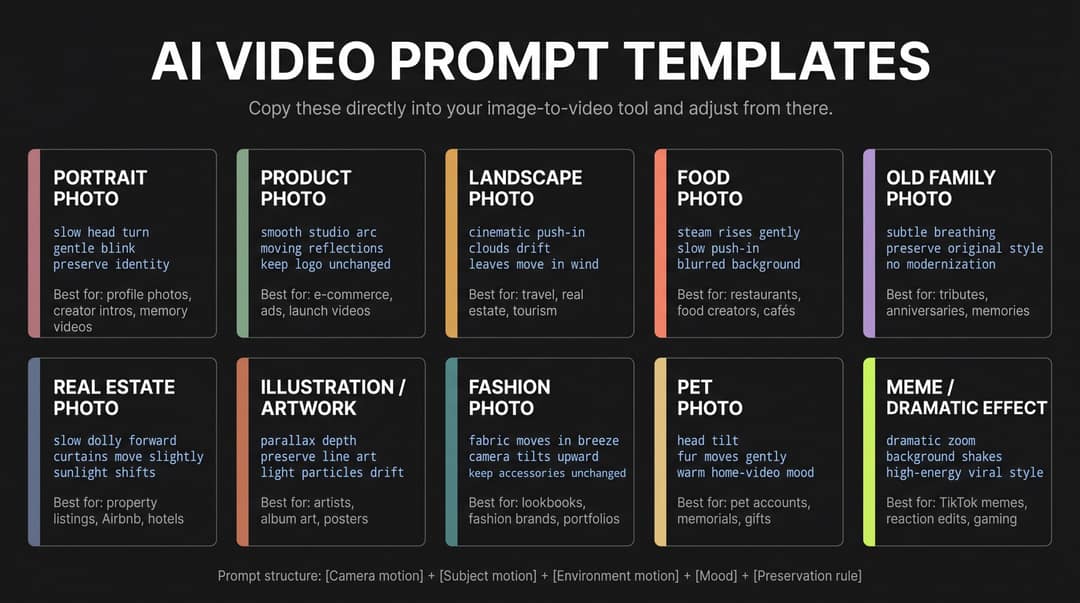
Use these as starting points. Paste them directly into Revid's Image to Video Effect or AI Image Animator and adjust from there.

Portrait Photo Prompt
Best for: profile photos, creator intros, personal brands, memory videos.
Product Photo Prompt
Best for: e-commerce, ads, launch videos, product teasers.
Landscape Photo Prompt
Best for: travel, real estate, tourism, nature content.
Food Photo Prompt
Best for: restaurants, food creators, cafés, delivery apps.
Old Family Photo Prompt
Best for: tributes, family memories, anniversaries.
Real Estate Photo Prompt
Best for: property listings, Airbnb, hotel marketing.
Illustration or Artwork Prompt
Best for: artists, posters, album art, children's drawings, comics.
For anime-style or cartoon illustrations, Revid's AI Anime Video Generator is built specifically for animating artwork with an anime aesthetic. Worth trying if your illustration has that style.
Fashion Photo Prompt
Best for: fashion brands, lookbooks, creator portfolios.
Pet Photo Prompt
Best for: pet accounts, memorials, personalized gifts.
Meme or Dramatic Effect Prompt
Best for: TikTok memes, reaction edits, gaming posts.
Try any of these directly in Revid. Paste the prompt, upload your photo, and see what the model produces.
Motion Prompt Words and Terms for AI Video Generation
When writing prompts, think in four categories: how the camera moves, how the subject moves, how the environment moves, and what the overall style and constraints are.

Camera Motion
-> slow push-in
-> dolly forward
-> dolly backward
-> pan left / pan right
-> tilt up / tilt down
-> orbit around (360-degree arc)
-> handheld micro-shake (for organic feel)
-> parallax depth (subject and background moving at different speeds)
-> smooth zoom
-> rack focus
-> cinematic reveal
Subject Motion
- blink gently
- slight smile
- subtle head turn
- hair moves in breeze
- fabric moves softly
- breathing motion
- eyes look toward camera
- hand remains still
- product stays fixed
- model holds pose
Environment Motion
-> clouds drift
-> water ripples
-> leaves move in wind
-> dust floats
-> light rays shift
-> steam rises
-> smoke swirls
-> rain falls
-> snow drifts
-> neon flickers
-> particles glow
Style and Mood
realistic, cinematic, soft, premium, editorial, documentary, nostalgic, dreamy, clean, high-energy, natural, luxury, warm, dramatic
Constraint Words
- keep identity unchanged
- preserve face
- preserve product shape
- keep logo readable
- no morphing
- no extra people
- no new objects
- no cartoon effect
- no exaggerated expression
- stable background
- natural motion only
One of each is usually enough. Two camera motions in one prompt start to compete. Three environment motions get chaotic. When in doubt, add a constraint instead of another action.
Test your motion vocabulary directly in Revid's Image to Video Effect. See which combinations give you the result you want.
Which AI Photo Video Workflow Should You Use?

URL: https://www.revid.ai/toolsLocation: "Which AI Photo Video Workflow Should You Use?" sectionInstructions: The /tools page requires a logged-in or JavaScript-rendered session. Open https://www.revid.ai/tools in a regular browser, wait for all tool cards to load (150+ tools grid), resize to 1920x1080, and take a viewport screenshot. Save as [email protected] and copy to images/screenshots/. Embed here with alt text: "Revid.ai tools page showing the full library of 150+ AI video creation tools organized by category"
Make One Photo Move
Use this when you want one image to become a short, eye-catching clip. Best for portraits, product shots, landscapes, food photos, fashion photos, artwork, posters, and real estate photos.
Open Revid's Image to Video Effect or AI Image Animator. Upload the photo, choose your format, write a motion prompt, generate the clip, add captions and music in the editor, and export. The Image to Video Effect lets you optionally describe the motion or let the AI choose. The AI Image Animator gives you more control over duration, AI voices, and aspect ratio settings.
The AI Image Animator tool interface makes this workflow straightforward: upload your photo, choose your settings, and let the AI handle the frame generation.

Make a Video From Multiple Photos
Use this when you want a complete sequence rather than one animated shot. Best for wedding recaps, travel montages, family memories, event highlights, product catalogs, before/after videos, and real estate tours.
Use Revid's Photo to Video Converter or Create Video From Memories. The Photo to Video Converter arranges photos into a natural sequence with transitions, music, and cinematic pacing. Create Video From Memories is optimized specifically for uploading photos and clips and having AI arrange them into a cohesive story with music. Style transfer on the Photo to Video Converter costs 16 credits per image if you want a specific visual treatment applied uniformly across all photos.
Turn Photos Into a Narrated Story
Use this when the photo needs context around it. Best for travel storytelling, founder stories, brand stories, personal memories, case studies, educational content, and nonprofit campaigns.
Use Revid's Media to Story workflow. Upload videos or images and let the AI create a compelling story with voiceover, captions, and vertical social optimization. It reads the visual context of each image, sequences them, writes a connecting narrative, and generates a finished video.
If you want to take this further and turn written content into video (a blog post, an article, a written piece), Revid's Article to Video tool handles that path. It's useful when the "story" already exists in text form and you want video output instead of starting from images.
Make a Portrait or Character Move (Motion Transfer)
Use this when you want a person, mascot, avatar, or character in a photo to perform a specific movement. Best for character animation, mascot content, dance trends, TikTok-style motion, music promos, and brand character content.
Use Revid's Motion Transfer. It uses one motion reference video plus one reference photo and applies the dance moves, gestures, and body movement to the person or character from the still image. Pro and Ultra model options are available, with different credit costs per five seconds.
Use this responsibly. Don't animate someone into a performance they didn't consent to.
Make a Talking Photo
Use this when you want a face or avatar to speak. Best for explainer videos, personalized messages, educational content, founder avatars, birthday messages, sales videos, and UGC-style content.
Use Revid's AI Talking Avatar. A talking-photo workflow combines a portrait, a script, a voice, lip-sync or facial animation, captions, and background music. The Revid extensive guide covers voice selection in depth: you can choose from 50+ voices filtered by language, gender, age, and accent, record your own voice, upload audio, or create/clone a custom voice.
If the starting point is a document rather than an image, Revid's PDF to Video Converter can pull the content from a PDF and build a narrated video from it. This pairs naturally with talking avatar scenarios where the source material is a written presentation or report.
Why AI Photo Videos Look Weird (And How to Fix Them)
The most common AI video artifacts aren't random. Each one has a specific cause and a specific fix.

Problem: The face changes
Cause: The prompt asks for too much facial movement, or the input photo is low quality.
Fix: Use a sharper photo with a clearly visible face. Ask for subtle motion. Add "preserve identity" as an explicit constraint. Don't prompt for a dramatic smile, speaking, head turning, and camera movement all at once.
Problem: Hands look distorted
Cause: Hands are genuinely hard for AI video models, especially when they move.
Fix: Crop hands out if they aren't central to the video. Keep hand motion minimal or non-existent. Use camera motion instead of body motion.
Problem: Product logo becomes unreadable
Cause: Generative video models often distort small text and logos during motion.
Fix: Don't rely on the AI to preserve tiny text. Add logos as an overlay after generation. Ask the model not to alter the label. Keep camera motion slow.
Problem: Background melts or changes
Cause: The prompt gives the AI too much freedom, or the background is complex.
Fix: Simplify the background in the source photo if possible. Describe only one environmental motion. Explicitly ask the background to remain stable.
Problem: Motion is too boring
Cause: The prompt is too subtle, or the camera isn't doing anything interesting.
Fix: Add camera movement. Add environmental motion. Use a stronger visual effect paired with a subtle subject motion.
Problem: Motion is too chaotic
Cause: Too many actions crammed into one prompt.
Fix: Remove extra verbs. Keep one subject motion and one camera motion. Add "smooth" and "subtle" as modifiers. Save high-energy words like "epic" or "explosive" for meme content only.
Problem: The video doesn't fit TikTok/Reels/Shorts
Cause: Wrong aspect ratio, or important content is outside the safe zone.
Fix: Generate or export in 9:16. Keep the face or product centered. Put captions away from the edges. Revid's ratio preview and safe zones catch this before export.
AI Photo Video Examples: Real Results From Different Workflows

Example 1: Product Ad From One Photo
Input: A sneaker product photo
Prompt:
Edit: Bold text overlay: "New drop. One photo. Full video."
Export: 9:16 vertical
Example 2: Restaurant Video From a Food Photo
Input: Pasta dish photo
Prompt:
Edit: Caption: "Tonight's special is already calling."
Export: 9:16 for Instagram Reels and Stories
Example 3: Wedding Photo Montage
Input: 20 wedding photos
Instruction:
Edit: Add couple names and date as text overlays
Export: 9:16 and 16:9
Use: Instagram Reel, client delivery, YouTube highlight
Example 4: Real Estate Listing Video
Input: Living room photo
Prompt:
Edit: Text: "3-bed apartment. Morning light. Downtown view."
Export: 9:16 for social, 16:9 for listing page. The real estate marketing video tool is purpose-built for exactly this workflow.
Example 5: Travel Story From Photos
Input: 12 travel photos from a trip
Instruction:
Revid's Media to Story tool transforms photos and clips into a story automatically adjusting for vertical social formats, adding transitions, and optimizing for platforms like Instagram, TikTok, and Snapchat.
Example 6: Character Dance From a Photo
Input: A mascot image + a reference dance video
Instruction:
Revid's Motion Transfer uses one motion video and one reference photo to apply gestures, dance, and body movement onto a person or character from a still image.
AI Photo Video Quality Checklist: What to Check Before You Post
Run through this before you export.

Photo Quality
- Clear subject with good visibility
- Good lighting throughout
- No critical details cut off at the edges
- No tiny unreadable text in the original image
- Face or product is sharp, not blurred
Prompt Quality
- Describes specific motion (not just mood)
- Includes camera movement
- Includes one mood or style reference
- Includes preservation rules for faces, logos, or product details
- Doesn't ask for too many simultaneous actions
Video Quality
- Subject identity preserved from original photo
- No warped face, hands, logo, or product shape
- Motion feels physically believable
- Background stable enough for the use case
- Clip has a clear beginning and end
- Works on a mobile screen at full speed
Social Quality
- First second has a clear hook
- Captions are readable at mobile size
- Main subject is centered and visible
- Text is inside the safe zone
- Correct aspect ratio for the target platform
- Audio is clean (if using audio)
- CTA is visible and reads quickly
- Loop feels smooth if it loops
Is It Legal to Animate Someone's Photo? What You Need to Know
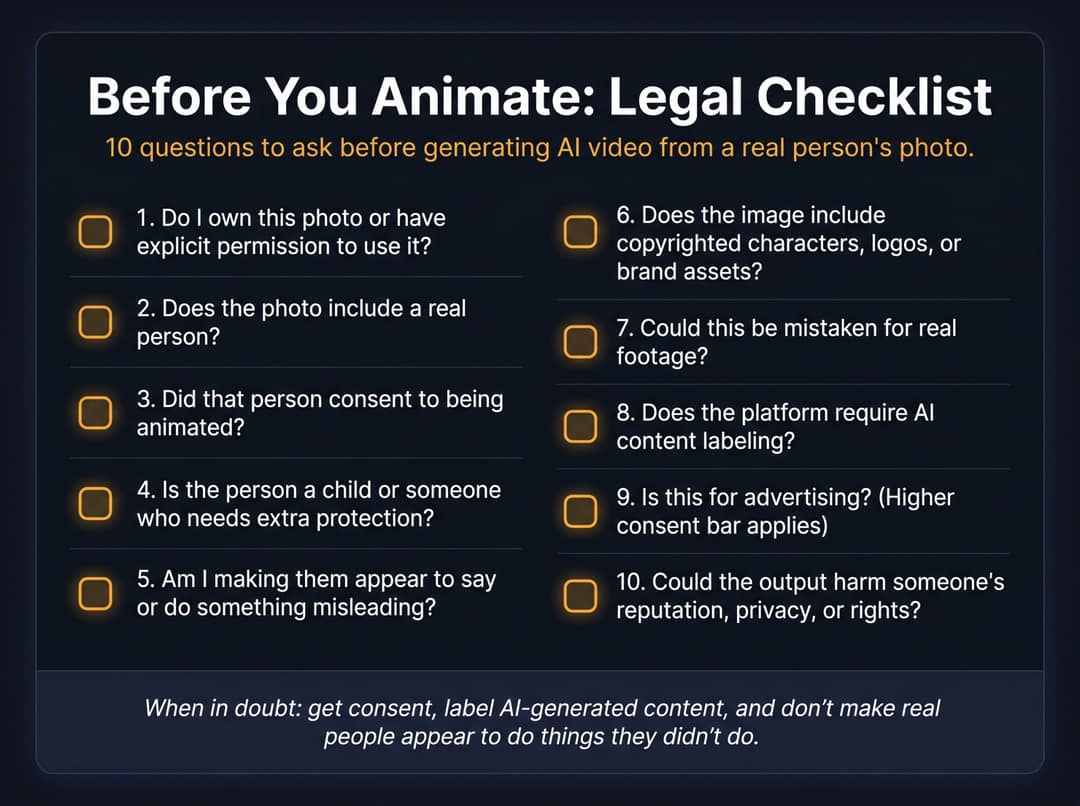
Before generating any AI video from a photo of a real person, run through this checklist:
- Do I own this photo or have explicit permission to use it?
- Does the photo include a real person?
- Did that person consent to being animated?
- Is the person a child or someone who may need extra protection?
- Am I making the person appear to say or do something misleading?
- Does the image include copyrighted characters, logos, products, artwork, or brand assets?
- Could this be mistaken for real footage?
- Does the platform require AI content labeling?
- Is this for advertising? (Higher consent bar)
- Could the output harm someone's reputation, privacy, or rights?

Revid's Terms prohibit infringing anyone's intellectual property rights and make users responsible for content and activity under their accounts. TikTok's AI Alive content is labeled as AI-generated and includes C2PA metadata. That labeling approach shows the direction platforms are moving. Industry-standard AI video safety guidelines include visible and invisible provenance signals in generated videos.
Frequently Asked Questions: AI Photo Videos
Can AI turn one photo into a video?
Yes. Image-to-video AI tools animate a single still image by generating new frames that simulate motion. The best results come from clear, high-resolution photos with distinct subjects and prompts that describe specific movement rather than general mood.

What is the easiest way to make an AI video from a photo?
The easiest path is Revid's Image to Video Effect tool: upload the photo, choose 9:16, describe the motion you want, generate the video, then add captions, music, or voiceover in the built-in editor before downloading.
Can I make a video from multiple photos?
Yes. Use a photo-to-video converter for this. Revid's Photo to Video Converter arranges multiple uploaded photos into a sequence with transitions, music, and cinematic pacing automatically.
Can I make a photo talk?
Yes, using a talking-avatar or lip-sync workflow. You need a portrait, a script or audio, and a voice. The AI then animates the face and mouth to match the audio. Revid's AI Talking Avatar handles this end-to-end.
What photo works best for AI video?
Use a sharp, well-lit image with a clear subject and good separation from the background. Avoid blurry faces, cropped heads, tiny logos, cluttered backgrounds, and important text baked into the photo. High resolution gives the AI more information to work with when generating new frames.
What should I write in the motion prompt?
Describe motion, not decoration. A strong prompt includes camera motion, subject motion, environment motion, mood, and preservation rules. Example: "Camera slowly pushes in, hair moves gently, warm sunset light, preserve the face and clothing." Keep it to one of each type of motion and add a constraint for anything that must not change.
Why does my AI video look weird?
Most weird results come from low-quality input photos, overly ambitious prompts, too much body movement in one prompt, unclear subject separation, or asking the AI to preserve tiny text or logos during motion. Fix: better input photo, simpler motion, more specific constraints. See the full troubleshooting breakdown using Revid's AI video tools for platform-ready exports.
How long should an AI photo video be?
For social media, start with 5–10 seconds for a single animated photo. For a photo montage or story video, 15–45 seconds often works better. See Revid's social media video length guide for platform-specific recommendations. For YouTube Shorts, videos can be up to three minutes if they're square or vertical, but shorter is usually easier to watch and easier to test.
What format should I export my AI video in?
Use 9:16 vertical for TikTok, Reels, Shorts, and Stories. Use 16:9 for YouTube, websites, presentations, and horizontal placements. Use 1:1 for square social posts. MP4 works across all major platforms. See Revid's social media video sizes guide for a full breakdown by platform.
Can I use AI photo videos for ads?
Yes, but verify you have rights to the image, product, brand assets, music, voice, and any likenesses featured. Follow the ad platform's specific rules. TikTok's ad policy requires ad video to be dynamic and not rely primarily on still images. For purpose-built ad creation, see Revid's AI Ad Generator.
Is it legal to animate someone's photo?
It depends on rights, consent, context, and jurisdiction. Use photos you own or have permission to use. Get consent before animating real people, especially if the result makes them appear to speak, perform, endorse something, or appear in a sensitive context. Platform rules on AI-generated content are tightening.
Can I animate old family photos?
Yes, and it can be genuinely moving when done well. Use subtle motion and treat the result respectfully. For old family photos, avoid exaggerated expressions or anything that modernizes the person. Use prompts like "subtle blink," "gentle breathing motion," and "preserve the original photo style and clothing."
Can I keep the same face or product exactly during AI video?
You can improve consistency significantly with a clear, high-resolution photo and strong preservation prompts, but no generative video model is perfect. If exact logo, label, or facial consistency is mission-critical, keep the camera motion slow and subtle, and add important branding as a text or image overlay in the editor after generation.
Can I use Revid's AI Anime Video Generator on artistic photos?
Yes. Revid's AI Anime Video Generator is designed specifically for creating anime-style video content, which makes it well-suited for animating illustrations, artwork, character designs, and portraits with an anime or stylized aesthetic. Use it instead of the standard Image to Video Effect when the visual style you want is specifically anime or cartoon.
What's the difference between Revid's Image to Video Effect and the AI Image Animator?
Both start with a still image, but they serve slightly different use cases. The Image to Video Effect is optimized for adding video motion effects to photos and is the most direct path from photo to animated clip. The AI Image Animator gives you more detailed control over duration, AI voices, aspect ratio, and advanced image-to-video settings. If you're new to this, start with the Image to Video Effect. If you want more granular control or want to pair the animation with a voiceover from the start, try the AI Image Animator.
How to Get AI Photo Videos Right Every Time
Making an AI video from a photo is genuinely easy now. Making a good one takes one extra step: intention before generation.
The winning formula is not:
It's:
That's the difference between AI video that people scroll past and AI video they actually watch, share, or remember.
We built Revid.ai specifically to make that full workflow fast, with every piece available in one place: image animators, photo-to-video converters, narrated story tools, talking avatars, motion transfer, captions, voiceover, music, format switching, and social publishing, with all 150+ tools in one browser tab. You don't need to stitch together six different tools. Upload your photo and start.