How to Make a Video With Photos and Music (Step-by-Step)
Learn how to make a video with photos and music using AI or any editor. 13 steps, beat sync tips, copyright guidance, and copy-paste prompts.
On this page
Making a video with photos and music sounds like one of the easier things you can do with a phone or a laptop. Pick some pictures, drop in a song, hit export. Done.
But if you've ever watched your own creation play back and felt a vague disappointment (the kind where the photos are nice but the whole thing feels flat and forgettable), you already know something's off. The difference between a slideshow that people skip and a video people actually finish watching comes down to four things: story, pacing, music rights, and format. Get those right and almost any set of photos becomes compelling. Miss even one of them and no amount of visual polish will save it.
This guide covers the full process: the decisions to make before you open any editor, the 13 steps that actually matter, how to use Revid.ai to do it with AI, platform-specific instructions, how to sync photos to music, common mistakes, and a set of ready-to-use prompts you can drop straight into any AI video tool. We've built photo-to-video workflows for thousands of creators across every use case, and the pattern is consistent: the people who start with story and format make better videos than people who start with an editing tool.
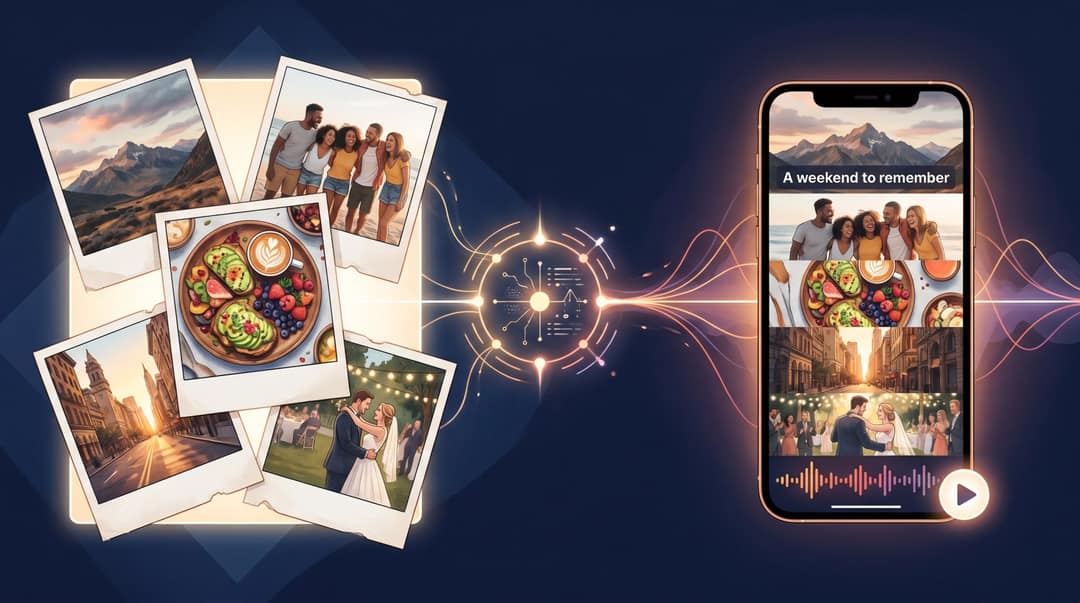
How to Make a Photo Video in 8 Steps
If you're in a hurry, here's the process:
Choose the purpose of the video: memory, promo, travel recap, event, social content, or music video.
Pick your format first: vertical 9:16 for TikTok, Reels, and Shorts; landscape 16:9 for YouTube; square 1:1 for feeds.
Select your best photos (not all of them) and put them in story order.
Add licensed music that matches the emotion you're going for.
Set photo timing so each image change feels intentional, ideally synced to the music.
Add motion, transitions, and text to make the video feel alive.
Preview on a phone to check pacing, cropping, and audio.
Export in the right format for the platform where people will watch it.
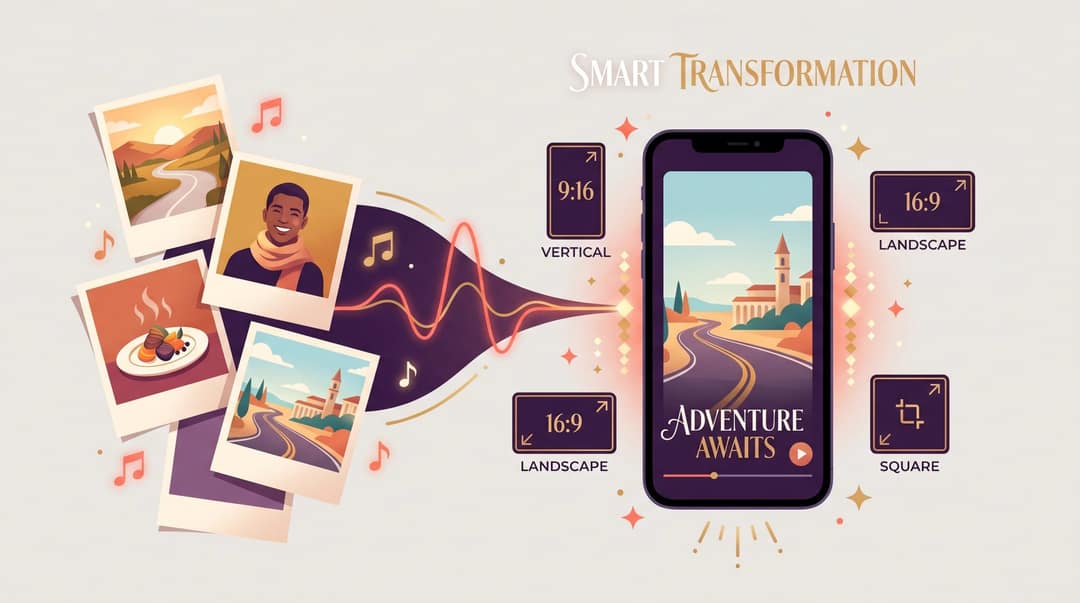
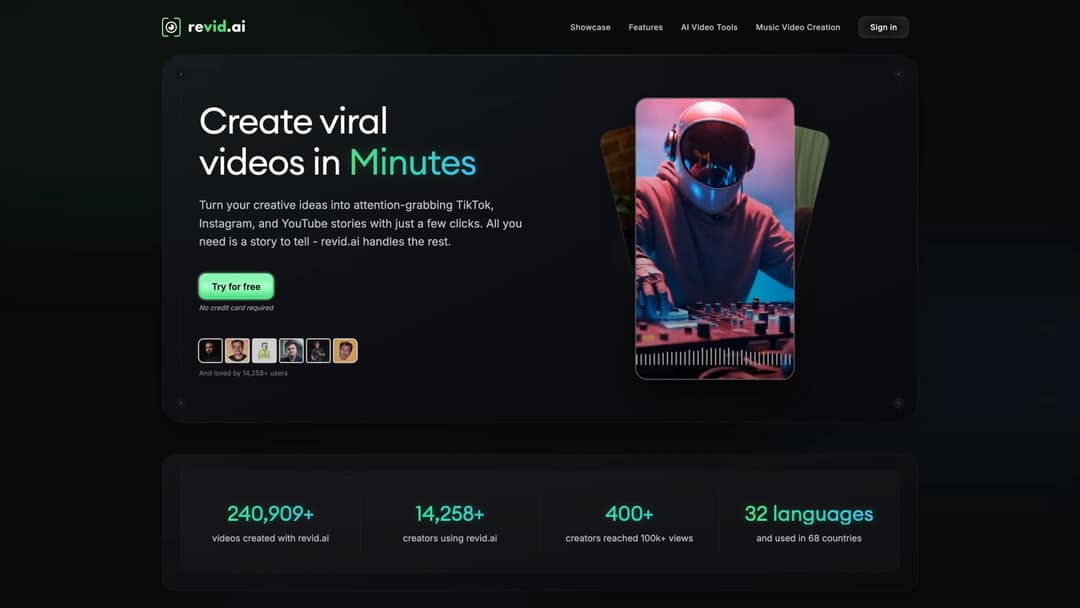
The fastest version of this: use Revid's AI Photo to Video Converter or Media to Story tool, upload your photos, write a short prompt describing what you want, add music, generate, then refine. Revid supports portrait 9:16, landscape 16:9, and square 1:1, and our workflow is designed to handle the arrangement, transitions, pacing, and music sync automatically, so you can spend your time on the creative decisions instead of the mechanical ones.
But the quick answer only gets you so far. The section below is where it actually clicks.
What Type of Photo Video Should You Make?
Most people searching for how to make a video with photos and music aren't just making a generic slideshow. They're making one of these:
| Video type | Best for | What matters most |
|---|---|---|
| Memory video | Birthdays, anniversaries, family, memorials | Emotion, photo order, music mood |
| Event recap | Weddings, parties, conferences, sports | Energy, pacing, highlight moments |
| Travel montage | Vacations, city reels, creator content | Visual variety, rhythm, location text |
| Product promo | Ecommerce, launches, ads | Clarity, benefits, call to action |
| Real estate tour | Property listings, rentals, Airbnb | Room order, smooth pacing, labels |
| Social Reel / TikTok / Short | Short-form social content | Hook, vertical format, fast pacing |
| Music visualizer | Songs, lyrics, album promos | Beat sync, motion, captions or lyrics |
Each video type calls for a different approach. Creating a music visualizer video is a fundamentally different task from building a tribute from family memories.
This matters because "the right video" isn't always the most polished one. A wedding teaser needs emotion. A product slideshow needs clarity. A TikTok needs a hook in the first two seconds. A real estate video needs a logical flow through the rooms. A family memory video needs people to feel something, not just see something.
So before you open any tool, answer this one question:
What should the viewer feel, understand, or do after watching?
That single decision makes every editing choice that follows easier. And it usually reveals what kind of video you're actually making.
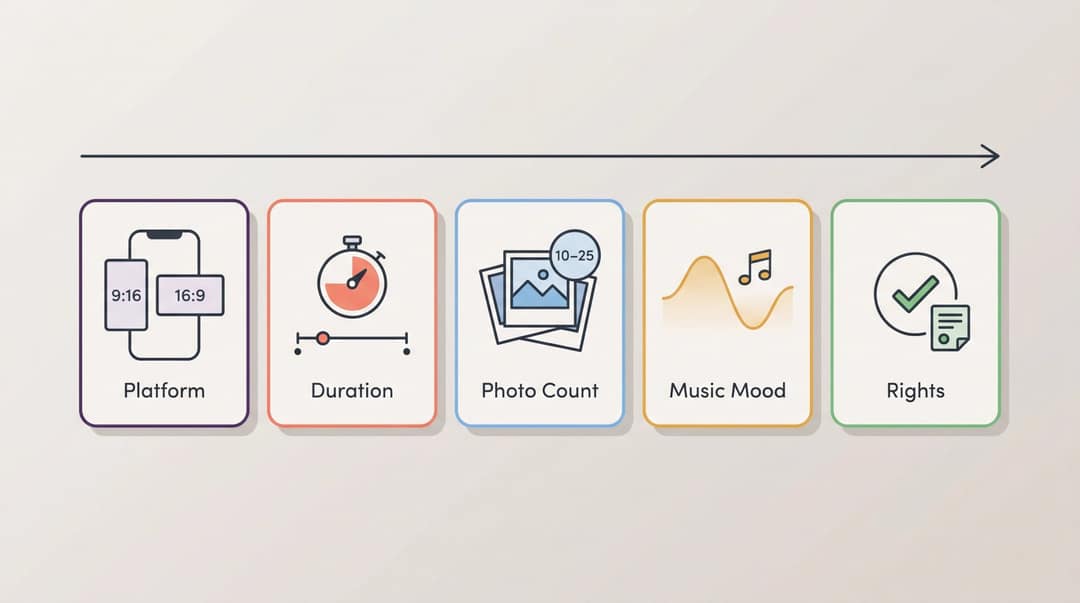
5 Things to Decide Before You Start Editing
These decisions look administrative. They're not. Each one determines the shape of the whole project, and changing any of them midway through editing costs you real time.
1. Where will the video be posted?
This determines your aspect ratio, and your aspect ratio determines everything about how your photos get cropped, framed, and composed.
For TikTok, Instagram Reels, and YouTube Shorts, use vertical 9:16. Think of it as your phone held upright. For YouTube standard uploads and presentations, use landscape 16:9. For Instagram feed posts, square 1:1 or portrait 4:5 can work.
A few important platform specs to know:
YouTube's official help page says square or vertical videos uploaded after October 15, 2024 can be categorized as Shorts if they're up to three minutes long. Shorts longer than one minute with an active Content ID claim used to be blocked globally; since September 24, 2026, YouTube's help pages say new claimed Shorts of one to three minutes are no longer automatically blocked and may remain playable. Worth knowing before you export.
Instagram's official guidance says Reels support aspect ratios between 1.91:1 and 9:16, and that Reels longer than three minutes aren't recommended to new audiences.
TikTok's official ad specs recommend vertical 9:16 for in-feed ads and list MP4 and MOV as supported formats.
2. How long should the video be?
Use the shortest length that still tells the story. For social platforms, shorter usually forces better editing. For private events where the audience already cares about the people in the photos, you can go longer.
A starting guide:
| Goal | Good starting length |
|---|---|
| TikTok / Reel / Short | 15–45 seconds |
| Travel recap | 20–60 seconds |
| Birthday or family video | 30–90 seconds |
| Wedding teaser | 30–90 seconds |
| Real estate listing | 30–75 seconds |
| Product promo | 15–45 seconds |
| Memorial or tribute | 60 seconds to several minutes |
For a more detailed breakdown, our guide to video length by platform covers how each algorithm treats different durations and what length tends to maximize completion rate.
3. How many photos should you use?
Not all of them. This is one of the most common mistakes people make: dumping every photo they have into the timeline and hoping the music covers the mess.
Use this formula:
Video length ÷ seconds per photo = number of photos needed
| Video length | Photo duration | Approx. photo count |
|---|---|---|
| 20 seconds | 2 seconds each | 10 photos |
| 30 seconds | 2 seconds each | 15 photos |
| 45 seconds | 2.5 seconds each | 18 photos |
| 60 seconds | 3 seconds each | 20 photos |
For most short-form content, 10–25 photos is a good range. The typical photo duration sits at 1–4 seconds depending on the effect you want. The faster and more energetic the video, the shorter each photo stays on screen.
4. What mood should the music create?
Music isn't background decoration. It tells the viewer how to feel before they've had time to form their own opinion about what they're seeing.
| Mood | Music style |
|---|---|
| Nostalgic | Piano, acoustic guitar, soft strings |
| Romantic | Warm cinematic, slow pop, orchestral |
| Fun | Upbeat pop, funk, dance, playful beats |
| Luxury | Minimal, elegant, ambient, deep house |
| Adventure | Percussion, cinematic, energetic indie |
| Product launch | Modern electronic, confident beat |
| Memorial | Gentle piano, ambient, slow instrumental |
Pick the music before you fine-tune the timing. Your cuts, transitions, and text rhythm should follow the song. Not the other way around.
5. Do you have the right to use the music?
This is the step most people skip, and it's the one that causes muted videos, copyright claims, blocked uploads, and (for business content) potential legal exposure.
For personal videos, the in-app music library on a given platform is usually fine. For business use, ads, product promos, sponsored content, or anything where the video promotes a brand or product, you need to be more careful.
TikTok's official support guidance says brands and businesses should use TikTok's Commercial Music Library, a separate collection of pre-cleared music specifically for business accounts. Business accounts on TikTok don't have access to the general music library, because that library isn't cleared for commercial use.
Meta's Sound Collection provides royalty-free music and sound effects for Facebook and Instagram content, specifically for use where you need rights-cleared audio.
For YouTube Shorts, the rule is especially strict: Shorts over one minute with active Content ID claims can be blocked globally. Content ID is YouTube's automatic music fingerprinting system, and it catches popular songs instantly.
The practical rule: if the video promotes a business, product, brand, or paid campaign, use music that's explicitly cleared for commercial use. Our guide to finding copyright-free music for videos covers the best legitimate sources and keeps proof of the license.
How to Make a Photo Video Step by Step (13 Steps)
Step 1: Plan your story before choosing photos
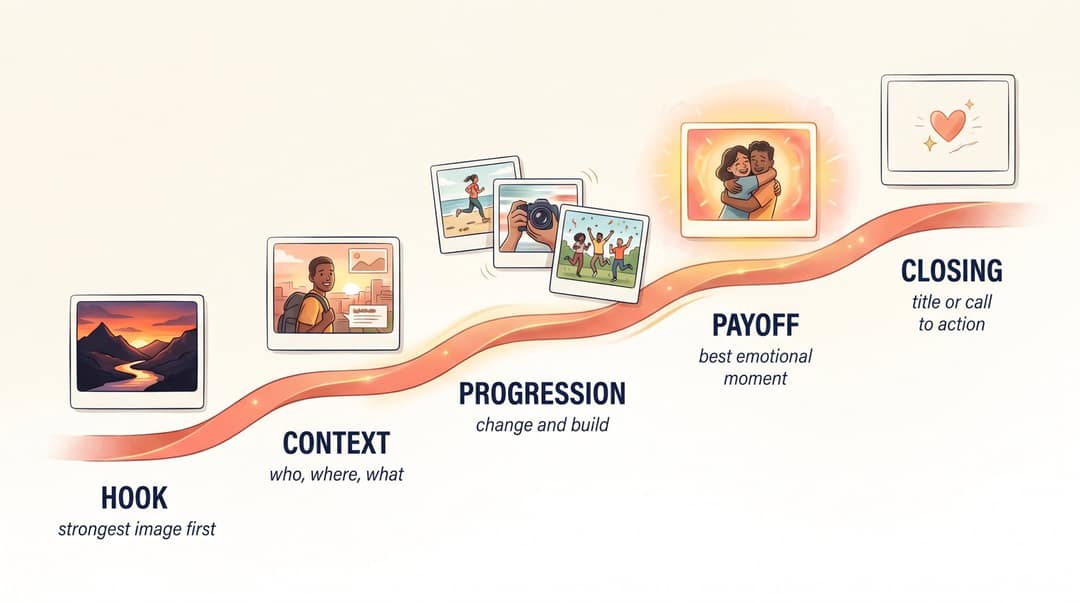
A good photo video has a beginning, middle, and end. Even a 20-second TikTok needs structure. Without it, the video is just photos going past. This structure is also the foundation of the core principles of video storytelling, the same principles that separate a video people finish from one they skip.
Use this simple arc:
Hook: Start with the strongest or most intriguing image.
Context: Show where, who, or what the video is about.
Progression: Arrange photos so something changes, develops, or builds.
Payoff: End with the best emotional, beautiful, funny, or useful moment.
Closing: Add a final title, message, logo, date, or clear next step.
A few real examples:
| Use case | Story structure |
|---|---|
| Birthday video | Baby photo → childhood → recent memories → group photo → "Happy Birthday" |
| Travel recap | Arrival → landmarks → food → people → sunset → final location text |
| Product promo | Problem → product detail → use case → benefit → CTA |
| Wedding teaser | Venue → details → couple → ceremony → celebration → romantic close |
| Real estate tour | Exterior → entry → living room → kitchen → bedrooms → outdoor space → contact CTA |
| Fitness transformation | Before → process → milestones → result → lesson or CTA |
Bad photo videos feel random because they are. Great ones feel intentional because someone made the story decision upfront.
Step 2: Set your aspect ratio before you start
Do this before uploading photos. Changing the aspect ratio after you've placed photos and text can crop faces, cut off key details, and ruin the composition you built.
| Destination | Best format | Recommended canvas |
|---|---|---|
| TikTok | Vertical | 9:16 |
| Instagram Reels | Vertical | 9:16 |
| YouTube Shorts | Vertical or square | 9:16 or 1:1 |
| Instagram feed | Portrait or square | 4:5 or 1:1 |
| YouTube standard video | Landscape | 16:9 |
| Website hero video | Landscape or vertical | Depends on design |
| Presentation / TV | Landscape | 16:9 |
Revid.ai's Photo to Video and Music Video tools support portrait 9:16, landscape 16:9, and square 1:1, which makes it easier to create variants for different platforms without rebuilding the whole concept from scratch. If you're creating a social-first video, start in 9:16. You can always adapt down to 1:1, but adapting a landscape video to vertical almost always creates cropping problems.
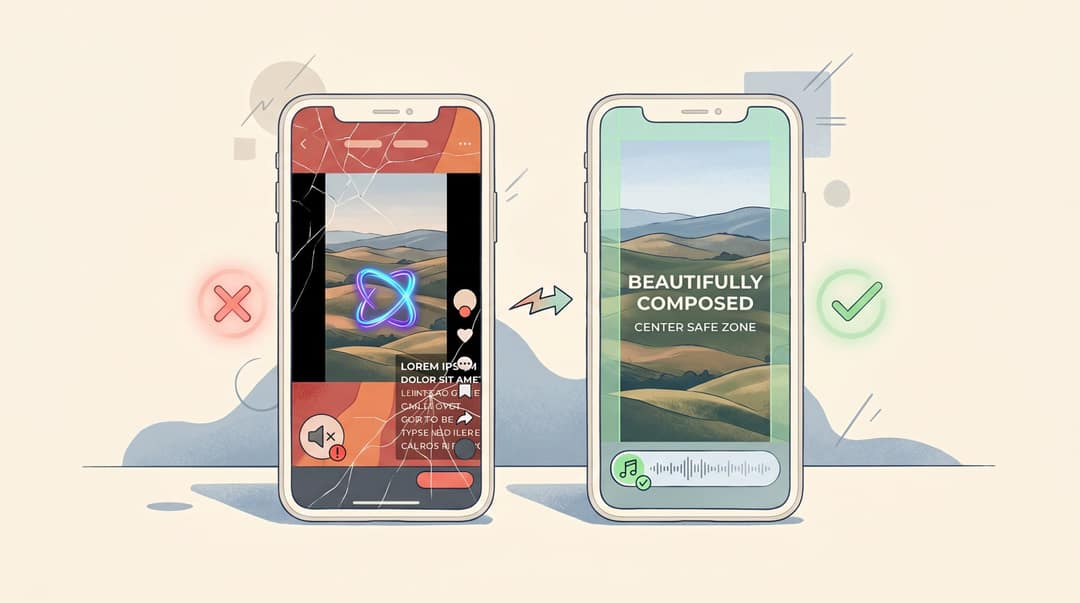
Safe-zone tip: For vertical social videos, keep important text and faces away from the very bottom, the right edge, and the top corners. Platform UI elements like captions, usernames, like buttons, and navigation can cover those areas. Revid's editor can overlay TikTok, Instagram, and YouTube safe zones on 9:16 videos, so you can keep important visuals and text inside the visible area.
Step 3: Select and prepare your photos
Choose photos that are sharp, well-lit, emotionally clear, visually different from each other, and relevant to the story you mapped out in Step 1.
Avoid using five nearly identical photos. A video feels slow and repetitive when the viewer sees the same composition over and over, even if the subject changes slightly. Visual variety holds attention.
Before uploading:
Delete duplicates.
Crop out distractions.
Fix brightness and contrast on photos that look dark or washed out.
Keep faces centered if making a vertical video.
Put photos in rough story order before you upload.
Rename files if it helps keep things organized:
01-arrival,02-venue,03-group-photo.
If you're turning horizontal (landscape) photos into a vertical video, expect some cropping. A common fix is to use a blurred or enlarged version of the same photo as the background, with the full image centered on top. Many editors handle this automatically.
Step 4: Choose your editing method (AI, template, or manual)
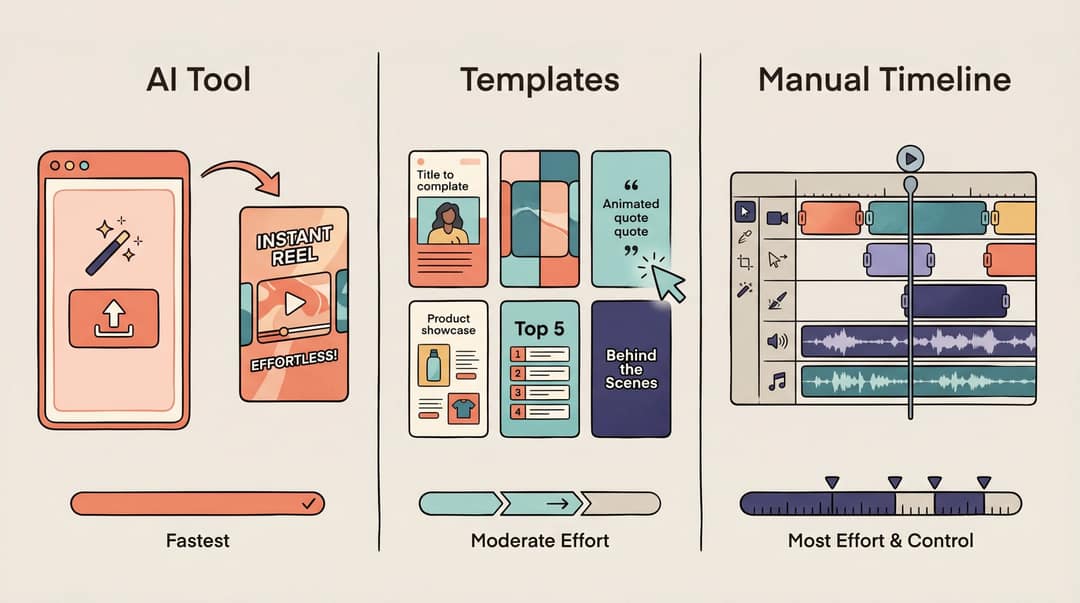
You have three real options, and which one is right depends on how much time and control you want.
Option A: Use an AI photo-to-video tool
Best when you want the fastest result with the least manual work.
With Revid's AI Photo to Video Converter, you upload photos, add a narrative or prompt describing what you want, choose the screen ratio and background music, generate the video, and then refine it in the editor. The AI handles the arrangement, transitions, pacing, and music sync automatically. For a deeper look at how AI-powered automatic editing works, including silence removal, smart reframing, and scene detection, our guide breaks down each capability.
This is best for social videos, memory videos, product teasers, real estate, travel recaps, and anyone who doesn't want to spend two hours manually editing a timeline.
Option B: Use a template-based editor
Best when you want a designed look with minimal manual work.
Template-based tools like Canva, Adobe Express, CapCut, and Clipchamp offer photo video templates where you upload photos, add music, customize text, and export. These are best for branded videos, invitations, event slideshows, and simple social posts where design matters more than motion. For short-form social-first content, our tools library includes 150+ AI video tools optimized specifically for TikTok, Instagram Reels, and YouTube Shorts.
Option C: Use a manual timeline editor
Best when you want full control.
iMovie, CapCut, Clipchamp, Adobe Premiere, Final Cut Pro, and DaVinci Resolve let you manually place photos, trim timing, add transitions, sync to music, and export with precise settings. Apple's iMovie lets you add photos to a movie timeline and notes that photos added to iMovie appear for several seconds by default with the Ken Burns effect (a slow pan-zoom technique on still images) applied automatically.
This is best for wedding films, complex YouTube uploads, polished business videos, and anything where you need fine-grained control over timing and audio layers.
Step 5: Upload and arrange photos in story order
Once your project is created, upload your photos and arrange them in the order the viewer should experience them.
The key distinction: don't think only chronologically, think emotionally.
A travel video doesn't have to start with the first photo you took on the trip. It should start with the image most likely to stop someone from scrolling. Sometimes that's the sunset at the end of day three. Sometimes it's a funny moment from the market. The opening frame is your first impression, your thumbnail, and your hook. What makes a first frame worth stopping for follows the same principles as writing a viral hook.
Good opening-photo ideas:
A dramatic landscape or wide establishing shot.
A smiling face or group portrait that creates immediate warmth.
A surprising detail or unexpected angle.
A before/after image that creates instant curiosity.
A beautiful venue shot that sets the scene.
A product close-up with interesting texture or color.
A funny or unexpected moment that breaks the expected.
Your first image has to earn someone's attention before the music even registers. Make it count.
Step 6: Set the timing of each photo
Photo duration controls the entire feel of the video. Short durations feel fast and energetic. Long durations feel emotional and cinematic. Mismatched timing feels wrong even if the viewer can't explain why.
| Style | Photo duration | Best for |
|---|---|---|
| Fast and energetic | 0.5–1.5 seconds | TikToks, hype edits, event recaps |
| Balanced | 1.5–3 seconds | Reels, travel, product videos |
| Emotional | 3–5 seconds | Weddings, tributes, family videos |
| Documentary | 4–7 seconds | Storytelling, historical, educational |
A simple approach for syncing to music:
-> Drop the music into the timeline first.
-> Listen for the first beat, chorus, or emotional moment in the song.
-> Place your strongest photos on those musical moments.
-> Shorten weaker photos.
-> Hold the most emotionally significant photo longer.
-> If the music builds toward a chorus, save your best visual for that build.
Step 7: How to add music to your photo video
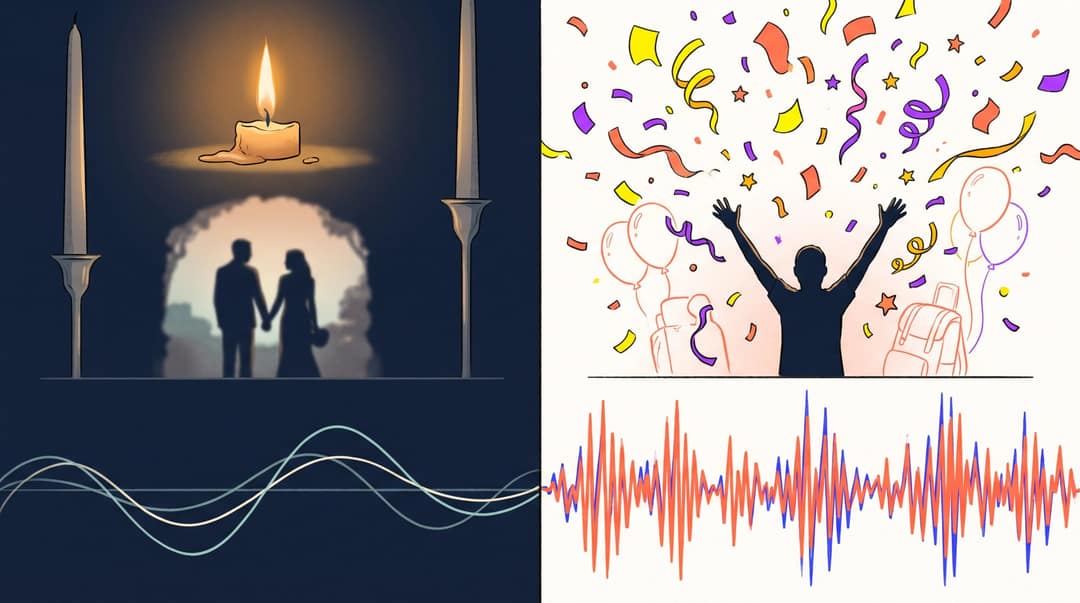
Music should match the video's purpose. What you choose affects everything about how the video feels, regardless of how good the photos are.
| Video type | Music choice |
|---|---|
| Wedding | Romantic, cinematic, emotional |
| Birthday | Upbeat, nostalgic, playful |
| Travel | Energetic, dreamy, adventurous |
| Product | Modern, clean, confident |
| Real estate | Elegant, calm, premium |
| Fitness | High-energy, rhythmic |
| Memorial | Slow, gentle, minimal |
Volume balance matters, too. If there's no voiceover, the music can run at full volume. If there's a voiceover, the music should sit underneath it clearly enough that the voice is easy to understand. For text-only videos, make sure beat changes support reading rhythm rather than distract from it.
For platform compliance:
TikTok's Commercial Music Library contains pre-cleared music for business accounts. If you're creating branded or paid content on TikTok, use this library.
Meta Sound Collection provides royalty-free audio for Facebook and Instagram content.
For YouTube Shorts, be especially careful with videos over one minute: Shorts with active Content ID claims over one minute can be blocked globally.
For finding music that's safe to use beyond platform libraries, our guide to royalty-free music sources covers the legitimate options by use case, including personal, commercial, and ad-specific needs.
Step 8: How to make still photos move (Ken Burns and AI animation)
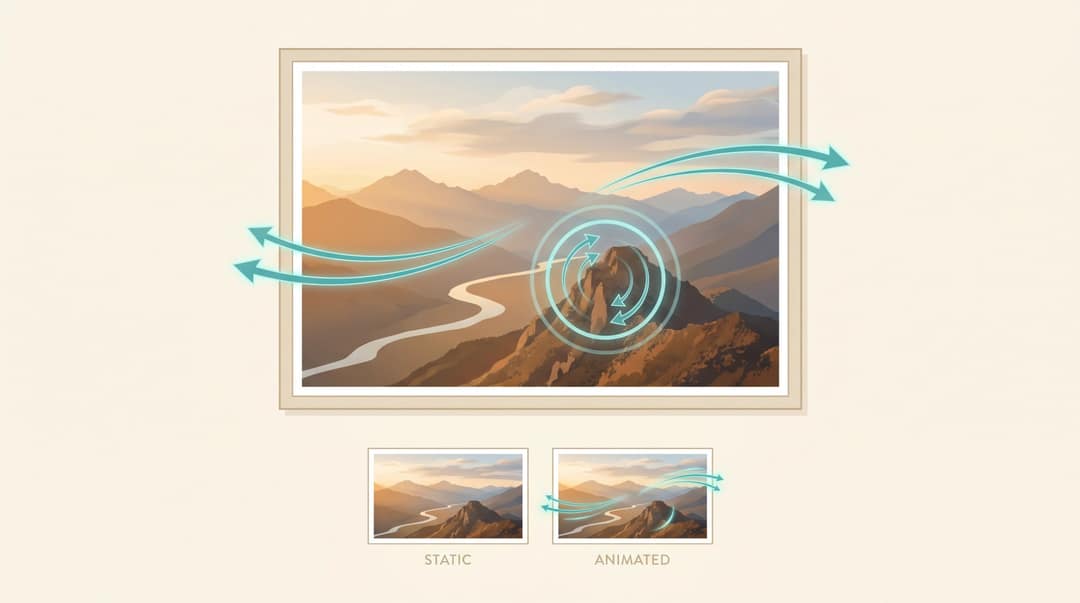
A static photo can feel flat in a video. Adding subtle motion makes the video feel alive even when nothing is technically "happening."
The most common technique is the Ken Burns effect: a slow, gradual zoom or pan across a still image. Apple's iMovie applies the Ken Burns effect to photos by default, which is worth knowing if you've ever wondered why iMovie photo videos look slightly more polished than a basic slideshow.
Use motion deliberately:
| Photo type | Motion idea |
|---|---|
| Group photo | Slow zoom toward faces |
| Landscape | Slow pan left or right |
| Product shot | Slight zoom in |
| Real estate room | Slow push-in |
| Food photo | Small zoom and tilt |
| Portrait | Gentle zoom toward eyes |
| Before/after | Slide or split-screen transition |
Keep movement subtle. If every photo spins, flips, bounces, and zooms, the video feels chaotic rather than polished.
AI animation as an upgrade option. You can go beyond Ken Burns by using AI to animate specific photos. Our AI Image Animator lets you upload an image, customize the animation with a text prompt, choose aspect ratio and duration, and generate a short animated version. It's designed to apply realistic motion by analyzing the photo's composition, so a mountain photo might get wind movement in the trees, and a portrait might get subtle ambient motion.
For music-forward videos, audio waveform visualizations add a dynamic visual layer that moves with the music. Particularly effective for lyric videos and music promos where the audio is the main event.
Google Photos also added a "Photo to video" creation type that can animate a photo into a dynamic six-second clip. And TikTok's AI Alive, announced in May 2025, turns static photos into animated videos for TikTok Stories with built-in AI safety labeling.
The practical rule: animate photos where it adds genuine emotion or visual interest. Don't animate every photo just because you can.
Step 9: Add transitions without overdoing them
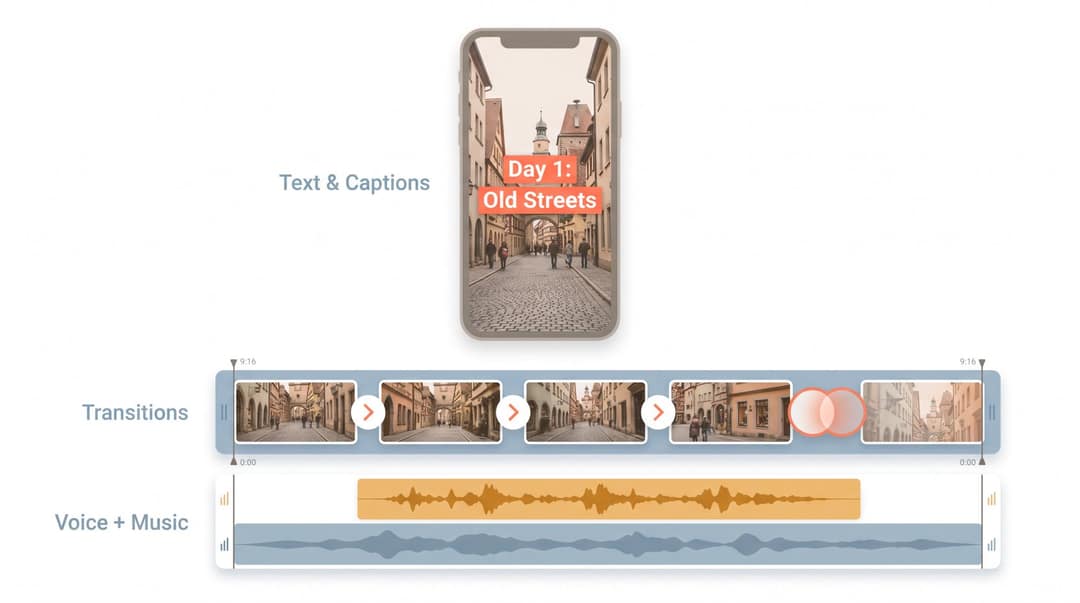
Transitions connect one photo to the next. The safest ones to use:
Cut (instant)
Fade
Cross dissolve
Push
Zoom
Slide
Each transition style has a context where it works:
Simple cuts for fast, modern videos (they're invisible when used well).
Fades for emotional or nostalgic videos.
Push/slide transitions for travel and real estate where direction of movement has meaning.
Beat cuts (instant cuts timed to the music) for energetic content.
Pick one or two styles and use them consistently. Clean cuts and fades tend to produce more polished results than manually mixing many dramatic transitions.
The best transition is often invisible. If the viewer notices the transition more than the content, it's doing too much.
Step 10: Add text, titles, and captions
Text gives the viewer context they often need, especially on social platforms where many people watch with no sound.
Use text for titles, dates, locations, names, product benefits, price, before/after labels, scene descriptions, and calls to action.
| Video | Text ideas |
|---|---|
| Travel recap | "3 days in Kyoto" / "Day 1: Old streets" |
| Wedding | "The morning" / "The vows" / "Forever starts here" |
| Product | "Lightweight" / "Waterproof" / "Built for daily use" |
| Real estate | "4 bedrooms" / "Open kitchen" / "Private garden" |
| Birthday | "Chapter 1" / "The adventure continues" |
| Portfolio | "Brand identity" / "Campaign launch" / "Client result" |
For vertical videos, keep important text near the center of the frame. Platform UI (captions, usernames, like buttons, navigation overlays) regularly covers the bottom third and the top corners. Revid's safe-zone overlays for TikTok, Instagram, and YouTube help keep your text inside the area that stays visible on vertical videos.
Step 11: Add a voiceover to your photo video
Music alone works for emotional videos where the feeling speaks for itself. But for educational, business, product, real estate, or story-driven videos, a voiceover often makes the difference between a video people understand and one they watch in confusion.
Add voiceover when the viewer needs context, when you're explaining a process, when you're selling a product, or when you want the video to communicate clearly even if someone watches with low sound. Our guide on adding voiceover effectively walks through timing, tone, and the balance between narration and background music.
An example for a real estate photo video:
"Welcome to this bright three-bedroom home just minutes from the city center. The open living room gets natural light all day, the kitchen has been fully renovated, and the private garden is perfect for weekends outside."
An example for a travel recap:
"We spent three days exploring the old streets, quiet temples, night markets, and hidden cafés of Kyoto. Here are the moments I'd go back for."
Our workflow supports AI voices in 70+ languages, uploaded audio files, recorded audio via built-in recording, and background music controls, so you can layer narration over music within a single workflow rather than handling them in separate apps.
Step 12: Preview on a phone before exporting
Don't judge a vertical video only on a laptop. The experience changes significantly on a phone-sized screen.
Before exporting, check:
Are faces cropped oddly?
Is the text readable on a small screen?
Is the first second genuinely interesting?
Is the music too loud or too quiet?
Does the video feel too slow?
Are transitions too distracting?
Is the ending clear and intentional?
Are important details hidden behind platform UI?
Does it still make sense without sound?
If you get bored while previewing, cut faster. If you feel confused about what you're looking at, add a text label. If the music feels wrong for the content, change the song before trying to fix the edit around it.

Step 13: Export with the right settings
For most social videos:
Format: MP4
Aspect ratio: 9:16
Resolution: 1080 × 1920
Frame rate: 30 fps
Length: usually under 60 seconds unless the story genuinely requires more
Platform-specific export notes:
YouTube classifies square or vertical uploads up to three minutes as Shorts, but music claims can create problems for Shorts over one minute.
Instagram's guidance says to stay vertical for best results and keep the video concise. Reels over three minutes aren't recommended to new audiences.
TikTok's official ad specs list 9:16 as the recommended ratio for in-feed ads with MP4 or MOV as supported formats.
How to Make a Photo Video With Revid.ai
Here's the full Revid.ai workflow for an AI-assisted photo video, from upload to export.
Step 1: Open the right Revid tool
For photo-based videos, our tools library has several dedicated options depending on what you're making:
| Tool | Best for |
|---|---|
| AI Photo to Video Converter | Turning static photos into a finished video with motion, transitions, and music |
| Media to Story | When you have a mix of images and clips and want AI to build a narrative |
| AI Image Animator | Animating one key photo with realistic AI motion |
| AI Music Video Generator | When the song is the main asset and you want visuals synced to audio |
| Audio to Video | Converting a podcast, interview, or music track into a visualized video |
| AI Lyrics Video Generator | Creating lyric-forward music videos where text syncs to the track |
| AI Music Visualizer | Building animated visualizations that react to music in real time |
For most photo-to-video projects, start with the AI Photo to Video Converter or Media to Story.
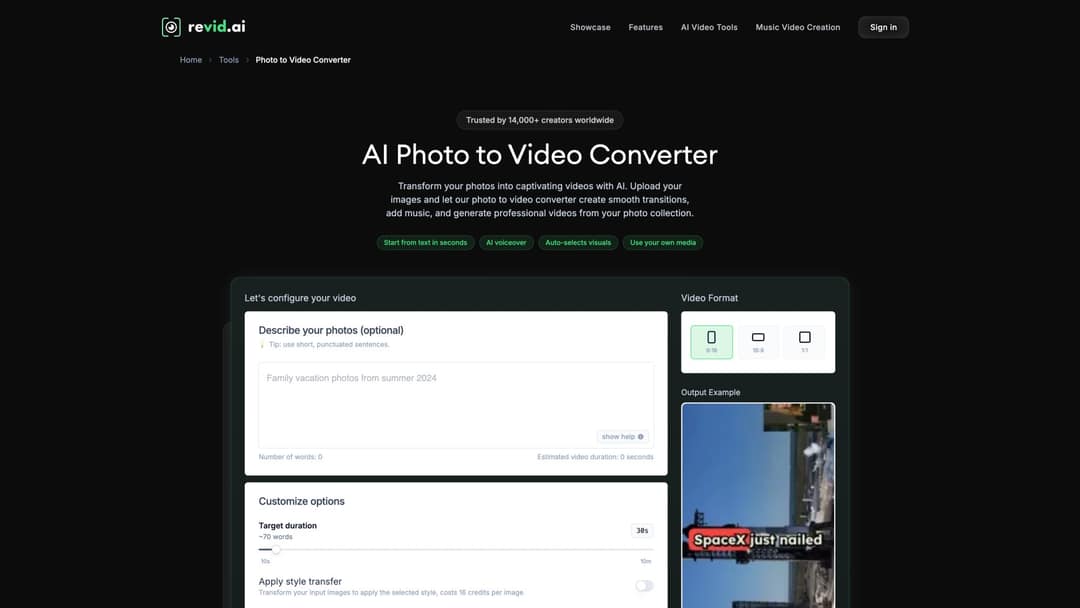
The Photo to Video Converter opens directly to a configuration panel where you describe your photos, choose an output format (9:16, 16:9, or 1:1), set a target duration, and generate — the tool handles arrangement, transitions, pacing, and music sync automatically.
Step 2: Upload your photos
Add the photos you want to use. For best results, upload them in roughly the order you want them to appear. If you're making a story video, include a short prompt telling us what kind of video you want.
Example prompt:
"Create a warm 35-second vertical travel recap from these photos. Make it cinematic but natural. Start with the mountain view, then show the food, streets, friends, sunset, and final group photo. Add soft upbeat music and short location captions."
Step 3: Choose your format
9:16 for TikTok, Reels, and Shorts.
16:9 for YouTube or presentations.
1:1 for square social posts.
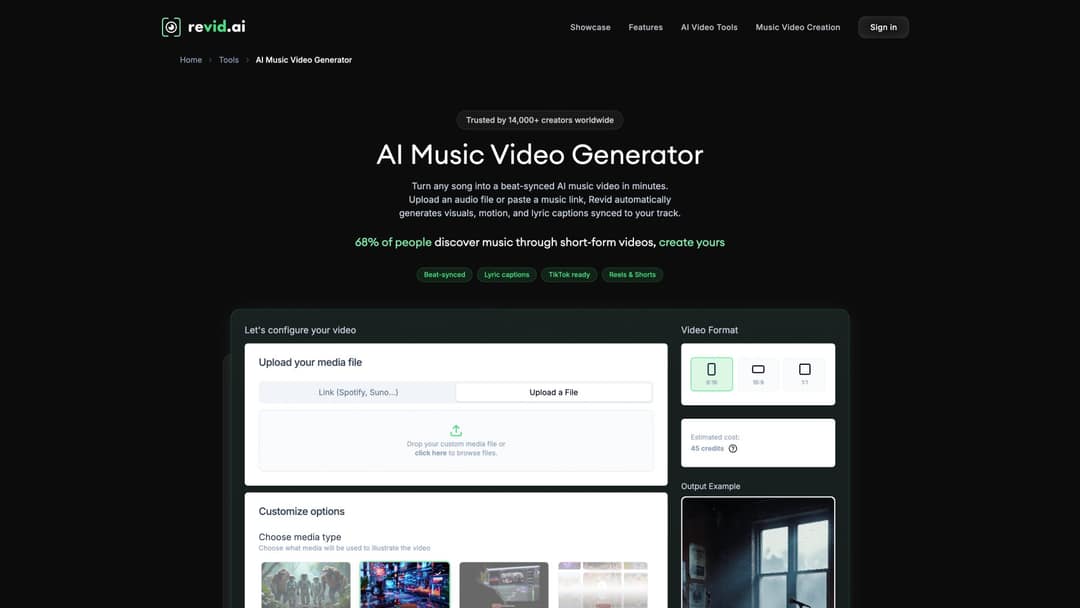
The Photo to Video Converter and Music Video Generator both support all three output ratios. For music-forward projects, the AI Music Video Generator lets you upload a song or paste a Spotify/Suno link, then generates beat-synced visuals, motion, and lyric captions automatically.
Step 4: Add music or narration
You can select background music from our library, generate custom music with AI, or upload your own audio file. Our guide explains all three options within the same workflow. If you want AI-generated music rather than a stock track, tools like Suno-to-video let you generate and visualize custom audio in one workflow. If the video needs explanation, add a short voiceover. If it's purely emotional or visual, music alone may be enough.
Step 5: Generate the video
Our photo-to-video workflow automatically arranges photos into a complete video with transitions, pacing, and synchronized music, reducing the manual editing work significantly. After generation, watch the full video once without editing. Then refine.
Step 6: Edit the details
Check photo order, cropping, text overlays, music volume, scene durations, transitions, safe-zone placement, and the ending CTA. Our editor supports multiple media types including stock videos, moving AI images, AI video, and your own uploaded media, so you can replace or enhance any scene if the first version needs improvement.
Step 7: Export and post
If you're posting to multiple platforms, create separate versions rather than forcing one crop to fit everywhere. When each version is ready, Revid can publish and schedule it directly to TikTok, Instagram, and YouTube from one queue.
For example:
TikTok version: 9:16, fast hook, short text labels.
Instagram Reel version: 9:16, cleaner cover frame.
YouTube Shorts version: 9:16, title text that works in search.
Website version: 16:9 or 4:5, less platform-specific text overlay.
The same 20 photos and the same song can be three genuinely different videos when the platform requirements and viewing context differ.
If you want to explore everything available for photos, memories, and music videos, our full tools library has 150+ AI video tools including dedicated options for TikTok videos, memory videos, wedding recaps, real estate tours, and article-to-video repurposing if you want to turn written content into video at the same time.
How to Make a Photo Video on iPhone, Canva, CapCut, and More
How to Make a Photo Video on iPhone (Apple Photos and iMovie)
Option 1: Apple Photos (Mac)
Apple Photos on Mac lets you create quick slideshows with themes and music, or save a slideshow project with photos, text, themes, music, duration controls, and export. Best for: simple family, travel, and event slideshows where you don't need vertical format.
Option 2: iMovie
iMovie lets you add photos to a movie timeline and gives you manual control over pacing and audio. Photos added to iMovie appear for several seconds by default with the Ken Burns effect applied automatically. Best for: more control, better timing, and custom music sync.
Option 3: iMovie Magic Movie
Apple's Magic Movie feature in iMovie creates a custom video from selected photos and videos automatically, adding titles, transitions, and music. Best for: quick automatic videos from an album or group of photos when you don't want to edit manually at all.
How to Make a Photo Video With Google Photos
Google Photos supports highlight videos that combine photos and videos with music. You can create one manually, select your photos, save it, then edit the music, clip order, and individual clips.
Google Photos also has a newer Photo to video creation type on Android where you select a photo, choose an effect or prompt, and create a short animated clip. Note: landscape photos may be automatically cropped to portrait format in this mode.
Best for: fast personal memory videos when your photos are already in Google Photos.
How to Make a Photo Video in Canva
Canva's slideshow approach is template-first: choose a template, add your photos and videos, select a soundtrack, and download the video. Best for: invitations, branded social posts, simple business slideshows, event recaps, and educational content where design and layout matter more than motion. For social-first videos optimized for TikTok and Reels, our template-based workflows are built specifically for vertical short-form content.
How to Make a Photo Video in Adobe Express
Adobe Express offers templates, browser-based editing, photo uploads, video timing controls, and royalty-free soundtracks. Express also gives you access to rights-cleared Adobe Stock assets (photos, videos, and music) inside the editor. Best for: branded social videos, business promos, and template-based content where you need stock assets and music in one place.
How to Make a Photo Video in CapCut
CapCut's photo video maker is straightforward: choose a template or upload images, add audio, text, and transitions, customize, and export in formats like MP4 or MOV. Best for: TikTok-style edits, fast social videos, beat-synced photo montages, and manual control without professional editing software. For AI-assisted TikTok creation that combines beat sync with scripting, our TikTok video generator handles both in one workflow.
How to Make a Photo Video in Microsoft Clipchamp
Clipchamp is a browser-based timeline editor from Microsoft that supports combining videos, images, audio, text, transitions, effects, and stock music. Clipchamp's slideshow maker lets you add personal audio or royalty-free music and resize to preset aspect ratios for YouTube, TikTok, and Instagram. Best for: Windows users, simple business videos, and timeline editing without professional software.
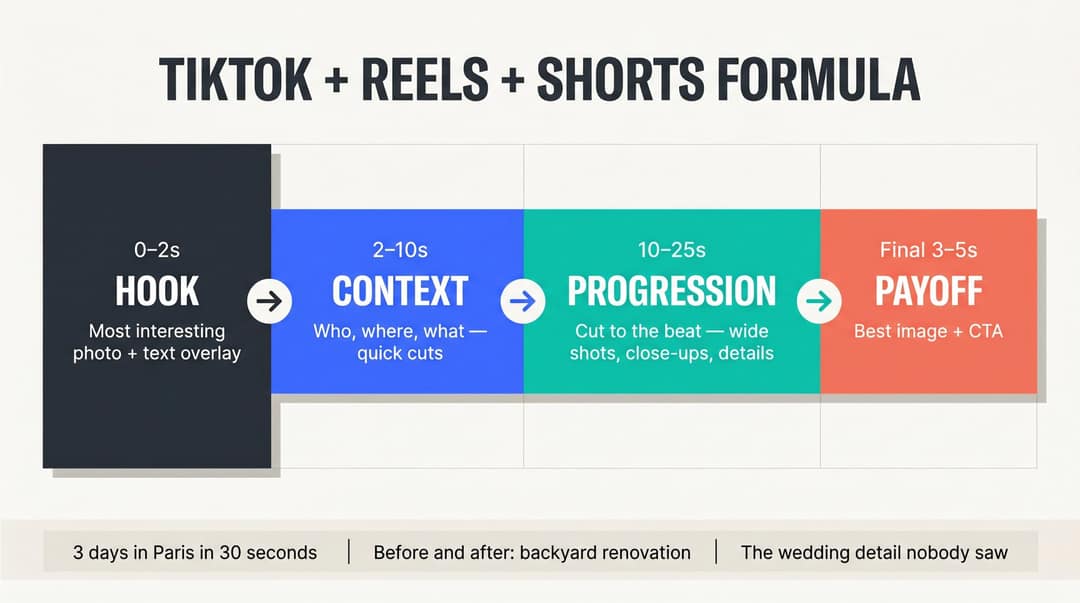
The Photo Video Formula for TikTok, Reels, and Shorts
For TikTok, Reels, or Shorts specifically, there's a structure that works consistently. Understanding what makes social video hooks work helps you apply this formula deliberately rather than by accident.
0–2 seconds: the hook
Start with the most interesting photo, not the first chronological one. Add a short text hook:
"We turned 12 old photos into this..."
"3 days in Paris in 30 seconds"
"The wedding detail nobody saw"
"Before and after: backyard renovation"
"This listing has the best kitchen under $500k"
2–10 seconds: context
Show who, where, or what the video is about. Keep photos moving quickly. Use short text labels.
10–25 seconds: progression
This is the main body. Cut to the music. Vary between wide shots, close-ups, people, details, and action.
Final 3–5 seconds: payoff
End with the best image or the clearest message. Add a CTA:
"Save this idea"
"Follow for more"
"Book a tour"
"Shop the collection"
"Part 2?"
For a complete walkthrough of the TikTok creation process from start to publish, our full guide to TikTok video creation covers the hook, pacing, and posting strategy in depth.
The ending should feel intentional. A video that just stops because the last photo ran out feels unfinished, even if everything else was strong.
How to Sync Photos to Music
Beat sync is what makes a photo video feel professional. You don't need to be a musician. You just need to listen for the moments where the song naturally changes. For a deeper look at music visualization techniques and audio-to-video workflows, our guide covers how professional creators approach the sync process.
What to listen for:
The first beat drop.
Snare hits (the sharp percussive hit, usually on beats 2 and 4).
The chorus (usually the loudest, most energetic section).
A lyric change.
An instrumental swell.
A pause or silence.
The final chord.
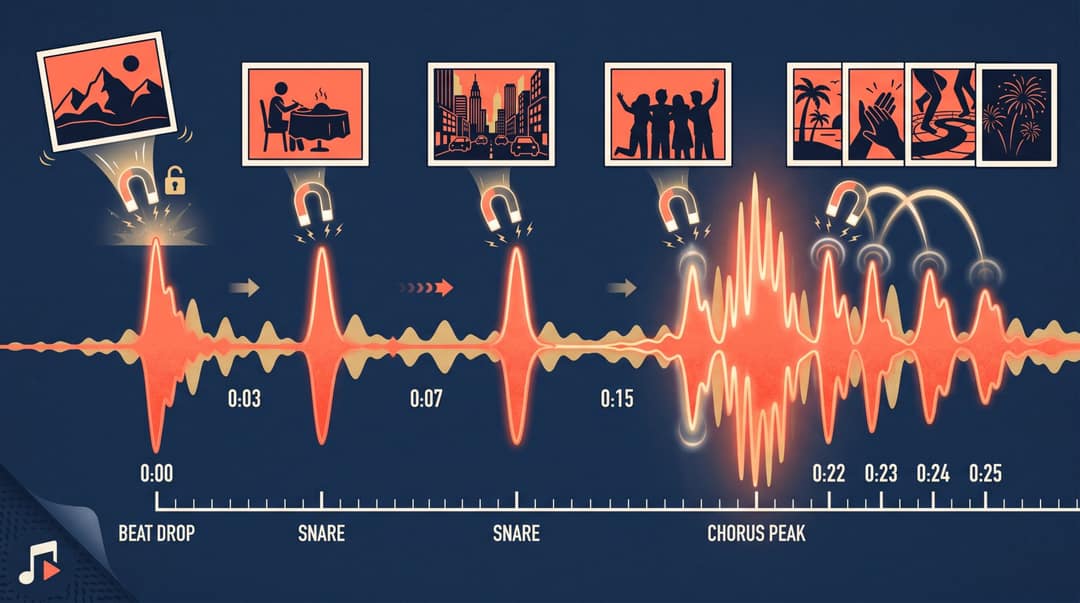
A simple 7-step workflow:
-> Add music to the timeline first.
-> Play the song and tap your finger to the beat while listening.
-> Put photo changes on the strongest beats.
-> Use faster cuts during energetic sections.
-> Use longer photo holds during emotional sections.
-> Put your best photo on the chorus or beat drop.
-> End on a natural musical ending, not mid-phrase.
A real timing example: 30-second travel video
| Time | Visual |
|---|---|
| 0:00 | Best landscape photo + title text |
| 0:03 | Arrival photo |
| 0:05 | Street photo |
| 0:07 | Food photo |
| 0:09 | Friend or group photo |
| 0:12 | Landmark |
| 0:15 | Fast sequence of 4–5 detail shots |
| 0:22 | Sunset or best cinematic photo |
| 0:27 | Final group shot |
| 0:30 | Location + date or CTA |
The fast sequence from 0:15 to 0:22 is usually where the chorus hits. That's intentional. It's the emotional peak of the song, and you want the visual energy to match. Our YouTube music video creation guide applies the same beat-sync principles to long-form video if you're creating content for YouTube rather than short-form platforms.
Music Copyright for Photo Videos: What You Can and Can't Use
This is one of the most important topics in the whole process, and one of the most consistently skipped by beginners.
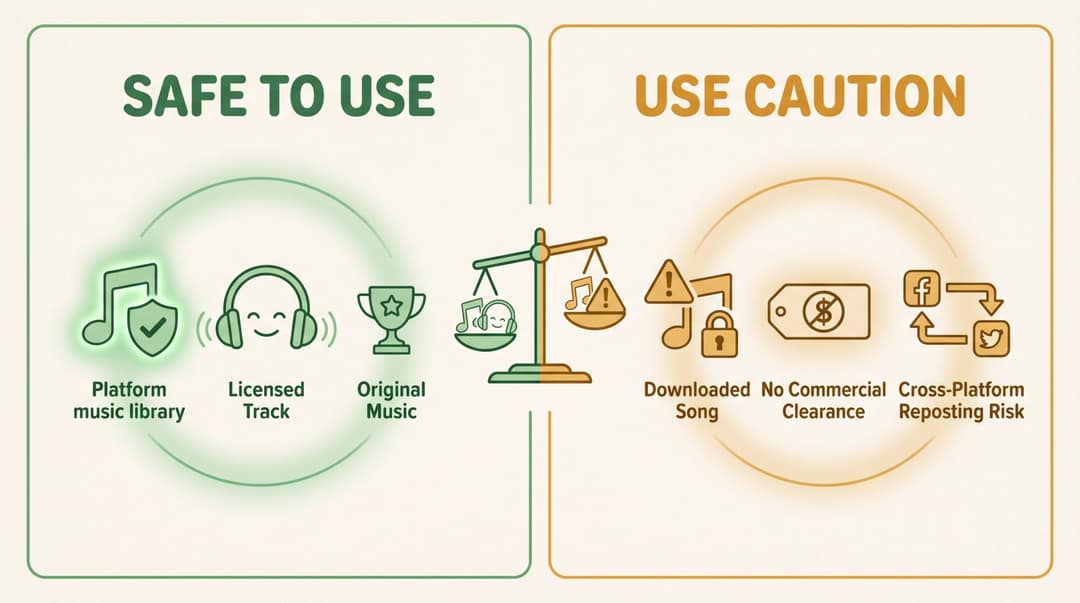
You can generally use:
Music from the platform's in-app library for personal use on that platform.
The TikTok Commercial Music Library for business content on TikTok.
Meta Sound Collection for Facebook and Instagram content.
Royalty-free music from reputable licensed libraries.
Music you created yourself.
Music you commissioned with a proper license.
Music included in your editing tool if the license covers your specific use case.
Be more careful with:
Popular songs downloaded from the internet without a license.
Tracks used in ads or sponsored posts without commercial clearance.
Music added in one platform's tool and then reposted to a different platform.
"Royalty-free" tracks where you haven't actually read the license terms.
Client or agency videos where you can't provide proof of music rights.
YouTube Shorts longer than one minute with music that has an active Content ID claim.
TikTok's official guidance is clear: brands and businesses should use the Commercial Music Library, and music from outside it may require separate rights confirmation.
Before publishing any business video, run through this checklist: Is this personal use or commercial use? Is the music cleared for this specific platform? Is it cleared for paid ads? Is it cleared for client work? Do you have proof of the license? Will the YouTube Short be longer than one minute with potentially claimed music?
For a curated list of trusted sources for commercially cleared music across different use cases and platforms, our guide covers where professional creators source licensed audio. When in doubt, switch to a clearly licensed track. It takes two minutes to swap music. It takes much longer to deal with a muted video or a copyright claim on a published piece of content.
8 Tips to Make Your Photo Video Look More Professional
1. Use fewer, better photos.
A 30-second video with 15 strong photos usually beats a 30-second video with 60 random ones. Every image should earn its place.
2. Alternate wide, medium, and close-up shots.
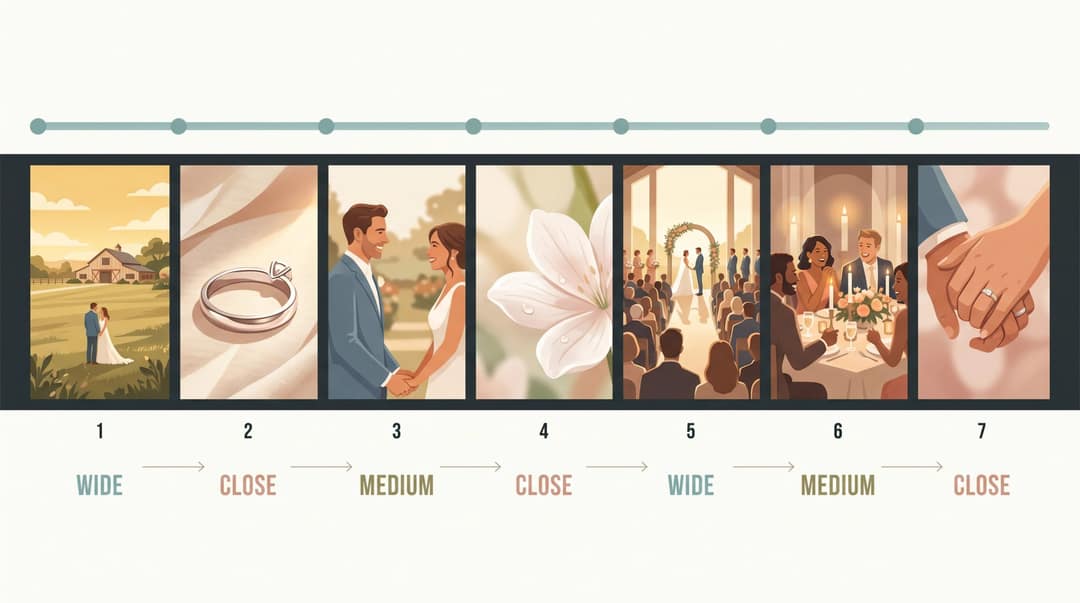
Visual variety keeps the viewer engaged. For a wedding video: wide venue → close ring detail → medium couple portrait → close flower → wide ceremony → medium reception → close hands → final portrait. The rhythm of scale changes is part of what makes professional-looking videos feel dynamic.
3. Match transitions to the mood.
Don't use fast energetic cuts for a memorial video. Don't use slow, elegant fades for a high-energy event recap. The transition style is part of the emotional language.
4. Keep text short.
Photo videos aren't documents.
Too much: "This was the day we visited the old town and had lunch at a beautiful traditional restaurant near the river."
Just right: "Old town lunch by the river."
5. Use the first frame as a thumbnail.
The first frame should work even before the video plays. Would someone click it? Does it show what the video is about? Is it visually strong enough to compete with everything else on the feed?
6. Design for silent viewing. Even when music matters deeply to the video's feel, many people watch social content with low volume or no sound. Short text overlays make the video understandable in either case. For designing content that works for the silent viewer on social media, the approach extends well beyond text overlays into thumbnail design and visual storytelling.
7. Keep branding subtle in business videos.
A small logo or final brand card is usually enough. Covering every photo with a large watermark or repeating logo makes the video feel promotional in a way that turns viewers off.
8. Create platform-specific versions.
The same photos and music can serve a TikTok, an Instagram Reel, and a YouTube Short, but they shouldn't always be identical. Different first frames, different text hooks, different CTAs, and different lengths for different platform norms. If you're making photo videos regularly without showing your face, our guide to creating professional faceless videos covers the workflow and format decisions that work across platforms.
AI Photo Video Prompts You Can Copy and Use
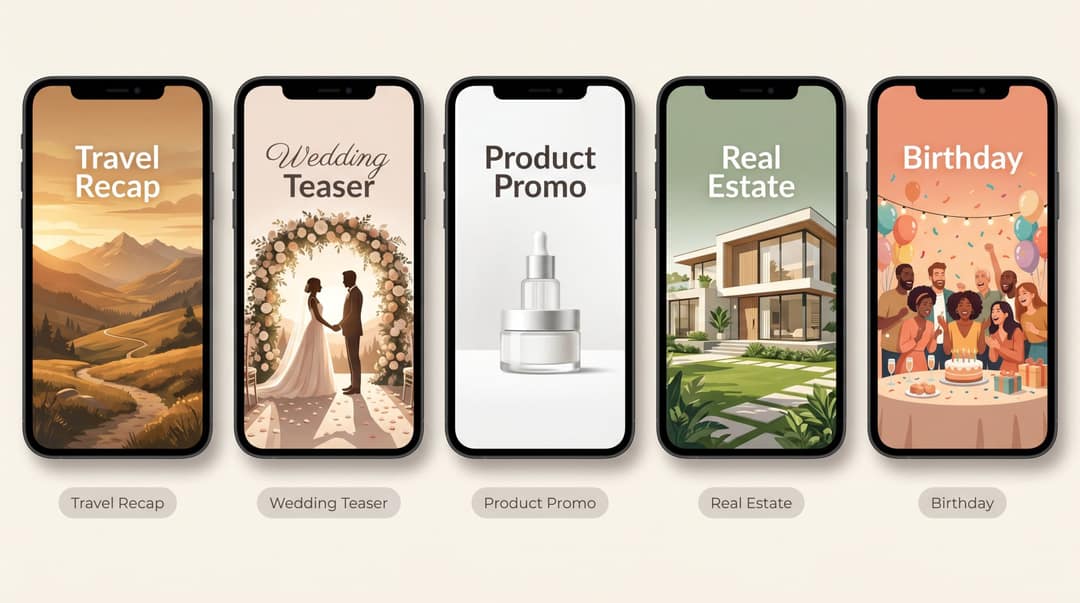
Use these prompts directly in Revid.ai when you start a new photo video. Each one is designed to give the AI enough context to produce a first draft you can actually work with.
Travel recap:
Create a 35-second vertical travel recap from these photos. Make it cinematic, warm, and energetic. Start with the most visually impressive landscape photo, then show the streets, food, people, details, and sunset. Add short location captions, smooth motion, and upbeat music. End with a final title card: "A weekend to remember."
Wedding teaser:
Turn these wedding photos into a romantic 60-second vertical teaser. Use soft cinematic pacing, elegant transitions, and emotional music. Start with venue and detail shots, build toward the ceremony and couple portraits, then end with the best romantic photo. Add minimal text only: "The morning," "The vows," "The celebration," and the couple's names at the end.
Product promo:
Create a 25-second product promo from these photos. Make it modern, clean, and fast-paced. Start with the strongest product hero image. Add short text overlays for the main benefits: lightweight, durable, easy to use. Use upbeat commercial-safe music. End with a clear call to action: "Shop the collection."
Real estate:
Create a polished 45-second real estate listing video from these photos. Use a premium, calm style. Order the photos like a home tour: exterior, entrance, living room, kitchen, bedrooms, bathrooms, outdoor space, final contact slide. Add subtle zooms, smooth transitions, and elegant background music. Use short labels for each room.
Birthday:
Create a warm 45-second birthday video from these photos. Make it nostalgic, joyful, and personal. Start with a strong current photo, then move through older memories, funny moments, friends, and family. Add upbeat emotional music and simple text: "Happy Birthday," "So many memories," and "Here's to the next chapter."
5 Photo Video Workflow Examples: Birthday, Wedding, Travel, and More
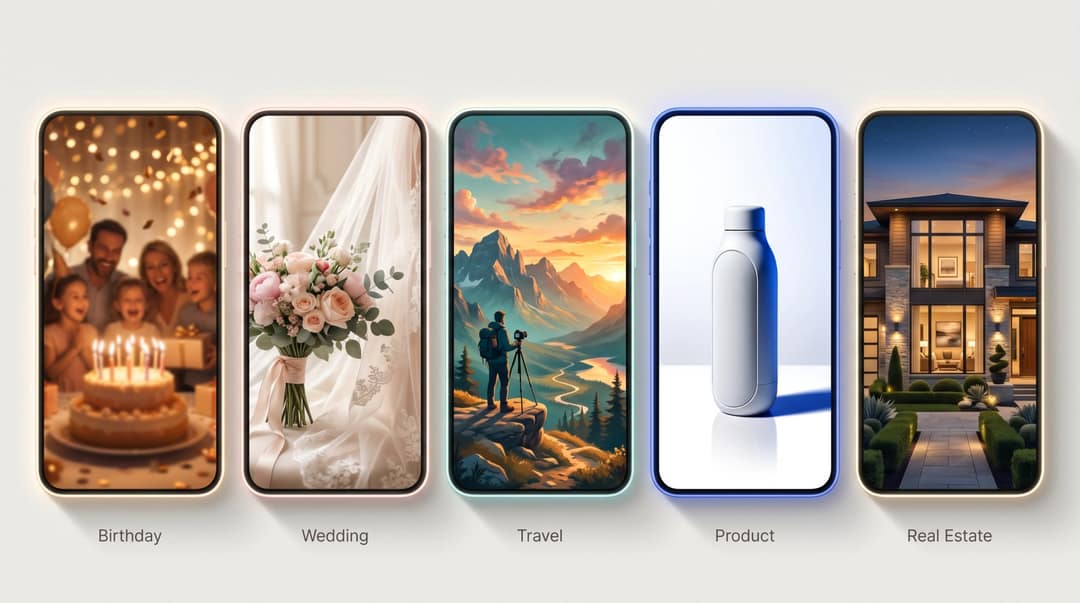
Example 1: Birthday Photo Video
Goal: Emotional but fun birthday video Length: 45 seconds | Format: 9:16 | Photos: 18–22 | Music: Warm upbeat track
Story arc:
Best current portrait of the person.
Childhood photos in rough sequence.
Funny memories and candid shots.
Friends and family group photos.
Recent milestones (trips, achievements, life events).
Final group photo.
Text: "Happy Birthday, [Name]"
Text to add: "The early years" / "Always the funny one" / "So many memories" / "Here's to the next chapter"
Our memory and anniversary video tool is built specifically for this kind of personal tribute. Upload your photos, write a brief prompt about the person, and the AI builds the emotional narrative.
Example 2: Wedding Photo Video
Goal: Romantic teaser for social sharing Length: 60 seconds | Format: 9:16 for Reels, 16:9 for YouTube | Photos: 20–30 | Music: Cinematic romantic instrumental
Story arc: Venue → Dress/suit detail → Rings → First look → Ceremony → Couple portraits → Reception → Dance → Final couple portrait
Text: "The morning" / "The vows" / "The celebration" / "A day we'll never forget"
Our wedding video maker handles the cinematic pacing and elegant transitions that make wedding content feel premium rather than like an automated slideshow.
Prompt to try
Create a 30-second vertical travel recap of 3 days in Lisbon. Open on the best sunset viewpoint with the hook text "This city surprised us," then move through trams, tiled streets, pastel de nata, friends at dinner and a final rooftop shot. Use warm cinematic motion, short location captions and upbeat indie music, and end on "Save this itinerary."
Example 3: Travel Recap
Goal: Fast social montage Length: 30 seconds | Format: 9:16 | Photos: 12–18 | Music: Upbeat travel/indie/electronic
Story arc: Best scenic image → Arrival → Street scenes → Food → People → Landmark → Sunset → Final title card
Hook options: "3 days in Lisbon" / "A weekend in the mountains" / "This city surprised us" / "Save this itinerary"
Our travel video creator gives you a dedicated workflow for travel montages with location text, cinematic motion, and music selection built in.
Example 4: Product Promo
Goal: Turn product photos into a short social ad Length: 20–30 seconds | Format: 9:16 | Photos: 8–12 | Music: Clean modern beat
Story arc: Product hero shot → Problem or use case → Feature 1 → Feature 2 → Product in action → Detail shot → Key benefit → CTA
Text: "Built for daily use" / "Lightweight" / "Water-resistant" / "Ships this week" / "Shop now"
Example 5: Real Estate Listing Video
Goal: Property tour for social and email Length: 45–60 seconds | Format: 9:16 and 16:9 versions | Photos: 15–25 | Music: Elegant, calm, premium
Story arc: Exterior → Entry → Living room → Kitchen → Dining area → Primary bedroom → Bathrooms → Outdoor space → Neighborhood or view → Contact CTA
Text: "4 bed / 3 bath" / "Open-plan living" / "Renovated kitchen" / "Private backyard" / "Book a viewing"
With our real estate video tool, you describe the property and upload your listing photos (or use AI visuals or motion graphics), and Revid writes the script and adds voice-over, captions, and music. For both a 9:16 and a 16:9 version, duplicate the project and switch the aspect ratio in the editor.
Common Mistakes That Make Photo Videos Look Cheap
Mistake 1: Using too many photos.
More photos don't automatically make a better video. They often make it feel rushed and forgettable. Fix: cut the weakest 30–50% of what you initially selected.
Mistake 2: Starting with a boring image.
The first frame decides whether people keep watching. Fix: start with your strongest photo, even if it's not the chronological first one.
Mistake 3: Adding music after the edit is done.
If you add music after editing, the timing usually feels disconnected from the song. Fix: add music first and edit around the beat.
Mistake 4: Using copyrighted music without permission.
This causes muted audio, blocked uploads, copyright claims, and potential legal issues for business content. Fix: use platform-cleared or properly licensed music, especially for any commercial video.
Mistake 5: Ignoring aspect ratio.
A landscape slideshow uploaded as a vertical Reel looks awkward and amateurish. Fix: decide on 9:16, 16:9, 1:1, or 4:5 before you start editing.
Mistake 6: Putting text where platform UI covers it.
Bottom text regularly gets hidden by captions, like buttons, or usernames. Fix: keep important text in the center safe area of the frame.
Mistake 7: Overusing transitions.
Using a different dramatic transition between every photo makes the video feel busy and low-budget. Fix: pick one or two transition styles and use them consistently.
Mistake 8: Exporting at low quality.
Low-resolution exports make photos look blurry and unprofessional. Fix: use high-quality source photos and export at minimum 1080p for social video.
How to Fix Common Photo Video Problems

My photos are cropped badly.
You're probably in the wrong aspect ratio, or your photos are horizontal and you're editing in vertical. Set the correct ratio before uploading. For horizontal photos in a vertical video, use the blurred background technique: the full photo floats centered, with a blurred version filling the background.
The video feels boring.
Cut weak photos, shorten durations, add motion effects, sync photo changes to the music, and start with a stronger hook image.
The music got muted after posting.
Replace the track with music from the platform's cleared library or a properly licensed royalty-free track. For TikTok business content, use the Commercial Music Library.
My YouTube Short was blocked.
Check whether the video is over one minute and whether the music has an active Content ID claim. YouTube says Shorts over one minute with active Content ID claims can be blocked globally. Either trim the video below one minute or switch to rights-cleared audio.
The text is hard to read.
Use fewer words, larger font size, higher contrast between text and background, and keep text away from edges. If the background photo is busy, add a semi-transparent text backdrop.
The video looks too AI-generated.
Reduce extreme or exaggerated motion effects, replace any strange animated scenes with your actual photos, keep transitions simple, and use real photos for the key emotional moments.
The video is too long.
Cut the intro. Remove duplicate photos. Keep only the images that move the story forward. If you're telling the same thing twice in photos, you only need to tell it once.
Best Photo Video Tools: Side-by-Side Comparison
| Tool | Best for | Strength |
|---|---|---|
| Revid.ai | AI photo videos, social videos, music videos, story videos | Fast AI workflow, vertical formats, dedicated photo and music tools |
| CapCut | TikTok-style edits | Manual timing, templates, transitions |
| Canva | Designed slideshows | Templates, graphics, brand layouts |
| Adobe Express | Branded quick videos | Templates, stock assets, browser editing |
| Clipchamp | Windows/browser editing | Timeline editing, stock music, simple exports |
| iMovie | Apple users | Manual timeline, Ken Burns effect, free |
| Google Photos | Quick memory videos | Fast highlight videos from existing photos |
| Apple Photos | Quick Mac slideshows | Themes, music, simple export |
Revid's tools library covers the full spectrum of photo and music video creation — from single-photo animators to full beat-synced music video generators, with dedicated workflows for weddings, travel, real estate, and social-first content.
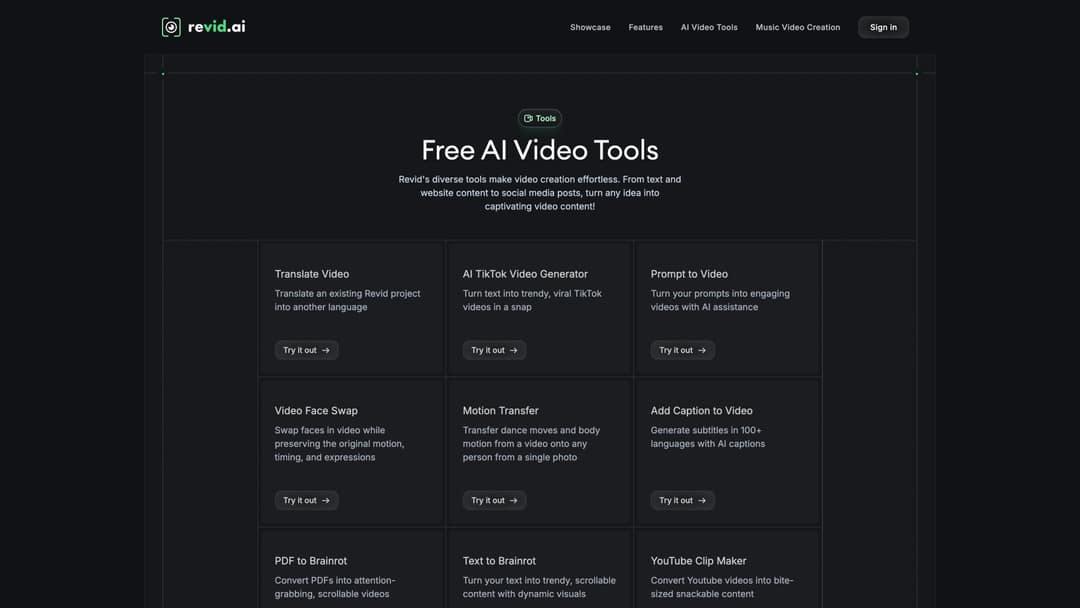
If you want the fastest path from photos to a shareable video, Revid, Google Photos, iMovie Magic Movie, or a template tool are the starting points. If you want precise manual control over every cut, CapCut, iMovie, Clipchamp, or professional tools like Premiere or Final Cut are better fits.
Photo and Music Video FAQ

Can I make a video with photos and music for free?
Yes. Free or freemium options include Google Photos, Apple Photos, iMovie, Canva, CapCut, Clipchamp, and Adobe Express. The tradeoff is that some tools limit templates, stock assets, export options, or advanced editing features. Google Photos supports highlight videos with music, Apple Photos supports slideshow projects with music, and Clipchamp supports photo slideshows with audio and social aspect ratios.
What's the easiest way to make a video from photos?
The easiest path is to use an AI or template-based tool: upload your photos, choose a format, add music, select a style, and generate. Our Photo to Video workflow is built exactly for this: upload photos, customize the video with a short prompt, generate, and refine.
How many photos do I need for a 30-second video?
For a 30-second video, use about 10–20 photos. If each photo stays on screen for 1.5 seconds, you need roughly 20 photos. If each stays for 3 seconds, you need about 10. Both can work. The right choice depends on the energy and pacing you want.
How long should each photo stay on screen?
For most videos, 1–4 seconds per photo works well. Fast social videos and TikTok-style content can use shorter durations (0.5–1.5 seconds). Emotional videos like weddings and memorials should hold important photos longer (3–5 seconds).
What's the best format for TikTok, Reels, and Shorts?
Vertical 9:16, exported at 1080 × 1920. YouTube classifies square or vertical videos up to three minutes as Shorts. Instagram Reels support vertical formats up to 9:16. TikTok's official ad specs recommend 9:16 for in-feed ads.
Can I use any song I want?
No. Music rights depend on the platform, your account type, and whether the video is personal or commercial. For business content on TikTok, use the Commercial Music Library or confirm you have separate rights. For YouTube Shorts over one minute, avoid music that could trigger active Content ID claims unless you understand the consequences.
How do I make still photos move?
Use pan, zoom, the Ken Burns effect, or AI animation. iMovie applies the Ken Burns effect to photos by default. For AI-powered animation with more dramatic or realistic motion, our AI Image Animator lets you upload a photo and animate it with a text prompt. Google Photos' Photo to video and TikTok AI Alive also offer AI animation options.
Is a slideshow the same as a photo video?
Not exactly. A slideshow usually means photos shown one after another with simple transitions. A photo video is broader: it can include music, voiceover, beat sync, captions, animated photos, AI-generated motion, text overlays, and platform-specific formatting. The distinction matters mostly because a "slideshow" mindset often leads to the kind of flat, forgettable result this guide is trying to help you avoid.
What's the best app for making a video with photos and music?
For fast AI-assisted videos: Revid.ai. For TikTok-style manual editing: CapCut. For designed templates: Canva or Adobe Express. For Windows: Clipchamp. For Apple devices: iMovie or Apple Photos. For quick personal memory videos: Google Photos.
Should I add captions or text to a photo video?
Add text or captions if the viewer needs context, or if they might be watching without sound. For social videos, short text overlays often make the video significantly easier to understand in silent mode, and on most platforms, a large portion of viewers watch that way. For automatic caption generation for videos, our guide covers the tools and approaches that produce the cleanest results across platforms.
Photo Video Checklist Before You Publish
Before you post your photo-and-music video:
The first image is strong and would make someone stop scrolling.
The video has a clear beginning, middle, and end.
The music fits the mood and purpose of the video.
You have the right to use the music (especially for business content).
Photos change in rhythm with the song, not randomly.
Faces are not cropped badly.
Text is readable on a phone screen.
Important text stays inside the safe zone (not in edges covered by platform UI).
The video is exported in the right aspect ratio for the platform.
The ending includes a clear message or call to action.

A good photo video isn't a slideshow with music playing in the background. It's a short story built from images, rhythm, and emotion. Start with the story. Choose the right format. Use music legally. Sync the edit to the beat. Export for the platform where people will actually watch it.
And if you'd rather have AI handle most of that in a fraction of the time, Revid.ai is where to start.