Brand Video Maker: Make a Custom Brand Video with Revid (2026)
How to make a custom brand video with Revid in 7 steps, with today's menus, real credit costs, a 30 to 60 second script template and a branding checklist.
On this page
To make a brand video with Revid, write a 30 to 60 second script, click Create, pick "From script", choose your ratio and media type, then generate. Swap in your logo and footage in the editor, regenerate the voice-over, add music and export an MP4 in 720p, 1080p or 4K.
Most brand videos fail in the same place: they open with the logo. Viewers decide in the first seconds whether to keep watching, so lead with the problem you solve and save the logo for the end card. Getting this right pays off: in Clutch's October 2025 survey, 42% of U.S. consumers said they had bought a product or service after watching a brand's short-form video (more sourced numbers on our short-form video statistics page).
How to make a brand video with Revid, step by step
Step 1: Gather your brand assets
Before you open Revid, collect:
- Your logo, ideally a PNG with a transparent background
- Your brand font and two or three brand colors
- Photos or video clips of your product, team or shop
- A 30 to 60 second script (template below)
- Background music, if you have a track you own
Missing footage is fine. Revid can fill scenes with stock video, animated AI images, motion graphics or AI video.
Step 2: Create a free Revid account
Sign-up is free, needs no credit card and includes free credits to try video creation.
Step 3: Start the video from the Create page
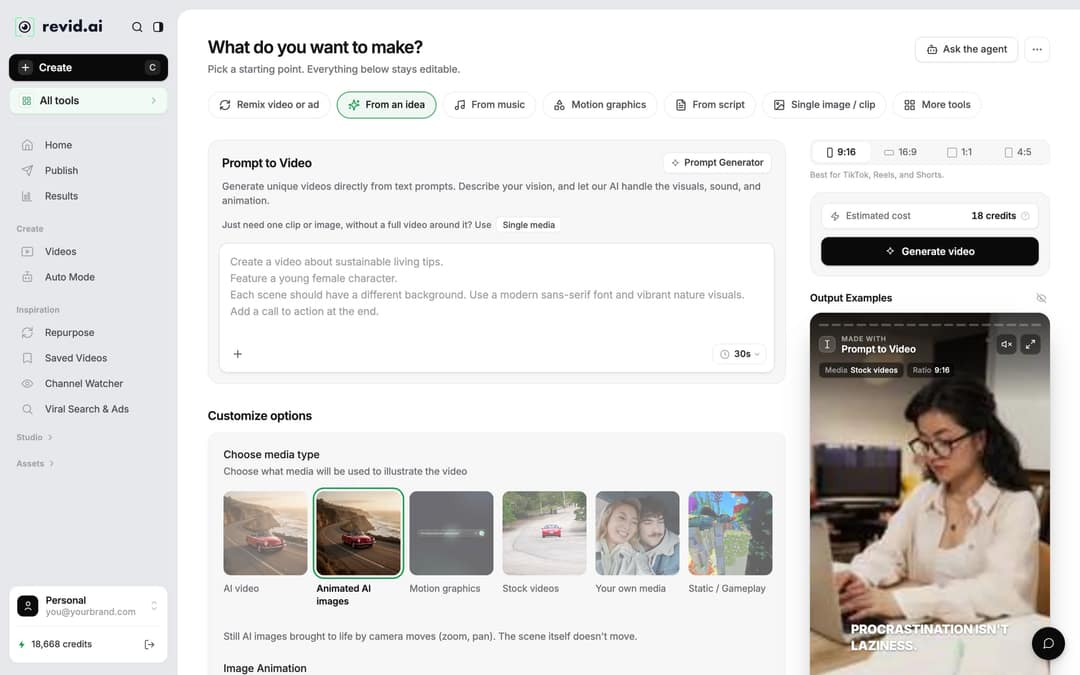
Click Create at the top of the sidebar (or press C). The page asks "What do you want to make?" and offers starting points:
- From script: you already wrote the script. Paste it into "Your video narrator script". Each new line starts a new scene, and text in [square brackets] is a visual hint that is not read aloud, for example "[close-up of our coffee bag on a counter]".
- From an idea: describe the brand video in a prompt and Revid writes the script.
- More tools: other formats. If you sell a product, the product video generator reads a product page URL and keeps its real photos.
Then set two things before you generate:
- Ratio: 9:16 for TikTok, Reels and Shorts, 16:9 for your homepage or YouTube, 1:1 or 4:5 for feeds.
- Choose media type: "Your own media" to use your footage, or "Stock videos", "Animated AI images" (the default), "Motion graphics", "AI video" (needs a subscription) or "Static / Gameplay".
Check Estimated cost next to the button, then click Generate video.
Prompt to try
Make a 45-second vertical brand video for a small coffee roaster. Open with the hook "Most coffee sits in a warehouse for months before you drink it," then show fresh roasting in a cozy shop, a happy regular, and the founder's reason for starting. Warm, natural style with calm acoustic music, and close on the logo with "Order your first bag on our website."
Step 4: Edit the script and captions
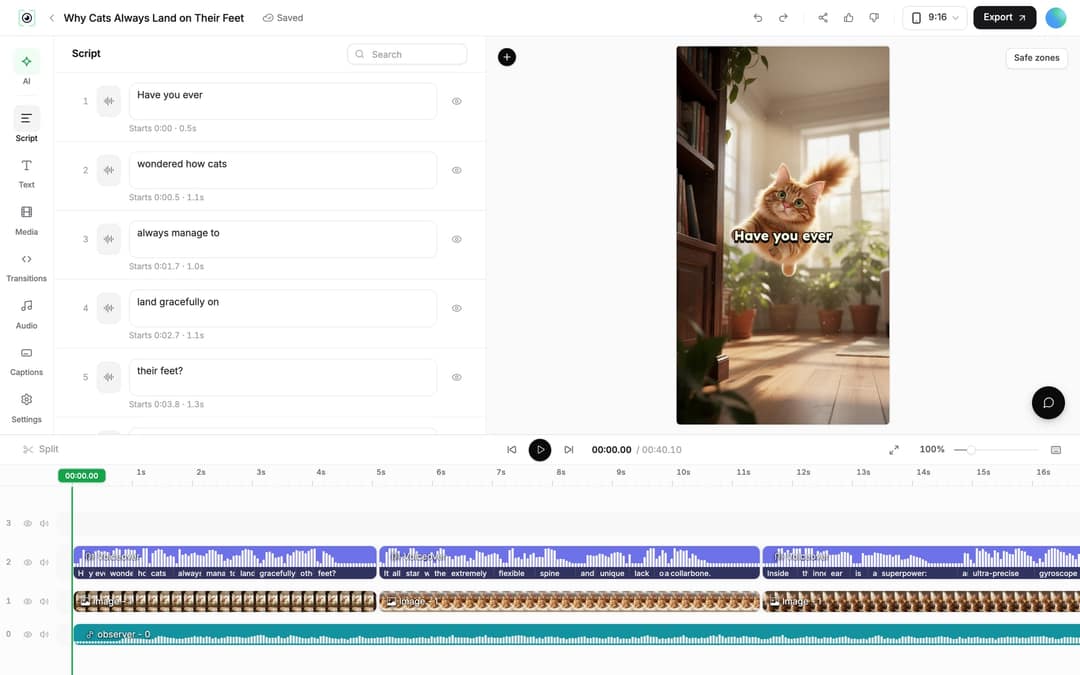
Open the finished draft from Videos in the sidebar (click the card, or choose "Open in editor" in its menu). The Script panel lists every caption segment with an editable text box and its start time.
Change any line to match your brand voice. Revid then shows "Caption updated. Re-generate voice if timing changed.", which you do in Step 6. In the Captions panel, pick one of Revid's 30 caption styles and set it to your brand font and colors.
No script yet? Draft one with the free AI script generator, then paste it in.
Step 5: Swap in your logo and footage
Click an image or video clip in the timeline. Its panel shows Replace and Delete. Replace opens the Media panel Library, where you pick your own file. Drag and drop files into the Media panel to upload your logo and clips; its Stock, Stickers and Effects tabs and the Generate button cover anything you are missing.
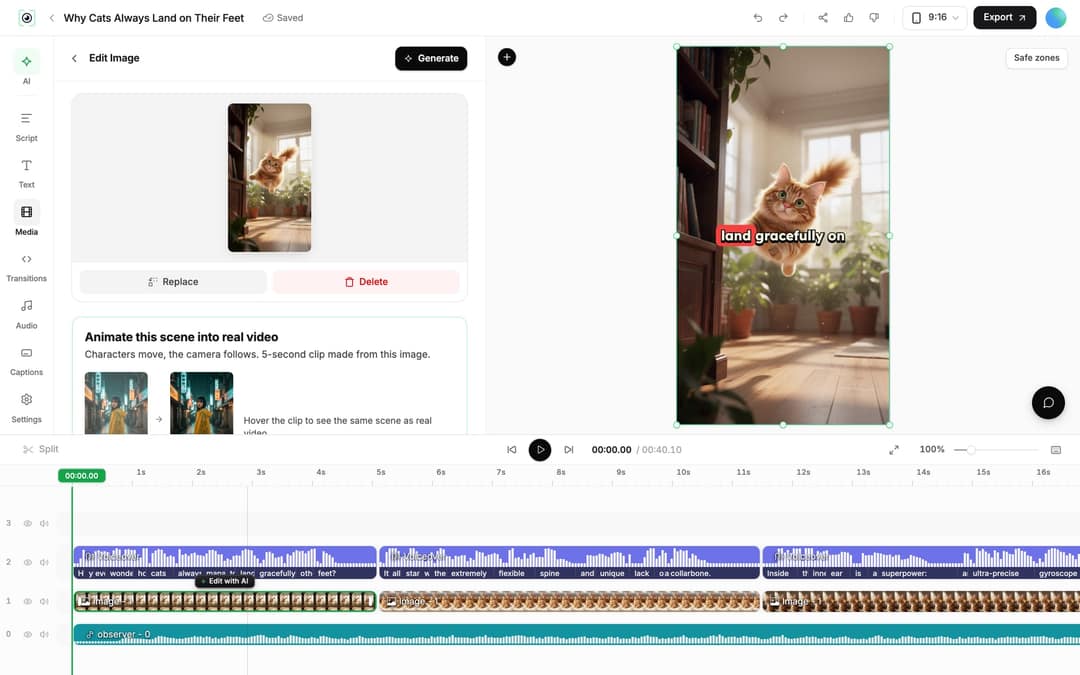
To change pacing, drag a clip's start or end edge on the timeline, or place the playhead and press S to split. More detail on adding files to a project is in our guide to adding new media in the editor, and the AI video editor page covers the rest of the timeline.
Step 6: Regenerate the voice-over and add music
Open the Audio panel. On the Voiceover tab, each row under Project Voiceovers has Re-generate. In the dialog, pick a voice (1,000+ AI voices in 70+ languages), keep "Keep timeline in sync" on so clips and text follow the new narration, and click Generate Voice.
- Cost: 10 credits per started 500 characters. Regenerating a voice-over needs a paid plan.
- Pauses: type
<break time="1.0s" />in the script for a beat before your call to action (up to 10 seconds). ElevenLabs and MiniMax voices honor it; Gemini and Kling voices skip the pause. - Use the same voice in every brand video. It works like a recurring presenter.
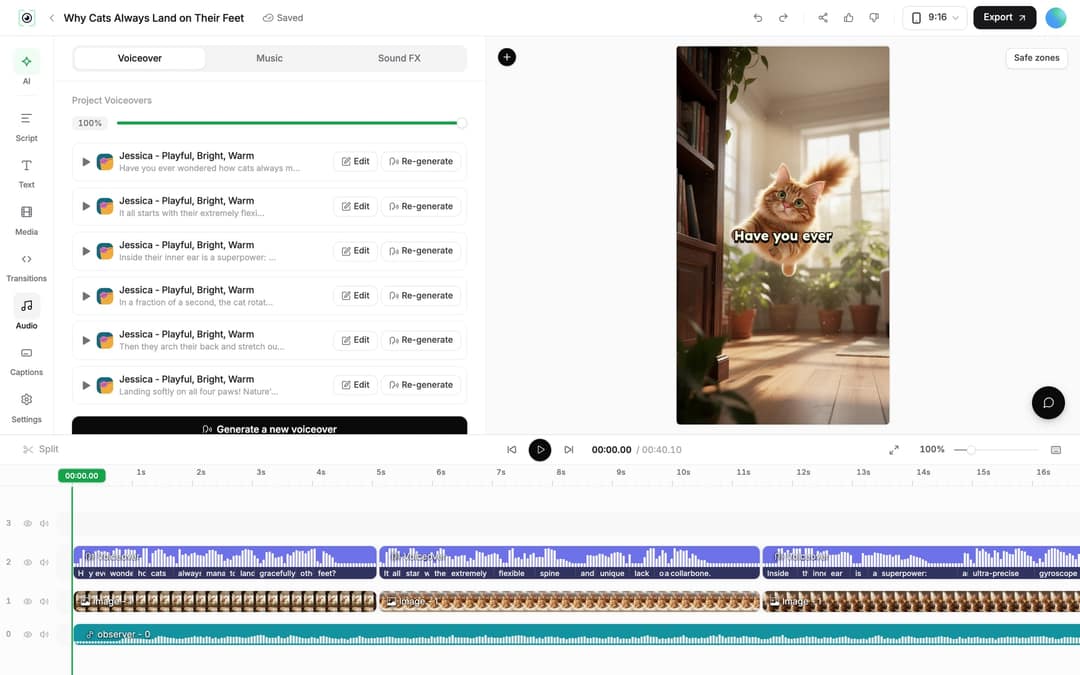
Switch to the Music tab to pick one of the 199 built-in tracks and lower its volume under the voice. The editor's AI music generator costs 20 credits per started minute and also needs a subscription.
Step 7: Export and publish
Click Export in the editor header (it reads "Export / Publish" on free accounts). Revid renders an MP4 in 720p, 1080p or 4K at 30 or 60 fps; 4K export costs 10 credits.
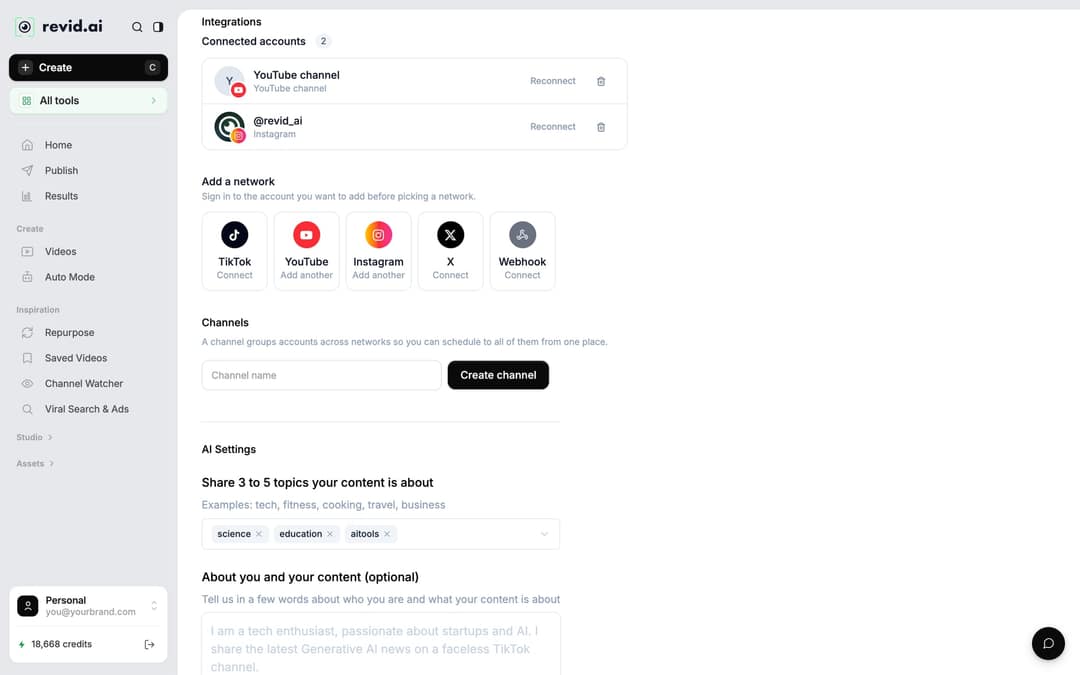
To post from Revid, connect your accounts once in Settings > Integrations > Add a network: TikTok, YouTube, Instagram (business or creator account), X, or a Webhook for Zapier or Make. Then open Publish Video and choose Publish to post now or Add to queue to schedule. See social media publishing for how the queue works.
Revid saves every project, so you can reopen and update the video when your offer or branding changes.
Custom video branding: make every video look like yours
Custom video branding means every video carries the same identity: logo, font, colors, caption style, voice and music. A viewer should recognize your video before seeing your name. Decide each element once, write it down and reuse it.
| Brand element | Where to set it in Revid | Rule of thumb |
|---|---|---|
| Logo | Upload to the Media panel Library | Transparent PNG, same corner or end card every time |
| Font and colors | Captions panel | Your brand font, two or three colors at most |
| Caption style | Captions panel (30 styles) | Pick one and never switch |
| Voice | Audio panel > Re-generate > voice picker | Same voice in every video |
| Music | Audio panel > Music tab | One mood that fits the brand |
| Format | Ratio on the Create page | 9:16 for social, 16:9 for site and YouTube |
The sidebar also has Brand kits under Assets for reusable brand settings. If you already have a finished video and only need your logo on it, use the add image to video tool to overlay it as a watermark.
A brand video script template (30 to 60 seconds)
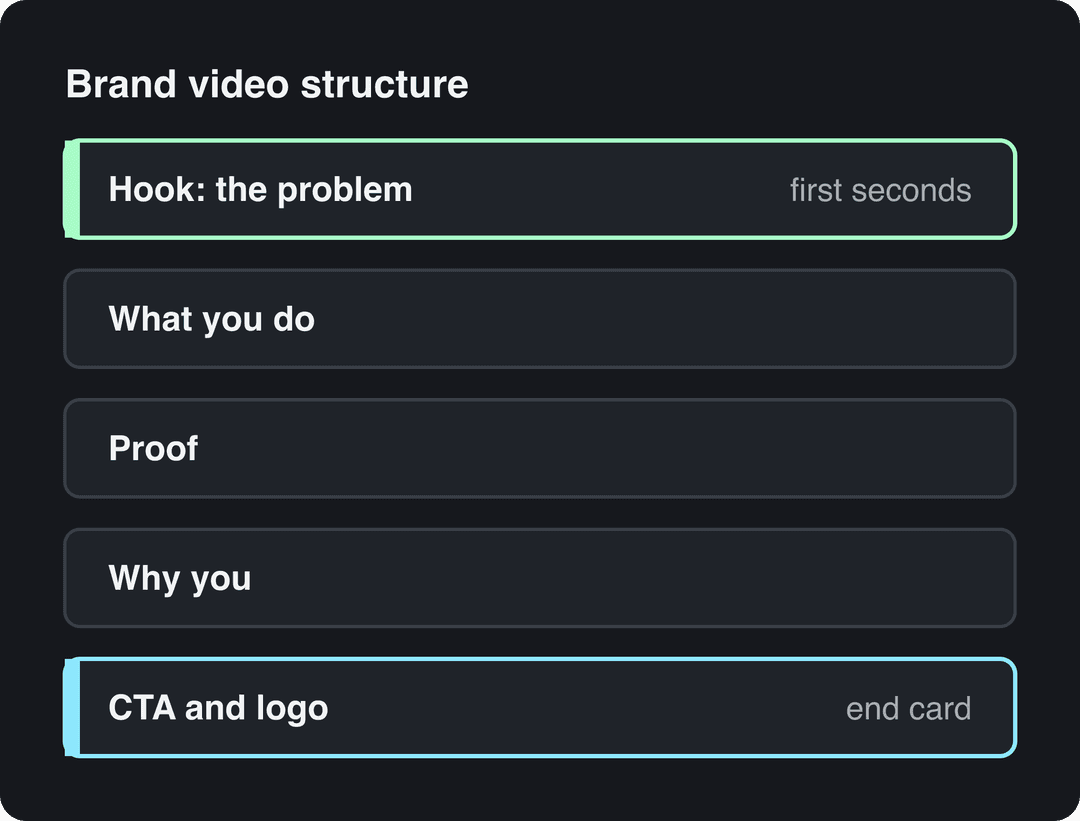
Paste this structure into the script box and fill in each line. Each line becomes a scene.
- Hook: the problem your customer has, in one line.
- What you do: one sentence on how you solve it.
- Proof: one concrete result or a real customer quote you have permission to use.
- Why you: your story or values in one sentence.
- Call to action: one next step (visit the site, book a demo, follow), with your logo on screen.
Example for a small coffee roaster:
Most coffee sits in a warehouse for months before you drink it. We roast to order every week in our own shop and ship within days. Our regulars say they stopped buying supermarket beans. We started this because we wanted coffee we would serve our own family. Order your first bag on our website.
Script template prompt
Create a 30-second 9:16 brand video for a bike repair shop following five beats: hook on a flat tire ruining a morning commute, same-day repairs, a customer quote, a family-run story since 2015, and a closing line "Book your repair online." Use bright, energetic stock footage, bold captions in two brand colors and an upbeat track.
Make the same brand video in another language
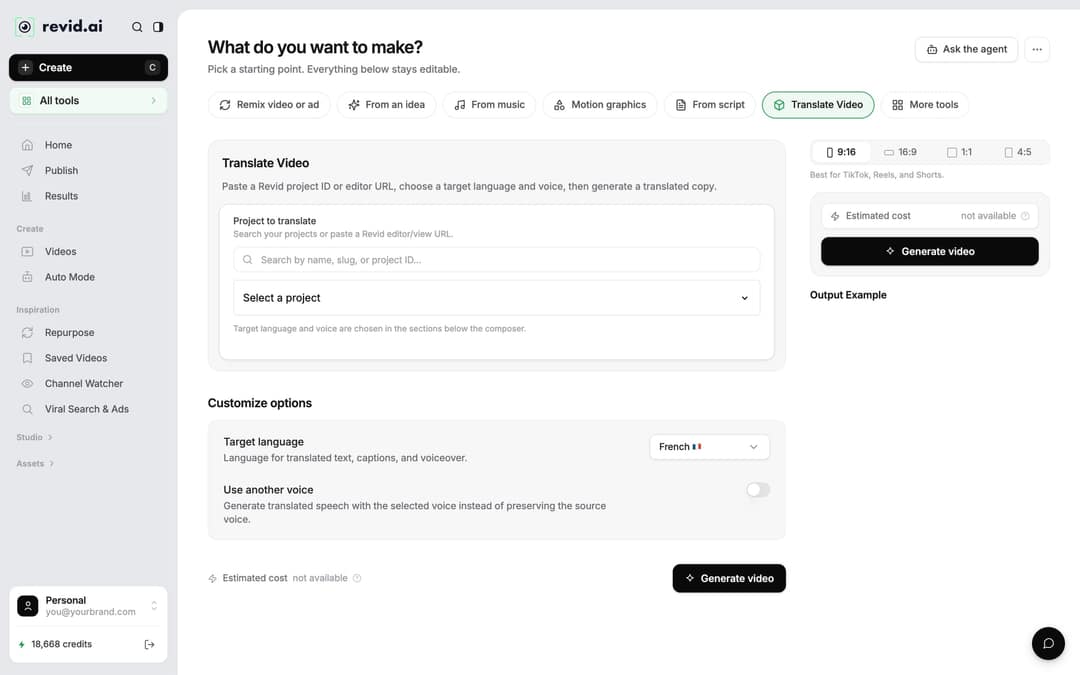
Open the project card menu on Videos and choose Translate. Pick the project, a target language (74 are available) and turn on "Use another voice" only if you want a different voice; by default Revid keeps the original one. The edit, media, timing and captions stay the same. Translation costs 10 credits per 500 characters for each voice segment, plus avatar lip-sync again if the video has an avatar.
Get a new branded promo every day with Auto-Mode
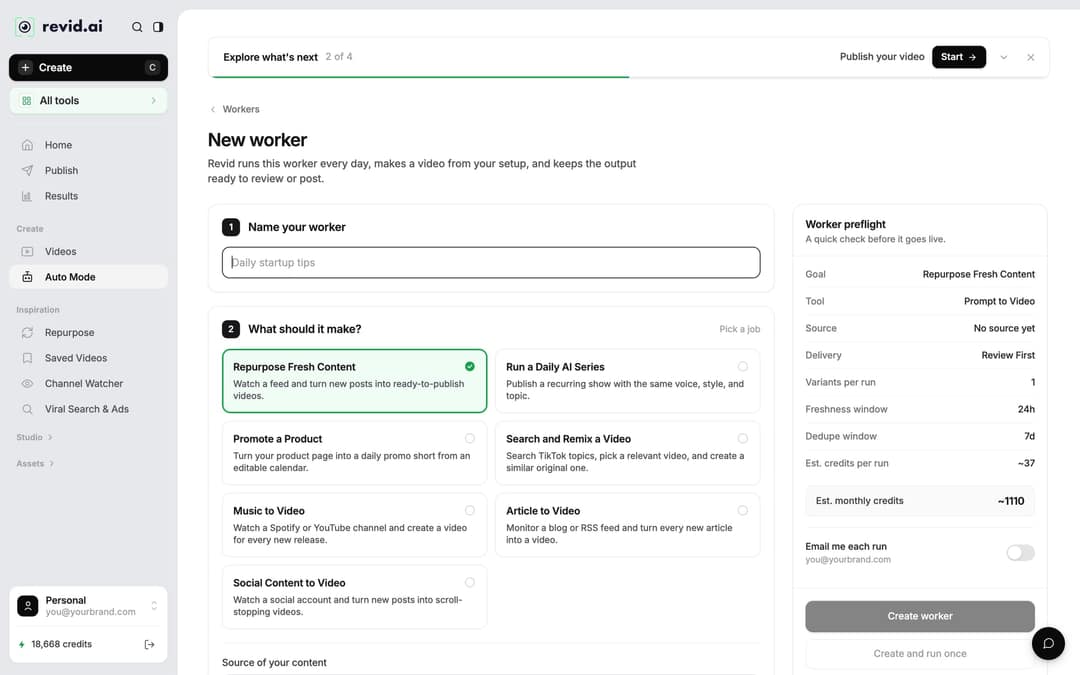
If you want a steady stream of product videos rather than one brand film, open Auto Mode in the sidebar and click New worker. Name it, choose the "Promote a Product" job, which turns your product page into a daily promo short, and pick the format. The Worker preflight panel shows the estimated credits per run and per month before you click Create worker; product workers always render at Ultra quality, so check that estimate. By default videos wait for your review ("Review First"); choose "Auto Queue" and a connected account to post them automatically. Growth includes 3 workers, Elite 5 and Ultra 10.
Tips that make a brand video work
- Keep it to 30 to 60 seconds: enough for a hook, what you do, one proof point and a call to action. Cut longer versions later for a product page or a pitch.
- Hook in the first seconds: open on the viewer's problem, not your logo.
- Pick one emotion: pride, relief or curiosity. A video that aims for all three lands none.
- One call to action: say it in the voice-over and show it on screen.
- Design for silent viewing: many people watch on mute, so keep captions on every video.
- Put it where people decide: your homepage, product pages, emails and ads. In Wyzowl's 2026 survey, 85% of people said a video had convinced them to buy a product or service.
Typeframes is now Revid
If you searched for Typeframes or typeframes.com, you are in the right place. Revid was founded in Paris in 2023 as Typeframes, a tool that helped SaaS founders make product intro and Product Hunt launch videos, and the product has been called Revid since April 2024. It now covers the full short-form loop: research, scripts, AI visuals, voice-over, captions, music, editing and publishing. The full story is in our history of Typeframes.
Is Revid free for brand videos?
Sign-up is free and includes free credits to try video creation. Regular creation uses the monthly credits of a paid plan: Growth costs $39/month ($32/month billed yearly) for 2,000 credits. As a guide, a 30-second video with Pro AI visuals and a voice-over costs about 40 to 80 credits, and the Create page shows the estimated cost before you generate. Failed builds are refunded automatically. See Revid pricing for the current plans.
FAQ
Can I download a Revid video without a watermark and without paying?
You can try Revid without paying: new accounts get free credits, no card needed. Revid has no unlimited free plan, and regular creation uses a paid plan from $39/month, so check the pricing page for what a free export includes before relying on it.
How long should a brand video be?
Aim for 30 to 60 seconds for a homepage or social brand video. That fits a hook, what you do, one proof point and a call to action.
Do I need design or editing skills to make a brand video with Revid?
No. Revid writes or takes your script, builds the scenes, voice-over and captions, and you change only what you want in the editor.
Can I make a vertical and a horizontal version of the same brand video?
Yes. Choose the ratio on the Create page (9:16, 16:9, 1:1 or 4:5) and generate one version per format, keeping the same script, voice and caption style.