Trusted by 14,000+ creators worldwide

Add Image to Video Online

Upload a video and overlay an image on top: a logo, a watermark, a reaction picture, or any graphic. Choose the position and size, then fine-tune in the editor.

Upload a video and an image, choose where it goes, and download your video with the image overlay.

  • Logo & watermark overlay
  • 5 positions
  • Adjustable size
  • Fine-tune in the editor

How to Add an Image to a Video Online in 3 Simple Steps

1 Upload Your Video and Image

Start by uploading the video file you want to edit or paste a video URL. Next, upload the image you want to overlay on the video. You can add a photo to a video, insert a logo, or put a reaction picture. We support PNG, JPEG, and WEBP formats.

2 Choose Image Position and Size

Select where you want to overlay the image on your video. Choose from five preset positions: top-left, top-right, bottom-left, bottom-right, or center. Use the slider to adjust the image size from 10% to 60% of the video width. If you use a transparent PNG for a logo or watermark, it will keep its perfect transparency.

3 Generate and Fine-Tune

Click generate to instantly add the image to your video online. Once rendered, you can download it immediately or open it in our advanced video editor. In the editor, you can achieve pixel-perfect placement, freely resize the image, adjust its timing to appear only on specific scenes, or even add text and captions.

01

Logos, Watermarks, and Picture-in-Picture

Brand your videos with a logo, protect your content with a watermark, or drop a reaction image on a clip. Upload your video and your image, pick one of five positions and a size, and Revid renders the overlay on the whole video. Transparent PNGs keep their transparency.

02

Pixel-Perfect Placement in the Editor

After the first render, open the video in the editor to move and resize the image freely, set its timing so it only appears on part of the video, add more images, or combine it with text overlays and captions.

FAQs

Frequently Asked Questions

What is the Add Image to Video tool?
Our Add Image to Video tool is a simple online editor that allows you to easily overlay an image, logo, or watermark onto any video. Whether you want to add a transparent image to a video for branding, create a picture-in-picture effect, or put a reaction photo on a clip, this tool does it in seconds without requiring complex software.
How do I add a logo or watermark to my video?
To add a logo to a video, simply upload your video file and your logo image file (we highly recommend a transparent PNG). Select your preferred position—like the bottom-right corner for a classic watermark—adjust the size slider, and generate. It's the fastest way to add a watermark to a video online.
Can I choose exactly where to put a picture on a video?
Yes! Before generating, you can quickly place your image in the top-left, top-right, bottom-left, bottom-right, or center of the screen. If you need a custom location, simply open the video in our editor after generation to drag, drop, and overlay the image on the video exactly where you want it.
What image formats can I insert into a video?
You can insert image into video using popular formats including PNG, JPEG, and WEBP. For the best results, especially when adding logos or watermarks, we recommend using a PNG file with a transparent background. The tool will perfectly preserve the transparency when you add the image to the video.
How do I control how long the image stays on the screen?
By default, when you add a photo to a video using the quick tool, it will remain on screen for the entire duration of the video. However, you can easily adjust this! Just open your generated video in the Revid editor, where you can trim the image's timeline so it only appears during specific moments.
Is it possible to add multiple images to the same video?
Absolutely. While the initial quick-tool allows you to add one primary image to a video online, you can jump straight into our built-in video editor afterward. There, you can upload and overlay as many additional images, logos, or graphics as you need.
Can I resize the image after uploading it?
Yes, adjusting the size is incredibly easy. Before generating, use the 'Image size' slider to set the width of your image as a percentage of the video's width (from 10% to 60%). If you need to make it bigger or smaller later, you can freely resize the image overlay inside our post-generation editor.
Can I use this as a picture-in-picture video editor?
Definitely! Adding a reaction image or a secondary visual element is a breeze. Just upload your main video, then upload the picture you want to overlay. Choose the 'center' or corner position, and you instantly have a picture-in-picture effect ready for TikTok, YouTube Shorts, or Instagram Reels.
Does it cost anything to add an image to a video?
Using the tool requires credits from your Revid AI account. Free accounts start with a limited number of complimentary credits so you can try it out and add an image to a video online for free. For higher volume editing, our paid plans provide a larger monthly allocation of credits.
Can I edit the video further after I overlay the image?
Yes, your creative process doesn't stop at the image overlay! Once you add the image to the video, you can use Revid AI's full editing suite to add text overlays, auto-generate captions, trim the footage, or resize the video for different social media platforms.
View Complete Help Center

Find detailed answers to 100+ questions about features, tools, and workflows

or check our markdown version optimized for LLMs

Tools

Free AI Video Tools

Choose your tool, add your content, and create a video in seconds. Then customize it to your liking.

AI TikTok Video Generator

Turn text into trendy, viral TikTok videos in a snap

Try it out

Prompt to Video

Turn your prompts into engaging videos with AI assistance

Try it out

Add Caption to Video

Generate subtitles in 100+ languages with AI captions

Try it out

PDF to Brainrot

Convert PDFs into attention-grabbing, scrollable videos

Try it out

Text to Brainrot

Turn your text into trendy, scrollable content with dynamic visuals

Try it out

AI Talking Avatar

Create lifelike talking avatars from text in seconds

Try it out

Video Podcast Generator

Transform your podcasts into visually engaging video content

Try it out

AI Movie Maker

Create studio-quality videos from text, no filming required

Try it out

Audio to Video

Make engaging videos from your podcasts, interviews, or any audio content

Try it out

Animated Lyrics Video Generator

Turn any song into an animated lyric video with synced text and visuals.

Try it out

AI Music Video Generator

Transform your music into cinematic music videos.

Try it out

AI Lyrics Video Generator

Transform your lyrics into a complete music video with AI

Try it out
See all tools
How it works

Four simple steps to create and share your video

1
Step 1

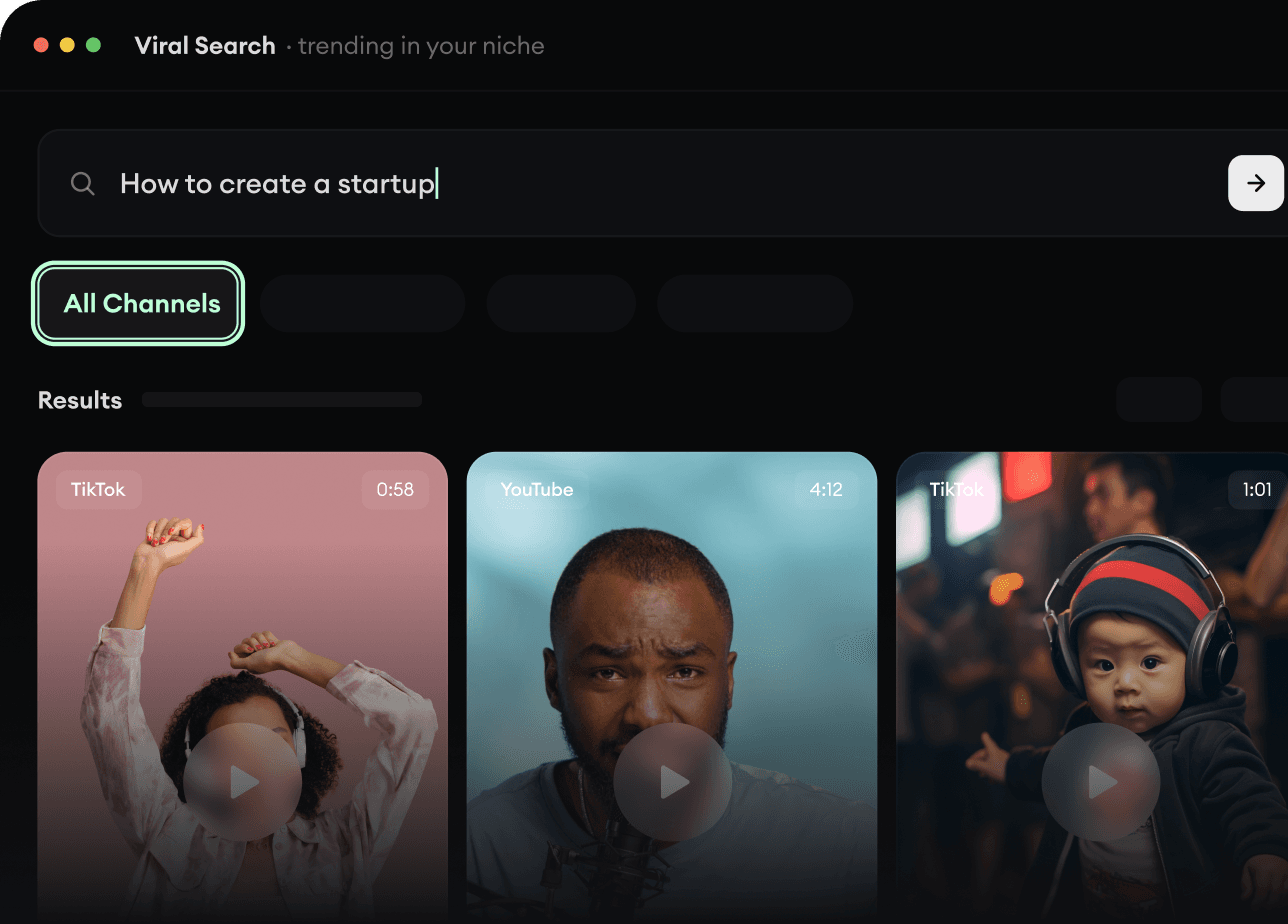
Find your next viral idea

Lacking inspiration? Our AI spots trends and helps you adapt them for your own videos, hassle-free.

  • Identify the best performing formats
  • Get inspired by top creators
  • Turn your ideas into captivating videos
Find your next viral idea
2
Step 2

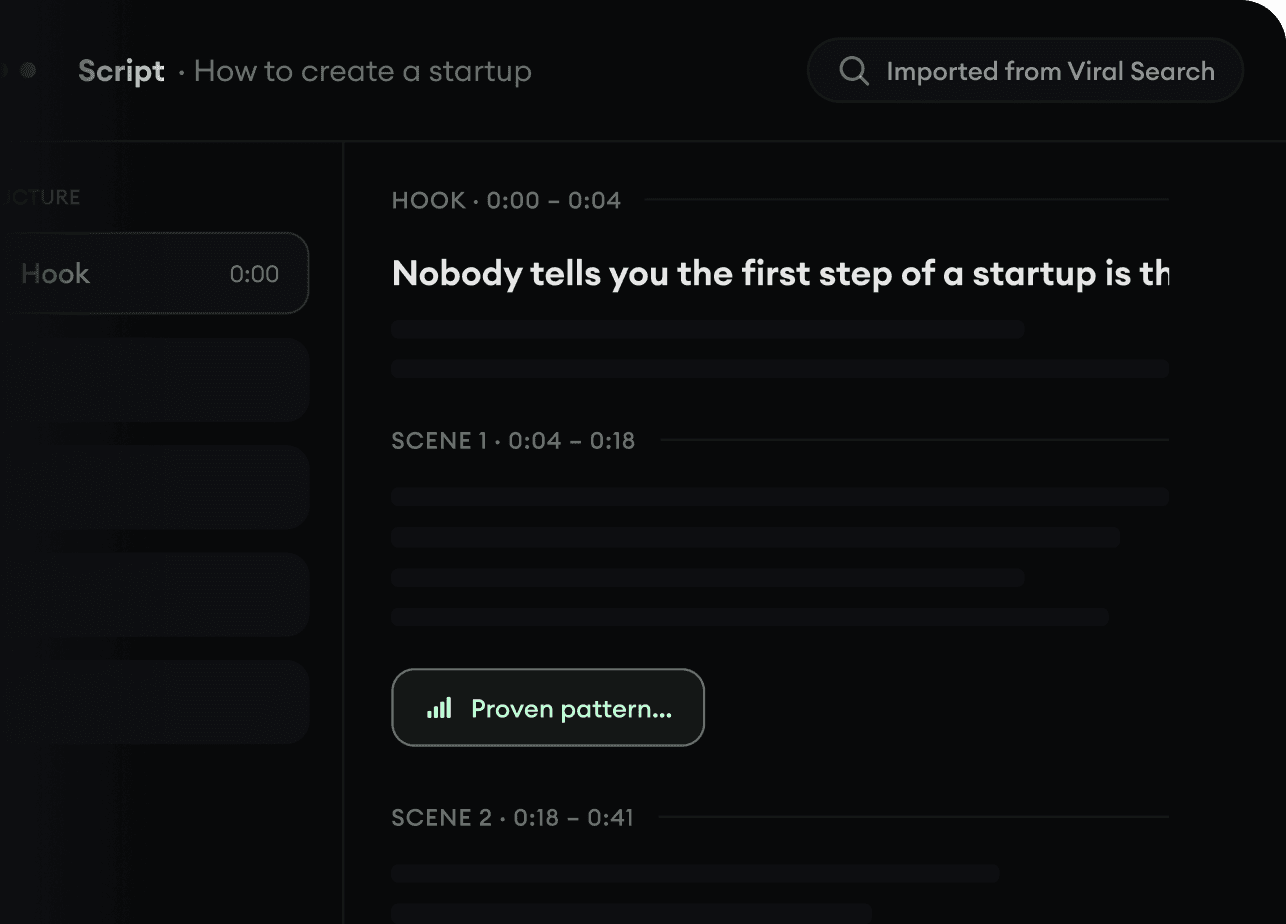
Storytelling designed to captivate

Revid.ai analyzes viral videos and uses those same codes to write your scripts.

  • Write your script or just give the topic to our AI
  • The AI will suggest relevant content to inspire you
  • Paste a link, our AI analyzes it and turns it into a video
Storytelling designed to captivate
3
Step 3

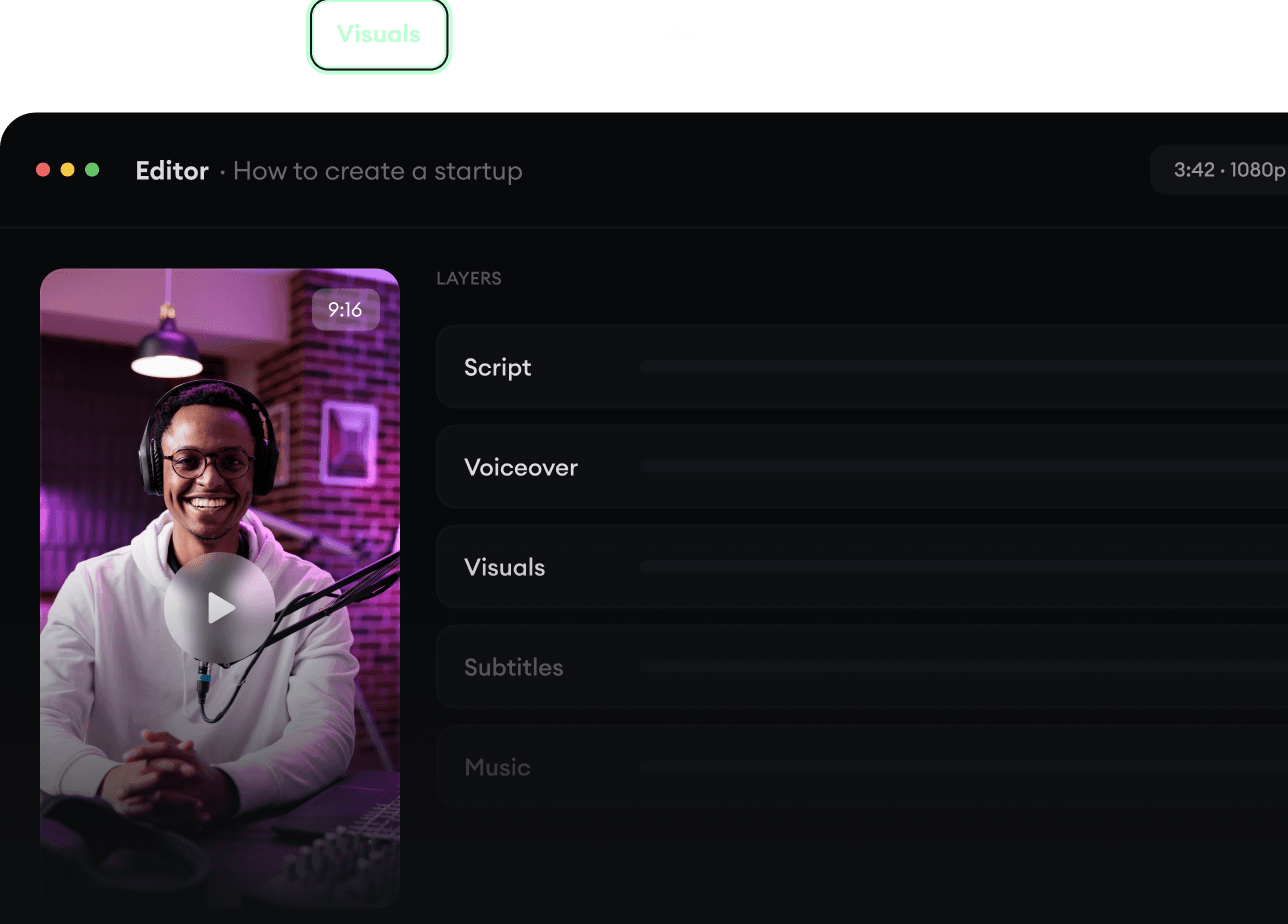
Videos you will love

Create professional videos, share them with one click, and grow your audience.

  • Watch your texts turn into professional videos
  • Automate video creation from your content
Videos you will love
4
Step 4

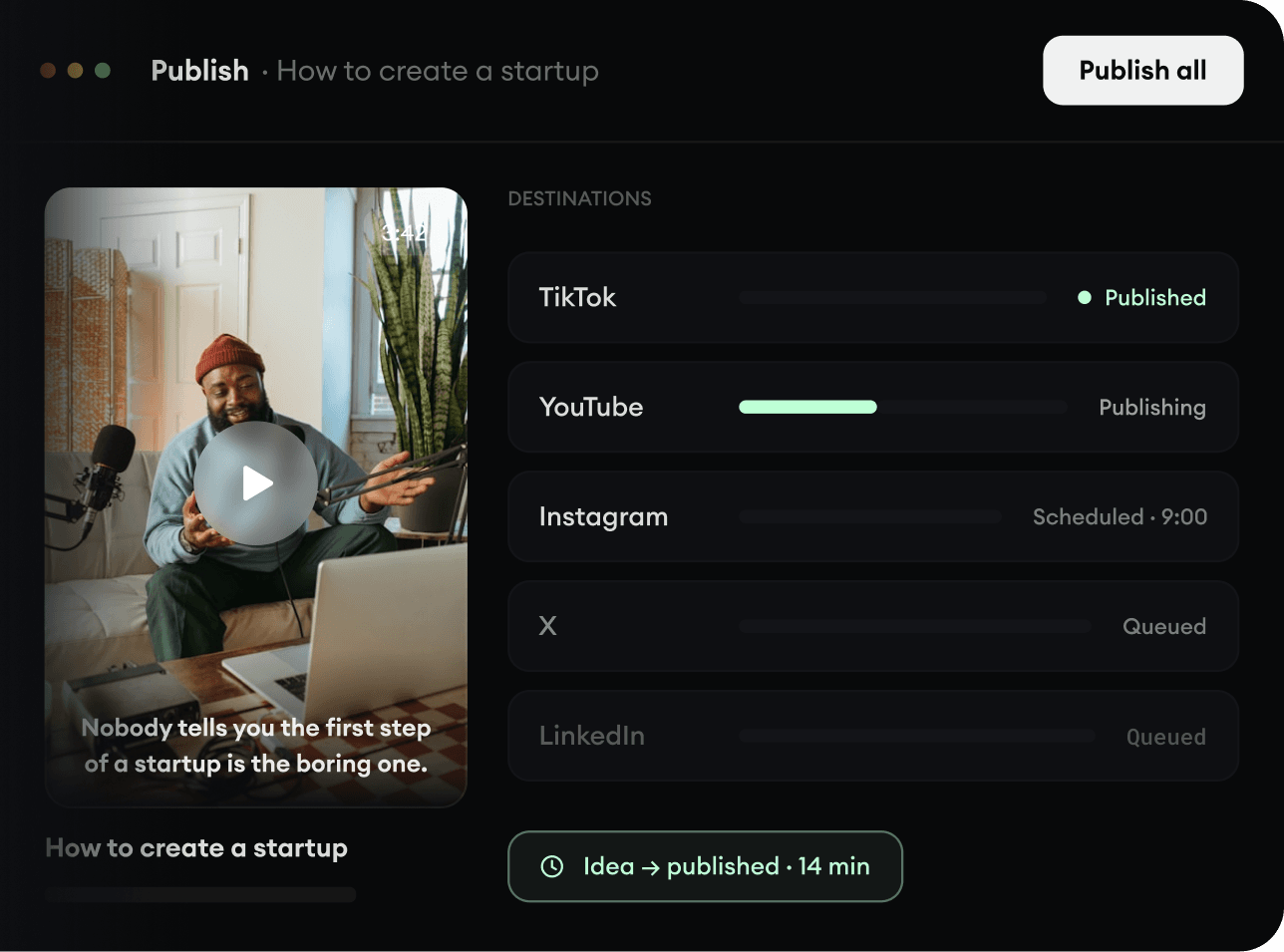
Publish on TikTok, YouTube, Instagram and more

Reach a wider audience by sharing your videos across all your networks.

Publish on TikTok, YouTube, Instagram and more
revid.ai logo

The fastest way to create captivating videos.