Best Instagram Reel Maker in 2026: 11 Apps Compared by Workflow
Eleven Instagram Reel makers compared by what you start with (an idea, phone clips, brand templates or long recordings), with prices, free-plan limits and a simple test plan.
On this page
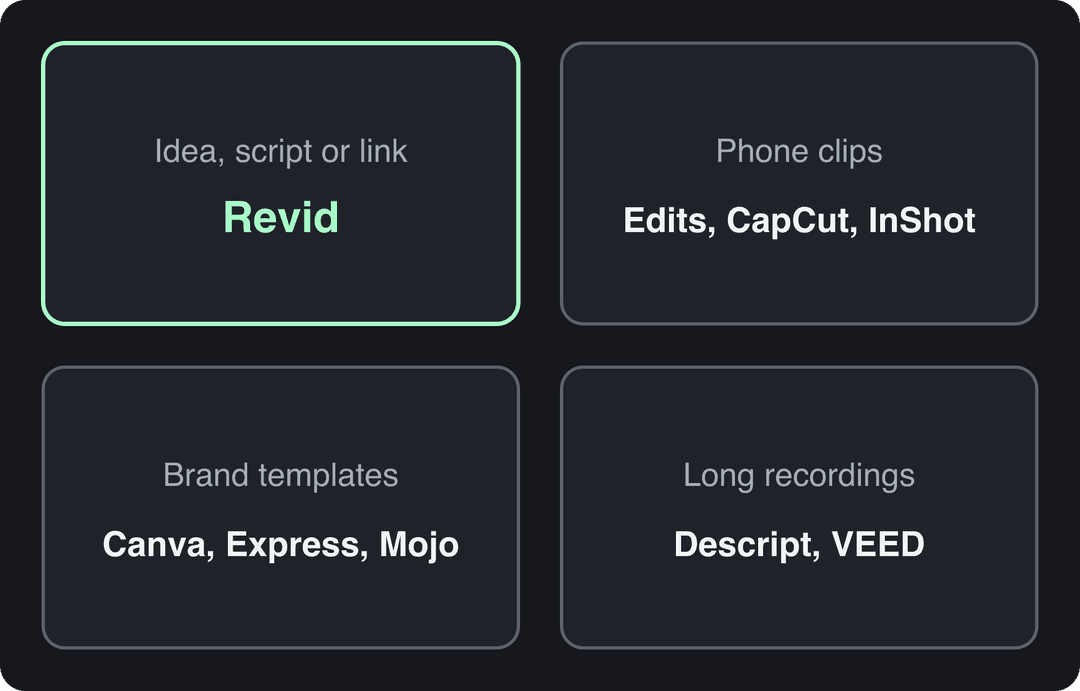
The best Instagram Reel maker depends on what you start with. Use Revid if you start from an idea, script or link and want a finished, captioned Reel; Instagram's Edits app or CapCut if you edit phone footage; Canva or Adobe Express for branded templates; and Descript for cutting talking-head recordings.
Before paying for anything, know your free baseline: nearly 10% of the Reels people view each day are created in Edits, Meta's own editor, according to Meta's Q4 2025 earnings call. A paid Reel maker earns its place only when it removes a bottleneck Edits can't: writing the script, producing visuals without filming, keeping a brand consistent, or cutting a long recording into clips.
The 11 Instagram Reel makers at a glance
| Tool | Best for | You start with | Free option | Paid from | Main limit |
|---|---|---|---|---|---|
| Revid | AI Reels without filming | Idea, script, URL, song or reference video | Free sign-up with free credits to try creation; regular creation uses plan credits | $39/month (2,000 credits) | Credit-based; not built for hand-editing only your own footage |
| Edits | Quick edits of phone footage | Clips on your phone | Free, no export watermark | None | Mobile only |
| CapCut | Trend-led edits of your clips | Your footage | Full editor, 1080p export, auto-captions | About $9.99/month | Premium templates and most AI features are paid |
| Canva | Branded, text-led Reels | A template | 1.6 million+ templates, up to 20 AI uses | From €110/year (Pro) | Limited audio and timing control |
| Adobe Express | Brand-locked posts with scheduling | A template | Free plan | Check current plans | Shallow for complex edits |
| VEED | Captions, translation, talking heads | A recording | Watermarked, 720p | Roughly $10 to $24/month | Plan and credit complexity |
| Clipchamp | Simple Reels for Microsoft 365 teams | Footage in OneDrive | Included in many Microsoft 365 plans | Check your plan | Basic effects and captions |
| InShot | Phone-first editing | Clips on your phone | Free with in-app purchases | Subscription | No Windows desktop app |
| Kapwing | Browser collaboration and resizing | Footage or an existing video | Free tier with export limits | Check current plans | Slower on heavy projects |
| Mojo | Animated brand templates | A motion template | Free tier | Pro plan | Mobile-focused |
| Descript | Editing talking-head video by text | A recording | 60 media minutes/month, 720p | $24/month ($16 billed yearly) | Not template-first |
The fastest way to shortlist is to match the tool to the material you already have.
1. Revid: best for Reels made from an idea, link or script
Revid fits when your bottleneck is not trimming footage but producing the Reel at all: the script, the visuals, the voice-over and the captions. You give it an idea, a script, a link (a blog post, a YouTube or TikTok video), a song or a reference Reel, and it returns a finished vertical video with scene-by-scene visuals (stock footage, AI images, AI video or motion graphics), an AI voice-over in 70+ languages, synced captions and music.
What sets it apart is where the Reel starts. Revid's library holds about 2.77 million real short-form videos and posts with their public engagement data, including 56,209 Instagram posts (September 15, 2026 snapshot). Instead of prompting from a blank page, you can open a Reel that already performed and use Revid's Reel repurposing tool to make an original video with the same structure, hook style and pacing, on your topic.
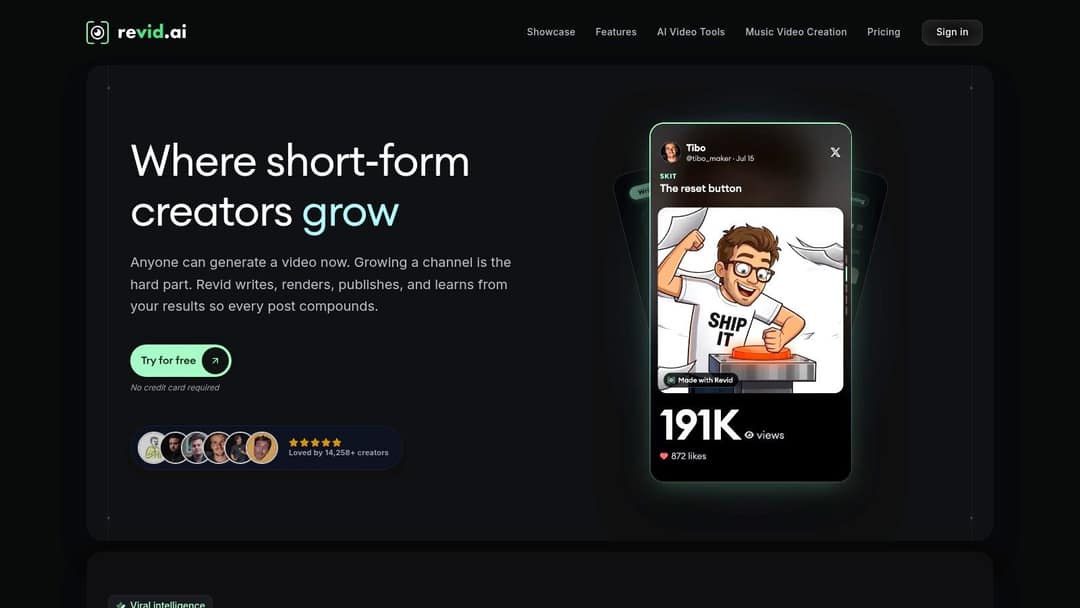
How to make a Reel with Revid
- Open the AI Reel generator and paste your idea, script or link.
- Pick a visual style and a voice. Revid writes the script and builds the scenes, captions and music.
- Open the timeline editor: rewrite a weak hook, swap a scene (Seedance 2.5, MiniMax Hailuo H3, Wan 3.0 and Google Veo 3 can be chosen per scene) and check every caption.
- Export in 9:16 at 1080p or 4K (30 or 60 fps), or publish and schedule it straight to Instagram, TikTok and YouTube from one queue.
If your raw material is a long video, the YouTube to Instagram converter cuts it into vertical Reels instead.
Prompt to try
Make a 30-second Instagram Reel about three mistakes people make when brewing coffee at home. Open with the hook "You're ruining your coffee before you even press brew." Use bright close-up visuals, a friendly upbeat voice-over and bold captions, and end with a quick tip to save the post.
Pricing and limits
Sign-up is free with no credit card needed, and new accounts get free credits to try video creation; regular creation then uses the monthly credits of a paid plan. Growth costs $39/month ($32/month billed yearly) for 2,000 credits, and a 30-second video with Pro AI visuals and a voice-over costs about 40 to 80 credits, so heavy AI generation can push you to a higher tier. You see a video's cost before you generate it, and the live pricing page is the authoritative price list.
Treat AI output as a fast first draft, not as your editorial judgment. And if all you want is to cut footage you filmed yourself, a classic editor fits better: Revid vs CapCut lays out where each one wins.
2. Edits: best free starting point for phone footage
Edits is Instagram's standalone video editor for Android and iPhone. It covers what most Reels need: trimming, generated captions, cutouts that isolate a subject from the background, and clickable links to other Reels or accounts. It exports without a watermark.
Its limits are the flip side of its simplicity: it is mobile only, it has no browser review for teams, and it does not write scripts or generate visuals. If you film and edit alone on your phone, try Edits before paying for any other app on this list.
3. CapCut: best for trend-led edits of your own clips
CapCut turns raw clips into a platform-native Reel without a professional editing suite. Its free tier includes the full editor, 1080p export and auto-captions, plus 9:16 presets, a multi-track timeline, background removal and music tools. The Standard plan costs about $9.99/month; premium templates, effects and most AI features sit behind it.
The template library is its biggest advantage: you start from a rhythm, transition style or text treatment that already looks like current social content, then replace the footage and words. That is also the risk. A default template makes your Reel look like thousands of others, so change the opening frame, pacing and text rather than publishing the stock arrangement.
The mobile, web and desktop versions don't always expose the same tools, and pricing varies by region. Check export and AI limits on the CapCut website before you build a team workflow around a feature that exists in only one version.
4. Canva: best for branded, text-led Reels made by non-editors
Canva works best when the Reel has to look like the rest of your brand. Instagram presets, drag-and-drop editing, Brand Kits (logos, fonts, colors) and cover designs let a marketing team publish consistent Reels without a video specialist. The free plan includes 1.6 million+ templates and a small AI allowance (up to 20 uses); Pro starts at €110/year, and paid plans add short AI-generated clips with synchronized audio.
A good workflow is a locked template for each recurring format (customer tip, product feature, event announcement), so teammates swap footage and copy without breaking the layout. The trade-off is control: audio editing, precise timing and compositing are limited, and long, asset-heavy projects slow the browser down.
Start in the Canva Instagram Reel maker for template-led posts. If you need the video itself generated from text rather than designed, Revid vs Canva explains the split.
5. Adobe Express: best for brand-locked posts with scheduling
Adobe Express sits between a template tool and the wider Adobe suite: Reel templates, cover design, quick editing, auto-captions, Brand Kits, Adobe Stock, Firefly AI features and a built-in scheduler. A coordinator can make a branded Reel, design its cover and schedule it without exporting to a separate publishing tool, and locked templates stop accidental changes to fonts, colors and logo placement.
It suits teams already paying for Adobe or managing several contributors. Review the licensing terms of each Stock or Firefly asset on your plan, because commercial-use rules are not the same everywhere. For detailed sound mixing or multi-layer compositing you will still need Premiere Pro, and several scheduling and AI features depend on the plan. The Adobe Express Reel maker is best for repeatable social posts and brand governance.
6. VEED: best for captions, translation and talking-head Reels
VEED is built around the repetitive parts of Reel production: transcription, subtitle editing, translation, AI dubbing, resizing and quick assembly. It adds a teleprompter, a webcam recorder and eye-contact correction for creators who record straight to vertical video.
Captions are the main reason to pick it. Reels need to make sense with the sound off, and VEED lets you generate, correct, style and translate subtitles in one place (still check names, jargon and timing by hand). The free plan exports at 720p with a "Made with VEED" watermark; paid plans start at roughly $10 to $24/month, and some AI features and credits sit on higher tiers.
Upload a representative clip to the VEED online video editor and test subtitle correction and export settings before committing. Revid vs VEED compares it with generating the whole video from a prompt.
7. Microsoft Clipchamp: best for simple Reels inside Microsoft 365
Clipchamp makes sense when your assets already live in OneDrive or SharePoint. Templates, 9:16 presets, stock video and audio, a basic multi-track timeline and cloud sharing cover routine work: internal announcements, recruiting clips, simple product posts and event recaps.
Its best feature is access: it is included in many Microsoft 365 plans, so check before buying another editor. The Microsoft Clipchamp page lists current plan details. Audio treatment, effects, motion design and caption styling are basic next to specialist tools, so editors who want full creative control will outgrow it.
8. InShot: best for phone-first editing with more control than Edits
InShot keeps the workflow on your phone: trim clips, add filters, transitions, keyframes, voice-over, music, sound effects and text, then export a vertical video. InShot lists export up to 4K at 60 fps, and on iOS it adds auto-captions and text-to-speech.
It suits creators who capture content through the day: a restaurant owner editing a dish clip between services, or a shop posting a product update without opening a laptop. There is no Windows desktop app, which makes team file management awkward, and some effects and assets require in-app purchases or a subscription. Confirm on the InShot video editor site which export settings are available without upgrading before you use it for client work.
9. Kapwing: best for collaborative browser editing and resizing
Kapwing is designed for teams that make, review, resize and revise social content without desktop software. Reel templates, auto-subtitles, background removal, resizing and shared workspaces make it a fit for agencies and distributed marketing teams.
Its review loop is the practical edge: a creator prepares a vertical edit, a teammate leaves feedback, and revisions happen in the same browser tab instead of across file versions and email attachments. Automatic resizing won't always frame the subject correctly, so check faces, products and subtitles after every conversion.
The free tier is good for testing, but higher-resolution exports and some collaboration features need a paid plan, and heavy projects run slower than in a desktop editor. Check current limits on the Kapwing video editor site.
10. Mojo: best for animated brand templates
Mojo is a mobile design app for Reels and Stories that should look designed from the first frame: animated templates, kinetic typography, quick resizing, auto-captions and Brand Kit features. It gives a boutique brand or a creator with strong visual taste motion-graphics polish without After Effects.
Motion should clarify the message. If an animation competes with the hook or makes captions hard to read, the Reel gets harder to watch, not more polished. Mojo is mobile-focused, which narrows its fit for teams that review on desktop, and its AI generation features depend on the paid plan. The Mojo app is for branded motion templates, not transcript-heavy editing.
11. Descript: best for talking-head, educational and podcast Reels
Descript changes the editing model: you edit the transcript and the video follows the text. That makes it fast for interviews, tutorials and commentary, where the spoken words carry the structure. Filler-word removal, Studio Sound, auto-captions, Underlord (its AI co-editor) and Create Clips cover the path from a long recording to a captioned 9:16 Reel.
The free plan gives 60 media minutes a month, 100 one-time AI credits and 720p export, with watermark-free export starting on paid plans at $24/month ($16 billed yearly). It is not a template-first motion tool, so for animated typography or trend transitions, CapCut, Mojo or Adobe Express start faster.
Pick a self-contained excerpt: cut intros and references that only make sense to people who watched the whole episode, and open with a line that states the clip's value. The Descript video editor is strongest for experts, educators and podcasters with a library of spoken-word footage. Revid vs Descript covers when generating new videos beats editing recordings.
What export settings should a Reel maker support?
Whatever tool you choose, it should export a file that matches Instagram's documented limits.
| Setting | Use | Why |
|---|---|---|
| Aspect ratio | 9:16 | Instagram accepts 1.91:1 to 9:16; 9:16 fills the phone screen |
| Resolution | 1080 x 1920 | Instagram's minimum is 720 px; 1080 x 1920 is the standard vertical frame |
| Frame rate | 30 fps or more | Instagram's minimum is 30 FPS |
| Length | Under 3 minutes for reach | Reels can run up to 20 minutes, but those over 3 minutes are not recommended to non-followers |
| Cover | 420 x 654 px | Instagram's recommended Reel cover size |
The details (bitrate, frame rate trade-offs) are in our guide to Instagram Reels resolution, and the reach trade-off by duration is covered in how long Instagram Reels can be. Keep captions and key text inside the area the interface doesn't cover: the Instagram Reels safe zone checker overlays it on your frame.
Test Reel prompt
Create a 20-second Reel for a small bakery announcing a new weekend croissant flavor. Hook: "We only make 50 of these every Saturday." Warm, cozy visuals of pastries and the shop, a calm voice-over and captions kept in the center of the frame.
How to choose: test one real Reel in two tools
A polished demo tells you little. Run this test with your own material instead:
- Name the bottleneck. Writing, filming, editing, branding or captioning: pick the one that costs you the most time.
- Shortlist two tools from the table that solve it.
- Make the same Reel in both from real source material: a talking-head clip, a product recording, a podcast excerpt or an idea you would actually post.
- Check both on a phone: is the hook clear in the first seconds, do captions avoid the face or product, does the crop keep the action, is there any watermark?
- Time it: minutes to a publishable draft, caption corrections needed, credits or paid assets used.
- Post both versions as trial reels if your account qualifies (a public account with 200 followers for professional accounts or 1,000 for personal ones). Trial reels go first to non-followers, insights arrive within 24 hours, and they don't affect the ranking of your standard Reels.
If you are an artist using Reels to build an audience for your work, the Online College of Art's guide to social media for an art career covers the wider strategy beyond the editing tool.
What results should you expect from your Reels?
The audience is large: the most recent official scale figure is Meta's July 2023 statement that Reels plays exceeded 200 billion a day across Facebook and Instagram. ShortsIntel's Reels statistics roundup collects newer third-party figures; check each one's original source before you quote it.
Individual results are far smaller, and that is normal. In Socialinsider's 2026 study of 69 million short-form videos, Instagram Reels from accounts under 5,000 followers averaged 625 views per video, and Reels averaged a 0.45% engagement rate by followers. Socialinsider's Instagram engagement report, built on 15 million posts from 417,130 pages, put median Reel share and comment rates at 0.10% and 0.06%.
Format matters less than people assume: a 2025 Instagram benchmarks summary hosted on Scribd found Reels, carousels and single-image posts close together in average engagement. So judge a new tool by your own numbers: compare shares per reach and comments per reach against your account's rolling median, and change one variable at a time (the opening seconds, caption style, runtime, voice-over or call to action).
FAQ
What is the best free Instagram Reel maker?
Edits, Instagram's own editor, is the best free option for phone footage because it exports without a watermark. CapCut's free tier adds a desktop editor with 1080p export and auto-captions, and Canva's free plan is the easiest for template-based Reels.
Can I make Instagram Reels with AI without filming?
Yes. Revid turns an idea, script or link into a finished Reel with AI visuals, a voice-over and captions, then publishes it to Instagram. Sign-up is free and new accounts get free credits to try video creation; regular creation uses the monthly credits of a paid plan, from $39/month.
Which Reel makers export without a watermark?
Edits exports without a watermark for free. VEED's free plan adds a "Made with VEED" watermark and Descript's watermark-free export starts on paid plans, so check the free-plan export of any other tool before you rely on it.
Do I need to label AI-generated Reels on Instagram?
Yes, for photorealistic video or realistic audio that was digitally created or altered: Meta requires you to use its AI disclosure tool, and the label shows as "AI info". Meta may also apply the label itself when it detects industry-standard AI signals in the file.
Can I post to Instagram directly from a Reel maker?
Some tools publish for you: Revid publishes and schedules to Instagram, TikTok and YouTube from one queue, and Adobe Express has a built-in scheduler. Others, such as InShot or Descript, export a file that you then upload in the Instagram app.