Creators publish 30,000+ videos a month with Revid

Turn Your Video into Anime

Upload a real video and the AI redraws every frame of it as vibrant anime: clean linework, cel shading, expressive faces and painted backgrounds. The people stay recognizable, the motion, framing and voices stay as filmed.

Upload a video you filmed - the AI redraws every frame as anime, with the same motion, people and voices.

  • Real footage to anime
  • Faces stay recognizable
  • Same motion and framing
  • Original audio kept

How to turn a video into anime

1 Upload your video

Add the real footage you filmed. The AI works from your own video, so the people, motion and framing come from what you shot.

2 Choose a video model and add a note

Pick Pro or Ultra as the video model. If you want, add a short note to steer the colors, the light or the mood.

3 Check your credits and generate

Revid shows the credits needed before you generate. The AI then redraws every frame as anime with clean linework, cel shading and painted backgrounds.

4 Edit and share your anime video

Every video can be edited after it is generated, so you can adjust it before you post it.

FAQs

Frequently Asked Questions

How do I turn a video into anime with AI?
Upload a video you filmed, choose the Pro or Ultra video model, and generate. The AI redraws every frame as anime while keeping the motion, people and voices from your original footage.
What does the anime look like?
The AI redraws your footage with clean linework, cel shading, expressive faces and painted backgrounds, for a vibrant anime look.
Will the people in my video still be recognizable?
Yes. Faces stay recognizable, so the people in the anime version are still the people you filmed.
Does the motion stay the same?
Yes. The motion and framing stay as filmed. Only the look changes, not what happens in the shot.
What happens to the audio and voices?
The original audio is kept, and the voices stay as filmed. The AI changes the picture, not the sound.
What should I write in the optional note?
Use it to steer the colors, the light or the mood, for example a warmer palette or a calmer feel. It is not meant for adding effects.
What is the difference between Pro and Ultra?
They are the two video model options in the form, and you choose one before you generate. The credits shown before generating are the ones for the option you picked.
Can I use a video I did not film myself?
This tool is built for real footage you filmed. Upload your own video to get the most faithful anime version of it.
How many credits does it use, and is there a free video to anime AI option?
Revid shows the credits needed before you generate, so there are no surprises. You also get free credits when you sign up, so you can try it first.
Can I edit the video after it is generated, and which formats can I use?
Yes, every Revid video is editable after generation. Revid supports 9:16, 16:9 and 1:1 formats, so you can fit TikTok, YouTube and Instagram.

Still have questions?

Contact us

Find detailed answers to 100+ questions about features, tools, and workflows

or check our markdown version optimized for LLMs

Tools

Free AI Video Tools

Choose your tool, add your content, and create a video in seconds. Then customize it to your liking.

See all tools

AI TikTok Video Generator

Turn text into trendy, viral TikTok videos in a snap

Try it out

Prompt to Video

Turn your prompts into engaging videos with AI assistance

Try it out

Add Caption to Video

Generate subtitles in 100+ languages with AI captions

Try it out

PDF to Brainrot

Convert PDFs into attention-grabbing, scrollable videos

Try it out

Text to Brainrot

Turn your text into trendy, scrollable content with dynamic visuals

Try it out

AI Talking Avatar

Create lifelike talking avatars from text in seconds

Try it out

Video Podcast Generator

Transform your podcasts into visually engaging video content

Try it out

AI Movie Maker

Create studio-quality videos from text, no filming required

Try it out

Audio to Video

Make engaging videos from your podcasts, interviews, or any audio content

Try it out

Animated Lyrics Video Generator

Turn any song into an animated lyric video with synced text and visuals.

Try it out

AI Music Video Generator

Transform your music into cinematic music videos.

Try it out

AI Lyrics Video Generator

Transform your lyrics into a complete music video with AI

Try it out
How it works

From Signal To Published In Four Steps.

1

Find Viral & Trending Videos.

RevidAI's Viral Search and Channel Watcher surface the formats, creators, and trends getting attention right now, then help you turn them into ideas of your own.
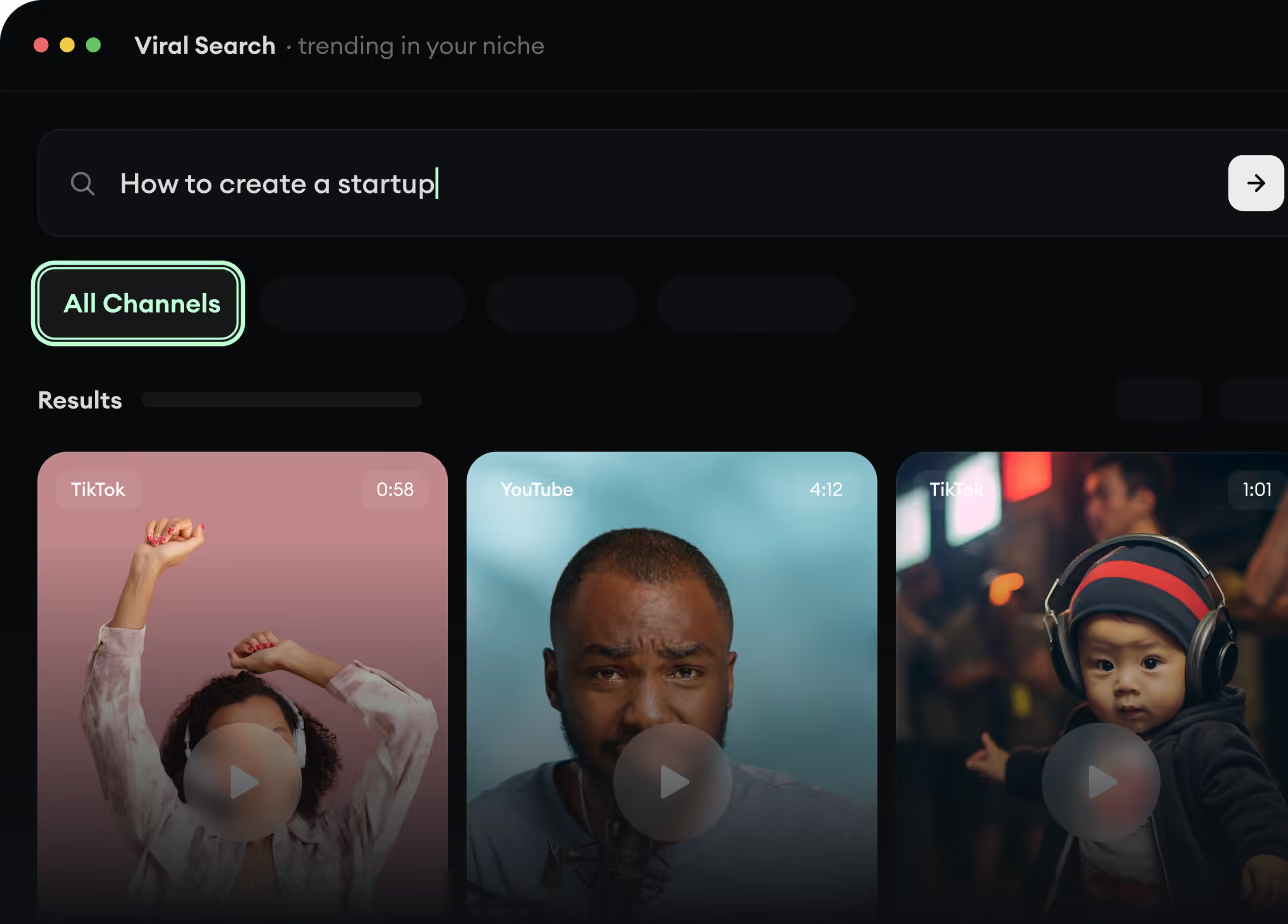
  • Discover winning video formats in your niche
  • Follow creators and channels that matter
  • Start with proven ideas instead of guessing
Find Viral & Trending Videos.
2

Turn An Idea Into A Story.

Found something worth making? Revid AI writes the script, suggests the structure, and turns links, prompts, or topics into complete video concepts.
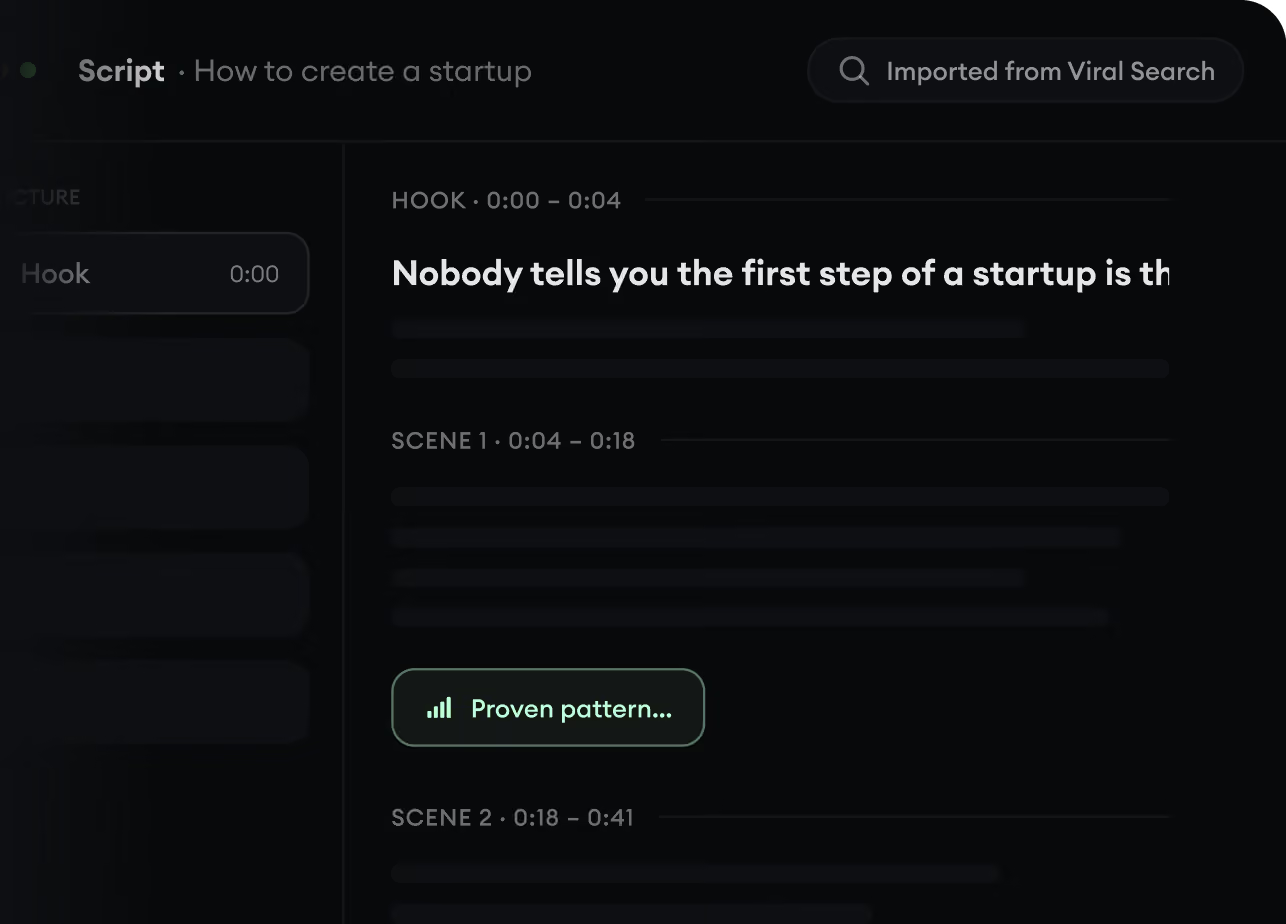
  • Start with a prompt, topic, or URL
  • Generate scripts inspired by proven patterns
  • Build stories designed to keep people watching
Turn An Idea Into A Story.
3

Generate The Finished Video.

Script, voiceover, visuals, subtitles, and editing all come together in one workflow. No stitching together five different tools.
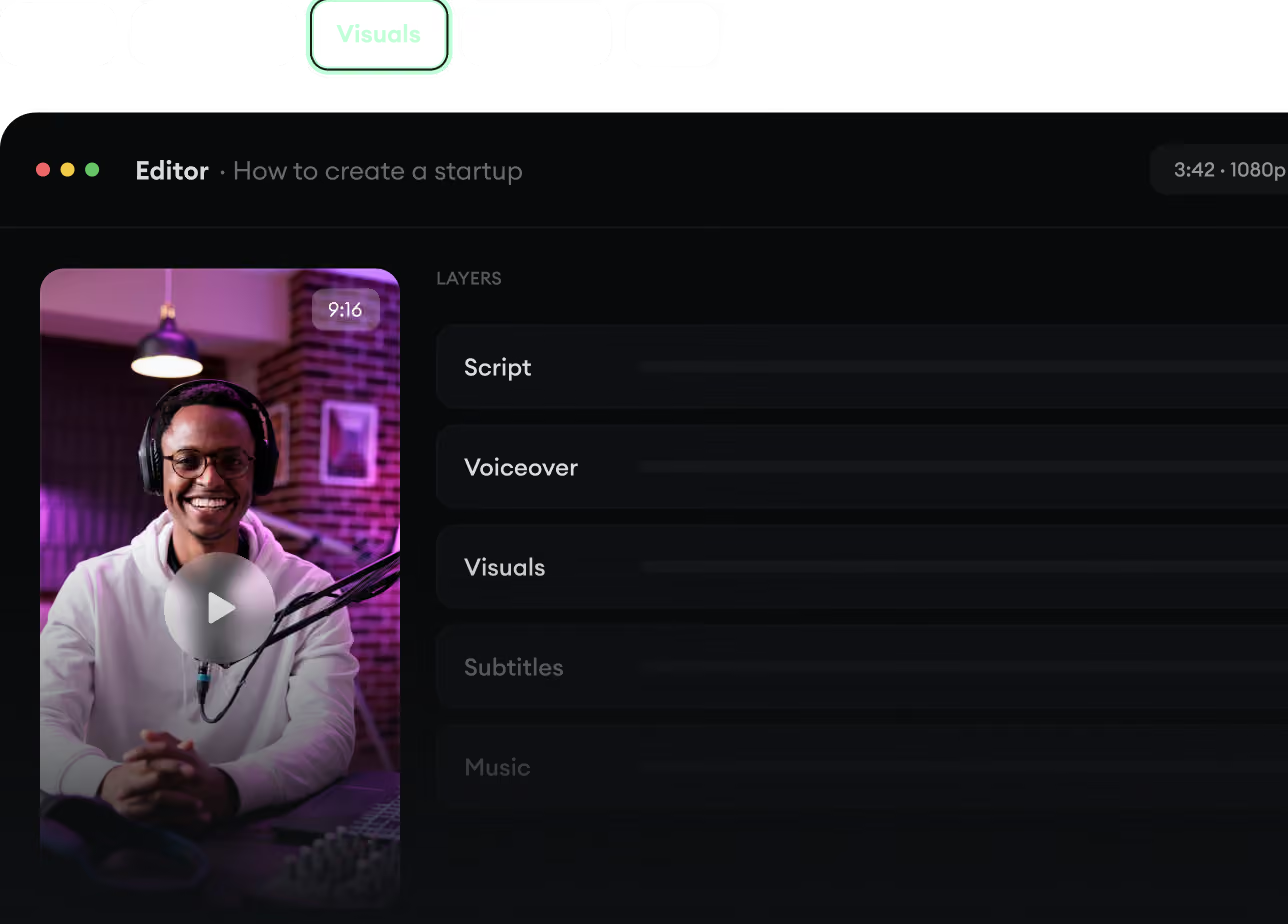
  • Turn text into complete, multi-minute videos
  • Generate everything in one place
  • Refine the result in the editor
Generate The Finished Video.
4

Publish Everywhere.

Share your videos to TikTok, YouTube, Instagram, and wherever your audience is.
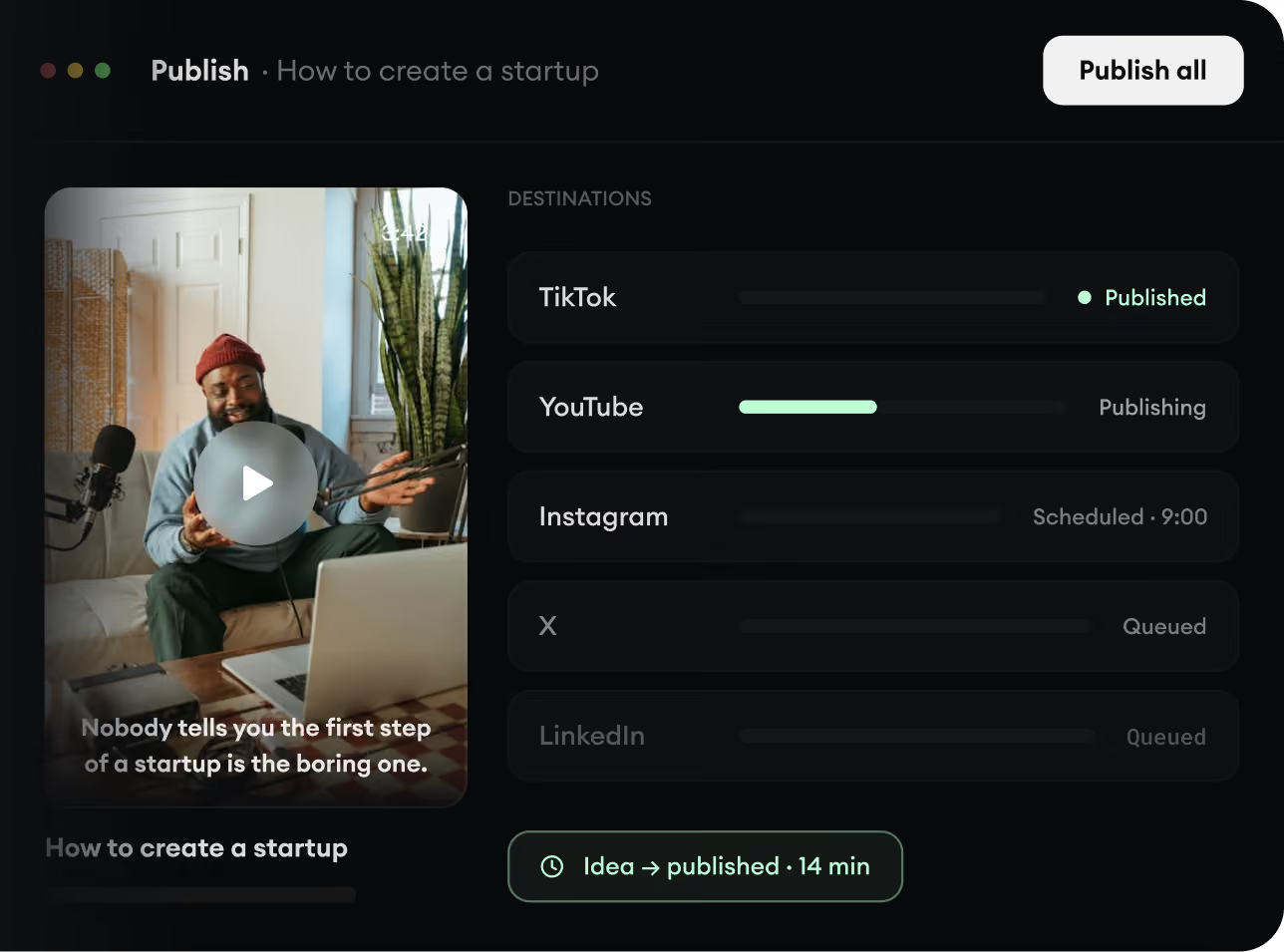
  • Publish across every major platform
  • Reach more people with less work
  • Go from idea to published video in minutes
Publish Everywhere.