Trusted by 14,000+ creators worldwide

Add Text to Video Online

Upload a video and overlay custom text at the top, center, or bottom. Pick the size and color, then fine-tune fonts and styles in the editor.

Upload a video, type your text, and download your video with a clean text overlay.

  • Custom text overlay
  • Position, size & color
  • 100+ fonts in the editor
  • No watermark editor

How to Add Text to Video Online in 3 Simple Steps

1 Upload Your Video

Start by uploading your video file (MP4, MOV, WEBM) directly from your device, or simply paste a video URL. Our online tool makes it incredibly easy to start adding text to your video in seconds.

2 Type and Customize Your Text

Enter the custom text you want to overlay on your video. Choose the perfect position (top, center, or bottom), select your preferred text size, and pick a high-contrast text color (white, black, or yellow) to make your words pop.

3 Generate and Download

Click generate to instantly put text on your video. You can download your video immediately, or open it in our no-watermark editor to choose from over 100+ fonts, animate the text, or add multiple text layers.

01

Put Your Message on Any Video

Hooks, titles, context, punchlines - text overlays make videos perform. Upload your clip, type your text, choose the position, size and color, and Revid renders it on the video instantly. The text stays sharp at any resolution because it is rendered, not burned in from a low-res preview.

02

Full Text Editing When You Need It

After the first render, open your video in the editor to change the font among 100+ options, move the text freely, animate it, or add multiple text layers with different timings. Need automatic subtitles instead? Try our AI caption generator.

FAQs

Frequently Asked Questions

How do I add text to a video online for free?
With Revid AI's video text editor, you can easily add text to a video online. Just upload your video file or paste a URL, type your custom text, select the position, size, and color, and hit generate. You'll get a high-quality video with a clean text overlay ready for download in seconds.
Can I choose exactly where to put text on my video?
Yes! When you add text to video using our quick tool, you can automatically place your text overlay at the top, center, or bottom of the screen. If you need more precise positioning, simply open the video in our full editor after generating to drag and drop the text exactly where you want it.
What video formats can I upload to add words to a video?
Our tool supports all major video formats. You can upload MP4, MOV, WEBM, and Quicktime files to add words to your video. Alternatively, you can paste a URL from existing web content, and our system will process it so you can add your custom text overlay.
How do I change the font when I add text to my video?
After generating your initial text overlay, you can open your project in the Revid AI editor. There, you'll have access to over 100+ different fonts to perfectly match your brand, aesthetic, or the specific vibe of your TikTok, YouTube Short, or Instagram Reel.
Will there be a watermark when I put text on my video?
No! When you put text on video using our tool, you can export your creation using our no-watermark editor. We believe your content should remain yours, clean, and professional for all your social media channels.
Can I add multiple text overlays to the same video?
Absolutely. While the quick tool allows you to add one main custom text overlay (perfect for a quick title or hook), you can easily add multiple text layers, change their timings, and animate them by opening your generated video in our full editing suite.
Does adding text reduce my video's quality?
Not at all. When you add text to MP4 or any other video format using Revid AI, the text is rendered natively at high resolution. It stays sharp and crisp, unlike other tools that might burn text into a low-res preview. Your final export will look highly professional.
Why should I add custom text to my social media videos?
Adding text to video is crucial for social media success. Text overlays act as scroll-stopping hooks, provide context for viewers watching on mute, deliver punchlines, and make your TikToks, Reels, and Shorts much more engaging, accessible, and likely to go viral.
Is this tool different from an auto-caption generator?
Yes. This tool is specifically designed to let you put custom text on a video, such as an intro title, a specific hook, or a call-to-action. If you want to automatically transcribe spoken words into dynamic subtitles, you should check out our AI Add Caption to Video tool instead.
View Complete Help Center

Find detailed answers to 100+ questions about features, tools, and workflows

or check our markdown version optimized for LLMs

Tools

Free AI Video Tools

Choose your tool, add your content, and create a video in seconds. Then customize it to your liking.

AI TikTok Video Generator

Turn text into trendy, viral TikTok videos in a snap

Try it out

Prompt to Video

Turn your prompts into engaging videos with AI assistance

Try it out

Add Caption to Video

Generate subtitles in 100+ languages with AI captions

Try it out

PDF to Brainrot

Convert PDFs into attention-grabbing, scrollable videos

Try it out

Text to Brainrot

Turn your text into trendy, scrollable content with dynamic visuals

Try it out

AI Talking Avatar

Create lifelike talking avatars from text in seconds

Try it out

Video Podcast Generator

Transform your podcasts into visually engaging video content

Try it out

AI Movie Maker

Create studio-quality videos from text, no filming required

Try it out

Audio to Video

Make engaging videos from your podcasts, interviews, or any audio content

Try it out

Animated Lyrics Video Generator

Turn any song into an animated lyric video with synced text and visuals.

Try it out

AI Music Video Generator

Transform your music into cinematic music videos.

Try it out

AI Lyrics Video Generator

Transform your lyrics into a complete music video with AI

Try it out
See all tools
How it works

Four simple steps to create and share your video

1
Step 1

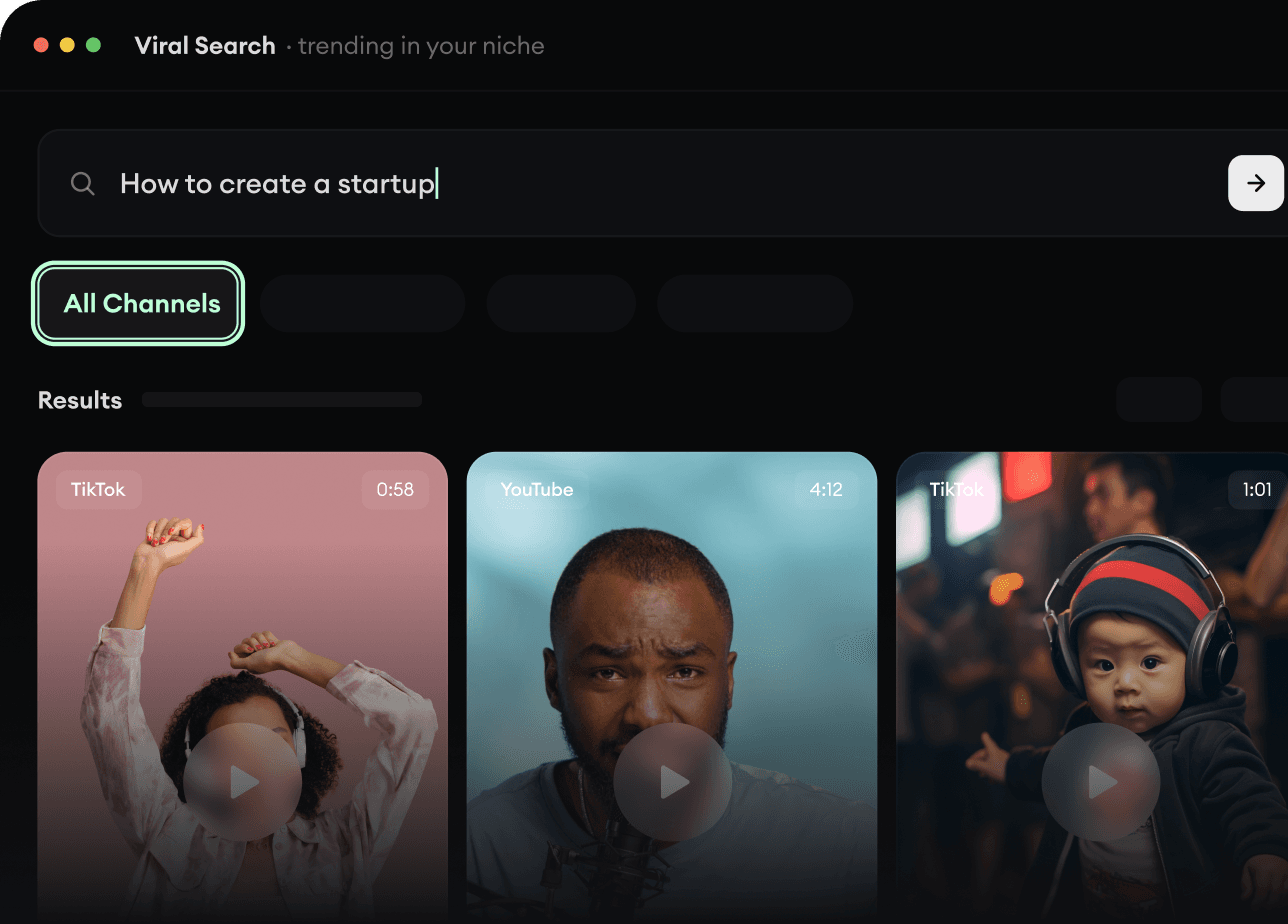
Find your next viral idea

Lacking inspiration? Our AI spots trends and helps you adapt them for your own videos, hassle-free.

  • Identify the best performing formats
  • Get inspired by top creators
  • Turn your ideas into captivating videos
Find your next viral idea
2
Step 2

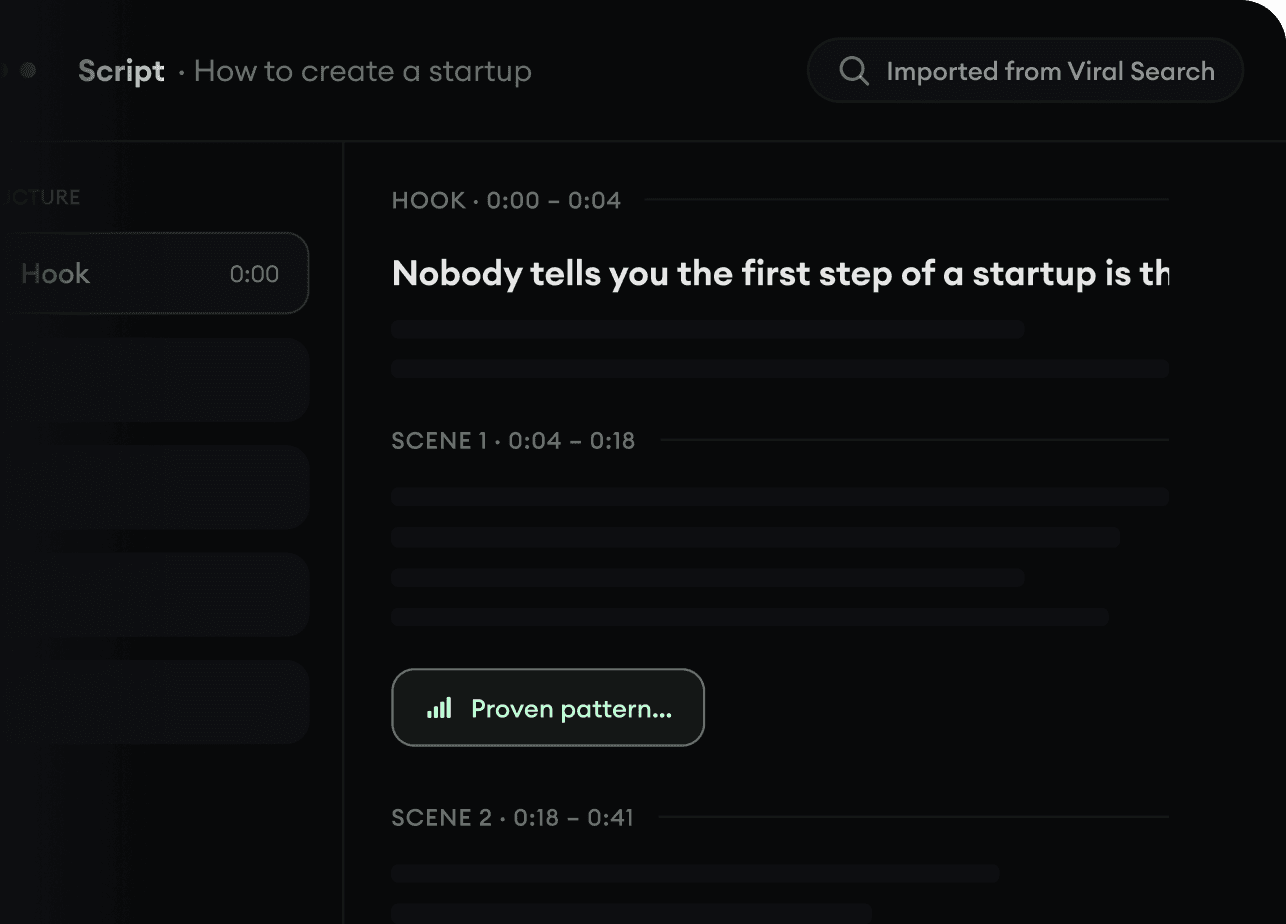
Storytelling designed to captivate

Revid.ai analyzes viral videos and uses those same codes to write your scripts.

  • Write your script or just give the topic to our AI
  • The AI will suggest relevant content to inspire you
  • Paste a link, our AI analyzes it and turns it into a video
Storytelling designed to captivate
3
Step 3

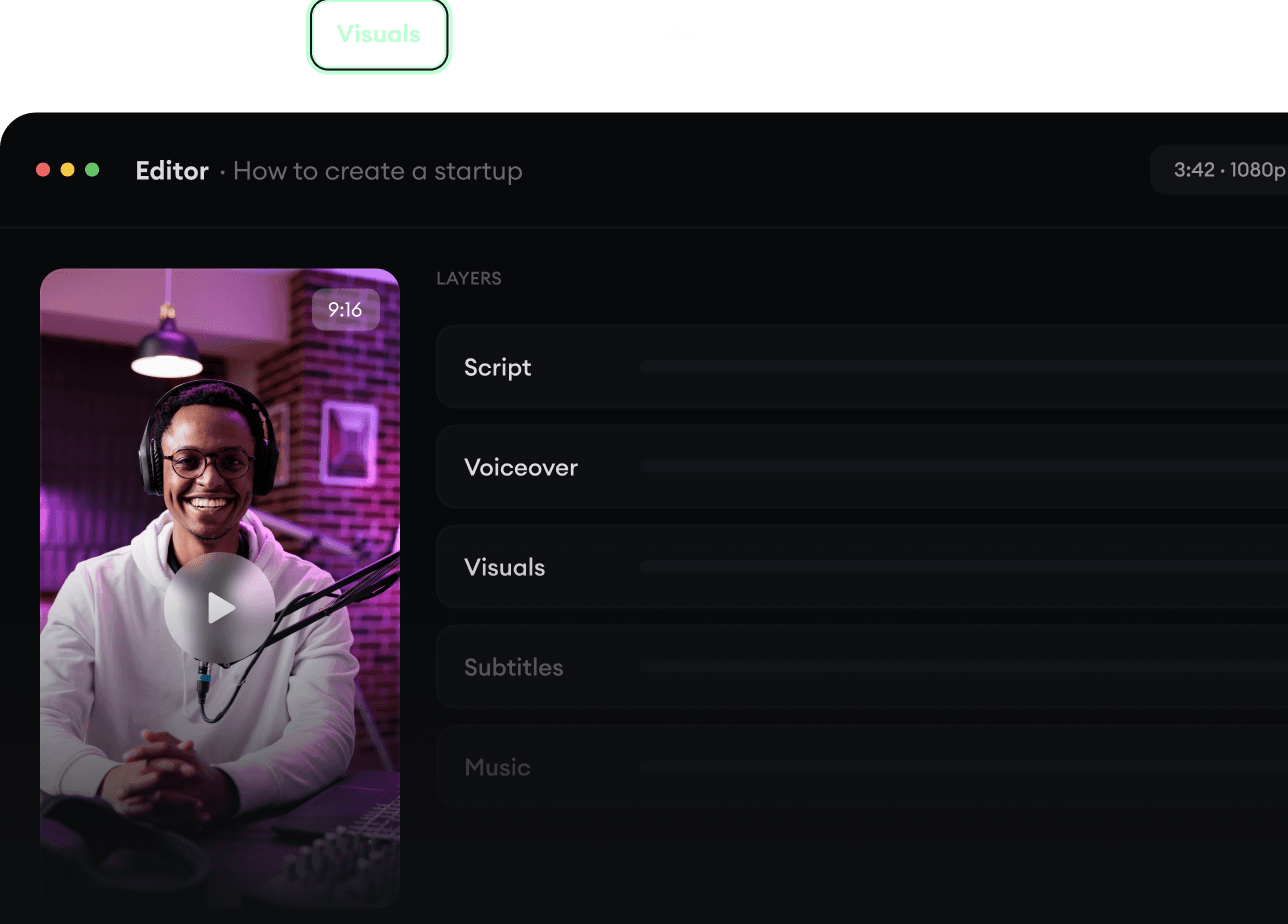
Videos you will love

Create professional videos, share them with one click, and grow your audience.

  • Watch your texts turn into professional videos
  • Automate video creation from your content
Videos you will love
4
Step 4

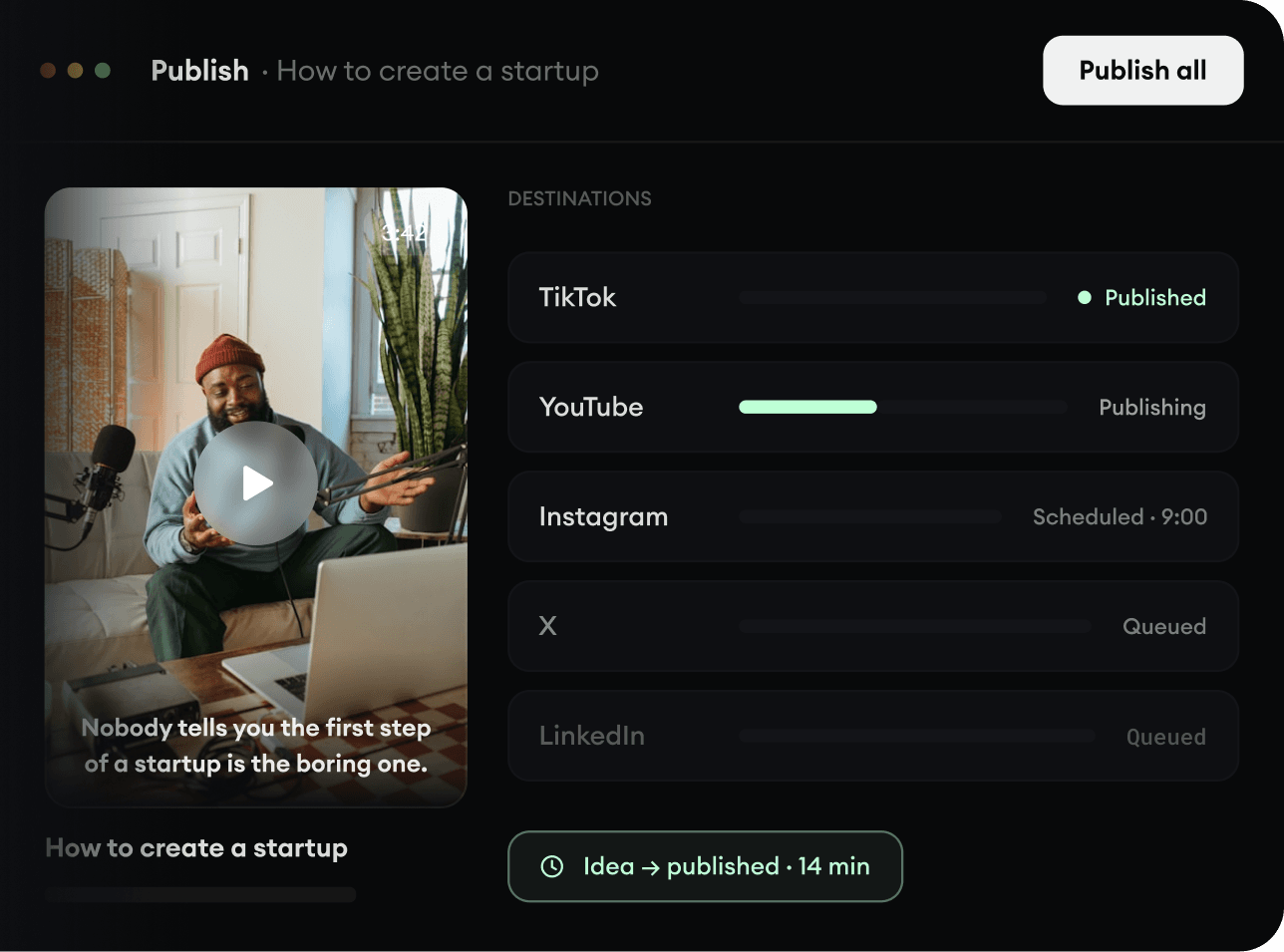
Publish on TikTok, YouTube, Instagram and more

Reach a wider audience by sharing your videos across all your networks.

Publish on TikTok, YouTube, Instagram and more
revid.ai logo

The fastest way to create captivating videos.