

RevidSign in

Free YouTube Thumbnail Tester

Preview your thumbnail and title the way viewers see them: in the YouTube home feed, search results, the suggested-videos sidebar and on a phone, in dark or light mode. Compare up to 3 designs side by side and check the size before you upload.

Drop in your thumbnail and see if it stands out next to real videos, then turn the title into the video with Revid.

Add your thumbnail

Drop your thumbnail here

or paste it with Ctrl+V / ⌘V · JPG or PNG, 16:9

No signupYour images never leave your browserUp to 3 versions
  1. Test your thumbnail (next)

    Free, right here

  2. 2

    Make the video in Revid (later)

    Your title, pre-filled

  3. 3

    Upload to YouTube (later)

or explore our 150+ other tools to create the exact video you want

Explore our tools
Example videos

From Title to Finished YouTube Video

Pick a style to preview a video made with Revid. Give it your title and it builds yours in the same look.

Your title

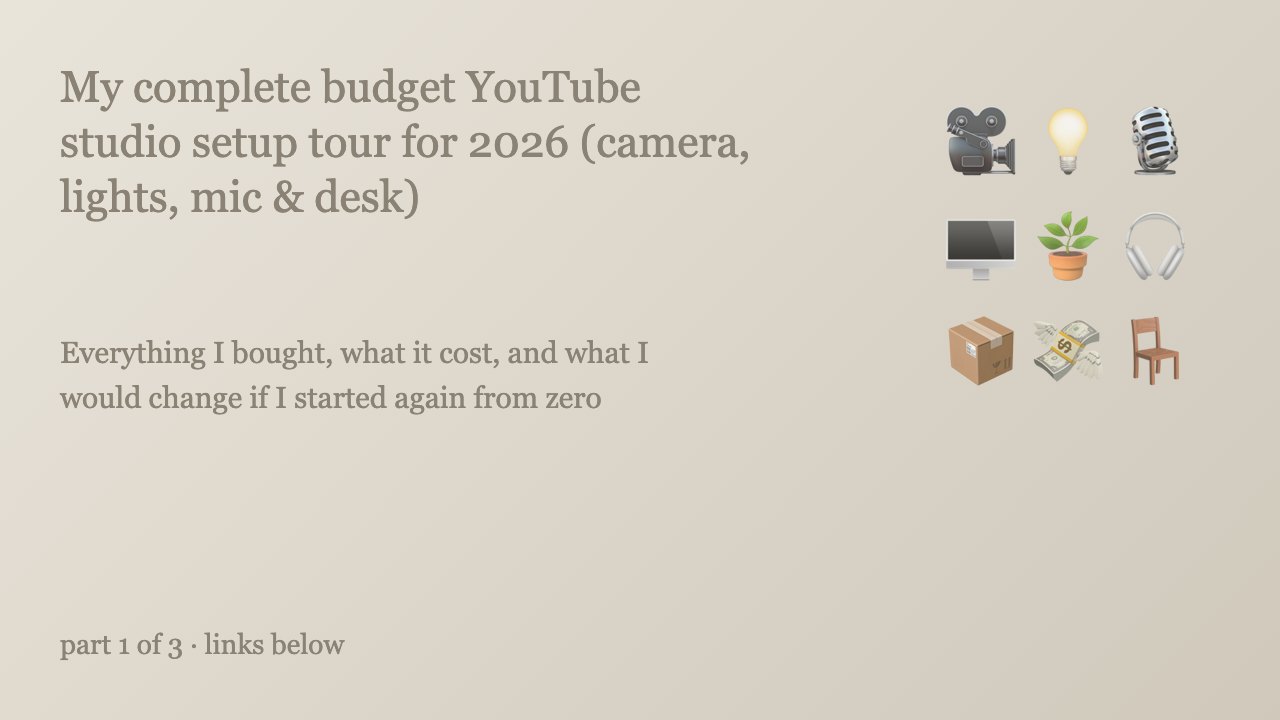
“I Built a Full YouTube Studio for $500”

Pick a style

Podcast edit. A two-camera podcast cut with zooms, captions and on-screen callouts.

Make it in this style
Podcast edit0:10

How to Test a YouTube Thumbnail in 3 Steps

  1. 1 Upload your thumbnail

    Drag your thumbnail into the box, click to pick a file, or paste a screenshot. Got a few options? Add up to 3 versions and the tester labels them A, B and C.

  2. 2 See it in the feed

    Type your title and channel name. Then flip between the home feed, search results, the suggested sidebar and mobile, in dark or light mode. Shuffle its position or add a competitor's video next to it.

  3. 3 Pick the winner, make the video

    Check the size, shape and file limits, see how it reads at phone size, and keep the version you'd click. Then open Revid with your title already filled in and turn it into the video.

Size guide

YouTube Thumbnail Size and Rules (2026)

What YouTube asks for, so your thumbnail uploads the first time and stays sharp on every screen.

YouTube custom thumbnail requirements
Recommended size3840 × 2160 px (4K)
Common size1280 × 720 px
Minimum width640 px
Aspect ratio16:9 for videos, 9:16 for Shorts
File formatsJPG or PNG
Max file size2 MB in the mobile app, 50 MB on a computer

Source: YouTube Help, “Add video thumbnails” (checked November 2026).

Check your thumbnail’s size

Use cases

What You Can Do With a Thumbnail Tester

Pick one to see how it works.

A Thumbnail Tester That Shows the Real Feed

A thumbnail never shows up alone. It sits in a grid of other videos, a list of search results or a narrow sidebar, often on a phone. This tester puts yours next to real popular uploads so you can judge it the way a viewer does: in a second, at a small size, surrounded by competition.

Test your thumbnail
Yours

Does yours stand out in a second?

Comparison

Revid Thumbnail Tester vs. YouTube's Test & Compare

YouTube's Test & Compare runs on a published video and measures real viewers. This tester shows you how a thumbnail looks before anyone sees it. Use both.

What you getTest & CompareRevid
Preview before you publish
See it in home, search, sidebar and mobile
Check dark and light mode
Compare up to 3 thumbnails
Works without a channel or a live video
Measures real viewers' watch time
Turn the title into a video with AI
More Tools

Explore Similar AI Video Tools

Discover more ways to turn videos and text into engaging content with our AI-powered tools

FAQs

Frequently Asked Questions

How do I test my YouTube thumbnail before publishing?

Upload your thumbnail at the top of this page and type your title. The tester shows it in a YouTube-style home feed, search results, the suggested sidebar and a phone, next to real popular videos. Switch to dark or light mode and shuffle its position to see if it still stands out.

Is this thumbnail tester free?

Yes. It's free with no signup. Everything runs in your browser, so there's nothing to pay for.

Do you upload or store my thumbnails?

No. Your images never leave your browser. They're read on your device to draw the previews and are gone when you close the tab.

What size should a YouTube thumbnail be?

YouTube recommends 3840 × 2160 pixels for videos, with a minimum width of 640 pixels, in a 16:9 shape. 1280 × 720 is the common size most creators export at and still looks sharp. Shorts use 9:16.

What is the maximum file size for a YouTube thumbnail?

It depends on the device you upload from: 2 MB in the YouTube mobile app and 50 MB on a computer. Keep it as a JPG or PNG under 2 MB and it uploads from anywhere.

Can I A/B test YouTube thumbnails?

Yes. Add up to 3 versions here and compare them side by side or swap them in the feed before you publish. After the video is live, YouTube Studio's Test & Compare can test up to 3 thumbnails with real viewers and picks a winner by watch time.

Why does my thumbnail look different on mobile?

On a phone and in the sidebar, thumbnails are shown much smaller, often around 168 pixels wide, so small text and busy details blur together. Use the Mobile and Sidebar tabs and the tiny-size view in the checks to make sure it still reads.

Where do the other videos in the feed come from?

They're real public YouTube videos from popular channels, with view counts as of November 2026. You can also paste the link of a competitor's video to place it right next to yours.

Does the duration badge cover part of my thumbnail?

Yes. YouTube puts the video length in the bottom-right corner, over your image. Keep important text and faces out of that corner. The checks panel shows exactly where it sits.

Can I turn my title into a video?

Yes. Press Make this video under the preview. Revid opens with your title already filled in and drafts the video with a script, voice-over, visuals and captions that you can edit before you post it.

Still have questions?

Contact us

Find detailed answers to 100+ questions about features, tools, and workflows

or check our markdown version optimized for LLMs
Tools

Free AI Video Tools

Choose your tool, add your content, and create a video in seconds. Then customize it to your liking.

See all tools
  • AI YouTube Shorts Generator

    Turn an idea into a ready-to-post YouTube Short.

    Try it out
  • Prompt to Video

    Describe a video in a sentence and Revid makes it.

    Try it out
  • YouTube Clip Maker

    Cut a long YouTube video into short, shareable clips.

    Try it out
  • YouTube Transcript Generator

    Get the full transcript of any YouTube video.

    Try it out
  • YouTube Video Summarizer

    Get the key points of a long video in seconds.

    Try it out
  • Script to Video

    Paste a script and get a finished video with voice-over.

    Try it out
How it works

From Signal To Published In Four Steps.

1

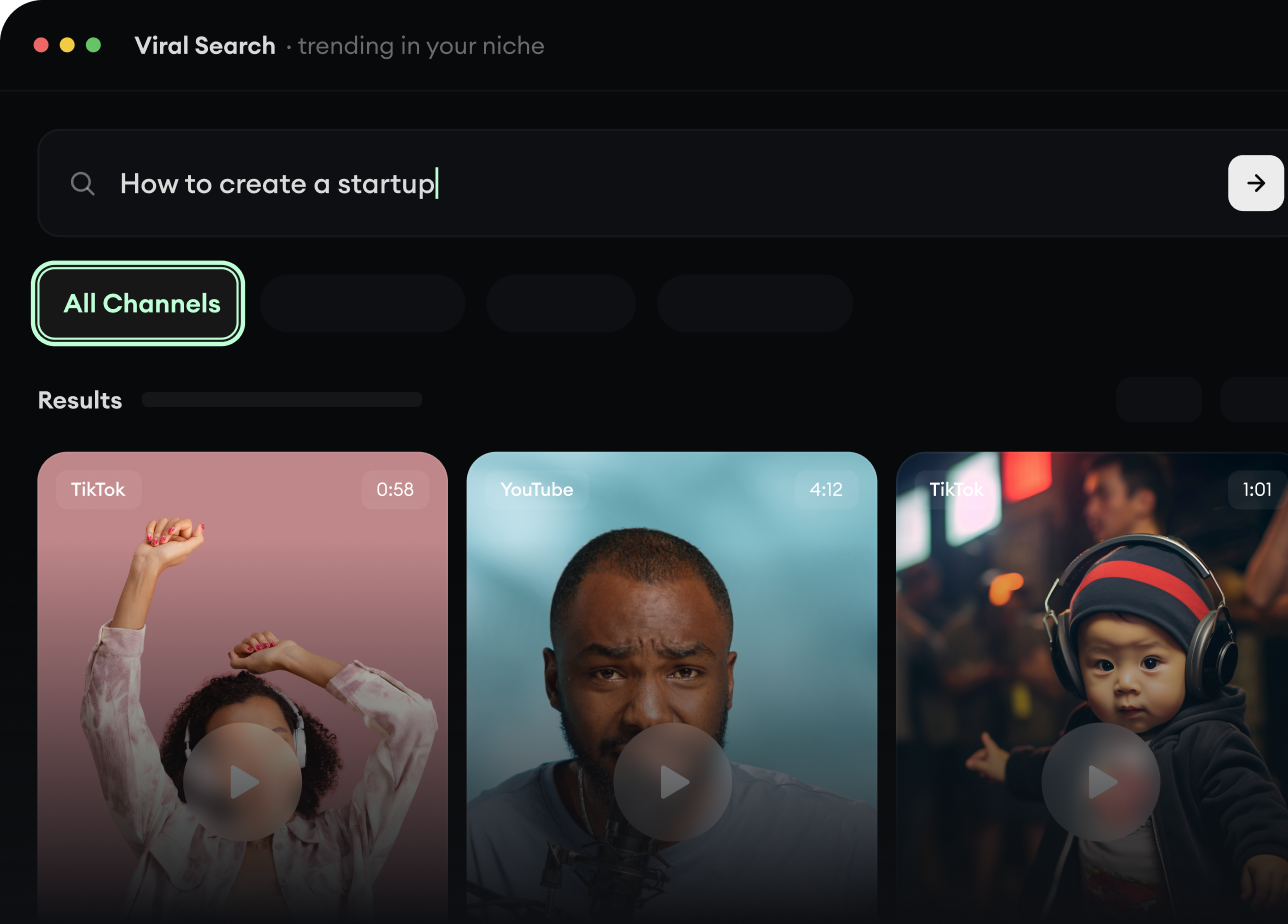
Find Viral & Trending Videos.

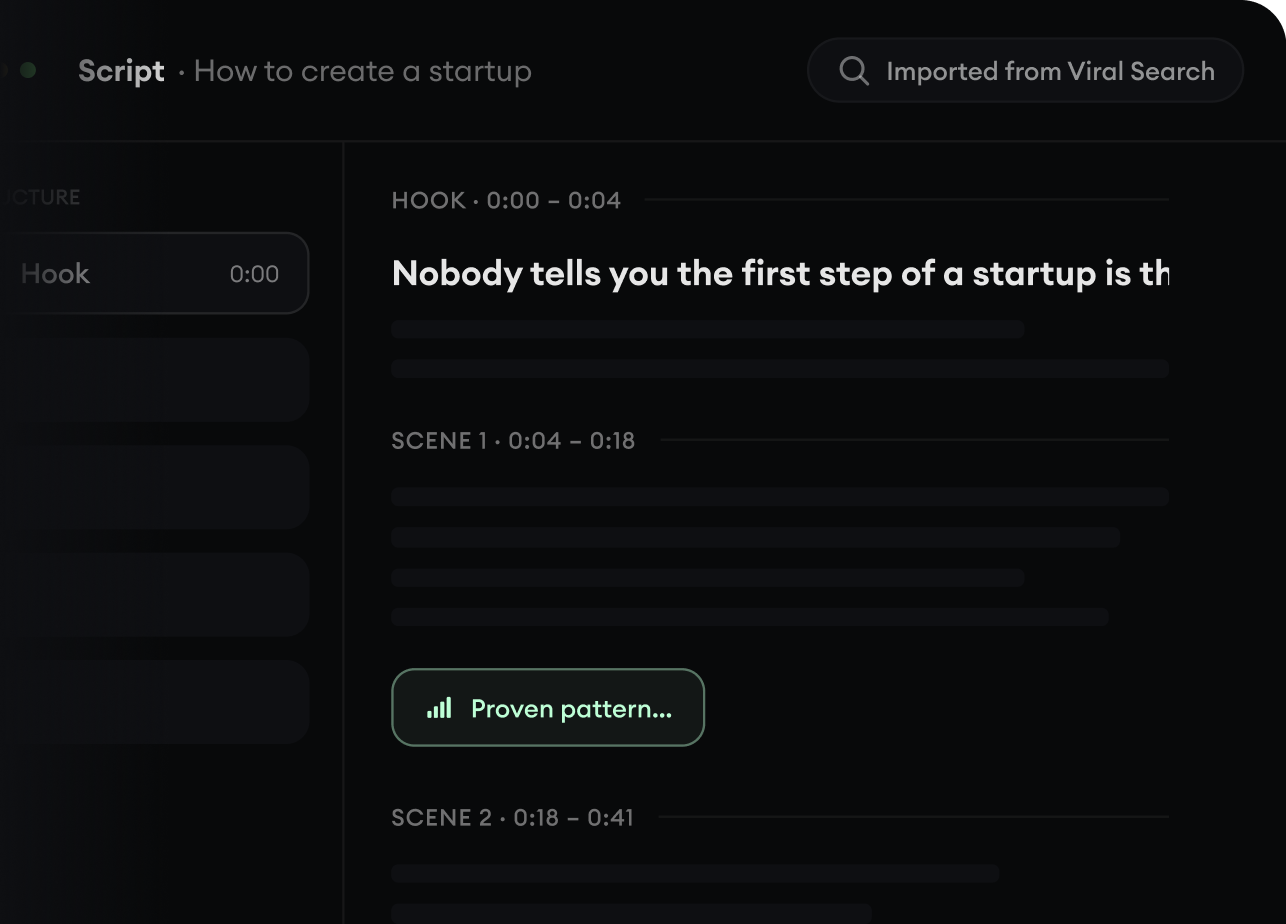
RevidAI's Viral Search and Channel Watcher surface the formats, creators, and trends getting attention right now, then help you turn them into ideas of your own.

  • Discover winning video formats in your niche
  • Follow creators and channels that matter
  • Start with proven ideas instead of guessing
Find Viral & Trending Videos.
2

Turn An Idea Into A Story.

Found something worth making? Revid AI writes the script, suggests the structure, and turns links, prompts, or topics into complete video concepts.

  • Start with a prompt, topic, or URL
  • Generate scripts inspired by proven patterns
  • Build stories designed to keep people watching
Turn An Idea Into A Story.
3

Generate The Finished Video.

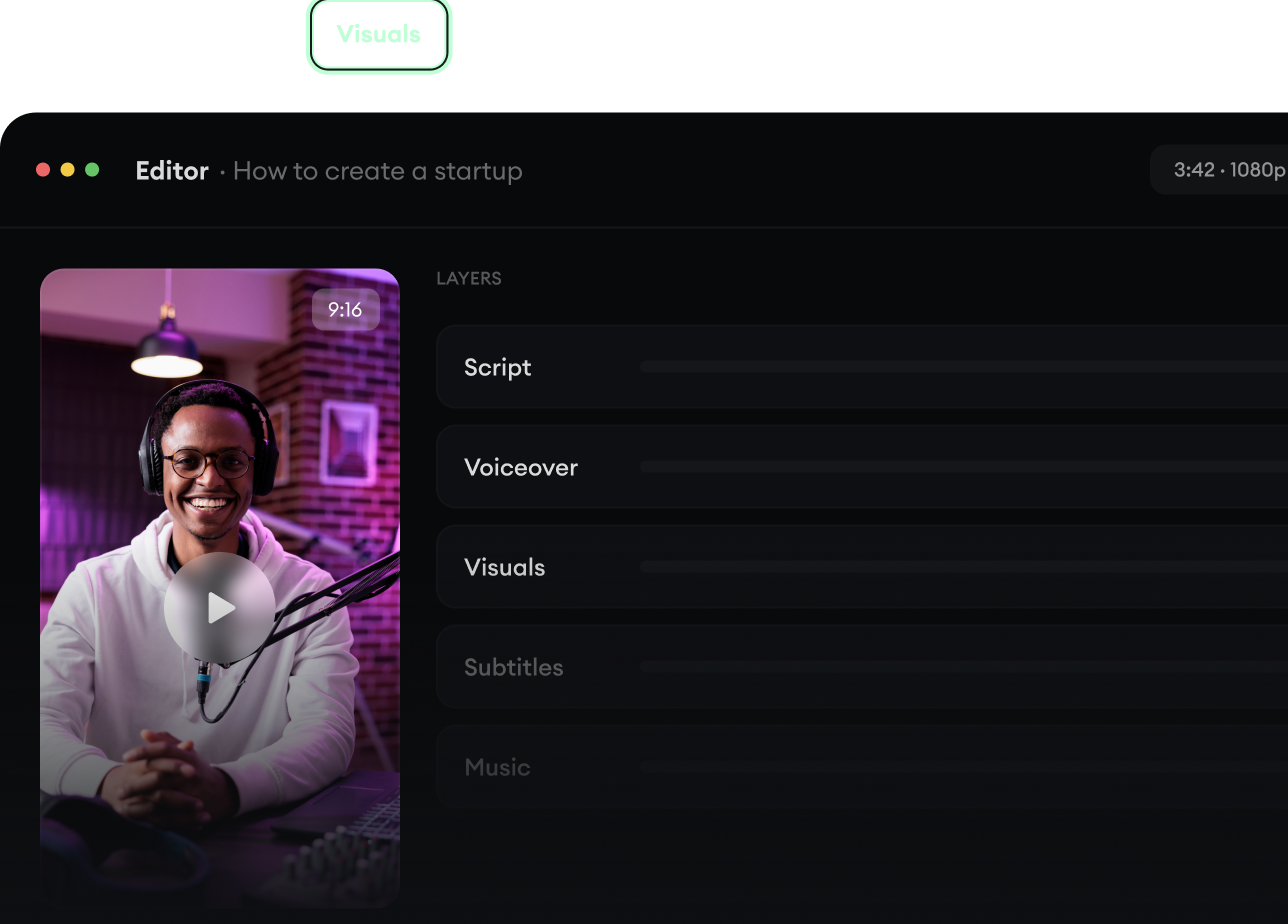
Script, voiceover, visuals, subtitles, and editing all come together in one workflow. No stitching together five different tools.

  • Turn text into complete, multi-minute videos
  • Generate everything in one place
  • Refine the result in the editor
Generate The Finished Video.
4

Publish Everywhere.

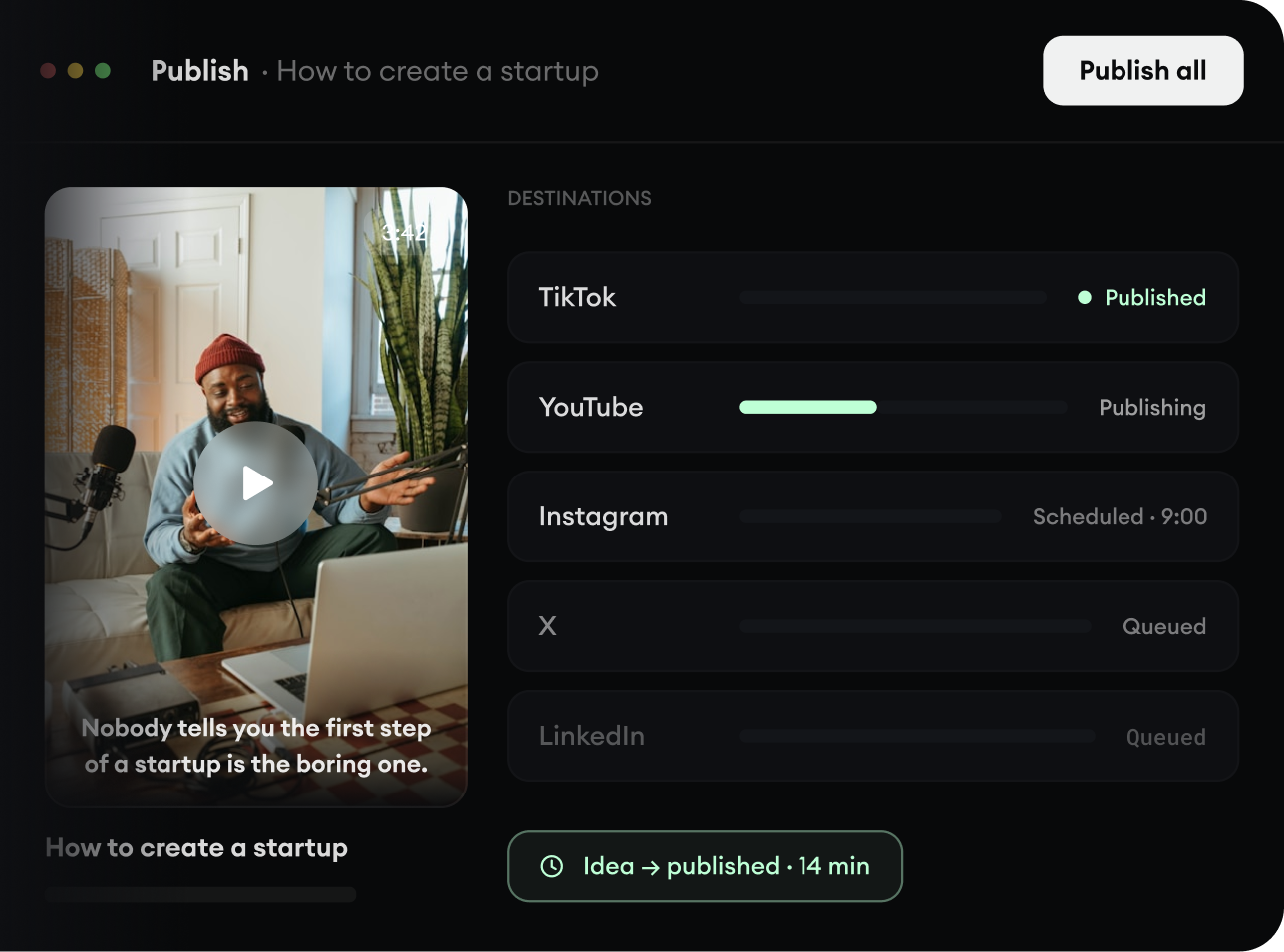
Share your videos to TikTok, YouTube, Instagram, and wherever your audience is.

  • Publish across every major platform
  • Reach more people with less work
  • Go from idea to published video in minutes
Publish Everywhere.