
Photos to music video
How to make a music video from your photos
Add your song to Revid's music video tool, choose Your own media, upload your photos in order, and Revid times them to the beat or the lyrics. Steps, photo counts, costs.
About this video
6
2:12
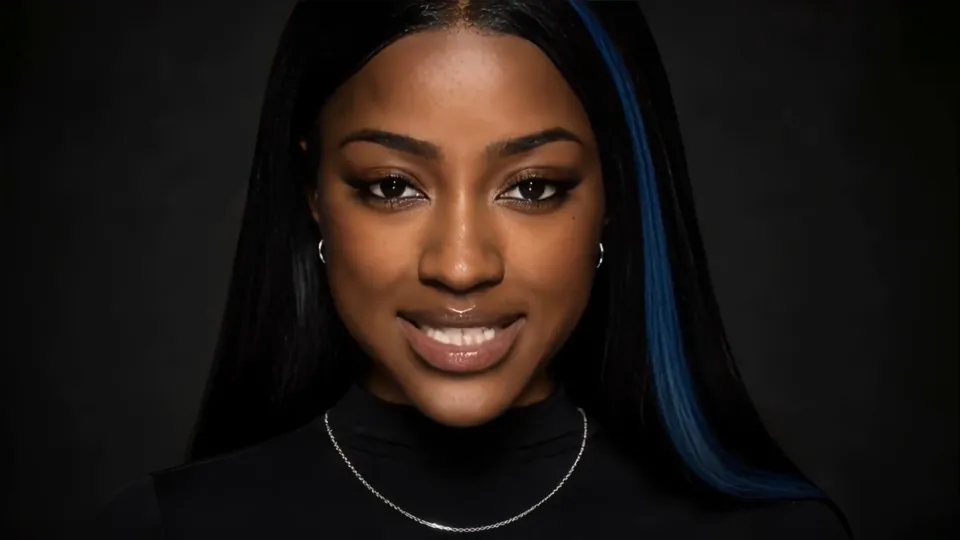
Cold Open: six uploaded photos of one artist, used as references for an AI music video on Ultra, with a saved character and singer lip sync on about two thirds of it. That is the second way to use your photos (step 6); steps 1 to 5 put the photos themselves on screen.
Watch it on RevidWhat you will make
- A music video of your song built from your own photos, in the order you chose
- Photo changes on the beat, or on the lines of the lyrics with the words on screen
- Still photos with camera moves, or photos animated into AI video clips
- The format for where it goes: 9:16 for TikTok, Reels and Shorts, 16:9 for YouTube, 1:1 or 4:5 for feeds
- Every scene editable afterwards: swap a photo, fix a word, move a cut
What you need
- The finished song: an MP3 or WAV file, or a Suno link
- Your photos (PNG, JPG, WebP or HEIC), ideally already in the shape of the video
- A Revid account. Still photos use no AI generation credits; animating them costs 15 to 100 credits a photo
- A paid plan to animate photos and to export from the editor (Growth: $39 a month for 2,000 credits)
Tools used
The recipe
7 steps, in the order they happened
- 1
Step 1
Choose the photos, and how many the song needs
About one photo for every 3 to 5 seconds of music, in story order, in the shape of the video.
Start from the song, not from the photo folder: its length and tempo decide how many pictures it can carry. A good starting point is one photo for every 3 to 5 seconds of the part you use: 6 to 10 photos for a 30 second chorus, 36 to 60 for a 3 minute song. Fewer photos stay on screen longer, which suits a ballad; more suit a fast track.
With Use provided media in order (step 3), Revid gives each photo one section of the song, in upload order. Upload fewer photos than the song has sections and neighbouring sections are grouped, so each photo covers more of the song; upload more and the extra photos are left out. Count your photos against the song before you upload.
- Open on your strongest picture: it is the first second people see.
- Order the rest as a story: where, who, the build, then your best photos for the chorus or the drop.
- Keep one shape. Photos in the video's own shape (portrait for 9:16, landscape for 16:9) need no reframing; mixed shapes are what looks off.
Read the tempo first
The free BPM finder gives your song's tempo. At 120 BPM a bar of four beats lasts 2 seconds, so a photo every 2 bars changes every 4 seconds.
- 2
Step 2
Add the song and pick the format
Upload the track or paste its Suno link, choose 9:16, 16:9, 1:1 or 4:5, and trim it if a cut works better.
Open the AI music video generator. Upload your MP3 or WAV with Upload a File, or paste a Suno link with Paste a link: the recording itself is the soundtrack. Choose the format for where it will be posted: 9:16 for TikTok, Reels and Shorts, 16:9 for YouTube, 1:1 or 4:5 for a feed post.
To use only part of the song, select it before you generate: on an uploaded file, drag the green region on its waveform; on a link, choose Excerpt under Song segment. The selection must be at least 10 seconds. A 30 second chorus is the usual length for a vertical post, and it needs a sixth of the photos of a 3 minute song.
- 3
Step 3
Choose Your own media and upload the photos in order
Your own media, Import Medias, then two switches: Use only provided media and Use provided media in order.
Under Choose media type, pick Your own media (the other tiles are AI video, Animated AI images and Stock videos). An Import Medias section opens: drop your photos on Drop custom images or videos, or click to browse. It takes PNG, JPG, WebP and HEIC photos, plus MP4, WebM or MOV clips if you want to mix in video, up to 40 files per drop. The tiles are numbered: drag them into the order you planned.
- Use only provided media: turn it on. Left off, Revid also fills scenes with stock videos.
- Use provided media in order: turn it on to keep your order, one photo per section of the song. Left off, Revid picks the best of your uploads for each scene and can use one twice.
- Fit media to project ratio (paid plans): reframes photos that are not in the video's shape. It is a generative step that can redraw fine details such as text on a sign, so leave it off when your photos already fit.
Video clips play silent
If you mix in video clips, their own sound is muted under the song. Photos mixed with clips move with a Ken Burns effect.
- 4
Step 4
Keep the photos still, or animate them
Still photos get camera moves and use no generation credits. Turn images into videos animates each one into an AI clip.
Left as they are, your photos appear exactly as uploaded, with camera moves such as a slow push-in planned across the sequence. Revid generates nothing, so there is no AI generation charge for them. It is the right choice for family photos, a wedding, or any picture where a face must stay exactly as it is.
Turn images into videos (paid plans) animates each photo into an AI video clip. It brings the stills to life, and the switch itself warns that AI animation may alter some details of your image. It is billed per photo like a 5 second AI clip: 15 credits on Low, 50 on Pro, 100 on Ultra. With your own media the tool hides the tier picker and uses the tier the form holds, Pro unless you picked another one earlier: 40 animated photos at Pro are 2,000 credits, a whole month of the Growth plan.
Animate only the photos that matter
For a few moving shots in a video of stills, leave the switch off and animate the key photos one by one in Single media: upload the photo as the start frame, pick the tier and the length, then swap the clip in with Replace in the editor (step 7).
- 5
Step 5
Time it to the beat or to the lyrics, and set the captions
Beats for instrumentals and photo montages, Lyrics to change photos on the lines and show the words.
Sync with lyrics or beats decides when the photo changes. Beats cuts on the rhythm of the track and writes no lyrics: the choice for an instrumental, or for a montage on a strong beat. Lyrics transcribes the vocal and changes photos on the lines, with the words as captions, which suits a song whose words tell the story.
- Captions: on with Lyrics. Turn them off in Advanced options > Captions > Disable Captions, or pick a caption style there.
- Add sound wave is on by default and adds a sound wave to the video: turn it off for a clean photo video.
- Singer lip sync is not available with your own media. It needs AI video, where a generated singer performs the vocal (step 6).
Read the words before you export
Lyric captions depend on how well the vocal is transcribed. A dense mix or an unusual pronunciation can put wrong words on screen: read them in the editor and fix names and slang.
- 6
Step 6
Or use your photos as the cast of an AI music video
Add the photos as references in Video concept and let AI video stage new scenes with that face, singing included.
If what you want is you, or your artist, in the music video rather than your photos on screen, choose AI video and add the photos as references: click + in the Video concept field ("Add reference images or videos for this music video") and add up to 12. With an AI media type, uploads are not placed in the video: they are references the scenes are written and generated from. This route keeps the style picker, the Visual direction for the whole video field and singer lip sync, which Your own media does not offer.
The video at the top of this page was made this way. Cold Open uploaded six photos of one artist, added a saved character, and asked in its video concept to keep her identical to the supplied images. It runs in Ultra realism on Ultra, with singer lip sync on about two thirds of the video and captions off:
Cold Open: video concept (excerpt)VEX RAE arrives in South London at night, moving through a wet underground car park, recording studio, stark lift and quiet streets. She performs directly to camera with cold, controlled aggression and minimal movement. Keep her identical to the supplied images: Black British woman, long straight jet-black hair, one ice-blue streak on her left side, black tailored streetwear, silver jewellery and no smile. Start slow and composed, then cut faster as the beat intensifies.AI video is billed on the length of the song: 15 credits per 5 seconds on Low, 50 on Pro, 100 on Ultra, so a 3 minute song is 540, 1,800 or 3,600 credits. Cold Open's 2:12 on Ultra comes to about 2,640 credits. AI video needs a paid plan.
Only photos you may use
Use photos of yourself, or of people who agreed to appear in the video.
- 7
Step 7
Fix it in the editor and export, or go free with one image
Swap a photo with Replace, check the cuts and the words, export the MP4. Just one image and the song: MP3 to MP4, free.
The video opens in the Revid editor. Watch it with the song. To swap a photo, select it and click Replace: the media library opens in Replacing this picture mode, and Upload puts a new file in the same place and size. Fix the lyric captions, or turn on Hide captions in the captions panel. Then click Export, pick 720p, 1080p or 4k (4k costs 10 credits) and press Export. Exporting needs a paid plan; you can also publish or schedule the video to TikTok, YouTube and Instagram from Revid.
If all you need is the song with one picture (the cover art, a band photo, a single still), the free MP3 to MP4 converter does it instead: drop the song, add the image under Background, choose 16:9, 9:16 or 1:1 and Still image, Waveform or Bars, then press Convert to MP4. It runs in your browser with no signup and no watermark, and the video lasts the whole song.
Frequently asked questions
How many photos do I need for a music video?
About one for every 3 to 5 seconds of music: 6 to 10 for a 30 second chorus, 36 to 60 for a 3 minute song. With Use provided media in order, photos beyond the number of sections in the song are left out, and too few photos simply stay on screen longer.
Can I make a video with pictures and music for free?
With one picture, yes: the MP3 to MP4 converter turns a song and an image into an MP4 in your browser, free and without signup. Revid's music video tool places your photos without any AI generation charge, but exporting from the editor needs a paid plan.
Will Revid change my photos?
Not unless you ask it to. Still photos are shown exactly as uploaded, with camera moves. Two switches are generative and can alter details: Fit media to project ratio, which reframes photos to the video's shape, and Turn images into videos, which animates them.
Can I mix photos and video clips?
Yes. Import Medias takes MP4, WebM and MOV clips next to your photos. The clips' own sound is muted under the song.
Can the person in my photos sing the song?
Not with the photos placed on screen: singer lip sync needs AI video. Add the photos as references in Video concept, choose AI video and Lyrics, and turn on Enable Singer Lip Sync (step 6).
The same video from an agent or the API
Revid's API and MCP server make this exact photo music video from code, with the same settings as the steps above.
From an agent or the API, the same video is the music-to-video workflow with media.type set to custom (the render_video tool of the Revid MCP server takes the same settings):
curl -X POST https://www.revid.ai/api/public/v3/render \
  -H "key: $REVID_API_KEY" -H "Content-Type: application/json" \
  -d '{
    "workflow": "music-to-video",
    "source": { "url": "https://example.com/my-song.mp3" },
    "media": {
      "type": "custom",
      "provided": [
        { "url": "https://example.com/photo-01.jpg", "type": "image" },
        { "url": "https://example.com/photo-02.jpg", "type": "image" }
      ],
      "useProvidedInOrder": true,
      "turnImagesIntoVideos": false
    },
    "music": { "syncWith": "beats", "soundWave": false },
    "aspectRatio": "9:16"
  }'
Send the same body to /api/public/v3/calculate-credits first for an estimate, without generating anything. A render call costs 10 credits on top of the generation.
Ready to make yours?
Same tools, same recipe. Start with the tool this tutorial uses, or install the CLI and let an agent do the clicking.